


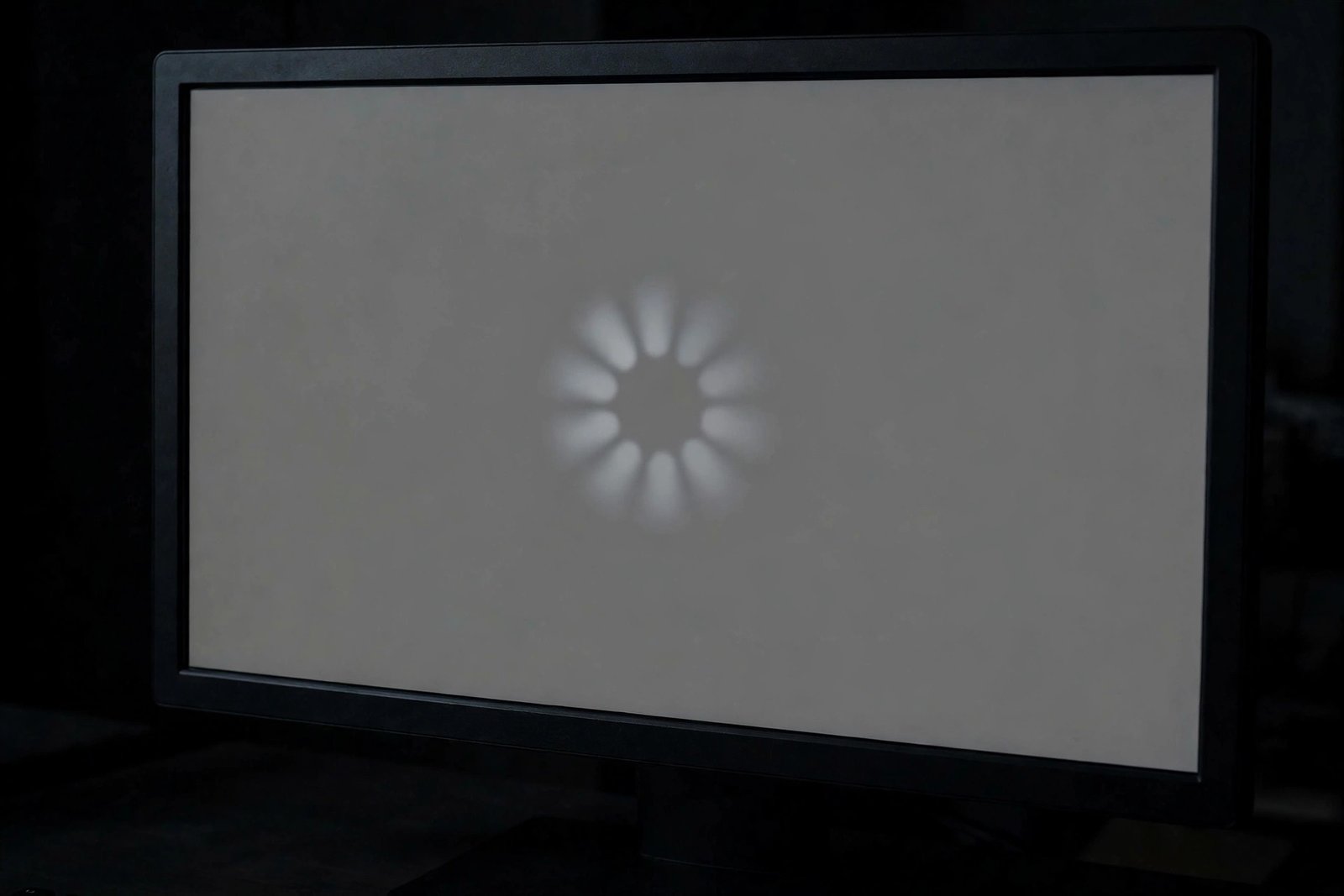
You click Edit with Elementor and wait. The screen turns grey. The loader spins. And spins. Nothing else happens. elementor editor not loading is one of the most common Elementor problems on WordPress. The good news is that it is rarely serious. Your pages and content are almost always safe. The editor is a heavy web app that loads dozens of scripts and talks to your server through a file called admin-ajax. When any single part of that chain breaks, the canvas stays blank.
This guide walks you through 9 fixes in order, from the simplest to the most thorough. Most people are editing again by Fix 3. Work through them one at a time and test the editor after each one.
- Quick Checks — Do These First
- Diagnose Table: Symptom, Cause and Fix
- 1. Hard Refresh, Clear the Browser Cache and Try Another Browser
- 2. Enable Elementor Safe Mode to Fix elementor editor not loading Caused by Conflicts
- 3. Deactivate Other Plugins One by One
- 4. Switch to a Default WordPress Theme Briefly
- 5. Increase the PHP Memory Limit and Max Execution Time
- 6. Check Your PHP Version Compatibility
- 7. Disable Rocket Loader and Cloudflare Optimisations
- 8. Check for Mixed Content, SSL Issues and .htaccess Rules Blocking admin-ajax
- 9. Reinstall Elementor Cleanly
- What to Avoid
- FAQ
- Conclusion
Quick Checks
Run through these in one minute before you touch any settings.
- Does wp-admin work normally? If your dashboard is also broken or slow, the problem is site-wide, not Elementor-specific.
- Is it one page or every page? One broken page points to corrupt data on that page. Every page points to a plugin, theme or server issue.
- What changed just before it broke? A plugin update, theme update or hosting change is the usual trigger. Undo it first.
- Is your connection stable? The editor keeps a live link to your server. A dropping connection stalls the loader.
- Are you logged in as an administrator? Some security plugins block editor access for lower user roles.
- Check Elementor > System Info. Red warnings about memory, PHP version or conflicts appear here first.
Diagnose Table
| Symptom | Likely cause | Go to fix |
|---|---|---|
| Grey screen with an endless spinner | Stale browser cache or a broken script | Fix 1, Fix 2 |
| “Preview could not be loaded” message | CDN, SSL or server response problem | Fix 7, Fix 8 |
| Editor broke right after an update | Plugin or theme update conflict | Fix 3, Fix 4 |
| Editor slows down, then stops loading | Low PHP memory or an old PHP version | Fix 5, Fix 6 |
| Editor loads in Safe Mode but not normally | Confirmed theme or plugin conflict | Fix 3 |
| Editor blank on the live site only | Cloudflare or a caching layer in front of it | Fix 7 |
1. Hard Refresh, Clear the Browser Cache and Try Another Browser
Your browser stores old copies of Elementor’s JavaScript files. After an Elementor update, the editor may try to mix old cached scripts with new ones. The result is the grey screen of death. A hard refresh is the fastest possible fix, so always start here.
- Hard refresh the editor page. Press Ctrl + Shift + R on Windows or Cmd + Shift + R on Mac while the editor tab is open.
- Clear the cache for your site. In Chrome, open Settings > Privacy and security > Delete browsing data, and clear cached images and files.
- Try an incognito or private window. This loads the editor with no extensions and a clean cache. If it works there, your normal profile is the problem.
- Try a completely different browser. If Chrome fails, test Firefox or Edge. This rules out a browser-specific issue in seconds.
- Update your browser. An old browser may not support the JavaScript the current Elementor version needs.
- Disable browser extensions briefly. Ad blockers and script blockers can stop the editor’s scripts from running. Turn them off and retest.
If pages refuse to load in Chrome at all, the browser itself may need attention — our Chrome pages not loading guide covers that side of the problem.
2. Enable Elementor Safe Mode to Fix elementor editor not loading Caused by Conflicts
Safe Mode is Elementor’s built-in diagnostic tool. It loads the editor with the theme and other plugins disabled, but without changing anything on your live site. If the editor works in Safe Mode, you have proven the cause is a theme or plugin conflict.

- Go to Elementor > Tools in your WordPress dashboard. Click the General tab.
- Find the Safe Mode option and click Enable. Then click Save Changes.
- Open the editor again. If it loads now, a theme or plugin conflict is confirmed. Move to Fix 3.
- Turn Safe Mode off when you are done. Go back to Elementor > Tools > General and disable it.
Safe Mode only affects your own editing session. Visitors see your site exactly as normal. If Safe Mode does not solve the problem either, Elementor’s official troubleshooting guide for when Safe Mode does not solve the problem covers the next steps.
3. Deactivate Other Plugins One by One
Caching plugins, security plugins and optimisation plugins are the most frequent culprits behind elementor editor not loading. They minify, defer or block the JavaScript the editor needs. The reliable way to find the offender is to deactivate plugins one at a time and test the editor after each one.

- Back up your site first. Any bulk change deserves a fresh backup, even a quick one.
- Go to Plugins > Installed Plugins. Start with caching, security, minification and optimisation plugins.
- Deactivate one plugin. Open the Elementor editor and test it.
- Repeat until the editor loads. The last plugin you deactivated is the culprit.
- Check the culprit’s settings before deleting it. Many caching plugins let you exclude the editor or admin-ajax from optimisation. That keeps the plugin and fixes the editor.
- Replace it if there is no exclusion option. There is always an alternative plugin that plays nicely with Elementor.
Test in the same order each time so you do not lose track. Write down each plugin you deactivate. This method is slow but it finds the exact cause every time.
4. Switch to a Default WordPress Theme Briefly
If deactivating plugins did not help, your theme is the next suspect. Themes load their own scripts and styles inside the editor. A poorly coded theme can break the editor completely. Switching to a clean default theme for a few minutes proves whether the theme is to blame.
- Go to Appearance > Themes. Make sure a default theme like Twenty Twenty-Four is installed.
- Activate the default theme temporarily. Your content, menus and widgets are stored in the database and stay safe.
- Test the Elementor editor. If it loads now, your theme is the cause.
- Switch back to your theme. Then check for a theme update, or contact the theme developer with the details.
- Consider Hello Elementor. It is Elementor’s own official lightweight theme, built to work perfectly with the editor.
Do not panic when the site looks plain under the default theme. That is normal and temporary. Switch back as soon as your test is done and everything returns to normal.
5. Increase the PHP Memory Limit and Max Execution Time
Elementor is a demanding plugin. On hosting with a low PHP memory limit, the editor can run out of memory halfway through loading and stall. Elementor recommends at least 256M of PHP memory. You can check your current limit under Elementor > System Info.
- Open Elementor > System Info. Look at the PHP memory limit line. If it shows 128M or less, raise it.
- Edit wp-config.php. Add this line above the “stop editing” comment:
define( 'WP_MEMORY_LIMIT', '256M' ); - Raise the max execution time. Ask your host to set max_execution_time to 300, or add
set_time_limit(300);in wp-config.php. - Check with your host if editing files is blocked. Many hosts let you change these values in the hosting control panel instead.
- Reload Elementor > System Info. Confirm the new memory limit shows up, then test the editor.
Never set the memory limit absurdly high on shared hosting. 256M to 512M is plenty for Elementor. If your host refuses to raise it, the editor will keep struggling and a better hosting plan is the real answer.
6. Check Your PHP Version Compatibility
Elementor requires a recent PHP version. Old PHP versions cause fatal errors that stop the editor from loading at all. Hosts sometimes leave sites on outdated PHP for years, and everything works until one plugin update finally breaks.
- Check your PHP version in Elementor > System Info. It is listed near the top of the report.
- Compare it with Elementor’s requirements. Check the requirements page on Elementor’s official site for the minimum supported version.
- Update PHP in your hosting control panel. Most hosts offer a PHP version selector under the hosting or software settings.
- Choose a supported stable version, not the newest beta. A widely used stable release is the safest choice.
- Test the editor and your whole site. A PHP upgrade can affect other plugins too, so click through key pages.
Back up before changing the PHP version. If the editor still fails after the upgrade, revert the version and keep working through this list.
7. Disable Rocket Loader and Cloudflare Optimisations
Cloudflare sits between your visitors and your server. Its optimisation features, especially Rocket Loader, rewrite JavaScript on the fly. That rewriting breaks the scripts Elementor’s editor depends on. This is a known conflict and a very common cause of elementor editor not loading on sites behind Cloudflare.
- Log in to your Cloudflare dashboard. Select the affected domain.
- Turn off Rocket Loader. Go to Speed > Optimization and disable Rocket Loader.
- Disable Auto Minify for JavaScript. It is on the same page and causes the same class of problems.
- Purge the Cloudflare cache. Go to Caching > Purge Everything so no optimised copies remain.
- Test the editor. If it loads, re-enable features one at a time to find the exact offender.
- Use the nuclear option if needed. Pause Cloudflare entirely from the Overview page to confirm it is the cause.
The same applies to other CDN and proxy services with JavaScript optimisation. Elementor’s official guide on fixing the “Preview could not be loaded” error explains how server and CDN responses block the editor preview.
8. Check for Mixed Content, SSL Issues and .htaccess Rules Blocking admin-ajax
The editor talks to your server through admin-ajax.php. If that request is blocked or fails, the editor cannot load its content. Mixed content warnings and over-strict .htaccess rules are the usual suspects.
- Check your site URLs. Go to Settings > General and make sure both the WordPress Address and Site Address use the same scheme, ideally https.
- Open your browser’s developer console. Press F12, click the Console tab, then reload the editor. Red errors pointing at admin-ajax.php confirm this fix is the right one.
- Look for mixed content warnings. If the page loads over https but requests http resources, browsers block them. Fix the URLs in step 1.
- Inspect your .htaccess file. Some security plugins add rules that block admin-ajax.php. Temporarily rename .htaccess to .htaccess-bak and test.
- Regenerate .htaccess if needed. Go to Settings > Permalinks and click Save Changes to create a clean default file.
- Test admin-ajax directly. Visit yoursite.com/wp-admin/admin-ajax.php in your browser. A “0” response means it is reachable.
If renaming .htaccess fixes the editor, do not leave the renamed file in place. Restore it and remove only the blocking rules, or your permalinks and security settings will suffer.
9. Reinstall Elementor Cleanly
When nothing else works, the plugin’s own files may be corrupt. A clean reinstall replaces every Elementor file with a fresh copy. Your pages are stored in the WordPress database, not in the plugin folder, so your content survives the reinstall.
- Back up your entire site. Database and files. This is the one fix where a backup is not optional.
- Deactivate Elementor. Go to Plugins > Installed Plugins and deactivate it.
- Delete Elementor. Click Delete on the deactivated plugin. Your content stays in the database.
- Reinstall from wordpress.org. Go to Plugins > Add New, search for Elementor, and install the official free version.
- Activate and test the editor. Your pages, templates and settings should all be intact.
- Reinstall Elementor Pro the same way if you use it. Download a fresh copy from your Elementor account and upload it.
If the editor loads after a clean reinstall, the old files were damaged. If it still fails, the problem is in your database or server, and it is time to ask your host’s support team with your System Info report in hand.
What to Avoid
- Never install nulled or pirated Elementor Pro. Cracked copies contain malware and break in unpredictable ways.
- Do not delete plugins before testing them deactivated. Deleting removes settings you might want back. Deactivate first.
- Do not change PHP settings blindly on shared hosting. Extreme values can get your account suspended. Ask your host.
- Do not ignore the browser console. It tells you exactly which request fails. Guessing wastes hours.
- Do not reinstall WordPress itself as a first step. That is far more destructive than anything on this list and almost never needed.
FAQ
Will I lose my pages if I reinstall Elementor?
No. Elementor stores all your page content, templates and settings in the WordPress database. Deleting and reinstalling the plugin only replaces the plugin’s own files. Your pages reappear exactly as they were. Still, always take a backup before you reinstall, because accidents happen.
Why does the editor load in Safe Mode but not normally?
Because Safe Mode disables your theme and all other plugins for your editing session only. When the editor works in Safe Mode, it proves one of those is conflicting with Elementor. Go back to Fix 3 and deactivate your other plugins one by one to find the exact culprit.
Does Elementor work with caching plugins?
Yes, as long as the caching plugin is set up correctly. Exclude the editor pages, the WordPress admin area and admin-ajax.php from caching and minification. Most popular caching plugins have an exclusion list for exactly this purpose. If your caching plugin has no exclusions, switch to one that does.
How much PHP memory does Elementor need?
Elementor recommends at least 256M of PHP memory. Many hosts default to 128M or even 64M, which starves the editor and causes the endless loader. Check your limit under Elementor > System Info and raise it with the steps in Fix 5. On shared hosting, ask your host to make the change.
Do I need to hire a developer to fix this?
Almost never. Every fix in this guide uses built-in WordPress and Elementor tools, and none of them need code. If you can follow a settings menu, you can work through all nine. The browser console in Fix 8 is the most technical step, and even that is just reading red error lines.
What should I do if none of the 9 fixes work?
Collect your Elementor > System Info report and contact your hosting support first, since the remaining causes are usually server-level. If your host finds nothing, contact Elementor support with the same report. As a last resort, restore your backup and try the fixes again in order, testing after each single change.
Conclusion
elementor editor not loading looks alarming, but it is a loading problem, not a content problem. Start with the browser, confirm the conflict with Safe Mode, then work through plugins, theme, memory and server settings. The fix is in this list for nearly everyone.
Keep this guide bookmarked for the next time an update breaks the editor. You can browse more step-by-step repairs in the TechSBSInfo blog, learn about how we test every fix, or return to the TechSBSInfo homepage to find the right guide for your next problem.