

You type “teh” and it stays “teh”. No suggestions, no corrections, no red underlines — just your raw typos staring back. When android autocorrect not working is your daily annoyance, typing becomes slower and your messages sloppier, for no good reason.
On most Android phones, autocorrect lives in Gboard (Google’s keyboard). Its settings can get toggled off by updates, its dictionary can go missing for your language, or its cache can corrupt. This guide walks through Gboard’s correction settings in order. Nothing here deletes your data — at most, you will re-train a dictionary.
Table of Contents
- Quick Checks
- Diagnosing android autocorrect not working
- Fix 1: Turn On Auto-Correction in Gboard
- Fix 2: Check the Language and Dictionary
- Fix 3: Clear Gboard’s Cache
- Fix 4: Update Gboard
- Fix 5: Set Gboard as the Default Keyboard
- Fix 6: Remove Conflicting Keyboards
- Fix 7: Reset Gboard Settings
- What to Avoid
- Frequently Asked Questions
- Conclusion
- Helpful Official Resources
Quick Checks
Instant checks first.
- Open any app and type a deliberate typo like “teh”. Does Gboard suggest “the” above the keys? That is the autocorrect test.
- Check which keyboard is actually open — is it Gboard, or your phone brand’s keyboard?
- Look at the suggestion strip: if it shows suggestions but does not auto-apply them, auto-correction is off but predictions are on (Fix 1).
- Check the language indicator on the space bar — wrong language means wrong dictionary (Fix 2).
- Restart the phone — keyboard services stall like anything else.
Diagnosing android autocorrect not working
| Symptom | Cause | Go to Fix |
|---|---|---|
| No suggestions at all, ever | Auto-correction toggled off | Fix 1 |
| Works in English, not in your language | Missing language dictionary | Fix 2 |
| Worked yesterday, dead today | Corrupt cache or bad update | Fix 3, then Fix 4 |
| Works in some apps, not others | Different default keyboard per app | Fix 5 |
| Suggestions appear but never apply | Auto-correct off, suggestions on | Fix 1 |
| Brand keyboard has no autocorrect options | Not using Gboard | Fix 5 |
Fix 1: Turn On Auto-Correction in Gboard
Gboard separates “show suggestions” from “auto-correct”. You need the second one on for typos to fix themselves.
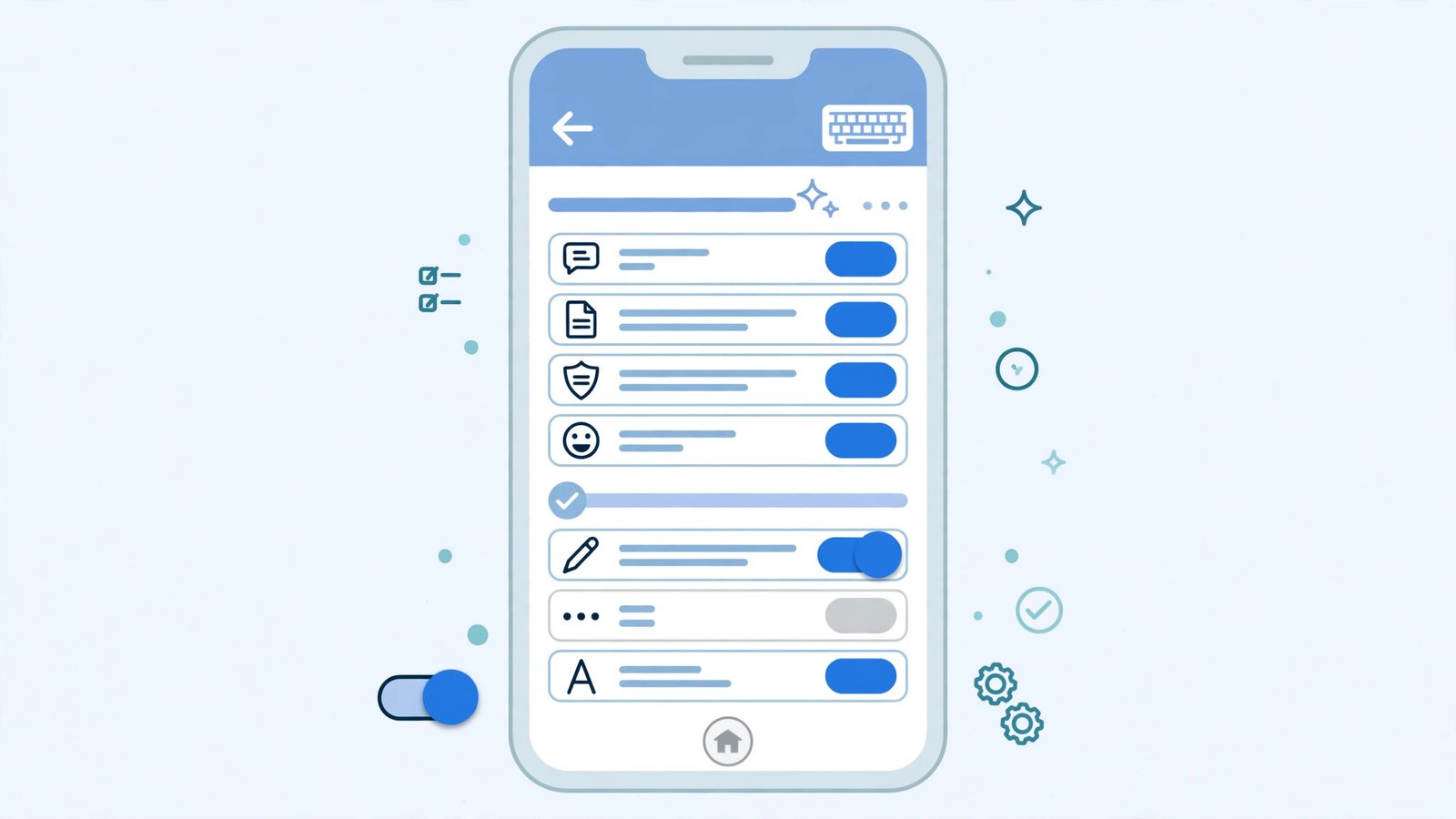
- Open any app, tap a text field to show Gboard.
- Tap the gear/settings icon on the keyboard (or go to Settings > System > Keyboard > On-screen keyboard > Gboard).
- Go to “Text correction”.
- Turn on “Auto-correction”.
- Also turn on “Show suggestion strip” and “Suggest next word” for the full experience.
- Set “Auto-correction” aggressiveness if offered — “Modest” suits most people; “Aggressive” corrects more but misfires more.
- Type “teh” — it should now become “the” when you press space.
Updates and “optimizer” apps love toggling this off silently. If it keeps switching off by itself, an app is interfering — check Fix 6. For keyboards that disappear entirely, our Android keyboard keeps disappearing guide covers that.
Fix 2: Check the Language and Dictionary
Autocorrect needs the dictionary for the language you are typing. Without it, Gboard cannot correct anything — it does not even try.
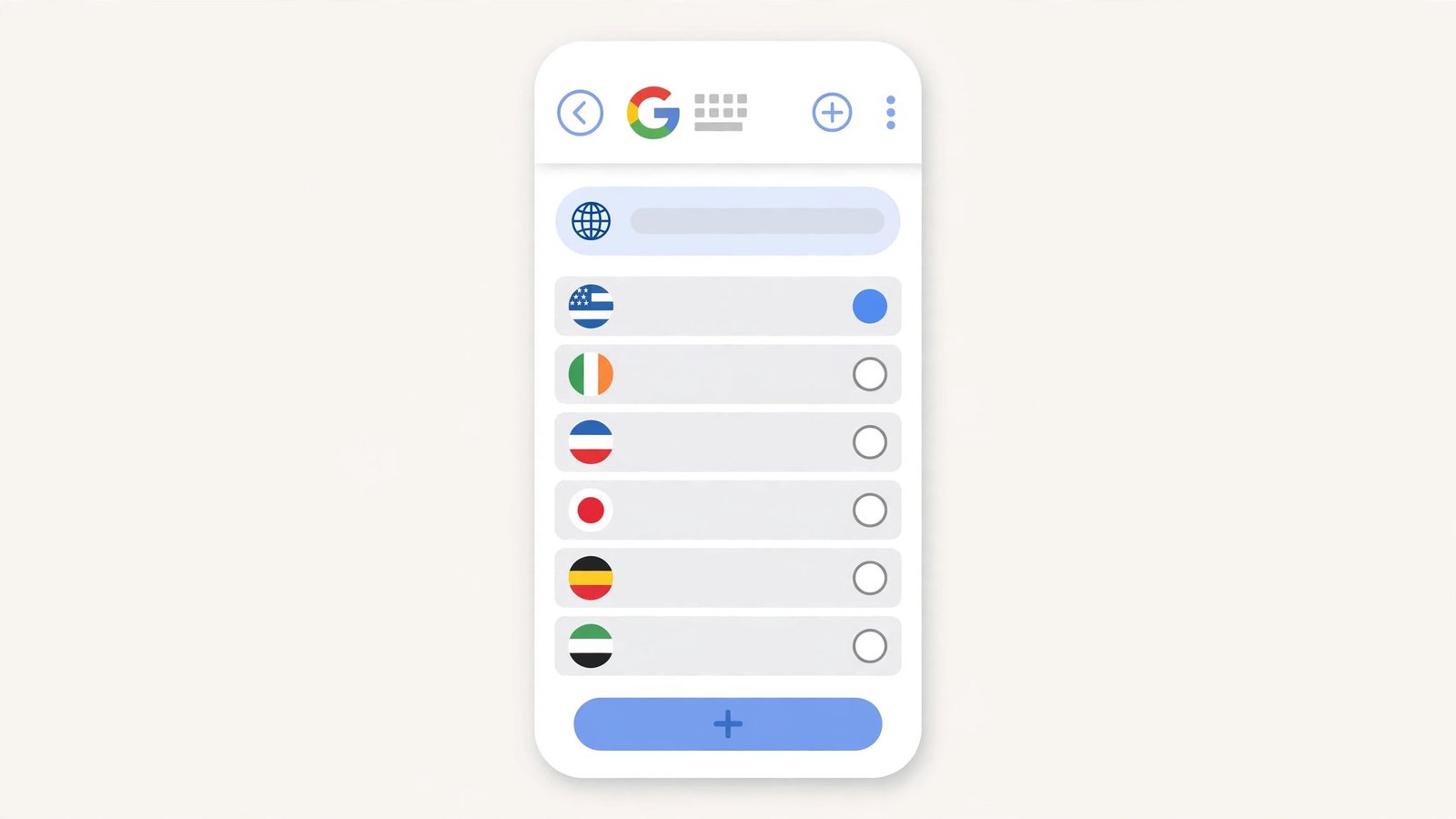
- In Gboard settings, go to “Languages”.
- Confirm your language is listed. If not, tap “Add keyboard” and add it.
- Long-press the space bar to switch languages — make sure you are typing in the language you think you are.
- For multilingual typing, enable all your languages — Gboard auto-detects between enabled languages.
- If corrections are wrong rather than absent (correcting to the wrong language’s words), remove languages you do not use.
- Check “Dictionary” in Gboard settings and make sure personal dictionary sync is on if you use it.
The space-bar language indicator is the tell: if it shows the wrong language, every “correction” will be nonsense. Multilingual users should enable all their languages rather than switching manually. If location features are also misbehaving, see Android location permission resetting.
Fix 3: Clear Gboard’s Cache
A corrupt Gboard cache breaks the prediction engine silently — settings look right, but nothing corrects.
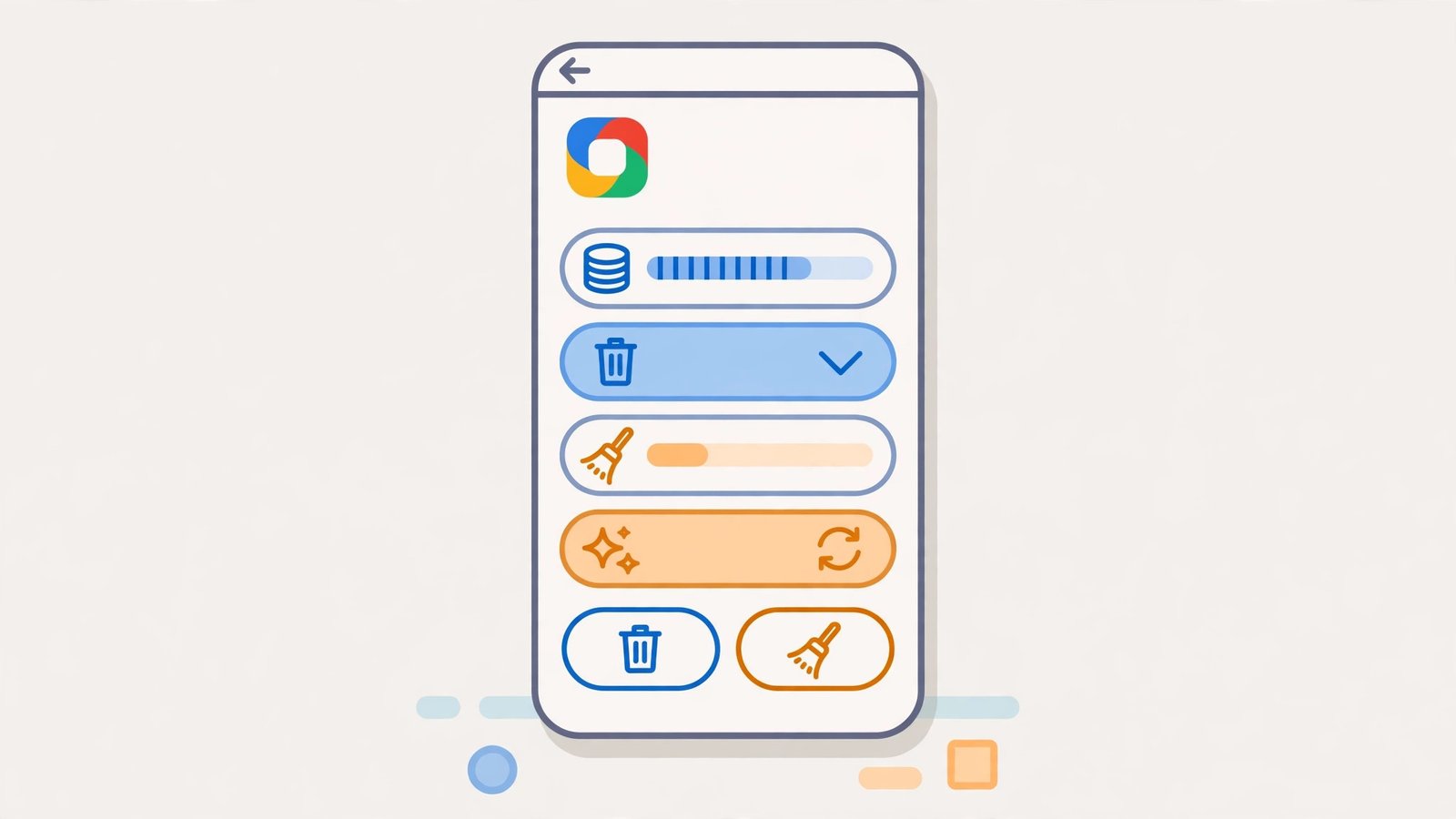
- Go to Settings > Apps > See all apps > Gboard.
- Tap “Storage & cache”.
- Tap “Clear cache” (NOT “Clear storage” yet — that wipes your learned words).
- Restart the phone.
- Test autocorrect with a deliberate typo.
- If it still fails, return and tap “Clear storage” too — this resets Gboard fully, including learned words. You will retrain it over a few days.
Clear cache is safe; clear storage is the deeper reset. The learned dictionary rebuilds quickly from your typing, so even the full reset costs less than it seems. For GPS troubles, our Android GPS not accurate guide is the sibling read.
Fix 4: Update Gboard
Keyboard bugs get fixed in updates — and occasionally introduced by them. Either way, current is correct.
- Open the Play Store, search “Gboard”, and install any pending update.
- If Gboard is a system app that will not update, check Settings > System > System update for OS updates that bundle it.
- After updating, re-check the auto-correction toggle (Fix 1) — updates sometimes reset it.
- If the problem started right after a Gboard update, check the Play Store reviews — widespread breakage gets fixed fast, and you can join the beta or wait for the patch.
- As a temporary workaround, the manual suggestion strip still works even when auto-apply breaks.
Keep Gboard updating automatically. The prediction models improve constantly, and staying current is free accuracy. For screens that rotate unexpectedly while you type, see Android screen rotation not working.
Fix 5: Set Gboard as the Default Keyboard
Your phone may have switched its default keyboard — to the brand’s keyboard, or a third-party one without autocorrect — without telling you.
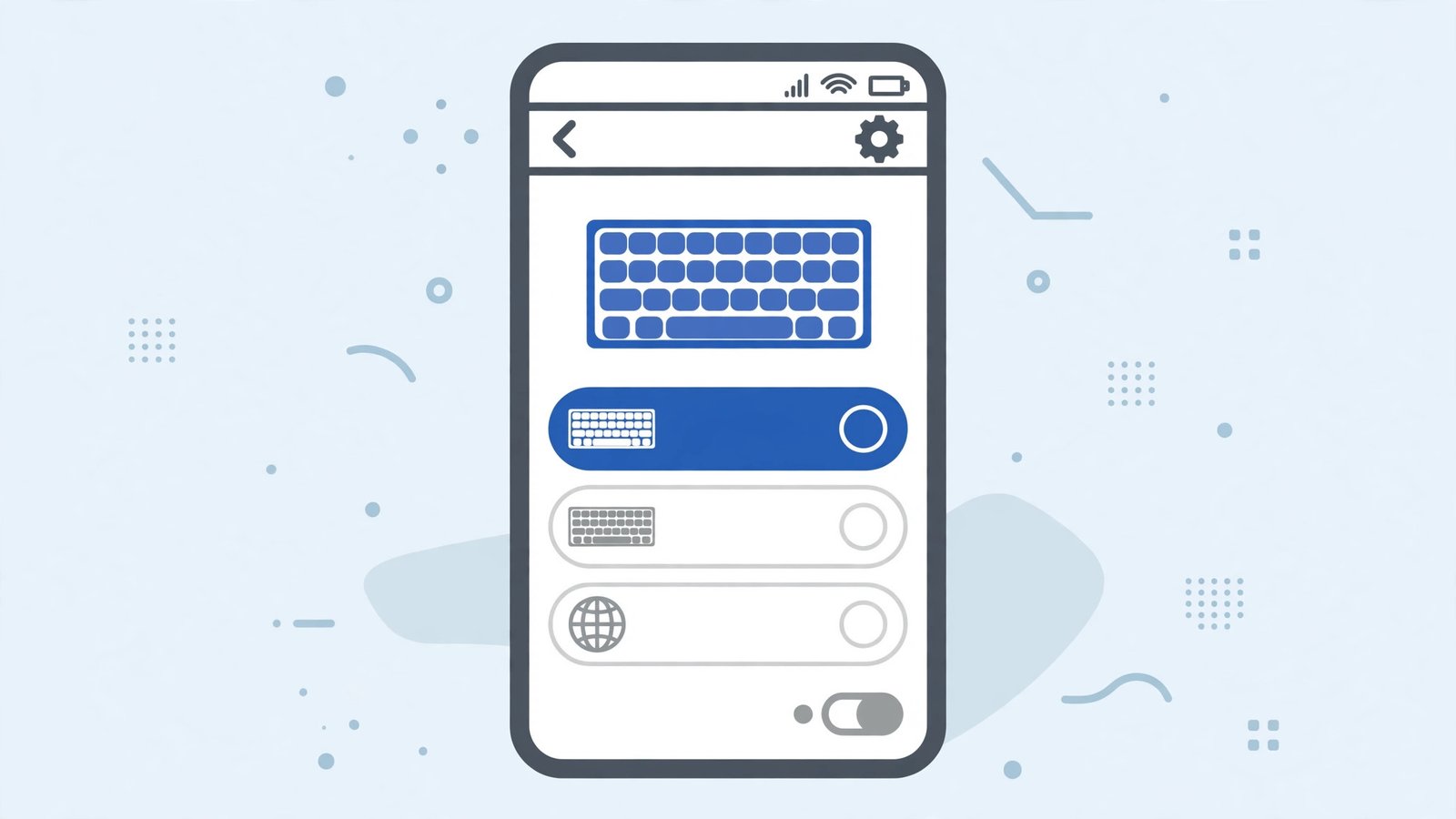
- Go to Settings > System > Keyboard > On-screen keyboard.
- Check which keyboards are enabled. Enable Gboard if it is off.
- Go to “Default keyboard” (or Settings > System > Languages > keyboard) and select Gboard.
- Open a text field and confirm Gboard appears (its logo on the space bar is the tell).
- Configure autocorrect in Gboard’s settings (Fix 1) — keyboard settings are per-keyboard, so the new default needs its own setup.
Per-app keyboard switching can also confuse: some apps remember a different keyboard. If autocorrect works in Messages but not in Chrome, check which keyboard each app summons.
Fix 6: Remove Conflicting Keyboards
Multiple keyboards fight over defaults, settings, and updates. One lean keyboard beats three quarrelling ones.
- Go to Settings > System > Keyboard > On-screen keyboard.
- Disable every keyboard except Gboard.
- Uninstall third-party keyboards you no longer use (Settings > Apps).
- Restart the phone.
- Confirm Gboard is the default (Fix 5) and autocorrect is on (Fix 1).
Old keyboards from previous phones often linger after transfers, silently intercepting the default. A single-keyboard setup eliminates an entire class of “settings keep changing” mysteries.
Fix 7: Reset Gboard Settings
When nothing else works, reset Gboard to factory defaults and reconfigure.
- In Gboard settings, look for a reset option (or use Settings > Apps > Gboard > Storage & cache > Clear storage).
- Confirm the reset — learned words, themes, and settings revert.
- Re-add your languages (Fix 2).
- Turn on auto-correction (Fix 1).
- Type normally for a few days — the personal dictionary rebuilds from your usage.
The reset is the clean slate. It costs a few days of relearning, but it resolves the deep corruptions that survive cache clears and updates.
What to Avoid
- Do not install “keyboard booster” apps — they conflict with Gboard’s own engine.
- Do not clear Gboard storage casually — try cache first; storage wipes learned words.
- Do not disable the suggestion strip to “reduce clutter” — it is part of the correction system.
- Do not type in the wrong language and blame autocorrect — check the space-bar indicator.
- Do not keep three keyboards installed “just in case” — they cause default-switching chaos.
- Do not turn off auto-correction because of one bad correction — adjust aggressiveness instead.
Frequently Asked Questions
Why did autocorrect stop working after an update?
Updates can reset Gboard’s toggles or corrupt its cache. Re-enable auto-correction (Fix 1) and clear the cache (Fix 3) — the standard post-update recovery.
Can I teach Gboard words it keeps “correcting” wrong?
Yes — type the word, and when Gboard suggests the wrong correction, tap your original word in the suggestion strip. Repeating this teaches it. You can also add words to your personal dictionary in Gboard settings.
Why does autocorrect work in some apps but not others?
Different apps may summon different keyboards, or the app may use a custom text field that bypasses correction. Check the default keyboard (Fix 5) and test in a plain app like Messages.
Is Gboard’s autocorrect private?
Gboard processes typing on-device by default. Features like federated learning improve models without uploading your keystrokes. Check Gboard’s privacy settings if you want the details.
Should I use my phone brand’s keyboard instead?
Gboard’s correction engine is among the best, and it is consistent across brands. Brand keyboards vary wildly — if autocorrect matters to you, Gboard as the default (Fix 5) is the reliable choice.
Why does autocorrect change correct words into wrong ones?
Two causes: the aggressiveness setting is too high, or the dictionary learned a mistake. If you once accepted a wrong correction, Gboard remembers it as preferred. Fix it by long-pressing the suggestion strip’s wrong word and removing it, or reset the learned dictionary (Fix 7). Then set auto-correction to “Modest” — it corrects obvious typos without rewriting your vocabulary.
Can I turn off autocorrect for just one app?
Not natively — Gboard’s auto-correction is system-wide. Workarounds: switch to a second keyboard without autocorrect for that app (Android remembers per-app keyboards), or toggle auto-correction off before using the app and back on after. For code editors and terminal apps where exact text matters, a plain keyboard layout without correction is genuinely the better tool.
Why is autocorrect worse in my second language?
Dictionary quality and training data vary by language — English models are the most refined. Make sure the language is actually added with its dictionary downloaded (Fix 2), and give it time: the personal dictionary learns your words over weeks. Typing with both languages enabled (rather than switching) also helps Gboard disambiguate instead of forcing one language’s corrections onto the other’s words.
Does swipe (glide) typing use the same autocorrect?
Yes — glide typing feeds into the same prediction and correction engine, with its own toggle under Gboard’s “Glide typing” settings. If swipes produce wrong words while tap-typing is fine, the glide model needs retraining through use, not a settings change. Both improve as the personal dictionary grows.
Why does autocorrect insert words I never typed?
That is over-aggressive auto-correction replacing a word it thinks is a typo — often when you pause mid-word or type an uncommon name. Switch auto-correction to “Modest”, and when it happens, immediately backspace: Gboard usually offers your original word in the suggestion strip. Tapping it teaches Gboard to leave that word alone next time.
Conclusion
When android autocorrect is not working, the answer is in Gboard: the auto-correction toggle, the right language dictionary, a clean cache, and Gboard set as the default keyboard. Check them in order and the typos start fixing themselves again. Give a reset dictionary a few days to learn your words, and typing becomes effortless once more.