

If android keyboard keeps disappearing every time you tap a text field, you are not alone. This is one of the most annoying Android problems because it blocks typing in messages, searches, emails, and every other app. The keyboard may flash on screen for a second and vanish, refuse to open at all, or close itself while you are mid-sentence. The good news is that the cause is almost always a software glitch — a crashed keyboard app, a wrong default keyboard setting, a pending update, or an aggressive battery saver — and every one of these can be fixed at home in a few minutes.
This guide walks you through 10 fixes in order from simplest to most advanced. Start with Fix 1 and work your way down until your keyboard stays on screen.
Table of Contents
- Quick Checks
- Diagnose the Problem
- Fix 1: Restart Your Phone
- Fix 2: Set the Right Default Keyboard When Android Keyboard Keeps Disappearing
- Fix 3: Update Your Keyboard App
- Fix 4: Clear the Keyboard App’s Cache and Data
- Fix 5: Check Keyboard App Settings and Permissions
- Fix 6: Turn Off Battery Optimisation for the Keyboard
- Fix 7: Disconnect External Bluetooth Keyboards
- Fix 8: Free Up Storage Space
- Fix 9: Boot Into Safe Mode to Find the Culprit App
- Fix 10: Reset App Preferences as a Last Resort
- What to Avoid
- Frequently Asked Questions
- Conclusion
Quick Checks
Before diving into the full fixes, run through these quick checks — they solve the problem in seconds for many users:
- Tap the text field again. Sometimes the keyboard only needs a second tap to pop up.
- Check your internet connection. Some keyboards download language packs and may act up offline.
- Look for a keyboard icon in the navigation bar. Tap it to switch back to your on-screen keyboard.
- Close and reopen the app where the keyboard disappeared.
- Check if a physical or Bluetooth keyboard is connected — Android hides the on-screen keyboard when one is active.
- Restart your phone if you have not done so in a while.
Diagnose the Problem
Use this table to match what you see with the most likely cause, then jump straight to the right fix.
| Symptom | Cause | Go to Fix |
|---|---|---|
| Keyboard flashes and vanishes when you tap a text field | Keyboard app crashed or its cache is corrupt | Fix 4 |
| Keyboard never appears in any app | Wrong default keyboard selected, or app is disabled | Fix 2 |
| Keyboard disappears only in one specific app | That app is misbehaving, not the keyboard | Fix 9 |
| Keyboard worked before a recent update, now it vanishes | Buggy keyboard app update | Fix 3 |
| Keyboard closes while typing, phone feels slow | Battery optimisation killing the keyboard, or low storage | Fix 6 |
| Keyboard hides when a Bluetooth device connects | External keyboard taking over input | Fix 7 |
| Keyboard disappears after rotating the phone | Display or rotation glitch | Fix 10 |
Fix 1: Restart Your Phone
A simple restart clears temporary glitches in the keyboard service. This is the fastest fix and it works surprisingly often.
- Press and hold the power button.
- Tap Restart (or Power off, then turn the phone back on).
- Wait for the phone to boot fully.
- Open any app with a text field, such as Messages, and tap the field.
- Check whether the keyboard now stays open.
If the keyboard still disappears, move on to Fix 2. If your phone also feels hot or sluggish, read our guide on phone overheating while charging — heat can make input apps lag and crash.
Fix 2: Set the Right Default Keyboard When Android Keyboard Keeps Disappearing
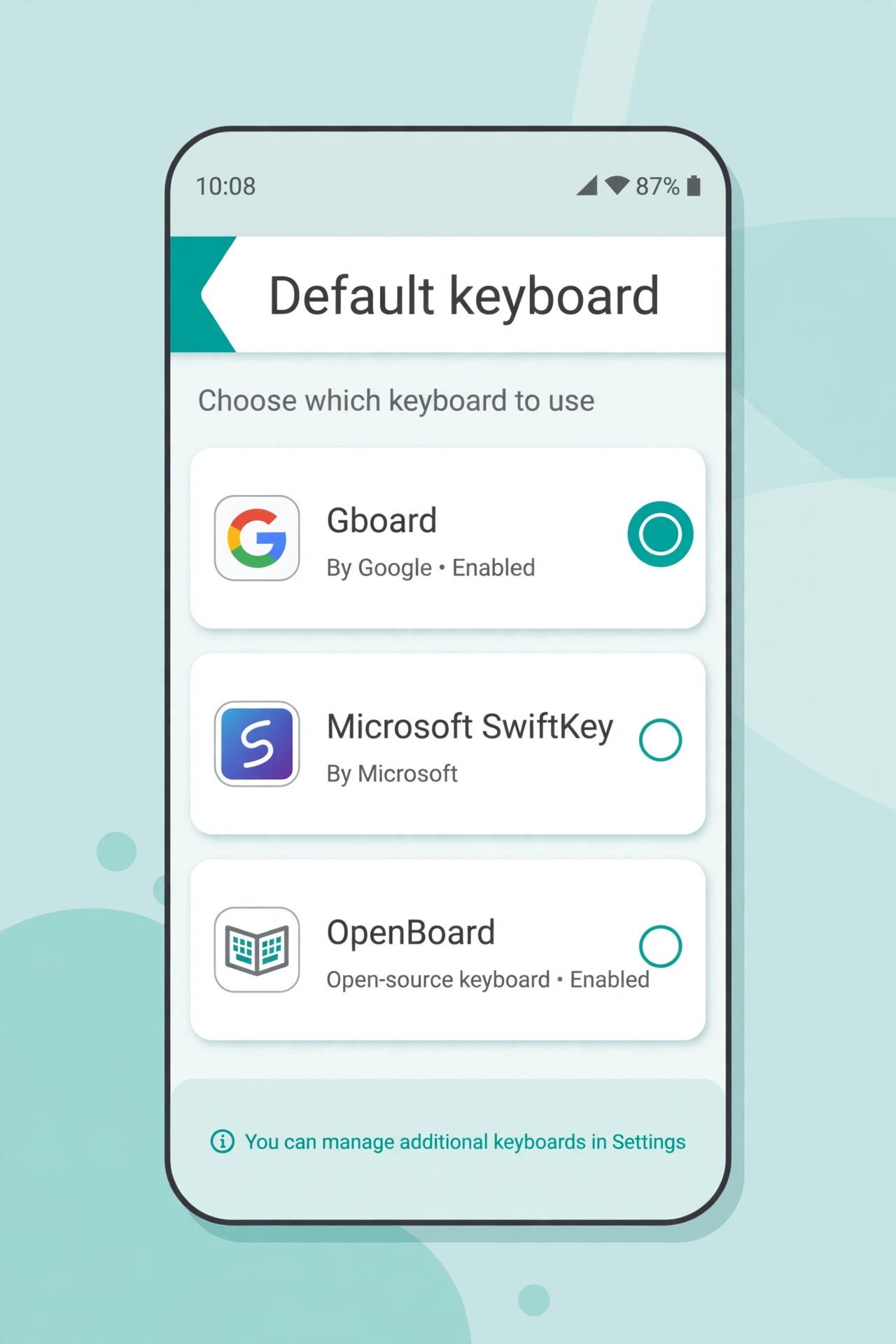
Android lets you install several keyboard apps, but only one can be the default. If the default got switched to a broken or disabled keyboard, the on-screen keyboard will keep vanishing.
- Open Settings.
- Go to System, then Languages & input (on Samsung phones: Settings > General management > Keyboard list and default).
- Tap On-screen keyboard or Default keyboard.
- Select Gboard (or the keyboard app you trust).
- Turn off any keyboard you do not use, so Android never switches to it by accident.
- Go back and tap a text field to test.
Fix 3: Update Your Keyboard App
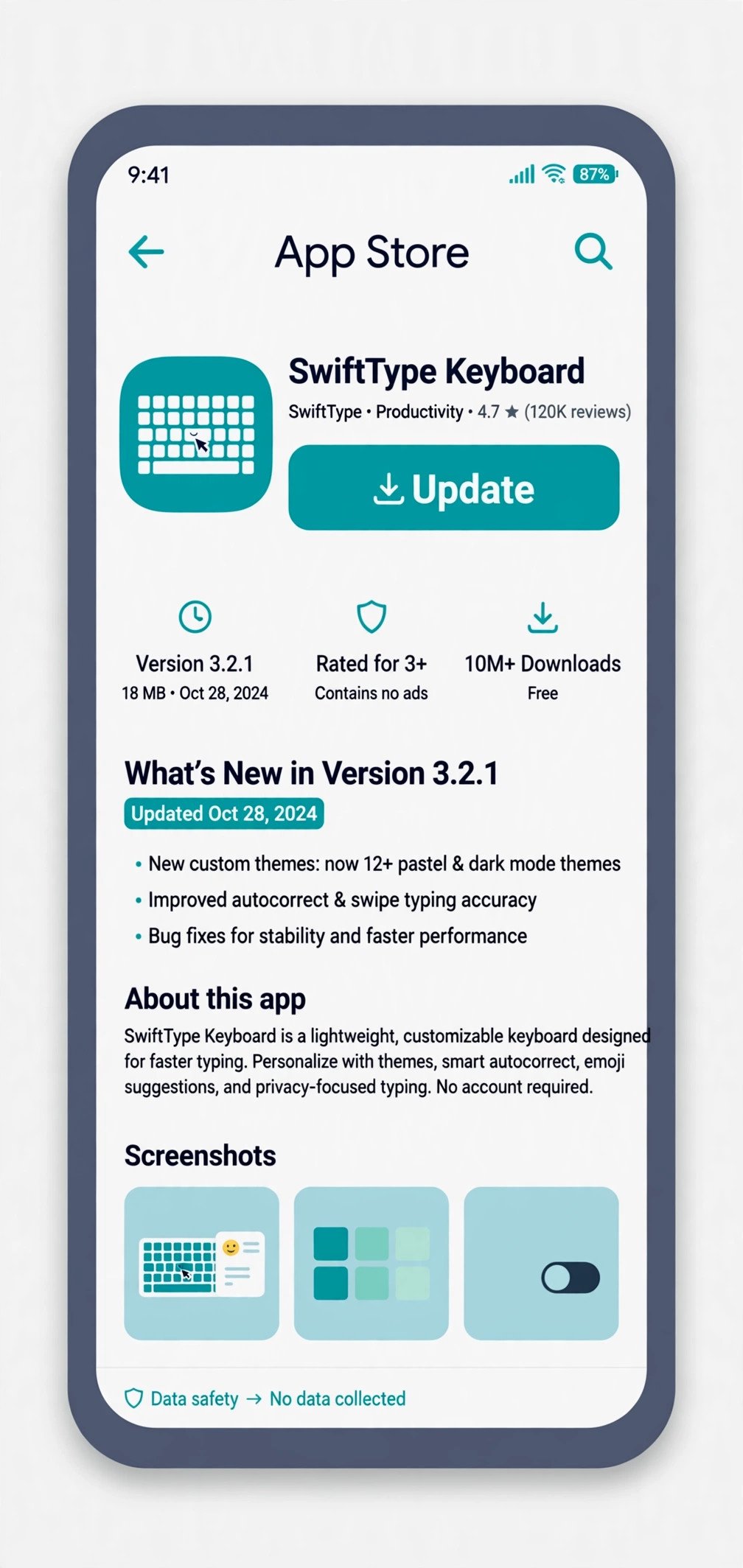
An outdated keyboard app can crash on newer Android versions. Keyboard developers release fixes regularly, so updating is one of the most reliable solutions.
- Open the Play Store.
- Tap your profile icon, then Manage apps & device.
- Tap Updates available.
- Find Gboard (or your keyboard app) and tap Update.
- If no update is listed, the app is already current.
- Restart your phone after the update and test the keyboard.
You can also open Gboard on Google Play directly to check for updates and read the latest release notes.
Fix 4: Clear the Keyboard App’s Cache and Data
Over time, a keyboard app’s cached files can become corrupt. Clearing the cache is safe — it does not delete your saved words or settings. If that fails, clearing data resets the app completely.
- Open Settings, then Apps.
- Tap See all apps and find Gboard (or your keyboard app).
- Tap Storage & cache.
- Tap Clear cache first.
- Test the keyboard in any app.
- If the problem continues, go back and tap Clear storage (or Clear data).
- Reopen the keyboard and set up your preferences again, such as theme and languages.

Fix 5: Check Keyboard App Settings and Permissions
Some keyboards need certain permissions to work properly. If permissions were revoked during an update, the keyboard may refuse to stay open.
- Open Settings, then Apps, then your keyboard app.
- Tap Permissions and make sure nothing essential is denied.
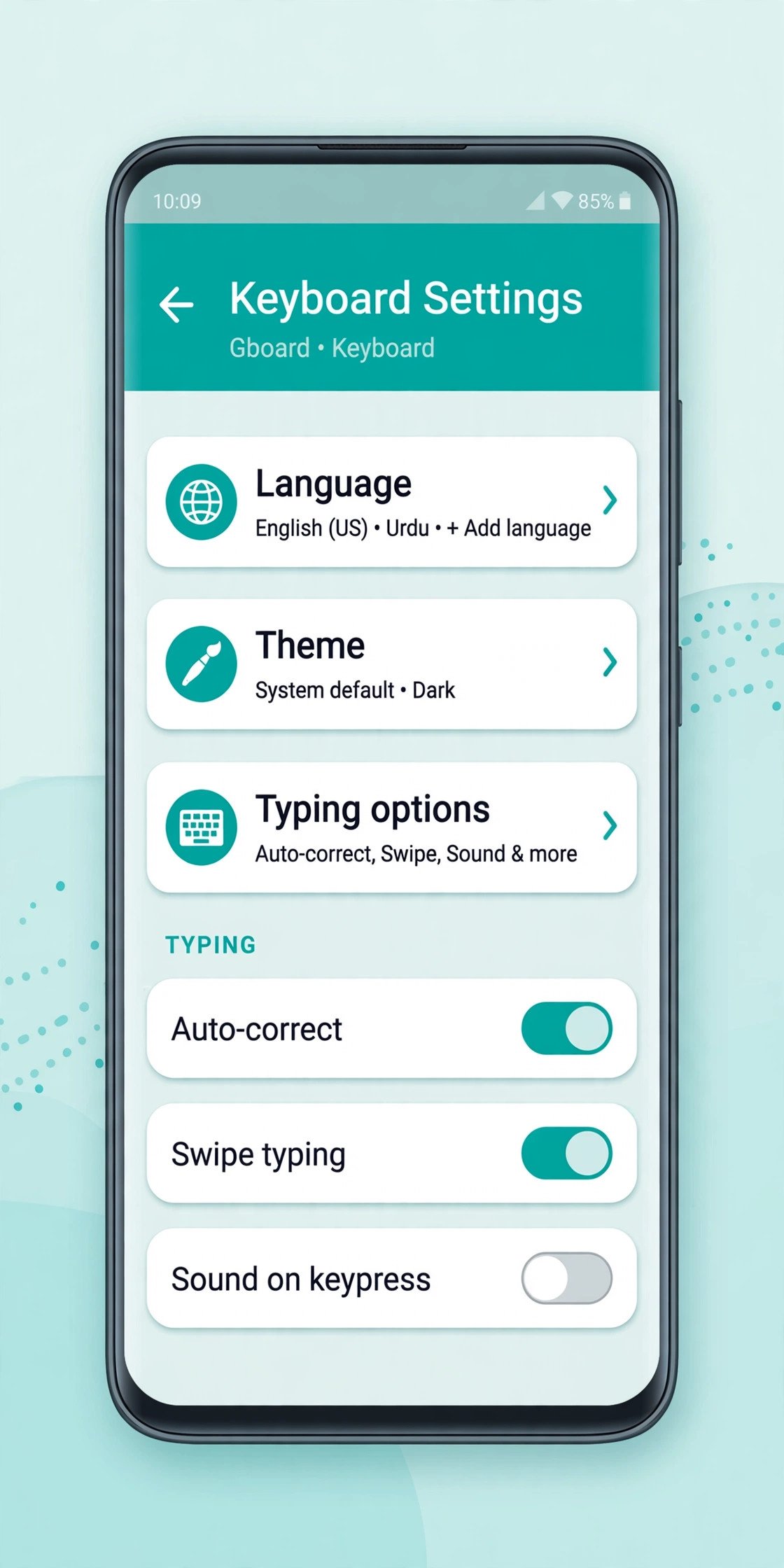
- Go back and open the keyboard app’s own settings (the gear icon on the keyboard, or the app in your app drawer).
- Check these options:
- Languages — make sure at least one language is added.
- Preferences — turn off anything experimental you do not need.
- Glide typing / autocorrect — toggle these off and on if typing feels broken.
- Also confirm the keyboard app is enabled and not disabled in the app list.
If the screen also behaves oddly when you rotate the phone, check our guide on screen rotation not working properly — display glitches and keyboard glitches often share a cause.
Fix 6: Turn Off Battery Optimisation for the Keyboard
Android’s battery saver can force-close background services, including your keyboard. When the system kills the keyboard mid-typing, it looks exactly like the keyboard disappearing on its own.
- Open Settings, then Apps, then your keyboard app.
- Tap Battery (or App battery usage).
- Select Unrestricted (or turn off Optimise battery usage).
- Also check Settings > Battery > Battery Saver and make sure it is off while you test.
- Restart the phone and try typing again.
Fix 7: Disconnect External Bluetooth Keyboards
When a physical or Bluetooth keyboard is connected, Android assumes you do not need the on-screen keyboard and hides it. If a Bluetooth keyboard is paired but sitting in a drawer, it can still trigger this.
- Open Settings, then Connected devices (or Bluetooth).
- Disconnect or Forget any external keyboards you are not using.
- Turn Bluetooth off completely for a quick test.
- Tap a text field and confirm the on-screen keyboard appears.
- If a Bluetooth device keeps reconnecting on its own, see our guide to Bluetooth keeps disconnecting for deeper fixes.
Fix 8: Free Up Storage Space
When storage runs critically low, Android starts killing apps and services to stay stable — and the keyboard is often a victim. Freeing space gives the system room to breathe.
- Open Settings, then Storage.
- Check how much free space you have — aim for at least 1–2 GB free.
- Delete unused apps, old downloads, and duplicate photos or videos.
- Clear the cache of heavy apps like social media and browsers.
- Empty the trash in your gallery and file manager apps.
- Restart the phone and test the keyboard.
If your storage shows as full even when nothing seems stored, that guide walks through finding the hidden files eating your space.
Fix 9: Boot Into Safe Mode to Find the Culprit App
If the keyboard disappears only in certain apps, a third-party app may be interfering. Safe Mode starts Android with only system apps, so you can test cleanly.
- Press and hold the power button.
- Long-press the Power off option until Reboot to safe mode appears.
- Tap OK and wait for the phone to restart (you will see “Safe mode” in a corner).
- Open a text field and test the keyboard.
- If the keyboard works fine in Safe Mode, a downloaded app is the culprit.
- Restart normally to exit Safe Mode.
- Uninstall recently installed apps one by one, starting with the newest, and test after each removal.
Fix 10: Reset App Preferences as a Last Resort
If nothing else worked, resetting all app preferences restores default settings for every app — including disabled apps, default apps, and permissions — without deleting your personal data.
- Open Settings, then System.
- Tap Reset options (on Samsung: Settings > General management > Reset).
- Tap Reset app preferences.
- Confirm by tapping Reset apps.
- Restart your phone.
- Set your keyboard as the default again (see Fix 2) and test.
If even this fails, back up your data and consider a full factory reset — but only as the very final step, since it erases everything on the phone.
What to Avoid
- Do not download “keyboard fixer” apps from unknown websites — they are often packed with ads or malware.
- Do not install cracked or pirated keyboard apps — they can steal what you type, including passwords.
- Do not clear data of the wrong app — clearing data on your messaging or banking app can delete important information.
- Do not factory reset before trying Fixes 1–9 — most keyboard problems never need anything that drastic.
- Do not disable the system keyboard completely before confirming a replacement works.
- Do not ignore pending system updates — an Android update often includes the exact bug fix you need.
Frequently Asked Questions
Why does my Android keyboard keep disappearing when I tap a text field?
The most common reasons are a crashed keyboard app, a corrupt cache, the wrong default keyboard selected, or battery optimisation killing the keyboard in the background. Work through Fixes 1–6 above and one of them will almost certainly solve it.
How do I get my keyboard back if it will not open at all?
Go to Settings > System > Languages & input and make sure a working keyboard like Gboard is set as the default. If the app is disabled, enable it. Clearing the keyboard’s cache (Fix 4) also brings it back in most cases.
Does clearing Gboard data delete my personal dictionary?
Clearing data resets the app’s settings and may remove learned words stored locally on the device. Your Google account synced data can be restored when you sign back in. Clearing only the cache is completely safe and keeps everything.
Can a third-party app make the keyboard disappear?
Yes. Some apps with overlay permissions, screen recorders, or aggressive cleaners can interfere with the keyboard. Booting into Safe Mode (Fix 9) is the quickest way to confirm this.
Should I switch to a different keyboard app?
If Gboard keeps failing after all fixes, trying a reputable keyboard from the Play Store is reasonable. Stick to well-known apps with strong reviews, and avoid keyboards from unknown developers or unofficial download sites.
Conclusion
When android keyboard keeps disappearing, the fix is usually simple: restart the phone, set the correct default keyboard, update the app, or clear its cache. Battery optimisation and connected Bluetooth keyboards are the sneakiest causes, so check those if the basics do not help. Only move to Safe Mode or resetting app preferences when the simple fixes fail. Follow the steps in order, and your keyboard will stay on screen where it belongs.
Helpful Official Resources
- Gboard on Google Play — update the official Google keyboard app
- Official Android website — Android help and device resources
[…] off by itself, an app is interfering — check Fix 6. For keyboards that disappear entirely, our Android keyboard keeps disappearing guide covers […]
[…] history, it has to be on — there is no way around that. For keyboards that vanish entirely, our Android keyboard keeps disappearing guide covers […]