

You click a download link and… nothing. No prompt, no progress bar, no file. Or Chrome flashes a “blocked” message and refuses. When chrome not detecting external downloads is the problem, the browser is either not recognising the download trigger or something is intercepting it before it starts.
Downloads fail to start for a handful of reasons: a download location that no longer exists, a permission blocking multi-file downloads, an extension guarding the gate, or antivirus snatching the file mid-flight. The fixes below restore normal downloading in order, and none of them risks your existing files.
Table of Contents
- Quick Checks
- Diagnosing chrome not detecting external downloads
- Fix 1: Check the Download Location
- Fix 2: Allow Multiple Automatic Downloads
- Fix 3: Disable Download-Blocking Extensions
- Fix 4: Check Antivirus Quarantine
- Fix 5: Test in a Guest Window
- Fix 6: Reset Download Settings
- Fix 7: Reinstall Chrome
- What to Avoid
- Frequently Asked Questions
- Conclusion
- Helpful Official Resources
Quick Checks
Two minutes of checks before the real fixes.
- Try downloading a different file from a different site. If one site fails and others work, the site is the problem.
- Check your disk space — a full disk silently aborts downloads.
- Look at the downloads bar (or press Ctrl+J). The download may have started and failed, which is a different problem with a message.
- Make sure you are not in Incognito with a strict setup — some download managers misbehave there.
- Try right-clicking the link > “Save link as” — if that works, the issue is the automatic trigger, not downloading itself.
Diagnosing chrome not detecting external downloads
| Symptom | Cause | Go to Fix |
|---|---|---|
| Nothing happens on any download link | Download location invalid or setting broken | Fix 1, then Fix 6 |
| “Download blocked” message appears | Safe Browsing or extension block | Fix 3 |
| Some sites’ downloads work, others do not | Automatic downloads permission | Fix 2 |
| Download starts then vanishes | Antivirus quarantine | Fix 4 |
| Works in Guest window, not in profile | Extension or profile setting | Fix 5, then Fix 3 |
| Right-click “Save as” works, click does not | Page script or permission issue | Fix 2 |
Fix 1: Check the Download Location
If Chrome’s download folder was deleted, moved, or lives on a drive that is no longer connected, every download fails silently.
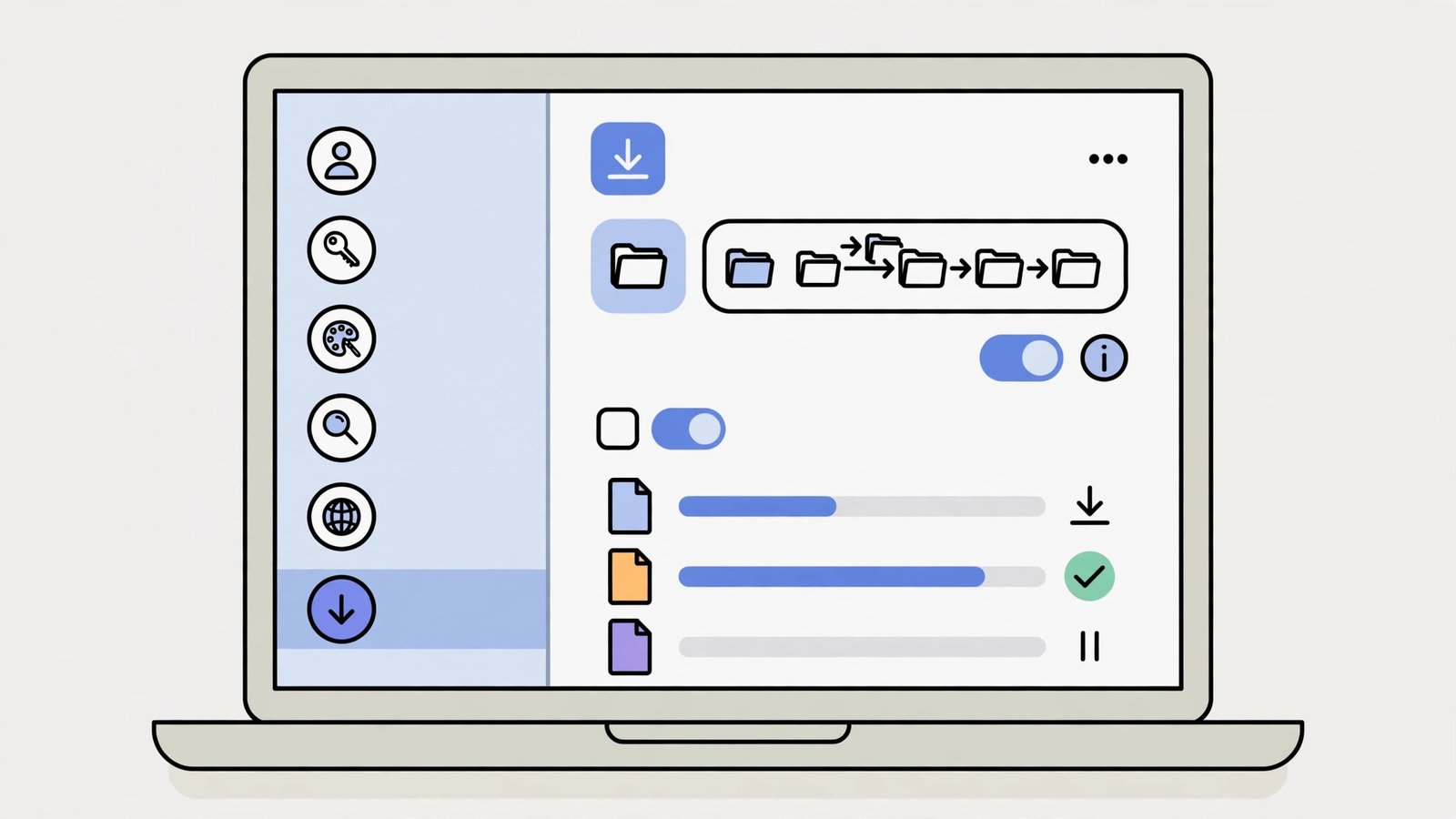
- Go to Settings > Downloads.
- Look at the “Location” path. Does that folder still exist? Open it in File Explorer to check.
- If it is missing or on an unplugged drive, click Change and pick a valid folder (your user’s Downloads folder is the safe default).
- Toggle on “Ask where to save each file before downloading” temporarily — this bypasses location problems entirely and shows you where files go.
- Try a download again.
This is the most common cause of “click and nothing happens” after moving user folders or reinstalling Windows. The “ask where to save” toggle is also just good practice if you like organising downloads. As a habit, consider pointing Chrome at a dedicated folder per project rather than one giant Downloads folder — it makes the Ctrl+J trail almost unnecessary, because you always know where things went. If downloaded files vanish after completing, our Chrome downloads not working guide covers the after-download side.
Fix 2: Allow Multiple Automatic Downloads
Some sites trigger several files at once, or trigger a download via a script rather than a direct link. Chrome blocks these unless the site has permission.
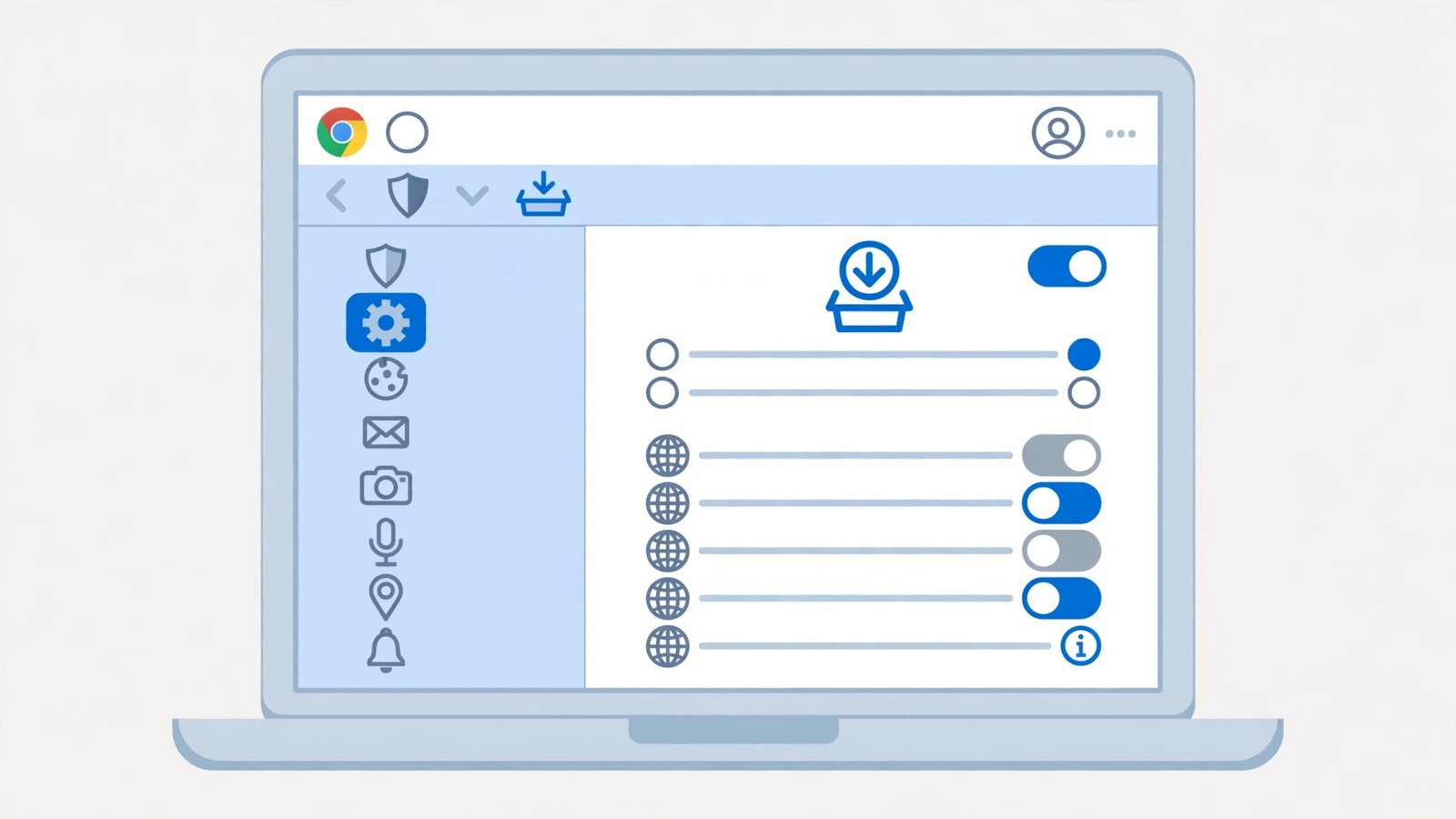
- Go to Settings > Privacy and security > Site settings.
- Scroll to “Additional permissions” > “Automatic downloads”.
- Make sure it is not set to “Don’t allow”. The balanced choice: “Ask when a site wants to download multiple files automatically”.
- For a specific trusted site, click “Add” under “Allowed to download multiple files automatically” and add it.
- Reload the problem page and try the download again.
Export tools, photo galleries (“download album”), and document sites are the classic victims. One permission fixes them all without opening the floodgates globally.
Fix 3: Disable Download-Blocking Extensions
Download managers, “video downloaders”, and overzealous security extensions intercept download triggers — and when they malfunction, nothing downloads at all.
- Go to
chrome://extensions. - Toggle off every extension, especially anything with “download”, “video”, “save”, or “security” in its name.
- Try the download. If it works, re-enable extensions one by one to find the blocker.
- For download-manager extensions, check their settings for “browser integration” — a broken integration captures clicks and drops them.
- Remove the guilty extension or keep it disabled except when needed.
The irony is thick: the extension installed to improve downloads is the thing preventing them. If you use a download manager, make sure its Chrome integration component is actually installed and current. For login-related weirdness alongside, see Chrome keeps logging me out.
Fix 4: Check Antivirus Quarantine
Antivirus software often allows the download to start, then quarantines the file the instant it lands — which looks exactly like “Chrome not detecting downloads”.

- Open your antivirus and look for Quarantine, Threat history, or Protection history.
- If your file is there, restore it (only if you trust the source completely).
- Add the download site or file type to the antivirus exclusions if it is a false positive you hit repeatedly.
- In Chrome, go to Settings > Privacy and security > Security. If “Safe Browsing” is set to “No protection”, consider “Standard protection” — turning protection fully off can cause other issues.
- Try the download again and watch whether the antivirus reacts.
Never restore a quarantined file from a source you do not trust — the antivirus is sometimes right. But for your own documents and known-good software, false positives are common and the quarantine is the first place to look.
Fix 5: Test in a Guest Window
A Guest window runs Chrome with no extensions and default settings. If downloads work there, your main profile — not Chrome itself — is the problem.
- Click your profile icon in the top-right and choose “Guest”.
- Try the failing download in the Guest window.
- If it works: the cause is an extension or a profile setting. Return to Fix 3, or create a fresh profile (profile icon > Add) and migrate.
- If it fails in Guest too: the cause is system-wide — antivirus (Fix 4), disk space, or Chrome itself (Fix 7).
- Close the Guest window when done — it wipes itself.
This two-minute test splits the problem space cleanly and stops you reinstalling Chrome for what turns out to be one bad extension.
Fix 6: Reset Download Settings
When settings have been tangled by extensions or experiments, resetting the download-related settings restores sane behaviour.
- Go to Settings > Downloads and set the location to your default Downloads folder.
- Turn off “Ask where to save each file” if you prefer automatic downloading (or leave it on — your choice).
- Go to Settings > Reset settings > “Restore settings to their original defaults” for the full reset.
- The reset keeps bookmarks, history, and passwords but disables extensions and resets permissions.
- Re-test downloads before re-enabling extensions.
The full reset also clears the automatic-downloads permissions, so you will re-allow trusted sites as needed. It is the clean slate for “downloads worked last month and I changed nothing”.
Fix 7: Reinstall Chrome
If downloads fail in Guest windows, with no extensions, and with correct settings, Chrome’s own download machinery is corrupt. Reinstall it.
- Make sure Chrome sync is on (bookmarks, passwords safe) or back up what matters.
- Uninstall Chrome from Settings > Apps > Installed apps.
- Restart the PC.
- Install a fresh copy from Google’s official site.
- Sign in, let sync restore your data, and test downloads before reinstalling extensions.
Reinstallation is the last resort, but it is decisive: a fresh Chrome downloads normally unless something outside Chrome (antivirus, disk, network) is interfering. If pages themselves will not load, our Chrome pages not loading guide is the companion read, and Google Chrome keeps crashing covers outright crashes.
What to Avoid
- Do not disable Safe Browsing entirely to fix downloads — use per-site judgment instead.
- Do not restore quarantined files from untrusted sources — the antivirus may be right.
- Do not install three download-manager extensions at once — they fight over every click.
- Do not change the download location to a network drive or USB stick you unplug — silent failures follow.
- Do not keep clicking a failing download dozens of times — find the cause first.
- Do not edit Chrome’s policies in the registry unless you know exactly what you are doing.
Frequently Asked Questions
Why does Chrome say “Failed – Blocked” on downloads?
Chrome’s Safe Browsing judged the file dangerous, or an extension blocked it. If you trust the source, use the downloads page (Ctrl+J) > “Keep dangerous file” — carefully. If it happens for every file, an extension or antivirus is over-blocking (Fix 3, Fix 4).
Where do Chrome downloads go by default?
Your user’s Downloads folder (e.g. C:\Users\YourName\Downloads). Check Settings > Downloads > Location to see — and change it if the folder no longer exists (Fix 1).
Why do downloads work with right-click “Save as” but not left-click?
The page’s download trigger uses a script or popup that Chrome blocks, while the direct link works. Allowing automatic downloads for the site (Fix 2) usually fixes the left-click path.
Can a full disk stop downloads from starting?
Yes — Chrome aborts downloads silently when there is no space. Free up disk space and try again. This is worth checking before any deeper fix.
Do I need a download manager extension?
No. Chrome’s built-in downloader handles normal files fine. Download managers only earn their place for huge files needing pause/resume — and they cause exactly these problems when they break.
Why do downloads fail only on public or work Wi-Fi?
Captive portals and corporate proxies intercept download requests in ways Chrome cannot always follow. If downloads work at home but not on a restricted network, the network is filtering them — try the site’s HTTPS version, or download the file on another network. Some workplaces block executable downloads by policy, in which case no browser setting will override it.
Can Chrome’s download history itself cause problems?
A very long download history can make the Ctrl+J page sluggish, but it does not stop downloads. Still, clearing it occasionally (Ctrl+J > three dots > “Clear all”) keeps the page snappy. This removes only the history entries, never the files on your disk.
Why do downloads from my download manager not appear in Chrome?
External download managers bypass Chrome entirely — they take the URL and fetch the file themselves. Chrome never sees the transfer, so its download shelf stays empty. This is normal. Check the manager’s own completed folder for your files. If you want Chrome to handle a download instead, disable the manager’s browser integration temporarily.
Can I make Chrome hand downloads to an external program automatically?
Partly. Enable “Ask where to save each file before downloading” in Chrome’s settings, then point saves at a watched folder your external tool monitors. Some managers offer extensions that intercept Chrome downloads. Be cautious: download-manager extensions from unknown developers are a classic malware vector — use only well-known tools from their official sites.
Conclusion
When chrome is not detecting external downloads, the trail leads somewhere specific: a vanished download folder, a blocked permission, a meddling extension, or an eager antivirus. Check the location, allow automatic downloads for trusted sites, interrogate your extensions, and peek in the quarantine. Downloads that start reliably are one correct setting away — and keeping your extensions lean keeps them that way.