

You click "Purge Cache". You click it again. The old page is still there, mocking you. When wordpress cache not clearing defies your purge button, the problem is rarely the button — it is that your site has five caches and you purged one. Or the purge mechanism itself is broken.
This guide hunts down every cache layer — plugin, server, CDN, object cache, and the filesystem — and clears each properly. It also fixes the purge button when the button itself is the problem. Work in order; the stale content does not stand a chance.
Table of Contents
- Quick Checks
- Diagnosing wordpress cache not clearing
- Fix 1: Purge from the Admin Toolbar
- Fix 2: Clear the Host’s Server Cache
- Fix 3: Purge the CDN
- Fix 4: Flush the Object Cache
- Fix 5: Delete the Cache Folder
- Fix 6: Reinstall the Caching Plugin
- Fix 7: Check File Permissions
- What to Avoid
- Frequently Asked Questions
- Conclusion
- Helpful Official Resources
Quick Checks
Before the deep purge, orient yourself.
- Confirm the purge actually ran: some plugins show a confirmation notice — did you see it?
- Test in Incognito after purging. Your browser cache can fake an uncleared site cache.
- Check whether you purged the right site — staging vs production confusion causes "purge does nothing" regularly.
- Note which plugin manages caching — you may have two installed, and you are purging the inactive one.
- Check the plugin is actually active: an accidentally deactivated caching plugin leaves its stale files behind with no purge button working.
Diagnosing wordpress cache not clearing
| Symptom | Cause | Go to Fix |
|---|---|---|
| Purge button does nothing at all | Plugin broken or misconfigured | Fix 6 |
| Plugin purged, site still stale | Server or CDN cache above it | Fix 2, then Fix 3 |
| Dynamic data stale, pages fresh | Object cache | Fix 4 |
| Purge works for some pages, not others | Filesystem leftovers / permissions | Fix 5, then Fix 7 |
| Stale on one device only | That device’s browser or service worker | Browser hard refresh |
Fix 1: Purge from the Admin Toolbar
The toolbar purge is the front door — make sure you are using it correctly before assuming it is broken.
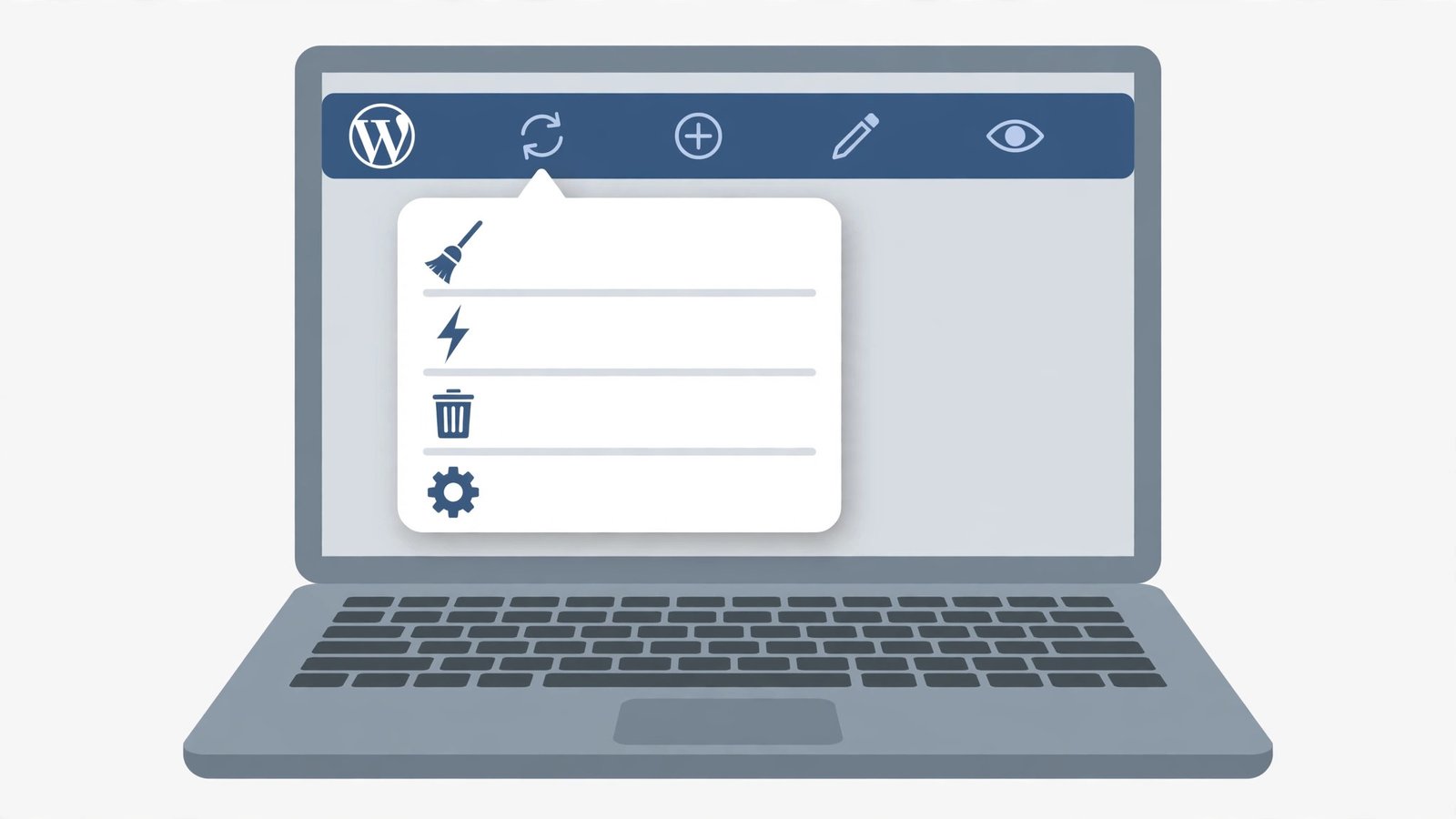
- In wp-admin, find your caching plugin’s menu in the top admin bar.
- Click "Purge All Caches" (wording varies: Clear Cache, Purge Cache).
- Wait for the confirmation notice — do not navigate away mid-purge on large sites.
- Open the plugin’s settings page and use its purge button there too, for completeness.
- Test the stale page in Incognito.
- If the toolbar menu is missing, the plugin may be deactivated or its admin-bar integration disabled — check Plugins and the plugin’s settings.
A missing toolbar menu is itself diagnostic: the plugin is not fully active. And if the site will not load at all rather than serving stale pages, our WordPress website not loading guide is the right one.
Fix 2: Clear the Host’s Server Cache
Managed WordPress hosts run their own cache (Varnish, Nginx cache, or proprietary) above WordPress. Your plugin’s purge does not touch it.

- Log into your hosting control panel.
- Find the cache section (often labelled "Cache", "Performance", or "Speed").
- Click "Purge Cache" / "Clear Cache" there.
- Some hosts also offer this in wp-admin via their companion plugin — use whichever is present.
- Wait a minute, then test in Incognito.
- Ask support whether their cache auto-purges on WordPress updates — if not, you will do this dance after every edit until it does.
This is the most commonly missed layer. Site owners purge the plugin faithfully while the host’s Varnish serves week-old pages. If your host has no visible cache control, ask support — it may be purged only by ticket, which is worth knowing.
Fix 3: Purge the CDN
CDN edge servers are the third layer. Purge them explicitly — nothing else reaches them.
- Log into your CDN dashboard.
- Purge the stale URLs individually, or Purge Everything for a full clear.
- Wait several minutes for global propagation.
- Test in Incognito.
- Check the CDN’s caching rules: if it caches HTML aggressively, consider reducing HTML cache time or excluding dynamic paths.
- Verify the CDN is actually the stale layer by pausing it temporarily (Cloudflare’s "Pause" or development mode) and testing direct-to-origin.
Pausing the CDN is the definitive test: fresh with CDN paused means the CDN was stale. For plugin-conflict detective work in general, our WordPress plugin conflict fix guide covers the method.
Fix 4: Flush the Object Cache
Object cache (Redis or Memcached) stores database query results. Stale objects mean stale dynamic content even when page caches are fresh.
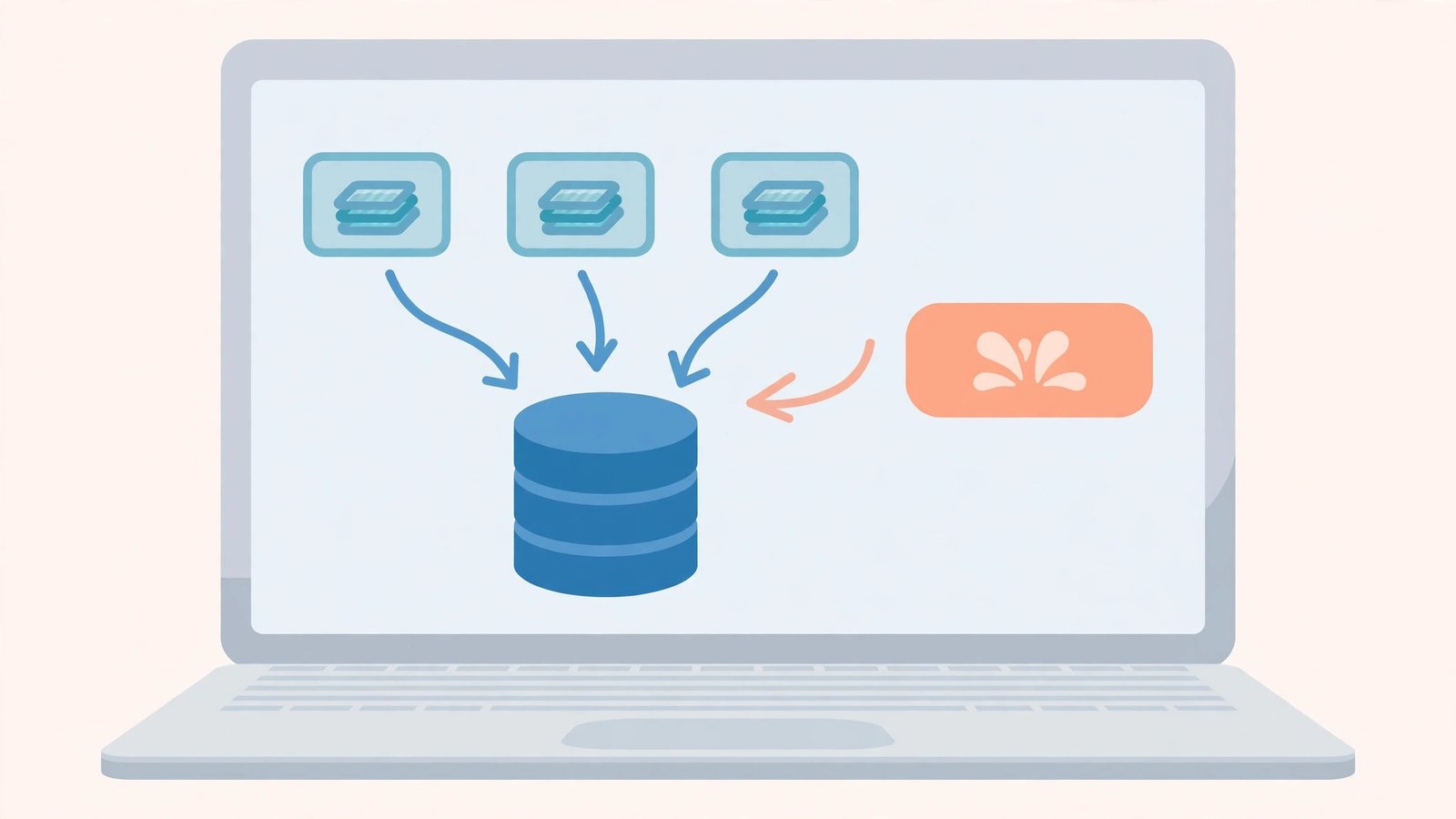
- In wp-admin, find your object-cache plugin or host integration (often under the caching plugin’s settings or a dedicated Redis/Memcached plugin).
- Click "Flush Cache" / "Flush Object Cache".
- Via WP-CLI (if you have SSH):
wp cache flush. - Test the dynamic areas that were stale (widgets, feeds, API-driven blocks).
- Purge the page cache afterwards too — pages may have cached the stale object output.
- If staleness returns quickly, an object-cache misconfiguration (or a plugin writing bad cache keys) needs developer attention.
Object cache staleness has a distinctive fingerprint: page structure is fresh but data-driven bits (prices, feeds, counts) are old. Flush fixes it instantly. If the media library is the stale/broken part, see WordPress media library not loading.
Fix 5: Delete the Cache Folder
When purge buttons fail, the filesystem does not. Deleting the cache directory removes every cached file with certainty.
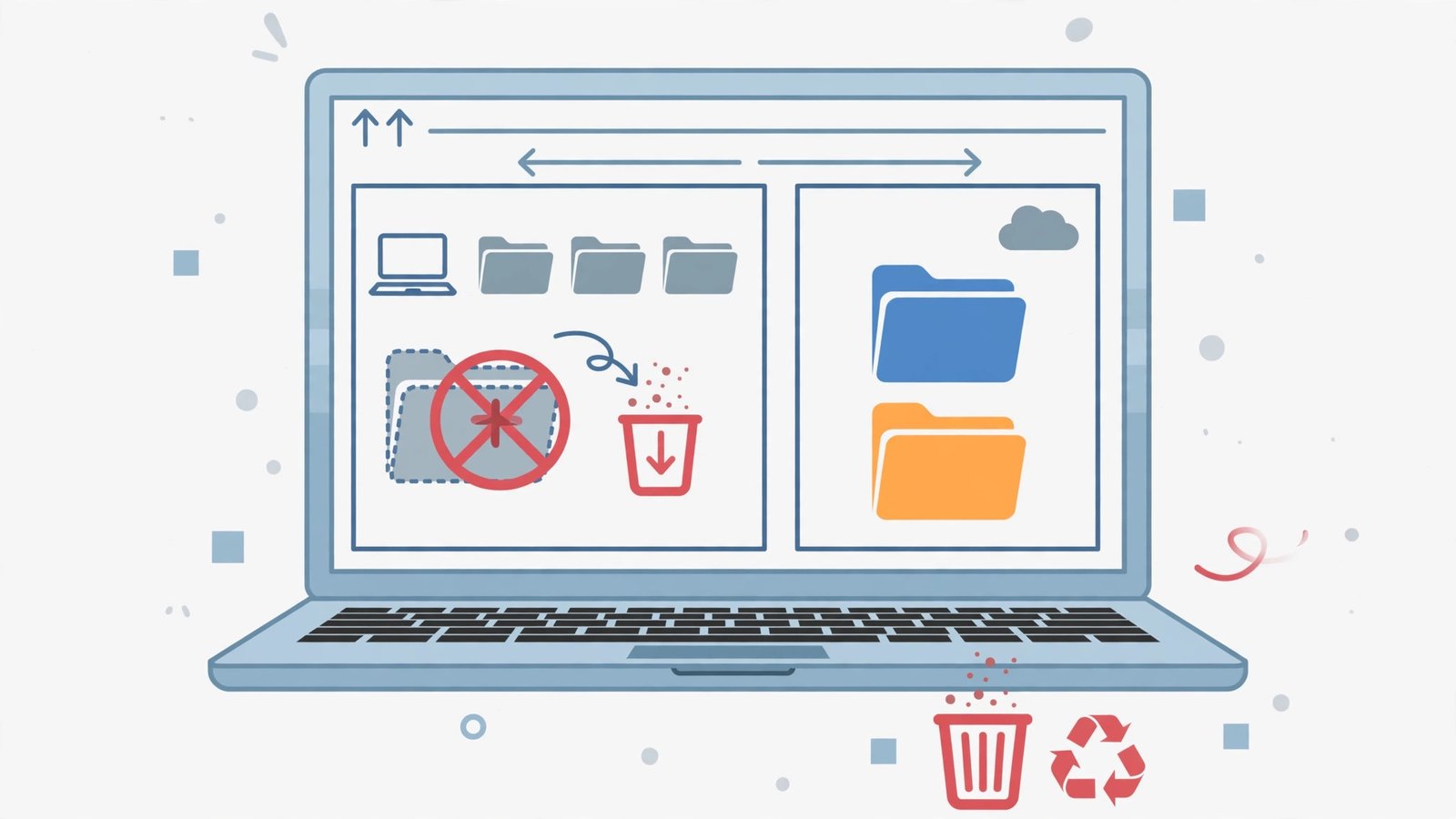
- Connect via FTP or your host’s file manager.
- Go to
wp-content/and find the cache folder (cache/, or plugin-specific likewp-rocket/,w3tc/). - Delete the cache folder’s contents (or the folder itself — the plugin recreates it).
- Also check for
wp-content/advanced-cache.php— a leftover drop-in from an uninstalled caching plugin that keeps serving stale pages. Delete it if its plugin is gone. - Test in Incognito.
The advanced-cache.php drop-in is the stealth culprit: uninstalling a caching plugin sometimes leaves it behind, and it keeps caching with no purge button anywhere. Deleting it ends the ghost caching immediately.
Fix 6: Reinstall the Caching Plugin
A corrupt caching plugin purges nothing while pretending to. Reinstalling gives you a clean mechanism.
- In wp-admin > Plugins, deactivate the caching plugin.
- Delete it (this removes its files; your settings may or may not survive — note them first).
- Delete leftover cache folders and
advanced-cache.phpvia FTP (Fix 5). - Reinstall the plugin fresh from WordPress.org.
- Configure it minimally at first — enable features one by one.
- Test purging after each configuration change to catch the setting that breaks it.
Reinstallation also clears corrupted settings that made purging fail silently. Start minimal: page cache on, everything exotic off, then add features deliberately. If the site gets stuck in maintenance mode during all this, our WordPress stuck in maintenance mode guide rescues it.
Fix 7: Check File Permissions
If the web server cannot write to the cache directory, purges fail silently — the plugin tries to delete files it has no permission to touch.
- Via FTP or file manager, check the cache folder’s permissions.
- Folders should typically be 755, files 644. A cache folder set to 555 (read-only) cannot be purged by the plugin.
- Correct the permissions and try purging again.
- Also check disk space — a full disk makes every cache operation fail weirdly.
- If permissions keep reverting, ask your host — server-level ownership issues need their intervention.
Permission problems often follow migrations or manual uploads as the wrong user. The symptom — "purge does nothing, no error" — is the fingerprint of a write-permission failure.
What to Avoid
- Do not install two caching plugins at once — they fight over the same files.
- Do not forget the host and CDN layers — the plugin is only one cache of several.
- Do not leave
advanced-cache.phpbehind when removing a caching plugin. - Do not purge by deleting random
wp-contentfolders — target only cache directories. - Do not test purges in your logged-in browser only — admins bypass cache; use Incognito.
- Do not set cache lifetimes absurdly long "for speed" — stale content is the price.
Frequently Asked Questions
Why does the purge button do nothing?
Either the plugin is broken (reinstall it — Fix 6), it lacks file permissions (Fix 7), or the stale copy lives in a layer the plugin does not control — host cache (Fix 2) or CDN (Fix 3).
How many cache layers does a typical site have?
Four is common: browser, caching plugin, host server cache, CDN — plus object cache on bigger setups. "Purge the cache" must mean all of them, or the stale one keeps serving.
Can I just delete the whole cache folder?
Yes — the plugin recreates it. Delete the folder’s contents (or the folder) via FTP when purge buttons fail. Never delete anything else in wp-content casually.
Why is my site stale only for logged-out visitors?
Because logged-in admins bypass the page cache by design. The stale copy is in the page cache served to anonymous visitors — purge it (Fix 1) and verify logged-out in Incognito.
Should the host cache and plugin cache both be active?
Yes, they stack fine — the host cache serves first, the plugin second. Just remember to purge both. Problems come from forgetting a layer, not from having layers.
Why does purging the cache log me out?
Some setups store session data alongside cached pages, or the purge clears the cookies’ cached variants. It is harmless — log back in and continue. If it happens on every purge, your host’s cache configuration is aggressive; ask them to exclude logged-in sessions from purging. Do not let it stop you purging when you need to.
Should I clear the cache during high traffic?
Prefer selective purging. A full purge during a traffic spike forces every page to rebuild at once — a "thundering herd" that can overload the server. Purge only the changed pages, or schedule full purges for quiet hours. Caching plugins with smart invalidation handle this automatically; manual full purges do not.
Why does the site feel slow right after purging?
Cold cache. Every page must be rebuilt from scratch on its first visit after a purge, so the first visitors pay the full generation cost. This is normal and temporary — within minutes the cache warms up and speed returns. If slowness persists for hours after a purge, the problem is not the cache at all.
Is it safe to purge cache automatically on a schedule?
Yes, and many sites do — a nightly purge keeps content fresh without manual effort. Just schedule it for low-traffic hours and avoid purging more often than your content actually changes. Hourly purges on a mostly static site waste server resources for no benefit.
Conclusion
When wordpress cache is not clearing, stop clicking the same button and start counting layers: plugin, host, CDN, object cache, filesystem. Purge each deliberately, delete the cache folder when buttons fail, and remove the ghost advanced-cache.php drop-in. A purge that reaches every layer is a purge that works — and fresh content follows immediately.