

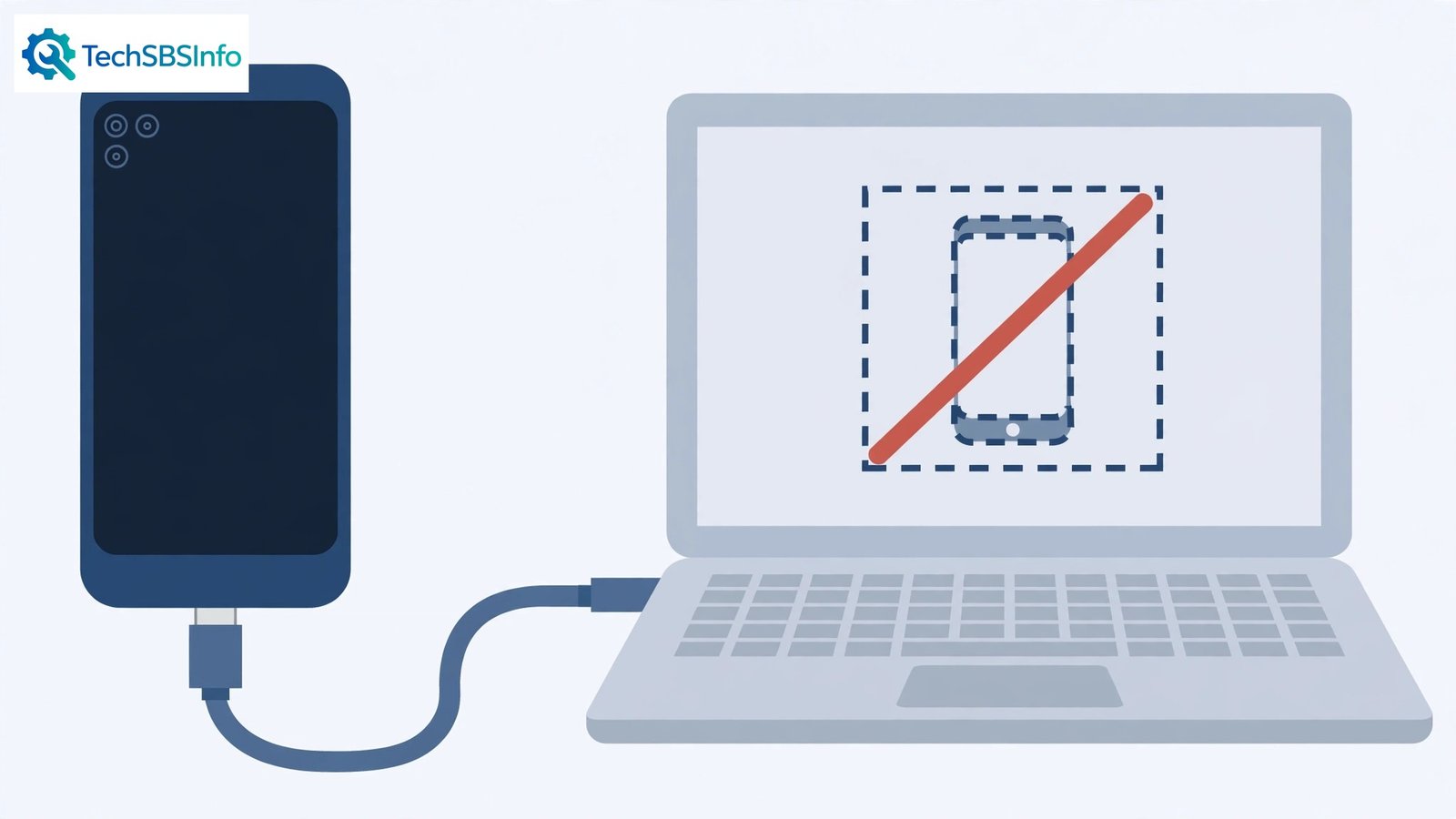
You plug your phone into the PC. The phone starts charging. The PC shows… nothing. No device in File Explorer, no autoplay, no hint the phone exists. When android phone not recognized by pc is your problem, the USB connection is carrying power but not data — and the fix is usually one setting on the phone.
Phones default to charging-only USB mode for privacy, cables are often charge-only, and Windows drivers corrupt. This guide works through all three in order. Your photos and files are safe throughout — nothing here deletes anything.
Table of Contents
- Quick Checks
- Diagnosing android phone not recognized by pc
- Fix 1: Switch USB Mode to File Transfer
- Fix 2: Use a Data-Capable Cable and Port
- Fix 3: Reinstall USB Drivers on the PC
- Fix 4: Reset USB Debugging Authorisations
- Fix 5: Restart Both Devices
- Fix 6: Try Another Computer
- Fix 7: Clean the Phone’s Port
- What to Avoid
- Frequently Asked Questions
- Conclusion
- Helpful Official Resources
Quick Checks
One minute of checks first.
- Unlock the phone — locked phones often refuse data connections.
- Swipe down the notification shade on the phone and look for a USB notification — its absence is diagnostic.
- Try a different USB port on the PC, preferably one directly on the machine, not a hub.
- Check File Explorer > This PC for the phone — it may appear without any fanfare.
- Confirm the cable works for data with another device if possible.
Diagnosing android phone not recognized by pc
| Symptom | Cause | Go to Fix |
|---|---|---|
| No USB notification on the phone at all | Charge-only cable or port issue | Fix 2, then Fix 7 |
| USB notification shows “Charging” only | Wrong USB mode | Fix 1 |
| Phone appears briefly then vanishes | Driver issue on the PC | Fix 3 |
| “USB device not recognized” error on PC | Driver or hardware handshake failure | Fix 3 |
| Works on another PC, not this one | This PC’s drivers | Fix 3 |
| Never worked with this cable | Charge-only cable | Fix 2 |
Fix 1: Switch USB Mode to File Transfer
Android defaults to “Charging only” when plugged into a computer — a privacy feature. Until you switch it, the PC cannot see a single file.
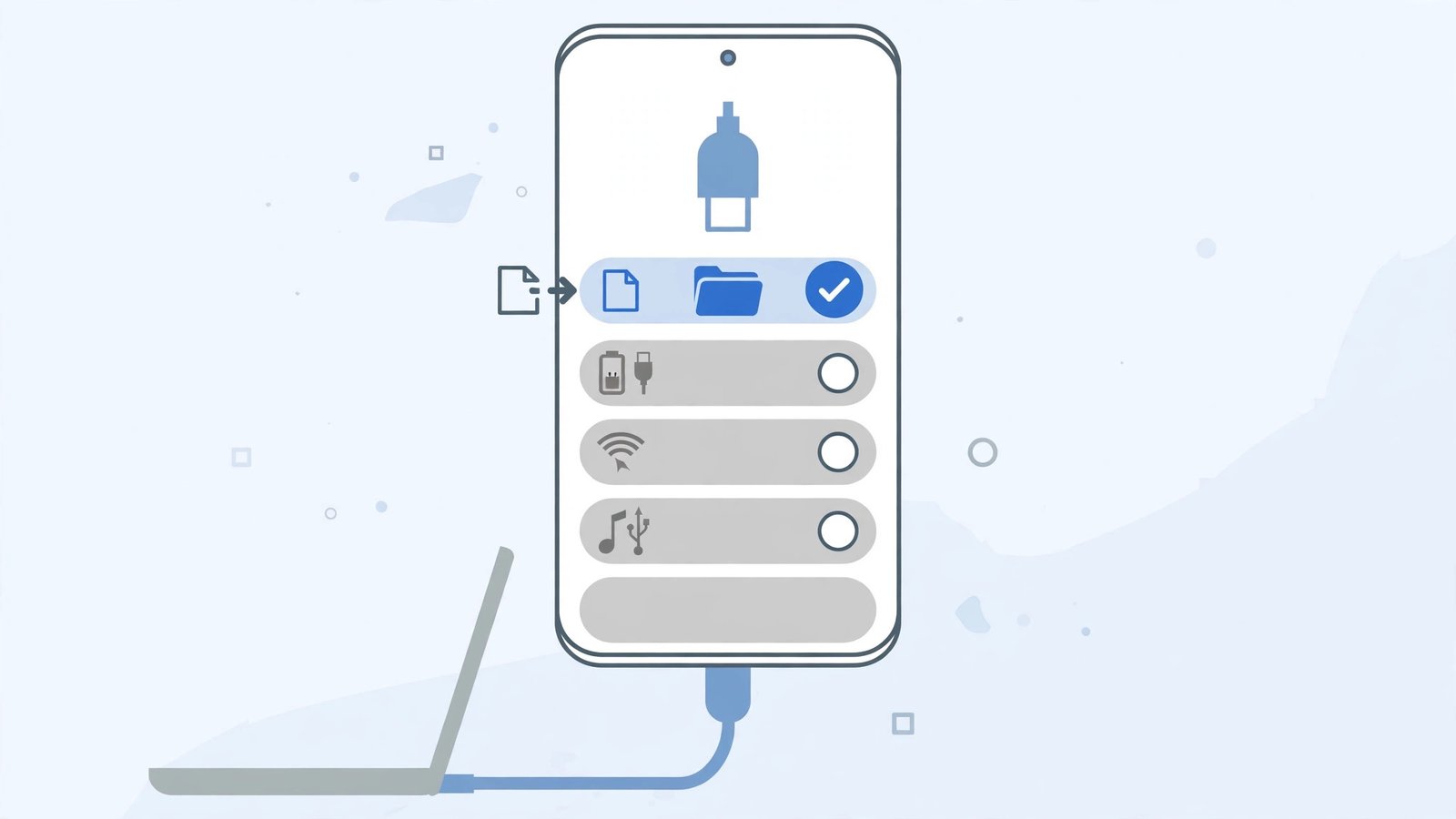
- Plug the phone into the PC and unlock the phone.
- Swipe down from the top to open notifications.
- Tap the “Charging this device via USB” notification (wording varies slightly).
- Under “Use USB for”, select “File Transfer” (may be called MTP).
- The phone should now appear in File Explorer > This PC within seconds.
- For a permanent default: Settings > Developer options > “Default USB configuration” > File Transfer (enable Developer options by tapping Build number 7 times, if you are comfortable).
This single tap fixes the majority of cases. The phone asks nothing and tells you nothing — it just charges quietly until you change the mode. If the notification never appears, the cable is likely charge-only (Fix 2). For the transfer process itself, our Android USB file transfer not working guide covers what comes next.
Fix 2: Use a Data-Capable Cable and Port
Not all USB cables carry data. Charge-only cables — common as freebies and cheap multipacks — power the phone while remaining invisible to the PC.
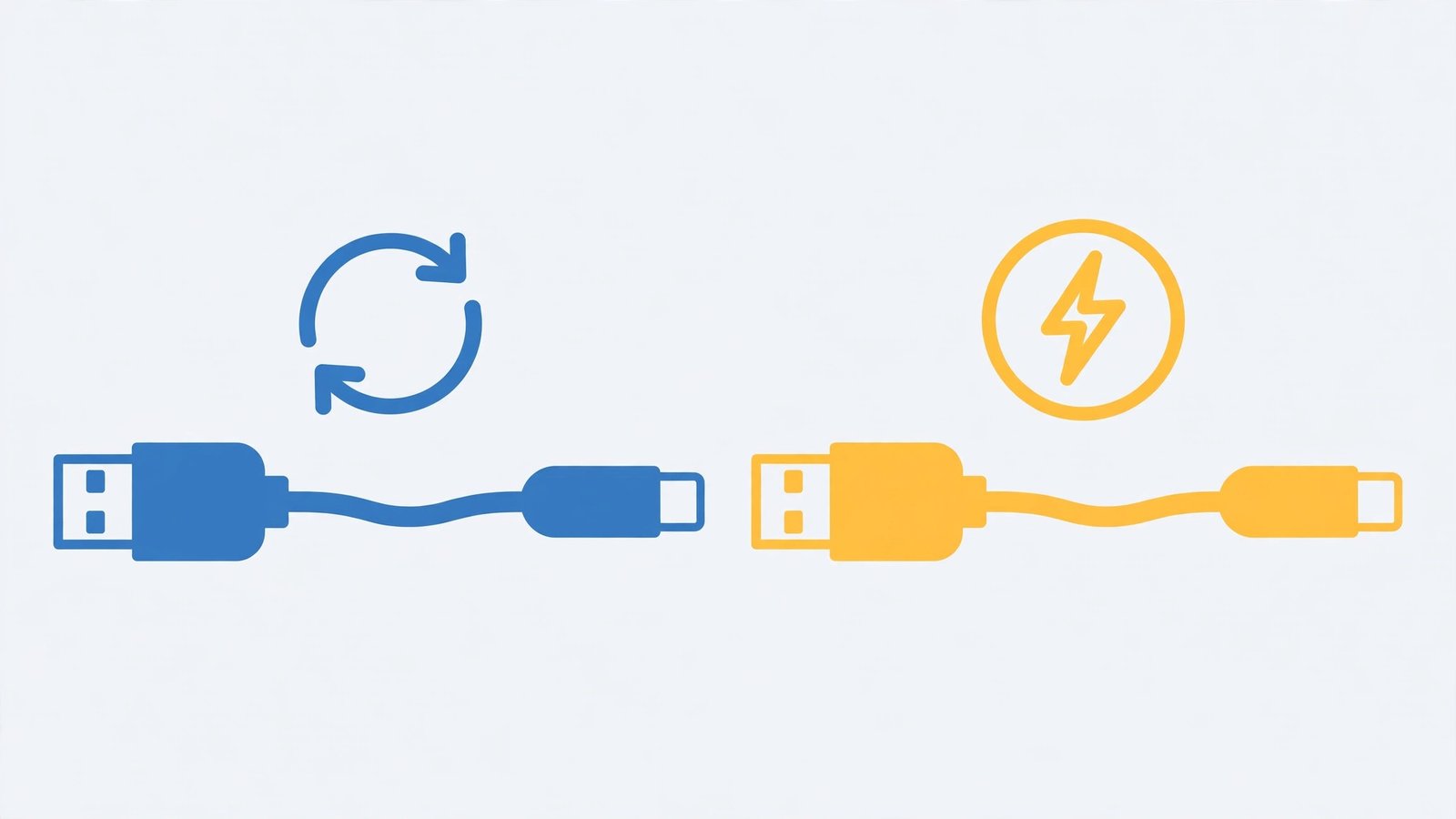
- Try the cable that came with the phone — it definitely supports data.
- Avoid very long or ultra-thin cables; they drop data connections first.
- Plug into a USB port directly on the PC — avoid hubs and front-panel ports for the test.
- Try a USB 2.0 port if USB 3.0 ports misbehave (and vice versa) — controller quirks exist.
- If a known data cable works, label your charge-only cables (a piece of tape) so they never waste your time again.
The cable is the most underestimated variable in phone-PC connections. A drawer full of identical-looking cables with different capabilities is the norm, not the exception. If the port itself seems flaky, see Android internal storage not showing.
Fix 3: Reinstall USB Drivers on the PC
When the phone is in File Transfer mode with a data cable and the PC still sees nothing, Windows’ USB drivers are suspect.
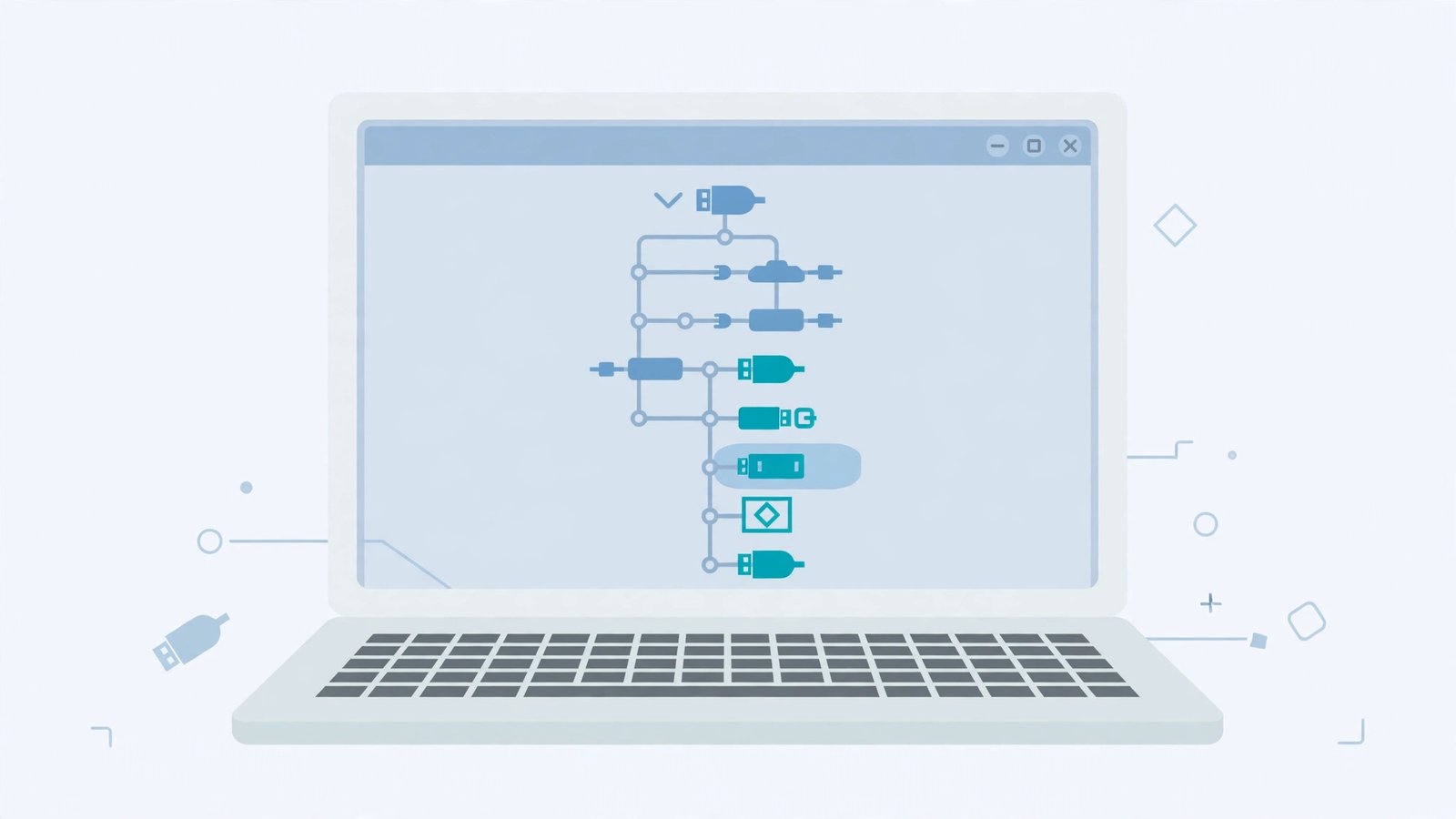
- On the PC, press Windows + X > Device Manager.
- Look under “Portable Devices” and “Universal Serial Bus controllers” for your phone or any yellow warning icons.
- Right-click the phone/unknown device > “Uninstall device”.
- Unplug the phone, restart the PC, then plug the phone back in — Windows reinstalls fresh drivers.
- If Windows cannot find a driver, install your phone brand’s official USB driver (Samsung, Xiaomi, etc. all publish them) or the generic Google USB driver from Google’s official developer site.
- Check Windows Update > Optional updates for driver updates too.
Driver corruption often follows Windows updates. The uninstall-restart-reinstall cycle is the reliable cure, and the brand’s official driver beats Windows’ generic guess. For SD-card detection troubles on the same PC, our Android SD card read-only error guide is the sibling read.
Fix 4: Reset USB Debugging Authorisations
If you ever enabled USB debugging, stale authorisations can block the connection handshake. Resetting them forces a clean re-authorisation.
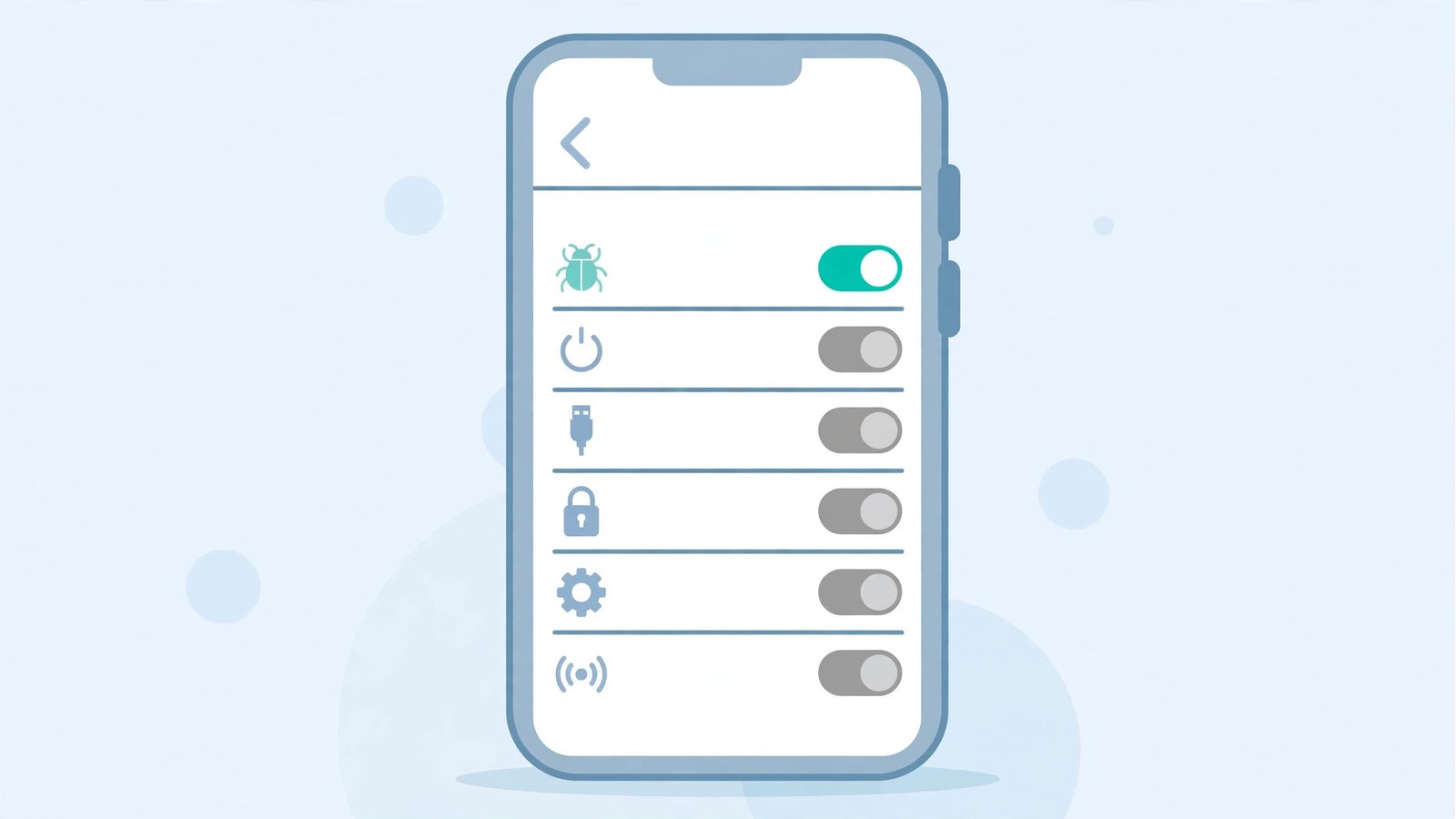
- On the phone, go to Settings > System > Developer options. (If Developer options is hidden, tap Build number 7 times in About phone to reveal it.)
- Find “Revoke USB debugging authorisations” and tap it. Confirm.
- Toggle “USB debugging” off and on again.
- Plug the phone into the PC — accept the authorisation prompt on the phone.
- If you never use USB debugging, leave it off after testing — it is a security-sensitive setting.
Most users never touch USB debugging, so this fix applies to a minority — but for developers and tinkerers, stale authorisations are a classic “worked last month” cause.
Fix 5: Restart Both Devices
The universal solvent: restart the phone and the PC. USB enumeration glitches on either side clear with a fresh boot.
- Unplug the phone.
- Restart the phone fully (not just screen off).
- Restart the PC fully (Start > Power > Restart).
- Once both are up, plug the phone in with a data cable.
- Set File Transfer mode (Fix 1) when the notification appears.
Do the phone first, then the PC, then connect. Order matters less than completeness — a fresh USB stack on both ends resolves the transient glitches that cause “it worked yesterday” mysteries.
Fix 6: Try Another Computer
This isolates the fault: phone-side or PC-side.
- Plug the phone (with data cable, File Transfer mode) into a different computer.
- If it appears there, your PC is the problem — focus on Fix 3’s drivers and try a different user account.
- If it appears nowhere, the phone is the problem — check Fix 7, and consider whether the phone’s USB port or software is at fault.
- While testing, note whether the phone charges normally — charging fine but no data on any PC points at the phone’s data pins or software.
Ten minutes with a second computer answers the biggest question in this whole guide. Borrow one before buying cables or reinstalling drivers.
Fix 7: Clean the Phone’s Port
Lint in the phone’s port can block the data pins while leaving the power pins working — the exact “charges but not recognised” symptom.
- Power the phone off.
- Shine a light into the port and look for packed lint.
- Gently remove it with a wooden or plastic toothpick — never metal.
- Blow out dust with short bursts of air.
- Test the data connection again with a known data cable.
Power pins are longer and more forgiving; data pins are shorter and fussier. That is why a linty port charges fine but transfers nothing. A two-minute clean resolves it. If the phone’s storage also reports strange numbers, our Android storage full nothing stored guide covers storage reporting glitches.
What to Avoid
- Do not enable USB debugging permanently “to make it work” — it is a security risk; use it only for testing.
- Do not install “phone PC suite” software from random sites — use the brand’s official tools only.
- Do not format the phone to fix a PC connection issue — the problem is the link, not the phone’s data.
- Do not use metal tools in the port.
- Do not assume the cable is fine because it charges — charge-only cables are everywhere.
- Do not ignore the unlock requirement — locked phones legitimately refuse data connections.
Frequently Asked Questions
Why does my phone charge but the PC does not see it?
Because charging needs only power pins, while data needs the data pins, File Transfer mode, a data cable, and working drivers. Any one of those missing gives exactly this symptom — Fix 1 and Fix 2 cover the common ones.
Do I need special software to connect my Android phone to a PC?
No — Windows reads Android phones natively via MTP once File Transfer mode is on. Brand suites (like Samsung’s) add features but are not required for basic file access.
Why is there no USB notification on my phone?
The cable is likely charge-only, or the port connection is poor. Try a known data cable (Fix 2) and clean the port (Fix 7).
Can a locked phone connect to a PC?
For charging, yes. For file transfer, usually not — unlock the phone first. This is a deliberate privacy protection.
The PC says “USB device not recognized”. What now?
That is a driver or handshake failure — work through Fix 3 (reinstall drivers) and Fix 2 (cable/port). If it persists on multiple PCs, the phone’s port may need service.
Why does my Mac not see my Android phone?
Macs need a helper app — Android File Transfer (Google’s official tool) — because macOS does not speak the MTP protocol natively. Install it from Google’s official site, then connect with File Transfer mode on. Without it, the phone charges and nothing else happens. This is a Mac limitation, not a phone problem.
Can USB-C to USB-C cables cause recognition issues?
Yes. Many USB-C cables, especially cheap ones, are charge-only despite the modern connector. Others implement the data lines poorly. If your C-to-C cable charges but never triggers the USB notification, try a data-rated cable from a reputable brand. The cable that came with the phone is always the safest test.
Why does the phone appear in File Explorer and then immediately disappear?
A flaky physical connection or a crashing driver. The handshake starts, then the connection drops — Windows removes the device. Try a different USB port (directly on the PC, not a hub), a different cable, and check the port for lint (Fix 7). If it stabilises on another port, the original port’s controller or power delivery was the issue.
Is it safe to unplug the phone while transferring files?
Small risk, real annoyance. Unplugging mid-transfer corrupts the file being copied — the phone and PC stay fine, but that file is lost. Use “Eject” on the PC before unplugging during large transfers. For quick photo copies the risk is tiny, but the eject habit costs nothing.
Conclusion
When android phone is not recognized by pc, the chain is short: File Transfer mode on the phone, a data-capable cable, and healthy Windows drivers. Check them in that order and the phone appears in File Explorer within minutes. The phone was never broken — it was just politely refusing to share its files until asked correctly.