


You click the key icon or open Password Manager in Google Chrome and nothing happens — the page stays blank, the window never appears, or the passwords list refuses to load. This chrome password manager not opening guide explains why the built-in password manager stops responding and gives you eight proven ways to get it working again.
Chrome’s password manager is more than a convenience. It stores your logins, suggests strong passwords, and fills forms across your signed-in devices. When it will not open, you lose access to all of that at once, which is stressful — but the cause is almost always a fixable one: a corrupt profile file, a conflicting extension, a sync problem, or an outdated browser.
Work through the fixes below in order. Most people get the password manager back by Fix 4, and the later fixes cover the deeper causes.
Table of Contents
- Quick Checks for the chrome password manager not opening
- Diagnose the Problem
- Fix 1: Update Chrome to the Latest Version
- Fix 2: Restart Chrome Completely
- Fix 3: Disable Extensions That Manage Passwords
- Fix 4: Open Password Manager Directly
- Fix 5: Check That You Are Signed In and Sync Is On
- Fix 6: Clear Cache and Cookies
- Fix 7: Repair Your Chrome Profile
- Fix 8: Reset Chrome Settings
- What to Avoid
- Frequently Asked Questions
- Conclusion
- Helpful Resources
Quick Checks for the chrome password manager not opening
- Make sure you are signed into Chrome — the password manager is tied to your Google account.
- Try opening it directly by typing chrome://password-manager/passwords in the address bar.
- Check that Chrome is updated: go to Help > About Google Chrome.
- Disable any third-party password manager extension temporarily to rule out a conflict.
- Restart your computer — a stuck Chrome background process can block the window from opening.
- If you use a work or school device, check whether an admin policy has disabled the password manager.
Diagnose the Problem
| Symptom | Cause | Go to Fix |
|---|---|---|
| Password manager page opens but stays blank | Corrupt cache or outdated Chrome | Fix 1, Fix 6 |
| Clicking the key icon does nothing at all | Extension conflict or stuck process | Fix 2, Fix 3 |
| Passwords missing after an update | Sync turned off or signed out | Fix 5 |
| “Managed by your organization” message | Admin policy blocking the feature | Fix 5 (note) |
| Password manager crashes the tab | Damaged profile data | Fix 7 |
| Works on another device but not this one | Local profile corruption on this computer | Fix 7 |
| Opens but passwords will not fill on sites | Autofill disabled in settings | Fix 4 |
| Error after installing a new extension | Extension hijacking the password page | Fix 3 |
Fix 1: Update Chrome to the Latest Version
An outdated browser is the most common reason the password manager misbehaves. Google regularly ships fixes for the password manager, and running an old version can leave you with a broken interface.
- Click the three-dot menu in the top right corner.
- Go to Help and then About Google Chrome.
- Chrome will automatically check for updates and install them.
- Wait for the update to finish, then click Relaunch.
- Try opening the password manager again.
- If Chrome says it is already up to date, move on to Fix 2.
Keeping Chrome updated is also a security habit: outdated browsers are more vulnerable to attacks that target saved credentials.
Fix 2: Restart Chrome Completely
Chrome sometimes keeps background processes running even after you close all windows. A half-stuck process can prevent the password manager window from opening.
- Close every Chrome window.
- On Windows, press Ctrl + Shift + Esc to open Task Manager.
- Look for any remaining Chrome processes under Apps or Background processes.
- Select each one and click End task.
- On a Mac, press Cmd + Q while Chrome is active, then check Activity Monitor for leftover Chrome processes and quit them.
- Reopen Chrome and test the password manager.

Fix 3: Disable Extensions That Manage Passwords
Third-party password managers (and some security extensions) take over Chrome’s password features. If one of them is installed, it can block Chrome’s own password manager from opening.
- Type chrome://extensions in the address bar and press Enter.
- Look for password managers, autofill tools, or security suites.
- Turn off each one using its toggle switch.
- Try opening Chrome’s password manager again.
- If it opens, turn extensions back on one at a time to find the one causing the conflict.
- Decide which password manager you want as your primary and keep the other disabled.
You do not need to delete the extension — disabling it is enough for the test, and you can re-enable it later if you prefer it.
Fix 4: Open Password Manager Directly
The key icon in the toolbar and the settings links can break while the password manager itself still works. Opening it by its direct address bypasses those broken entry points.
- Type chrome://password-manager/passwords in the address bar and press Enter.
- If the page loads, your passwords are safe — only the shortcut was broken.
- On this page, click the gear icon to open password manager settings.
- Make sure Offer to save passwords is turned on.
- Make sure Auto sign-in is turned on if you want automatic logins.
- Bookmark the direct address so you can reach it even if the toolbar icon breaks again.

Fix 5: Check That You Are Signed In and Sync Is On
Chrome’s password manager needs you to be signed in to your Google account, and your passwords sync across devices only when sync is enabled. If you were signed out by an update or a settings change, the manager can appear empty or refuse to open.
- Click your profile picture in the top right corner of Chrome.
- Confirm you are signed in to the correct Google account.
- If you are signed out, click Turn on sync and sign in.
- Go to Settings > You and Google > Sync and Google services > Manage what you sync.
- Make sure Passwords is enabled in the sync list.
- Wait a few minutes for sync to complete, then reopen the password manager.

Note for work or school accounts: if your device shows “Managed by your organization,” an administrator may have disabled the password manager. In that case only your IT admin can change it — none of the other fixes will help.
Fix 6: Clear Cache and Cookies
Corrupt cached data can break Chrome’s internal pages, including the password manager. Clearing it forces Chrome to rebuild those pages from scratch.
- Press Ctrl + Shift + Delete to open Clear browsing data.
- Set the time range to All time.
- Tick Cached images and files and Cookies and other site data.
- Click Clear data.
- Close Chrome completely and reopen it.
- Test the password manager again.
Your saved passwords are stored separately from cookies and cache, so this step does not delete them. You will, however, be signed out of websites and need to sign back in.
Fix 7: Repair Your Chrome Profile
If the password manager still will not open, your Chrome user profile itself may be damaged. Creating a fresh profile tells you whether the problem is the profile or the browser installation.
- Click your profile picture in the top right and click Add to create a new Chrome profile.
- Sign in with your Google account in the new profile.
- Turn on sync and wait for your passwords to download.
- Open the password manager in the new profile.
- If it works there, your old profile is corrupt. Move your important data (bookmarks, passwords) over through sync, then remove the old profile from Settings > You and Google.
- If it fails in the new profile too, the browser installation itself is the problem — reinstall Chrome from the official Google site.
Before removing any profile, double-check that your passwords have synced: visit passwords.google.com in any browser and confirm your logins are listed there.
Fix 8: Reset Chrome Settings
As a last resort, resetting Chrome restores all settings to their defaults. This fixes problems caused by a setting changed long ago that you no longer remember.
- Open the Chrome menu and go to Settings.
- Click Reset settings in the left sidebar.
- Click Restore settings to their original defaults and confirm.
- Restart Chrome and sign back in.
- Check the password manager and turn sync back on for passwords.
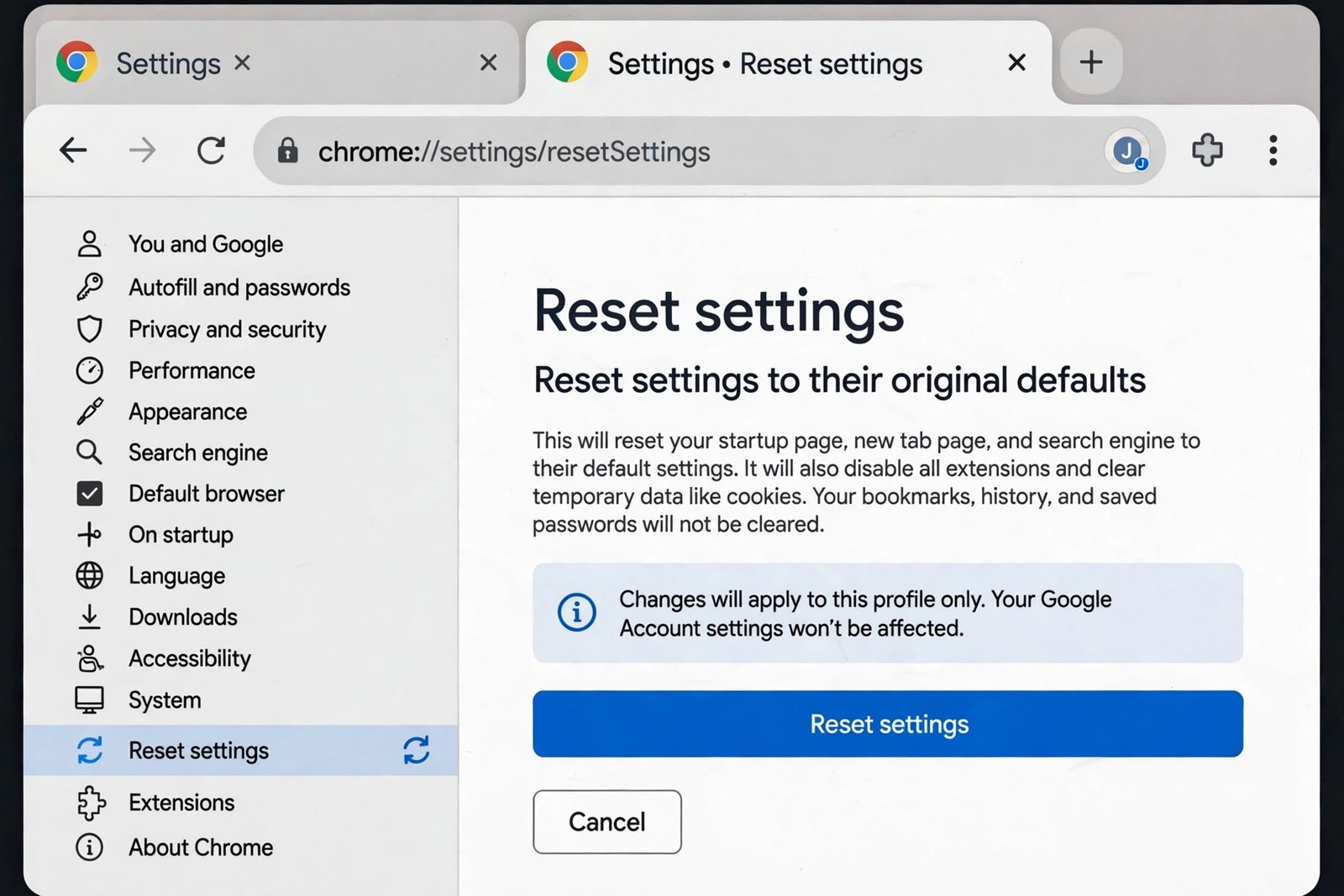
Resetting does not delete your bookmarks, history, or saved passwords — it only restores settings, disables extensions, and clears temporary data.
What to Avoid
- Do not download “password recovery” tools from unknown websites — many are malware designed to steal the very passwords you are trying to reach.
- Do not delete the Login Data file manually unless you have a verified backup; deleting it without sync wipes your saved passwords permanently.
- Do not turn off sync permanently as a workaround — you lose cross-device access and backup.
- Do not install multiple password manager extensions at once — they fight over the same features and break each other.
- Do not share your Google account password with anyone offering to fix the problem remotely.
- Do not ignore the “managed by your organization” message — policy blocks cannot be fixed with settings changes.
Frequently Asked Questions
Where is the password manager in Chrome?
Open the three-dot menu, go to Settings, then Autofill and passwords, then Google Password Manager. Or type chrome://password-manager/passwords directly in the address bar.
Will I lose my passwords if I reset Chrome?
No. Resetting settings does not delete saved passwords. But as a safety habit, confirm your passwords are synced by checking passwords.google.com before any major change.
Why is the password manager blank?
A blank page usually means corrupt cache, an outdated Chrome version, or a profile problem. Update Chrome first (Fix 1), then clear cache (Fix 6), then test a new profile (Fix 7).
Can an extension block the password manager?
Yes. Third-party password managers and some security extensions take over the password page. Disable them one by one (Fix 3) to find the conflict.
The password manager opens but autofill does not work on websites. Why?
Check chrome://password-manager/settings and make sure Offer to save passwords and Auto sign-in are on. Also confirm the site is not in the “Never save” list.
My work laptop says the password manager is disabled by my organization. Can I fix it?
No — that is an admin policy, not a bug. Only your IT administrator can change it. Do not try registry edits or policy hacks on a managed device; they can violate your workplace rules.
Is it safe to keep passwords in Chrome?
For most people, yes, provided your Google account has a strong password and two-step verification turned on. If your device is shared, also set up a device lock so others cannot open Chrome as you.
How do I export my passwords as a backup?
Go to chrome://password-manager/settings, click Export passwords, and confirm with your computer password. Store the file somewhere safe — it contains your passwords in readable form, so treat it like cash.
Conclusion
A chrome password manager not opening problem feels alarming because your logins are locked inside, but the fixes are straightforward: update Chrome, kill stuck processes, remove conflicting extensions, and repair the profile if needed. Your passwords are almost always still safe — they are just waiting behind a broken door. Work through the eight fixes above and you will have that door open again in minutes.
[…] profile. If the password manager itself will not open, or shows no saved items at all, our guide to Chrome password manager not opening covers that problem. After sync is healthy, give it a minute to fetch your passkeys before testing […]