

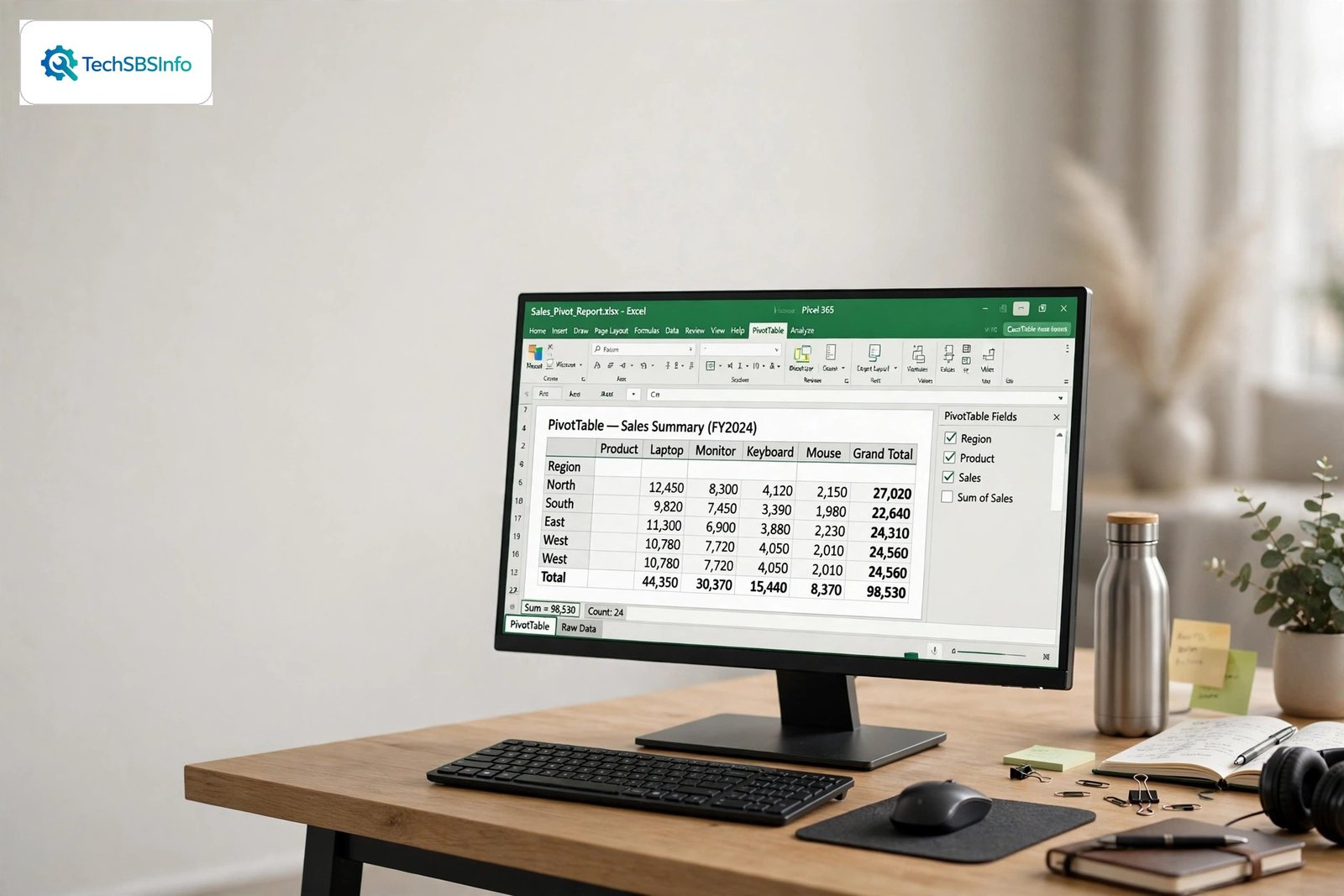
You updated your source data, pressed refresh, and nothing changed. The excel pivot table not refreshing problem is one of the most frustrating Excel issues because the button seems to work, yet the numbers stay frozen in time.
Here is the key fact most guides skip: a pivot table does not read your worksheet directly. When you create one, Excel copies your data into a hidden store called the pivot cache and builds the report from that copy. Refreshing reloads the cache from the source. If the refresh button does nothing, something is blocking that reload, or the source range Excel reads from no longer includes your new rows.
Work through these nine fixes in order. They go from the one-click solutions to the deeper cache and connection repairs. Most cases of excel pivot table not refreshing are solved by Fix 3 or Fix 4.
Table of Contents
- Quick Checks
- Diagnose the Problem
- Fix 1: Refresh the Pivot Table Properly
- Fix 2: Use Refresh All for Every Pivot Table at Once
- Fix 3: Expand the Data Source Range to Fix Excel Pivot Table Not Refreshing
- Fix 4: Convert Your Source Data to an Excel Table
- Fix 5: Turn On “Refresh Data When Opening the File”
- Fix 6: Fix the External Data Connection Behind the Pivot
- Fix 7: Turn Off Background Refresh for Slow Connections
- Fix 8: Rebuild a Corrupted Pivot Cache
- Fix 9: Fix Numbers Stored as Text So Refresh Shows Correct Totals
- What to Avoid
- Frequently Asked Questions
- Conclusion
- Helpful Resources
Quick Checks
- Click any cell inside the pivot table and press Alt + F5. This is the manual refresh shortcut for one pivot table.
- Press Ctrl + Alt + F5 to refresh everything in the workbook, including queries and connections.
- Right-click any cell in the pivot table and choose Refresh from the menu.
- Confirm the new data is really in the source range: click the source sheet and look at the last rows.
- Check whether the missing rows were added below or to the right of the range the pivot was built on. That is the single most common cause.
Diagnose the Problem
| Symptom | Cause | Go to Fix |
|---|---|---|
| Refresh button does nothing at all | Wrong refresh method, or the pivot is not selected | Fix 1 |
| One pivot updates but others stay old | Only the selected pivot was refreshed | Fix 2 |
| New rows never appear after refresh | Source range does not include the new rows | Fix 3 |
| New rows keep disappearing after every refresh | Source range is a fixed block that never grows | Fix 4 |
| Pivot is old every time you open the file | Automatic refresh on open is turned off | Fix 5 |
| Refresh shows a connection or login error | External source moved, renamed, or needs credentials | Fix 6 |
| Refresh starts but never finishes | Background refresh hangs on a slow source | Fix 7 |
| Refresh gives errors or shows scrambled fields | Pivot cache is corrupted | Fix 8 |
| Refresh runs but totals still look wrong | Source numbers stored as text, or wrong summary function | Fix 9 |
Fix 1: Refresh the Pivot Table Properly
Many “not refreshing” reports come down to refreshing the wrong thing. Excel only refreshes the pivot table you have actually selected.
- Click any single cell inside the pivot table. Two new tabs, PivotTable Analyze and Design, should appear on the ribbon.
- If those tabs do not appear, you clicked outside the pivot. Click again, closer to its data area.
- On the PivotTable Analyze tab, in the Data group, click the top half of the Refresh button.
- Alternatively, right-click any pivot cell and choose Refresh.
- Watch the status bar. A brief Retrieving Data or calculating message confirms the refresh ran.
- The small arrow under the Refresh button opens a menu with Refresh All and Refresh Status. Use the top half of the button for a single pivot.
- Alt + F5 does the same job from the keyboard and works even when the ribbon tab is hard to find.
- If nothing visibly changes, compare one known value before and after. Small changes are easy to miss in a big report.
Fix 2: Use Refresh All for Every Pivot Table at Once
Workbooks often contain several pivot tables, sometimes built on different sources. Refreshing one leaves the others frozen, which looks like the refresh failed.
- Go to the Data tab on the ribbon.
- In the Queries & Connections group, click Refresh All.
- Or press Ctrl + Alt + F5, which Microsoft defines as “refresh all data in the workbook.”
- Wait for the refresh to finish. Large workbooks with external connections can take a while.
- Check each pivot table, including ones on hidden sheets.

- Refresh All also refreshes Power Query queries and external data connections, not just pivot tables.
- If one slow connection blocks everything, refresh pivots one by one with Fix 1 to find the culprit.
- Cancel Refresh appears in the Refresh menu while a refresh runs. Use it if a refresh hangs, then investigate that source.
Fix 3: Expand the Data Source Range to Fix Excel Pivot Table Not Refreshing
This is the number one real cause. Your pivot was built on, say, A1:D500. You added rows 501 to 540. Refreshing reloads the cache, but only from A1:D500, so the new rows never appear.
- Click any cell inside the pivot table.
- On the PivotTable Analyze tab, click Change Data Source.
- Look at the range shown in the dialog. Compare it with where your data actually ends now.
- Update the range to include the new rows, for example from
Sales!$A$1:$D$500toSales!$A$1:$D$540. - Click OK, then refresh the pivot table with Alt + F5.

- Blank rows inside the source range can cut off data unexpectedly. Remove fully blank rows from the source.
- Every column needs a unique, non-blank header in the first row. Missing headers confuse the pivot cache.
- Merged cells in the source range cause refresh problems. Unmerge them before building or refreshing pivots.
- After widening the range, new fields may appear in the field list. Drag them into the report if you need them.
Fix 4: Convert Your Source Data to an Excel Table
Fix 3 works once, but the same problem returns the next time you add rows. The permanent solution is to turn the source into a proper Excel Table, which grows automatically.
- Click any cell inside your source data.
- Press Ctrl + T to format it as a table. Confirm the range and tick My table has headers.
- Give the table a clear name on the Table Design tab, such as SalesData.
- Click inside the pivot table, then PivotTable Analyze > Change Data Source, and set the source to the table name.
- Refresh. From now on, new rows added to the table are picked up automatically on refresh.
- Tables expand on their own when you type a new row directly below the last one.
- Structured references keep formulas and pivot sources stable even as the table grows.
- If your source comes from Power Query, load it To Table rather than only to the data model, so the pivot sees new rows.
- Avoid double header rows and blank header cells in the table. One clean header row is the rule.
Fix 5: Turn On “Refresh Data When Opening the File”
If your pivot is always out of date when you open the workbook, but refreshes fine manually, you need automatic refresh on open.
- Click any cell inside the pivot table.
- On the PivotTable Analyze tab, click Options to open PivotTable Options.
- Go to the Data tab of the dialog.
- Tick Refresh data when opening the file.
- Click OK, save the workbook, close it, and reopen it to test.
- In newer Microsoft 365 builds, Auto Refresh can also be toggled directly in the Data group of the PivotTable Analyze tab.
- Auto Refresh is set per data source, so turning it on affects every pivot built on that source.
- For external sources, also check Refresh this connection on Refresh All in the connection properties, or on-open refresh may skip that connection.
- Automatic refresh can slow down opening very large workbooks. That is the trade-off for always-fresh numbers.
Fix 6: Fix the External Data Connection Behind the Pivot
When a pivot is built on an external source, a database, a text file, another workbook, or a web feed, refresh depends on that connection. If the source moved, was renamed, or needs a fresh login, refresh fails or silently does nothing.
- Go to Data > Queries & Connections to open the pane.
- Find the connection your pivot uses. Right-click it and choose Properties.
- Check the source location. If the file moved or the server path changed, update it here.
- On the Usage tab, confirm the refresh options, including Refresh every minutes and Refresh data when opening the file.
- If the connection asks for credentials, re-enter them and tick the option to save the password if your policy allows it.
- Click OK and refresh the pivot again.

- A renamed source file is the classic cause. The connection still points at the old name and quietly fails.
- For database sources, confirm the server is reachable and your login still works. Test the query outside Excel if you can.
- Power Query-based pivots sometimes need the query itself refreshed first: right-click the query and choose Refresh before refreshing the pivot.
- If a SharePoint-hosted source file must be open to refresh, consider rebuilding the connection through Power Query’s web connector instead.
Fix 7: Turn Off Background Refresh for Slow Connections
Excel can refresh connections in the background so you keep working. On slow or flaky connections, background refresh hangs, and the pivot never updates.
- Go to Data > Queries & Connections, right-click the connection, and choose Properties.
- On the Usage tab, untick Enable background refresh.
- Click OK.
- Refresh the pivot again. Excel will now wait for the refresh to finish instead of running it silently in the background.
- With background refresh off, you will see progress on the status bar and know exactly when the refresh completes.
- You can also press Esc to stop a foreground refresh that is taking too long.
- Double-clicking the Retrieving Data message on the status bar opens the refresh status dialog, where you can stop a stuck background refresh.
- Turn background refresh back on for fast local sources once the problem is solved, so Excel stays responsive.
Fix 8: Rebuild a Corrupted Pivot Cache
Sometimes the pivot cache itself is damaged. Symptoms include refresh errors, fields that vanish, or a pivot that shows data from a source you already changed. When the cache is corrupt, no amount of refreshing helps. Rebuild it.
- Save a backup copy of the workbook first.
- Click inside the broken pivot table and note its layout: which fields are in Rows, Columns, Values, and Filters. A screenshot helps.
- Delete the pivot table sheet or clear the pivot range.
- Rebuild the pivot from scratch with Insert > PivotTable, pointing at the same source range or table.
- Recreate the layout from your notes or screenshot.
- Refresh to confirm the new pivot reads current data.
- Rebuilding is also the fix when a pivot keeps showing a field you deleted from the source long ago. Old cache entries linger until the cache is rebuilt.
- In PivotTable Options, on the Data tab, the Number of items to retain per field setting controls old items. Setting it to None and refreshing clears ghost entries without a full rebuild.
- If the workbook itself may be corrupt, try File > Open, select the file, click the arrow on Open, and choose Open and Repair.
Fix 9: Fix Numbers Stored as Text So Refresh Shows Correct Totals
This one is sneaky. The refresh actually works, but the totals still look wrong because some source numbers are stored as text. A pivot table counts text entries instead of summing them, so your totals come out far too low.
- In the source data, look for numbers aligned to the left, or cells with a small green triangle in the corner. Those are text.
- Select the affected column.
- Click the warning icon that appears and choose Convert to Number.
- Alternatively, use Data > Text to Columns and click Finish to force the whole column to numbers.
- Back in the pivot table, right-click a value field, choose Value Field Settings, and confirm it says Sum, not Count.
- Refresh the pivot. The totals should now match the source.

- Data imported from CSV files, web pages, and databases often arrives as text.
- A quick test: SUM the source column manually and compare with the pivot’s grand total. If they differ, suspect text-formatted numbers.
- Blank cells inside the source range can also distort totals. Fill or remove them.
- After converting, you may need to refresh twice: once to reload the cache, once to recalculate.
What to Avoid
- Do not delete and rebuild the pivot table as your first step. Check the source range first. Rebuilding wastes time when the range is the real problem.
- Do not use VBA macros or third-party “pivot fixer” add-ins from unknown sites. Every fix in this guide uses built-in Excel features.
- Do not refresh with the workbook in manual calculation mode and then wonder why nothing changed. Press F9 to recalculate, or switch back to automatic calculation under Formulas > Calculation Options.
- Do not widen the source range to entire columns like A:XFD. That bloats the pivot cache and slows every refresh. Use a table or a tight range instead.
- Do not ignore connection credential prompts. A saved wrong password fails silently on refresh.
- Do not edit the pivot cache directly or poke at Excel’s internal files. Rebuild the pivot through the normal Insert menu instead.
Frequently Asked Questions
Why is my pivot table not updating with new data?
Because the excel pivot table not refreshing issue usually means the source range does not include the new rows. Excel only reloads the exact range the pivot was built on. Widen it with Change Data Source, or better, convert the source to an Excel Table with Ctrl + T so it grows automatically.
How do I refresh a pivot table in Excel?
Click inside the pivot table and press Alt + F5, or right-click and choose Refresh. To refresh every pivot in the workbook, press Ctrl + Alt + F5 or use Data > Refresh All. These are the official methods Microsoft documents for pivot refresh.
Why does Refresh All not update my pivot table?
The pivot’s connection may be excluded from Refresh All, its source may have moved, or background refresh may be hanging. Check the connection in Data > Queries & Connections, confirm Refresh this connection on Refresh All is ticked, and try turning off background refresh.
Can a pivot table refresh automatically?
Yes. In PivotTable Options, on the Data tab, tick Refresh data when opening the file. Newer Microsoft 365 builds also offer an Auto Refresh toggle on the PivotTable Analyze tab that refreshes when the source data changes.
Why do my pivot table totals not match the source data?
Usually because some source values are stored as text, which the pivot counts instead of sums. Convert the column to numbers, check the value field is set to Sum rather than Count in Value Field Settings, and refresh again.
What is the pivot cache and should I clear it?
The pivot cache is Excel’s hidden copy of the source data that the pivot report is built from. You rarely need to clear it manually. Refreshing reloads it. If it becomes corrupt, rebuild the pivot table, or set Number of items to retain per field to None in PivotTable Options to drop old entries.
Why does my pivot table ask me to open the source file?
The pivot is linked to an external workbook through a connection that requires the file to be open. Rebuild the connection with Power Query pointing at the file’s location so Excel can refresh it without opening the source.
Does changing data in the source update the pivot instantly?
No. Pivot tables never update live. You must refresh after changing source data, either manually or with the on-open and auto-refresh options described in Fix 5. Newer Microsoft 365 builds with Auto Refresh come closest to live updates.
Conclusion
The excel pivot table not refreshing problem almost always traces back to one of three things: the source range that no longer covers your new rows, a broken external connection, or source numbers stored as text. Refresh properly with Alt + F5, widen the range or convert it to a table, check your connections, and verify the totals. Set up refresh-on-open once, and your pivots will greet you with current numbers every morning instead of yesterday’s.
[…] columns may be the cause, and Fix 4 checks that. For tables that feed pivot summaries, our guide to Excel pivot table not refreshing covers the refresh […]
[…] pivot tables in the same file also show old numbers, our guide to Excel pivot table not refreshing covers the refresh steps for pivot […]