


You enter a formula that should return a whole list of results, and instead of answers you get #SPILL!. The excel spill error fix you need depends on why Excel cannot place those results, but the logic is always the same: something is blocking the range where the answers want to land.
Modern Excel has dynamic arrays. A single formula like =SORT(A2:A20) can pour its results into neighboring cells automatically. That pouring is called spilling. When the spill range is blocked, too small, or impossible to calculate, Excel shows #SPILL! instead of your data. Nothing is broken. Excel is telling you exactly what is wrong.
Work through these nine solutions in order. The first two solve the large majority of cases.
Table of Contents
- Quick Checks
- Diagnose the Problem
- Fix 1: Find and Clear the Obstructing Cells (the Fastest Excel Spill Error Fix)
- Fix 2: Remove Merged Cells from the Spill Range
- Fix 3: Stop Using Full-Column References
- Fix 4: Use the @ Operator for Implicit Intersection
- Fix 5: Move the Formula Out of an Excel Table
- Fix 6: Tame Volatile Functions That Never Settle
- Fix 7: Keep the Spill Range Inside the Worksheet
- Fix 8: Clear Invisible Content Blocking the Spill
- Fix 9: Shrink Arrays That Run Out of Memory
- What to Avoid
- Frequently Asked Questions
- Conclusion
- Helpful Resources
Quick Checks
- Click the cell with #SPILL!. A dashed border appears showing the spill range Excel wanted to use. Look inside that border for the blocker.
- Click the small error warning icon next to the cell and choose Select Obstructing Cells. Excel jumps straight to the problem.
- Press Ctrl + End to see the last used cell on the sheet. Stray content far down or right can block spills.
- Check whether the formula sits inside an Excel Table. Spilled arrays are not supported in tables.
- Look for merged cells anywhere near the formula. Merged cells and spilling do not mix.
Diagnose the Problem
| Symptom | Cause | Go to Fix |
|---|---|---|
| #SPILL! with data or formulas in the way | Obstructing cells in the spill range | Fix 1 |
| #SPILL! and the sheet has merged cells | Merged cells block the spill | Fix 2 |
| #SPILL! on a VLOOKUP or similar using A:A | Full-column reference returns over a million results | Fix 3 |
| Formula worked in old Excel, now spills | Legacy implicit intersection changed to spilling | Fix 4 |
| #SPILL! inside a formatted table | Spilled arrays are not supported in Excel tables | Fix 5 |
| #SPILL! with RAND or RANDBETWEEN inside | Volatile function makes the array size unstable | Fix 6 |
| #SPILL! near the bottom or right edge | Spill range extends beyond the worksheet edge | Fix 7 |
| Spill range looks empty but still blocked | Invisible content like spaces or formatting | Fix 8 |
| #SPILL! on a huge calculation | Excel ran out of memory for the array | Fix 9 |
Fix 1: Find and Clear the Obstructing Cells (the Fastest Excel Spill Error Fix)
The most common excel spill error fix is also the simplest. Something sits in the way of the results. It might be a value, a formula, or even a stray space.
- Click the cell containing the #SPILL! error.
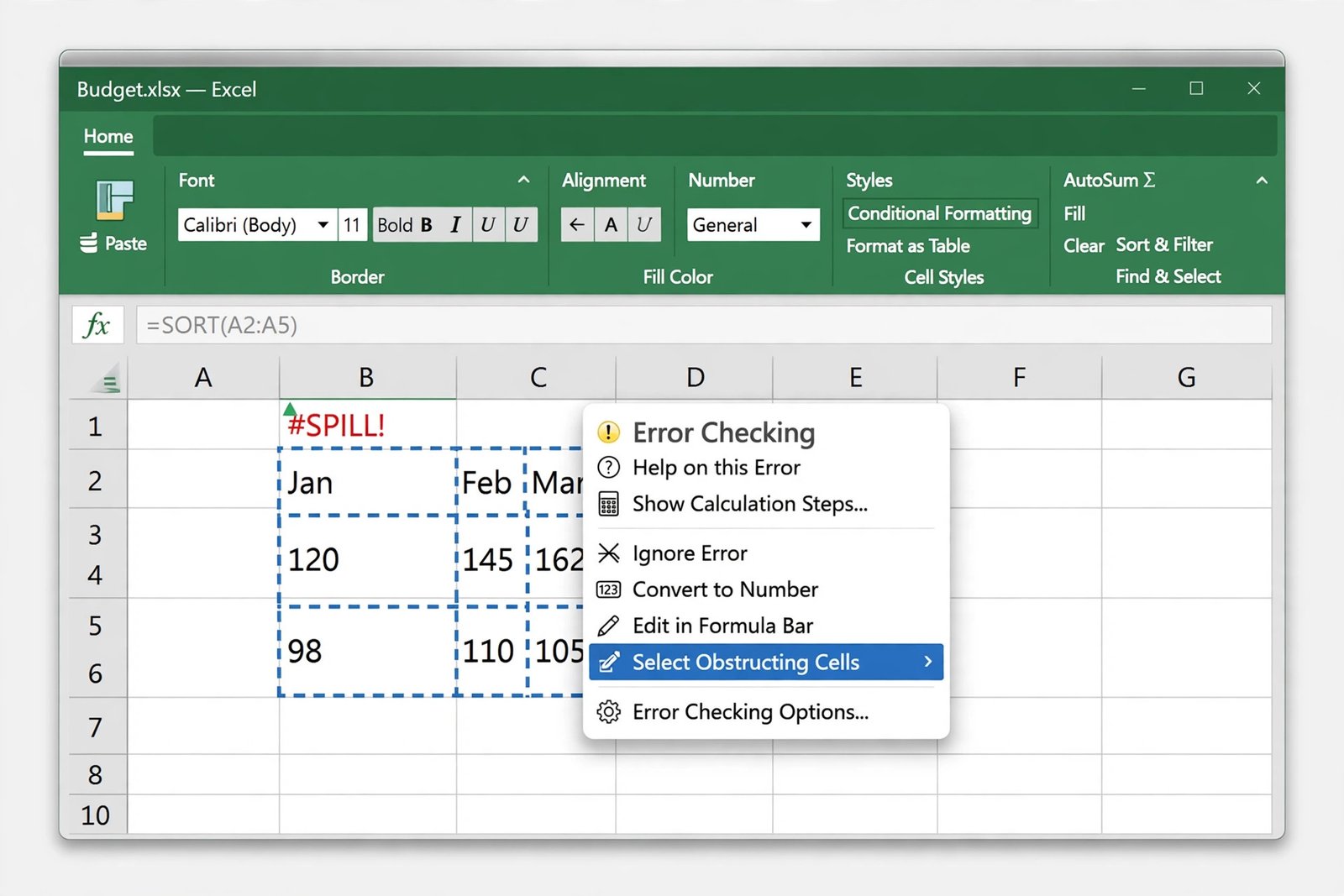
- Notice the dashed border. That is the spill range Excel reserved for the results.
- Click the error warning icon that appears beside the cell.
- Choose Select Obstructing Cells from the menu. Excel selects the exact cells in the way.
- Delete the obstructing entries, or move them somewhere outside the spill range.
- The moment the blockage clears, the formula spills and the error vanishes.
- The obstructing cell might contain a formula returning an empty-looking result. Empty-looking is not empty. Delete it or move it.
- If the spill range overlaps another table or pivot table, move one of them. Two objects cannot share the same cells.
- After clearing, press F9 to force a recalculation if the error does not clear instantly.
Fix 2: Remove Merged Cells from the Spill Range
Merged cells are a hard block. A spilled array needs every cell in its range to be a normal, individual cell. Even one merged pair inside the dashed border triggers #SPILL!.
- Select the area around your formula, covering the whole dashed spill range.
- Go to the Home tab and open the Merge & Center drop-down in the Alignment group.
- Choose Unmerge Cells.
- Repeat for any other merged cells overlapping the spill range.
- The formula should spill immediately once the range is clean.
- Merged cells in the header row above the formula are fine. Only merges inside the spill range matter.
- If you merged cells for looks, use Center Across Selection instead. It gives the same visual result without merging, and spilling works with it.
- Tables created with Ctrl + T never contain merged cells, which is one more reason to use them for source data.
Fix 3: Stop Using Full-Column References
This is the classic trap. In older Excel, =VLOOKUP(A:A,A:C,2,FALSE) in cell E2 only looked up the value on row 2. In dynamic array Excel, that same formula looks up all 1,048,576 values in column A and tries to spill over a million results. It hits the end of the grid and returns #SPILL!.
- Find the full-column reference in your formula, such as A:A.
- Replace it with just the rows you need, for example A2:A1000.
- Your formula becomes
=VLOOKUP(A2:A1000,A:C,2,FALSE), which returns a proper dynamic array. - Press Enter and watch it spill correctly.
- If the data grows, convert the source to an Excel Table or use a dynamic range instead of widening the reference manually.

- The same trap catches XLOOKUP, SUMIFS-style patterns, and any function fed a whole column as its lookup value.
- Full-column references inside the lookup table argument, like A:C, are fine. The problem is the lookup value argument.
- When you truly need the whole column, use Fix 4’s @ operator instead.
Fix 4: Use the @ Operator for Implicit Intersection
If you want the old behavior, one value per row copied down, the @ operator tells Excel to use implicit intersection. It is Microsoft’s documented answer for formulas that should not spill.
- Edit the formula and place @ before the range that should not spill, for example
=VLOOKUP(@A:A,A:C,2,FALSE). - Press Enter. The formula now returns a single value for its own row.
- Copy the formula down the column as you would have in older Excel.
- This style also works inside Excel Tables, where spilled arrays are not allowed.
- Use @ only where you want single-value behavior. Leave true dynamic arrays like SORT and FILTER without it so they can spill.
- Think of @ as “just this row, please.” It is the bridge between old and new Excel formula behavior.
- Mixing @ formulas and spilling formulas in the same column is fine. Each cell behaves as written.
- If a colleague’s old workbook suddenly shows #SPILL! everywhere, missing @ operators are the likely story.
Fix 5: Move the Formula Out of an Excel Table
Spilled array formulas are not supported inside Excel Tables. If your formula lives in a table column, Excel cannot spill and shows #SPILL! no matter how clear the surroundings are.
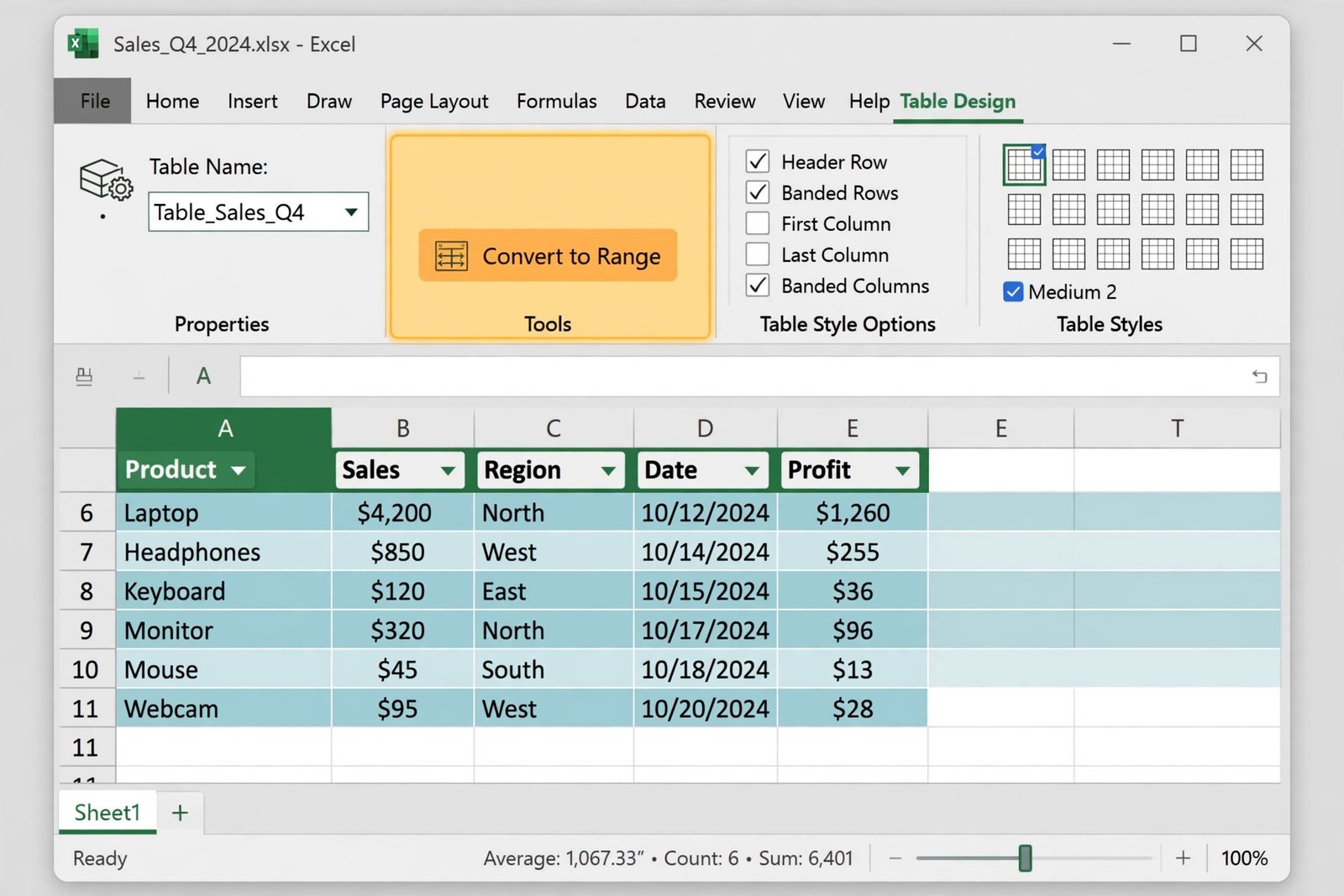
- Confirm the formula is inside a table. Click it and look for the Table Design tab on the ribbon.
- Decide which you need more: the table structure or the spilling formula.
- Option A: move the formula to a cell outside the table, in the open grid beside or below it.
- Option B: keep the formula where it is and convert the table to a normal range with Table Design > Tools > Convert to Range.
- Press Enter on the formula again and confirm it spills.
- You can reference table data from outside with structured references like
=SORT(SalesData[Amount]). The formula spills in the open grid while the source stays a tidy table. - Converting to a range loses table features like automatic expansion and structured references. Move the formula instead if you rely on those.
- Structured references with @, like
=[@Amount], work inside tables because they return single values.
Fix 6: Tame Volatile Functions That Never Settle
Some formulas change size on every calculation pass. Excel calculates, the array grows, Excel recalculates, the array shrinks, and the size never stabilizes. Excel gives up and shows #SPILL!. The usual suspects are RAND, RANDBETWEEN, and RANDARRAY used to size the array, as in =SEQUENCE(RANDBETWEEN(1,1000)).
- Find the volatile function controlling the array size in your formula.
- Replace the random size with a fixed number or a cell reference, for example
=SEQUENCE(B1)where B1 holds the size. - If you need randomness in the values but not the size, keep the size fixed and randomize inside:
=RANDARRAY(100,1)spills a stable 100-row array. - Press Enter and confirm the error clears.
- For dashboards that need a “shuffle” button, put the random size in a helper cell and reference it, so recalculation stays stable.
- OFFSET, INDIRECT, and TODAY are volatile too, but they do not return different values on every pass, so they rarely cause this specific error.
- A formula that works when first entered but breaks on the next recalculation is the signature of this problem.
- When in doubt, split the formula: one cell computes the size, another cell spills using that size.
Fix 7: Keep the Spill Range Inside the Worksheet
A spill range cannot extend past the edge of the grid. If your formula sits near the bottom or the far right and wants more room than remains, Excel returns #SPILL!.
- Click the #SPILL! cell and study the dashed border. See which edge it runs into.
- Move the formula up or left to give the spill room. For example, a formula in row 1048000 that spills 500 rows has nowhere to go.
- Alternatively, shrink the array so it fits, for example by limiting the source range.
- Press Enter and confirm the spill lands cleanly inside the grid.
- As a rule of thumb, place spilling formulas with plenty of empty rows below and empty columns to the right.

- This often happens with full-column lookups from Fix 3, because a million results always hit the bottom edge.
- Transposed results spill rightwards instead of downwards. Check the right edge for TRANSPOSE formulas.
- Moving the formula is usually better than shrinking the data. You want all your results, just in a roomier spot.
Fix 8: Clear Invisible Content Blocking the Spill
The spill range can look completely empty and still be blocked. A stray space, an apostrophe forcing text, leftover formatting from a deleted table, or a formula returning "" all count as content to Excel.
- Select the whole dashed spill range.
- Press Delete to clear contents. If the error clears, invisible content was the blocker.
- If Delete alone does not work, use Home > Editing > Clear > Clear All to remove contents and formatting together.
- Check for sneaky culprits: cells containing a single space, a lone apostrophe, or
=IF(...,"")formulas. - Press Ctrl + End to jump to the last used cell. If it is far beyond your real data, delete the unused rows and columns, save, and reopen the workbook to reset the used range.
- Copying a formatted table and deleting its values often leaves formatting ghosts that block spills. Clear All removes them.
- Conditional formatting rules do not block spills, but they can make the dashed border hard to see. Toggle them off while diagnosing.
- After clearing, re-enter the formula fresh rather than undoing, so no hidden state lingers.
Fix 9: Shrink Arrays That Run Out of Memory
Enormous arrays can exhaust Excel’s memory, especially when a formula multiplies two big ranges together. Excel reports this as #SPILL! with an out-of-memory note in the error details.
- Click the #SPILL! cell and read the error message. An out-of-memory mention confirms this cause.
- Reduce the array size. Reference only the rows you need instead of whole columns or giant ranges.
- Break one massive formula into steps across helper columns. Intermediate results are easier for Excel to handle than one giant calculation.
- Close other workbooks and applications to free memory, then recalculate with F9.
- If the calculation is genuinely huge, consider Power Query or the Data Model, which handle large datasets outside the grid.
- Array multiplication like
=A2:A100000*B2:B100000is the classic memory hog. Helper columns split the work. - 64-bit Excel handles far larger arrays than 32-bit Excel. If you are on 32-bit Office with big data, upgrading the Office installation itself is the real fix.
- Save before attempting giant recalculations. If Excel struggles, you want a recent save to fall back on.
What to Avoid
- Do not fill the spill range with your own values to “help” the formula. The spill range must stay empty for the formula to work.
- Do not use VBA or third-party add-ins to force spills. Every solution here uses built-in Excel behavior.
- Do not convert everything to values as a first resort. You lose the live formula that made dynamic arrays useful.
- Do not ignore the dashed border. It shows exactly where Excel wants to put results, which is the fastest clue you have.
- Do not place spilling formulas inside Excel Tables. They are not supported there, and no setting changes that.
- Do not reference entire columns as lookup values. A million-row spill is never what you wanted.
Frequently Asked Questions
What does #SPILL! mean in Excel?
It means a dynamic array formula tried to pour multiple results into neighboring cells, but the spill range was blocked, too small, or impossible to compute. Click the cell to see the dashed spill border, then use Select Obstructing Cells to find the blocker. That is the core of every excel spill error fix.
How do I fix a #SPILL! error quickly?
Click the error cell, choose Select Obstructing Cells from the warning menu, and delete or move whatever Excel selects. In most cases the formula spills correctly the instant the blockage is gone.
Why does my VLOOKUP return #SPILL! now?
Because you used a full-column reference like A:A as the lookup value. Modern Excel looks up all 1,048,576 values and tries to spill them. Narrow the reference to the rows you need, like A2:A1000, or add the @ operator for single-value behavior.
Can I use dynamic arrays inside an Excel Table?
No. Spilled array formulas are not supported in Excel Tables. Move the formula to the open grid outside the table, or convert the table to a range. You can still reference table columns from outside with structured references.
What is the @ operator in Excel formulas?
It requests implicit intersection: one value for the formula’s own row instead of a spilling array. =VLOOKUP(@A:A,A:C,2,FALSE) behaves like the old copy-down VLOOKUP. It is Microsoft’s documented fix for formulas that should not spill.
Why does #SPILL! appear near the bottom of the sheet?
The spill range extends beyond the worksheet’s edge. Move the formula higher up or further left to give the results room, or shrink the array so it fits inside the grid.
Do merged cells cause #SPILL! errors?
Yes. Merged cells inside the spill range block spilling completely. Unmerge them with Home > Merge & Center > Unmerge Cells, or use Center Across Selection for the same look without merging.
Will #SPILL! go away if I just wait or recalculate?
Only if the cause is temporary, like an unstable volatile size settling down. Blocked ranges, merged cells, tables, and full-column references will not fix themselves. Diagnose with the table at the top of this guide and apply the matching fix.
Conclusion
Every excel spill error fix starts with the same question: where did Excel want to put the results, and what is in the way? The dashed border answers the first half, and Select Obstructing Cells answers the second. Clear the blockers, unmerge the cells, narrow full-column references, keep spilling formulas out of tables, and your dynamic arrays will pour their results exactly where they belong.
[…] rule works. For a related problem where formulas show errors instead of results, our guide to Excel spill error fix covers that […]