

You click the microphone, speak clearly, and nothing appears. Or the Dictate button is missing entirely. When microsoft word dictation not working stops you mid-thought, the cause is usually simple: a missing subscription, a muted microphone, or a permission Word never received.
Dictation is different from most Word features because it needs three things at once: a Microsoft 365 subscription, a working microphone, and an internet connection. If any one of them fails, the feature fails with it. This guide checks each one in order, from the quickest checks to a full repair.
Table of Contents
- Why This Error Happens
- Quick Checks
- Diagnosing the Problem
- Fix 1: Check Your Microsoft 365 Subscription
- Fix 2: Check the Microphone Is Connected
- Fix 3: Allow Microphone Access for Word
- Fix 4: Check Your Internet Connection
- Fix 5: Set the Right Dictation Language
- Fix 6: Restart the Dictation Session
- Fix 7: Free the Microphone from Other Apps
- Fix 8: Update Office and Windows
- Fix 9: Try Word for the Web and Safe Mode
- Fix 10: Turn On Online Speech Recognition
- Fix 11: Check Your Firewall and Antivirus Are Not Blocking Dictation
- What to Avoid
- Frequently Asked Questions
- Conclusion
Why This Error Happens
1. Dictation Needs a Microsoft 365 Subscription
Dictation is not part of every version of Word. Microsoft offers it to Microsoft 365 subscribers, and it is not available in Office 2016 or 2019 without Microsoft 365. If you have a one-time purchase licence, the Dictate button may be missing completely, or it may appear greyed out. This is the first thing to check, because no settings change will add a feature your licence does not include.
2. The Microphone Is Not Selected or Not Working
Windows can have several microphones: a headset, a webcam mic, and a built-in laptop mic. Word uses the one Windows has selected as the default input. If the wrong one is selected, or the selected one is muted or unplugged, Word hears nothing. A loose headset jack or a dead headset battery causes the same silence, and Word gives no clear warning about it.
3. Windows Is Blocking Microphone Access
Windows 10 and 11 have privacy settings that can block apps from using the microphone. If microphone access is off for desktop apps, Word cannot hear you even though the mic works fine in a test. This often happens after a Windows update, or on a work computer where an administrator has tightened privacy settings.
4. There Is No Internet Connection
Dictation sends your speech to Microsoft’s cloud service and returns text. Without a reliable internet connection, the feature cannot work at all. A weak Wi-Fi signal, a VPN that blocks the service, or a strict office firewall can all break dictation while Word itself looks perfectly normal.
5. The Dictation Language Is Wrong
Dictation listens in the language set for your document. If it is set to a language you are not speaking, it will either produce nothing or produce strange text. This happens often with shared documents, or when Word picks up the language from a template. The fix is a single dropdown, but you have to know it is there.
6. Another App Is Already Using the Microphone
Only one app can use some microphones comfortably at a time. If Teams, Zoom, or a browser tab is holding the microphone, Word may get silence. The Dictate button may even look active while nothing is being transcribed. Closing the other app usually hands the microphone back at once.
Quick Checks
Run these checks before you change any settings. They take about two minutes.
- Look for the Dictate button on the Home tab. If it is missing, check your subscription first.
- Speak into the microphone and watch the Windows sound settings. If the input level bar does not move, the mic is the problem, not Word.
- Test the microphone in another app, such as Voice Recorder. If it works there, Word is the problem.
- Check that you are signed in to Word with your Microsoft 365 account. Look at File > Account.
- Make sure your internet is working by opening a web page. Dictation cannot work offline.
- Check that the microphone is not muted on the headset itself. Many headsets have a small mute button or a boom mic that mutes when flipped up.
Diagnosing the Problem
| Symptom | Cause | Go to Fix |
|---|---|---|
| Dictate button is missing | No Microsoft 365 subscription | Fix 1 |
| Button is there but nothing is transcribed | Microphone not selected or muted | Fix 2 |
| Word says it cannot access the mic | Windows privacy setting blocking Word | Fix 3 |
| Dictation starts then stops | Weak or blocked internet connection | Fix 4 |
| Wrong words appear | Wrong dictation language | Fix 5 |
| Works once, then stops | Microphone held by another app | Fix 7 |
| Dictation fails everywhere | Outdated Office or damaged install | Fix 8, Fix 9 |
Fix 1: Check Your Microsoft 365 Subscription
Dictation is a Microsoft 365 feature. If you are signed in with a personal account that has no subscription, or with a one-time Office licence, the button will not appear. Confirm this first, because it decides whether the rest of the fixes can help at all.
- In Word, go to File > Account.
- Look under Product Information for your licence type.
- If it says Microsoft 365, your subscription is active and dictation should be available.
- If it says Office 2019 or Office 2016 without Microsoft 365, dictation is not included.
- If the subscription has expired, renew it or sign in with the account that holds the subscription.
If you are signed in with the wrong account, click Sign out and sign back in with the right one. Microsoft’s own help page confirms that the Dictate button only appears for Microsoft 365 subscribers, so check the official guide to dictate your documents in Word to confirm what your version should show.
Fix 2: Check the Microphone Is Connected
When microsoft word dictation not working is the complaint, the microphone is the most common culprit. Word cannot fix a mic it cannot hear, so prove the mic works before you touch Word settings.
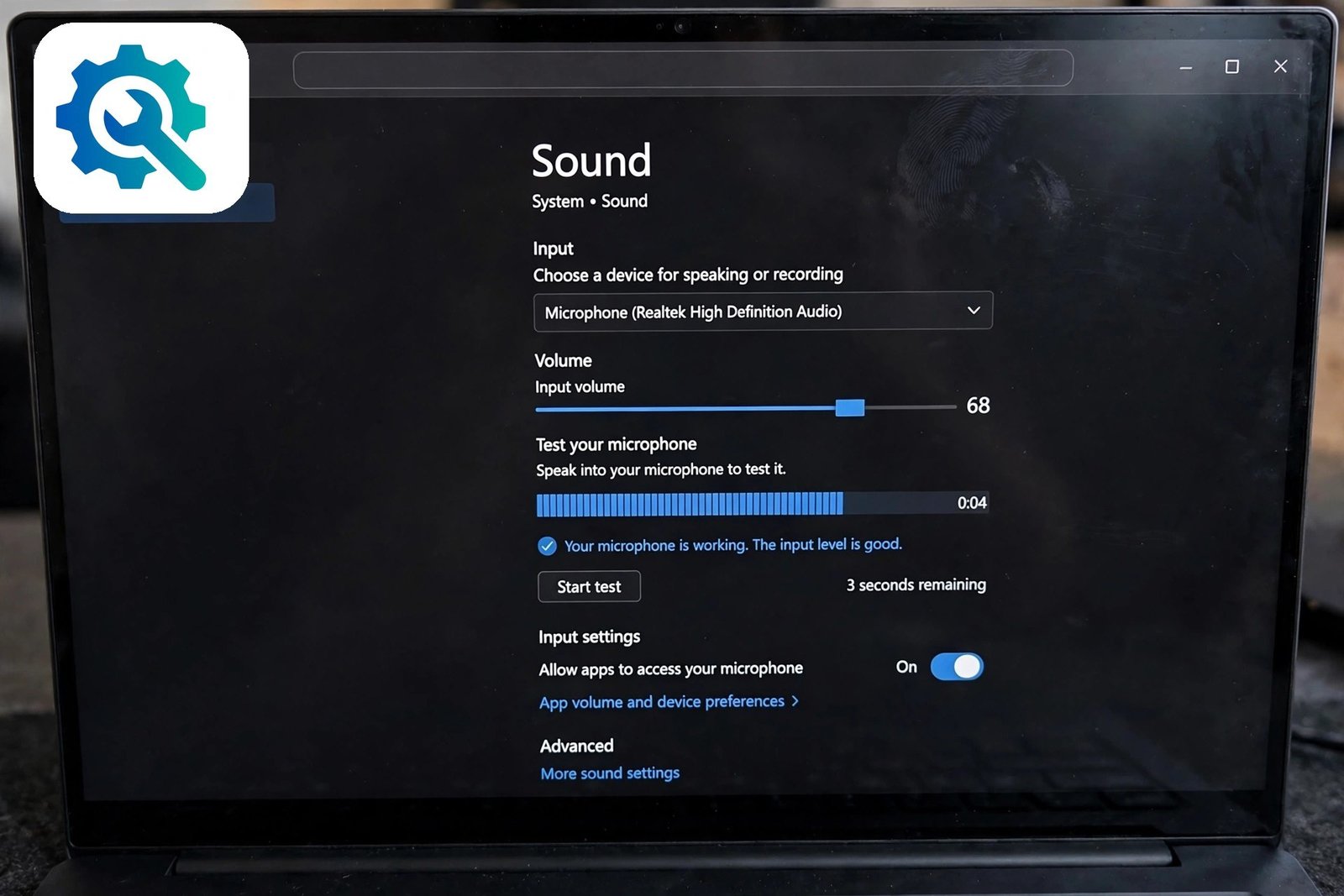
- Right-click the speaker icon in the taskbar and choose Sound settings.
- Under Input, check which microphone is selected.
- Choose the microphone you actually use, such as your headset.
- Speak and watch the input volume bar. It should move as you talk.
- If the bar does not move, check the headset cable, try another USB port, or test a different microphone.
Also check the volume slider under the input device. If it is set very low, Word may hear only whispers. Set it to around 70 to 80 percent. If the microphone works in Windows settings but not in Word, move on to the permission fix below.
Fix 3: Allow Microphone Access for Word
Windows privacy settings can block desktop apps from the microphone. This is easy to miss because the microphone works in Windows settings but stays silent inside Word.
- Open Settings > Privacy & security > Microphone.
- Turn on Microphone access.
- Turn on Let desktop apps access your microphone.
- Close Word completely and open it again.
- Click Dictate and speak a test sentence.
If your computer is managed by an employer, these toggles may be greyed out. In that case, ask your IT administrator to allow microphone access for Office apps. Do not try to work around a company policy with third-party tools. On a personal computer, this fix solves the problem more often than people expect, especially after a major Windows update resets privacy settings.
Fix 4: Check Your Internet Connection
Dictation is a cloud service. Your voice travels to Microsoft’s servers and comes back as text, so a broken or restricted connection stops it cold. Word does not always tell you the connection is the problem.
- Open a web page in your browser to confirm the internet works.
- If you use a VPN, disconnect it and try dictation again.
- If you are on office or school Wi-Fi, try a mobile hotspot to test whether the network blocks the service.
- Restart your router if the connection is slow or drops often.
- In Word, click Dictate again once the connection is stable.
A weak signal is enough to break dictation even when web pages load. If dictation starts and then stops after a few seconds, the connection is the likely cause. Microsoft’s dictation guide notes that a reliable internet connection is required, and the same point appears in its guide to dictating with a screen reader, which lists the connection among the basic requirements.
Fix 5: Set the Right Dictation Language
If Word is listening in the wrong language, it will misunderstand you or return nothing. The language setting sits in the Dictate dropdown, and it defaults to your document language, which is not always the language you speak.

- On the Home tab, click the small arrow under Dictate.
- Check the language shown in the dropdown.
- Choose the language you are speaking, such as English (United States).
- Speak a short test sentence and check the result.
- If the language keeps changing back, set the document proofing language too, under Review > Language.
Also speak clearly and at a normal pace. Dictation handles natural speech well, but mumbling or speaking very fast lowers accuracy. Say punctuation out loud, such as “comma” or “full stop”, when you want it in the text. If spelling-related settings are also misbehaving, our guide to Microsoft Word spell check language problems explains the language settings in more detail.
Fix 6: Restart the Dictation Session
Sometimes dictation simply stalls. The button looks active, the mic is fine, but no text appears. A fresh session clears the stall. This is the quickest fix of all, and it works more often than it should.
- Click the Dictate button again to stop dictation.
- Wait three seconds.
- Click the document where you want the text to appear.
- Click Dictate again and wait for the red recording dot to appear.
- Speak a short sentence and check that text appears.
If the red dot never appears, close the document and open a new blank one, then try again. A stuck session can also be cleared by closing Word completely and reopening it. If the problem returns every time you dictate for more than a few minutes, the cause is more likely your connection or another app holding the microphone, so check Fixes 4 and 7.
Fix 7: Free the Microphone from Other Apps
If Teams, Zoom, Skype, or a browser tab is using your microphone, Word may get nothing. Some microphones and drivers only serve one app at a time, and the first app to grab the mic wins.

- Close Teams, Zoom, Skype, and any browser tabs that use the mic.
- In Word, stop dictation and start it again.
- If it works now, reopen your other apps one at a time to find the one that grabs the mic.
- In that app, turn off its microphone when you are not in a call.
- In Windows Sound settings, check that only one input device is enabled if you have several.
Also check for apps running in the background that you forgot about, such as a voice assistant or a recording tool. Open Task Manager with Ctrl + Shift + Esc and look for apps that might hold the microphone. If Word still hears nothing after freeing the mic, the problem is deeper, so move on to the update fix.
Fix 8: Update Office and Windows
A bug in an old Office build can break dictation. Microsoft fixes these bugs in updates, so an update is a real fix, not just general advice. Update Office first, then Windows.
- In Word, go to File > Account > Update Options > Update Now.
- Let the update finish, then restart Word.
- Test dictation with a short sentence.
- If it still fails, open Settings > Windows Update and install any pending updates.
- Restart your computer after the updates, then test again.
While you are updating, also update your headset or microphone drivers. Open Device Manager, expand Audio inputs and outputs, right-click your microphone, and choose Update driver. If Word itself is crashing or freezing during these steps, our guide on Office apps crashing on startup covers that separately. Track Changes users may also want our track changes guide, since both features depend on a healthy Word install.
Fix 9: Try Word for the Web and Safe Mode
If dictation still fails in the desktop app, test it in Word for the web. That tells you whether the problem is your computer or your account. Then test Safe Mode, which tells you whether an add-in is blocking the mic.

- Open your document in Word for the web in your browser.
- Click Home > Dictate and speak a sentence.
- If it works there, your account and subscription are fine, and the desktop app is the problem.
- Close Word, hold Ctrl, and click the Word icon to start in Safe Mode.
- Test dictation in Safe Mode. If it works, an add-in is blocking it, so disable add-ins one at a time under File > Options > Add-ins.
If dictation fails in both the web version and Safe Mode, the problem is your microphone, your connection, or your account, so recheck Fixes 1 to 4. If it works in the web version but not on the desktop, repair Office through Installed apps, choosing Quick Repair first and Online Repair if needed. If Word is not responding at all when you try these steps, see our Microsoft Word not responding guide.
Fix 10: Turn On Online Speech Recognition
Dictation is a cloud service, so Windows needs permission to send your speech to Microsoft before Word can transcribe it. That permission is a separate switch from the microphone permission in Fix 3. If Online speech recognition is off, Word hears your microphone fine but has nowhere to send the audio, so microsoft word dictation not working is what you get.
- Open Settings > Privacy & security > Speech.
- Turn on Online speech recognition.
- If the switch is greyed out, your computer may be managed by an employer. Ask your IT administrator to turn it on.
- Close Word completely and open it again.
- Click Dictate and speak a short test sentence.
This switch is different from the microphone access in Fix 3. Fix 3 lets apps hear the microphone, while this switch lets Windows send speech to Microsoft’s cloud service. Both must be on for dictation to work. If you use Windows voice typing with Windows key + H, the same switch controls that feature too.
Fix 11: Check Your Firewall and Antivirus Are Not Blocking Dictation
Security software can block Word from reaching Microsoft’s speech service, even when web pages load normally. The connection in Fix 4 may be fine, yet dictation still fails because the firewall treats Word’s speech traffic as something to stop. Checking the firewall rules is a real fix, not a guess.
- Open Settings > Privacy & security > Windows Security > Firewall & network protection.
- Click Allow an app through firewall and check that Microsoft Word and Microsoft Office are ticked for your network type.
- If you use a third-party antivirus or firewall, open it and check its list of blocked apps for Word or Office.
- Allow Word through the firewall, then close and reopen Word.
- Click Dictate and speak a test sentence.
Do not leave your firewall or antivirus switched off as a permanent fix. If dictation only works while the firewall is off, the allow rule in step 2 or 3 is the answer, so set the rule and switch the protection back on. If your work computer is managed by an employer, ask IT to allow Office through the company firewall instead of changing the settings yourself.
What to Avoid
- Do not buy a new microphone before testing the one you have in Windows sound settings. Most dictation failures are settings, not hardware.
- Do not download “dictation fixer” or driver-updater tools from random websites. Use Windows Update and the maker’s own site instead.
- Do not dictate in a noisy room and blame Word for the errors. Background noise is the biggest cause of bad transcription.
- Do not ignore the subscription check. No settings fix can add dictation to a licence that does not include it.
- Do not leave ten apps open while you dictate. Close the ones that use the microphone.
- Do not speak too fast or mumble. Dictation is good, but it is not magic.
Frequently Asked Questions
Why is the Dictate button missing in Word?
The button only appears for Microsoft 365 subscribers who are signed in. If you have Office 2016 or 2019 without Microsoft 365, or your subscription has expired, the button will not show. Check File > Account to confirm your licence.
Can I use dictation without the internet?
No. Dictation sends your speech to Microsoft’s cloud service for transcription. Without an internet connection, the feature cannot work. If you need offline voice typing, Windows has a separate voice typing feature you can try with Windows key + H.
Why does dictation type the wrong words?
The usual causes are the wrong language, background noise, or speaking too quickly. Set the right language in the Dictate dropdown, move to a quieter room, and speak at a normal pace with clear punctuation commands.
Does dictation work on a Mac?
Yes, dictation is available in Word for Mac for Microsoft 365 subscribers. The steps are similar: check the subscription, check the microphone in macOS System Settings, and make sure the language matches what you speak.
Is my voice recording stored by Microsoft?
Microsoft states that the dictation service does not store your audio data or transcribed text. Your speech is sent to Microsoft only to provide the text result. You can read the details on Microsoft’s own dictation help page.
Conclusion
When microsoft word dictation not working blocks you, check the three things dictation needs: a Microsoft 365 subscription, a working microphone that Windows has selected, and a steady internet connection. Most cases are fixed by one of those three, and the rest are usually a wrong language or another app holding the microphone.
Work through the 11 fixes in order and test with a short sentence after each one. If dictation works in Word for the web but not on the desktop, repair Office. Once it is working, keep your headset charged, your language set correctly, and your background apps closed, and dictation will quietly turn your voice into text whenever you need it.