


You open a document that should have a header — page numbers, a title, a logo — and the top of the page is blank. The footer is gone too. When microsoft word header and footer missing is your problem, the content is usually still there; Word is just not showing it, or a section setting has hidden it.
Headers and footers disappear for a small set of reasons: the wrong view, a collapsed header area, “Different first page” settings, unlinked sections, or white text on a white page. This guide finds your headers again in order, without risking the document.
Table of Contents
- Quick Checks
- Diagnosing microsoft word header and footer missing
- Fix 1: Switch to Print Layout View
- Fix 2: Double-Click the Margin Area
- Fix 3: Check Different First Page Settings
- Fix 4: Unlink Headers with Link to Previous
- Fix 5: Check for Section Breaks
- Fix 6: Fix White-on-White Header Text
- Fix 7: Repair the Document
- What to Avoid
- Frequently Asked Questions
- Conclusion
- Helpful Official Resources
Quick Checks
The fastest checks first.
- Look at the View tab: are you in Print Layout? Headers and footers only show there (and in Print Preview).
- Hover at the very top of the page — does the cursor change? The header space may just be collapsed.
- Check Print Preview (Ctrl+P): if headers show there, it is a view issue, not a content issue.
- Scroll to page 2 — “Different first page” hides the header only on page 1.
- Check whether the document ever had headers — a document without them is not broken.
Diagnosing microsoft word header and footer missing
| Symptom | Cause | Go to Fix |
|---|---|---|
| Missing in normal view, visible in print preview | Wrong view or collapsed space | Fix 1, then Fix 2 |
| Missing only on the first page | Different First Page enabled | Fix 3 |
| Missing from page 3 onwards | Unlinked section | Fix 4 |
| Present but invisible (selectable blank area) | White text colour | Fix 6 |
| Missing after pasting content together | Section breaks | Fix 5 |
| Missing in one document only | Document-specific setting | Fix 3 through Fix 6 |
Fix 1: Switch to Print Layout View
Word has several views, and only Print Layout (and Print Preview) shows headers and footers. Draft, Web Layout, and Outline views hide them completely — by design.

- Go to the View tab.
- Click “Print Layout”.
- Check the top and bottom of the page — headers and footers should appear.
- If you prefer keyboard: Alt+W, then P.
- Make this your default view habit for any document with headers.
This is the number one answer, and it takes two seconds. Documents opened from email or the web sometimes default to other views, which is why headers “vanish” on files that were fine yesterday. If Word itself is not responding, our Microsoft Word not responding guide is the right detour.
Fix 2: Double-Click the Margin Area
Even in Print Layout, the header/footer space can be collapsed — Word hides the white space between pages, taking the headers with it visually.
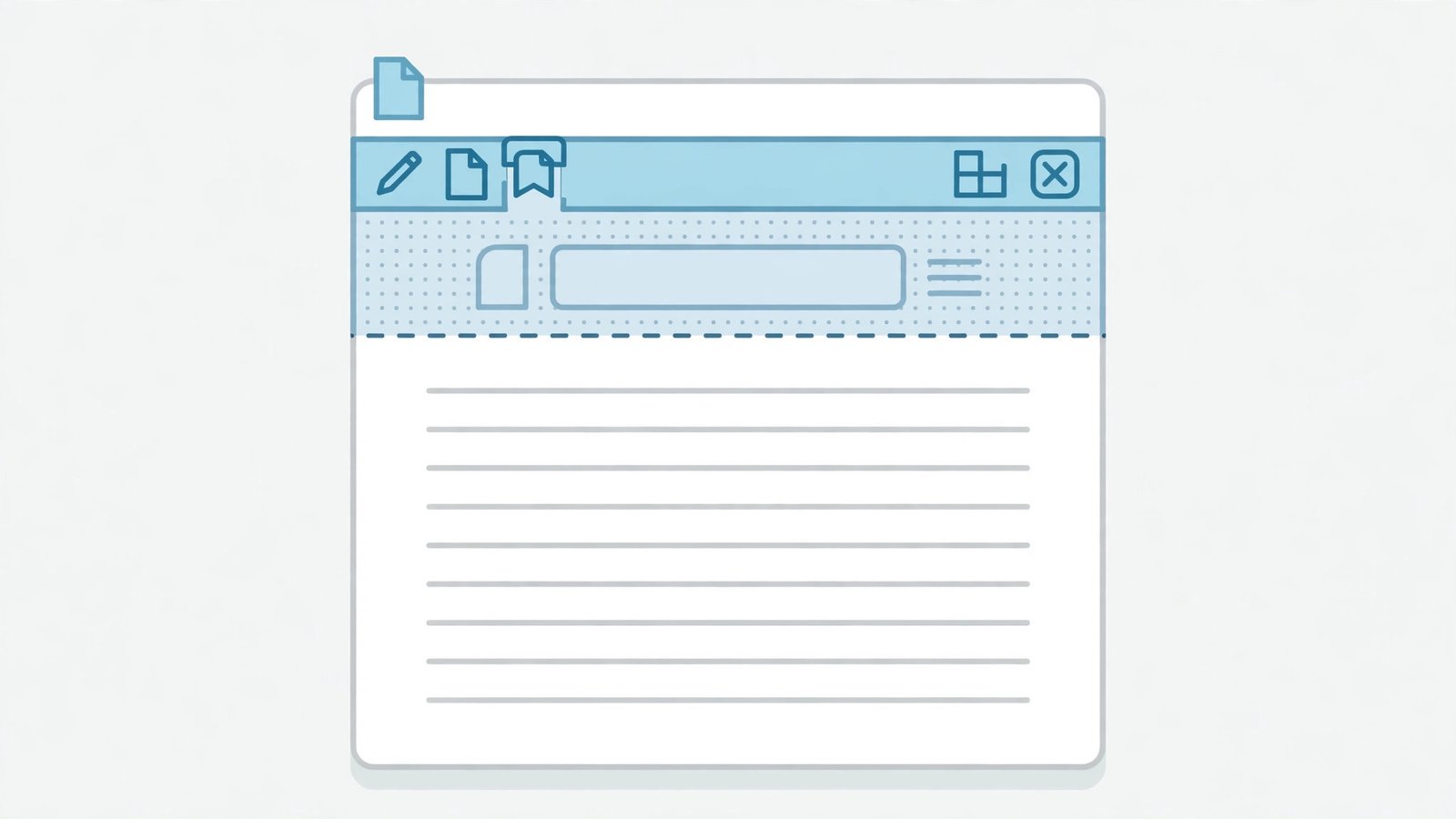
- Hover your mouse at the very top edge of the page, in the margin area.
- When the cursor changes to a double-headed arrow (or shows “Double-click to show white space”), double-click.
- The header and footer spaces expand, revealing their contents.
- Do the same at the bottom of the page for the footer.
- To stop this happening: File > Options > Display > tick “Show white space between pages in Print Layout view”.
“Hide white space” is a feature for people who want a continuous reading scroll — but it hides headers as a side effect. The double-click toggle is instant, and the Options checkbox makes the choice permanent.
Fix 3: Check Different First Page Settings
“Different First Page” gives page 1 its own (often empty) header and footer. If your header is missing only on the first page, this setting is the reason.
- Double-click the header area to open Header & Footer Tools.
- On the Header & Footer tab, look at “Different First Page” in the Options group.
- If it is ticked and your first-page header is empty, either untick it (page 1 gets the normal header) or design a first-page header deliberately.
- Check “Different Odd & Even Pages” too — with it on, odd and even pages have separate headers, and one set may be empty.
- Navigate between “First Page Header”, “Odd Page Header”, and “Even Page Header” using the “Next” button to fill each.
Different First Page is legitimate for title pages — but when enabled accidentally, it looks exactly like a missing header. For presentation files with similar mysteries, our PowerPoint presentation not opening guide is the Office-sibling read.
Fix 4: Unlink Headers with Link to Previous
In multi-section documents, each section can either inherit the previous section’s header (“Link to Previous”) or have its own. An unlinked section with an empty header shows… nothing.

- Double-click the header area on a page where the header is missing.
- Look at the “Link to Previous” button on the Header & Footer tab — highlighted means linked, unhighlighted means independent.
- If the section is unlinked and its header is empty, click “Link to Previous” to inherit the earlier header.
- Or design the header for this section deliberately, then move to the next section with the “Next” button and repeat.
- Do the same for footers — headers and footers link independently.
The tab labels (“Header -Section 2-“, “Footer -Section 1-“) tell you which section you are editing. Work through each section methodically; a 50-page document with five sections has five headers to check.
Fix 5: Check for Section Breaks
Section breaks are invisible dividers that reset headers. A document assembled from several files is full of them, and each one can orphan a header.
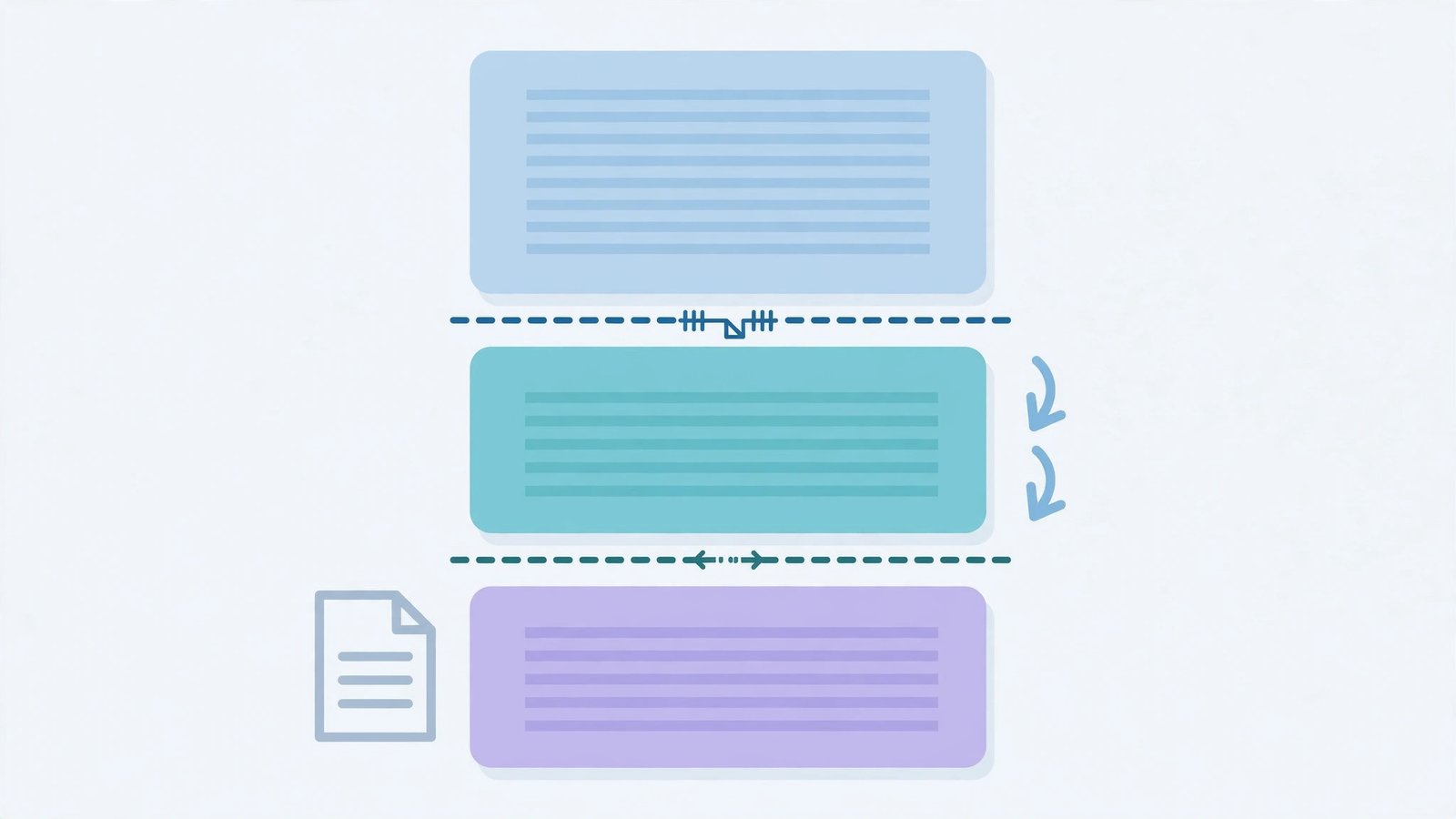
- Press Ctrl+Shift+8 to show formatting marks.
- Look for “Section Break (Next Page)” or “(Continuous)” markers — each one starts a new header zone.
- Decide what you want: delete unnecessary breaks (place the cursor on the marker and press Delete) to reunite the document, or keep them and set each section’s header (Fix 4).
- Be careful deleting breaks — they also carry page orientation and margin settings. Deleting a break merges the sections’ page setups.
- Hide formatting marks again when done.
Pasted-together documents are the classic case: three reports merged into one, each with its own sections, headers missing from page 20 onwards. Understanding the breaks turns the mystery into bookkeeping. For read-only document troubles, see Microsoft Word document read-only mode.
Fix 6: Fix White-on-White Header Text
Sometimes the header is there — you can select a blank area and feel text — but it is invisible because the font colour is white on a white page.
- Double-click the header area to open it.
- Press Ctrl+A to select everything in the header.
- On the Home tab, change the font colour to Automatic or Black.
- Check the footer the same way.
- Also check for text formatted as Hidden: select it, right-click > Font, and untick “Hidden”.
White text in headers usually arrives via pasted content or a template gone wrong. Selecting-all and resetting the colour is the instant cure. While you are in the Font dialog, glance at the font size too — 1pt text is effectively invisible as well.
Fix 7: Repair the Document
If headers are missing in one specific document across every view and setting, the document’s header structures may be corrupt.
- Save a backup copy of the document first.
- Try opening the file in Word’s safe mode (hold Ctrl while launching Word, then open the file) — if headers appear, an add-in is interfering.
- Copy the body content (Ctrl+A in the body, not the headers) into a brand-new document.
- Recreate the headers fresh in the new document (Insert > Header).
- If the old file matters, keep it as an archive and work in the new one.
Rebuilding headers in a clean document takes minutes and sidesteps whatever corruption ate the originals. If Office apps are crashing rather than misplacing headers, see Office apps crashing on startup.
What to Avoid
- Do not retype headers on every page — that is what the header area is for.
- Do not delete section breaks blindly — they carry page setup with them.
- Do not assume headers are deleted when they are just hidden — check Print Preview first.
- Do not design headers in Draft view — you cannot see what you are doing.
- Do not link every section blindly — some documents genuinely need different headers per section.
- Do not ignore “Different First Page” — it explains more first-page mysteries than anything else.
Frequently Asked Questions
Why is my header missing only on the first page?
“Different First Page” is enabled (Fix 3). Either disable it or design the first-page header deliberately — the content is not lost, just assigned to a separate first-page header.
I can see the header in Print Preview but not while editing. Why?
You are in the wrong view (Fix 1) or white space is hidden (Fix 2). Print Preview proves the header exists — the editing view is just not showing it.
Why does my header disappear after a section break?
The new section is unlinked and has an empty header (Fix 4). Either link it to the previous section or design its header. Section breaks always reset the header zone.
Can I have different headers on different pages?
Yes — that is what sections and “Different First Page” / “Different Odd & Even” are for. Insert section breaks where the header should change, unlink, and design each.
My footer shows the page number on some pages only. Why?
The page-number field is in one section’s footer but the sections are unlinked. Link the sections (Fix 4) or insert the page number field in each section’s footer.
Why did my header vanish after I inserted a page break?
You probably inserted a section break, not a page break — they look similar in the menu. A new section starts with a fresh header that may be empty or unlinked from the previous one. Check for “Section Break” markers (show formatting marks with Ctrl+Shift+8), then use “Link to Previous” in the Header & Footer Tools to reconnect the headers across the break.
Can I have a header on every page except the first?
Yes — that is exactly what “Different First Page” is for. Double-click the header area, tick “Different First Page” in the Header & Footer Tools, and leave the first-page header empty. Title pages, cover letters, and reports use this constantly. The option is per-section, so set it in each section if your document has several.
Why does the footer show page numbers on odd pages only?
“Different Odd & Even Pages” is enabled. With it on, Word maintains two separate footers — odd and even — and yours probably has the page number only in the odd one. Either add the page number to the even footer too, or turn the option off in Header & Footer Tools if you do not need mirrored layouts. Book-style documents use this deliberately; most others enable it by accident.
Conclusion
When microsoft word header and footer are missing, the content is almost always still there — hidden by a view, a collapsed margin, a first-page setting, or an unlinked section. Check Print Layout, double-click the margins, and walk the sections with Link to Previous. Headers return as quickly as they vanished, and understanding sections means they will never mystify you again.