


There is nothing more stressful than a powerpoint presentation not opening minutes before your meeting. You double-click the file, and either nothing happens, an error message appears, or PowerPoint opens and then freezes. The good news is that this problem is usually fixable in a few minutes.
A PowerPoint presentation not opening can happen for several reasons. The file may be blocked by Windows security, stored in a syncing cloud folder, damaged, or opened by a copy of PowerPoint that has a broken add-in. Sometimes the Office installation itself is the problem, not the file.
This guide walks you through 8 fixes in order, from the simplest to the most advanced. Start at Fix 1 and stop when your file opens. Most people solve the problem by Fix 4.
Table of Contents
- Quick Checks
- Diagnose: Why a PowerPoint Presentation Not Opening Happens
- Fix 1: Close Stuck PowerPoint Processes and Restart
- Fix 2: Unblock the File and Open It from Local Storage
- Fix 3: Open PowerPoint in Safe Mode
- Fix 4: Disable Add-ins and Hardware Acceleration
- Fix 5: Use Open and Repair on the File
- Fix 6: Repair Microsoft Office
- Fix 7: Update Office to the Latest Version
- Fix 8: Recover an Unsaved or Damaged File
- What to Avoid
- Frequently Asked Questions
- Conclusion
- Helpful Official Resources
Quick Checks
Try these fast checks first. They solve the problem more often than you would expect.
- Check the file location. If the file is on a USB drive, network share, or a disconnected drive, copy it to your Desktop and open it from there.
- Check the file extension. Make sure the file really ends in
.pptxor.ppt, not.tmp,.zip, or a partial download name. - Check the file size. A presentation that should have slides but shows 0 KB is empty or damaged. Skip to Fix 8.
- Pause cloud sync. If the file is in OneDrive or Dropbox, pause syncing and wait for the file to finish syncing before opening it.
- Restart your PC. A simple restart clears stuck PowerPoint processes and temporary glitches.
- Try a different file. Open another presentation. If other files open fine, the problem is with one file. If no file opens, the problem is with PowerPoint itself.
- Try PowerPoint for the web. Upload the file to OneDrive and open it in your browser. If it opens there, your desktop app is the problem.
Diagnose: Why a PowerPoint Presentation Not Opening Happens
Use this table to match what you see with the likely cause and the right fix.
| Symptom | Cause | Go to Fix |
|---|---|---|
| Nothing happens when you double-click the file | PowerPoint process is stuck or frozen in the background | Fix 1 |
| “PowerPoint can’t read the file” or “file is corrupt” error | File is damaged or was downloaded incompletely | Fix 5 |
| “The file is blocked” or a security warning appears | Windows blocked a file downloaded from the internet or email | Fix 2 |
| PowerPoint opens but freezes or crashes immediately | A broken add-in or hardware acceleration issue | Fix 3, Fix 4 |
| File opens on another PC but not on yours | Your Office installation is damaged or outdated | Fix 6, Fix 7 |
| File was open during a crash and now won’t open | AutoRecover copy exists but the main file is damaged | Fix 8 |
| “PowerPoint found a problem with content” warning | Part of the file (media, fonts, or slides) is damaged | Fix 5 |
| PowerPoint asks for a password you never set | File is password-protected or misidentified | Fix 2 |
Fix 1: Close Stuck PowerPoint Processes and Restart
Sometimes PowerPoint is already running in the background but frozen. A new copy cannot start, so nothing seems to happen.
- Press Ctrl + Shift + Esc to open Task Manager.
- Go to the Processes tab.
- Look for Microsoft PowerPoint or POWERPNT.EXE in the list.
- Right-click it and choose End task.
- If you see several PowerPoint entries, end all of them.
- Restart your PC to clear any leftover background processes.
- After the restart, double-click your presentation again.
If the file still does not open, the problem is not a stuck process. Move on to Fix 2.
Fix 2: Unblock the File and Open It from Local Storage
Windows marks files downloaded from the internet or received by email as unsafe. PowerPoint may refuse to open them until you unblock the file. Files in syncing cloud folders can also fail to open mid-sync.
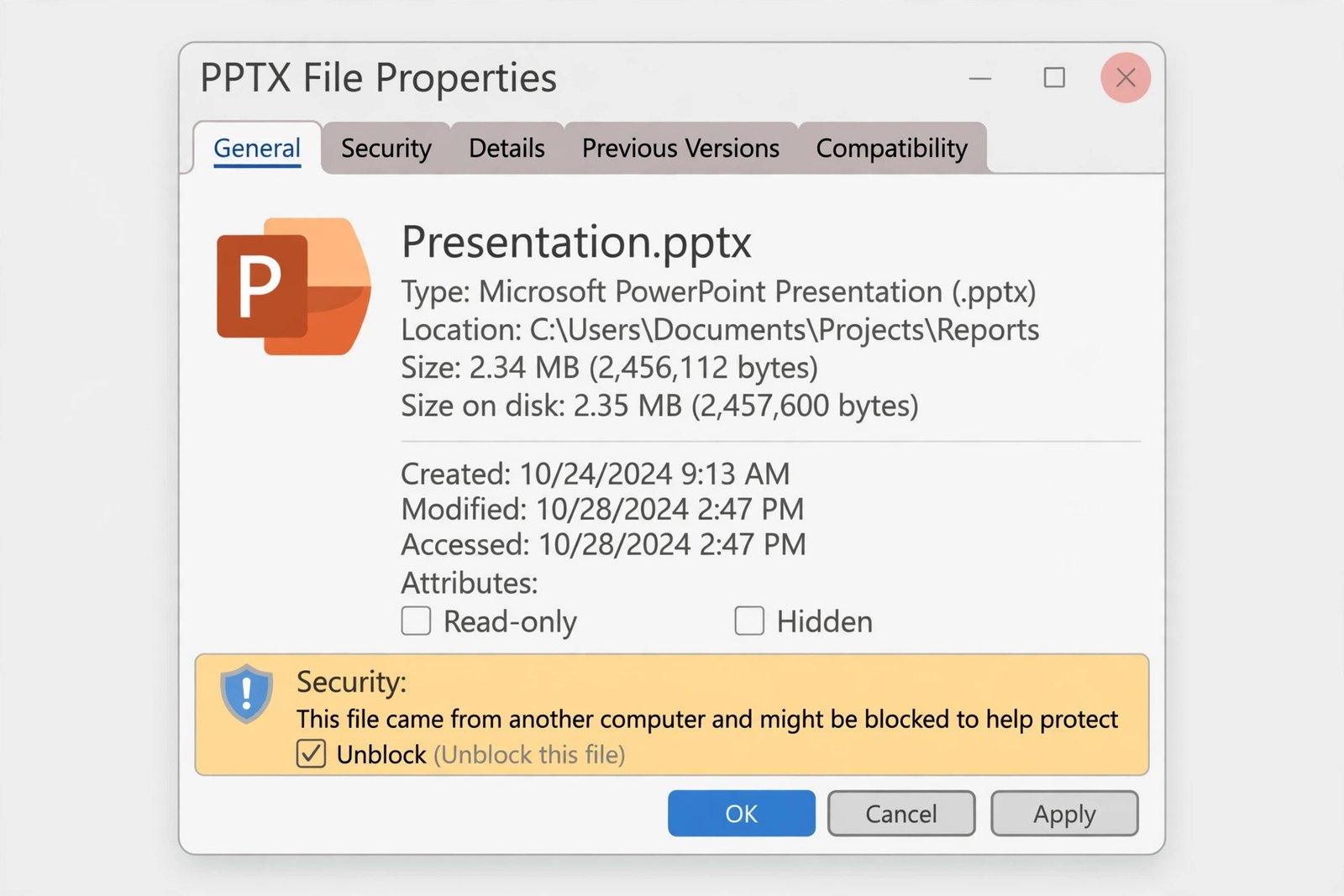
- Right-click your presentation file and choose Properties.
- In the General tab, look at the bottom for a Security section.
- If you see “This file came from another computer and might be blocked,” check the Unblock box.
- Click Apply, then OK.
- Copy the file to your Desktop so it opens from local storage, not a USB drive or cloud folder.
- If the file is in OneDrive, right-click it and choose Always keep on this device, then wait for sync to finish.
- Double-click the copied file to open it.
If Windows asks you to confirm the file’s origin, only continue if you trust the sender. For files from unknown senders, ask the sender to resend the file instead.
Fix 3: Open PowerPoint in Safe Mode
Safe Mode starts PowerPoint without add-ins, custom toolbars, or extra startup items. If your file opens in Safe Mode, an add-in is causing the crash.
- Press Windows + R to open the Run box.
- Type
powerpnt /safeand press Enter. - PowerPoint opens in Safe Mode. You will see “(Safe Mode)” in the title bar.
- Click File, then Open, and open your presentation.
- If the file opens, the cause is an add-in or startup item. Go to Fix 4 to find it.
- If the file still does not open in Safe Mode, the file itself is likely damaged. Skip to Fix 5.
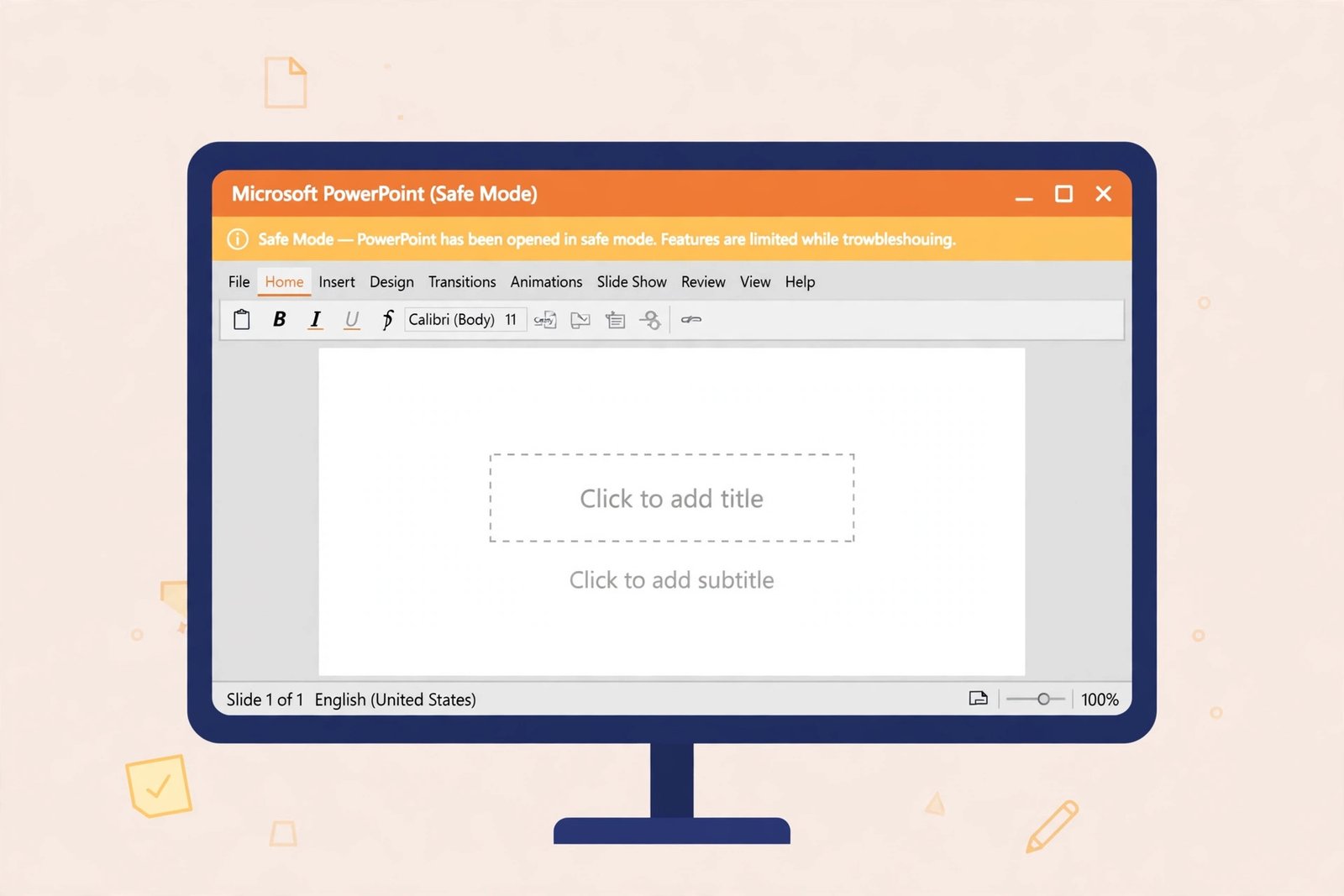
Safe Mode does not change any of your settings. It only skips add-ins for that session, so it is completely safe to try.
Fix 4: Disable Add-ins and Hardware Acceleration
Add-ins are the most common reason PowerPoint crashes on startup. Hardware acceleration can also cause freezing on some graphics drivers. Disable both to test.
- Open PowerPoint in Safe Mode (
powerpnt /safe). - Click File, then Options.
- In the Options window, click Add-ins in the left pane.
- At the bottom, set the dropdown to COM Add-ins and click Go.
- Uncheck every add-in in the list and click OK.
- Close PowerPoint and reopen it normally (not in Safe Mode).
- Try opening your presentation. If it works, one of the add-ins was the problem.
- To find the bad add-in, re-enable them one at a time, restarting PowerPoint after each one, until the crash returns. Leave that one disabled.
If PowerPoint still freezes, disable hardware acceleration:
- Click File, then Options, then Advanced.
- Scroll to the Display section.
- Check Disable hardware graphics acceleration.
- Click OK and restart PowerPoint.
If other Office apps misbehave too, check our guide on fixing Word when it stops responding for related app-level steps.
Fix 5: Use Open and Repair on the File
PowerPoint has a built-in repair tool that can fix damaged presentations. It is called Open and Repair, and it is different from the Office repair in Fix 6 because it fixes the file, not the app.
- Open PowerPoint (a blank presentation is fine).
- Click File, then Open, then Browse.
- Navigate to your presentation file and click it once to select it.
- Click the small arrow next to the Open button.
- Choose Open and Repair from the menu.
- PowerPoint will try to repair the file and open it. Wait for it to finish.
- If it succeeds, immediately save the file with File > Save As under a new name.
- Check your slides. Some damaged media or formatting may be missing, but your text should be recovered.
If Open and Repair fails, try opening the file in PowerPoint for the web or another presentation app to rescue the content. You can also ask the sender for a fresh copy of the file.
Fix 6: Repair Microsoft Office
If no presentation opens — even new blank ones — your Office installation is damaged. The Office repair tool reinstalls missing or broken program files without touching your documents.
- Press Windows + I to open Settings.
- Go to Apps, then Installed apps.
- Find Microsoft 365 or Microsoft Office in the list.
- Click the three dots next to it and choose Modify.
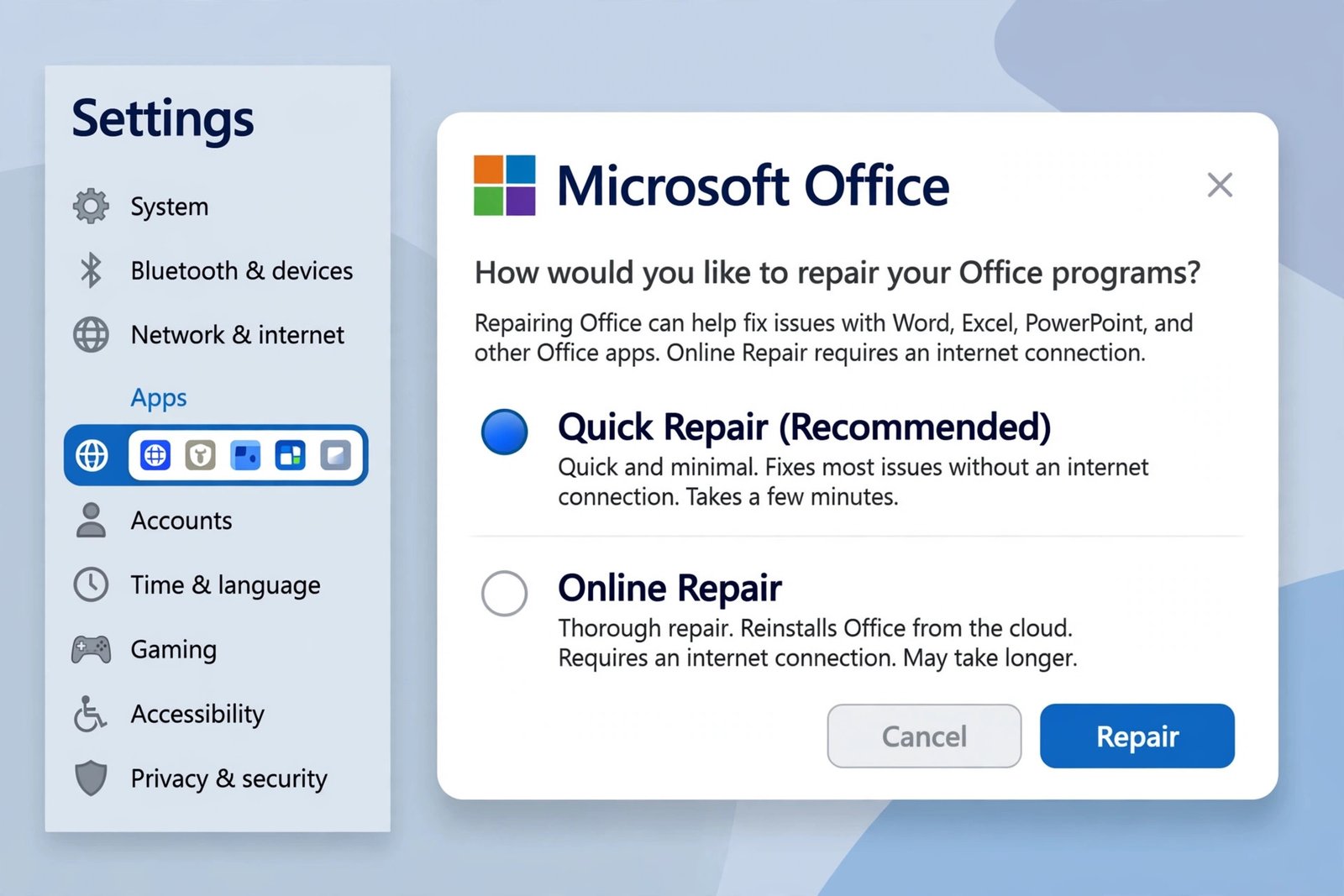
- In the repair window, select Quick Repair and click Repair.
- Wait for the repair to finish, then try opening your presentation.
- If Quick Repair did not help, repeat the steps but choose Online Repair. This takes longer and needs an internet connection, but it fixes deeper damage.
If every Office app crashes on launch, not just PowerPoint, see our guide on Office apps crashing on startup for app-wide fixes.
Fix 7: Update Office to the Latest Version
An outdated PowerPoint can fail to open files created in newer versions. Updates also fix known bugs that cause crashes.
- Open any Office app, such as Word or Excel.
- Click File, then Account.
- Under Product Information, click Update Options.
- Choose Update Now.
- Wait for the update to download and install.
- Restart your PC and try your presentation again.
If the file was made in a much newer version of PowerPoint than yours, ask the sender to save it in an older format, or open it in PowerPoint for the web, which always supports the latest format. Similar version problems can affect spreadsheets too — see our guide to Excel files not opening if you hit the same wall with workbooks.
Fix 8: Recover an Unsaved or Damaged File
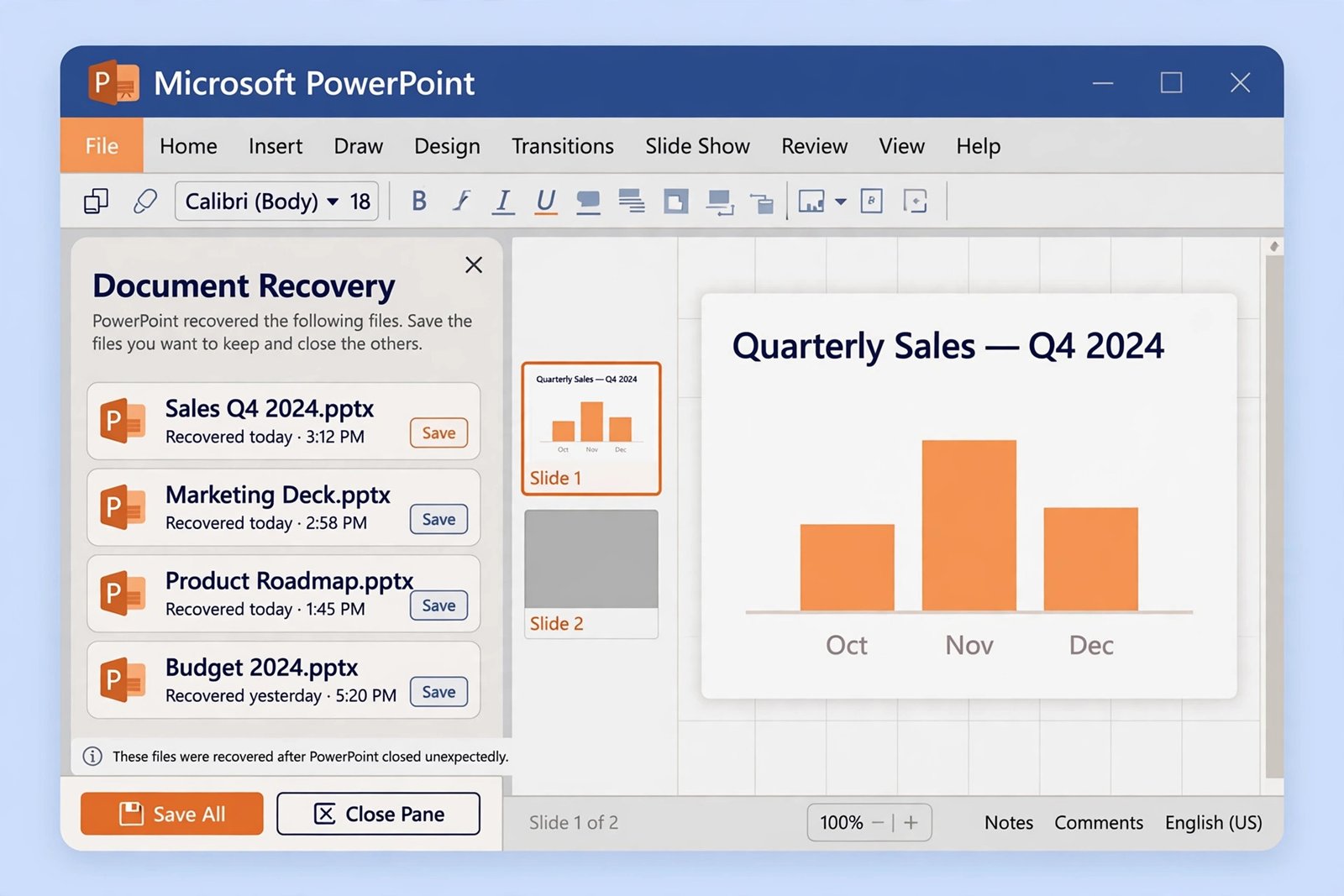
If your presentation was open during a crash or power cut, PowerPoint’s Document Recovery pane may hold an AutoRecovered copy. This is your last chance to rescue the content.
- Open PowerPoint normally.
- Look for the Document Recovery pane on the left side.
- If you see your file listed, click it to open the recovered version.
- Immediately save it with File > Save As under a new name.
- If the pane does not appear, click File, then Info, then Manage Presentation, and choose Recover Unsaved Presentations.
- Browse the unsaved-files folder. If your file is there, open it and save it at once.
- As a final fallback, reinstall Office: uninstall it from Settings > Apps, restart your PC, then reinstall from your Microsoft account.
Recovered files are drafts. Review every slide before presenting, because the last few changes before the crash may be missing.
What to Avoid
- Do not download “PPT repair” tools from unknown websites. Many contain malware or demand payment for a fake fix.
- Do not rename a damaged file’s extension to force it open. Renaming does not repair anything.
- Do not disable your antivirus to open a suspicious file. Scan it first instead.
- Do not keep editing the damaged original. Always save a repaired copy under a new name first.
- Do not ignore repeated crashes. If PowerPoint crashes often, fix the cause now instead of losing work later.
- Do not open presentations from unknown email senders without scanning them. They can carry malicious macros.
Frequently Asked Questions
Why is my PowerPoint presentation not opening but other files open fine?
The problem is with that specific file, not PowerPoint. It may be blocked, stored in an unfinished cloud sync, or damaged. Start with Fix 2 to unblock it and copy it locally, then try Open and Repair in Fix 5.
Can I open a PowerPoint file without Microsoft PowerPoint installed?
Yes. Upload the file to OneDrive and open it in PowerPoint for the web, or open it with a free presentation app that supports the .pptx format. This is also a good test: if the file opens in the browser, your desktop app is the problem.
What does “PowerPoint found a problem with content” mean?
It means part of the file is damaged — often an image, video, font, or slide layout. Click Repair when PowerPoint offers it. If the repair fails, use Fix 5 (Open and Repair) or ask the sender for a fresh copy.
Will repairing Office delete my presentations?
No. Office repair only fixes the program files. Your documents, templates, and settings stay untouched. Still, keep a backup of important presentations before any major change, just in case.
How do I stop PowerPoint from crashing every time I open it?
Open PowerPoint in Safe Mode (Fix 3), disable all add-ins, then re-enable them one by one to find the bad one (Fix 4). Also disable hardware graphics acceleration. If crashes continue on every launch, run an Online Repair (Fix 6).
The file opens on my colleague’s PC but not mine. Why?
Your Office installation is likely damaged or outdated. Run an Office repair (Fix 6) and update to the latest version (Fix 7). A broken add-in on your PC can also cause this — test in Safe Mode first.
Conclusion
A powerpoint presentation not opening is usually caused by a blocked file, a broken add-in, a damaged file, or a damaged Office installation. Work through the fixes in order: close stuck processes, unblock the file, test Safe Mode, disable add-ins, use Open and Repair, repair Office, update Office, and recover from Document Recovery.
For most people, the problem is solved by Fix 4 at the latest. If nothing works, your file may be beyond repair — ask the sender for a fresh copy and keep backups of important presentations in the future. If you also work with non-Office documents, our guide to PDF files not opening on Windows covers similar file-opening problems.
[…] on the next page while the picture sits above. For presentation graphics that misbehave, our PowerPoint presentation not opening guide is the Office-sibling […]