

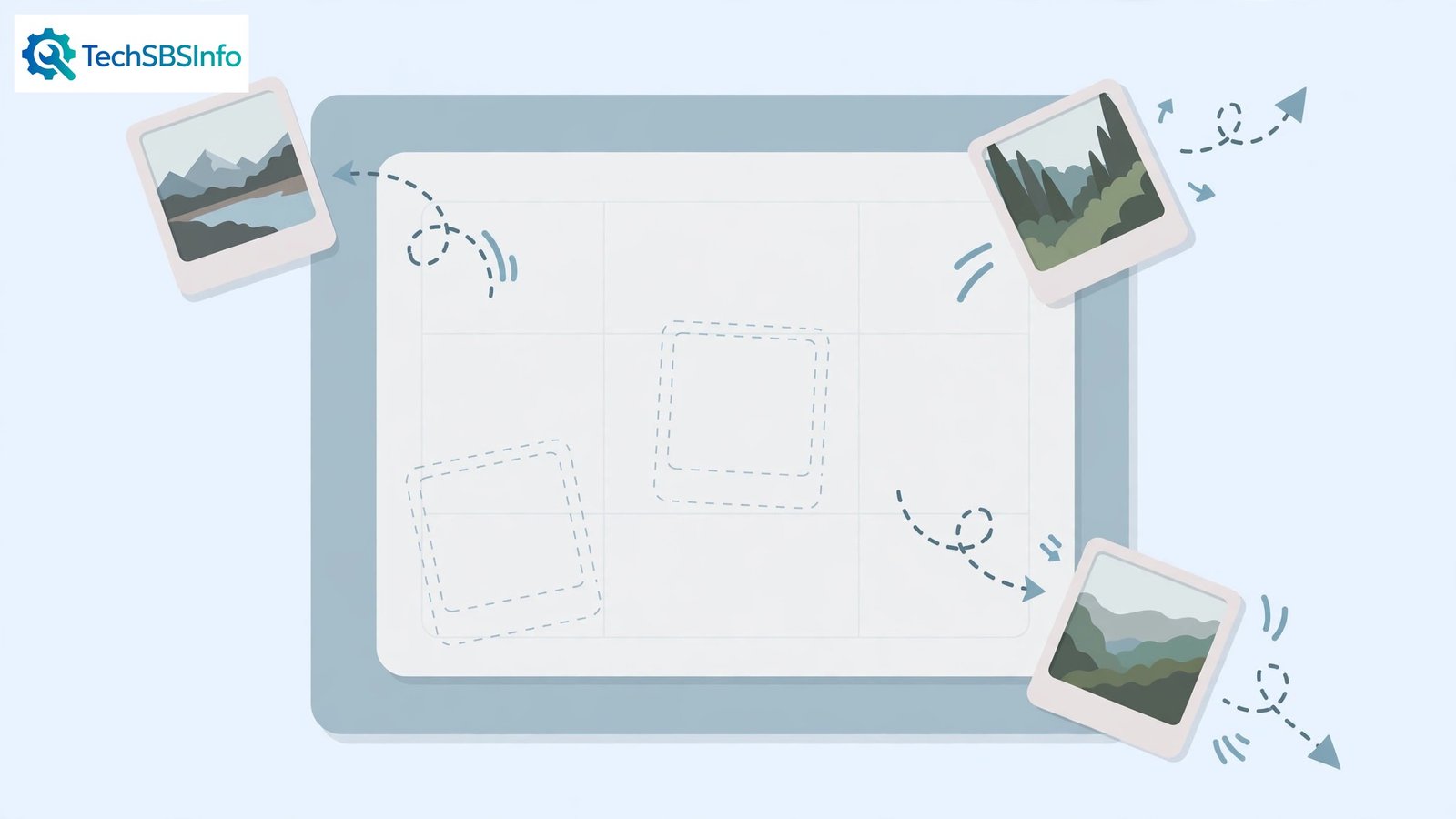
You place a picture exactly where you want it. You type one sentence — and the picture leaps to the next page. When microsoft word images moving around ruins your layout, it feels personal, but it is just physics: Word’s text-wrapping and anchoring rules doing exactly what they were told, which is not what you wanted.
Every picture in Word has a wrapping mode and an anchor point, and those two settings decide everything about its behaviour. This guide teaches you to control both, from the one-click “In Line with Text” fix to grouping and locking. Your pictures will stay where you put them.
Table of Contents
- Quick Checks
- Diagnosing microsoft word images moving around
- Fix 1: Set Wrapping to In Line with Text
- Fix 2: Lock the Anchor
- Fix 3: Position Relative to the Page
- Fix 4: Turn Off Move with Text
- Fix 5: Group the Image with Its Caption
- Fix 6: Paste as a Picture to Freeze Layout
- Fix 7: Fix the Layout in the Final Document
- What to Avoid
- Frequently Asked Questions
- Conclusion
- Helpful Official Resources
Quick Checks
Instant orientation for a jumping picture.
- Click the picture: does the Layout Options icon (little horseshoe) appear beside it? That is your wrapping control.
- Check if the picture moves when you type before it. If yes, it is anchored to nearby text (Fix 2).
- See whether the picture is “In Line” already — inline pictures never jump; floating ones do.
- Undo (Ctrl+Z) right after a jump to see what the picture was attached to.
- Check you are in Print Layout view — floating pictures behave oddly in other views.
Diagnosing microsoft word images moving around
| Symptom | Cause | Go to Fix |
|---|---|---|
| Picture jumps when typing nearby | Anchored to moving paragraph | Fix 1 or Fix 2 |
| Picture drifts a little with edits | “Move with text” enabled | Fix 4 |
| Picture leaps pages on small edits | Floating with vague positioning | Fix 3 |
| Caption separates from picture | Ungrouped objects | Fix 5 |
| Everything shifts in the final version | Layout not finalised | Fix 7 |
Fix 1: Set Wrapping to In Line with Text
This is the big one. “In Line with Text” treats the picture like a giant text character: it sits on the text line, moves only when that line moves, and can never wander the page.

- Click the picture.
- Click the Layout Options icon that appears at its top-right (or right-click > Wrap Text).
- Choose “In Line with Text”.
- The picture now behaves like a word in a sentence — it only moves when its paragraph moves.
- Resize with the corner handles if needed; it stays inline at any size.
- For documents where pictures just illustrate the flow (reports, essays), leave every picture inline and layout pain disappears.
Inline is the right default for most documents. You lose free positioning, but you gain total predictability — the picture is exactly where the text puts it, always. If Word is freezing rather than misplacing, our Microsoft Word not responding guide covers that.
Fix 2: Lock the Anchor
Floating pictures attach to a paragraph via an “anchor” — the little anchor icon you see when formatting marks are shown. Locking the anchor stops the picture drifting away from its paragraph.

- Press Ctrl+Shift+8 to show formatting marks (the anchor icon appears when you click the picture).
- Click the picture and note which paragraph the anchor sits beside — that paragraph owns the picture.
- Right-click the picture, choose “Size and Position”, and open the Position tab.
- Tick “Lock anchor”. The picture now stays with its paragraph through edits.
- Drag the anchor (the icon itself) to a different paragraph if the picture is attached to the wrong one.
- Hide formatting marks again with Ctrl+Shift+8 when done.
A locked anchor means the picture follows its paragraph — even to the next page — instead of jumping randomly. It is the correct behaviour for figures that belong with specific text. For read-only document issues, see Microsoft Word document read-only mode.
Fix 3: Position Relative to the Page
For pictures that must sit in an exact spot (a logo in a corner, a diagram beside specific text), position them relative to the page or margin — not relative to a paragraph that moves.

- Click the picture > Layout Options > “See more” (or right-click > Size and Position).
- On the Position tab, set Horizontal to an absolute position relative to “Page” (e.g. 1 cm from the right).
- Set Vertical to an absolute position relative to “Page” or “Margin”.
- Untick “Move object with text” (see Fix 4).
- Click OK. The picture is now pinned to page coordinates — typing cannot move it.
Page-relative positioning is how professionals place logos, watermarks, and cover images. The picture ignores the text flow entirely, which is exactly what you want for fixed elements.
Fix 4: Turn Off Move with Text
“Move with text” (more precisely, “Move object with text”) makes a floating picture slide up and down as its anchor paragraph moves. Turning it off freezes the picture vertically.
- Right-click the picture > “Size and Position” (or Wrap Text > More Layout Options).
- On the Position tab, untick “Move object with text”.
- Keep “Lock anchor” ticked (Fix 2) so the picture still knows which paragraph it belongs to.
- Click OK and test by typing above the picture — it should stay put.
- Note the trade-off: with this off, the picture can end up far from its anchor paragraph after big edits. Re-check placement before finalising.
This setting is the direct answer to “the picture drifts a little every time I edit”. Off means off — the picture holds its vertical position no matter what the text does.
Fix 5: Group the Image with Its Caption
Pictures and their captions are separate objects that drift apart. Grouping fuses them into one object that moves — or stays — as a unit.

- Insert your caption below the picture (References > Insert Caption, or a plain text box).
- Set both the picture and the caption to a floating wrap (e.g. “Top and Bottom” or “Square”) — grouping needs floating objects.
- Hold Ctrl and click both the picture and the caption to select them.
- Right-click > Group > Group. They are now one object.
- Move or anchor the group as a whole — caption and picture travel together forever.
- To edit later, right-click > Group > Ungroup, edit, and regroup.
Grouped figure-plus-caption is the professional standard for reports and papers. No more captions stranded on the next page while the picture sits above. For presentation graphics that misbehave, our PowerPoint presentation not opening guide is the Office-sibling read.
Fix 6: Paste as a Picture to Freeze Layout
For a fully finalised page — a certificate, a flyer, a cover — you can freeze the entire layout by pasting it as a single picture.
- Select the finished page content (or the whole document section).
- Copy it (Ctrl+C).
- Paste Special (Ctrl+Alt+V) and choose “Picture (Enhanced Metafile)”.
- The content becomes one uneditable image — nothing can move, ever.
- Keep the original editable version saved separately, because the picture version cannot be edited as text.
- Use this only for final outputs, never for working drafts.
This is the nuclear option for layout stability: a picture cannot reflow. It is perfect for sending a “do not touch this layout” version, but always keep the editable original.
Fix 7: Fix the Layout in the Final Document
Layout work should happen last. If you position pictures while still writing, every edit reshuffles them — which is normal, not broken.
- Finish all writing and editing first, with pictures roughly placed (inline is fine for now).
- Only then do the final positioning: anchors locked, page-relative positions set, groups formed.
- Work from the start of the document to the end — fixing page 1 can shift page 5.
- Check the whole document in Print Preview before sending.
- Save a copy as PDF for distribution — PDF freezes the layout exactly as you see it.
The workflow matters more than any setting: write first, lay out last. Most “moving image” suffering comes from perfecting positions in a document that is still changing. If Office apps crash during layout work, see Office apps crashing on startup.
What to Avoid
- Do not fight floating pictures in a document you are still writing — finalise layout last.
- Do not use “In Front of Text” wrapping for body illustrations — it hides text and jumps wildly.
- Do not drag pictures by eye and hope — use the Position tab’s exact numbers.
- Do not forget captions when grouping — an ungrouped caption will strand itself.
- Do not paste-as-picture your only copy — keep the editable original.
- Do not ignore the anchor icon — it tells you exactly which paragraph owns the picture.
Frequently Asked Questions
Why do my pictures jump to the next page when I type?
The picture is floating and anchored to a paragraph that moved. Set wrapping to In Line with Text (Fix 1) for the simple cure, or lock the anchor and set page-relative positioning (Fixes 2–3) for precise placement.
What does the little anchor icon mean?
It marks the paragraph a floating picture is attached to. The picture follows that paragraph’s fortunes. Drag the anchor to reattach it, or lock it (Fix 2) to stabilise the relationship.
Should pictures be inline or floating?
Inline for documents where pictures illustrate the text flow (reports, essays) — zero layout pain. Floating for designed layouts (brochures, covers) where exact placement matters — with anchors locked and positions set properly.
Why does my caption end up on a different page from the picture?
They are separate objects. Group them (Fix 5) so they travel as one, or put the caption in a text box anchored to the same paragraph.
Can I stop Word compressing my images?
Yes: File > Options > Advanced > Image Size and Quality > tick “Do not compress images in file”. This is about quality rather than movement, but it is the setting people hunt for alongside layout fixes.
Why do images move when I add text above them?
Floating images are anchored to a paragraph — the little anchor icon shows which one. When that paragraph moves (because you added text above it), the image moves with it. Either switch the image to “In Line with Text” so it behaves like a text character, or drag the anchor to a paragraph that will not shift. Understanding the anchor ends most image-wandering mysteries.
What is the best image layout for a stable document?
“In Line with Text” is the most stable — the image sits in the text flow like a giant character and never drifts. Use it for reports, manuals, and anything long. Floating layouts (Tight, Square, Behind Text) give prettier magazine-style wrapping but need anchor management. Choose stability for long documents and beauty for short ones.
Why do images look blurry after I resize them?
Stretching a small image larger spreads its pixels thin — no layout setting can invent detail. Check the original image’s dimensions before inserting; a 400-pixel-wide web image will never print sharply at full page width. For crisp results, start with high-resolution originals and shrink them in Word rather than enlarging small ones.
Conclusion
Microsoft word images moving around is not a bug — it is wrapping and anchoring working as designed, just not as you intended. Set pictures inline for simple documents, lock anchors and use page-relative positioning for designed ones, and group captions with their pictures. Do the layout last, check it in Print Preview, and your pictures will stay exactly where you put them.