

When your windows 11 external hard drive not showing problem appears, the drive is usually humming away on the desk, its light blinking — yet File Explorer shows nothing. No error, no message, just absence. Your files are almost certainly still on the drive; Windows has simply lost track of how to talk to it.
The causes run from the trivial (a tired USB cable) to the moderately technical (a missing drive letter or a partition Windows cannot read). This guide walks you through finding the drive again, step by step, without risking your data. Do not format anything until you have tried every fix — formatting is never needed to make a healthy drive appear.
Table of Contents
- Quick Checks
- Diagnosing windows 11 external hard drive not showing
- Fix 1: Change the USB Port and Cable
- Fix 2: Give the Drive a Letter in Disk Management
- Fix 3: Initialise the Disk or Fix the Partition
- Fix 4: Update the USB Controller Drivers
- Fix 5: Power the Drive Properly
- Fix 6: Test the Drive on Another Computer
- Fix 7: Check the Drive’s Health and Back Up
- What to Avoid
- Frequently Asked Questions
- Conclusion
- Helpful Official Resources
Quick Checks
These take five minutes and solve a large share of missing-drive cases.
- Listen and feel: is the drive spinning or vibrating? A completely dead, silent drive is a hardware problem — skip to Fix 6.
- Try a USB port directly on the PC, not a hub or a front-panel port.
- Restart the PC with the drive plugged in — Windows sometimes only detects it at boot.
- Check File Explorer’s left pane under “This PC” — the drive may appear there without a notification.
- If the drive has its own power adapter, make sure it is plugged in and switched on.
Diagnosing windows 11 external hard drive not showing
Where the drive appears (or does not) tells you the cause.
| Symptom | Cause | Go to Fix |
|---|---|---|
| Drive appears in Disk Management but not File Explorer | Missing drive letter | Fix 2 |
| Disk Management shows “Not Initialised” or “Unallocated” | Partition table damage | Fix 3 |
| Drive appears and disappears every few seconds | Weak power or bad cable | Fix 1, then Fix 5 |
| Drive not in Disk Management at all, but spins | Driver or USB controller issue | Fix 4 |
| Drive silent with no light | Dead drive, cable, or port | Fix 1, then Fix 6 |
| Works on another PC but not this one | This PC’s drivers or settings | Fix 4 |
Fix 1: Change the USB Port and Cable
More missing drives are caused by cables and ports than by any software. USB cables wear out internally where you cannot see it.
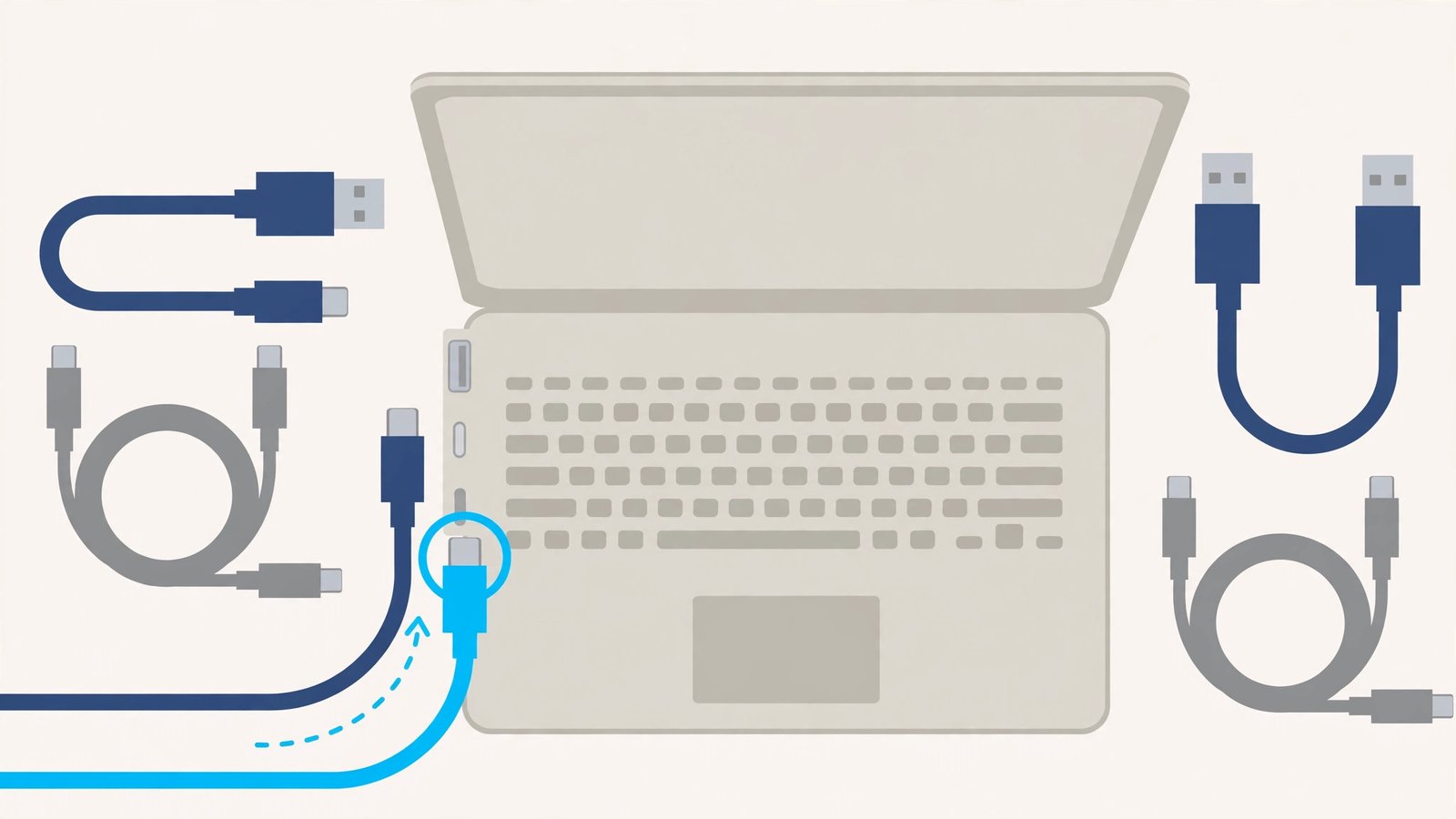
- Unplug the drive and plug it into a different USB port — preferably one directly on the motherboard (back of a desktop).
- If you are using a USB hub, bypass it and connect the drive directly.
- Swap the cable for another one you know works. Drive cables fail often because they get bent at the plug.
- For USB-C ports, try flipping the connector and trying a different C port.
- Listen for the Windows connection sound. If you hear it now, the old port or cable was the problem.
If the drive appears after this, copy your most important files to the PC right away — an unreliable connection can corrupt data mid-copy. For phone-to-PC connection troubles of a similar kind, our Android USB file transfer not working guide covers the mobile side.
Fix 2: Give the Drive a Letter in Disk Management
Windows cannot show a drive in File Explorer without a drive letter. Updates and unsafe removals sometimes strip the letter away while the data sits untouched.
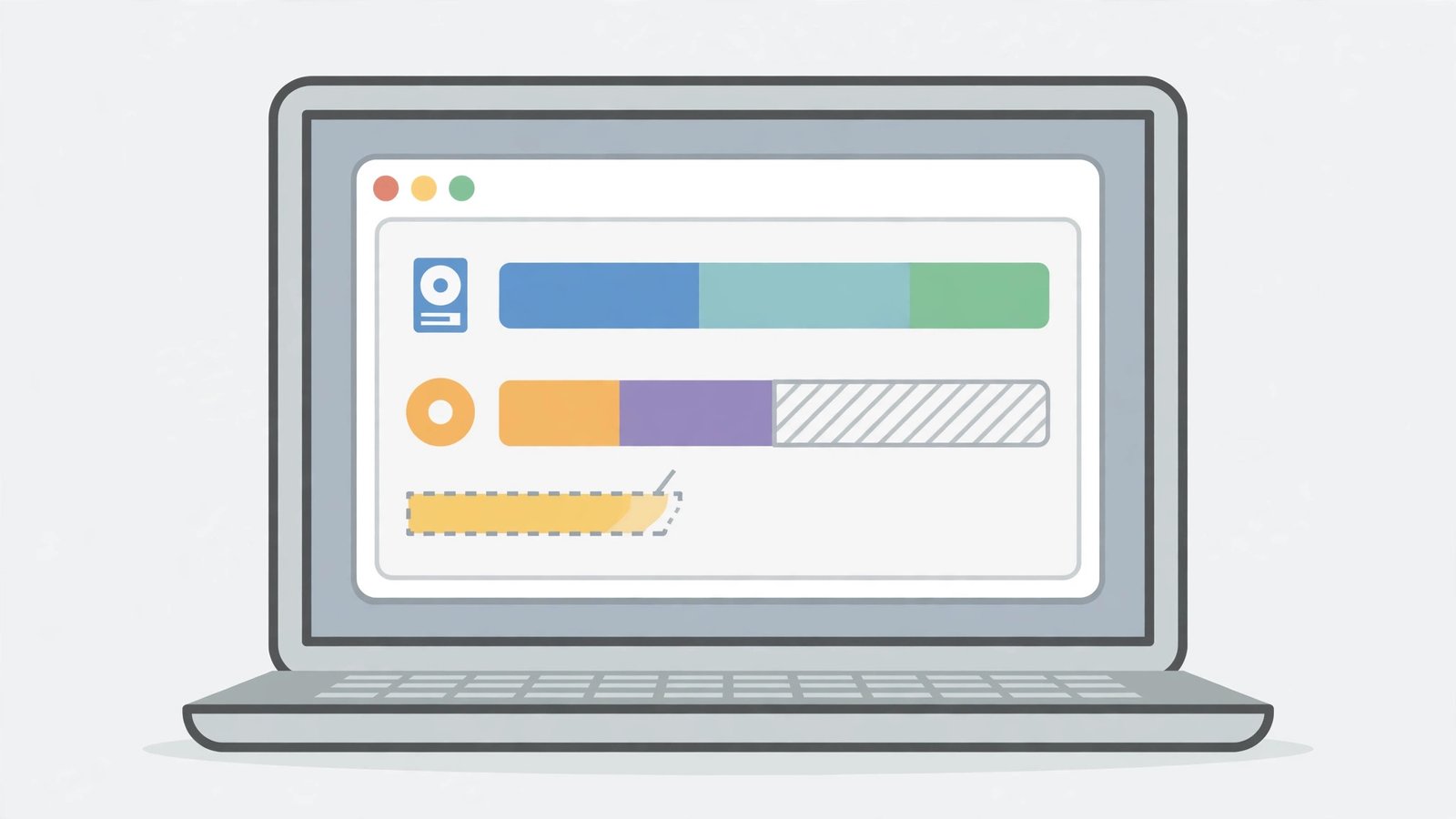
- Press Windows + X and choose Disk Management.
- Find your external drive in the lower pane — match it by size.
- If it shows “Healthy” but has no letter, right-click its partition and choose “Change Drive Letter and Paths”.
- Click Add, pick an unused letter (like E: or F:), and click OK.
- Open File Explorer — the drive should appear immediately with all files intact.
This fix is completely safe: assigning a letter changes nothing on the drive itself. If the partition shows as “RAW” instead of “Healthy”, do not format it yet — try Fix 3’s partition repair first, because formatting would erase your files.
Fix 3: Initialise the Disk or Fix the Partition
If Disk Management shows the disk as “Not Initialised” or “Unallocated”, the partition table is damaged. Your files may still be recoverable, so proceed carefully.
- In Disk Management, right-click the disk label (Disk 1, Disk 2…) and check its status.
- If it says “Not Initialised”, right-click and choose “Initialise Disk”. Choose GPT for drives over 2 TB, MBR for smaller ones.
- If it says “Unallocated” but the drive used to work, do NOT create a new partition yet — that overwrites data. First try data-recovery software or a professional.
- If the drive is brand new and has never held data, creating a simple volume is safe: right-click the unallocated space > New Simple Volume > follow the wizard.
- If the partition shows as RAW on a drive with data you need, run
chkdsk X: /f(with the drive letter) from an admin Command Prompt before considering a format.
The rule is simple: never write a new partition table over a drive holding files you have not backed up. Initialising a new, empty drive is fine; initialising a drive full of photos is data loss.
Fix 4: Update the USB Controller Drivers
When the drive spins but appears nowhere — not even in Disk Management — Windows’ USB drivers may be at fault.
- Press Windows + X and choose Device Manager.
- Expand “Universal Serial Bus controllers”.
- Right-click each “USB Root Hub” and “USB Host Controller” entry and choose “Update driver” > “Search automatically for drivers”.
- If any entry shows a yellow warning icon, right-click it and choose “Uninstall device”, then restart the PC — Windows reinstalls it fresh.
- Also check Windows Update > Advanced options > Optional updates for chipset and USB driver updates.
- Reconnect the drive after the restart.
This also fixes drives that appear briefly then vanish, which is often the USB controller resetting itself. If Windows updates themselves are misbehaving on your PC, our Windows update stuck downloading guide can help unstick them.
Fix 5: Power the Drive Properly
Desktop external drives — especially older 3.5-inch models — need more power than a single USB port provides. Underpowered drives spin up, then vanish, then spin up again in an endless tease.
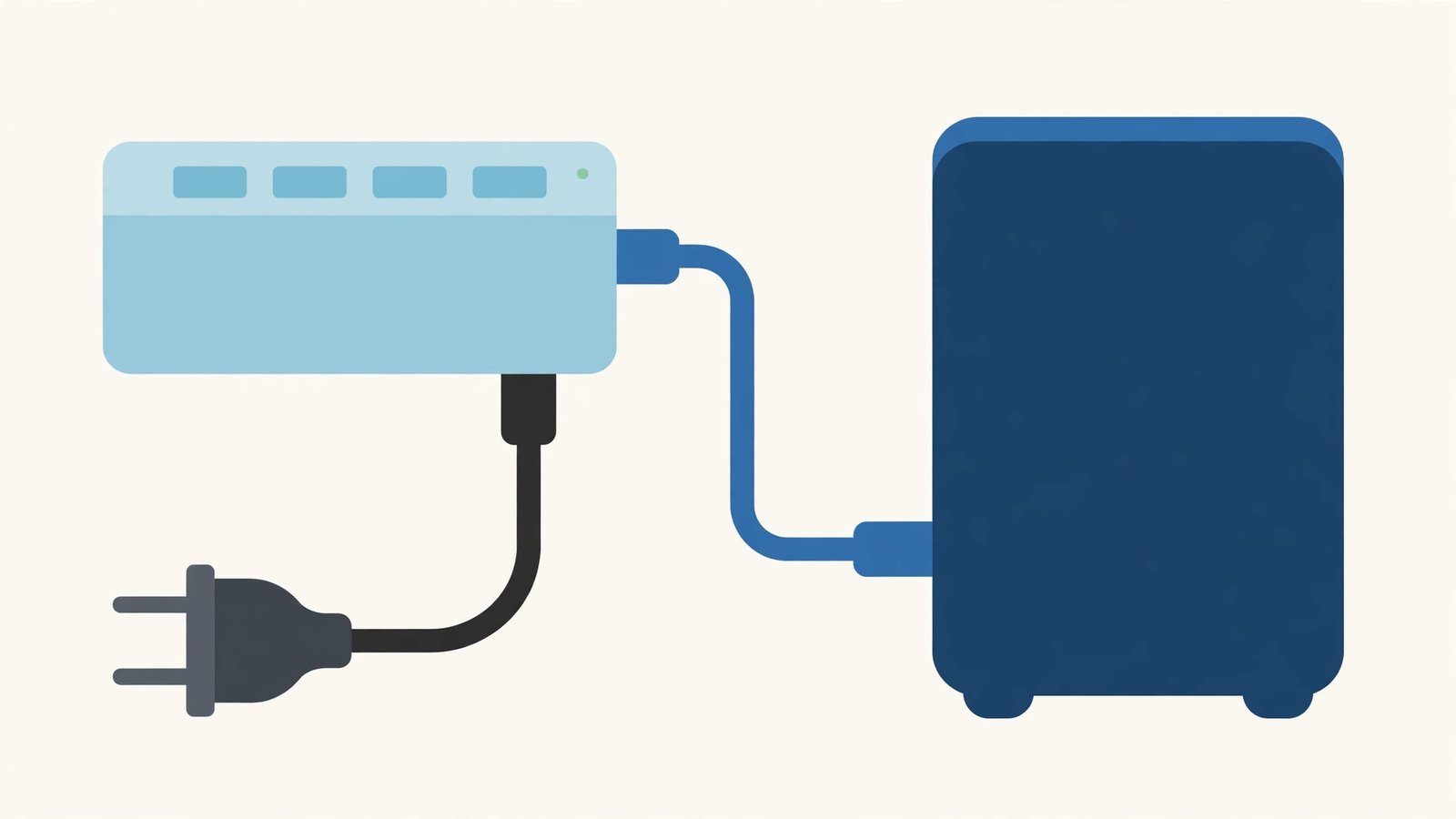
- If your drive has a power adapter, plug it directly into a wall socket — not a power strip shared with big appliances.
- For portable drives with no adapter, use a USB Y-cable (two USB plugs, one drive plug) to draw power from two ports.
- Or connect through a powered USB hub that has its own wall adapter.
- Avoid long, thin, or very cheap USB cables — they drop voltage over distance.
- After fixing the power, reconnect and watch: a steadily lit drive that stays visible means power was the issue.
Laptops are the worst offenders here, since their ports deliver the minimum USB power. If the drive works on a desktop but not your laptop, power — not Windows — is almost certainly the difference.
Fix 6: Test the Drive on Another Computer
This fix tells you whether the problem is the drive or your PC, which decides everything that follows.
- Safely eject the drive from your PC (or just unplug it if it never appeared).
- Connect it to a different computer — a friend’s laptop, a work PC, anything.
- If it appears there, your PC is the problem: return to Fix 4 and also try a different user account on your PC.
- If it appears nowhere on any computer, the drive’s enclosure electronics or the drive itself has failed.
- For a failed enclosure, a repair shop can often remove the bare drive and read it with an adapter — your data may still be fine.
Do not open the enclosure yourself if the drive is under warranty — that voids it. And if the drive makes clicking sounds on every PC, stop plugging it in: repeated attempts on a dying drive can destroy the remaining data.
Fix 7: Check the Drive’s Health and Back Up
Once the drive is visible again, check whether it is trustworthy — a drive that vanishes once often does it again.
- Copy your most important files to your PC or cloud storage immediately — do this before any health checks.
- Open an admin Command Prompt and run
chkdsk X: /f(your drive letter) to fix file-system errors. - Listen for clicking, beeping, or grinding during the copy — those are failure sounds.
- Check the drive’s SMART health with a free tool like CrystalDiskInfo (from its official site). Yellow or red warnings mean replace the drive.
- If the drive is healthy but was slow to appear, keep it as a backup drive rather than your only copy of anything.
A drive that needed this guide has earned your suspicion. The 3-2-1 rule is worth remembering: three copies of important data, on two different media, with one off-site. If boot times have also become painful, our Windows 11 slow startup fix guide covers that, and Windows 11 printer not detected helps with another common “device not showing” headache.
What to Avoid
- Do not format the drive to “fix” it appearing — formatting erases everything and is never required just to make a drive visible.
- Do not initialise a drive that holds data you have not backed up.
- Do not keep plugging in a clicking drive — you can turn a recoverable failure into a total one.
- Do not use cheap no-name USB hubs for important drives — they cause exactly these symptoms.
- Do not yank the drive out without ejecting — unsafe removal corrupts partition tables.
- Do not run “drive repair” tools from random websites — stick to chkdsk and the maker’s own utilities.
Frequently Asked Questions
Why is my external hard drive not showing in File Explorer but shows in Disk Management?
Because it has no drive letter, or its partition is damaged. Disk Management sees the raw hardware; File Explorer needs a healthy, lettered partition. Fix 2 (assign a letter) solves the common case in seconds.
The drive light is on but nothing appears. Is it broken?
Not necessarily. A lit drive with no appearance usually means a driver, letter, or partition issue — all fixable. A completely dark, silent drive is the one that suggests hardware death.
Can I recover files from a drive that will not show up?
Often yes. If Disk Management sees the disk at all, recovery software can usually read it. If no computer detects it, a repair shop can remove the bare drive from its enclosure and try it in a dock.
Why does my drive keep disconnecting and reconnecting?
Weak power or a failing cable, almost always. See Fix 1 and Fix 5. If it happens on every cable and port, the drive’s USB bridge board is failing.
Should I convert the drive from MBR to GPT?
Only if you need it: GPT is required for drives over 2 TB. Converting a working drive is unnecessary and risks data, so leave a healthy drive’s partition style alone.
Conclusion
When windows 11 external hard drive is not showing, resist the urge to format. Change the cable and port, check Disk Management for a missing letter, update the USB drivers, and make sure the drive gets enough power. One of these finds the drive in the great majority of cases, with your files exactly where you left them. And once it is back, back it up — a drive that vanished once has told you it cannot be your only copy.