

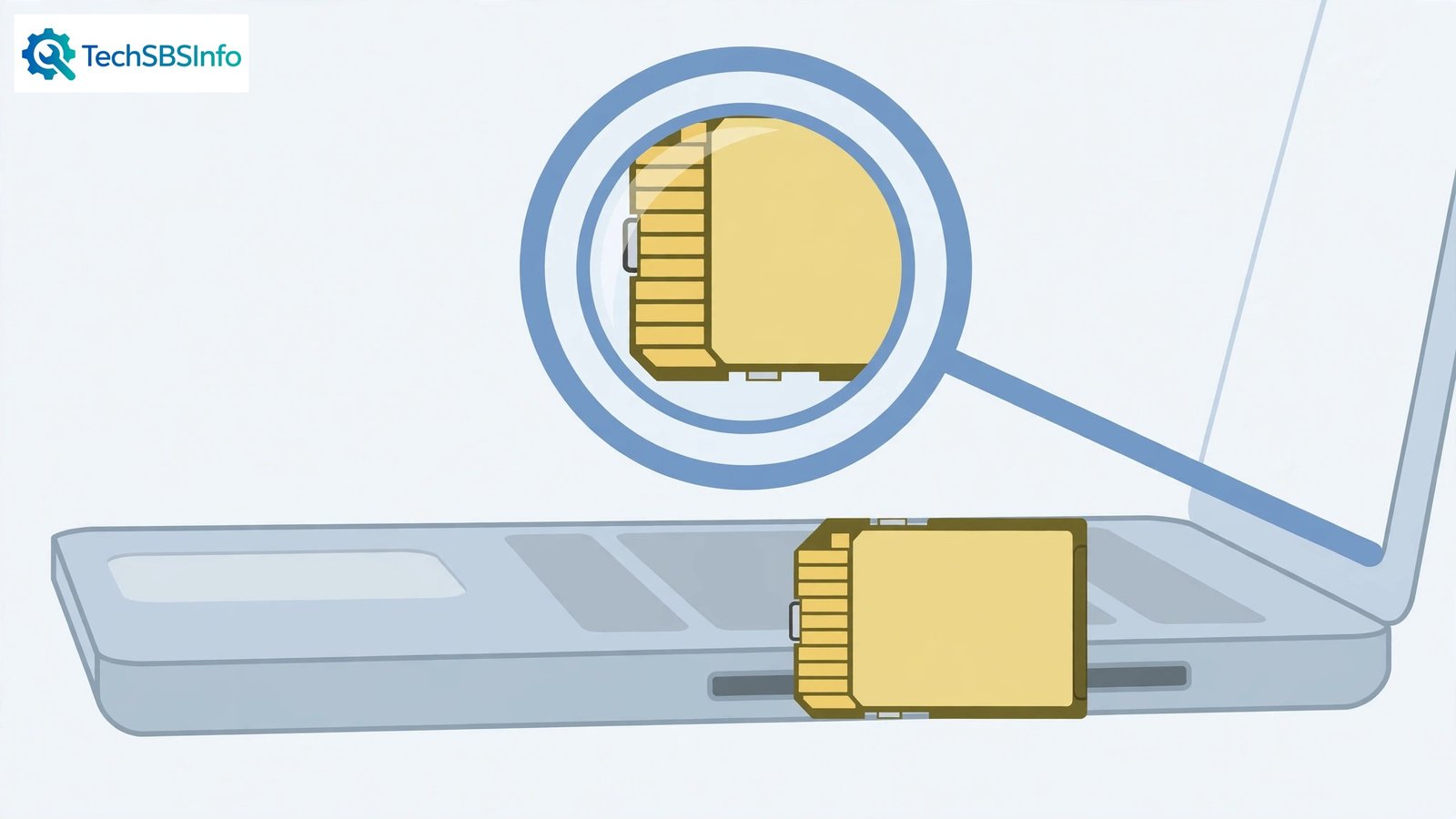
When your windows 11 sd card not detected problem strikes, you slide the card in, hear the little click, and… nothing. No autoplay, no drive in File Explorer, no photos from the camera. The card probably worked yesterday, and it probably still works — something small is standing between the card and Windows.
SD card detection fails for delightfully simple reasons: dirty contacts, a tired adapter, a missing drive letter, or a grumpy card-reader driver. This guide walks through all of them in order. Work from the top, and do not format the card until the last fix — your photos and files come first.
Table of Contents
- Quick Checks
- Diagnosing windows 11 sd card not detected
- Fix 1: Reseat the Card and Clean the Contacts
- Fix 2: Try a Different Adapter or Reader
- Fix 3: Assign a Drive Letter in Disk Management
- Fix 4: Reinstall the Card-Reader Driver
- Fix 5: Repair the Card with chkdsk
- Fix 6: Back Up and Reformat the Card
- Fix 7: Test the Card in Another Device
- What to Avoid
- Frequently Asked Questions
- Conclusion
- Helpful Official Resources
Quick Checks
Two minutes here can save you the whole guide.
- Push the card in until it clicks — many slots need a firm push past the spring point.
- Check the tiny lock switch on the side of full-size SD cards. If it slid to Lock, the card is read-only (though it should still be detected).
- Try the card in a camera or phone — if it works there, the card is fine and your PC is the problem.
- Restart the PC with the card inserted.
- If you are using a microSD-to-SD adapter, make sure the tiny card is fully seated inside the adapter.
Diagnosing windows 11 sd card not detected
| Symptom | Cause | Go to Fix |
|---|---|---|
| Card not shown anywhere, but works in camera | PC reader, driver, or letter issue | Fix 2, then Fix 4 |
| Card appears briefly then vanishes | Dirty contacts or weak reader | Fix 1, then Fix 2 |
| Shows in Disk Management with no letter | Missing drive letter | Fix 3 |
| “Please insert a disk” error for the slot | Reader driver problem | Fix 4 |
| Card not detected in any device | Dead card | Fix 7 |
| Detected but files will not open | Corrupt file system | Fix 5 |
Fix 1: Reseat the Card and Clean the Contacts
The gold contacts on an SD card collect finger oil and dust. A poor contact means no detection at all.
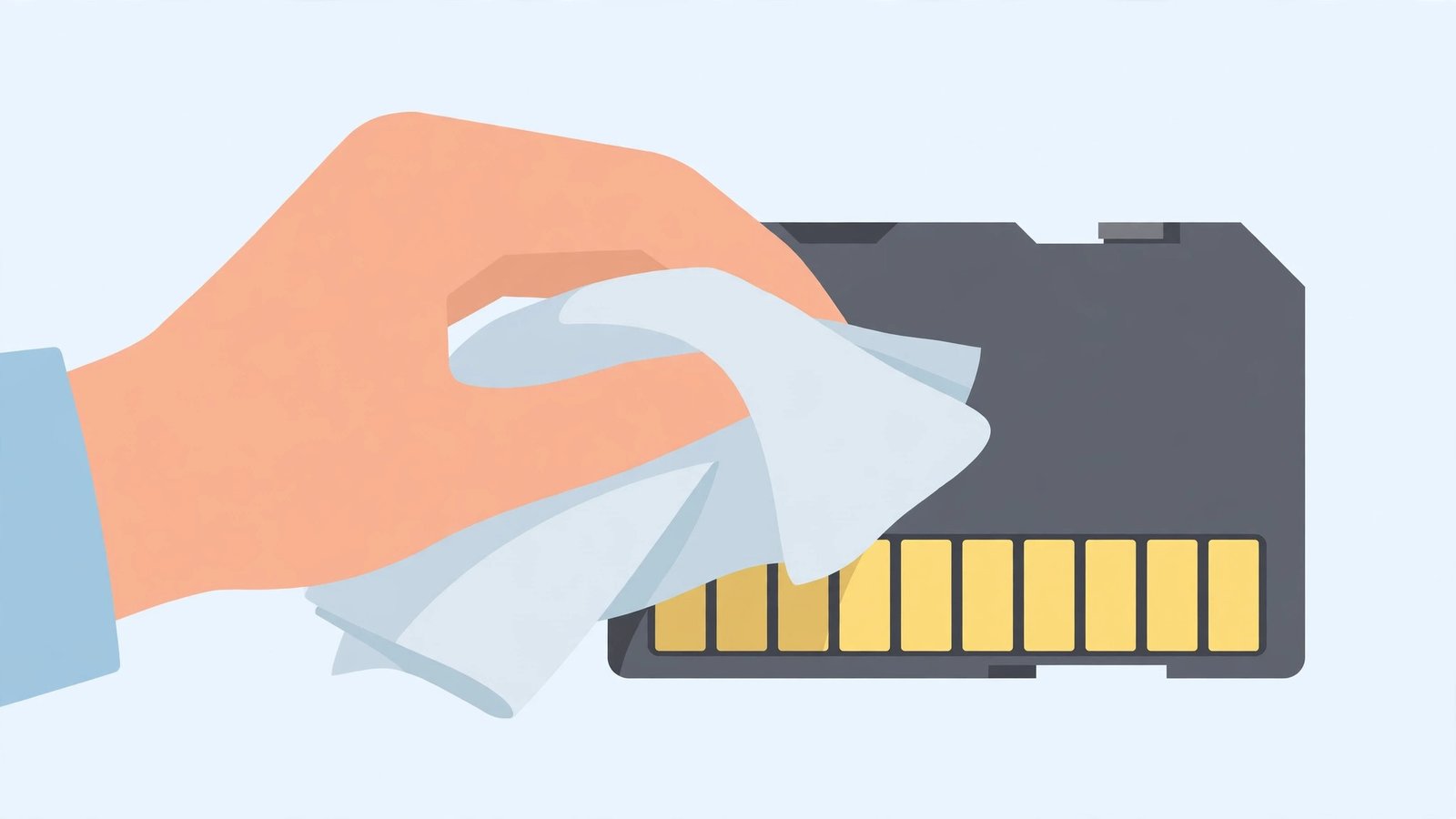
- Remove the card from the slot or adapter.
- Look at the gold contacts. If they look dull or smudged, they need cleaning.
- Wipe the contacts gently with a dry microfiber cloth or a clean pencil eraser — light strokes, one direction.
- Blow into the laptop’s card slot (or use short bursts of compressed air) to clear dust.
- Reinsert the card firmly until it clicks.
- Wait ten seconds and check File Explorer.
Never use water or metal tools on the contacts. This simple clean revives an astonishing number of “dead” cards, especially cards that travel between cameras and pockets.
Fix 2: Try a Different Adapter or Reader
Adapters and built-in readers fail far more often than the cards themselves. A two-pound adapter can hide a perfectly healthy card.
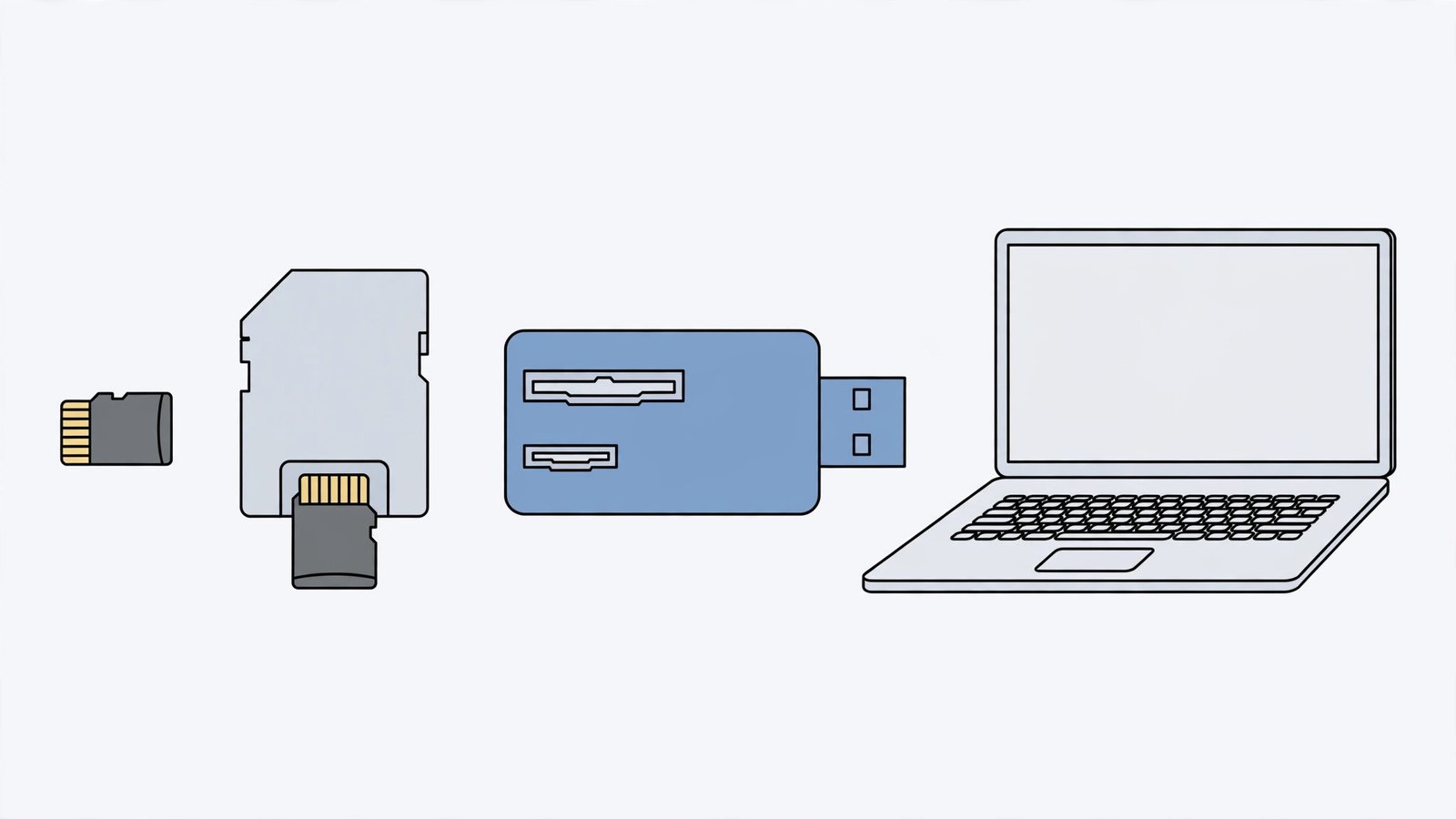
- If you use a microSD-to-SD adapter, try a different adapter — they crack internally where you cannot see.
- Try a USB card reader instead of the laptop’s built-in slot. USB readers are cheap and bypass the internal reader entirely.
- Plug the USB reader directly into the PC, not through a hub.
- If the card appears in the USB reader, your built-in slot or its driver is the problem — continue to Fix 4.
- If the card appears nowhere, the card itself is suspect — skip to Fix 7.
Keep a known-good USB reader in a drawer. It is the fastest way to separate “card problem” from “computer problem” for the rest of the card’s life. Similar detective work helps with other vanishing storage — see our guide on Android internal storage not showing.
Fix 3: Assign a Drive Letter in Disk Management
Like any drive, an SD card needs a drive letter to appear in File Explorer. Cards that lose their letter sit invisible in Disk Management.
- Press Windows + X and choose Disk Management.
- Find the removable disk matching your card’s size in the lower pane.
- If it shows a healthy partition with no letter, right-click the partition > “Change Drive Letter and Paths” > Add > choose a letter > OK.
- Check File Explorer — the card should appear with your files intact.
- If the disk shows as “No Media”, the reader is not seeing the card at all — go back to Fix 1 and Fix 2.
Assigning a letter is harmless and instant. If the partition shows as RAW, do not format yet — run Fix 5 first, because a format would erase your photos.
Fix 4: Reinstall the Card-Reader Driver
Built-in SD slots depend on a card-reader driver (often Realtek). When it corrupts — usually after a Windows update — the slot goes blind.
- Press Windows + X and choose Device Manager.
- Expand “Memory technology devices” or look under “Disk drives” for the card reader.
- Right-click the reader and choose “Update driver” > “Search automatically for drivers”.
- If that fails, right-click > “Uninstall device”, then restart the PC. Windows reinstalls the driver on boot.
- For the most reliable driver, visit your laptop maker’s official support page, find your exact model, and install their card-reader driver.
- Reinsert the card and test.
If Device Manager shows the reader with a yellow warning triangle, the driver is definitely the villain. And if other devices are also misbehaving after the same update, our Windows 11 printer not detected guide follows the same driver-hunting logic.
Fix 5: Repair the Card with chkdsk
If the card is detected but files will not open — or the card asks to be formatted — the file system is corrupt. chkdsk can often repair it without data loss.
- Note the card’s drive letter in File Explorer or Disk Management.
- Open Command Prompt as administrator (Start > type
cmd> right-click > Run as administrator). - Type
chkdsk X: /f(replace X: with the card’s letter) and press Enter. - Let it scan and fix errors. Do not remove the card mid-scan.
- When it finishes, open the card and check your files.
- If chkdsk reports unrecoverable errors, copy whatever files you can open right now, then move to Fix 6.
chkdsk fixes the file system’s bookkeeping, not the files themselves. It works best on cards corrupted by unsafe removal — which is why you should always eject cards properly.
Fix 6: Back Up and Reformat the Card
When the file system is too damaged for chkdsk, a fresh format gives the card a clean start. This erases everything, so it is strictly a last resort.
- Copy every file you can still open off the card — even a damaged card often yields most files.
- Right-click the card in File Explorer and choose Format.
- Choose exFAT for cards 64 GB and larger (works in cameras, phones, and PCs), or FAT32 for smaller cards.
- Untick “Quick Format” for a thorough format that maps out bad sectors — it takes longer but is more reliable.
- Click Start, wait for it to finish, then test the card.
- If the format fails or the card still misbehaves, the card’s memory is worn out — replace it.
For camera cards, formatting in the camera afterwards is good practice — cameras prefer their own formatting. And for phone storage card troubles, our Android SD card read-only error guide covers the mobile side.
Fix 7: Test the Card in Another Device
If no PC detects the card in any reader, test it where it was born: a camera, a phone, or another computer.
- Put the card (in its adapter if needed) into a camera or phone.
- If the device sees it, back up the files there immediately, then format the card in that device. To move those files from a phone onto your PC, our Android USB file transfer not working guide covers the phone-to-PC connection.
- If no device on earth detects the card, the card’s controller has died.
- For valuable photos on a dead card, professional data recovery labs can sometimes read the memory chips directly — it is expensive, so weigh it against the value of the files.
- Replace dead cards with a reputable brand from a reputable seller — counterfeit cards fail early and often.
A card that dies young was often fake or worn out by constant rewriting (dashcams and security cameras eat cards). Buy cards rated for your use, and replace heavily-used ones every couple of years.
What to Avoid
- Do not format the card before trying Fixes 1 to 5 — formatting is the last resort, not the first.
- Do not use metal tools or wet wipes on the gold contacts.
- Do not force a card into a slot backwards — the click should come with gentle pressure.
- Do not remove the card while files are copying — that is how file systems get corrupted.
- Do not buy the cheapest no-name cards for important photos — they fail disproportionately.
- Do not run “SD card repair” tools from shady sites — chkdsk and the camera’s own format are safer.
Frequently Asked Questions
Why is my SD card not detected but my USB drive works fine?
They use different hardware paths. USB drives use the USB controller; SD slots use a separate card-reader chip and driver. A dead reader driver (Fix 4) kills the slot while USB drives work perfectly.
The card works in my camera but not my laptop. Why?
The card is fine — your laptop’s reader, driver, or drive letter is the problem. Try a USB reader (Fix 2) to confirm, then reinstall the reader driver (Fix 4).
What does “Please insert a disk” mean when the card is inserted?
Windows sees the reader but not the card inside it. Reseat and clean the card (Fix 1), try another adapter (Fix 2), or reinstall the reader driver (Fix 4).
Can a locked SD card still be detected?
Yes — the lock switch makes the card read-only but it should still appear. If a locked card is not detected at all, the lock is not the cause; work through the fixes.
How do I know if my SD card is dead?
If no device — no PC, no camera, no phone, no reader — detects it after cleaning, the card has failed. Cards do wear out, especially cheap ones and ones used for constant video recording.
Should I keep the card in the laptop all the time?
It is fine for storage, but remember that a card left in a laptop slot is vulnerable to the same unsafe-removal corruption as any drive. Eject it before the laptop sleeps for a long trip, and do not use it as your only copy of important files. Cards are convenient, not archival.
Conclusion
When windows 11 sd card is not detected, think small before thinking broken: clean the contacts, try another adapter or USB reader, check Disk Management for a missing letter, and reinstall the reader driver. These four fixes resolve nearly every case without touching your files. Save formatting for the true last resort, and once your photos are safe, treat the card to a proper eject every time — your file system will thank you. A two-minute check now beats a data-recovery bill later, so make the quick checks a habit whenever a card misbehaves.