


If your windows 11 slow internet speed fix search brought you here, start with the short answer: in most cases the problem is not your internet plan. A misbehaving Wi-Fi driver, a router that has not been restarted in weeks, Windows Update downloading in the background, or a metered-connection setting can cut your speed in half without any warning. This guide walks you through the real causes first, then the fixes in order — simplest first — so you can find the one that works for you without trying everything.
You do not need any technical experience for these steps. Each fix takes two to five minutes, and you can stop as soon as your speed is back. Test your speed at fast.com or speedtest.net before you start, then test again after each fix so you know exactly which one helped. If Wi-Fi itself will not connect at all, start with our guide to Windows 11 Wi-Fi not working instead.
Table of Contents
- Why Is Your Internet Slow on Windows 11?
- Quick Checks
- Diagnose: Match Your Symptom to the Cause
- 1. Restart Your Router and Your PC
- 2. Move Closer to the Router or Switch to 5 GHz
- 3. Pause Windows Update Downloads
- 4. Run the Windows Network Troubleshooter
- 5. Update or Reinstall Your Wi-Fi Driver
- 6. Reset the Network Stack with Two Commands
- 7. Change Your DNS Server
- 8. Turn Off Background Apps and Metered Connection Limits
- 9. Reset Network Settings as a Last Resort
- 10. Update Your Router Firmware and Change the Wi-Fi Channel
- 11. Turn Off Power Saving for the Wi-Fi Adapter
- What to Avoid
- Frequently Asked Questions
- Conclusion
Why Is Your Internet Slow on Windows 11?
Before you change anything, it helps to know why the speed dropped. A slow connection is a symptom, and the same symptom has many different causes. These are the most common reasons Windows 11 users see slow internet — and most of them are easy to fix once you know which one applies to you.
1. Your Router Has Been Running for Weeks Without a Restart
Routers hold temporary data in memory, and over time that memory fills up, connections get stale, and the router slows down. A simple restart clears it.
2. Windows Update Is Downloading in the Background
Windows 11 downloads updates quietly, and a large update can use most of your connection while you are trying to stream or work. You will not see a warning — the internet just feels slow.
3. Your Wi-Fi Driver Is Old, Corrupted, or the Wrong One
Windows Update sometimes replaces your manufacturer’s Wi-Fi driver with a generic one. The generic driver works, but it can be much slower and may drop the 5 GHz band entirely.
4. You Are Connected to the 2.4 GHz Band Instead of 5 GHz
The 2.4 GHz band reaches further through walls, but it is slower and more crowded. If your PC picked the 2.4 GHz network automatically, your speed can drop sharply even a few metres from the router.
5. Too Many Devices Are Sharing the Connection
Every phone, TV, smart speaker, and tablet on your Wi-Fi takes a share. One device backing up photos to the cloud or streaming in 4K can leave very little speed for your PC.
6. A VPN or Proxy Is Slowing Your Traffic
A VPN routes all your traffic through another server, which adds delay and can cut your speed — especially with a free or overloaded VPN service. A forgotten proxy setting from an old app can do the same.
7. Background Apps Are Using Your Bandwidth
Cloud storage apps, game launchers, and messaging apps can sync, back up, or download updates silently. On a slow connection, even one of these is enough to notice.
8. Your DNS Server Is Slow to Respond
Every website you visit starts with a DNS lookup. If your internet provider’s DNS server is slow or overloaded, every page feels slow to load even when your download speed is fine.
9. Signal Interference from Neighbours or Appliances
Microwaves, Bluetooth devices, and dozens of nearby Wi-Fi networks all share the same radio space. In a flat or an apartment block, interference alone can halve your speed at busy times.
10. Your Network Settings Are Corrupted After an Update
A Windows feature update can leave the network stack in a broken state — wrong settings, stale addresses, or a damaged configuration. The connection works, but slowly, and normal fixes do not help until the settings are reset.
If more than one of these sounds familiar, do not worry — work through the fixes in order. The quick checks below will narrow it down in under a minute.
Quick Checks
Run through this list before the full fixes. Each item takes seconds, and one of them often solves the problem on its own.
- Test your speed first. Go to fast.com and note the number. You need a baseline to know whether a fix worked.
- Check whether other devices are slow too. If your phone is also slow on the same Wi-Fi, the problem is the router or the connection — not your PC.
- Try a wired cable if you have one. If the speed is fine on Ethernet but slow on Wi-Fi, the problem is the wireless signal, not the internet line.
- Check for an outage. Look at your provider’s status page or app. A local outage is not something any PC fix can solve.
- Close heavy apps. Pause cloud backups, game downloads, and video streams on every device, then test again.
- Restart the router. Unplug it for 30 seconds, plug it back in, and wait two minutes for it to come back online.
Diagnose: Match Your Symptom to the Cause
| Symptom | Likely Cause | Go to Fix |
|---|---|---|
| Speed is slow on all devices | Router or internet line problem | Fix 1 |
| Only your PC is slow | Driver, settings, or background downloads on your PC | Fix 5 |
| Speed drops in the evening | Network congestion or too many devices | Fix 2 |
| Pages load slowly but downloads are fast | Slow DNS server | Fix 7 |
| Speed was fine until a Windows update | Driver replaced or network settings corrupted | Fix 5 |
| Speed is fine on cable, slow on Wi-Fi | Weak signal or wrong Wi-Fi band | Fix 2 |
| Speed drops when the VPN is on | VPN server overload | Fix 8 |
1. Restart Your Router and Your PC
Restarting is the oldest fix because it works. Your router clears its memory, drops stale connections, and reconnects to your provider cleanly. Your PC does the same for its network services.
- Unplug your router from power and wait 30 seconds.
- Plug it back in and wait two minutes for all lights to settle.
- Restart your PC from the Start menu — choose Restart, not Shut down.
- Test your speed again at fast.com.
If the speed is back, you are done. If your router needs a restart every few days, it may be overheating or failing — make sure it has airflow around it and is not sitting on top of another hot device.
2. Move Closer to the Router or Switch to 5 GHz
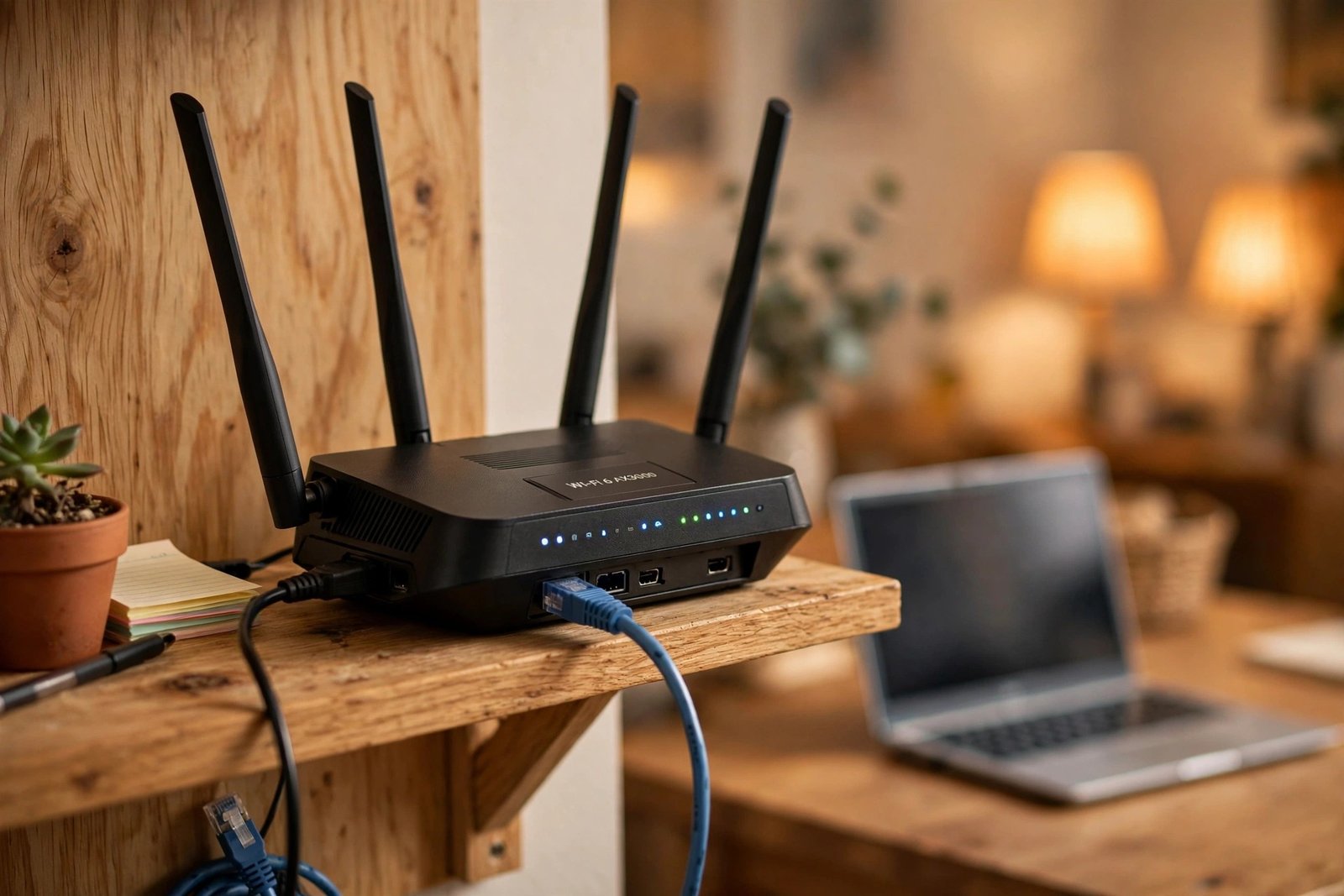
Wi-Fi speed falls quickly with distance and walls. If you work two rooms away from the router, your signal may be weak enough to cut your speed in half — and if you are on the 2.4 GHz band, the speed ceiling is lower to begin with.
- Check which network you are on: click the Wi-Fi icon in the taskbar and look at the network name.
- If your router shows two networks — one ending in 5G and one without — connect to the 5G one when you are in the same room as the router.
- If you are far from the router, stay on 2.4 GHz — it travels through walls better — and move your desk closer if you can.
- Keep the router out in the open, at waist height or higher, away from thick walls, metal shelves, and microwave ovens.
A mesh Wi-Fi system or a simple Wi-Fi extender can help in a large home, but try the free steps first: position alone fixes many slow connections.

3. Pause Windows Update Downloads
Windows Update downloads in the background without asking, and a feature update can be several gigabytes. While it downloads, your usable speed drops sharply.
- Open Settings, then go to Windows Update.
- If an update is downloading, click Pause updates and choose one week.
- To limit update bandwidth permanently, open Settings, then Windows Update, then Advanced options, then Delivery Optimisation.
- Turn on the option to limit how much bandwidth is used for downloading updates in the background and set it to 20 percent.
- Test your speed again.
Remember to unpause updates later — paused updates are a quick test, not a long-term plan, because security updates matter.
4. Run the Windows Network Troubleshooter
Windows 11 has a built-in troubleshooter that checks your adapter, resets it if needed, and reports what it found. It is quick and it sometimes fixes the problem with no further steps. Microsoft describes the same tool in its guide to fixing Wi-Fi connection issues in Windows.
- Open Settings, then go to System, then Troubleshoot.
- Click Other troubleshooters, then click Run next to Network and Internet.
- Follow the prompts and let it finish.
- If it says it fixed something, test your speed. If it says it found nothing, move on to the next fix — the troubleshooter misses driver problems often.
5. Update or Reinstall Your Wi-Fi Driver
A bad driver is one of the most common causes of slow Wi-Fi on Windows 11, especially after a feature update. The fix is to install the driver from your PC or adapter manufacturer — not the generic one Windows picks for you.
- Press Windows + X and open Device Manager.
- Expand Network adapters and right-click your Wi-Fi adapter.
- Choose Update driver, then Search automatically for drivers.
- If Windows says the best driver is already installed, right-click the adapter again and choose Uninstall device, then restart your PC — Windows will reinstall the driver on startup.
- For the best result, download the latest driver from your laptop manufacturer’s support site (or the adapter maker’s site) and install it manually.
Never download drivers from random driver-updater sites or unofficial download pages. Use the manufacturer’s own support website only — unofficial driver tools are a common source of malware and the wrong drivers. If the adapter is missing from Device Manager entirely, see our guide to Windows 11 network adapter missing.
6. Reset the Network Stack with Two Commands
If your network settings are corrupted, two commands in an administrator Command Prompt rebuild the key parts of the network stack. This is safe — it only resets network settings, not your files.
- Press Windows + S, type
cmd, right-click Command Prompt, and choose Run as administrator. - Type
netsh winsock resetand press Enter. - Type
netsh int ip resetand press Enter. - Restart your PC and test your speed.
If the commands report that they need a restart, restart before you test — the reset only takes effect after a reboot.

7. Change Your DNS Server
If websites feel slow to start loading but downloads run at full speed, your DNS server is the likely problem. Switching to a well-known public DNS server often makes browsing feel noticeably faster.
- Open Settings, then go to Network & internet, then Wi-Fi.
- Click your network name, then scroll down and click Edit next to DNS server assignment.
- Change it from Automatic to Manual, turn on IPv4, and enter
8.8.8.8as the preferred DNS and8.8.4.4as the alternate DNS (Google Public DNS). - Save and test a few websites.
You can also try Cloudflare’s DNS (1.1.1.1 and 1.0.0.1). If the change makes no difference, switch back to Automatic — it costs nothing to test.
8. Turn Off Background Apps and Metered Connection Limits
Background apps and a forgotten VPN can quietly eat your bandwidth. Check both before you blame the connection.
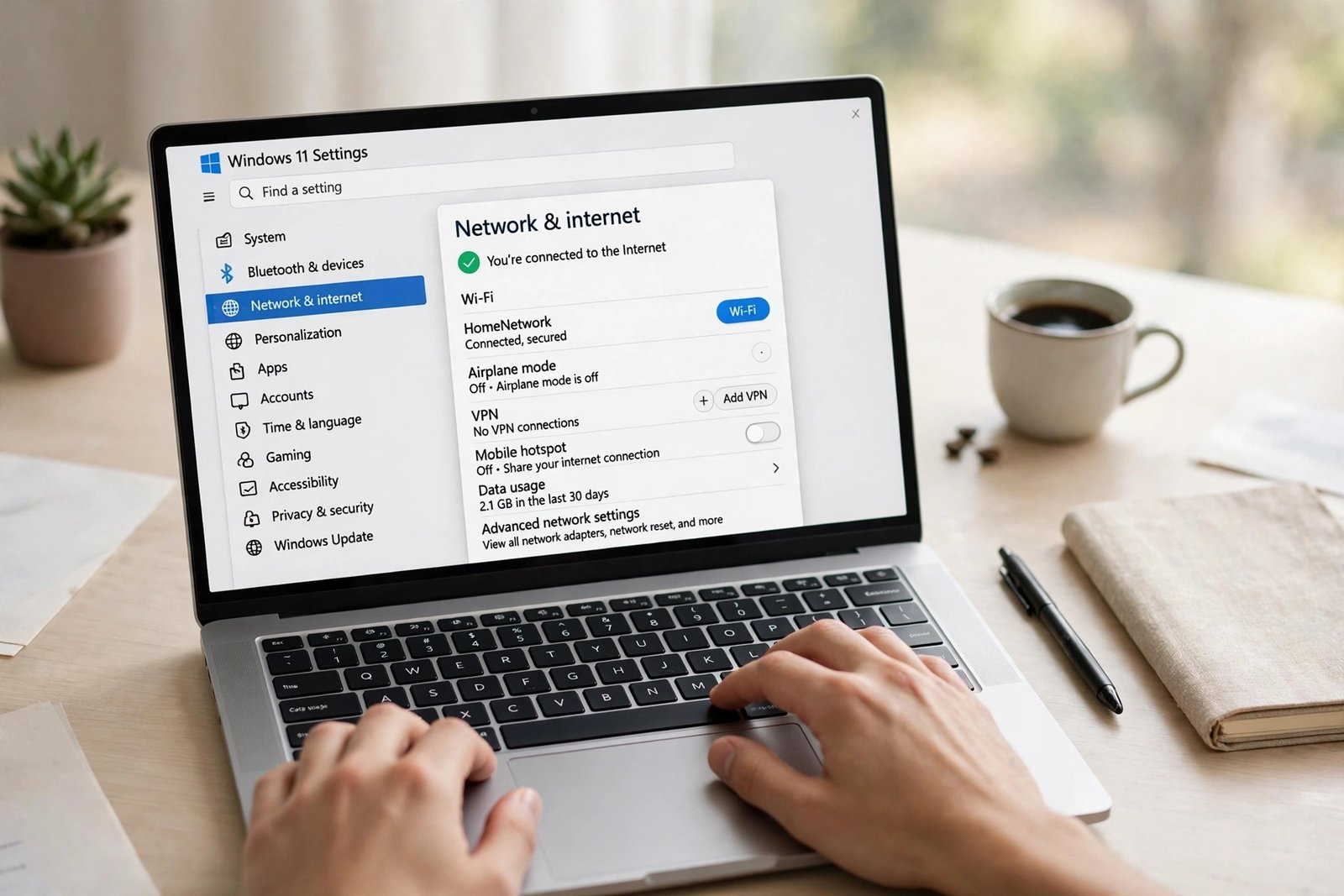
- Open Settings, then go to Network & internet, then Data usage, and look at which apps used the most data in the last 30 days.
- Open Task Manager with Ctrl + Shift + Esc, go to the Processes tab, and sort by Network to see what is using bandwidth right now.
- Pause cloud backups (OneDrive, Google Drive, Dropbox) while you test.
- If you use a VPN, disconnect it and test your speed. If the speed jumps up, the VPN server is the bottleneck — try a different server location or contact your VPN provider. If a VPN will not connect at all, see our guide to Windows 11 VPN not connecting. If your Wi-Fi keeps dropping as well as running slowly, see our guide to Windows 11 Wi-Fi disconnects frequently.
- Check for a proxy: open Settings, then Network & internet, then Proxy, and make sure no proxy is set unless your workplace requires one.
9. Reset Network Settings as a Last Resort
If nothing else worked, a full network reset returns every network setting to its defaults. You will need to reconnect to your Wi-Fi and re-enter the password afterwards, so keep it handy.
- Open Settings, then go to Network & internet, then Advanced network settings.
- Click Network reset, then click Reset now.
- Confirm, then restart your PC.
- Reconnect to your Wi-Fi network and test your speed.
A network reset also removes saved VPN connections and any custom DNS settings, so note those down first if you use them.
10. Update Your Router Firmware and Change the Wi-Fi Channel
If a restart helped only for a day or two, the router itself may be the problem. Old router firmware can be slow and unstable, and a crowded Wi-Fi channel can cut your speed even when the signal looks strong. Both are worth checking before you blame your PC.
- Find your router’s model name on the label underneath it, then open a browser on your PC and type the router’s address, usually
192.168.1.1or192.168.0.1, and press Enter. - Sign in with the admin password printed on the router label. If you changed it and cannot remember it, check the label first — do not reset the router yet.
- Look for a firmware update or software update page in the router settings. If an update is available, install it and wait for the router to restart.
- On the wireless settings page, look for the channel setting for the 2.4 GHz network. Try channel 1, 6, or 11, which overlap the least with other networks, and save the change.
- Reconnect your PC to Wi-Fi and test your speed again.
Only change the firmware and the channel. Do not change other router settings you do not understand, because a wrong change can take the whole network offline.
11. Turn Off Power Saving for the Wi-Fi Adapter
Windows can turn your Wi-Fi adapter down, or off, to save power — especially on a laptop running on battery. That can slow your connection or make the speed drop for no clear reason, even when the signal is strong.
- Press Windows + X and open Device Manager.
- Expand Network adapters and right-click your Wi-Fi adapter.
- Choose Properties, then go to the Power Management tab.
- Untick the box that says “Allow the computer to turn off this device to save power”.
- Click OK, then restart your PC and test your speed.
If your laptop is on battery, this fix may use a little more power, but the speed gain is usually worth it. If the speed is still slow after this fix, the problem is with the line itself, and your internet provider is the next call to make.
What to Avoid
- Do not install driver-updater or speed-booster apps. They rarely help and often install unwanted software. Get drivers from the manufacturer only.
- Do not pay for a faster plan before testing. If the problem is your Wi-Fi signal or a driver, a faster plan will not fix it — test on a cable first.
- Do not change router settings you do not understand. Random changes to channels, bands, or firewall rules can make things worse. Stick to the steps in this guide.
- Do not ignore a hot router. A router that is very hot to the touch is overheating and will slow down or drop connections — give it airflow or replace it.
- Do not forget to unpause Windows Update. Pausing updates is a test, not a solution. Security updates keep your PC safe.
Frequently Asked Questions
Why is my internet slow on Windows 11 but fast on my phone?
Your phone and your PC use different Wi-Fi adapters, drivers, and settings. If the phone is fast on the same network, the problem is in your PC — usually the Wi-Fi driver, a background download, or a VPN. Start with Fix 5.
Why is my internet slow after a Windows 11 update?
Feature updates sometimes replace your Wi-Fi driver with a generic one or corrupt network settings. Update the driver from your manufacturer’s website (Fix 5), and if that does not help, reset the network stack (Fix 6).
Does Windows 11 limit my internet speed?
Windows 11 does not cap your speed by default. What feels like a limit is usually Delivery Optimisation sharing updates with other PCs, a metered-connection setting, or background downloads. Check Fix 3 and Fix 8.
How can I test my real internet speed on Windows 11?
Use fast.com or speedtest.net in your browser, with nothing else downloading and no VPN connected. Test twice — once on Wi-Fi and once on a cable if you can. The cable result shows your true line speed.
Should I use 2.4 GHz or 5 GHz Wi-Fi?
Use 5 GHz in the same room as the router for the fastest speed. Use 2.4 GHz when you are far away or behind thick walls, because it travels further. If your PC keeps picking the wrong one, split the bands in your router settings so you can choose.
Can a VPN slow down my internet on Windows 11?
Yes. A VPN adds encryption and routes your traffic through another server, which always costs some speed. A free or overloaded VPN can cut your speed by half or more. Disconnect the VPN and test to see how much of the slowdown it causes.
Conclusion
This windows 11 slow internet speed fix guide works because a slow connection on Windows 11 is usually caused by one of a handful of things: a router that needs a restart, a background update, the wrong Wi-Fi band, an old driver, or corrupted network settings. Microsoft’s guide to fixing Ethernet connection problems in Windows covers the same reset commands and network reset for a wired connection, if you want to compare the two. Work through the 11 fixes in order, test your speed after each one, and stop as soon as it is back. Most people find the answer in the first three fixes — and if the speed is still slow on every device after a router restart, the problem is with the line itself, and your internet provider is the next call to make.