


A wordpress sitemap not found error means your sitemap URL returns a 404 page instead of the XML file that search engines expect. Without a working sitemap, Google and Bing may take much longer to discover new posts and pages, and Search Console will keep flagging the submission as failed.
The good news is that this error is almost never caused by something serious. In most cases, the sitemap is simply generated at a different URL, your permalink rules need a refresh, a cache is serving an old response, or an SEO plugin setting got turned off. All of these take only a few minutes to check.
This guide walks you through the problem in a clear order. You will first run quick checks, then match your symptom to a cause, then apply eight numbered fixes from the simplest to the most involved. No coding experience is required for the first six fixes.
Table of Contents
- Quick Checks
- Diagnose the Problem
- Fix 1: Open the Correct Sitemap URL
- Fix 2: Resave Your Permalink Settings
- Fix 3: Clear Every Layer of Cache
- Fix 4: Turn On XML Sitemaps in Your SEO Plugin
- Fix 5: Rule Out a Plugin Conflict
- Fix 6: Check Your robots.txt File
- Fix 7: Repair .htaccess and Server Rewrite Rules
- Fix 8: Resubmit the Sitemap in Search Console
- What to Avoid
- Frequently Asked Questions
- Conclusion
- Helpful Resources
Quick Checks
- Try both common sitemap addresses:
yoursite.com/wp-sitemap.xmlandyoursite.com/sitemap_index.xml. One of them usually works. - Open the sitemap URL in a private or incognito window to bypass your browser cache.
- Check whether your site is set to discourage search engines under Settings, then Reading.
- Confirm your SEO plugin is installed and active, since it generates the sitemap file.
- Purge your caching plugin and any CDN cache, then reload the sitemap URL.
Diagnose the Problem
| Symptom | Cause | Go to Fix |
|---|---|---|
wp-sitemap.xml returns a 404 page | WordPress native sitemaps are disabled or rewrite rules are stale | Fix 1, Fix 2 |
sitemap_index.xml returns a 404 page | SEO plugin sitemap feature is off or the plugin is inactive | Fix 1, Fix 4 |
| Sitemap URL worked before, now shows 404 | Cache serving a stale response or a recent plugin update broke it | Fix 3, Fix 5 |
| Search Console says the sitemap could not be fetched | Wrong URL submitted, or robots.txt is blocking it | Fix 6, Fix 8 |
| Sitemap shows a blank page or downloads as a file | Missing XML content-type handling or server rewrite problem | Fix 7 |
| Sitemap 404s only on some pages or sections | Conflicting second SEO plugin generating its own sitemap | Fix 5 |
| Every page on the site returns 404, not just the sitemap | Permalinks or .htaccess are broken site-wide | Fix 2, Fix 7 |
Fix 1: Open the Correct Sitemap URL
WordPress has changed how sitemaps work over the years, so the first step is to make sure you are testing the right address. Guessing the wrong URL is the most common reason people think their sitemap is missing.
- WordPress core generates a native sitemap at
yoursite.com/wp-sitemap.xml. Try this first if you do not use an SEO plugin. - Popular SEO plugins generate their own sitemap, usually at
yoursite.com/sitemap_index.xml. Try this if you use one. - Type the URL directly into the address bar of a private browsing window and press Enter.
- If one URL loads the XML file and the other shows a 404, your sitemap is fine. You were simply checking the wrong address.
- Use the working URL everywhere going forward, including in Search Console.
Fix 2: Resave Your Permalink Settings
WordPress uses rewrite rules to turn addresses like wp-sitemap.xml into real content. When these rules go stale, the sitemap URL stops resolving and returns a 404. Resaving permalinks rebuilds those rules in seconds.
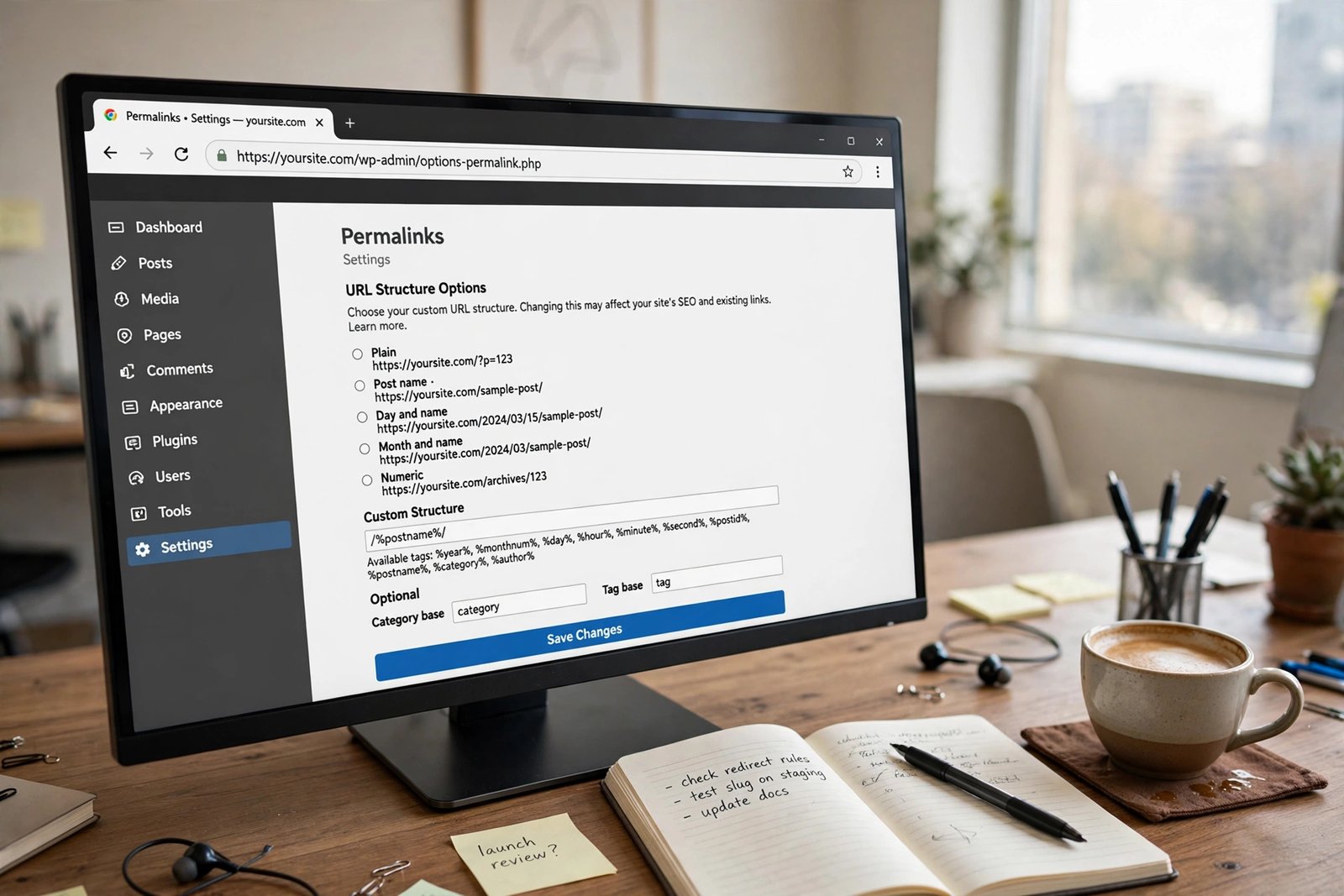
- In your WordPress dashboard, go to Settings, then Permalinks.
- Without changing anything, scroll down and click Save Changes.
- This single click flushes and rebuilds the rewrite rules.
- Now reload your sitemap URL in a private window.
- If the sitemap loads, the problem is solved. Move on to Fix 8 to resubmit it.
- If it still shows a 404, continue with the next fix. Your rewrite rules may be blocked at the server level, which Fix 7 covers.
Fix 3: Clear Every Layer of Cache
Caching layers love to serve old responses. Your sitemap may already be fixed, but a cached 404 keeps showing up. Clear everything before you conclude that a fix did not work.
- Purge the cache in your caching plugin. Look for a “Purge All” or “Clear Cache” button in the top admin bar.
- If you use a CDN, open its dashboard and purge the cache for the sitemap URL specifically, or purge everything.
- Clear any server-level cache. Many hosts add a cache button in the WordPress admin bar or in the hosting control panel.
- Clear your browser cache, or simply test in a private window which starts with a clean cache.
- Reload the sitemap URL. If it loads now, caching was the culprit.
- To avoid repeat confusion, exclude
sitemap.xmlURLs from caching in your caching plugin settings if it offers URL exclusions.
Fix 4: Turn On XML Sitemaps in Your SEO Plugin
If you rely on an SEO plugin for your sitemap, its sitemap feature may have been switched off during an update or while changing settings. A disabled feature means no sitemap file is generated at all.

- Open your SEO plugin’s settings in the WordPress dashboard.
- Find the XML sitemap section. It is usually under a Features, General, or Sitemaps tab.
- Make sure the XML sitemap toggle is switched on, then save the settings.
- Check that you do not have two SEO plugins active at once. Two plugins fighting over the sitemap can break both.
- If you prefer the WordPress core sitemap, you can disable the plugin sitemap and use
wp-sitemap.xmlinstead. Pick one source, not both. - Reload the correct sitemap URL from Fix 1 in a private window to confirm it now loads.
Fix 5: Rule Out a Plugin Conflict
A conflicting plugin can intercept the sitemap URL before WordPress serves it. Security plugins, redirection plugins, and a second SEO plugin are the usual suspects. A quick conflict test will identify the troublemaker.
- Deactivate all plugins except your SEO plugin. Go to Plugins, select all, choose Deactivate from the bulk menu, then reactivate only the SEO plugin.
- Reload the sitemap URL in a private window. If it works, one of the deactivated plugins was causing the 404.
- Reactivate the other plugins one by one, reloading the sitemap URL after each one.
- When the sitemap breaks again, you have found the conflicting plugin.
- Check that plugin’s settings for anything related to sitemaps, XML files, or URL redirection, and adjust or replace it.
- Switch to a default theme such as Twenty Twenty-Four for a minute and reload the sitemap. If it works with the default theme, your theme is interfering and needs attention from its developer.
Fix 6: Check Your robots.txt File
Your robots.txt file tells search engines which parts of your site they may visit. A wrong rule in this file can block the sitemap or confuse Search Console into reporting it as unfetchable.

- Open
yoursite.com/robots.txtin your browser to see its current contents. - Look for a
Disallow: /rule aimed at all user agents. That blocks the entire site, including the sitemap. - In the WordPress dashboard, go to Settings, then Reading. Make sure “Discourage search engines from indexing this site” is unchecked. Checking it adds a blocking robots.txt rule automatically.
- If your SEO plugin manages robots.txt, open its settings and make sure the sitemap reference line points to the correct sitemap URL.
- Save any changes, then test the file again. Online robots.txt tester tools in Search Console can confirm the file is valid.
- Give search engines a little time to re-read the file after you fix it. Changes are usually picked up within a day or two.
Fix 7: Repair .htaccess and Server Rewrite Rules
On Apache servers, WordPress relies on the .htaccess file for rewrite rules. If this file is missing, corrupted, or not writable, resaving permalinks cannot do its job and the sitemap URL keeps returning a 404. Nginx servers need equivalent rules in their configuration instead.
- Connect to your site with FTP or your host’s file manager and look in the main WordPress folder for
.htaccess. - Download a backup copy of the file before changing anything.
- If the file is missing, create a new
.htaccessfile and let WordPress fill it. Go to Settings, then Permalinks, and click Save Changes so WordPress writes fresh rules. - If the file exists, check that it contains the standard WordPress rewrite block between
# BEGIN WordPressand# END WordPressmarkers. - On Nginx hosting, there is no
.htaccessfile. Ask your host to confirm the WordPress rewrite rules are present in the server configuration. - After repairing the rules, reload the sitemap URL in a private window. If it loads, your server rules were the problem.
- If you are uncomfortable editing server files, ask your hosting provider’s support team to check the rewrite rules for you. This is a routine request for them.
Fix 8: Resubmit the Sitemap in Search Console
Once the sitemap URL loads correctly in your browser, tell Google about it again. Search Console remembers the old failed status until you submit a fresh sitemap.

- Open Google Search Console and select your website property.
- Go to the Sitemaps section in the left menu.
- Remove the old failed sitemap entry if one is listed.
- Enter the working sitemap URL, for example
wp-sitemap.xmlorsitemap_index.xml, and click Submit. - Check the status after a few minutes. It should change from an error to a success message.
- If Search Console still reports an error, copy the exact error text. A “could not be fetched” message points back to Fix 6, while a redirect message points to your site’s redirect settings.
- Repeat the submission in Bing Webmaster Tools if you monitor your site there as well.
What to Avoid
- Do not upload a static
sitemap.xmlfile to your server root. It will go stale and can conflict with the dynamic sitemap WordPress generates. - Do not run two SEO plugins with sitemap features enabled at the same time.
- Do not edit the
.htaccessfile without downloading a backup copy first. - Do not submit every individual sitemap section URL to Search Console. Submit the main index file only.
- Do not panic if Search Console takes a day or two to update the sitemap status after a successful fix.
- Do not install a nulled or pirated SEO plugin to “unlock” sitemap features. Use the official free version from the WordPress plugin directory instead.
Frequently Asked Questions About the wordpress sitemap not found Error
What does the wordpress sitemap not found error mean?
It means the sitemap URL you opened or submitted returns a 404 page instead of an XML sitemap. Search engines then cannot read the list of your pages, so discovery of new content slows down.
Where is the WordPress sitemap located?
WordPress core creates it at yoursite.com/wp-sitemap.xml. If you use an SEO plugin, its sitemap is usually at yoursite.com/sitemap_index.xml. Check both addresses before assuming anything is broken.
Why does my sitemap return a 404 even though my site works fine?
The most common reasons are stale permalink rewrite rules, a cached 404 response, or a disabled sitemap feature in your SEO plugin. Resaving permalinks and purging caches fixes most of these cases.
Can a caching plugin break the sitemap?
Yes. A caching plugin can store a 404 response for the sitemap URL and keep serving it after the real problem is fixed. Purge all caches and test in a private window to rule this out.
Should I use the WordPress core sitemap or my SEO plugin’s sitemap?
Use one or the other, not both. The SEO plugin sitemap usually offers more control, such as excluding post types. If you prefer simplicity, the core sitemap at wp-sitemap.xml works fine for most small sites.
How long does Search Console take to accept a fixed sitemap?
Often within a few minutes of resubmitting, the status updates. In some cases it can take a day or two. If the sitemap loads correctly in your browser, the Search Console status will catch up.
Does a missing sitemap hurt my Google rankings directly?
A missing sitemap does not directly lower rankings, but it slows down how quickly search engines discover and index new content. For sites that publish often, that delay can matter.
Do I need an SEO plugin just to have a sitemap?
No. WordPress has generated a basic XML sitemap on its own since version 5.5. An SEO plugin is only needed if you want extra sitemap controls.
Conclusion
A wordpress sitemap not found error looks alarming, but it is one of the easier WordPress problems to solve. Start by checking the correct URL, resave your permalinks, and clear your caches. Those three steps alone resolve the issue for most site owners. If the 404 persists, work through the plugin conflict test, the robots.txt check, and the server rewrite rules. Finish by resubmitting the working sitemap in Search Console so search engines pick it up again.
[…] in your browser. If the sitemap does not load at all, that is a different fault — our guide to WordPress sitemap not found covers the missing-sitemap case, including the permalink and plugin causes that stop a sitemap from […]