

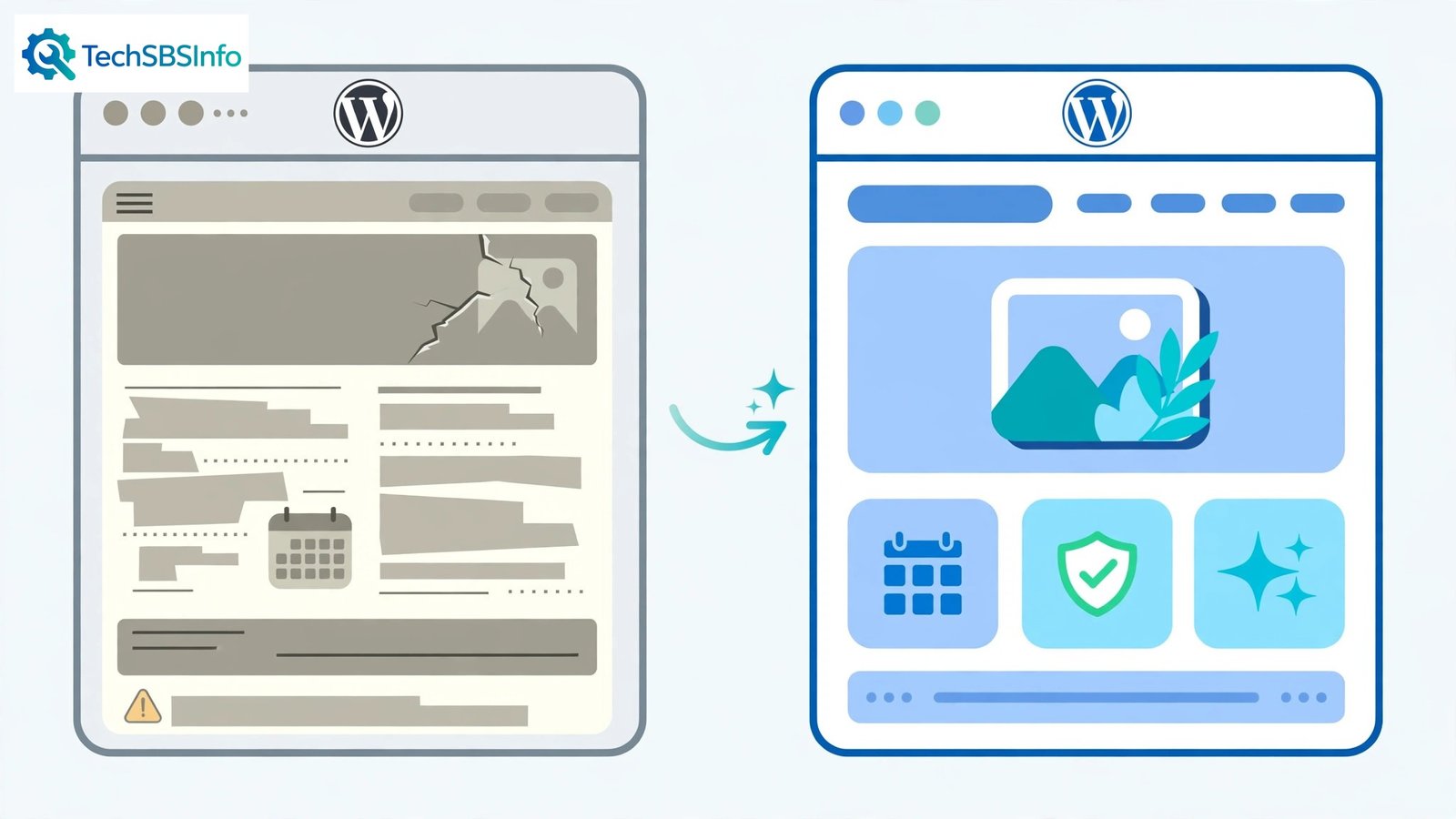
You edit a page, hit Update, view the site — and nothing changed. The old headline, the old price, the old photo. When wordpress website showing old content after your edits, the update saved fine; something between WordPress and the visitor is serving a stale copy.
That something is cache — and WordPress sites typically have several layers of it: your browser, a caching plugin, the host’s server cache, and a CDN. This guide clears them in order, from your own browser to the edge servers. Your content is safe; only the stale copies get deleted.
Table of Contents
- Quick Checks
- Diagnosing wordpress website showing old content
- Fix 1: Hard-Refresh the Page
- Fix 2: Purge the Caching Plugin
- Fix 3: Purge the CDN Cache
- Fix 4: Exclude the Page from Caching
- Fix 5: Clear Transients
- Fix 6: Deactivate the Cache Plugin to Test
- Fix 7: Check for a Stuck Service Worker
- What to Avoid
- Frequently Asked Questions
- Conclusion
- Helpful Official Resources
Quick Checks
Two minutes to locate the stale layer.
- Open the page in an Incognito window. If the new content shows there, only your browser cache is stale (Fix 1).
- Check the page while logged into wp-admin. Admins often bypass cache — if it looks right logged in but wrong logged out, a cache layer is serving visitors stale copies.
- Ask someone on a different network to check. If they see the new content, the staleness is local to you.
- Confirm the edit actually saved: reopen the page in the editor and verify your changes are there.
- Check whether all pages are stale or just one — one page suggests page-level caching; all pages suggest a full cache layer.
Diagnosing wordpress website showing old content
| Symptom | Cause | Go to Fix |
|---|---|---|
| New content in Incognito, old in normal window | Your browser cache | Fix 1 |
| Old for logged-out visitors, new for admins | Caching plugin or server cache | Fix 2 |
| Old everywhere including Incognito, after purging plugin | CDN or host cache | Fix 3 |
| One dynamic page always stale | Page wrongly cached | Fix 4 |
| Widgets or API data stale | Transients / object cache | Fix 5 |
| Stale even with no caching plugin | Service worker or host cache | Fix 7, then host |
Fix 1: Hard-Refresh the Page
Your browser is the first cache and the easiest to beat. A hard refresh bypasses it for one load.
- On the stale page, press Ctrl+F5 (Windows) — this forces a fresh download, ignoring cache.
- Or hold Ctrl and click the refresh button.
- For a thorough clear: Settings in Chrome > Privacy > Clear browsing data > Cached images and files > Clear.
- Test the page again in a normal window.
- If it is fresh now, the “problem” was only ever your browser — no site fix needed.
Hard refresh is also the answer to “my client sees the old site”: it is their browser cache, not your work. Teach clients Ctrl+F5 and half your “the site did not update” tickets vanish. If the site will not load at all rather than loading old content, our WordPress website not loading guide is the right one.
Fix 2: Purge the Caching Plugin
Caching plugins store static copies of your pages. Until purged, visitors get the copy from before your edit.
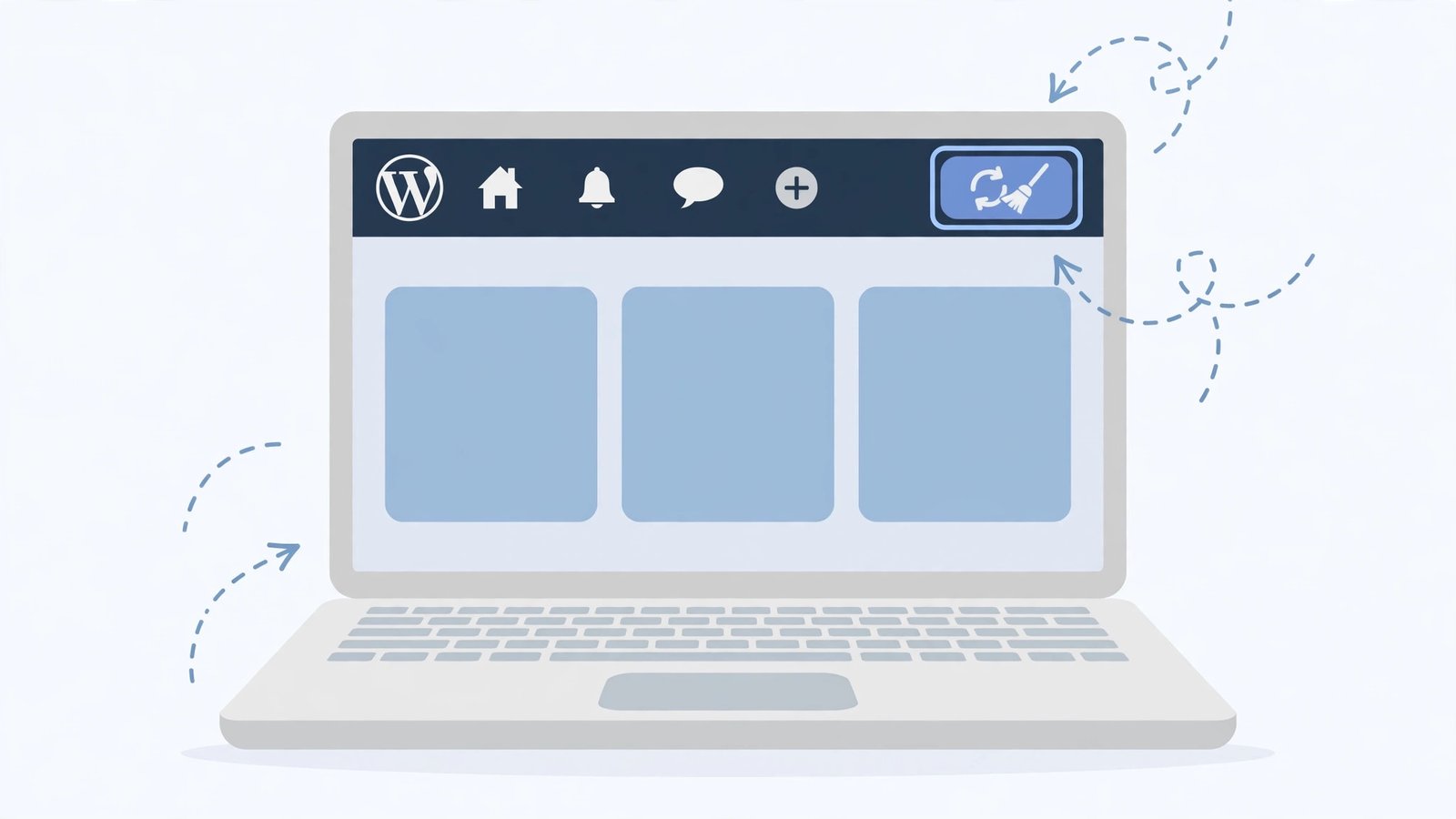
- In wp-admin, look at the top admin bar for your caching plugin’s menu (or its name).
- Click “Purge All Caches” / “Clear Cache” / “Purge Cache”.
- Alternatively, open the plugin’s settings page and find the purge button there.
- After purging, visit the page in Incognito to verify the new content.
- Check the plugin’s settings for “purge on update” — most plugins auto-purge edited pages, but the setting can be disabled.
- If purging does nothing, the stale copy lives in another layer — continue below.
Good caching plugins purge the edited page automatically on update. If yours does not, either the setting is off or the plugin is misconfigured. For general plugin misbehaviour, our WordPress plugin conflict fix guide covers the detective work.
Fix 3: Purge the CDN Cache
If your site sits behind Cloudflare or another CDN, that edge network holds its own copy — purging WordPress does not touch it.

- Log in to your CDN dashboard (Cloudflare, Bunny, KeyCDN, and so on).
- Find the cache section — in Cloudflare it is Caching > Configuration.
- Click “Purge Everything” or enter the specific page URL to purge just it.
- Wait a minute for the purge to propagate to edge servers.
- Reload the page in Incognito and verify the new content.
- If your host provides server-level caching (Hostinger, SiteGround, and similar), purge that from the hosting panel as well.
Check the CDN’s cache TTL too. A very long edge TTL means edits take hours to appear unless the CDN is told to purge on update — many CDN plugins do this automatically. If your CDN settings are involved in how the site addresses itself, our WordPress site URL wrong guide covers related gremlins.
Fix 4: Exclude the Page from Caching
Some pages should never be cached at all: carts, checkouts, account pages, contact forms with captchas, and any page whose content changes per visitor or per update.
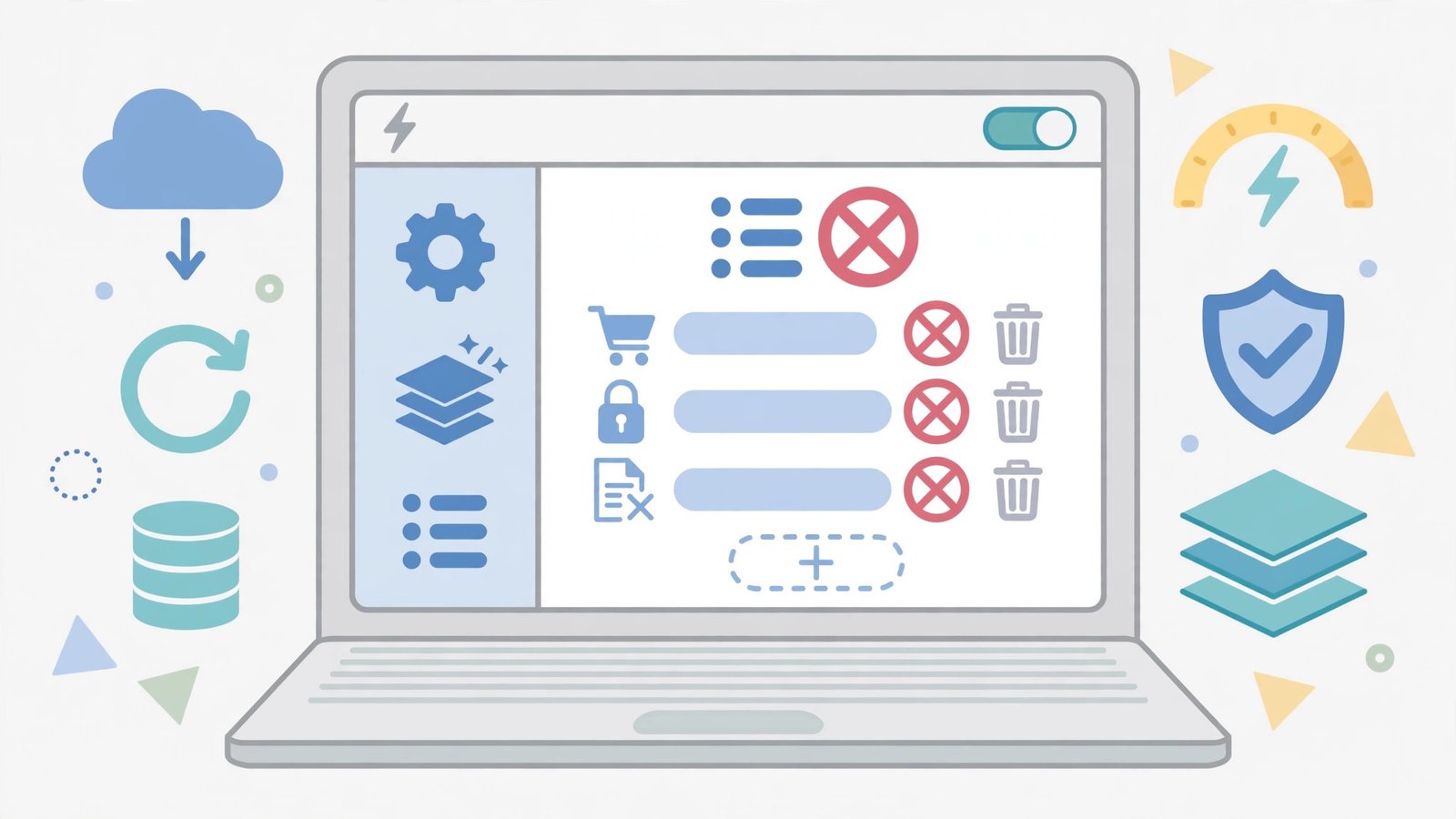
- Open your caching plugin’s settings and find the exclusion / “never cache” section.
- Add the stale page’s URL (or URL pattern) to the exclusion list.
- Save and purge all caches once more.
- Verify the page now updates immediately on each edit.
- Repeat for other dynamic pages: cart, checkout, my-account, contact forms.
- Keep the exclusion list short — excluding everything defeats the cache.
Exclusions are a scalpel, not a hammer. One stale product page needs an exclusion; the whole site showing old content needs a purge strategy, not exclusions. Dynamic pages that break when cached are covered in our WordPress cart not updating guide.
Fix 5: Clear Transients
WordPress stores temporary cached data as transients — widget output, API responses, menu fragments. Stale transients show old data even when the page cache is fresh.
- Install a transient manager plugin (Transients Manager is a popular free one) or use your caching plugin’s database cleanup.
- Delete all transients (expired and active).
- Reload the stale page and check whether the data is now current.
- Expired transients that never clean up bloat the database — schedule periodic cleanup.
- If you use object caching (Redis/Memcached), flush it from the plugin settings or hosting panel.
Transients are the usual culprit when part of a page is stale — a widget showing old posts, a sidebar counter stuck, a weather block frozen. The page cache can be perfectly fresh while one transient feeds it old data. Persistent database gremlins like this are covered in our WordPress database connection error guide.
Fix 6: Deactivate the Cache Plugin to Test
If nothing above worked, prove the cache is (or is not) the culprit by removing it from the equation.
- Go to Plugins > Installed Plugins and deactivate your caching plugin.
- Clear your browser cache (Fix 1) and reload the page in Incognito.
- If the new content appears, the plugin was serving the stale copy — check its settings, then reactivate it.
- If the old content still shows, the stale copy lives elsewhere: CDN, host cache, or service worker.
- Delete the plugin’s leftover cache folder via FTP or file manager if deactivation leaves one.
- Reactivate the plugin once diagnosed — do not leave the site uncached permanently.
This is a diagnostic, not a solution. Deactivating the plugin tells you whether the plugin is the stale layer; the fix is correcting its configuration, not running without it. If deactivation itself causes errors, our WordPress white screen of death guide covers recovery.
Fix 7: Check for a Stuck Service Worker
Progressive-web-app features and some optimisation plugins register a service worker — a script in the visitor’s browser that can serve whole pages offline, long after you updated them.
- Open the page in Chrome, press F12, and go to Application > Service Workers.
- If a service worker is registered for your site, click “Unregister”.
- Then go to Application > Storage and click “Clear site data”.
- Reload the page — it now loads from the network.
- Decide whether you need the service worker at all; if a plugin installed it, check the plugin’s settings for a disable option.
- Ask affected visitors to do the same, or bump the service worker version so browsers update it.
Service workers are the invisible cause everyone forgets. They cache aggressively by design, and unlike normal browser cache they are not cleared by Ctrl+F5. If a PWA plugin added one, it is the first suspect for stubbornly stale pages.
What to Avoid
- Do not delete your caching plugin in frustration — configure it; an uncached site is slower for everyone.
- Do not exclude every page from caching — you would just be disabling the cache with extra steps.
- Do not purge the CDN every five minutes as a habit — fix the purge-on-update setting instead.
- Do not tell visitors to “just clear their cache” forever — fix the layer that is actually stale.
- Do not edit the database directly to “fix” transients unless you know exactly which rows to touch.
- Do not stack three caching plugins — one configured cache beats three fighting ones.
Frequently Asked Questions
Why does my WordPress website show old content after updating a page?
Because a cache layer — your browser, a caching plugin, the host’s server cache, or a CDN — is serving the copy it stored before your edit. The update saved correctly; you need to purge the stale layer, starting with a hard refresh (Fix 1) and working outward.
How do I force WordPress to show new content immediately?
Purge every cache layer: browser hard refresh, caching plugin purge, CDN purge, and host cache purge. Then verify in an Incognito window. For pages that update constantly, add a cache exclusion (Fix 4) so they are never served stale.
I purged everything and the page is still old. What now?
Check for a stuck service worker (Fix 7) and confirm no second caching plugin or host-level cache is running. Deactivating the cache plugin as a test (Fix 6) tells you whether the plugin layer is even involved.
Does clearing cache delete my content?
No. Purging deletes only the stored copies; your posts, pages, and media stay in the database untouched. It is one of the safest maintenance actions in WordPress.
Why do only some visitors see the old version?
Different visitors hit different cache layers: their own browser cache, different CDN edge servers, or cached versus uncached page variants. Purging all layers brings everyone to the same fresh copy.
Conclusion
Old content after an update is never a lost edit — it is a stored copy outliving its welcome. Work the layers from nearest to farthest: your browser, the caching plugin, the CDN, transients, and the service worker. Purge each, verify in Incognito, and set the plugin to purge on update so the problem stops recurring. Your visitors will finally see the site you actually published.
Helpful Official Resources
- WordPress Developer: delete_transient() (Transients API)
- WordPress.org: Optimization (Caching)
- Cloudflare Docs: Cache
Question
Answer