

Windows 11 sound not working is one of the most common problems PC owners face. The good news is that most sound issues come from simple causes: a muted volume, the wrong output device, or a faulty audio driver. At TechSBSInfo, we test every fix below on a real Windows 11 machine before publishing it. Work through the fixes in order, and test your sound after each one.
Table of contents
- 1. Unmute and turn the volume up
- 2. Select the correct output device
- 3. Check cables, jacks, and speaker power
- 4. Restart your PC
- 5. Run the Windows audio troubleshooter
- 6. Turn off audio enhancements
- 7. Fix Windows 11 Sound Not Working by Updating the Audio Driver
- 8. Uninstall and reinstall the audio driver
- 9. Restart the Windows Audio services
- 10. Roll back the driver after a Windows update
- What to avoid
- Frequently asked questions
- Conclusion
Quick checks before you start
Run through this list first. It takes about one minute and solves the problem for many people.
- Make sure the volume is not muted. Look at the speaker icon on the taskbar.
- Check that the right device (speakers, headphones, or monitor) is set as output.
- Push every cable and plug in firmly. A half-seated plug is a classic cause of silence.
- Confirm your external speakers are switched on and have power.
- Unplug headphones once to check whether the built-in speakers work on their own.
- Restart the PC one time. Temporary glitches often clear after a reboot.
Diagnose your sound problem
| Symptom | Likely cause | Go to fix |
|---|---|---|
| Red X on the speaker icon, “No output device” message | Audio driver missing, disabled, or corrupted | Fix 8 |
| Sound works in some apps but not others | That app is muted in the volume mixer | Fix 1 |
| No sound right after a Windows update | New update broke the audio driver | Fix 10 |
| Crackling, popping, or audio that cuts out | Audio enhancements or wrong audio format | Fix 6 |
| Bluetooth earbuds connect but stay silent | Wrong output device selected | Fix 2 |
| Speakers missing from Sound settings | Device disabled in Device Manager | Fix 8 |
1. Unmute and turn the volume up
This sounds too simple, but it is the most common cause. Windows has several volume layers, and any one of them can be muted without you noticing.
Follow these steps:
- Click the speaker icon on the taskbar. Move the volume slider up to at least 50.
- Right-click the speaker icon and choose Open volume mixer.
- Check the volume for System sounds and for the app you are testing. Unmute anything with an X.
- Open the app itself (YouTube, Spotify, Zoom) and check its own volume control.
- If you use external speakers, turn their physical volume knob up too.
Tip: Press Windows + G to open the Game Bar, where you can see per-app volume sliders at a glance.
2. Select the correct output device
Windows sometimes sends sound to the wrong place. A classic example: audio keeps going to your monitor (which has no speakers) instead of your headphones.
Do this:
- Click the speaker icon on the taskbar.
- Click the small arrow (
>) next to the volume slider. - You will see a list of output devices. Pick the one you actually want to hear sound from.
- Play a test sound. A YouTube video or a system notification sound both work.
- If your device is missing from the list, skip ahead to Fix 8.
If you use wireless earbuds or a Bluetooth speaker, make sure they are paired and connected first. Pairing problems are a separate issue, and our guide to fixing Bluetooth audio devices on Windows 11 walks through them step by step.
3. Check cables, jacks, and speaker power
Loose or wrongly plugged cables cause more “no sound” cases than most people expect. This fix takes two minutes.
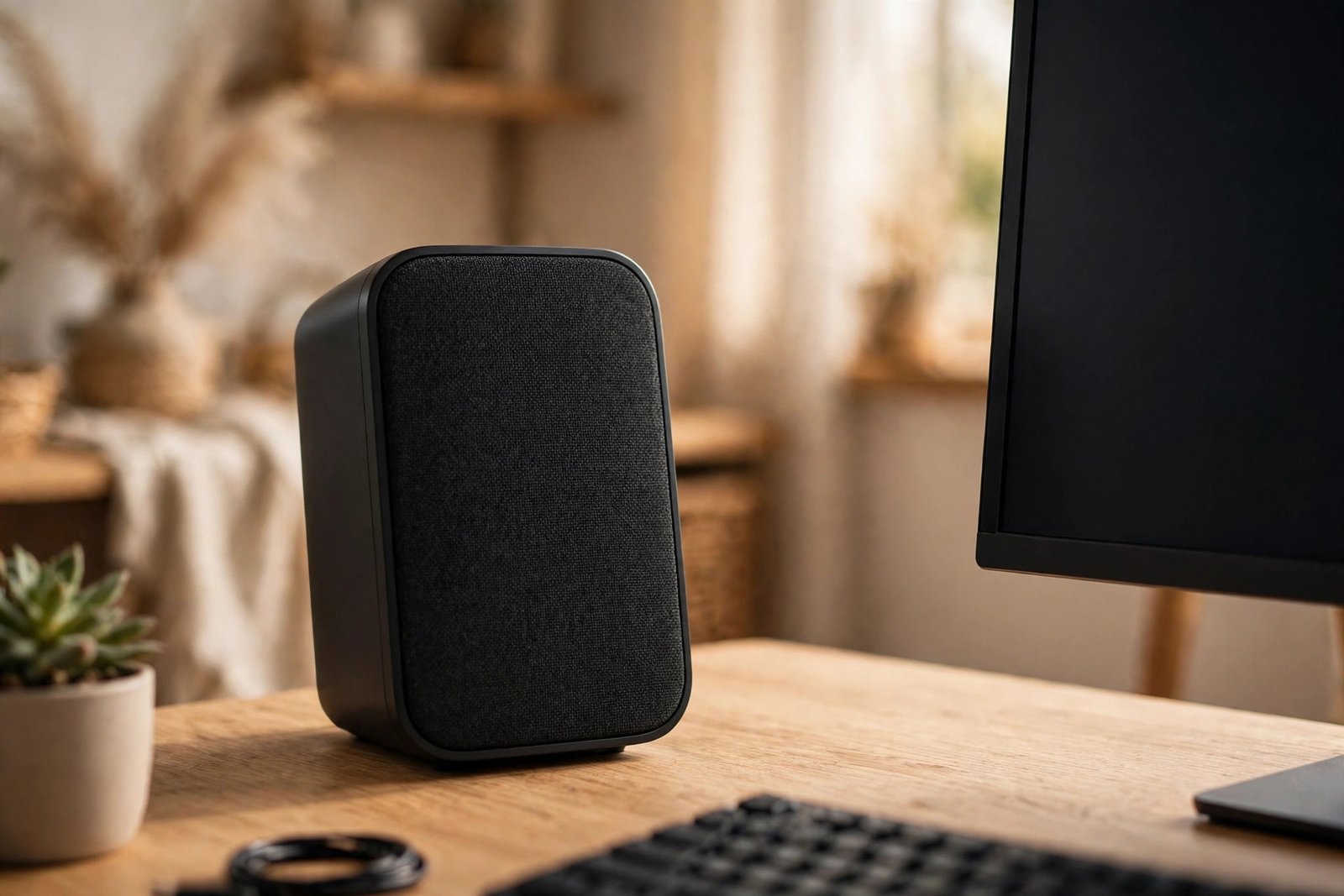
Work through this checklist:
- Unplug each audio cable and plug it back in firmly. You should feel it click into place.
- Use the correct jack. On most PCs, the green jack is the speaker/headphone output and the pink jack is the microphone input.
- Check the cable for damage. Frayed or bent cables should be replaced.
- Make sure external speakers are switched on and their power cable is connected.
- Try a different USB port if you use USB speakers or a USB headset.
- Test the headphones or speakers on another device, like your phone, to rule out broken hardware.
4. Restart your PC
A full restart clears stuck audio processes and temporary driver glitches. Do not just close the laptop lid — perform a real restart.
- Save any open work.
- Click Start, then Power, then Restart.
- After the PC boots up, play a sound to test.
Warning: If you see “Update and restart,” choose it. A pending update can itself be the cause of the sound problem.
5. Run the Windows audio troubleshooter
Windows 11 includes a built-in audio troubleshooter. It scans your sound setup, finds common problems, and applies fixes automatically. It is quick and safe to run.
- Open Settings with
Windows + I. - Go to System, then scroll down and select Troubleshoot.
- Click Other troubleshooters.
- Find Audio in the list and click Run.
- Choose the device that has no sound when asked.
- Follow the on-screen prompts and apply any fix it suggests.
- Test your sound again when it finishes.
Microsoft also documents this tool in its official guide to fixing sound problems in Windows. If the troubleshooter finds nothing, keep going — the next fixes go deeper.
6. Turn off audio enhancements
Audio enhancements are extra sound processing features added by your PC maker or audio software. They sometimes clash with Windows 11 and cause crackling, distortion, or total silence. Turning them off is safe and easy to reverse.
- Open Settings with
Windows + I, then go to System > Sound. - Under Output, click on the device you are using (for example, Speakers).
- Scroll to Advanced and find Audio enhancements.
- Set the dropdown to Off.
- Play a sound to test.
If you use the older Sound control panel, the path is slightly different:
- Type Control Panel in the taskbar search and open it.
- Go to Hardware and Sound > Sound.
- On the Playback tab, right-click your device and choose Properties.
- Open the Enhancements tab and tick Disable all enhancements.
- Click Apply, then OK, and test again.
7. Fix Windows 11 Sound Not Working by Updating the Audio Driver
An outdated or corrupted audio driver is the most common technical cause of windows 11 sound not working. Updating the driver lets Windows fetch a fresh, compatible version.
- Right-click Start and select Device Manager.
- Expand Sound, video and game controllers.
- Right-click your audio device (often named Realtek Audio, Intel Smart Sound, or High Definition Audio Device).
- Choose Update driver.
- Select Search automatically for drivers.
- Wait for Windows to finish, then restart your PC.
If Windows says the best driver is already installed but sound still fails:
- Go back to Device Manager and the same audio device.
- Choose Update driver > Browse my computer for drivers.
- Visit your PC or motherboard maker’s official support website instead.
- Download the newest Windows 11 audio driver for your exact model.
- Run the installer, restart, and test your sound.
Warning: Only download drivers from your PC maker’s official website (Dell, HP, Lenovo, ASUS, and similar) or Microsoft. Never install drivers from random download sites or “driver updater” tools.
8. Uninstall and reinstall the audio driver
If updating does not help, a clean reinstall often does. Windows will reinstall a fresh copy of the driver when you restart.
- Open Device Manager again (
Windows + X, then Device Manager). - Expand Sound, video and game controllers.
- Right-click your audio device and choose Uninstall device.
- In the confirmation box, you may see “Attempt to remove the driver for this device.” Ticking it performs a deeper clean — only do this if you already downloaded a replacement driver from the maker’s site.
- Click Uninstall.
- Restart your PC. Windows should detect the audio hardware and reinstall the driver automatically.
- If no driver appears after the restart, open Device Manager, click Action > Scan for hardware changes.
Tip: If your device is completely missing from Device Manager, click View > Show hidden devices. A greyed-out entry means the hardware is there but disabled — right-click it and choose Enable device.
9. Restart the Windows Audio services
Windows plays sound through background services. If one of them stops or hangs, everything goes silent even though the driver is fine.
- Press
Windows + R, type services.msc, and press Enter. - Find Windows Audio in the list.
- Right-click it and choose Restart. If it says Stopped, choose Start instead.
- Do the same for Windows Audio Endpoint Builder.
- Also confirm Remote Procedure Call (RPC) is running. Do not stop this one — many services depend on it.
- For each audio service, double-click it and set Startup type to Automatic so the problem does not return after a reboot.
- Test your sound.
10. Roll back the driver after a Windows update
Sometimes sound breaks immediately after a Windows update. In that case the new driver — not the old one — is the problem. Rolling back restores the version that worked.
- Open Device Manager and expand Sound, video and game controllers.
- Right-click your audio device and choose Properties.
- Open the Driver tab.
- Click Roll Back Driver. If the button is greyed out, Windows kept no older copy — skip to the note below.
- Pick a reason, click Yes, and wait for the rollback to finish.
- Restart your PC and test.
If rollback is not available, reinstall the driver from your PC maker’s website (Fix 7) and make sure Windows itself is fully updated: Settings > Windows Update > Check for updates. A later update often contains the corrected driver.
What to avoid
- Do not install third-party “driver updater,” “PC booster,” or “audio fix” tools. Many bundle adware or install the wrong drivers.
- Never download activators, cracks, or keygens to “unlock” audio features. They are malware risks and illegal.
- Do not edit registry keys for audio based on random forum posts. One wrong value can break sound completely.
- Do not disable the Windows Audio or RPC services to “speed up” your PC. Windows needs them running.
- Do not plug speakers into the pink microphone jack. Use the green output jack or the labeled headphone port.
- Do not skip the restart steps. Several fixes only take effect after a reboot.
Frequently asked questions
Why did my sound stop working after a Windows 11 update?
Updates sometimes replace your audio driver with an incompatible version. Start with Fix 10 (roll back the driver). If rollback is unavailable, reinstall the driver from your PC maker’s official site as described in Fix 7.
My speakers work, but my headphones produce no sound. Why?
Windows is probably still sending audio to the speakers. Click the speaker icon, click the arrow next to the volume slider, and select your headphones from the list. Also try unplugging and re-plugging the headphone jack firmly.
Should I use a driver updater program to fix my audio?
No. Stick to Device Manager, Windows Update, and your PC maker’s official support website. Third-party driver tools are a common source of malware and wrong drivers, and Microsoft does not recommend them.
The troubleshooter found no problems, but I still have no sound. What next?
Move on to Fix 6 (disable audio enhancements), then Fix 7 and Fix 8 (update or reinstall the driver). If your audio device is missing entirely from Sound settings, Microsoft’s guide for missing or undetected audio output devices covers that specific case.
Can a single muted app make it look like all sound is broken?
Yes. If you are testing with one app, that app may be muted in the volume mixer while everything else works. Right-click the speaker icon, open the volume mixer, and check the slider for that specific app.
Conclusion
When windows 11 sound is not working, the fix is usually simple: unmute the volume, pick the right output device, or refresh the audio driver. Work through the ten fixes above in order and test after each step. Most sound problems are solved by Fix 5 at the latest, and driver issues by Fix 8. If you want more step-by-step repairs, browse the Windows 11 Hardware & Devices section or all of our troubleshooting articles for help with your next problem.
[…] your PC has wider sound trouble beyond Teams, such as no output sound anywhere, our Windows 11 sound not working guide walks through the full system-level […]
[…] the problem affects your whole PC and not just Zoom, our Windows 11 sound not working guide walks through the system-wide fixes in […]