

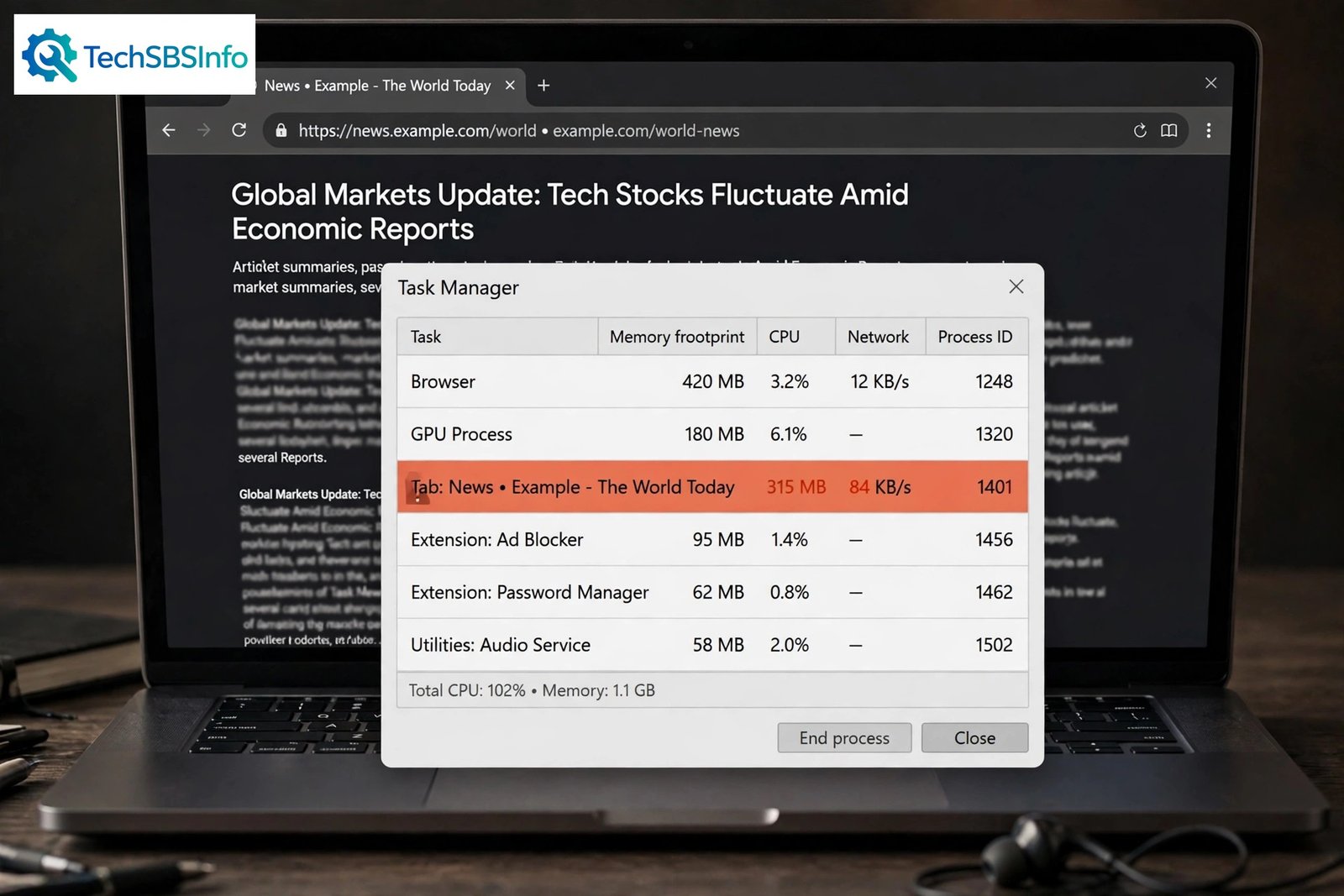
If your laptop fan roars the moment you open Chrome, chrome high cpu usage is the likely reason. Pages scroll slowly, videos stutter, typing lags, and the whole computer feels hot and sluggish. The good news is that you can usually fix it yourself in a few minutes.
Chrome is a powerful browser, but it can demand a lot from your processor. Every open tab, every extension, and every background page takes a slice of CPU time. When one of them misbehaves, CPU usage climbs and stays high. This guide walks you through nine simple fixes in order, from the quickest checks to the deeper repairs, so you can bring your CPU usage back to normal.
Table of Contents
- Quick Checks
- Diagnose: Match Your Symptom to the Cause
- Fix 1: Find the Culprit With Chrome’s Built-In Task Manager
- Fix 2: Close Tabs You Are Not Using
- Fix 3: Disable or Remove Extensions Causing chrome high cpu usage
- Fix 4: Turn On Memory Saver and Energy Saver
- Fix 5: Stop Chrome Running in the Background
- Fix 6: Toggle Hardware Acceleration
- Fix 7: Clear Cache and Browsing Data
- Fix 8: Update Chrome and Scan for Unwanted Software
- Fix 9: Reset Chrome Settings to Default
- What to Avoid
- Frequently Asked Questions
- Conclusion
- Helpful Official Resources
Quick Checks
Try these quick steps before going deeper. One of them often solves the problem on its own.
- Close tabs you are not actively using with Ctrl + W or the X on each tab.
- Press Shift + Esc to open Chrome’s Task Manager, click the CPU column to sort, and end the heaviest task.
- Turn off extensions you installed recently by typing chrome://extensions in the address bar.
- Quit Chrome completely and reopen it. A stuck process often clears on restart.
- Check that Chrome is up to date: menu > Help > About Google Chrome.
Diagnose: Match Your Symptom to the Cause
Use this table to find your symptom, then jump straight to the matching fix.
| Symptom | Cause | Go to Fix |
|---|---|---|
| Fan spins loudly and the laptop gets hot | A tab or extension is burning CPU in the background | Fix 1 |
| Chrome is slow with dozens of tabs open | Too many tabs and background pages competing for CPU | Fix 2 |
| High CPU with only one or two tabs open | A heavy, outdated, or badly coded extension | Fix 3 |
| CPU stays high even when Chrome looks closed | Chrome keeps running background apps after you close the window | Fix 5 |
| Choppy video and jerky scrolling | A conflict between hardware acceleration and your graphics driver | Fix 6 |
| Chrome gets slower over several days | Bloated cache and old site data piling up | Fix 7 |
| Sudden slowdown with strange pop-ups | Unwanted software or malware hijacking the browser | Fix 8 |
| Nothing above made a difference | A damaged profile or broken setting inside Chrome | Fix 9 |
Fix 1: Find the Culprit With Chrome’s Built-In Task Manager
Chrome has its own Task Manager, separate from the Windows one. It lists every tab, extension, and helper process with the CPU and memory each is using right now. This is the fastest way to name the exact cause.
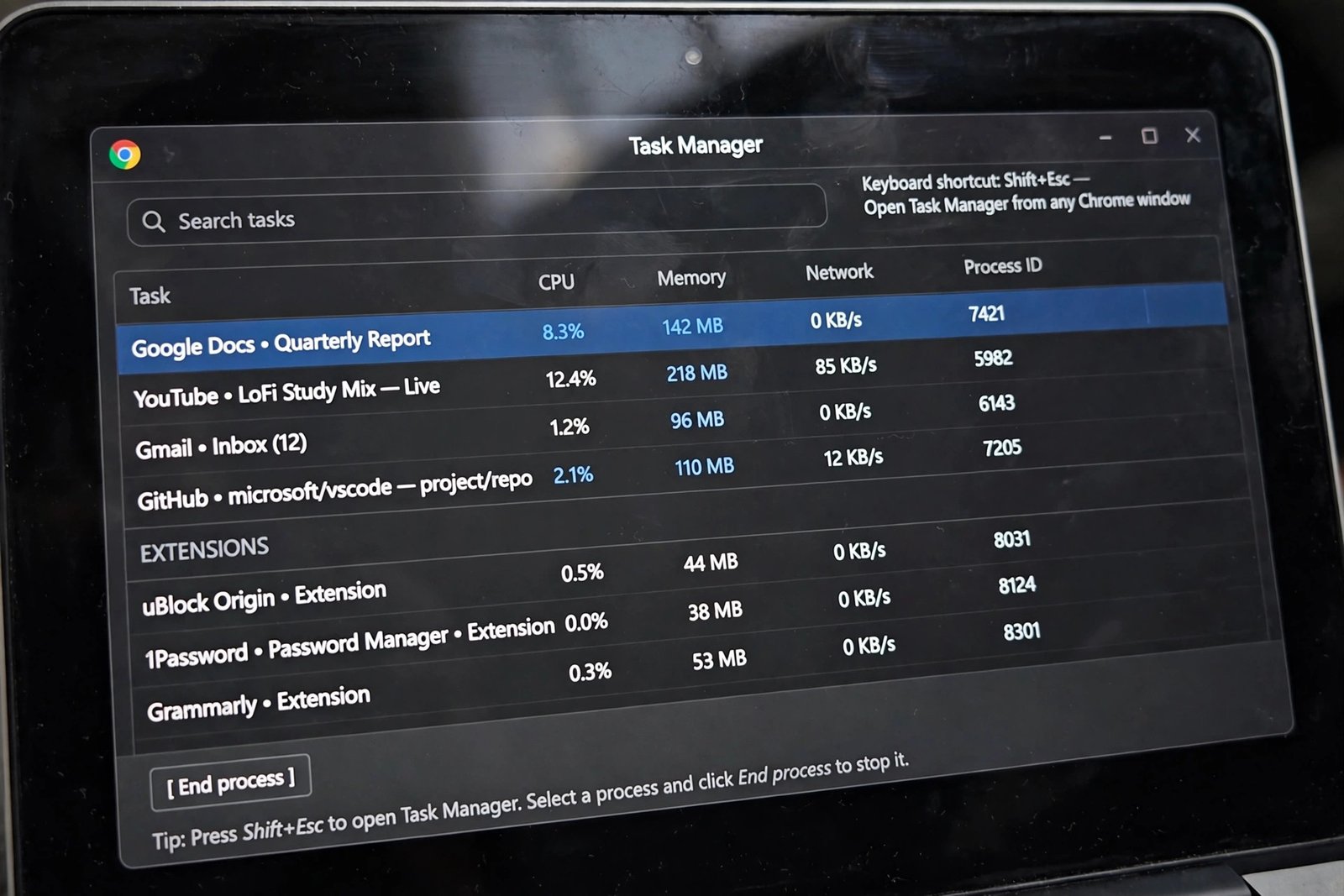
Follow these steps:
- Press Shift + Esc while Chrome is open. The Task Manager window appears.
- Click the CPU column header to sort processes from highest to lowest.
- Watch the list for a few seconds. A healthy tab drops to near zero when idle.
- Select the process that stays high while you are not using it.
- Click End process. That tab or extension closes; the rest of Chrome keeps running.
- Reload the tab if you still need the site, and see if CPU stays low this time.
A few safety notes:
- Do not end the task labeled Browser. That is Chrome’s main process, and ending it closes the entire browser.
- Ending a task can lose unsaved work in that tab, so copy anything important first.
- If Chrome crashes outright instead of just slowing down, read our guide on how to fix Google Chrome keeps crashing.
Fix 2: Close Tabs You Are Not Using
Every open tab costs CPU, even tabs sitting quietly in the background. Auto-refreshing feeds, web apps, and pages with animations keep working while you look elsewhere. Trimming your tabs is the simplest real fix for chrome high cpu usage.
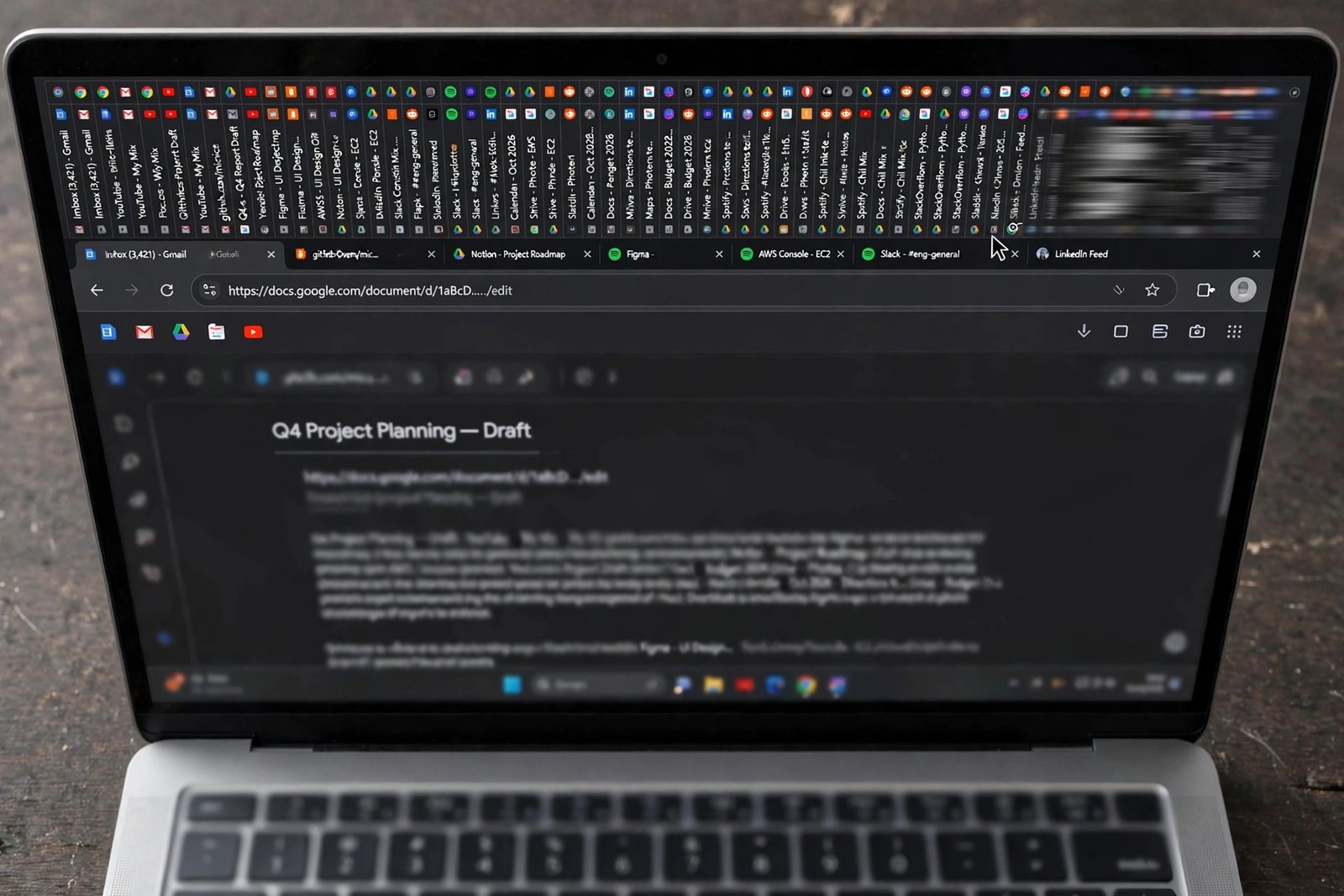
Do this:
- Scan your tab strip for tabs you have not looked at in the last hour.
- Press Ctrl + W on the active tab, or click the small X on each unused tab.
- For a group of tabs, right-click any tab and choose Close tabs to the right or Close other tabs.
- Save tabs you may need later: press Ctrl + Shift + D to bookmark all open tabs into a folder.
- Restart Chrome after a big cleanup so freed resources are fully released.
Keep a simple habit: if you would not miss it tomorrow, close it today. Twenty focused tabs will always run smoother than sixty forgotten ones. And if pages refuse to load at all after cleanup, see our guide on Chrome pages not loading.
Fix 3: Disable or Remove Extensions Causing chrome high cpu usage
Extensions run with every page you visit. Ad blockers, coupon tools, screen recorders, and crypto price trackers can each sip CPU constantly. A single badly coded extension is one of the most common reasons for chrome high cpu usage that survives a tab cleanup.
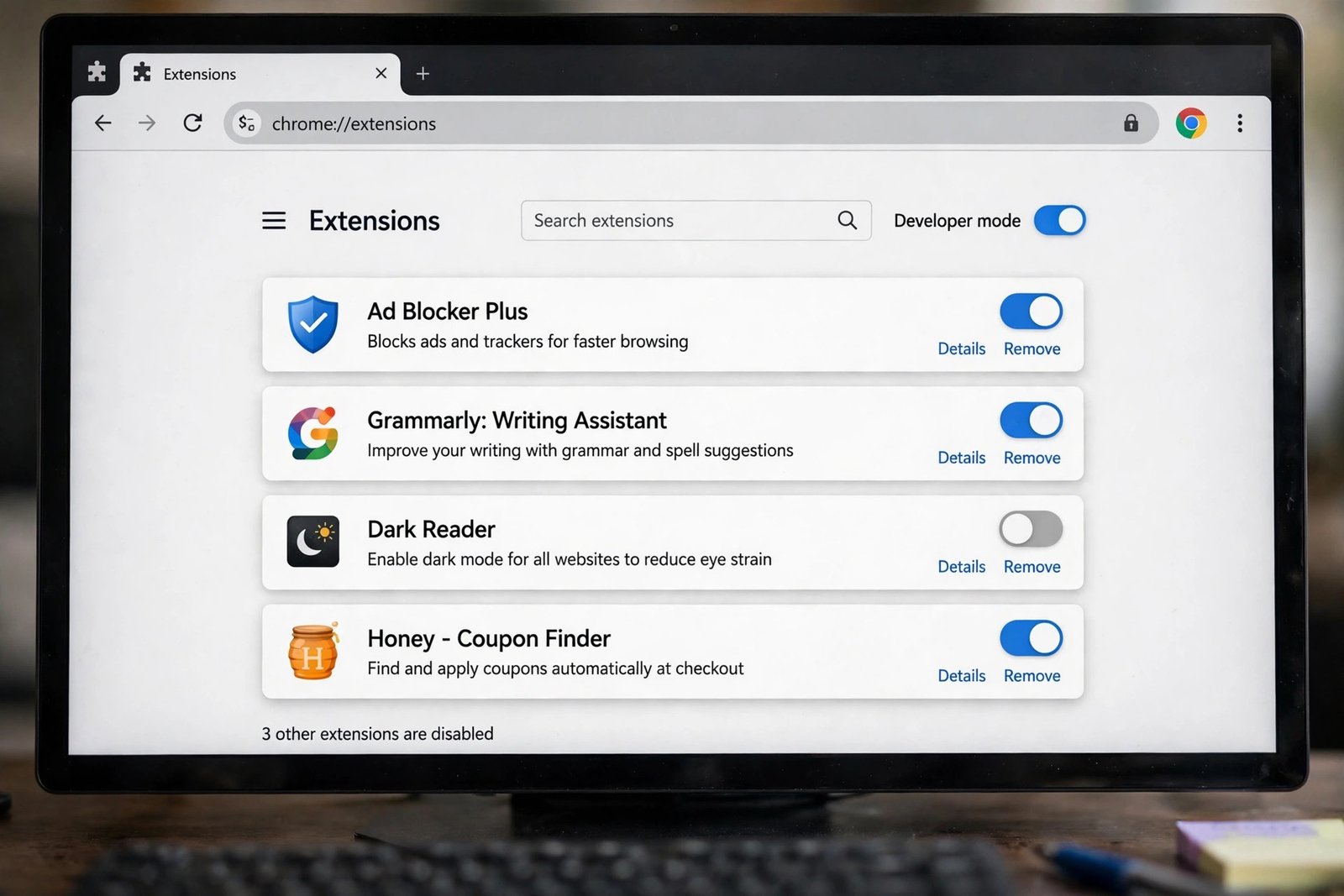
Here is how to audit them:
- Type chrome://extensions in the address bar and press Enter.
- Look through the list and ask of each one: do I use this every week?
- Flip the toggle off for any extension you rarely use. You can turn it back on anytime.
- Click Remove on extensions you do not recognize or no longer need.
- After each change, watch Chrome’s Task Manager (Shift + Esc) to see if CPU drops.
- Update the extensions you keep: on the extensions page, turn on Developer mode and click Update.
Test with everything off if you are unsure. Disable all extensions, restart Chrome, and check CPU usage. If it is back to normal, re-enable extensions one by one until the problem returns. The last one you enabled is your culprit.
Fix 4: Turn On Memory Saver and Energy Saver
Chrome includes built-in Performance settings that automatically calm down background tabs. Memory Saver puts inactive tabs to sleep, and Energy Saver limits background activity and visual effects. Both directly reduce CPU load.
Steps:
- Open Chrome’s menu and go to Settings.
- Select Performance in the left sidebar.
- Turn Memory Saver on. Inactive tabs will sleep and free up resources.
- Turn Energy Saver on, or set it to turn on when your battery is low.
- Optional: add sites you always want active (like a music player) under Always keep these sites active.
A sleeping tab wakes instantly when you click it, so you lose nothing except the background CPU drain. This fix pairs well with Fix 2: fewer awake tabs means a quieter processor.
Fix 5: Stop Chrome Running in the Background
On Windows, Chrome can keep running background apps even after you close every window. Update checkers, messaging extensions, and installed web apps keep the processor busy while you think Chrome is off. If CPU stays high with no Chrome window open, this is likely why.
Do this:
- Open Chrome’s menu and go to Settings.
- Click System in the left sidebar.
- Turn off the switch labeled Continue running background apps when Google Chrome is closed.
- Close Chrome fully: right-click the Chrome icon in the system tray (bottom-right corner) and choose Exit if it is there.
- Open Windows Task Manager with Ctrl + Shift + Esc and confirm no Chrome processes remain under the Processes tab.
With this off, closing Chrome’s window truly stops Chrome. Note that a few installed web apps may then need Chrome open to send you notifications. That is a fair trade for a quiet CPU.
Fix 6: Toggle Hardware Acceleration
Hardware acceleration lets Chrome hand graphics work to your GPU instead of your CPU. Usually that helps. But if your graphics driver is buggy or outdated, it can do the opposite and drive CPU usage up, with choppy video and jerky scrolling as the tell-tale signs.
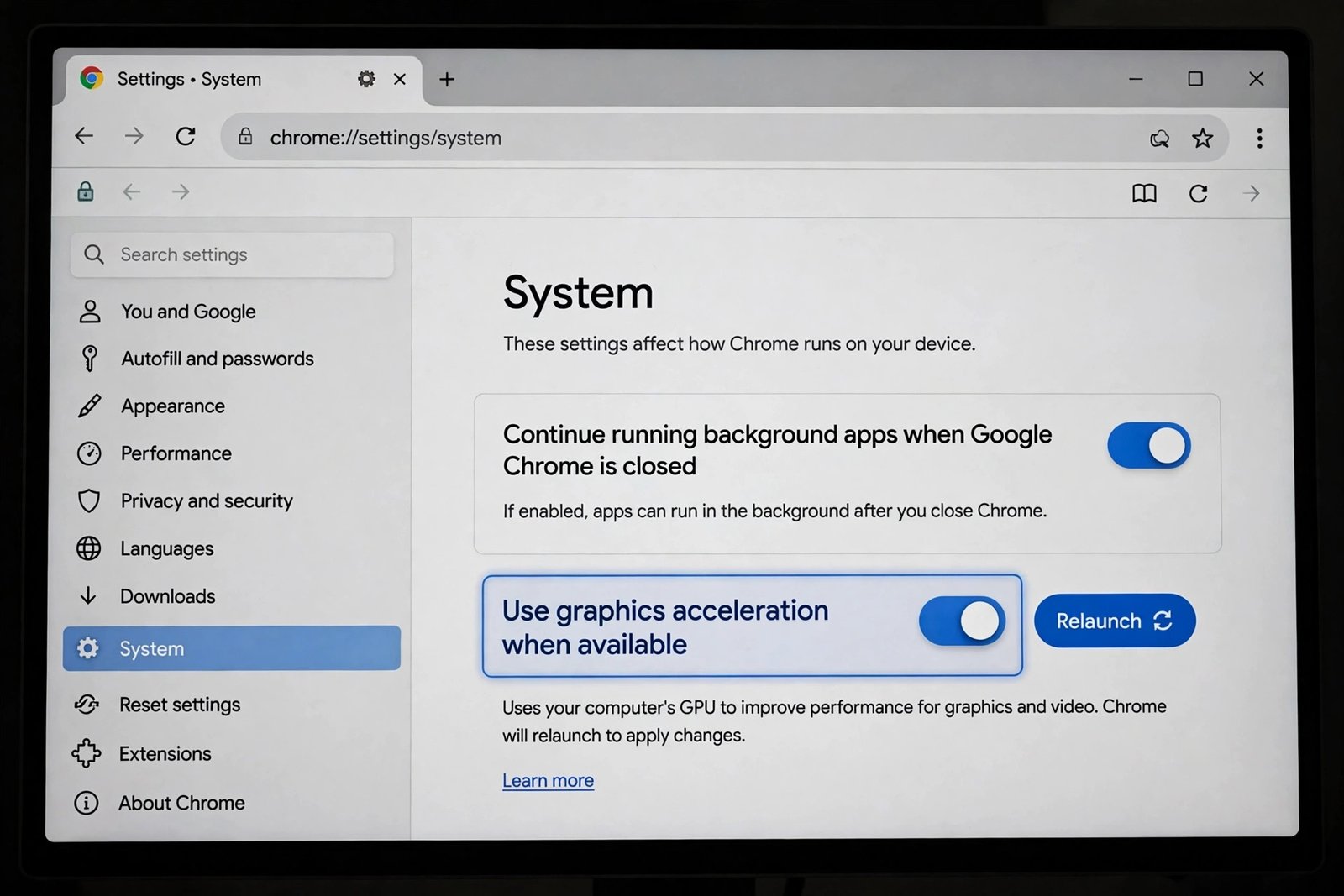
Try toggling it:
- Open Chrome’s menu and go to Settings.
- Click System in the left sidebar.
- Find Use graphics acceleration when available.
- If it is on, turn it off; if it is off, turn it on.
- Click Relaunch to restart Chrome with the new setting.
- Test a video and some scrolling. Keep whichever setting gives lower CPU usage.
If turning it off fixes the problem, your graphics driver probably needs an update. Visit your PC or graphics card maker’s official support page to get the latest driver, then try turning acceleration back on. Never download drivers from random “driver updater” sites.
Fix 7: Clear Cache and Browsing Data
Chrome stores cached copies of images, scripts, and site data to load pages faster. Over weeks and months this store can grow messy and force Chrome to work harder when reading it. A periodic cleanup keeps the browser lean.
Steps:
- Press Ctrl + Shift + Delete to open the Clear browsing data window.
- Set the time range to All time for a full cleanup.
- Tick Cached images and files. Leave passwords and autofill unticked unless you want them gone too.
- Click Clear data and wait for it to finish.
- Restart Chrome and check whether CPU usage settles down.
You do not need to do this every day. Once every few weeks is plenty. If you sign out of sites unexpectedly after a cleanup, that is normal — just sign back in. For repeated sign-in trouble unrelated to CPU, see our guide on Chrome keeps logging me out.
Fix 8: Update Chrome and Scan for Unwanted Software
A sudden spike in CPU use, especially with strange pop-ups or new toolbars, can mean unwanted software has latched onto Chrome. Outdated Chrome versions can also miss performance fixes. Handle both here.
Update Chrome first:
- Open Chrome’s menu and go to Help > About Google Chrome.
- Chrome checks for updates automatically and installs what it finds.
- Click Relaunch to apply the update.
Then clean up the system:
- Open Windows Security from the Start menu.
- Go to Virus & threat protection and run a Quick scan.
- If anything is found, follow the on-screen steps to remove it, then restart your PC.
- In Chrome, go to Settings > Reset settings and review whether anything looks changed by software you did not install.
Stay with official tools for this job. Windows Security is built in and free, and it is all most people need. If large downloads also fail while you troubleshoot, our guide on Chrome downloads not working may help.
Fix 9: Reset Chrome Settings to Default
When nothing else works, your Chrome profile itself may be damaged — a corrupted setting or a broken preference that survives every other fix. Resetting restores Chrome’s original settings without deleting your bookmarks, history, or saved passwords.
Steps:
- Open Chrome’s menu and go to Settings.
- Click Reset settings in the left sidebar.
- Choose Restore settings to their original defaults.
- Read the summary of what will change, then click Reset settings.
- Restart Chrome and test CPU usage with a few normal tabs.
What the reset changes:
- Your startup pages, new tab page, and pinned tabs return to defaults.
- Extensions are disabled (you can re-enable the ones you trust).
- Temporary data like cookies is cleared.
What it keeps:
- Bookmarks, browsing history, and saved passwords stay in place.
What to Avoid
- Do not install “Chrome CPU fixer”, “PC optimizer”, or driver updater tools from random websites. They rarely help and often add the very bloat you are trying to remove.
- Do not end the Browser process in Chrome’s Task Manager. It closes the entire browser instead of one tab.
- Do not disable Windows Security or your antivirus to gain speed. The risk far outweighs any tiny gain.
- Do not set Chrome’s priority to Realtime in Windows Task Manager. It can freeze your whole system.
- Do not delete files inside Chrome’s profile folders by hand. Use the reset option in Fix 9 instead.
- Do not keep dozens of “maybe later” tabs open. Bookmark them and close them.
Frequently Asked Questions
Why does chrome high cpu usage happen even with only one tab open?
A single tab can burn CPU if the page runs heavy scripts, auto-playing video, or constant animations. More often, though, the real cause is an extension running on that page. Open Chrome’s Task Manager with Shift + Esc to see whether the tab or an extension is the heavy one.
Is it normal for Chrome to use high CPU when I first open it?
A brief spike at startup is normal. Chrome loads your tabs, extensions, and saved session all at once. Usage should settle within a minute or two. If it stays high, work through Fix 1 to Fix 3.
Does having many extensions slow down Chrome?
Yes. Each extension adds background work to every page you visit. Keep only the ones you use weekly, remove the rest, and update the survivors. Most people are surprised how much CPU a forgotten extension was using.
Will clearing my cache delete my passwords?
No, not if you only tick “Cached images and files” in the Clear browsing data window. Passwords are stored separately. Only tick “Passwords and other sign-in data” if you truly want them removed.
Should I turn hardware acceleration on or off?
Leave it on if everything runs smoothly, since it usually lowers CPU load. Turn it off if you see choppy video, jerky scrolling, or high CPU that started after a driver or Chrome update. Test both and keep the setting that behaves better on your PC.
Can malware cause chrome high cpu usage?
Yes. Unwanted software and malicious extensions can mine resources in the background. If CPU spiked suddenly alongside pop-ups or unknown toolbars, run a Windows Security scan and review your extensions as described in Fix 8.
Conclusion
chrome high cpu usage looks alarming, but it is almost always one of a few familiar causes: too many tabs, a greedy extension, background apps, or a graphics setting fighting your driver. Start with Chrome’s built-in Task Manager to name the culprit, trim what you do not need, and let the Performance settings do the quiet work in the background. Your fan — and your battery — will thank you.
[…] frees more memory than closing a dozen small tabs. If high memory comes with high CPU too, our Chrome high CPU usage fix guide pairs with this […]
[…] This is the highest-impact fix in the guide for most people. A single heavy extension — especially ones that scan page content like grammar checkers or price trackers — can add seconds to every load. If Chrome is also eating your CPU, see Chrome high CPU usage fix. […]