

Open Task Manager while Chrome runs and you might see gigabytes of RAM gone — sometimes more than everything else on the PC combined. When you need a chrome high memory usage fix, it is because Chrome’s hunger is slowing the whole computer: other programs stutter, Windows starts paging to disk, and everything feels tired.
Chrome uses a lot of memory by design — each tab and extension gets its own process for stability and security. But “by design” does not mean “unfixable”. The seven ways below cut Chrome’s memory footprint dramatically, from finding the worst offenders to switching on Chrome’s own Memory Saver. Your bookmarks, passwords, and history are safe throughout.
Table of Contents
- Quick Checks
- Diagnosing chrome high memory usage fix
- Fix 1: Find Memory Hogs in Chrome Task Manager
- Fix 2: Close Tabs and Use Tab Groups
- Fix 3: Remove Memory-Hungry Extensions
- Fix 4: Turn On Memory Saver
- Fix 5: Clear Cache and Reset
- Fix 6: Update Chrome
- Fix 7: Limit Background Activity
- What to Avoid
- Frequently Asked Questions
- Conclusion
- Helpful Official Resources
Quick Checks
Get the lay of the land before changing anything.
- Open Task Manager (Ctrl+Shift+Esc) > Performance > Memory. If usage is above 85 percent with Chrome open, memory pressure is real.
- Count your open tabs honestly. More than 20 is “a lot”; more than 50 is “the problem”.
- Note how much RAM your PC has. 8 GB with heavy Chrome use is tight; 4 GB is a struggle.
- Check whether the slowness disappears when Chrome is closed. If yes, Chrome is confirmed as the hog.
- Restart Chrome and watch memory climb — a fast climb points at extensions loading at startup.
Diagnosing chrome high memory usage fix
| Symptom | Cause | Go to Fix |
|---|---|---|
| One tab uses a gigabyte alone | Heavy web app (video, docs, maps) | Fix 1, then Fix 2 |
| Memory climbs all day, never falls | Extension leak or too many tabs | Fix 3, then Fix 4 |
| High memory right after opening Chrome | Extensions and startup tabs | Fix 3 |
| Whole PC slow, disk also at 100% | RAM exhausted, Windows paging | Fix 2 and Fix 4 urgently |
| Memory fine yesterday, huge today | New extension or update | Fix 3, then Fix 6 |
Fix 1: Find Memory Hogs in Chrome Task Manager
Chrome has its own Task Manager that names exactly which tab or extension eats your RAM. It is the most important tool in this guide.
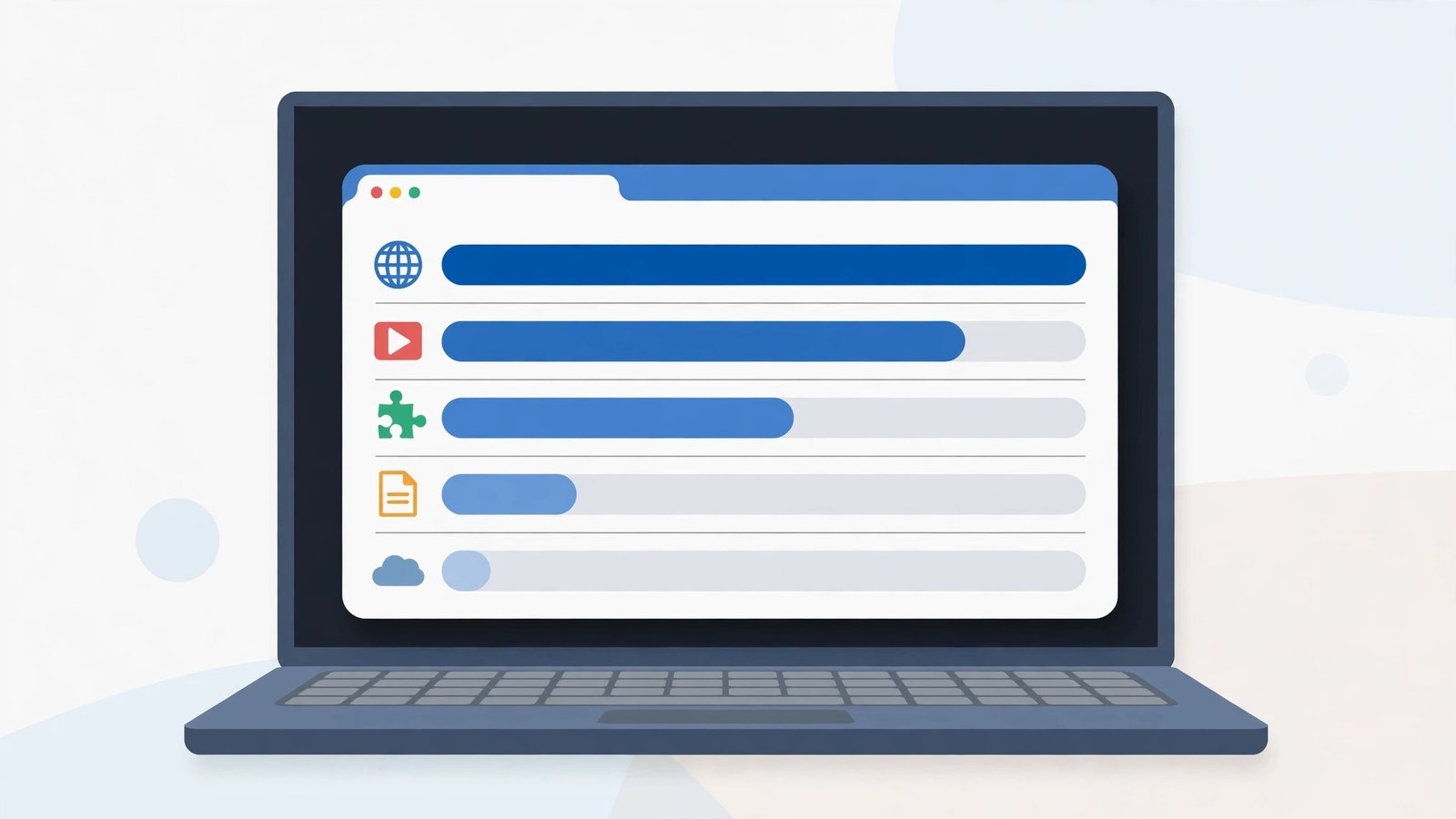
- In Chrome, press Shift+Esc to open Chrome’s Task Manager.
- Click the “Memory footprint” column to sort by RAM use.
- The top entries are your hogs — often a video tab, a webmail tab, or an extension.
- Select a hog and click “End process” to kill it instantly. The tab shows an “Aw, Snap” page and can be reloaded later.
- Note which extensions appear near the top — they are candidates for Fix 3.
- Keep this window in mind: it is the fastest way to answer “why is Chrome slow right now” forever.
One heavy web app can use more RAM than twenty simple tabs. Killing the single worst offender often frees more memory than closing a dozen small tabs. If high memory comes with high CPU too, our Chrome high CPU usage fix guide pairs with this one.
Fix 2: Close Tabs and Use Tab Groups
Tabs are the biggest controllable chunk of Chrome’s memory. You do not need to close your research — you need to organise it so inactive tabs sleep.
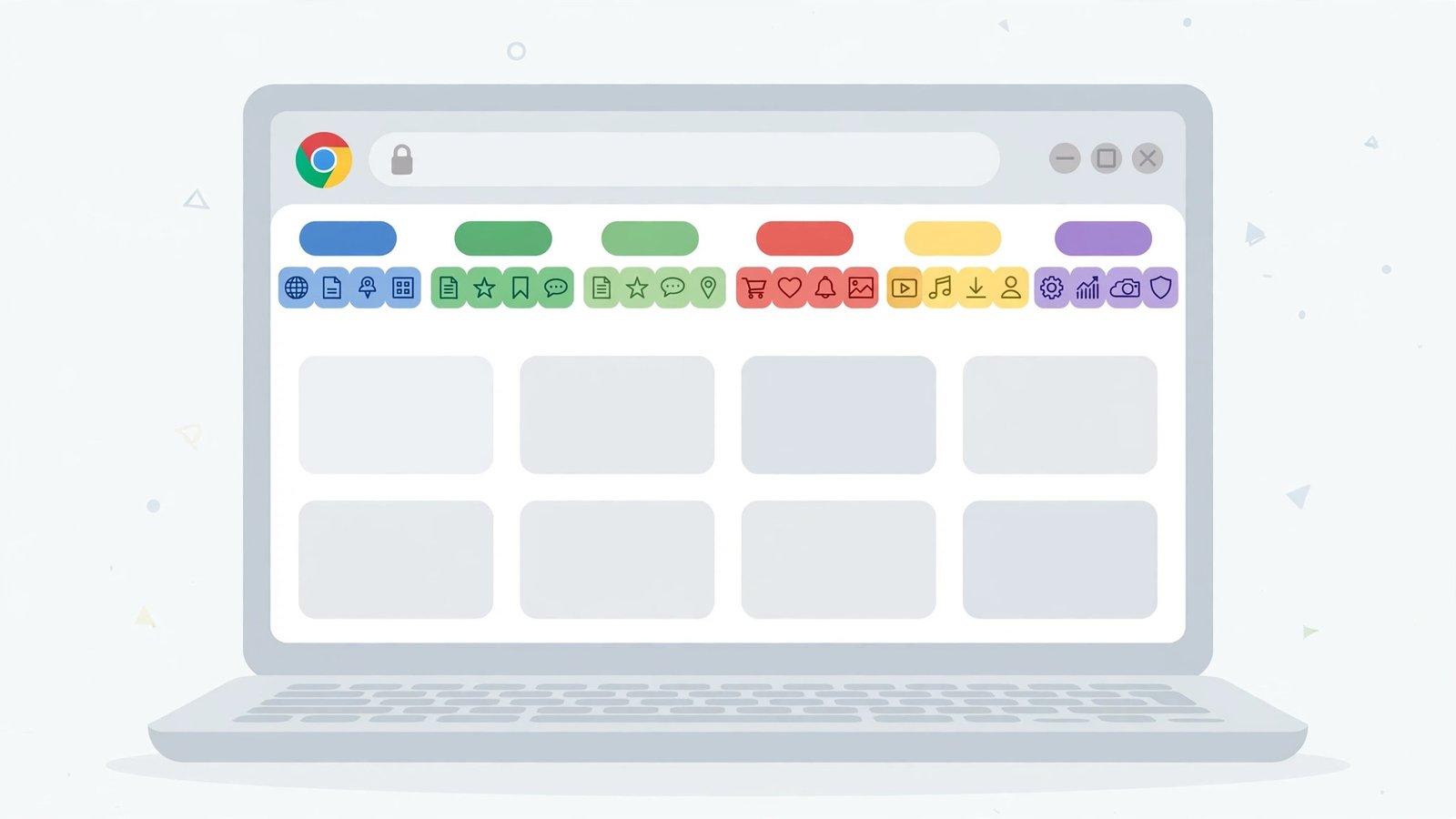
- Close tabs you have not touched today. Be honest — “might need” is not “need”.
- Group related tabs: right-click a tab > “Add tab to new group”, name it, give it a colour.
- Collapse groups you are not actively using — collapsed tabs use far less memory, especially with Memory Saver on.
- Use Ctrl+Shift+D to bookmark all open tabs before a big cull, so nothing is truly lost.
- Restart Chrome after the cleanup to release memory held by closed tabs.
A restarted Chrome with ten tabs uses a fraction of the RAM of a week-old Chrome with sixty. The bookmark-all shortcut removes the anxiety: your research is saved, just not all loaded at once. If pages also refuse to load, see Chrome pages not loading.
Fix 3: Remove Memory-Hungry Extensions
Extensions run permanently in the background. A single badly-written extension can use more RAM than all your tabs combined — and you would never know without looking.

- Open Chrome’s Task Manager (Shift+Esc) and sort by memory.
- Identify extensions near the top of the list.
- Go to
chrome://extensionsand remove the worst offenders (Remove, not just disable — disabled extensions can still load at startup). - Keep only extensions you use at least weekly.
- Replace heavy extensions with lighter alternatives: a simple ad blocker instead of a “privacy suite”, the website version of a grammar tool instead of its always-on extension.
- Restart Chrome and compare memory in Task Manager.
Shopping assistants, coupon finders, and “new tab page” replacements are the classic memory hogs. Each one you remove is RAM back in your pocket, permanently. If Chrome is also crashing under the load, our Google Chrome keeps crashing guide helps.
Fix 4: Turn On Memory Saver
Memory Saver is Chrome’s built-in diet plan: it automatically puts inactive tabs to sleep, freeing their RAM, and wakes them when you click.
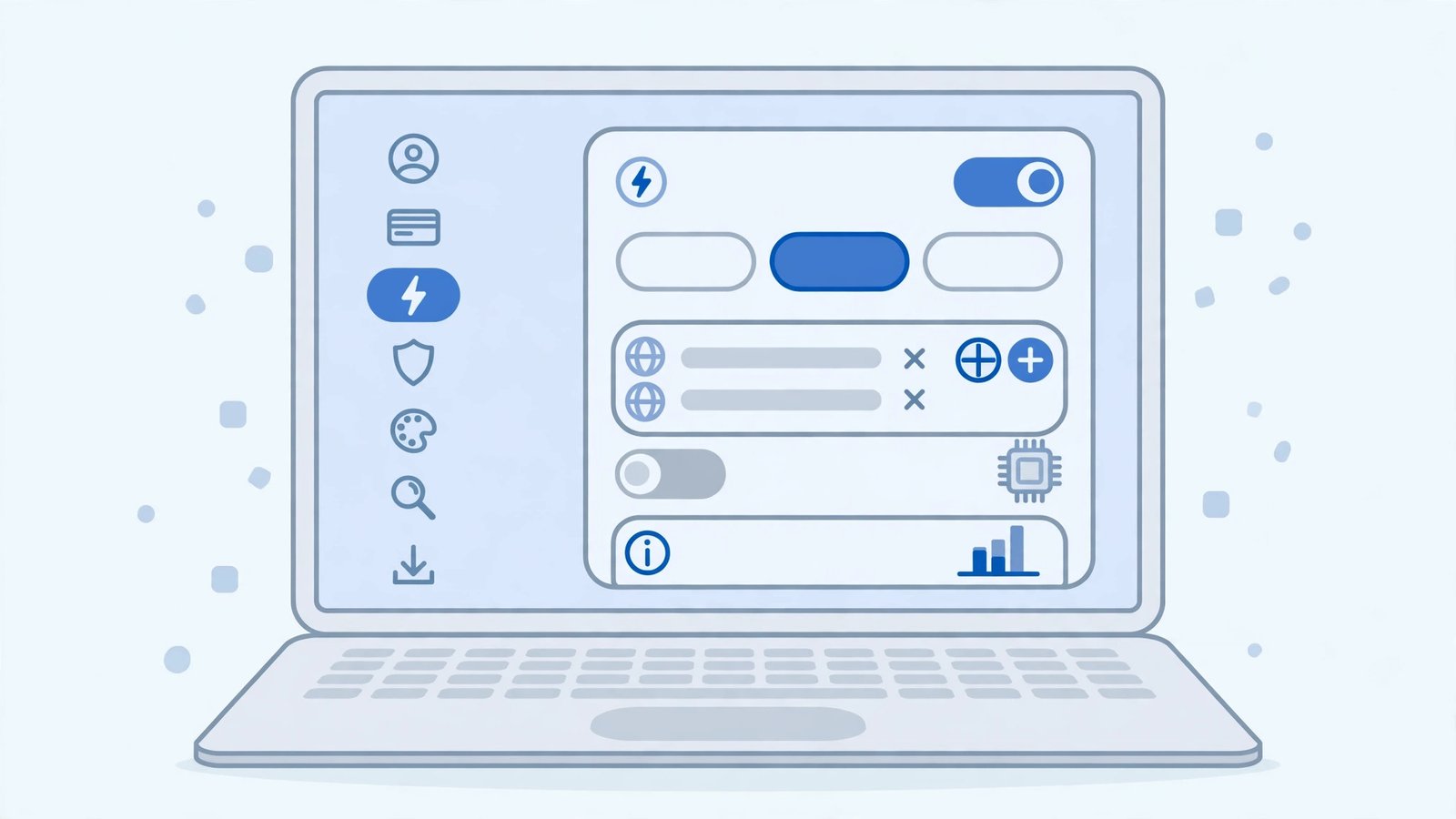
- Go to Settings > Performance.
- Turn on “Memory Saver”.
- Choose “Maximum savings” for the most aggressive sleeping, or “Balanced” if you want a gentler touch.
- Add exceptions under “Always keep these sites active” for things like music players or webmail you never want slept.
- Browse normally — sleeping tabs show a small icon and wake instantly on click.
Memory Saver is the single highest-impact toggle for tab hoarders. It does not close anything or lose your place — it just stops background tabs spending RAM. There is almost no reason to leave it off.
Fix 5: Clear Cache and Reset
A corrupt cache can bloat memory usage as Chrome struggles with damaged files. And a cluttered profile accumulates cruft that costs RAM.
- Press Ctrl+Shift+Delete, set “All time”, tick “Cached images and files”, and clear.
- Restart Chrome.
- If memory is still absurd, reset settings: Settings > Reset settings > “Restore settings to their original defaults”.
- The reset disables extensions and clears temporary state — bookmarks, passwords, and history stay.
- Re-enable only essential extensions afterwards.
Reset is the clean slate for profiles that have grown heavy over years. It will not fix a true tab-hoarding habit, but it removes the invisible weight of old experiments and dead extension data.
Fix 6: Update Chrome
Google continuously improves Chrome’s memory efficiency. An old version misses those gains — and may contain a memory leak fixed months ago.
- Go to Settings > About Chrome and let it update.
- Click Relaunch.
- Compare memory usage in Task Manager before and after over a normal browsing day.
- Keep automatic updates enabled.
Major Chrome versions sometimes include headline memory improvements (like the Memory Saver feature itself). Staying current is free performance. If Windows itself is slow to start, our Windows 11 slow startup fix guide covers system-level sluggishness.
Fix 7: Limit Background Activity
Chrome can keep running — and using RAM — after you close its windows, to support background apps and notifications.
- Go to Settings > System.
- Turn off “Continue running background apps when Google Chrome is closed”.
- Close Chrome fully and check Task Manager — Chrome processes should vanish.
- In
chrome://extensions, check each extension’s “Details” for background permissions you do not need. - Turn off unnecessary site notifications: Settings > Privacy and security > Site settings > Notifications — fewer live connections means less background memory.
With background activity off, closing Chrome actually frees its RAM. The trade-off is tiny: web apps cannot notify you while Chrome is closed, which most people prefer anyway. One exception worth keeping: if you rely on a web-based authenticator or a pinned communication tab for work, add that site to Memory Saver’s “always active” list instead of disabling background activity globally — targeted exceptions beat blanket switches.
What to Avoid
- Do not install “RAM cleaner” or “memory booster” programs — they fight Windows’ own memory management and make things worse.
- Do not disable the page file to “force” RAM efficiency — Windows needs it.
- Do not keep 100 tabs open and blame Chrome — the browser is doing what you asked.
- Do not end random Chrome processes in Windows Task Manager — use Chrome’s own Task Manager (Shift+Esc) so you kill the right thing.
- Do not confuse high memory use with a memory leak — Chrome using RAM is normal; Chrome never releasing it is the problem.
- Do not buy more RAM before trying Fixes 1 to 4 — software fixes are free.
Frequently Asked Questions
Is it normal for Chrome to use 2 GB of RAM?
With a dozen tabs and a few extensions, yes — that is ordinary. It becomes a problem only when memory pressure slows the whole PC (Task Manager > Performance > Memory above 85 percent sustained).
Why does Chrome use so much more RAM than other browsers?
Its multi-process architecture gives each tab and extension its own process for stability and security. One crashing tab cannot take down the browser — but the isolation costs memory. Memory Saver (Fix 4) trims the cost.
Will closing tabs I am not using really help?
Enormously. Background tabs are the largest controllable part of Chrome’s footprint. With Memory Saver on, even kept tabs cost little — but closed tabs cost nothing.
Does having extensions I never use still cost RAM?
Yes. Installed extensions load at startup and often run on every page. Removing unused extensions is one of the highest-return fixes here.
Should I just buy more RAM?
If your PC has 4 GB and you browse heavily, an upgrade genuinely helps. But try the software fixes first — most “Chrome ate my RAM” cases are tab and extension habits, not hardware limits.
Why does Chrome’s memory keep growing even when I do nothing?
Modern pages are live applications: feeds refresh, ads rotate, and timers run in background tabs. Memory Saver (Fix 4) exists precisely for this — it freezes the background activity of tabs you are not looking at. Without it, a dozen “idle” tabs can slowly consume gigabytes over a workday, which is why a morning restart plus Memory Saver beats any amount of manual tab-policing.
Why does Chrome use RAM even when all tabs are closed?
Extensions and background apps keep running. Chrome’s “Continue running background apps when Google Chrome is closed” setting (under System settings) lets apps like Hangouts or Drive persist. Turn that setting off and disable extensions you do not need, and Chrome’s idle footprint shrinks dramatically. A browser with zero tabs should sit nearly idle — if it does not, something is running that you did not ask for.
Is Chrome’s high RAM use actually slowing down my PC?
Only if your RAM is full. When RAM fills up, Windows swaps to disk and everything stutters — that is the pain point. But if you have 16 GB and Chrome uses 4 GB with 8 GB free, nothing is wrong; unused RAM is wasted RAM. Check Task Manager’s memory percentage during lag: near 100% means you need relief, comfortably below means look elsewhere.
Conclusion
A chrome high memory usage fix is not one trick but a tidy-up: find the hogs in Chrome’s Task Manager, close and group your tabs, evict hungry extensions, and switch on Memory Saver. Do those four and Chrome’s footprint typically halves, with the whole PC feeling the relief. Keep the habits — lean extensions, sleeping tabs — and the gigabytes stay where they belong: available.