

A wordpress ssl certificate not working problem is one of the most urgent issues a site owner can face. Your visitors see a “Not secure” warning, Chrome blocks the page with a red alert, or your site loads fine on HTTP but breaks on HTTPS. The good news is that most SSL problems are quick to diagnose and fix — they usually come down to an expired certificate, missing installation, or mixed content in your pages.
Table of Contents
- Quick Checks
- Diagnose: What’s Causing Your SSL Problem
- Fix 1: Confirm the Certificate Is Installed and Active
- Fix 2: Renew an Expired or Auto-Renew Failure
- Fix 3: Update Your WordPress Address and Site Address to HTTPS
- Fix 4: Fix Mixed Content Errors Causing the WordPress SSL Certificate Not Working Warning
- Fix 5: Force HTTPS and Repair Redirect Loops
- Fix 6: Clear Caches and Check the Domain Coverage
- What to Avoid
- Frequently Asked Questions
- Conclusion
- Helpful Official Resources
Quick Checks
- Open your site in an incognito window to rule out cached browser data.
- Check whether the problem happens on every page or only some pages.
- Look at the exact error text in the browser (expired, invalid, common name mismatch).
- Try your site on a different browser to rule out a local browser issue.
- If your site recently changed hosts or domain names, the certificate may no longer match.
Diagnose: What’s Causing Your SSL Problem
| Symptom | Cause | Go to Fix |
| “Not secure” warning in the address bar | Mixed content: images or scripts still loading over HTTP | Fix 4 |
NET::ERR_CERT_DATE_INVALID | Certificate is expired or the auto-renew failed | Fix 2 |
ERR_CERT_COMMON_NAME_INVALID | Certificate does not cover your domain or the www version | Fix 6 |
| Site loads on HTTP but fails on HTTPS | No certificate installed for the domain | Fix 1 |
| “Too many redirects” error | HTTPS redirect loop between WordPress and the server | Fix 5 |
| WordPress dashboard loads insecurely after a move | Site and WordPress addresses still use HTTP | Fix 3 |
| Warning appears only on some pages | Specific page assets served from HTTP URLs | Fix 4 |
Fix 1: Confirm the Certificate Is Installed and Active
Before touching WordPress settings, make sure the certificate itself exists. A wordpress ssl certificate not working error often starts here — the certificate was never issued, or it was installed for the wrong domain.
- Log in to your hosting control panel.
- Open the SSL / TLS or Security section.
- Look at the SSL certificate status for your domain.
- If no certificate is listed, click Install or Issue Certificate to create one.
- Wait a few minutes for the certificate to activate.
- Reload your site with
https://and check the padlock.
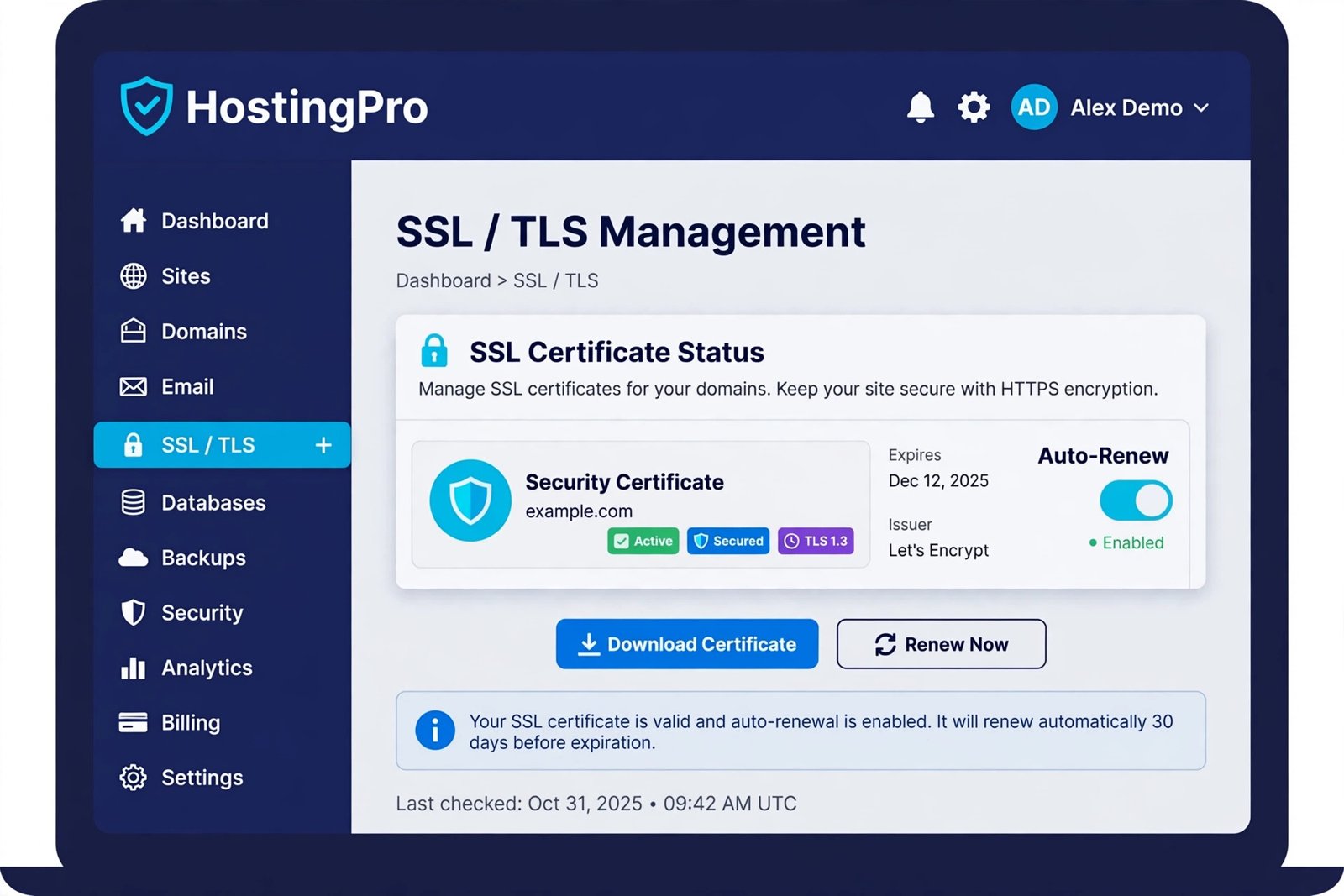
Many hosts offer free certificates that install in one click. If the status shows pending, wait up to an hour before moving on. For help with sites that load but redirect wrongly after changes, see our guide on WordPress redirect problems.
Fix 2: Renew an Expired or Auto-Renew Failure
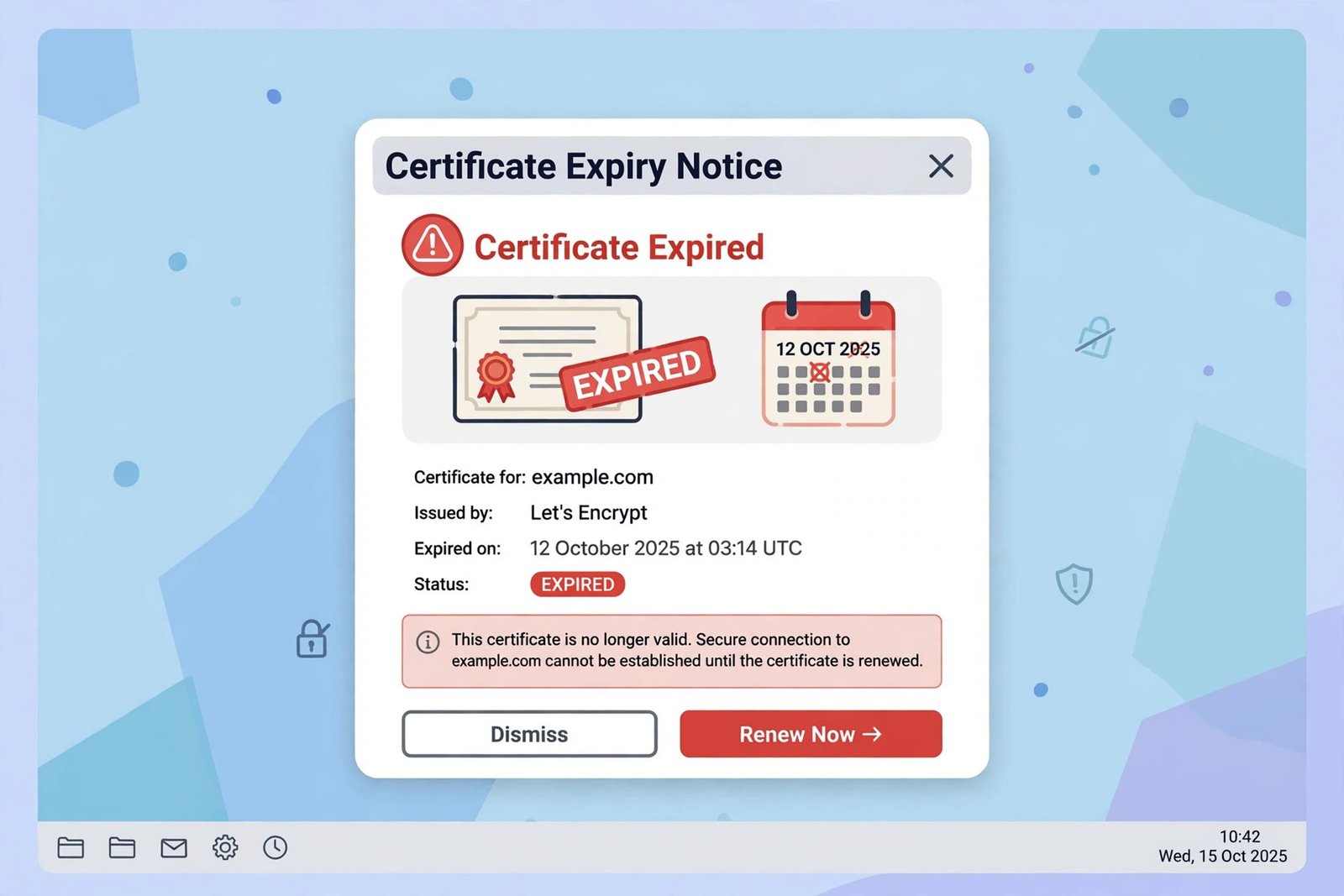
Certificates expire. Most free certificates last only about 90 days and rely on auto-renewal. When renewal fails, browsers show an expired certificate error and block your visitors.
- Check the expiry date shown in your hosting panel’s SSL section.
- If the certificate is expired, look for a Renew button and click it.
- Confirm that auto-renew is switched on for the domain.
- Check your hosting email for failed renewal notices you may have missed.
- If renewal keeps failing, contact your host’s support team — they can reissue it.
- After renewal, clear your browser cache and reload the site.
Fix 3: Update Your WordPress Address and Site Address to HTTPS
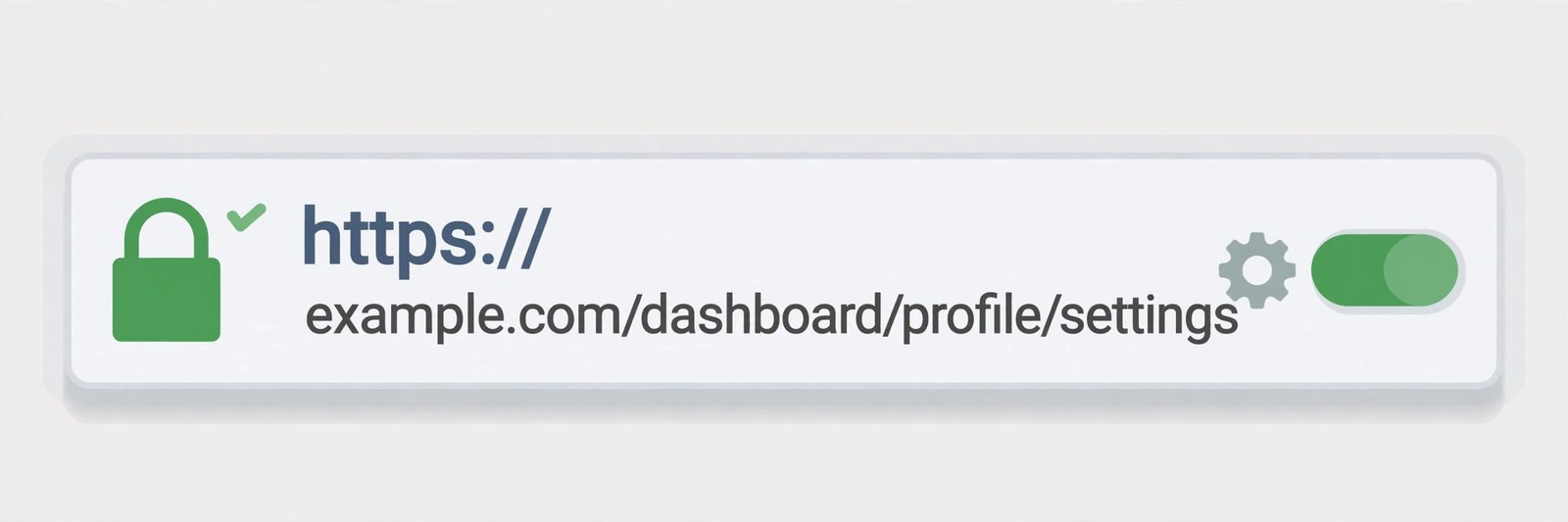
Even with a valid certificate, WordPress keeps using the old http:// URLs until you update them. This is the step most people miss.
- Log in to your WordPress dashboard.
- Go to Settings > General.
- Change WordPress Address (URL) to start with
https://. - Change Site Address (URL) to start with
https://. - Click Save Changes — you may be logged out; log back in.
- Visit your site and confirm the padlock now appears.
If you cannot reach the dashboard because of redirect issues, our article on a WordPress site that will not load can help you regain access first.
Fix 4: Fix Mixed Content Errors Causing the WordPress SSL Certificate Not Working Warning
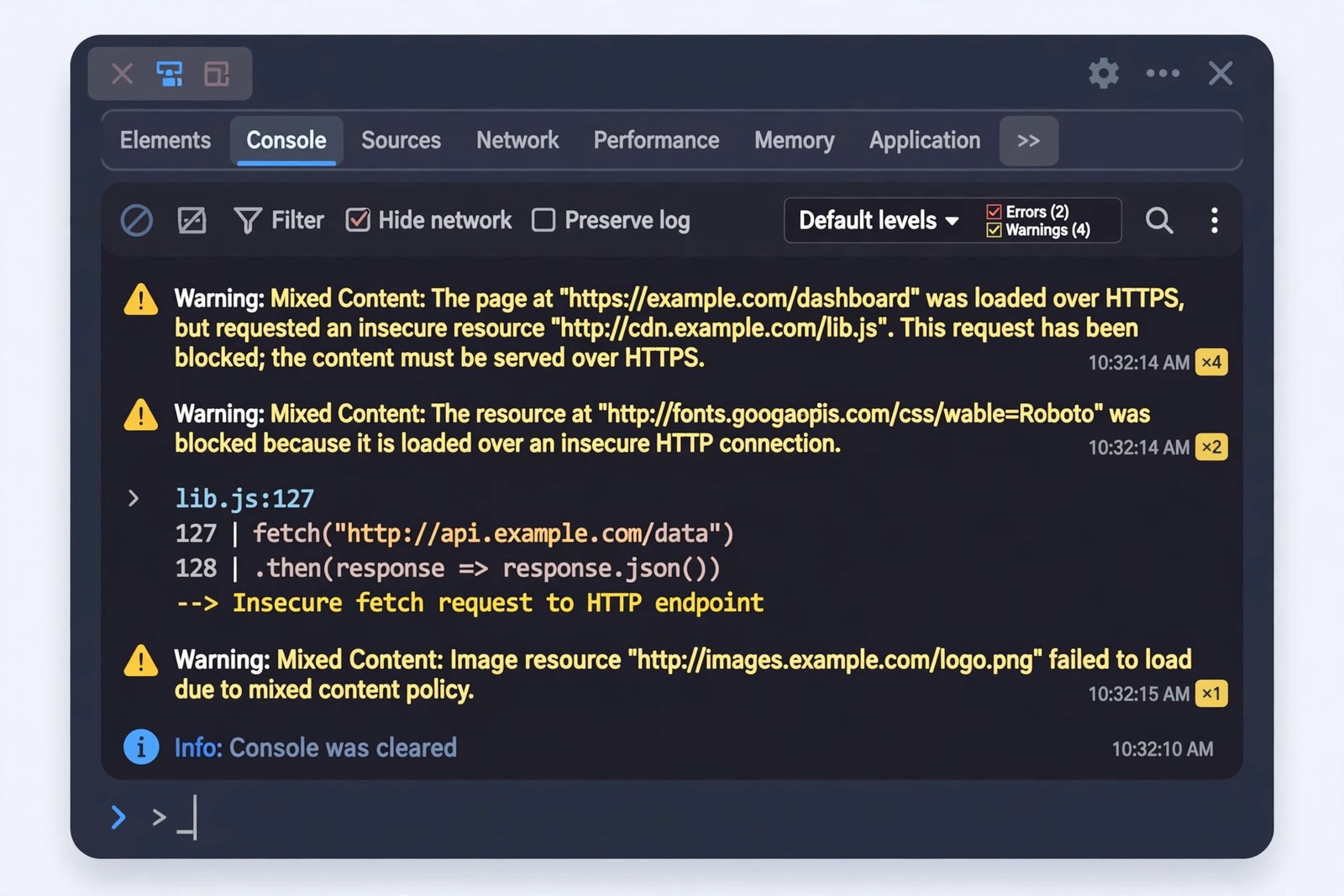
Mixed content means your page loads over HTTPS, but some images, scripts, or stylesheets still load over HTTP. Browsers block these and show the “Not secure” label even though the certificate is fine.
- Open your site in Chrome and press F12 to open Developer Tools.
- Go to the Console tab.
- Look for yellow warnings about mixed content — they name the exact blocked files.
- Note which images or scripts use
http://URLs. - Fix the source: update theme settings, widget code, or hardcoded image links.
- For old post content, use a safe search-and-replace method to change
http://yourdomain.comtohttps://yourdomain.com. - Reload the page and confirm the warnings are gone.
Never edit the database directly without a backup. If you run into browser-specific privacy warnings while testing, the guide on Chrome connection-not-private errors explains what each browser message means.
Fix 5: Force HTTPS and Repair Redirect Loops
A redirect loop happens when the server forces HTTPS while WordPress still points to HTTP — they bounce visitors back and forth until the browser gives up.
- Back up your site before editing server files.
- Open the
.htaccessfile in your site’s root folder. - Add these lines at the top to force HTTPS:
RewriteEngine On\nRewriteCond %{HTTPS} off\nRewriteRule ^(.*)$ https://%{HTTP_HOST}%{REQUEST_URI} [L,R=301]- Save the file and reload your site.
- If the loop continues, check for a redirect rule in your hosting panel too.
- Disable any SSL or redirect plugins one by one to find conflicts.
- Clear your server cache and any caching plugin after each change.
Keep the rule simple. One HTTPS redirect is enough — stacking multiple redirect plugins on top of server rules is what causes most loops. If the problem started right after a login-related change, also check our guide for when the WordPress login page is not working.
Fix 6: Clear Caches and Check the Domain Coverage
After the technical fixes, leftover cache and incomplete domain coverage can keep the warning alive.
- Clear your browser cache and any caching plugin cache.
- Purge your CDN cache if you use one.
- Check the certificate details in the browser: click the padlock, then Certificate, and confirm it lists both your domain and the www version.
- If the www version is missing, reissue the certificate with both names included.
- Test your site in an incognito window one final time.
What to Avoid
- Do not buy expensive certificates before trying your host’s free option.
- Do not ignore expired certificate warnings — browsers will block your visitors.
- Do not edit the database for URL replacement without a full backup.
- Do not stack multiple HTTPS redirect plugins — they cause redirect loops.
- Do not use nulled or “free premium” SSL plugins from shady sites.
- Do not skip the mixed content check just because the padlock looks fine on the homepage.
Frequently Asked Questions
Why does my site say “Not secure” even though I installed an SSL certificate?
This is usually mixed content. Your certificate is valid, but some images, scripts, or stylesheets still load over HTTP. Open the browser console with F12 and look for mixed content warnings — they point to the exact files to fix.
Can I get a free SSL certificate for WordPress?
Yes. Most hosting providers include free certificates that install in one click from the control panel. These work fine for most blogs and small business sites, and they renew automatically.
How long does it take for a new SSL certificate to work?
Most certificates activate within a few minutes. Some hosts take up to an hour. If it still shows as pending after that, contact your hosting support.
Will switching to HTTPS hurt my search rankings?
No, not when done correctly. Google prefers secure sites. Use 301 redirects from HTTP to HTTPS and update your URLs as shown in Fix 3, and your rankings will carry over.
What if only the admin dashboard shows a certificate warning?
Check your WordPress Address and Site Address in Settings > General. If they still start with http://, the dashboard loads insecurely. Update both to https:// and the warning disappears.
Conclusion
A wordpress ssl certificate not working issue looks scary, but it almost always has a simple cause: a missing or expired certificate, old HTTP URLs in WordPress settings, or mixed content in your pages. Work through the fixes in order, starting with the hosting panel, and your padlock will be back. Keep auto-renew switched on and check the certificate status now and then, so the problem never surprises you again.
[…] If the certificate expired on a site you manage or use for business, contact the site owner and ask them to renew it. If it is your own WordPress site, see our guide on fixing a WordPress SSL certificate not working. […]
[…] reminder as backup even with auto-renew on. If the certificate side is thoroughly broken, our WordPress SSL certificate not working guide goes […]