

You installed SSL expecting a padlock, but the browser says “Not Secure”. Or some pages are secure and others are not. Or the padlock appears with a warning triangle. When wordpress https not working properly is your situation, HTTPS is half-deployed: the certificate might be fine while the site still serves pieces over plain http.
HTTPS problems come in layers — certificate, URLs, mixed content, redirects, caches — and this guide works through each layer in order. By the end, every page shows a clean padlock. Keep your hosting login handy; a couple of fixes need it.
Table of Contents
- Quick Checks
- Diagnosing wordpress https not working properly
- Fix 1: Install the SSL Certificate
- Fix 2: Update WordPress and Site URLs
- Fix 3: Fix Mixed Content
- Fix 4: Force HTTPS in .htaccess
- Fix 5: Clear Caches
- Fix 6: Test the Certificate
- Fix 7: Check with Your Host
- What to Avoid
- Frequently Asked Questions
- Conclusion
- Helpful Official Resources
Quick Checks
Start with the basics before editing anything.
- Open the site in Incognito — cached http versions can fake a broken HTTPS.
- Click the “Not Secure” warning (or padlock) in the address bar and read what it actually says — it names the problem.
- Check whether the issue is site-wide or on specific pages. Specific pages mean mixed content (Fix 3).
- Confirm your domain and www variant: is
https://example.combroken buthttps://www.example.comfine? That is a certificate coverage issue (Fix 1). - Check the certificate’s expiry date in the browser’s certificate viewer — expired certificates are an instant “Not Secure”.
Diagnosing wordpress https not working properly
| Symptom | Cause | Go to Fix |
|---|---|---|
| No certificate at all / connection refused on https | Certificate missing or not installed | Fix 1 |
| Certificate valid but URLs still http | WordPress address settings | Fix 2 |
| Padlock with warning triangle | Mixed content (http resources on https page) | Fix 3 |
| http version does not redirect to https | No forced redirect | Fix 4 |
| Fixed everything but warnings persist | Cached old versions | Fix 5 |
| Certificate warnings about name mismatch | Certificate does not cover the domain variant | Fix 1, then Fix 7 |
Fix 1: Install the SSL Certificate
No certificate, no HTTPS. Most hosts offer free certificates (Let’s Encrypt) that install in one click — but the click still has to happen.

- Log into your hosting control panel and find the SSL/TLS or Security section.
- Install the free certificate for your domain — include both
example.comandwww.example.comif offered. - Wait for it to activate (usually minutes, occasionally a few hours).
- Test
https://example.comandhttps://www.example.comseparately. - If your host charges for SSL or makes it difficult, consider that a reason to switch hosts — free SSL is table stakes now.
- Set the certificate to auto-renew so it never expires silently.
Free certificates are real certificates — browsers trust them exactly like paid ones. Expiry is the silent killer: set a calendar reminder as backup even with auto-renew on. If the certificate side is thoroughly broken, our WordPress SSL certificate not working guide goes deeper.
Fix 2: Update WordPress and Site URLs
With the certificate installed, WordPress itself must use https addresses — otherwise it keeps generating http links.
- Go to Settings > General in wp-admin.
- Set both “WordPress Address (URL)” and “Site Address (URL)” to
https://versions. - Save (you may be logged out; log back in via https).
- If wp-admin is unreachable, add to wp-config.php above the “stop editing” line:
define('WP_HOME', 'https://example.com');define('WP_SITEURL', 'https://example.com');- Clear caches and test.
This is the step everyone forgets after installing the certificate: the certificate secures the connection, but WordPress decides which URLs to emit. Both must agree on https. If the site redirects oddly instead, see WordPress website redirects to another URL.
Fix 3: Fix Mixed Content
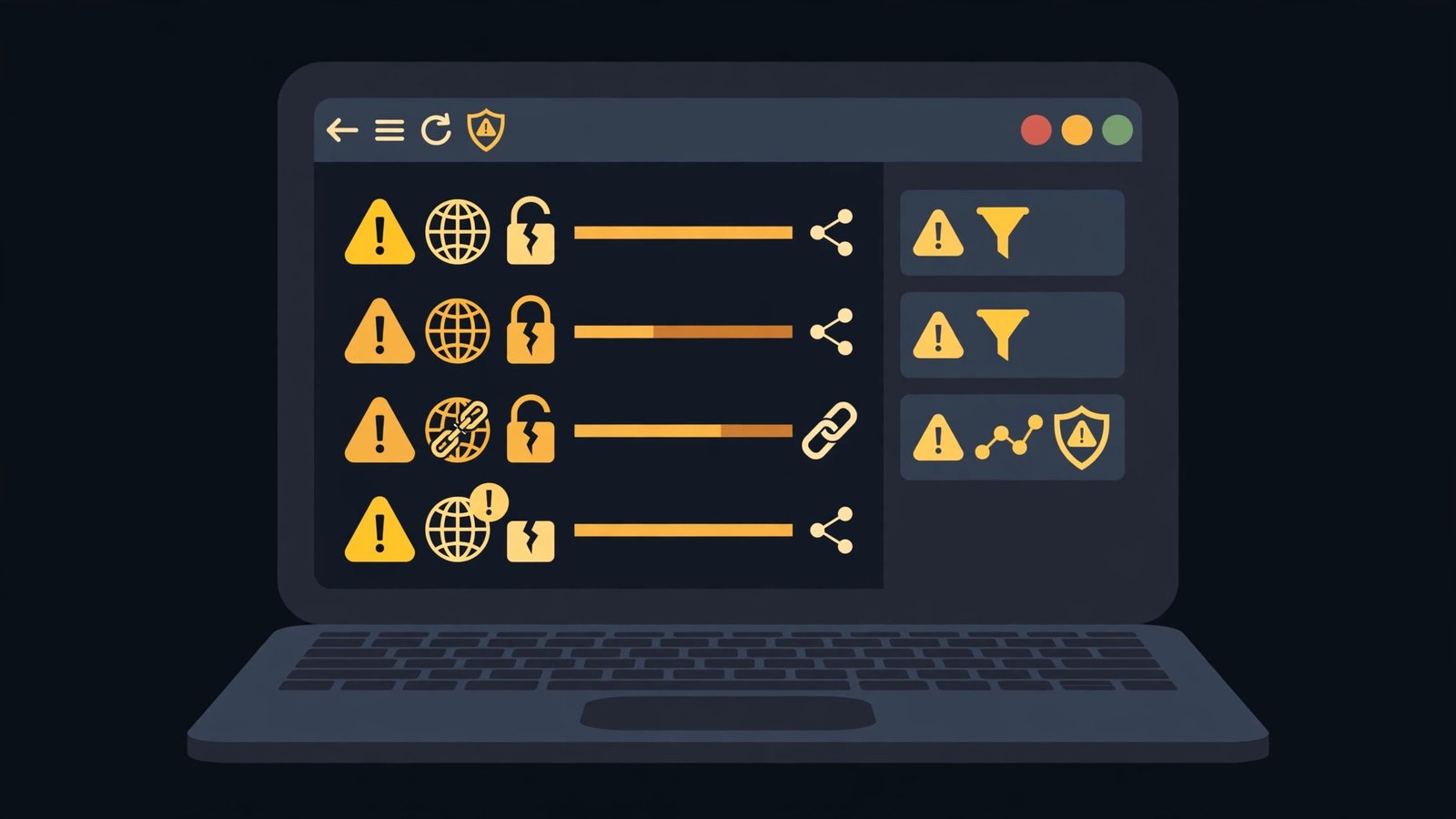
Mixed content is the classic “padlock with a warning”: the page loads over https, but images, scripts, or stylesheets still load over http. Browsers distrust the mixture.
- Open a problem page in Chrome, press F12, and open the Console tab.
- Look for “Mixed Content” warnings — each names the exact http URL offending.
- Common culprits: hardcoded image URLs in posts, theme files, widgets, and custom CSS.
- Fix them at the source: edit the post/widget and change
http://tohttps://, or use relative URLs. - For site-wide cleanup, run a serialisation-aware search-replace (Better Search Replace plugin or WP-CLI) from
http://example.comtohttps://example.com— after a database backup. - An SSL plugin’s “mixed content fixer” can paper over stragglers, but fixing the source URLs is cleaner.
The console is the detective: it lists every insecure resource by name. Work down the list and the warning triangle disappears item by item. If Chrome shows certificate errors rather than mixed content, our Chrome connection not private fix guide covers the browser side.
Fix 4: Force HTTPS in .htaccess
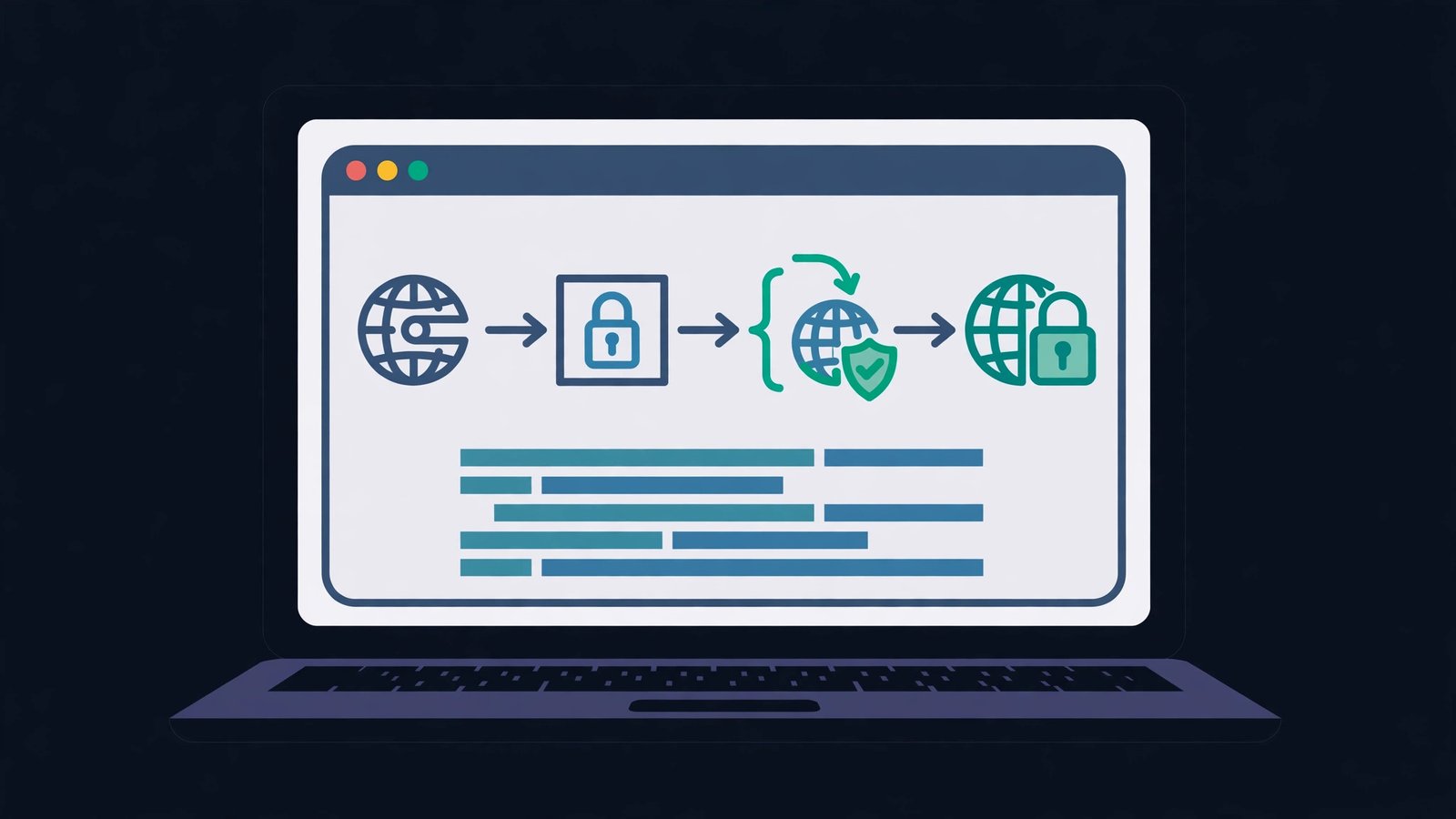
Even with everything else right, visitors typing the http address should land on https automatically. One clean redirect rule does it.
- Back up your
.htaccessfile via FTP or file manager. - Add this before the WordPress block:
   RewriteEngine On
   RewriteCond %{HTTPS} off
RewriteRule ^(.*)$ https://%{HTTP_HOST}%{REQUEST_URI} [L,R=301]- Save and test both
http://example.comandhttp://www.example.com— both should land on https. - Keep exactly one such rule. Duplicates from plugins cause redirect loops.
- If the site loops after this, you have two redirect authorities fighting — remove one.
The 301 status tells search engines the move is permanent, preserving your rankings. If the site will not load at all, our WordPress website not loading guide is the companion.
Fix 5: Clear Caches
Caches serve old http versions of pages long after you fixed everything. Purge every layer.
- Purge your caching plugin (toolbar button or settings).
- Clear the host’s server cache from its panel.
- Purge the CDN cache if you use one.
- Clear your browser cache — or test in Incognito.
- Wait a few minutes, then re-test every page type: home, posts, pages, archives.
Caching is why “I fixed it but nothing changed” happens. The fix worked; the cache is lying. Incognito is the truth-teller — always verify there.
Fix 6: Test the Certificate
Verify the certificate properly with independent eyes, not just your browser.

- Click the padlock > “Connection is secure” > “Certificate is valid” and check the domain names listed — your www and non-www variants must both appear.
- Check the expiry date — renew well before it lapses.
- Test on your phone (mobile data, not Wi-Fi) to rule out local network trickery.
- Ask a friend on another network to check, or use an online SSL checker from a reputable source.
- Check subdomains separately if you use them (shop., blog.) — each needs certificate coverage.
A certificate valid for example.com but not www.example.com (or vice versa) is a common half-failure. Most free certificates cover both when requested together — make sure yours did.
Fix 7: Check with Your Host
If the certificate will not install, will not renew, or HTTPS fails at the server level, the host owns the problem.
- Open a support ticket describing exactly what fails (certificate install? renewal? https connections refused?).
- Ask them to confirm the certificate is installed and auto-renewing for both domain variants.
- Ask whether any server-level redirect or proxy (like their own CDN) could conflict with your .htaccess rules.
- If the host cannot provide free, auto-renewing SSL in the current year, treat that as a signal about the host’s quality.
- After they fix server-side issues, re-run Fixes 2–5 to make WordPress match.
Good hosts resolve certificate issues in one ticket. If yours cannot, the HTTPS headache will recur at every renewal — a practical reason to move.
What to Avoid
- Do not leave mixed content unfixed because “the page loads” — browsers increasingly block it, and visitors see warnings.
- Do not stack multiple HTTPS redirect rules — one rule, one authority.
- Do not search-replace the database with raw SQL — use a serialisation-aware tool.
- Do not ignore certificate expiry — set reminders even with auto-renew.
- Do not test only in your main browser — caches lie; Incognito tells the truth.
- Do not buy an expensive certificate thinking it fixes configuration — free certificates work identically for encryption.
Frequently Asked Questions
Why does my site say “Not Secure” after installing SSL?
Usually mixed content (Fix 3) or WordPress URLs still set to http (Fix 2). The certificate can be perfect while the site still serves http pieces — click the warning to see which.
What is mixed content?
An https page loading resources (images, scripts, styles) over plain http. Browsers warn because the insecure pieces undermine the secure page. Fix the URLs to https (Fix 3).
Do I need to pay for an SSL certificate?
No. Free certificates from Let’s Encrypt (via your host) provide the same encryption browsers require. Paid certificates add warranties and organisation validation most small sites do not need.
Why does https work without www but not with www?
The certificate does not cover the www variant (Fix 1, Fix 6). Reissue it covering both, or redirect one variant to the other consistently.
Will switching to HTTPS hurt my search rankings?
Done properly (Fix 4’s 301 redirect), no — search engines prefer https and the redirect transfers ranking. Done sloppily (no redirect, mixed content), yes. Follow the order in this guide.
Why do images still load over http after I fixed the site URL?
The site URL controls new links, but image URLs already saved in post content stay exactly as written. Old posts keep their hardcoded http image addresses until you update them. Run a database search-replace for the old http domain to the new https one (Fix 5’s territory), then clear caches. Always back up the database before a search-replace.
Can mixed content warnings hurt my visitors?
Yes, in two ways. Browsers block insecure scripts and iframes outright, so parts of your page silently break for visitors. And the “Not Secure” label erodes trust — visitors hesitate to enter details on a page the browser flags. Fixing mixed content is not cosmetic; it directly affects whether your site works and whether people trust it.
Why does my SSL work on the homepage but not on inner pages?
Different templates load different resources. The homepage might be clean while inner pages pull an http script from a plugin, a hardcoded http image in a widget, or an old embed. Use the browser console (F12) on a broken inner page — it lists every insecure URL. Fix them at the source (plugin settings, widget content) rather than papering over with a plugin.
Do I need to redo this after every plugin update?
No — once content URLs are https, they stay https. But new plugins can introduce fresh http references, so re-check the padlock after installing anything that adds scripts, embeds, or widgets. A quick console check after each new plugin keeps mixed content from creeping back.
Conclusion
When wordpress https is not working properly, work the layers: certificate installed and covering both domain variants, WordPress URLs on https, mixed content hunted down via the console, one clean redirect rule, and every cache purged. The clean padlock on every page is the proof — verify it in Incognito, on mobile data, and after every future site change that touches URLs.