

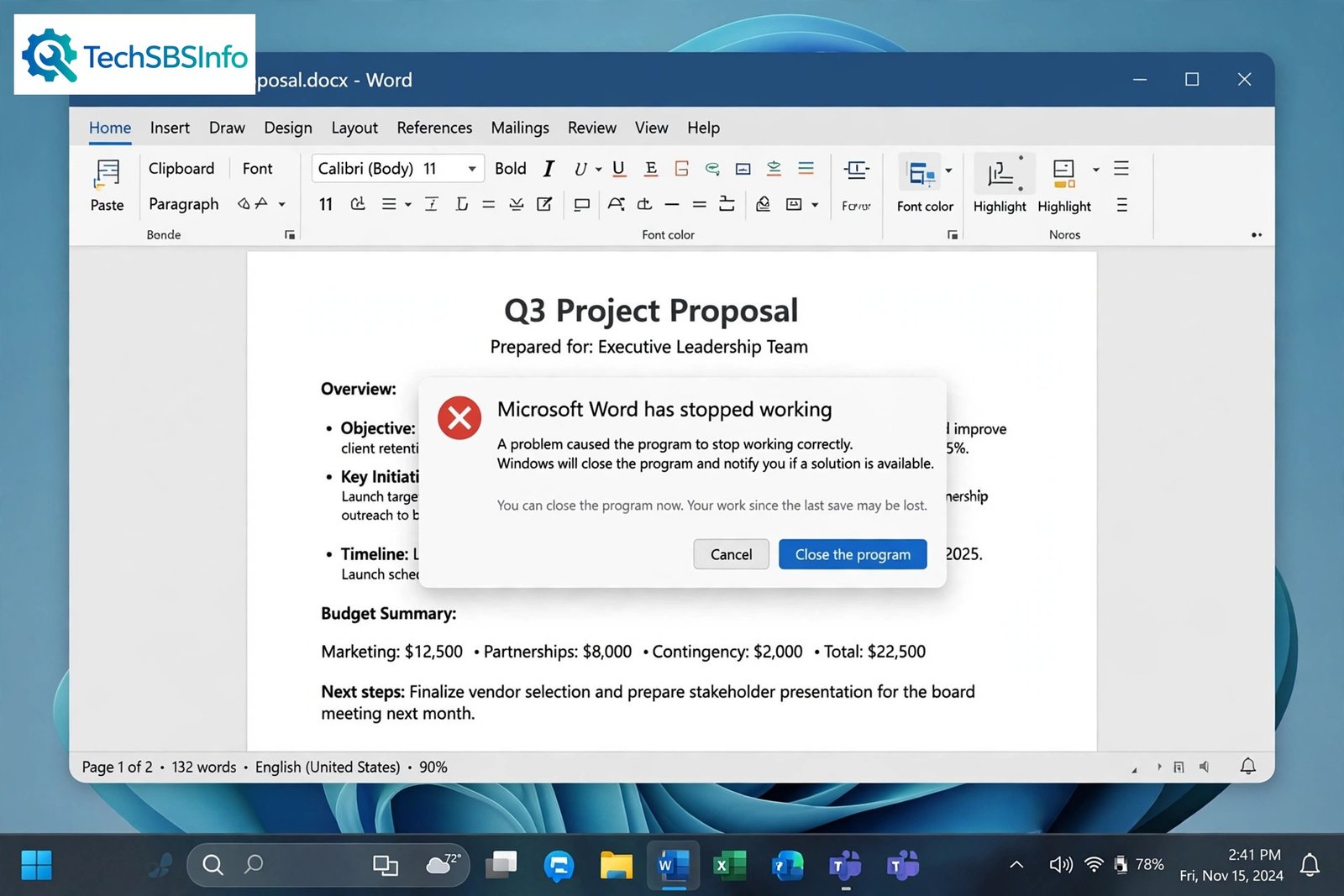
You click Word or Excel and the app closes before you can do anything. Sometimes an error dialog flashes for a second. Sometimes nothing opens at all. This guide explains how to fix office apps crashing on startup in Microsoft 365, Office 2021, Office 2019, and Office 2016 on Windows 10 and Windows 11.
The most common causes are simple: a stuck process, a bad add-in, or a damaged Office installation. We start with the easiest fixes and work up to the deeper ones. Each fix uses numbered steps, so you always know exactly what to do next.
Table of Contents
- Quick Checks
- What Causes Office Apps to Crash on Startup
- Fix 1: Restart Your Computer and Reopen the App
- Fix 2: Start the App in Safe Mode
- Fix 3: Disable Problem COM Add-ins
- Fix 4: Install Windows and Office Updates
- Fix 5: Run Quick Repair and Online Repair for office apps crashing on startup
- Fix 6: Clear the Office Cache and Temporary Files
- Fix 7: Uninstall and Reinstall Office
- What to Avoid
- Frequently Asked Questions
- Conclusion
- Helpful Official Resources
Quick Checks
- Try opening a different Office app. If only Word crashes, the problem is app-specific. If all of them crash, it is likely an installation issue.
- Open Task Manager (press Ctrl + Shift + Esc), look for a stuck WINWORD.EXE, EXCEL.EXE, or POWERPNT.EXE process, and end it. Then try launching the app again.
- Sign out of any VPN. Some corporate VPN clients conflict with Office sign-in at launch.
- Disconnect printers with broken drivers. Print spooler problems can freeze Word on startup.
- Check your disk space. Office needs free space to create temp files when it launches.
What Causes Office Apps to Crash on Startup
| Symptom | Cause | Go to Fix |
|---|---|---|
| App shows a splash screen, then vanishes | A leftover process is stuck in memory | Fix 1 |
| App opens briefly, then crashes with no message | A faulty COM add-in is loading | Fix 2, Fix 3 |
| “Stopped working” error dialog on launch | Damaged Office installation files | Fix 5 |
| Crash started right after a Windows update | Driver or Windows update conflict | Fix 4 |
| Crash started after installing new software | Third-party software or antivirus blocking Office | Fix 3, Fix 6 |
| App crashes for one Windows user only | Corrupt user profile or Office cache | Fix 6 |
| Every repair attempt fails | Deeply corrupted installation | Fix 7 |
Fix 1: Restart Your Computer and Reopen the App
This sounds too simple to matter, but it solves the problem surprisingly often. A leftover Office process can stay in memory after a crash and block the next launch.
- Save any open work in other programs.
- Click Start, then Power, then Restart. Use Restart, not Shut down — a full restart clears more.
- After the computer boots, wait until the desktop is fully loaded.
- Open the Office app again.
If the app still crashes, check the full Word not responding guide for Word-specific freezes. Similar stuck-process behaviour also shows up in Excel files that will not open, where a half-loaded workbook blocks startup.
Fix 2: Start the App in Safe Mode
Safe mode starts Office with no add-ins and a clean configuration. If the app opens in safe mode, an add-in or a setting is the culprit.
- Press Windows key + R to open the Run dialog.
- Type the safe-mode command for your app:
- Word:
winword /safe - Excel:
excel /safe - PowerPoint:
powerpnt /safe - Outlook:
outlook.exe /safe - Press Enter. The app should open with Safe Mode in the title bar.
- If it opens fine in safe mode, move on to Fix 3 to find the bad add-in.
- If it still crashes in safe mode, skip to Fix 4.
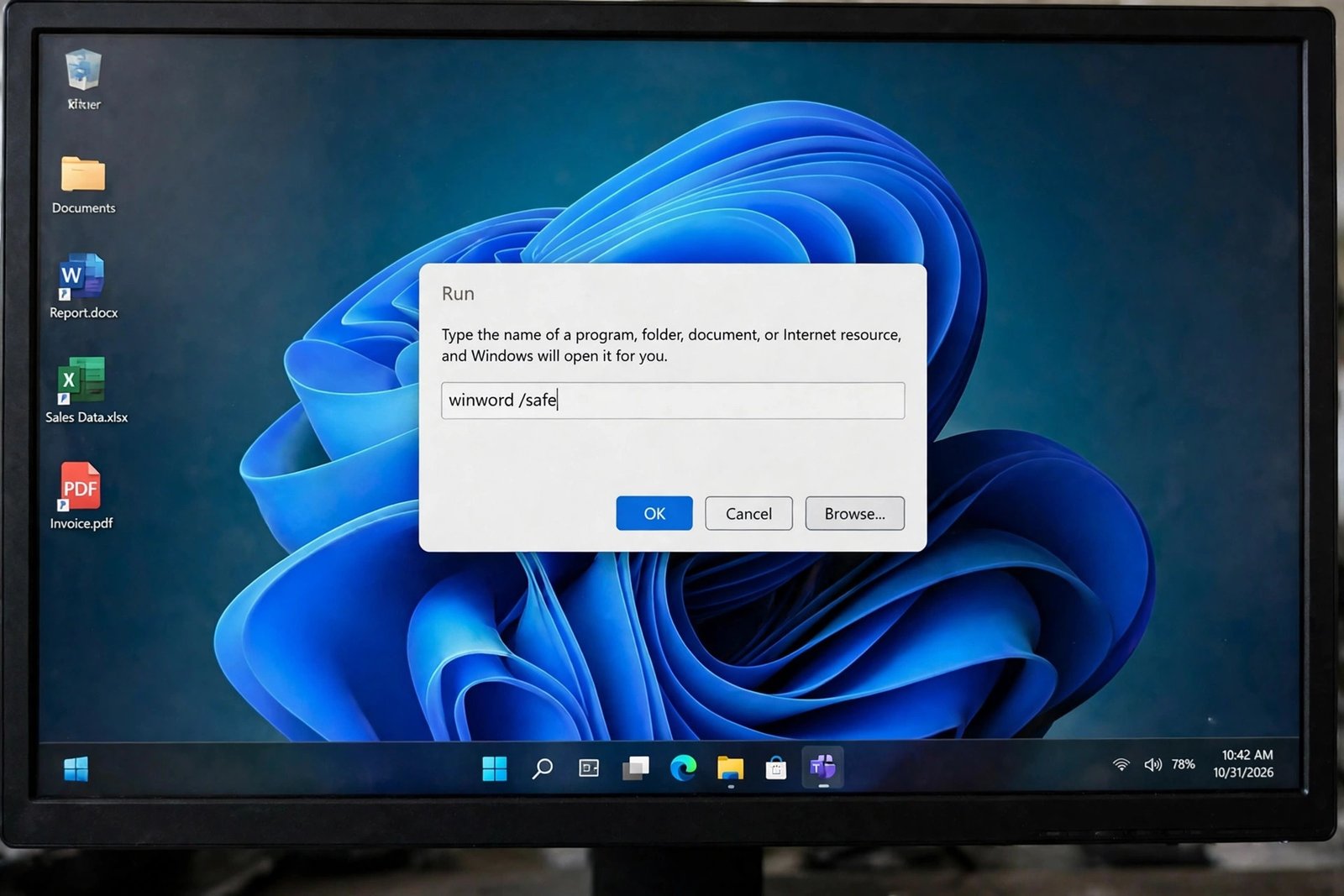
winword /safe — the fastest way to test whether office apps crashing on startup is caused by an add-in.Hold Ctrl while clicking an Office app icon also prompts you to open it in safe mode. This works for Word, Excel, and PowerPoint on all recent Office versions.
Fix 3: Disable Problem COM Add-ins
COM add-ins are small helper programs that load inside Office. A single outdated add-in can crash an app every time it starts. Outlook users know this pattern well — see our guide on Outlook is not receiving emails for other Outlook startup quirks.
- Open the crashing app in safe mode (from Fix 2).
- Go to File > Options > Add-ins.
- At the bottom, set the Manage dropdown to COM Add-ins and click Go.
- In the list, uncheck every add-in to disable them all.
- Click OK and restart the app normally.
- If the app opens, re-enable add-ins one at a time, restarting after each, until the crash returns. That add-in is the problem.
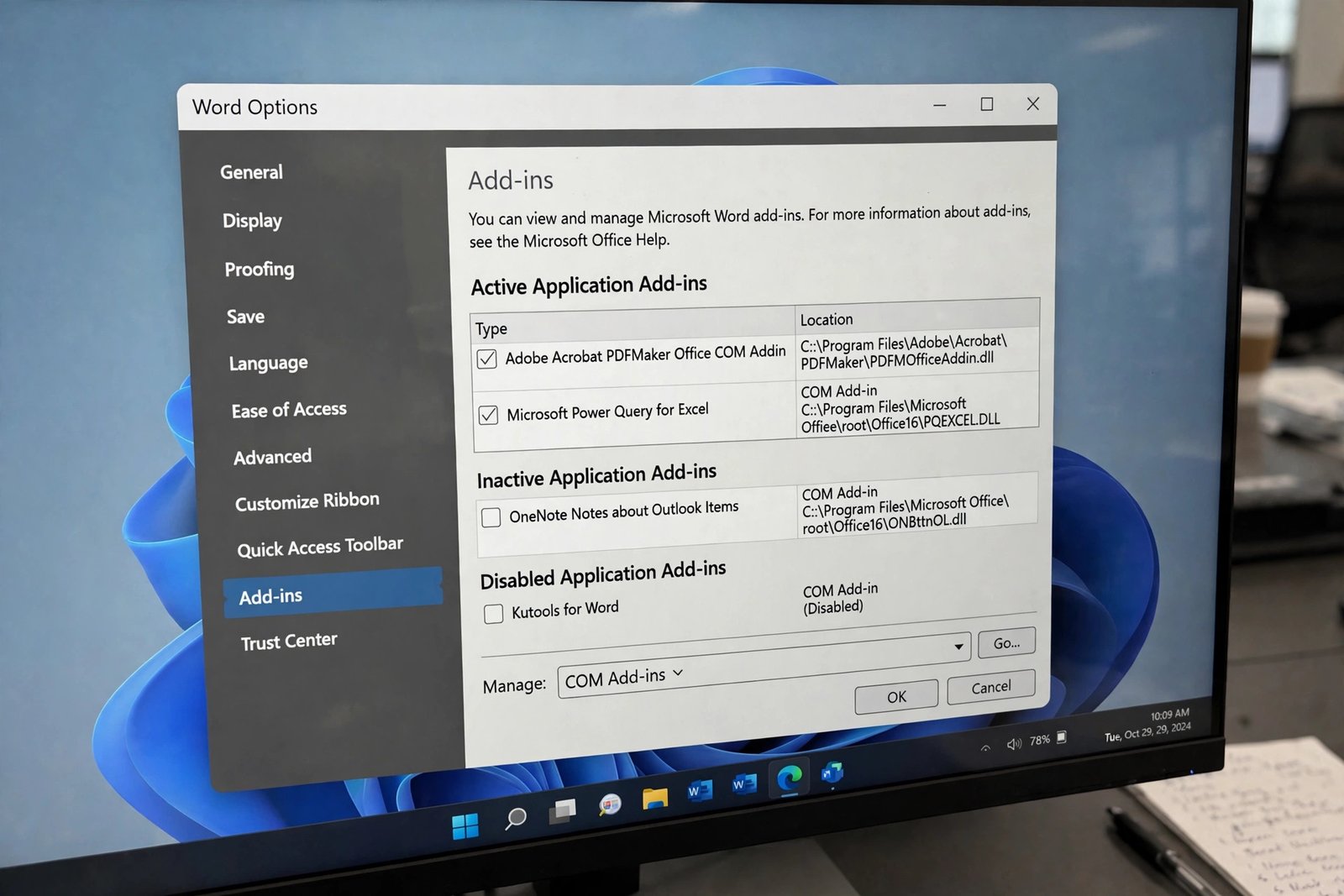
Common troublemakers include PDF printer add-ins, old antivirus toolbars, and sync tools from cloud drives. Once you identify the bad one, check its maker’s site for an update — or leave it disabled.
Fix 4: Install Windows and Office Updates
Microsoft regularly ships fixes for launch crashes. If the crashing started after a Windows update, a newer update may already contain the fix.
- Open Settings with Windows key + I.
- Go to Windows Update.
- Click Check for updates and install everything offered.
- Restart your computer.
- Open any Office app, go to File > Account, and click Update Options > Update Now. This pulls the latest Office build even if Windows Update handled the system updates.
- Restart the Office app and test.
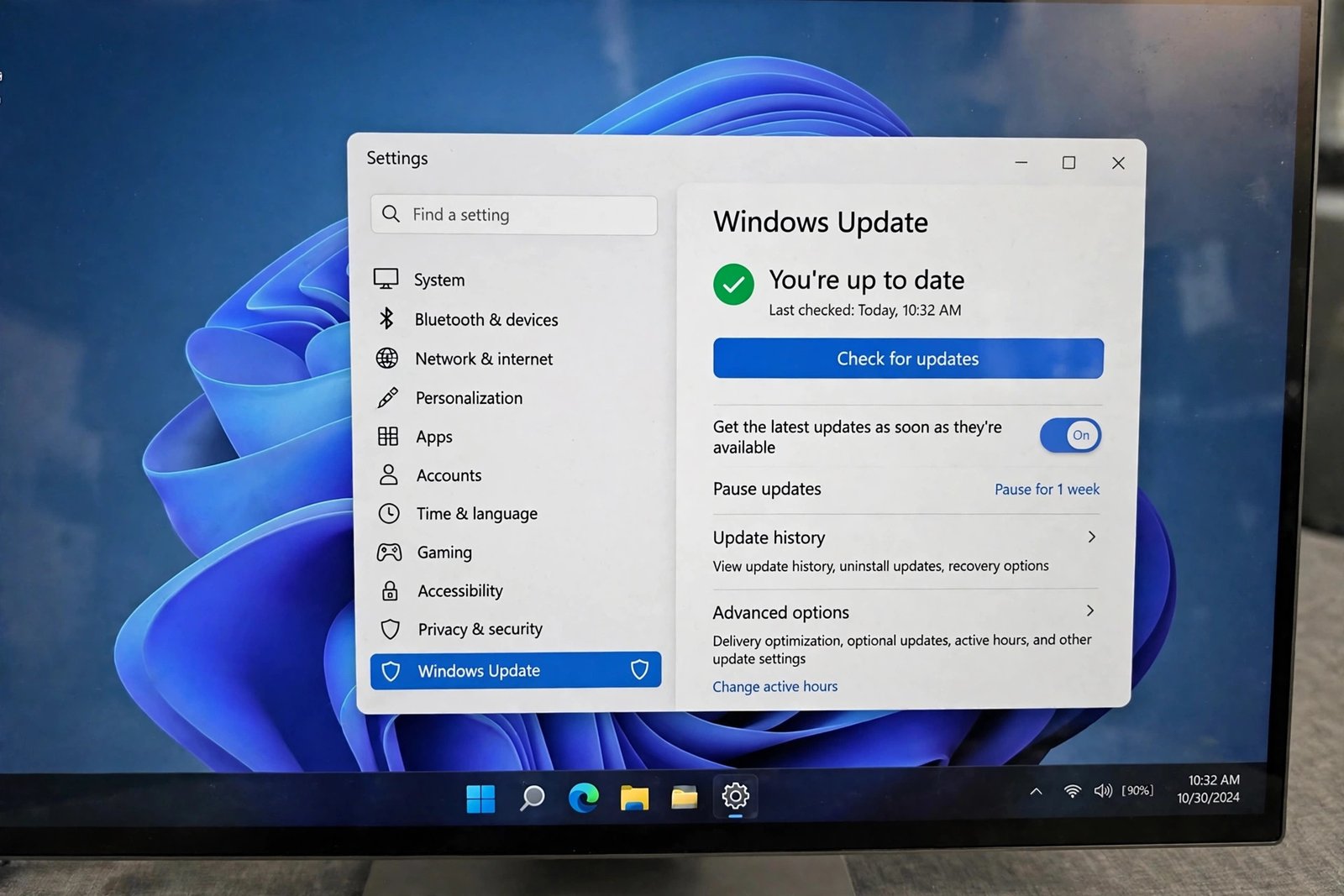
Office updates download in the background and install when the app closes, so you may need to reopen the app once more before the fix takes effect.
Fix 5: Run Quick Repair and Online Repair for office apps crashing on startup
If files inside the Office installation are damaged, a repair replaces them. Start with Quick Repair (fast, works offline), then use Online Repair (slower, needs internet, fixes more).
- Close all Office apps.
- Open Settings > Apps > Installed apps (Windows 11) or Control Panel > Programs and Features (Windows 10).
- Find Microsoft 365 or your Office version (for example, Office Home & Student 2021).
- Click the three dots or right-click, then choose Modify.
- Select Quick Repair and click Repair. Wait for it to finish, then test the app.
- If the crash continues, repeat steps 1–4 but choose Online Repair instead. This can take 15–30 minutes, so stay connected to the internet.
- Restart your computer after the repair completes.
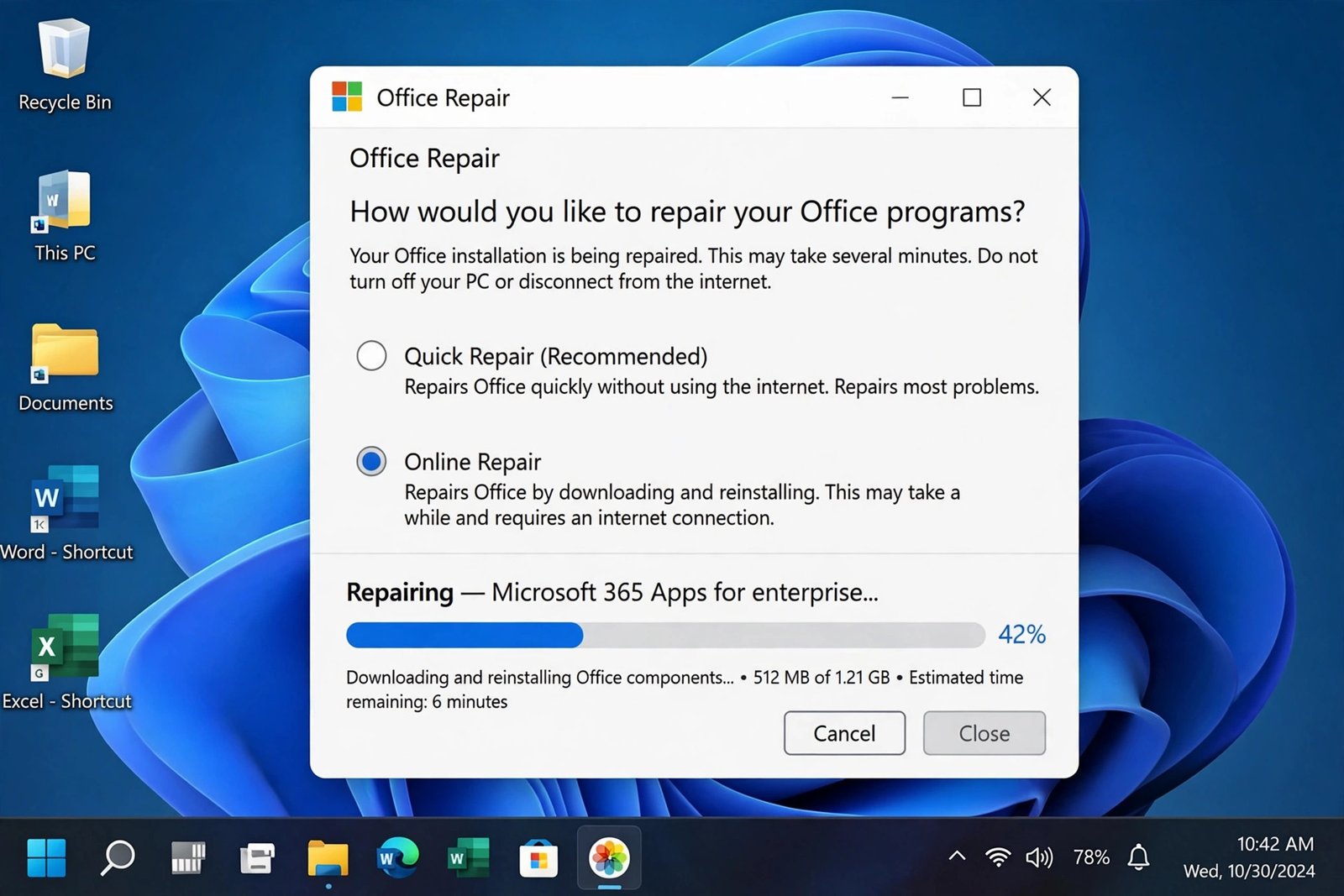
Online Repair effectively reinstalls Office while keeping your documents, settings, and licence intact. You may need to sign in to your Microsoft account again afterwards.
Fix 6: Clear the Office Cache and Temporary Files
A damaged Office cache or a corrupted temp file can crash an app during startup, especially when the crash affects only one Windows user account.
- Close all Office apps.
- Press Windows key + R, type
%localappdata%\Microsoft\Office\16.0\OfficeFileCache, and press Enter. Delete the files inside. (The version number folder may differ on older Office.) - Press Windows key + R again, type
%temp%, and press Enter. Delete as many files as you can — skip any that Windows says are in use. - Open Disk Cleanup: search for it in Start, select your system drive, and check Temporary files.
- Restart your computer and test the app.
Clearing the cache is also worth trying when PowerPoint presentations that will not open stall on the loading screen, since leftover temp data causes similar hangs.
Fix 7: Uninstall and Reinstall Office
If nothing else works, a clean reinstall removes every damaged file and registry entry. Your documents are safe — they live in OneDrive or your Documents folder, not in the Office installation.
- Make sure you know your Microsoft account login — you will need it to reinstall.
- Go to Settings > Apps > Installed apps, find Microsoft 365 or your Office version, and choose Uninstall.
- After uninstalling, restart your computer.
- Go to office.com, sign in, and choose Install Office.
- Run the installer and wait for it to finish.
- Open each app once and sign in.
If the crash returns immediately after a clean reinstall, a third-party program on your computer is likely interfering. Try a clean boot: press Windows key + R, type msconfig, and disable all non-Microsoft startup items under the Startup tab of Task Manager. If Office launches cleanly there, re-enable startup items in groups to find the conflict.
What to Avoid
- Do not download “Office repair tools” or “crack” files from random websites — they carry malware and never fix anything.
- Do not edit the registry to “fix” a startup crash unless a trusted source gives exact steps.
- Do not disable your antivirus permanently; add Office to its exclusions instead.
- Do not run Quick Repair and Online Repair at the same time.
- Do not skip the restart after an Online Repair — pending changes only apply on reboot.
- Do not reinstall Windows for an Office crash. Office reinstalls in minutes; Windows reinstalls take hours and rarely help.
Frequently Asked Questions
Why does Microsoft Word close immediately after I open it?
The most common reason is a faulty add-in or a stuck background process. Try winword /safe first (Fix 2). If Word opens in safe mode, disable your COM add-ins (Fix 3) to find the one causing the crash.
Will an Online Repair delete my documents?
No. Repairs only touch Office program files. Your documents, templates, and settings stay where they are. You may be asked to sign in to your Microsoft account again after the repair finishes.
Can a Windows update fix office apps crashing on startup?
Yes, it can. Microsoft ships Office stability fixes through Windows Update, and a missing update is a common cause of crashes that start suddenly. Use Fix 4 to install all pending updates, then update Office itself from File > Account > Update Options.
Should I uninstall Office if the repairs do not help?
A clean uninstall and reinstall (Fix 7) is the logical last step after Online Repair fails. Before that, try clearing the Office cache (Fix 6) — it is faster and fixes crashes tied to a single user profile.
Is it safe to disable all COM add-ins?
Yes. Disabling add-ins does not delete them or harm Office. It only stops them from loading at startup. You can re-enable any of them later from File > Options > Add-ins, one at a time, to identify the troublemaker.
Conclusion
Office apps crashing on startup is usually a small problem wearing a scary disguise. A stuck process, a bad add-in, or a damaged file is behind almost every case. Work through the fixes in order: restart, safe mode, disable add-ins, update everything, repair, clear the cache, and reinstall only as a last resort. Most readers are back in Word or Excel by Fix 3 or Fix 5.
[…] This is the deep fix for “formatting changes for no reason I can find”. The template is invisible infrastructure — when it rots, everything built on it wobbles. For Office-wide startup failures, see Office apps crashing on startup. […]