

Your phone used to hit 50% in half an hour. Now it crawls, showing just “Charging” — never “Fast charging” or “Charging rapidly”. When android fast charging not working slows your top-ups to a trickle, the fast-charging handshake between phone, cable, and charger is failing somewhere.
Fast charging needs all three links in the chain: a capable charger, a cable that can carry the current, and the phone’s permission. Break any one and the phone silently falls back to slow charging. This guide rebuilds the chain in order. Nothing here deletes your data.
Table of Contents
- Quick Checks
- Diagnosing android fast charging not working
- Fix 1: Use the Original Charger and Cable
- Fix 2: Check the Cable’s Condition
- Fix 3: Clean the Charging Port
- Fix 4: Turn On Fast Charging in Settings
- Fix 5: Charge with the Screen Off
- Fix 6: Cool the Phone Down
- Fix 7: Restart and Update
- What to Avoid
- Frequently Asked Questions
- Conclusion
- Helpful Official Resources
Quick Checks
One minute before the deep fixes.
- Read the lock-screen text while charging: “Fast charging”, “Charging rapidly”, or “TurboPower” means fast charging works; plain “Charging” means it does not.
- Check the charger brick’s label — does it actually support your phone’s fast-charging standard?
- Feel the cable ends for looseness — a wobbly connection drops to slow charging.
- Try the charger in a wall socket, not a power strip or PC USB port — weak sources cannot fast-charge.
- Note whether fast charging ever worked with this exact combo — “never worked” points at the charger; “stopped working” points at wear or settings.
Diagnosing android fast charging not working
| Symptom | Cause | Go to Fix |
|---|---|---|
| Plain “Charging”, never fast | Underpowered charger or wrong cable | Fix 1 |
| Fast charging worked, now slow | Worn cable | Fix 2 |
| Cable feels loose in the port | Lint in the port | Fix 3 |
| Fast charging toggle is off | Setting disabled | Fix 4 |
| Fast at first, then slows | Heat throttling | Fix 6 |
| Slow only with screen on | Screen-on power draw | Fix 5 |
| Stopped after an update | Software glitch | Fix 7 |
Fix 1: Use the Original Charger and Cable
Fast charging is a negotiated protocol — the phone and charger must speak the same language (USB-PD, Quick Charge, SuperVOOC, and others). The original charger and cable are guaranteed to speak it.
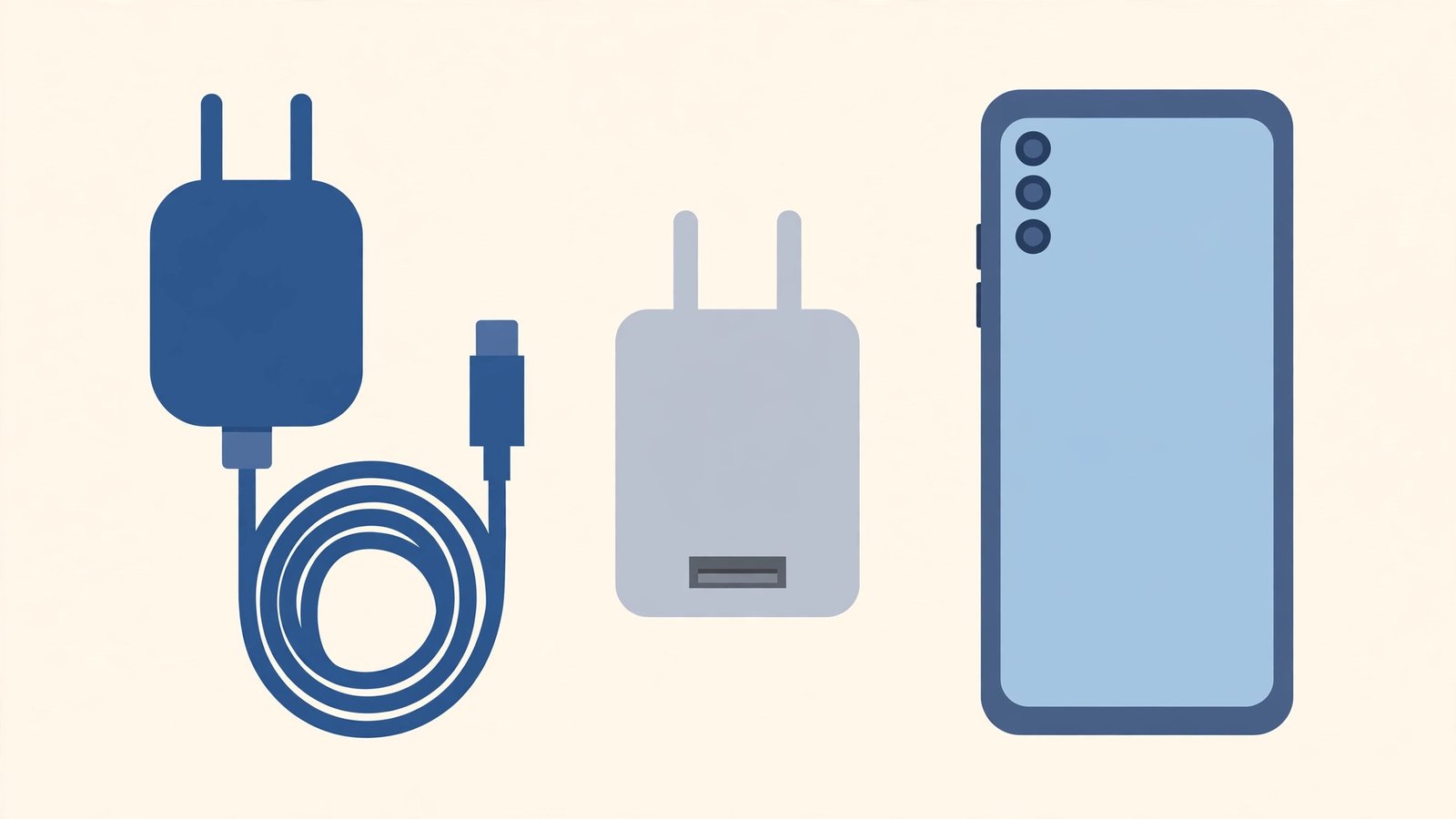
- Dig out the charger and cable that came in the phone’s box.
- Plug them into a wall socket (not a strip, not a PC).
- Check the lock screen for “Fast charging” / “Charging rapidly”.
- If fast charging returns, your everyday charger or cable was the weak link — replace it with a certified equivalent.
- When buying replacements, match your phone’s standard: a “fast charger” for one brand may slow-charge another. Check the phone maker’s specs.
- Look for certified cables (USB-IF certified for USB-PD phones) — certification means the cable can actually carry the current.
The box charger is the reference standard. Every diagnosis starts by testing against it — if the original combo fast-charges, the phone is innocent and the accessories are guilty. If the phone also gets hot while charging, see Android phone overheating while charging.
Fix 2: Check the Cable’s Condition
Cables degrade from the inside: repeated bending fractures the power conductors, and the cable silently drops from fast to slow charging while looking fine outside.
- Inspect the cable ends for fraying, kinks, or looseness.
- Try a different cable with the same charger — if fast charging returns, the old cable is done.
- Try the suspect cable with a different charger — confirming the cable is the variable.
- Retire dead cables instead of keeping them as spares — a drawer of dead cables wastes future debugging time.
- For replacements, buy from reputable brands with the right certification — ultra-cheap cables rarely sustain fast-charging currents.
- Keep cables gently coiled, not tightly wound — sharp bends are what kill them.
Cable wear is the most common “it used to fast-charge” cause. The phone cannot negotiate what the cable cannot carry. If file transfers over USB are flaky too, our Android USB file transfer not working guide covers the data side.
Fix 3: Clean the Charging Port
Lint in the port prevents the plug seating fully — and fast charging needs a perfect connection. A half-seated plug negotiates slow charging or nothing.

- Power the phone off.
- Shine a light into the port and look for packed lint.
- Remove it gently with a wooden or plastic toothpick — never metal.
- Blow out dust with short bursts of air.
- Plug in firmly until the connector clicks and sits flush.
- Check the lock screen for the fast-charging message.
The same lint that blocks charging entirely can also merely degrade it to slow charging. Two minutes with a toothpick restores the full connection. If the phone’s storage is also reporting strange numbers, our Android storage full nothing stored guide covers storage reporting glitches.
Fix 4: Turn On Fast Charging in Settings
Many phones have a fast-charging toggle buried in battery settings — and updates, battery-saver modes, or other users switch it off.
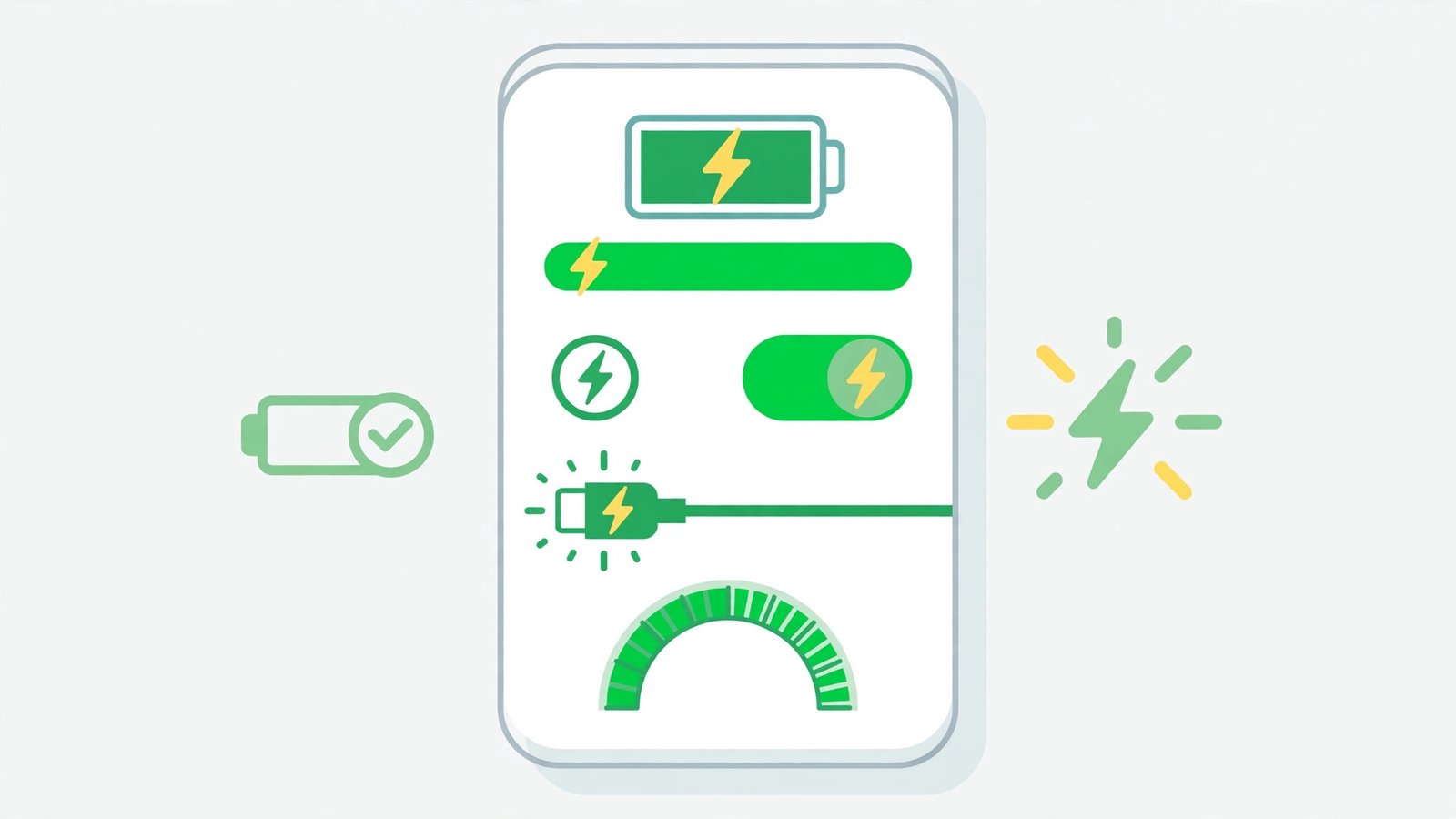
- Go to Settings > Battery (on Samsung: Settings > Battery > More battery settings; wording varies by brand).
- Find “Fast charging”, “Fast wired charging”, or similar and turn it ON.
- Check that Battery Saver / Power saving mode is OFF — it disables fast charging on many phones.
- Plug in and check the lock-screen message.
- If the toggle is missing, your phone may not support user-controllable fast charging — it negotiates automatically, so focus on Fixes 1–3.
This is the “is it plugged in” of fast charging — embarrassingly simple when it is the cause, and invisible until you look. Battery Saver is the usual culprit for mysteriously disabled fast charging.
Fix 5: Charge with the Screen Off
A phone with its screen on burns power nearly as fast as slow charging delivers it. The net result looks like broken fast charging — the percentage barely moves.
- Plug in and turn the screen off completely.
- Leave the phone alone for 15 minutes.
- Check the percentage gain — with the screen off, fast charging shows its true speed.
- Avoid gaming, video calls, or navigation while fast charging — they consume faster than the charger delivers.
- If you must use the phone while charging, accept slower net charging — the charger is fine; the load is the issue.
This is physics, not a fault: a bright screen plus active radios can draw most of what the charger provides. Screen-off charging is how fast charging is measured and meant to be used.
Fix 6: Cool the Phone Down
Heat throttles charging speed — a safety feature. A hot phone deliberately slow-charges to protect the battery, no matter how capable the charger.
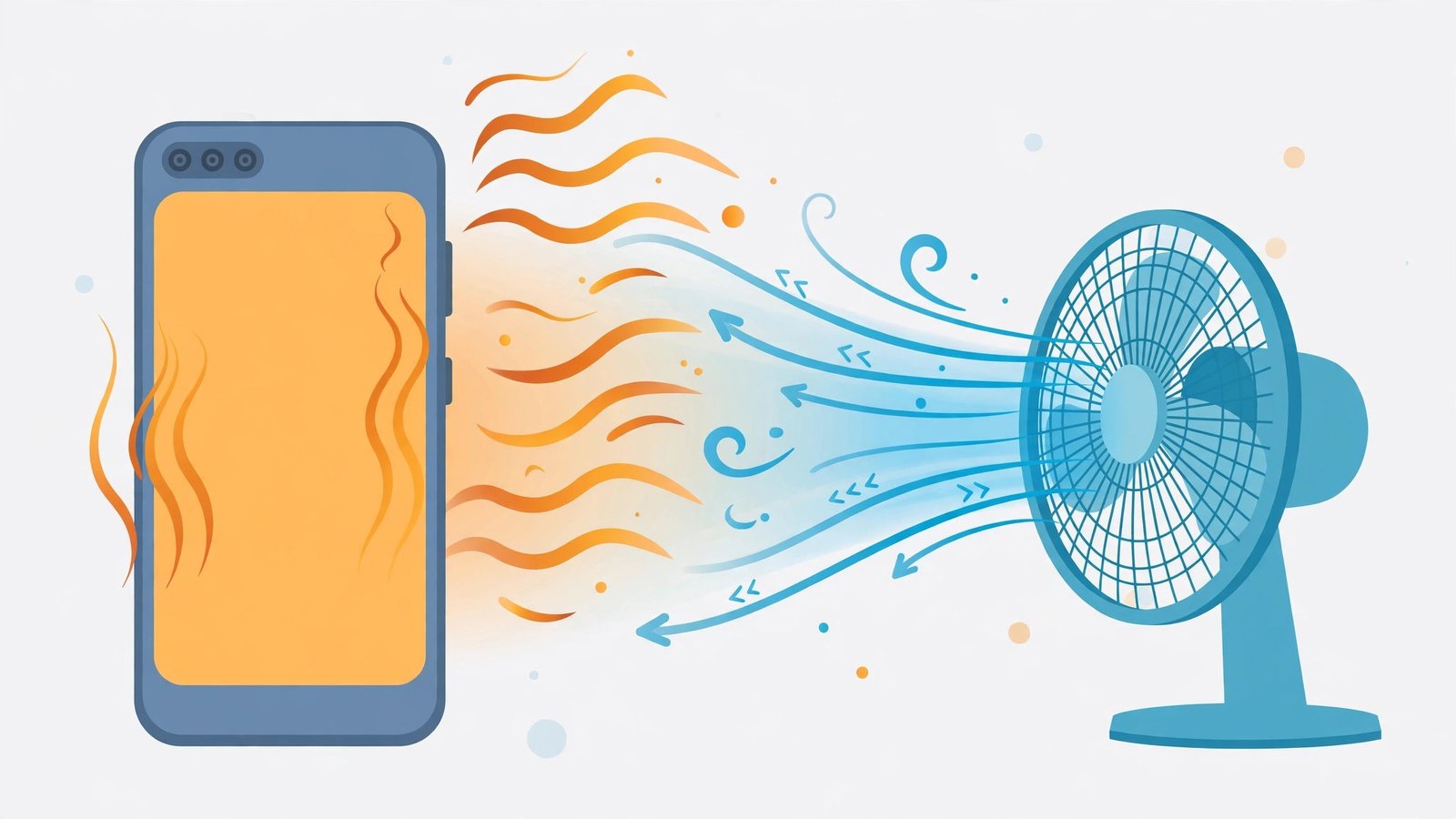
- If the phone feels warm, unplug it and let it cool for 10–15 minutes.
- Remove the case while charging — cases trap heat.
- Charge away from sunlight, radiators, and hot cars.
- Do not charge on soft surfaces (beds, sofas) that insulate — use a hard, cool surface.
- Once cool, plug in and confirm fast charging resumes.
The phone is protecting its battery — thank it, do not fight it. Chronic heat during charging ages batteries fast, so the cooling habits in this fix pay off long-term. (Our overheating-while-charging guide, linked in Fix 1, goes deeper.)
Fix 7: Restart and Update
Software glitches can break the charging negotiation, and updates fix the bugs that cause them.
- Restart the phone with the charger unplugged.
- After booting, plug in and check for the fast-charging message.
- Install pending system updates (Settings > System > System update) — charging-stack fixes ship in them.
- Update apps via the Play Store — a misbehaving app burning CPU during charging mimics slow charging (the screen-off test in Fix 5 distinguishes this).
- If fast charging broke right after an update, report it to the manufacturer — and check whether Battery Saver got enabled by the update (Fix 4). If the same update broke mobile data too, our Android mobile data not working guide covers that side.
The restart-plus-update combo resolves the software side cleanly. If the original charger (Fix 1) fast-charges but nothing else does, the phone is fine — standardise on certified accessories and move on.
What to Avoid
- Do not use ultra-cheap chargers and cables — they cannot sustain fast-charging currents safely.
- Do not charge a hot phone and expect fast speeds — cooling first is faster overall.
- Do not leave Battery Saver on while expecting fast charging — it disables it by design.
- Do not yank cables out by the cord — it fractures the internal wires that carry fast current.
- Do not install “fast charge booster” apps — the negotiation is hardware; apps cannot help and often hurt.
- Do not charge on soft, insulating surfaces — heat throttles everything.
Frequently Asked Questions
Why does my phone say “Charging” instead of “Fast charging”?
The fast-charging handshake failed — the charger, cable, or settings do not support your phone’s fast standard. Work through Fixes 1–4 in order.
Can any charger fast-charge my phone?
No — the charger must support your phone’s specific standard (USB-PD, Quick Charge, SuperVOOC, etc.). A powerful charger with the wrong protocol slow-charges. Match the standard, not just the wattage.
Is fast charging bad for the battery?
Modern phones manage it carefully with heat and voltage controls. Occasional fast charging is fine; constant fast charging in heat ages batteries faster. The phone’s own throttling (Fix 6) is part of the protection.
Why is fast charging slower with the screen on?
The screen and radios consume a large share of the incoming power, so net charging slows. Screen-off charging (Fix 5) shows the true fast-charging speed.
Does wireless charging support fast charging?
Many phones support fast wireless charging with a compatible pad, but it is slower than wired fast charging and generates more heat. For the fastest top-up, use wired.
Why does fast charging work with one cable but not another identical-looking one?
Cables that look identical can differ inside — wire gauge, chip presence, and certification. A cable built for basic charging cannot carry fast-charging current no matter how premium it looks. This is why the box cable is the reference (Fix 1): it is certified for your phone’s standard. When buying spares, check the specs for your phone’s protocol, not just the connector shape.
Can I fast-charge from a power bank?
Yes, if the power bank supports your phone’s fast-charging standard at sufficient wattage. Check both the bank’s output specs and your phone’s requirements — a 10W bank cannot fast-charge a phone expecting 25W+. Use a data-capable cable (Fix 2’s rules apply to power banks too), and expect slightly slower speeds than a wall charger, since banks throttle as they heat up.
Conclusion
When android fast charging is not working, rebuild the chain: the original charger and cable, a clean port, the settings toggle on, and a cool phone with its screen off. Test against the box charger first — it tells you in one step whether the phone or the accessories are at fault. With the handshake restored, the lock screen shows those magic words again, and half an hour means half a battery.