

Every page takes an age: the spinner turns, the progress bar creeps, and simple sites feel like dial-up. When chrome pages loading slowly is your daily experience — while your phone or another browser on the same Wi-Fi feels fine — the bottleneck is inside Chrome, not your internet connection.
Slow page loads in Chrome come from a bloated cache, heavy extensions injecting code into every page, an outdated browser, or a struggling PC underneath. This guide works through the causes in order, quickest first. You do not need to reinstall anything until the last fix, and most people feel the difference by Fix 3.
Table of Contents
- Quick Checks
- Diagnosing chrome pages loading slowly
- Fix 1: Test Your Connection Speed
- Fix 2: Clear Cache and Cookies
- Fix 3: Disable Extensions
- Fix 4: Turn Off Page Preloading
- Fix 5: Update Chrome
- Fix 6: Toggle Hardware Acceleration
- Fix 7: Reset Chrome Settings
- Fix 8: Scan for Malware
- What to Avoid
- Frequently Asked Questions
- Conclusion
- Helpful Official Resources
Quick Checks
First, confirm the problem is Chrome and not everything.
- Load the same page in another browser (Edge is already on your PC). If it is fast there, Chrome is the problem.
- Load a page on your phone on the same Wi-Fi. Fast phone + slow Chrome = browser issue.
- Restart Chrome completely — close every window, not just tabs.
- Check whether slowness is constant or comes in waves. Waves suggest background updates or scans.
- Note if only one site is slow — that is the site’s problem, not Chrome’s.
Diagnosing chrome pages loading slowly
| Symptom | Cause | Go to Fix |
|---|---|---|
| Slow in Chrome, fast in Edge | Chrome cache, extensions, or settings | Fix 2, then Fix 3 |
| Slow everywhere including phone | Internet connection or router | Fix 1 |
| Gets slower the longer Chrome runs | Memory leak in a tab or extension | Fix 3 |
| Slow after a Chrome update | New bug or setting change | Fix 5, then Fix 7 |
| Pages stall halfway loaded | Preloading or network prediction issue | Fix 4 |
| Whole PC sluggish, not just Chrome | System-level problem | Fix 8 |
Fix 1: Test Your Connection Speed
Measure before you fix. A speed test tells you whether the internet itself is slow, which no browser setting can repair.
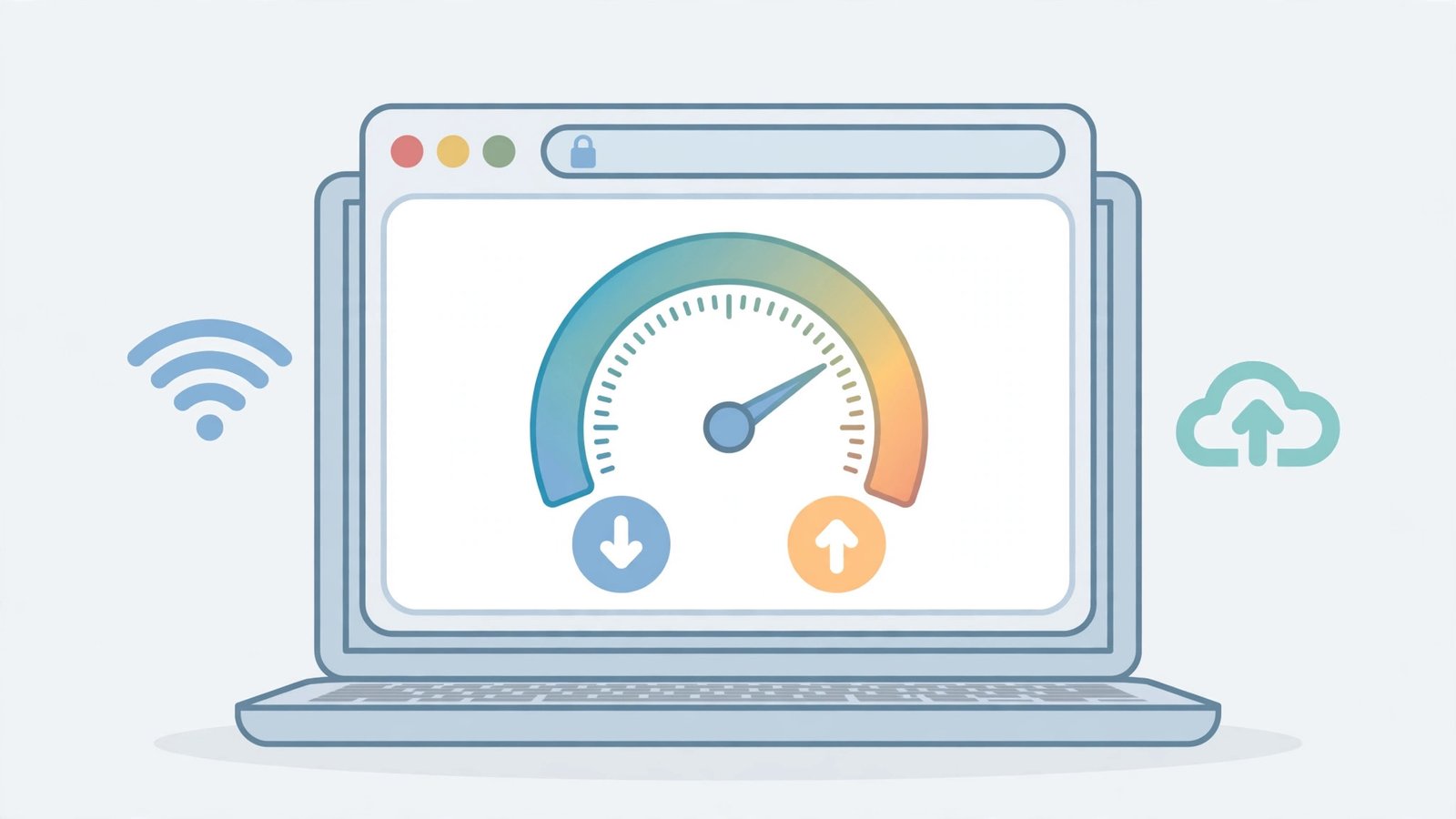
- Go to a speed test site (your provider’s own test is ideal) in Chrome.
- Run the test and note download speed and ping.
- Compare with what your plan promises. Less than half the promised speed, consistently, is a provider or router issue.
- Run the same test on your phone. Similar results on both = connection problem, not Chrome.
- If speeds are fine but pages still crawl, the problem is definitely in Chrome — continue below.
- Restart your router (unplug 30 seconds) if speeds are poor on all devices.
Do not skip this. Hours of Chrome tweaking cannot fix a 2 Mbps connection, and knowing the number keeps you from chasing ghosts.
Fix 2: Clear Cache and Cookies
A bloated or corrupt cache forces Chrome to chew through stale files before loading anything. Clearing it is the classic first real fix.
- Press Ctrl+Shift+Delete.
- Set the time range to “All time”.
- Tick “Cached images and files” and “Cookies and other site data”.
- Click Clear data.
- Restart Chrome and reload your test pages.
- Note: clearing cookies logs you out of sites — have passwords handy or check they are saved first.
If pages load faster immediately after, the cache was the culprit. Chrome rebuilds a fresh, lean cache as you browse. If pages do not load at all rather than loading slowly, our Chrome pages not loading guide addresses that separately.
Fix 3: Disable Extensions
Every extension injects code into pages you visit. Ten extensions means ten extra programs running on every page load — and one bad one can double load times alone.
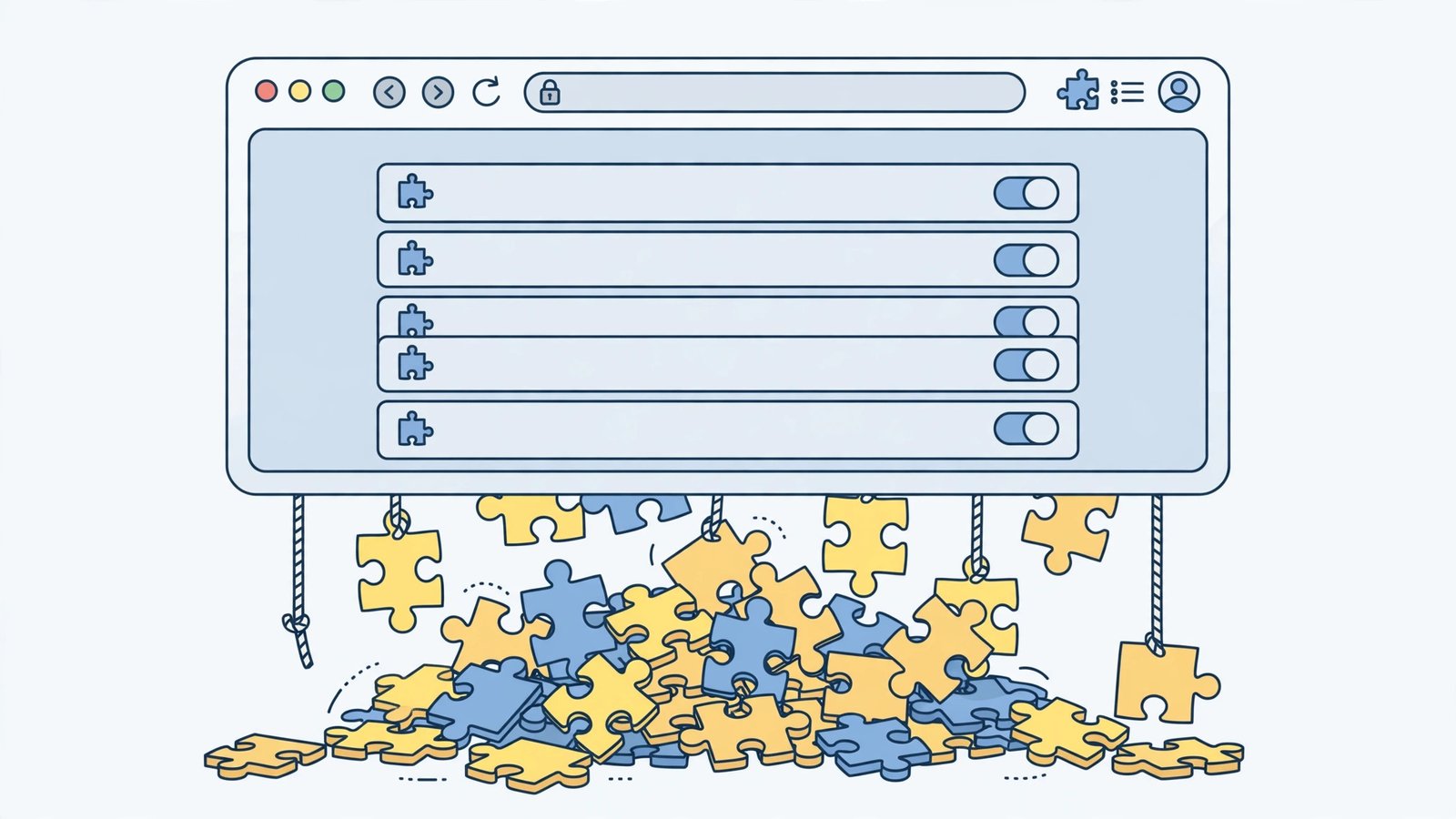
- Go to
chrome://extensions. - Toggle off ALL extensions.
- Reload your test pages. If they are fast now, an extension was the brake.
- Re-enable extensions one at a time, testing page speed after each.
- When speed collapses, you have found the culprit — remove it or find a lighter alternative.
- As a rule, keep only extensions you use weekly. Coupon finders, “shopping assistants”, and duplicate ad blockers are the usual speed killers.
This is the highest-impact fix in the guide for most people. A single heavy extension — especially ones that scan page content like grammar checkers or price trackers — can add seconds to every load. If Chrome is also eating your CPU, see Chrome high CPU usage fix.
Fix 4: Turn Off Page Preloading
Chrome’s preloading fetches pages it thinks you will visit next. On a fast connection it helps; on a slow or congested one, it steals bandwidth from the page you are actually reading.

- Go to Settings > Performance (or Privacy and security > Preload pages, depending on version).
- Find “Preload pages” and turn it off.
- Also turn off “Memory Saver” temporarily while testing — no, actually leave Memory Saver on; it helps. Just disable preloading.
- Reload your test pages and compare.
- If pages feel snappier, leave preloading off permanently.
Preloading is a gamble that pays off on fast, uncapped connections and backfires on slow or metered ones. There is no shame in switching it off — the page you want loads with your full bandwidth.
Fix 5: Update Chrome
Google ships performance fixes constantly. Running a months-old Chrome means missing them — and occasionally running a version with a known slowdown bug.
- Go to Settings > About Chrome.
- Let it check for updates and click Relaunch when offered.
- Test page speeds after the update.
- If Chrome says it is up to date but feels ancient, check your OS is still supported — very old systems get stuck on old Chrome.
- After updating, revisit Fix 3 — updates sometimes re-enable extensions you had disabled.
Keep Chrome updating automatically. The performance work Google does between versions is invisible but real, and security fixes ride along with it.
Fix 6: Toggle Hardware Acceleration
Hardware acceleration hands page rendering to your GPU. Usually that is faster — but on some graphics drivers it causes stuttering and slow loads instead.
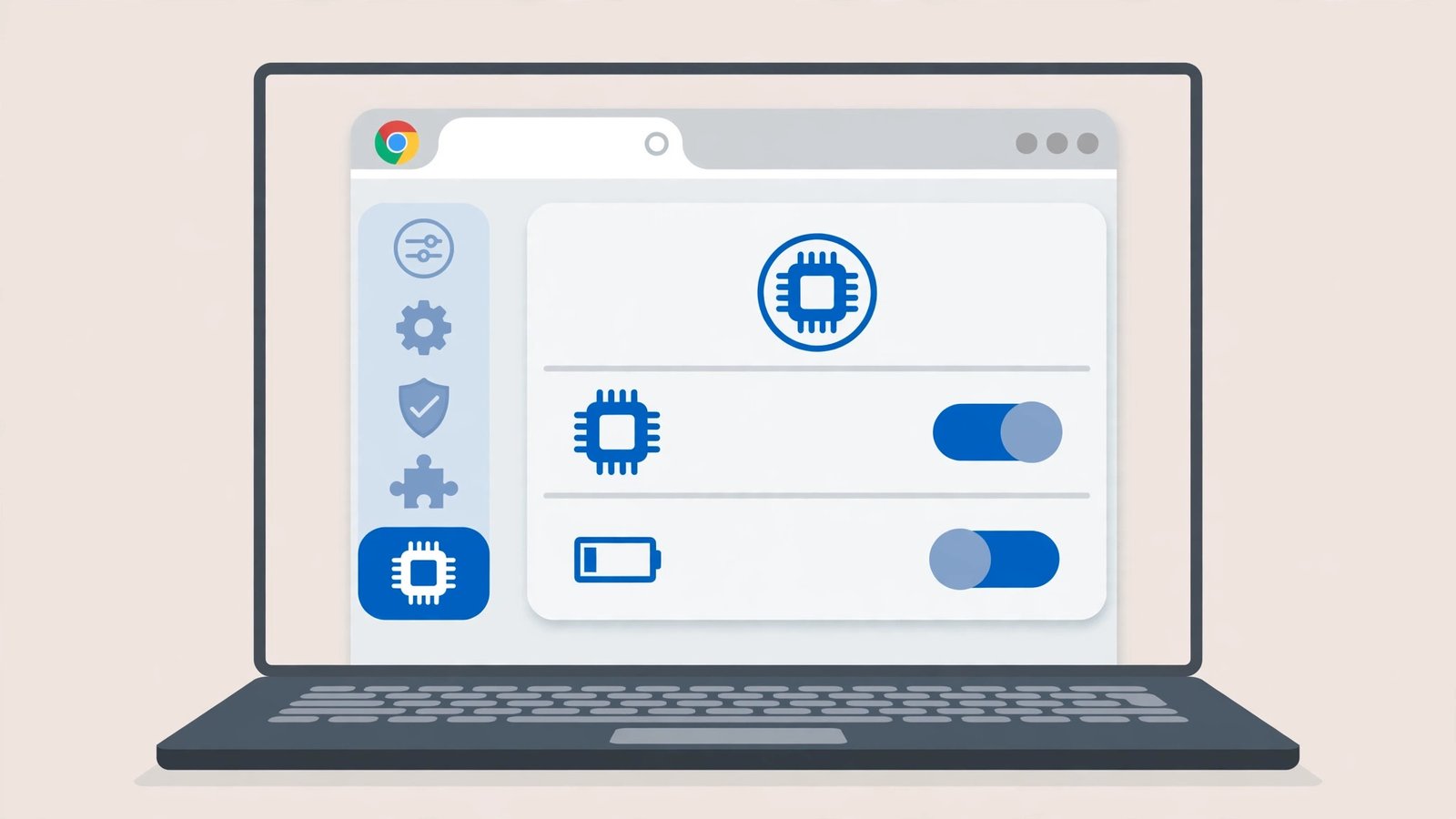
- Go to Settings > System.
- Find “Use hardware acceleration when available”.
- If it is ON, turn it OFF, click Relaunch, and test page speeds.
- If it is OFF, turn it ON, relaunch, and test.
- Keep whichever setting loads pages faster on your machine.
There is no universally right answer — it depends on your graphics driver. Test both, keep the winner. If the whole browser stutters rather than just loading slowly, this toggle is even more likely to be the answer. And if Chrome keeps crashing outright, our Google Chrome keeps crashing guide is the next stop.
Fix 7: Reset Chrome Settings
Years of tweaks, experiments, and extension leftovers can leave Chrome in a slow state no single toggle explains. A reset returns it to factory-fresh settings.
- Go to Settings > Reset settings.
- Click “Restore settings to their original defaults” and confirm.
- This disables all extensions and resets startup pages, search engine, and pinned tabs — but keeps bookmarks, history, and passwords.
- Re-enable only essential extensions.
- Test your pages.
A reset is the “clean slate” that fixes the unexplainable slowdowns — the ones where everything looks right but pages still crawl. It takes two minutes and is far less disruptive than it sounds.
Fix 8: Scan for Malware
Adware and browser hijackers slow page loads by injecting ads and redirecting traffic. If Chrome slowed down suddenly and nothing else helped, scan.
- In Chrome, go to Settings > Reset settings > “Clean up computer” (on Windows versions that offer it) and run “Find”.
- Run a full scan with Windows Security (Start > Windows Security > Virus & threat protection > Scan options > Full scan).
- Remove anything found and restart the PC.
- Check
chrome://extensionsfor extensions you did not install — remove them. - Check your search engine and homepage in Settings — hijackers change these.
If scans find nothing and Chrome is still slow, the cause is likely system-wide: a full disk, too little RAM, or an aging drive. Open Task Manager (Ctrl+Shift+Esc) while pages load and watch the Performance tab — if the disk sits at 100 percent, the drive is the bottleneck, not Chrome. An old spinning hard drive makes every browser feel slow, and no browser setting overcomes failing hardware. For certificate-warning pages rather than slow ones, see Chrome connection not private fix.
What to Avoid
- Do not install “Chrome speed booster” extensions — they are the problem wearing a disguise.
- Do not disable JavaScript to speed up pages — it breaks the modern web.
- Do not clear the cache daily as “maintenance” — it makes browsing slower, not faster.
- Do not run two ad blockers at once — they double the page-processing work.
- Do not blame your provider before testing another browser — measure first.
- Do not edit Chrome’s experimental flags for speed — most “speed flags” are placebo or unstable.
Frequently Asked Questions
Why is Chrome slow but Edge is fast on the same PC?
Because the problem is in Chrome’s profile: its cache, its extensions, or its settings. Edge uses the same engine but a clean profile. Fixes 2, 3, and 7 bring Chrome back to a similarly clean state.
Will more RAM make Chrome pages load faster?
Only if RAM is the bottleneck. If Task Manager shows memory maxed out during browsing, yes. If RAM is fine and pages still crawl, the cause is elsewhere — usually extensions or cache.
Does having many tabs open slow down page loads?
Yes, especially with heavy sites. Each tab uses memory and CPU, leaving less for the page you are reading. Close tabs you are not using, or let Chrome’s Memory Saver sleep them.
Why are only some websites slow?
That is usually the website’s own servers, not your browser. Test with a big, fast site — if that loads quickly while a small site crawls, the small site is the problem.
Should I switch to another browser?
Try the fixes first. Chrome’s slowness is almost always fixable profile cruft, and switching browsers just moves your extensions and habits without fixing the underlying behaviour.
Does a slow page load use more mobile data?
It can, slightly. Retries, preloading (Fix 4), and heavy extensions all download extra data. On a metered connection, turning off preloading and trimming extensions saves both time and megabytes. If you tether your laptop to your phone, these savings are noticeable on your data allowance.
Why do pages load slowly only on Wi-Fi but fine on mobile data?
Then the problem is your network, not Chrome. Restart your router, move closer to it, or switch its DNS to a fast public resolver. Testing the same page on mobile data isolates the cause in seconds — if data is fast and Wi-Fi is slow, every Chrome fix in the world will not help until the network is sorted.
Can antivirus software slow down page loads?
Yes. Real-time web shields scan every page before it renders, adding a delay to each load. If pages suddenly slowed after an antivirus update, pause its web protection briefly and test. Do not leave it off — instead, add Chrome as a trusted application or switch the shield to a lighter mode if your antivirus offers one.
Conclusion
When chrome pages are loading slowly, resist the urge to blame the internet. Test another browser, clear the cache, interrogate your extensions, and toggle preloading and hardware acceleration. One of these is the brake in nearly every case, and releasing it restores the snappy Chrome you remember. Keep your extensions lean afterwards — a fast Chrome is a tidy Chrome.