

There is a special frustration in seeing your headphones listed as “Connected” in Bluetooth settings while total silence comes out of them. When windows 11 bluetooth headphones connected but no sound is your situation, the Bluetooth link itself is fine — the problem is that Windows is sending the audio somewhere else, or the headphones are stuck in the wrong mode.
This is one of the most common Bluetooth complaints on Windows 11, and it is almost never a hardware fault. The fixes below go from the thirty-second sound-setting check to driver repairs, in order. Test your audio after each fix — most people hear sound again by Fix 2.
Table of Contents
- Quick Checks
- Diagnosing windows 11 bluetooth headphones connected but no sound
- Fix 1: Set the Headphones as the Default Output
- Fix 2: Forget and Re-Pair the Headphones
- Fix 3: Restart the Bluetooth Services
- Fix 4: Update the Bluetooth and Audio Drivers
- Fix 5: Check the Per-App Volume Settings
- Fix 6: Disable the Handsfree Telephony Profile
- Fix 7: Reset the Headphones
- What to Avoid
- Frequently Asked Questions
- Conclusion
- Helpful Official Resources
Quick Checks
Start with the obvious — it is embarrassing how often one of these is the answer.
- Turn the headphone volume up — both on the headphones and in Windows (click the speaker icon in the taskbar).
- Make sure the headphones are not connected to your phone at the same time. Many headphones connect to two devices and play from the wrong one.
- Check the headphones are charged. Low battery can cause pairing without audio.
- Play audio from a different app — the problem might be one silent app, not the headphones.
- Move closer to the laptop. Bluetooth audio stutters and drops beyond a few metres, especially through walls.
Diagnosing windows 11 bluetooth headphones connected but no sound
| Symptom | Cause | Go to Fix |
|---|---|---|
| Sound comes from laptop speakers instead | Wrong default output device | Fix 1 |
| Headphones worked yesterday, silent today | Corrupt pairing | Fix 2 |
| No sound in one app, fine in others | Per-app output setting | Fix 5 |
| Terrible quality, like a phone call | Stuck in Hands-Free (HFP) mode | Fix 6 |
| Never worked on this PC | Driver issue | Fix 4 |
| Works on phone, not on laptop | Windows-side problem | Fix 1 through Fix 4 |
Fix 1: Set the Headphones as the Default Output
Windows often connects the headphones but keeps the laptop speakers as the playback device. This single setting fixes the majority of silent-headphone cases.
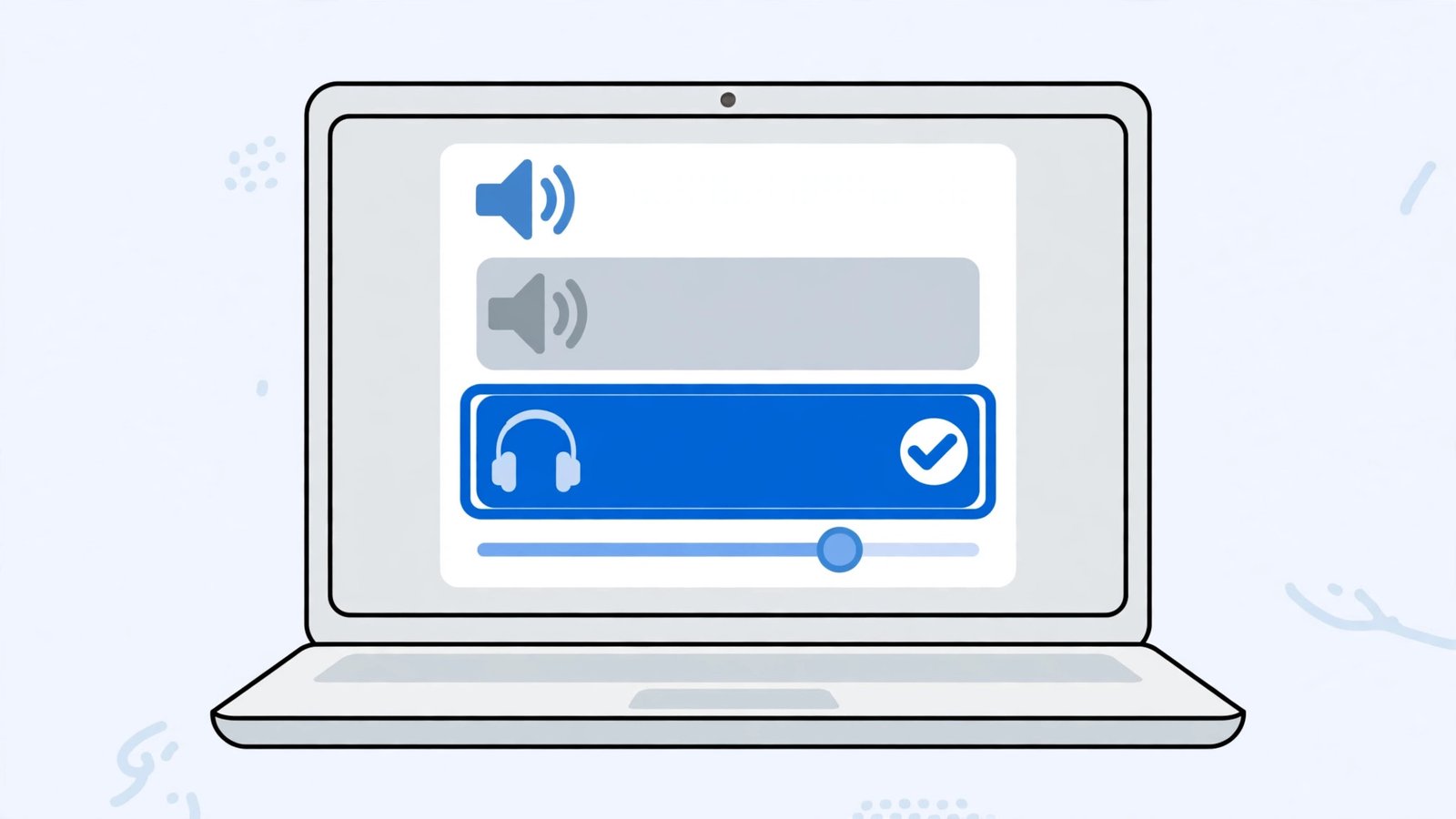
- Click the speaker icon in the taskbar, then click the small arrow (or the “>” next to the volume slider).
- Choose your headphones from the output list. Their name usually appears with “Stereo” — pick that, not “Hands-Free”.
- Play something and listen.
- If it still plays through the speakers, open Settings > System > Sound.
- Under Output, select your headphones, then click the arrow next to them and choose “Set as default”.
- While you are there, check the volume slider is up and not muted.
The “Stereo” versus “Hands-Free” choice matters enormously — Hands-Free is a low-quality call mode. Always choose the Stereo entry for music and video. If no sound plays from any device on your PC, our Windows 11 sound not working guide covers system-wide audio failure.
Fix 2: Forget and Re-Pair the Headphones
Bluetooth pairings corrupt silently. The device shows “Connected” because the link exists, but the audio profile underneath is broken. A fresh pairing rebuilds it.
- Open Settings > Bluetooth & devices > Devices.
- Find your headphones, click the three dots, and choose “Remove device”. Confirm.
- Put your headphones into pairing mode (usually hold the power or Bluetooth button until the light flashes — check your model’s manual).
- In Windows, click “Add device” > Bluetooth.
- Select your headphones from the list and wait for “Connected”.
- Immediately set them as the default output again (Fix 1), because Windows may default to the speakers after re-pairing.
If the headphones refuse to enter pairing mode, they may still be connected to your phone — turn the phone’s Bluetooth off temporarily. For broader Bluetooth troubles beyond audio, see our Windows 11 Bluetooth not working guide.
Fix 3: Restart the Bluetooth Services
Windows runs background services that manage Bluetooth audio. When one stalls, devices connect but audio never starts.
- Press Windows + R, type
services.msc, and press Enter. - Find “Bluetooth Audio Gateway Service”. Right-click it and choose Restart.
- Find “Bluetooth Support Service”. Right-click it and choose Restart.
- Double-click “Bluetooth Support Service”, set “Startup type” to Automatic, and click OK.
- Disconnect and reconnect your headphones (turn them off and on).
- Test audio again.
Stalled services are a classic cause of “connected but silent” that survives reboots of the headphones but not of the service. This fix takes a minute and is completely safe. If the services were already running and set to Automatic, the stall was temporary — but if you find them stopped again after the next reboot, something is disabling them, and a driver reinstall (Fix 4) is the deeper answer.
Fix 4: Update the Bluetooth and Audio Drivers
A bad driver update can break the A2DP stereo profile — the part of Bluetooth that carries music — while leaving the basic connection working.
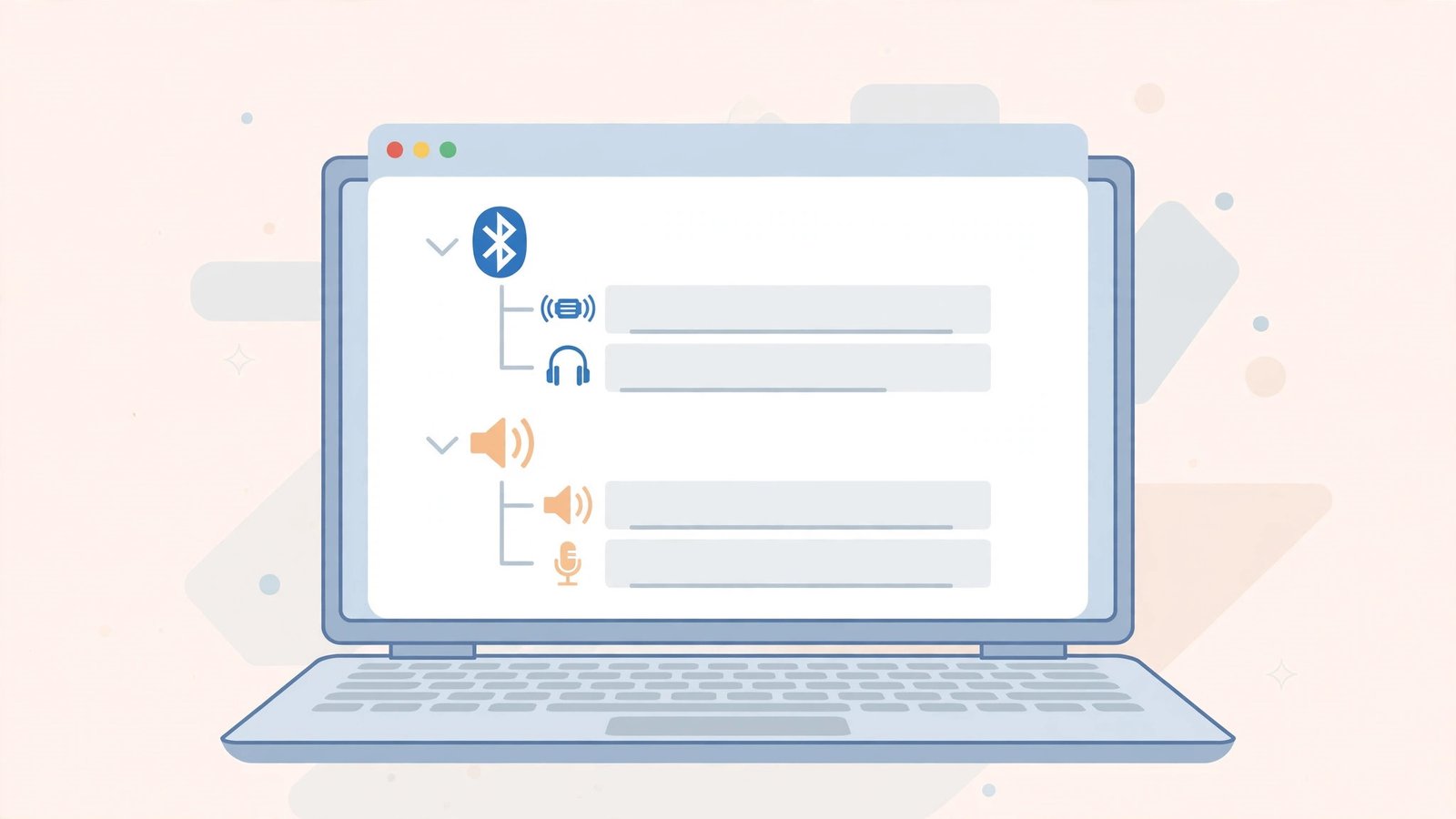
- Press Windows + X and choose Device Manager.
- Expand “Bluetooth”, right-click your Bluetooth adapter, and choose “Update driver” > “Search automatically for drivers”.
- Expand “Sound, video and game controllers” and update your audio driver the same way.
- If either shows a yellow warning, right-click > “Uninstall device”, then restart — Windows reinstalls fresh drivers.
- Check Windows Update > Advanced options > Optional updates for manufacturer Bluetooth and audio drivers.
- For the most reliable fix, download the latest Bluetooth driver from your laptop maker’s official support page for your exact model.
Do not use third-party driver updaters. After a driver reinstall, re-pair the headphones (Fix 2) so the new driver negotiates a clean audio profile.
Fix 5: Check the Per-App Volume Settings
Windows 11 lets each app use a different output device. Your system sounds may play through the headphones while your browser stubbornly uses the speakers.
- Open Settings > System > Sound > Volume mixer.
- Find the app that is silent (your browser, music player, or game).
- Check its “Output device” dropdown — set it to your headphones or to “Default”.
- Check the app’s own volume slider is up and not muted.
- Also check inside the app: many media players and games have their own audio output setting that overrides Windows.
- Restart the app after changing its output.
This catches the confusing case where YouTube is silent but Windows notification sounds play fine through the headphones. The app was simply routed elsewhere.
Fix 6: Disable the Handsfree Telephony Profile
Bluetooth headphones expose two personalities to Windows: “Stereo” (great quality, for music) and “Hands-Free” (terrible quality, for calls). When Windows picks Hands-Free — or flips to it during a call and never flips back — you get silence or awful audio.
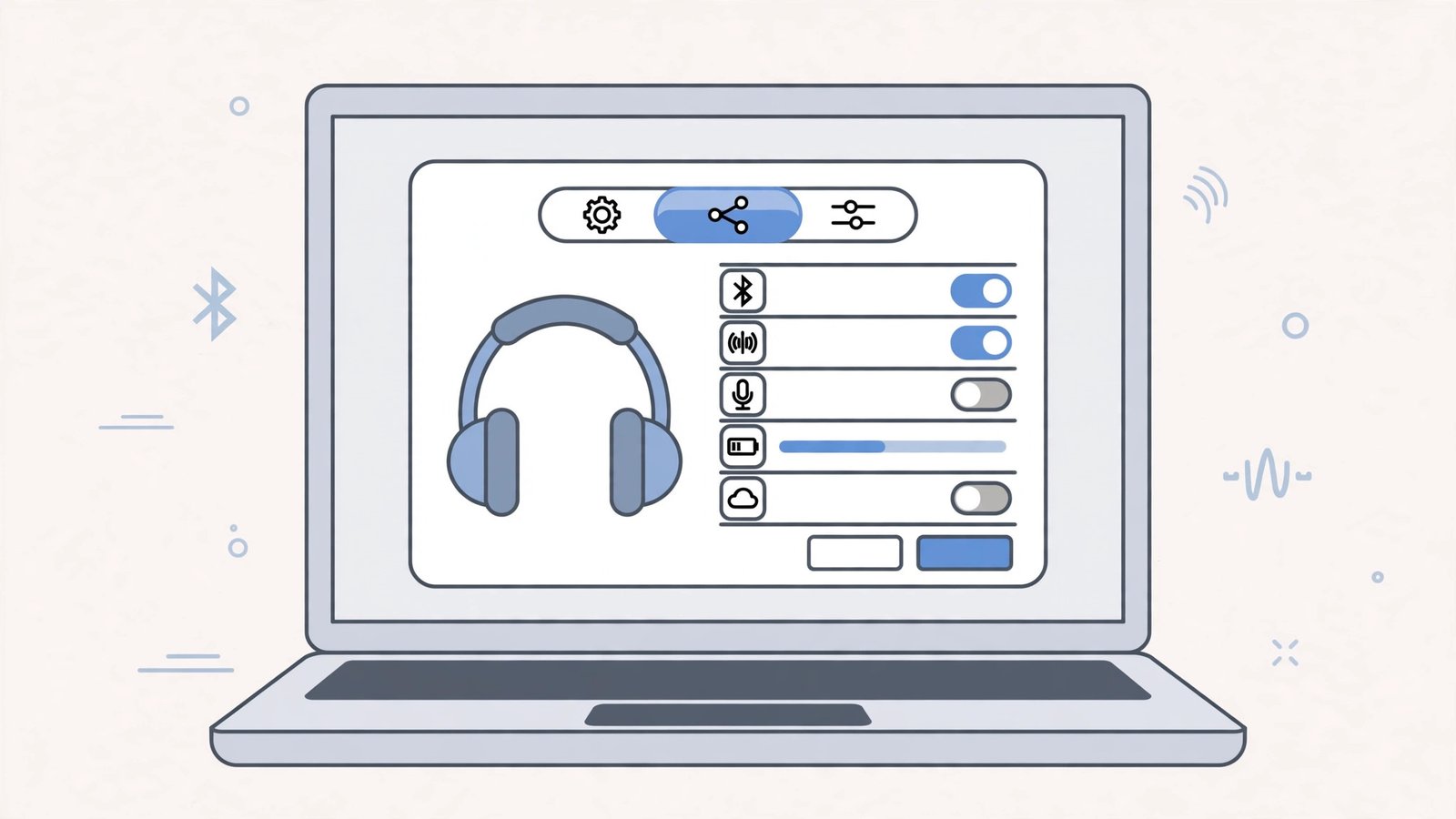
- Open Settings > Bluetooth & devices > Devices.
- Click “More Bluetooth settings” (or open Control Panel > Devices and Printers).
- Right-click your headphones and choose Properties.
- Go to the Services tab.
- Untick “Handsfree Telephony” and click OK.
- Disconnect and reconnect the headphones.
With Handsfree Telephony off, Windows can only use the high-quality Stereo profile. The trade-off: the headphone microphone may stop working for calls. If you need the mic for meetings, leave the service on but make sure the Stereo device — not Hands-Free — is the default output (Fix 1). For microphone-specific troubles, our Microsoft Teams microphone not working and Zoom audio not working on PC guides go deeper.
Fix 7: Reset the Headphones
If the headphones misbehave on every device — silent on the laptop and the phone — the headphones themselves need resetting.
- Find your model’s reset procedure (usually holding power + volume buttons for 10 seconds — check the manual).
- Perform the reset, which clears all pairings.
- Put the headphones in pairing mode and pair them fresh to the laptop.
- Set them as default Stereo output (Fix 1).
- Test with music, then with a call if you use them for meetings.
A reset also fixes headphones stuck in a half-paired state where they connect to two devices at once and play from neither. If even a reset does not help and the headphones are silent everywhere, the headphone hardware has likely failed.
What to Avoid
- Do not buy a new pair before trying Fix 1 and Fix 2 — the cause is software in the great majority of cases.
- Do not install “Bluetooth driver booster” tools — get drivers from the laptop maker only.
- Do not disable the Bluetooth Support Service — your headphones need it running.
- Do not pair the headphones to three devices at once and wonder why audio goes missing.
- Do not ignore the Stereo vs Hands-Free choice — it is the difference between music and mush.
- Do not reset Windows for a headphone problem — none of these fixes requires anything that drastic.
Frequently Asked Questions
Why do my Bluetooth headphones connect but produce no sound?
Because the Bluetooth connection and the audio routing are separate things. The link is up, but Windows is sending sound to the speakers, or the audio profile is corrupt. Setting the headphones as default output (Fix 1) or re-pairing (Fix 2) fixes it.
Why do my headphones sound like a phone call?
They are stuck in Hands-Free (HFP) mode instead of Stereo (A2DP). Choose the Stereo entry as the default output, or disable Handsfree Telephony (Fix 6) to force high quality.
My headphones work on my phone but not my laptop. Why?
That proves the headphones are fine — the problem is entirely on the Windows side. Work through Fixes 1 to 4, which are all Windows settings and drivers.
Can two devices connected at once cause silence?
Yes. Multipoint headphones sometimes play from the idle device or get confused between them. Disconnect the phone’s Bluetooth temporarily to test, then re-enable multipoint once the laptop audio works.
Do I need to keep re-pairing every day?
No — a healthy pairing persists. If you must re-pair daily, a driver or service is unstable: update the Bluetooth driver (Fix 4) and set the Bluetooth Support Service to Automatic (Fix 3).
Why does Windows switch my headphones to Hands-Free during calls?
When a call starts, Windows moves the headphones to the Hands-Free profile so the microphone works. The problem is that it sometimes never switches back to Stereo when the call ends. If music sounds terrible after a call, open the sound output picker (click the speaker icon, then the arrow) and choose the Stereo entry again. Disabling Handsfree Telephony (Fix 6) prevents the switch entirely, at the cost of the headphone microphone.
Conclusion
When windows 11 bluetooth headphones are connected but there is no sound, the answer is almost never new headphones. Check the default output device, re-pair the headphones, restart the Bluetooth services, and tame the Hands-Free profile. These fixes take minutes and restore full stereo audio in nearly every case. Keep the Stereo device as your default, and your headphones will greet you with sound — not silence — every time they connect.