

You plug out at 90% before bed. You wake up to 60% — and the phone sat untouched for eight hours. When android battery draining overnight steals a big chunk while you sleep, some app or system process is working the night shift on your battery’s behalf.
Overnight drain is actually the easiest battery problem to diagnose: the phone was idle, so whatever used the power names itself in the battery stats. This guide finds the culprit and stops it, from battery stats to bedtime settings. Nothing here deletes your data.
Table of Contents
- Quick Checks
- Diagnosing android battery draining overnight
- Fix 1: Check Battery Usage Stats
- Fix 2: Restrict the Culprit App’s Background Activity
- Fix 3: Turn On Bedtime Mode
- Fix 4: Switch Off Always-On Display Overnight
- Fix 5: Tame Night-Time Connectivity
- Fix 6: Update Apps and the System
- Fix 7: Calibrate Your Expectations (and the Battery)
- What to Avoid
- Frequently Asked Questions
- Conclusion
- Helpful Official Resources
Quick Checks
Before the detective work.
- Check the actual numbers: Settings > Battery > Battery usage — note the overnight drop and which apps top the list.
- Confirm the phone was not updating apps or the system overnight — updates explain one-off drains.
- Check signal strength where the phone sleeps — weak signal makes the radio work hard all night.
- Note whether the phone feels warm in the morning — warmth means active work, not passive drain.
- Charge to 100% tonight as a clean baseline for testing fixes.
Diagnosing android battery draining overnight
| Symptom | Cause | Go to Fix |
|---|---|---|
| One app dominates battery usage | Rogue app running all night | Fix 1, then Fix 2 |
| “Screen” is the top consumer | Always-on display / screen waking | Fix 4 |
| Drain with no clear app culprit | System processes, poor signal | Fix 5, then Fix 6 |
| Phone warm in the morning | Active background work | Fix 2, then Fix 3 |
| Happens only on weak-signal nights | Radio struggling for signal | Fix 5 |
| Drain started after an update | Buggy update | Fix 6 |
Fix 1: Check Battery Usage Stats
Android records exactly what used your battery. The overnight culprit is sitting in this list with its name on it.
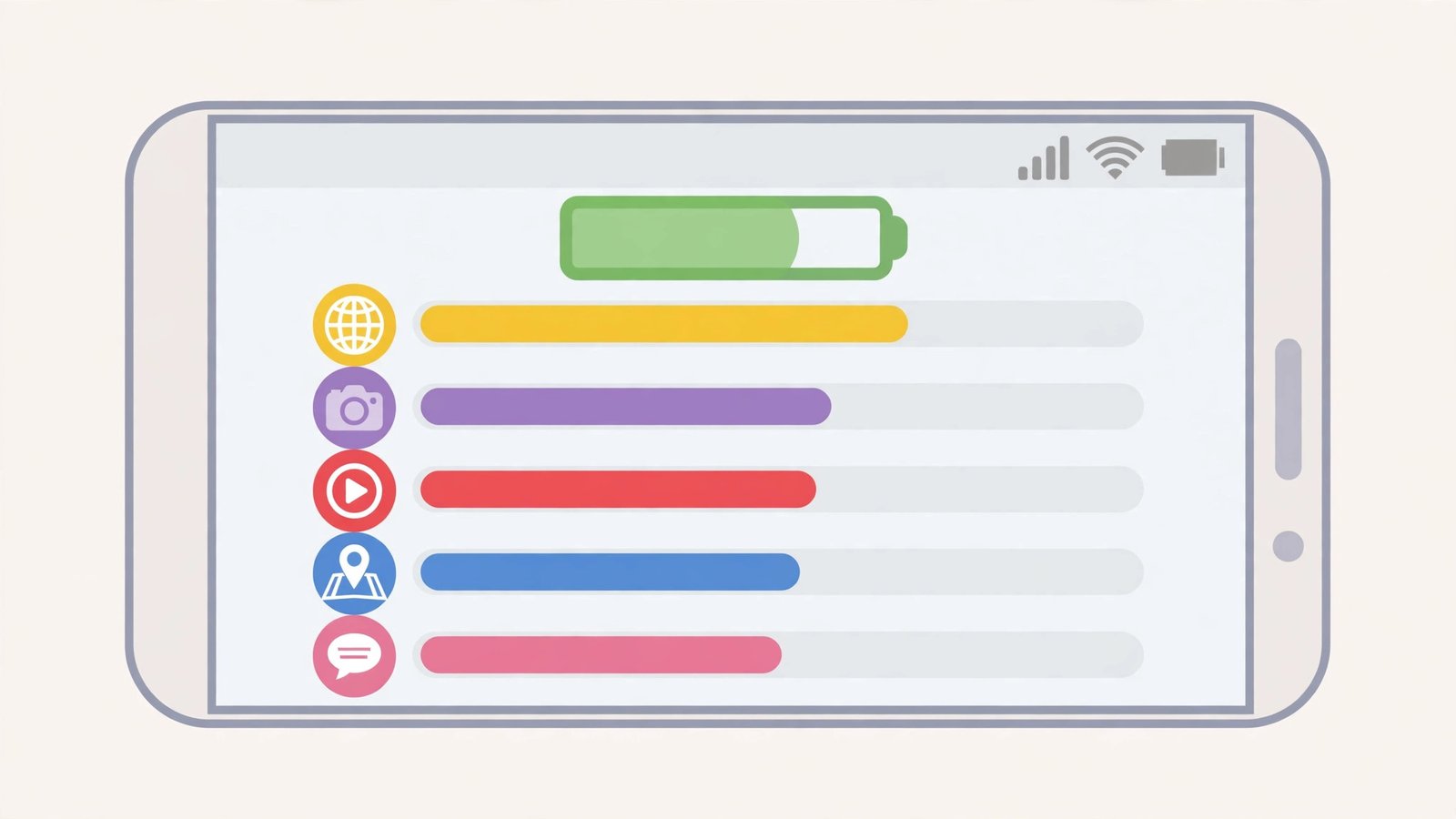
- Go to Settings > Battery > Battery usage.
- Look at the last 24 hours (or “full charge” period).
- Identify the top consumers — anything unexpected in the top 3 is a suspect.
- Tap an app to see its foreground vs background split. High background time on an app you barely use is the smoking gun.
- Check system entries too: “Screen”, “Mobile network”, and “Android System” tell their own stories.
- Screenshot the stats — you will compare after applying fixes. To get those screenshots onto your computer for a side-by-side comparison, our Android USB file transfer not working guide covers the phone-to-PC connection.
This screen is the whole investigation in one place. Most overnight drains end here with a named app — a social app syncing, a game updating, a “cleaner” app ironically burning battery. For general battery-saving technique, our battery guide is the companion read.
Fix 2: Restrict the Culprit App’s Background Activity
Found the app? Take away its night shift. Android lets you restrict background battery use per app.
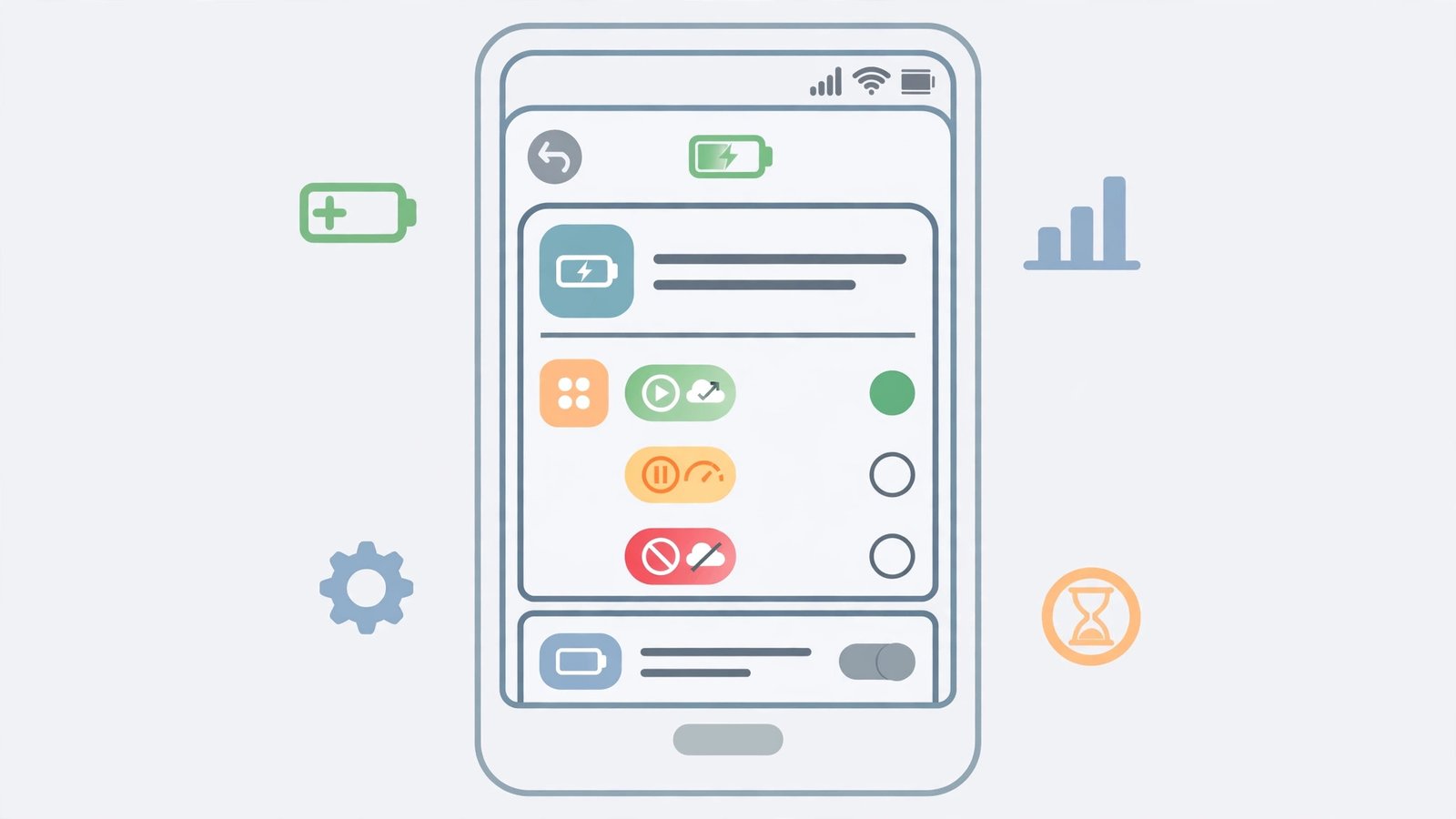
- Go to Settings > Apps > the culprit app > Battery (or App battery usage).
- Set it to “Restricted” — the app cannot run in the background at all.
- Alternatively use “Optimized” for a gentler limit that still allows some background work.
- For messaging apps you need overnight, keep them optimized rather than restricted — you still want morning notifications.
- Check the battery stats the next morning — the app’s background slice should collapse.
- If the app misbehaves when restricted (missed alarms from a clock app, for example), move it back to Optimized and restrict something else.
Restricted is the hammer; Optimized is the scalpel. Start with the hammer on apps you do not need overnight — social media, games, shopping apps. They have no business running at 3 a.m. If the phone also overheats while charging, see Android phone overheating while charging.
Fix 3: Turn On Bedtime Mode
Bedtime Mode (part of Digital Wellbeing) quiets the phone overnight: Do Not Disturb, grayscale screen, and fewer wake-ups.
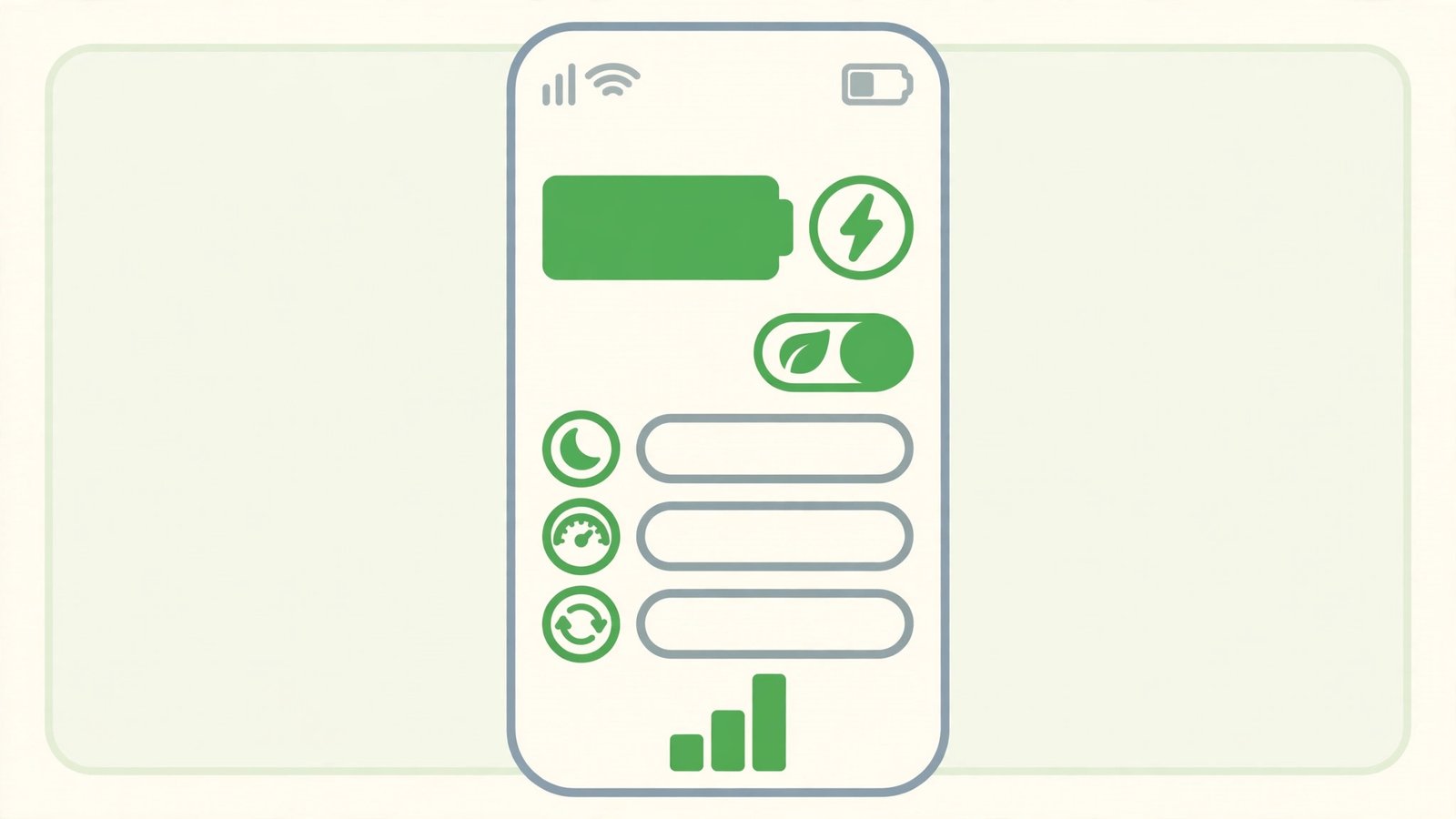
- Go to Settings > Digital Wellbeing > Bedtime mode.
- Set your sleep schedule (e.g. 11 p.m. to 7 a.m.).
- Enable “Do Not Disturb” within Bedtime Mode — fewer notifications means fewer screen wake-ups.
- Enable the grayscale option if offered — a black-and-white screen is less tempting and uses less power on OLED screens.
- Let it run for a few nights and compare the overnight drop.
Bedtime Mode attacks drain from two sides: fewer wake-ups (notifications, screen) and calmer radios. It is also simply good sleep hygiene — the battery win is a bonus.
Fix 4: Switch Off Always-On Display Overnight
Always-on display (AOD) sips battery all night to show the time. On OLED screens the sip is small; on LCD screens it is a gulp — and either way, it is unnecessary while you sleep.
- Go to Settings > Display > Lock screen (or “Always-on display”).
- Either turn AOD off entirely, or set it to “Tap to show” / schedule it off overnight.
- Some phones offer “Show for new notifications only” — a good middle ground.
- Compare the overnight drop with AOD off — on LCD phones the difference can be dramatic.
- If you miss the bedside clock, a cheap alarm clock uses no phone battery at all.
Check your battery stats first (Fix 1): if “Screen” is the top overnight consumer, AOD is almost certainly the reason. This is one of the highest-impact single toggles for overnight drain.
Fix 5: Tame Night-Time Connectivity
Radios are hungry, and a phone hunting for weak signal all night burns serious power. A few connectivity choices change the math.
- If your nightstand has weak signal, enable airplane mode overnight (with Wi-Fi on if you need morning alarms/notifications to sync) — the cellular radio is the biggest idle consumer.
- Turn off “Mobile data always active” in Developer options if it is on.
- Disable Wi-Fi/Bluetooth scanning (Settings > Location > Wi-Fi/Bluetooth scanning) — the phone stops hunting for networks it will not join.
- If you use a smartwatch, its overnight sync is small but real — charge the watch separately and pause sync if drain is severe.
- Keep the phone cool — heat increases idle drain; do not sleep it under a pillow.
Airplane-with-Wi-Fi is the overnight champion: alarms work, messages arrive on Wi-Fi, and the cellular radio — the hungriest idle component — sleeps. If your mobile data misbehaves in normal use too, our Android mobile data not working guide fixes the underlying connection. And turn location off overnight — a GPS hunting for signal in a bedroom burns power for nothing; if location accuracy is poor generally, our Android GPS not accurate guide fixes that.
Fix 6: Update Apps and the System
Battery-draining bugs get fixed in updates. A single misbehaving app version can drain overnight until its patch arrives.
- Open the Play Store > profile > Manage apps > Update all.
- Go to Settings > System > System update and install anything pending.
- After updating, watch the battery stats for two nights — patched apps drop out of the top consumers.
- If drain started right after an update, check the app’s Play Store reviews — widespread battery complaints get fixed fast.
- As a stopgap, restrict the offending app’s background activity (Fix 2) until its fix lands.
Updates are the long game of battery health. The app that drained last month is patched this month — staying current is how you collect those fixes.
Fix 7: Calibrate Your Expectations (and the Battery)
Some overnight drop is normal. Knowing what is normal stops you chasing a healthy phone.
- Normal overnight drain over 8 idle hours is a small single-digit percentage, depending on signal, AOD, and sync settings. If you are losing a large chunk (a fifth of the battery or more), it deserves investigation.
- If the battery gauge itself seems wrong (drops a big chunk instantly, or sticks at a number), calibrate: drain to a low level, charge uninterrupted to full, then restart.
- Check battery health if your phone reports it (Settings > Battery > Battery health on Pixels and some brands). When the health reading is well below the battery’s original capacity, overnight drain worsens because the whole battery is smaller.
- An old battery (3+ years) drains faster at idle — chemistry ages. A battery replacement restores overnight stamina.
- Do not “calibrate” weekly — one careful cycle is enough; frequent deep drains wear the battery.
Chasing 0% overnight drain is chasing a ghost — radios, clocks, and sync need some power. The goal is single digits, not zero. If fast charging has also stopped working, our fast-charging guide is the next read.
What to Avoid
- Do not install “battery saver” or “battery booster” apps — they run constantly and drain the very battery they claim to save.
- Do not kill apps obsessively with task killers — Android manages memory better than they do, and relaunching costs more power.
- Do not charge overnight on a hot pillow — heat ages the battery.
- Do not ignore a warm phone in the morning — warmth means something worked all night; find it (Fix 1).
- Do not factory-reset for battery drain — the stats (Fix 1) always name a cheaper fix.
- Do not expect 0% overnight drain — single digits is the healthy target.
Frequently Asked Questions
How much overnight battery drain is normal?
A small single-digit percentage over 8 idle hours. Consistently losing a large chunk of battery overnight means something is wrong — check the battery stats (Fix 1).
Why is my phone warm in the morning?
Something worked hard overnight — an app syncing, updating, or stuck in a loop. Warmth plus drain means active background work; restrict the culprit (Fix 2).
Does airplane mode overnight really help?
Yes — the cellular radio is the biggest idle power draw, especially on weak signal. Airplane mode with Wi-Fi on keeps messages and alarms working while the radio sleeps.
Should I close all apps before bed?
No — Android freezes background apps efficiently. Force-closing everything can increase drain, because relaunching apps costs more power than leaving them frozen.
Will a battery replacement fix overnight drain?
If the battery is old (3+ years) or health is below 80%, yes — a smaller, aged battery makes normal idle drain look dramatic. But check for rogue apps first; most overnight drain is software.
Why does my battery drain faster on some nights than others?
Nights are not identical. An app updating overnight, a system update downloading, poor signal from bad weather, or a restless smartwatch syncing more — any of these spikes one night’s drain. Judge by the pattern over a week, not a single night. One bad night after an app update is normal; every night is a problem worth fixing.
Can my smartwatch cause the phone’s battery to drain overnight?
A little. The Bluetooth connection stays alive and syncs health data periodically through the night. It is small — a few percent at most — but on a phone already near the edge, it shows. Charge the watch separately overnight and pause its sync if you are diagnosing drain; add it back once the baseline is healthy.
Conclusion
When android battery is draining overnight, the battery stats are the detective: they name the app, and restriction (Fix 2) ends its night shift. Bedtime Mode, AOD off, and airplane-with-Wi-Fi handle the rest. Aim for single-digit overnight loss — that is a healthy phone sleeping soundly, and it will greet the morning with charge to spare.