


You hear your phone buzz in your pocket, but when you glance at the lock screen, there is nothing there. When android lock screen notifications not showing becomes the norm, you end up unlocking your phone dozens of extra times a day just to check what you missed — and sooner or later, you miss something important. The good news is that this is a settings problem, not a broken phone, and it is usually fixed in under five minutes.
Lock screen notifications are controlled by several layers of settings: a master switch for the lock screen itself, per-app notification permissions, notification channels inside each app, Do Not Disturb rules, and battery optimisation that can silence apps in the background. If any layer blocks the notification, the lock screen stays empty. This guide walks you through nine fixes in the order that finds the problem fastest. Test by sending yourself a message after each fix and checking the lock screen without unlocking.
Table of Contents
- Quick Checks
- Diagnose the Problem
- Why Android Lock Screen Notifications Not Showing Is So Common
- Fix 1: Turn On Lock Screen Notifications
- Fix 2: Check Per-App Notification Settings
- Fix 3: Check Notification Channels Inside the App
- Fix 4: Turn Off Do Not Disturb and Check Its Schedules
- Fix 5: Show Sensitive Notification Content
- Fix 6: Disable Battery Optimisation for the App
- Fix 7: Restart Your Phone
- Fix 8: Check Lock Screen Style and Third-Party Lock Screen Apps
- Fix 9: Reset App Preferences and Update Your System
- What to Avoid
- Frequently Asked Questions
- Conclusion
- Helpful Resources
Quick Checks
- Open Settings > Notifications and make sure lock screen notifications are set to show — this master switch is the most common culprit.
- Check that Do Not Disturb is off — swipe down Quick Settings and look for the crescent moon icon.
- Pick one app (like Messages) and confirm its notifications are enabled under Settings > Apps > Messages > Notifications.
- Turn your screen off, send yourself a test message from another device, and watch the lock screen without unlocking.
- Restart your phone once — a stuck notification service is often cleared by a simple reboot.
Diagnose the Problem
| Symptom | Cause | Go to Fix |
|---|---|---|
| No app shows notifications on the lock screen at all | Lock screen notifications master switch is off | Fix 1 |
| Some apps show notifications, others never do | Per-app notification settings are disabled | Fix 2 |
| Notifications appear but say “content hidden” | Sensitive content is set to hide on the lock screen | Fix 5 |
| Notifications show at first, then stop after a while | Battery optimisation is killing the app in the background | Fix 6 |
| Nothing shows during certain hours (e.g. at night) | A Do Not Disturb schedule is active | Fix 4 |
| One specific type of alert (e.g. message previews) is missing | A notification channel inside the app is off | Fix 3 |
| Problem started after a system update | Notification settings were reset | Fix 9 |
Why Android Lock Screen Notifications Not Showing Is So Common
Android’s notification system has grown more powerful — and more complicated — with every release. What used to be a single on/off switch is now a stack of controls: the lock screen master switch, per-app toggles, notification channels within each app, Do Not Disturb filters, and battery optimisation rules that can quietly revoke an app’s right to alert you. Each layer was added for a good reason, but together they create many places where a notification can get blocked without any obvious warning.
The most confusing part is that these layers can contradict each other silently. You can enable notifications for WhatsApp and still see nothing on the lock screen because the master lock screen switch is off — or because Do Not Disturb is on a schedule you forgot. That is why the fixes below go layer by layer, from the master switch down to the deepest settings. Follow them in order, and you will find the exact layer that is blocking you.
Fix 1: Turn On Lock Screen Notifications
This master switch controls whether any notification appears on the lock screen at all. It is the first thing to check, because if it is off, none of the other fixes matter.
- Open Settings > Notifications (on Samsung: Settings > Notifications > Lock screen notifications).
- Make sure the lock screen notification option is turned on.
- On Pixel and stock Android, tap Notifications on lock screen and choose Show conversations, default, and silent (or Show all notification content).
- On Samsung, toggle on Lock screen notifications and set View style to Detailed so you see the full content.
- Lock your phone and send yourself a test message to confirm.
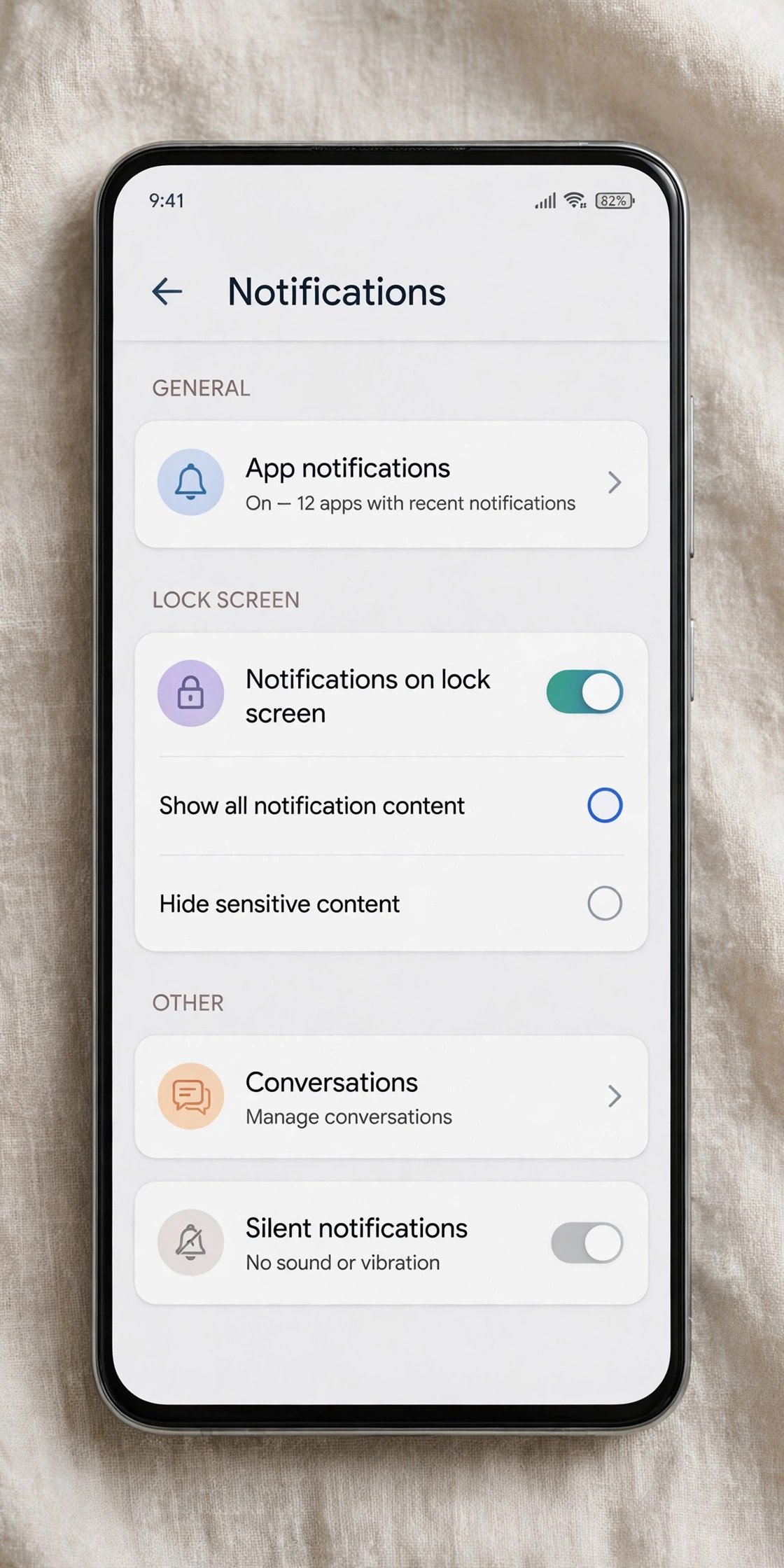
If this switch was already on, leave it on and continue — the blockage is in one of the deeper layers below.
Fix 2: Check Per-App Notification Settings
Even with the master switch on, each app has its own notification toggle. If messages from one app never appear on the lock screen while others do, that app’s toggle is almost certainly off.
- Open Settings > Apps > See all apps and tap the app that is not showing notifications.
- Tap Notifications and make sure All notifications (or Show notifications) is turned on.
- Repeat for every app you want on the lock screen — messaging apps, email, calendar, and banking apps are the usual suspects.
- Also check Settings > Notifications > App notifications for a full list, which lets you enable several apps quickly.
Pay special attention to apps you “cleaned up” in the past — disabling an app’s notifications to stop spam also stops its lock screen alerts, and it is easy to forget you did it.
Fix 3: Check Notification Channels Inside the App
Modern Android apps divide their notifications into channels (also called categories) — for example, a messaging app might have separate channels for direct messages, group messages, and message reactions. If one channel is off, that specific type of alert never reaches your lock screen even though the app’s main toggle is on.

- Open Settings > Apps > See all apps, tap the app, then tap Notifications.
- Look at the list of notification categories (channels) below the main toggle.
- Make sure every channel you care about is turned on — especially message, call, and reminder channels.
- Tap into an important channel and check its importance level is set to Default or High, not Silent — silent channels never appear on the lock screen.
This fix surprises a lot of people, because the app’s main notification switch can be fully on while a single channel quietly blocks the exact alerts they are waiting for.
Fix 4: Turn Off Do Not Disturb and Check Its Schedules
Do Not Disturb does not just silence sounds — depending on your settings, it can also hide notifications from the lock screen entirely. If your lock screen goes quiet at the same times every day, a DND schedule is the likely cause.
- Swipe down from the top of the screen and check whether the Do Not Disturb tile (crescent moon) is active — turn it off if so.
- Open Settings > Sound & vibration > Do Not Disturb and look for any active Schedules; turn off every schedule you do not want.
- Check Settings > Digital Wellbeing > Bedtime mode — its schedule can also enable Do Not Disturb and hide lock screen notifications at night.
- Under Do Not Disturb settings, check what DND is set to hide: look for display options controlling whether notifications appear on the lock screen while DND is on.
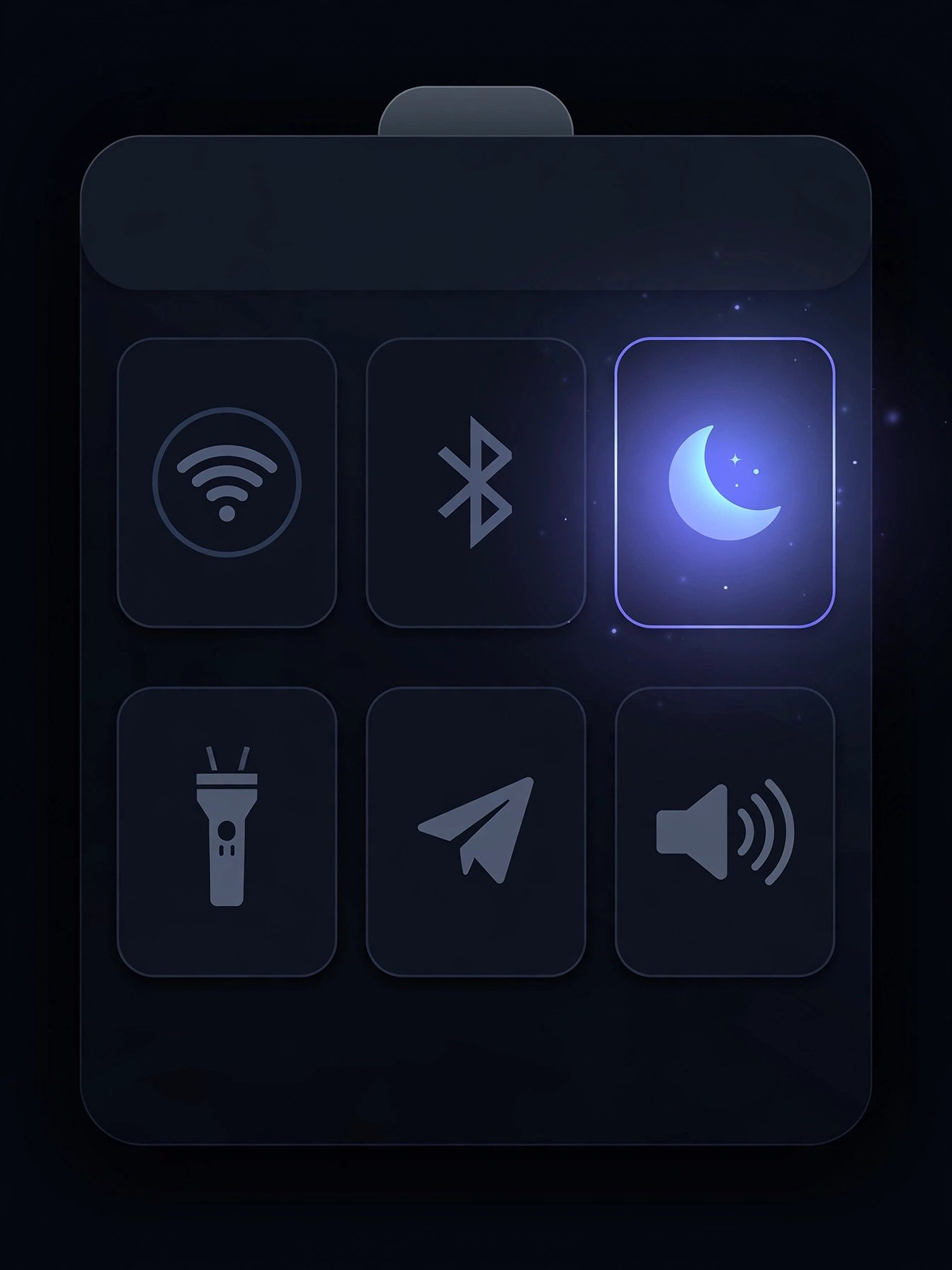
After disabling DND and its schedules, lock your phone and test again. If notifications return, you have found the cause — consider keeping DND but adjusting its schedules rather than fighting it.
Fix 5: Show Sensitive Notification Content
If notifications appear on your lock screen but only as “Content hidden” — or as a bare app icon with no details — your phone is set to hide sensitive content for privacy. That is working as designed, but if you want to see message previews, you need to change it.
- Open Settings > Notifications > Notifications on lock screen (on Samsung: Settings > Lock screen > Notifications > View style).
- Choose Show all notification content instead of Hide sensitive content.
- On Samsung, set the view style to Detailed rather than Icons only — icons-only mode shows just the app icon with no text.
- Note that some work-profile apps enforce hidden content by company policy; those cannot be changed on the phone.
This is a privacy trade-off worth thinking about: showing full content is convenient but means anyone glancing at your phone can read your messages. Choose the setting that fits how and where you use your phone.
Fix 6: Disable Battery Optimisation for the App
Android’s battery optimisation can put apps to sleep in the background to save power — and a sleeping app cannot deliver notifications to your lock screen. This typically shows up as notifications that arrive late, or that stop arriving some time after you last opened the app.
- Open Settings > Apps > See all apps, tap the affected app, then tap Battery (or App battery usage).
- Set it to Unrestricted (on Samsung: Unrestricted under battery settings; on Pixel: Don’t optimise is found via Settings > Apps > Special app access > Battery optimisation).
- Also check Settings > Battery > Battery Saver and Adaptive Battery — turn off Adaptive Battery temporarily to test whether it was the cause.
- Reopen the app once, then lock your phone and send a test notification.

Messaging and email apps are the most affected by this, because they need to stay awake to receive new messages. Exempting them from optimisation is safe and barely affects battery life.
Fix 7: Restart Your Phone
The notification service is a background system process, and like any process, it can get stuck. When it does, notifications may arrive in apps but never make it to the lock screen. A restart gives the whole notification pipeline a clean start.
- Press and hold the power button and tap Restart.
- After the phone boots fully, do not open any apps yet — lock the screen immediately.
- Send yourself a test message from another device and watch the lock screen.
If notifications appear right after a restart but disappear again later, something is interfering over time — usually battery optimisation (Fix 6) or a third-party app like a task killer. Address those rather than restarting repeatedly.
Fix 8: Check Lock Screen Style and Third-Party Lock Screen Apps
Some lock screen customisations hide notifications by design. Third-party lock screen apps, minimalist lock screen themes, and certain Always On Display settings can all suppress notification cards.
- If you installed a third-party lock screen app, disable or uninstall it temporarily and test with the default lock screen.
- On Samsung, check Settings > Lock screen > Notifications and make sure Hide content is off and Show on Always On Display is on if you use AOD.
- Check Settings > Display > Screen saver — an active screen saver can cover notifications on some phones.
- If you use a custom launcher, check its lock screen or notification badge settings for anything that hides alerts.
The default system lock screen is the most reliable for notifications. If everything works with the default but not with your customisation, the customisation was the problem — look for its notification settings or consider living without it.
Fix 9: Reset App Preferences and Update Your System
If nothing above worked, finish with the two deepest fixes. Resetting app preferences restores every app’s permissions, notification settings, and default choices to their original state without deleting your data — clearing out any misconfiguration you cannot find manually. A system update fixes bugs in the notification service itself.
- Open Settings > System > Reset options (on Samsung: Settings > General management > Reset).
- Tap Reset app preferences and confirm — your files, photos, and accounts stay untouched.
- Re-enable notifications for your key apps (Fix 2), since the reset turns some toggles back to defaults.
- Open Settings > System > System update and install any available update.
- Restart once more and run your lock screen test.
System updates sometimes change notification behaviour — after a major Android upgrade, it is normal to spend a few minutes re-checking these settings, because defaults can shift between versions.
What to Avoid
- Do not install third-party “notification fixer” apps — they need deep system access and rarely solve what the built-in settings cannot.
- Do not disable the Android System or System UI apps while troubleshooting — that can break notifications and the lock screen entirely.
- Do not turn off all notifications in frustration — fix the lock screen layers instead, so you keep the alerts you actually want.
- Do not use aggressive task-killer or “RAM booster” apps — they kill the background processes that deliver your notifications.
- Do not ignore Do Not Disturb schedules just because DND looks off right now — schedules turn it on later without asking.
- Do not factory reset for missing lock screen notifications — the cause is always in the settings layers above, and a reset wipes your data without teaching you which one.
Frequently Asked Questions
Why are my notifications not showing on the lock screen at all?
The master lock screen notification switch is probably off. Go to Settings > Notifications and make sure lock screen notifications are enabled and set to show content, then check Do Not Disturb.
Why do some apps show notifications on the lock screen but others don’t?
Each app has its own notification toggle under Settings > Apps > [app] > Notifications. Apps you silenced in the past stay silenced until you turn them back on individually.
Why does my lock screen say “content hidden” instead of showing messages?
Your phone is set to hide sensitive notification content for privacy. Change it under Settings > Notifications > Notifications on lock screen by choosing Show all notification content.
Why do notifications stop appearing a while after I open the app?
Battery optimisation is putting the app to sleep in the background. Set the app’s battery usage to Unrestricted under Settings > Apps > [app] > Battery so it can stay awake and deliver alerts.
Can Do Not Disturb hide lock screen notifications?
Yes. Depending on your settings, Do Not Disturb can hide notifications from the lock screen as well as silence them. Check for forgotten DND schedules if your lock screen goes quiet at regular times.
Do notification channels really matter?
Yes. An app can have its main notification switch on while one specific channel — like message previews — is off or set to Silent. Check Settings > Apps > [app] > Notifications and review every channel listed there.
Will resetting app preferences delete my photos or chats?
No. Resetting app preferences only restores permissions, notification settings, and default-app choices. Your photos, files, chats, and accounts are completely unaffected.
Why did lock screen notifications stop working after a system update?
Major Android updates can reset notification defaults and change how battery optimisation treats apps. Re-check the master switch, per-app toggles, and battery settings after every big update.
Conclusion
When Android lock screen notifications are not showing, the fix is about working through the layers: the master lock screen switch, each app’s toggle, notification channels, Do Not Disturb schedules, content privacy, and battery optimisation. One of those layers is always the blocker, and the nine fixes above check them in the order that finds it fastest. Run your test message after each change, and your lock screen will be showing every important alert again — no more unlocking just to check.
[…] seconds once you know where to look. If notifications from other apps are also going missing, our Android lock screen notifications not showing guide covers the wider notification […]