

You long-press, tap Copy, switch apps, long-press to paste — and there is nothing to paste. Or Gboard’s clipboard panel opens empty, as if you never copied anything. When android clipboard not showing copied text breaks your copy-paste flow, every repeated address, password, and link becomes retyping.
On most Android phones, clipboard history lives in Gboard. Its clipboard feature can be toggled off, its history can expire, or the app you are pasting into can block pasting. This guide restores clipboard visibility in order. Nothing here deletes your data.
Table of Contents
- Quick Checks
- Diagnosing android clipboard not showing copied text
- Fix 1: Turn On Gboard’s Clipboard
- Fix 2: Pin What You Copied
- Fix 3: Check the One-Hour Expiry
- Fix 4: Clear Gboard’s Cache
- Fix 5: Set Gboard as the Default Keyboard
- Fix 6: Test in a Plain App
- Fix 7: Restart the Phone
- What to Avoid
- Frequently Asked Questions
- Conclusion
- Helpful Official Resources
Quick Checks
Instant checks first.
- Copy a short word from a notes app, then open Gboard’s clipboard (tap the clipboard icon above the keys) — does it appear there?
- Try pasting with a long-press in the text field — does a “Paste” bubble appear even if the clipboard panel is empty?
- Check whether you are in a password field — many apps block clipboard history in secure fields by design.
- Confirm Gboard is the keyboard actually open (Fix 5).
- Note how long ago you copied — Gboard’s clipboard expires items after one hour (Fix 3).
Diagnosing android clipboard not showing copied text
| Symptom | Cause | Go to Fix |
|---|---|---|
| Clipboard panel is empty, always | Clipboard feature off in Gboard | Fix 1 |
| Items vanish after a while | One-hour expiry (by design) | Fix 2, then Fix 3 |
| Works in some apps, not others | Secure fields block history | Fix 6 |
| Worked yesterday, dead today | Corrupt cache | Fix 4 |
| No clipboard icon on the keyboard | Not using Gboard | Fix 5 |
| Nothing copies at all, anywhere | System-level glitch | Fix 7 |
Fix 1: Turn On Gboard’s Clipboard
Gboard’s clipboard is a feature with its own toggle. If it got switched off, the panel stays empty no matter how much you copy.
- Open Gboard settings (tap the gear on the keyboard, or Settings > System > Keyboard > Gboard).
- Look for “Clipboard” in the settings list.
- Make sure “Show recently copied text and images in the suggestion strip” / the clipboard toggle is ON.
- Open any text field, tap the clipboard icon above the keys — the panel should now open.
- Copy something and watch it appear in the panel.
Updates and “privacy” tips sometimes toggle this off in the name of security. If you want clipboard history, it has to be on — there is no way around that. For keyboards that vanish entirely, our Android keyboard keeps disappearing guide covers that.
Fix 2: Pin What You Copied
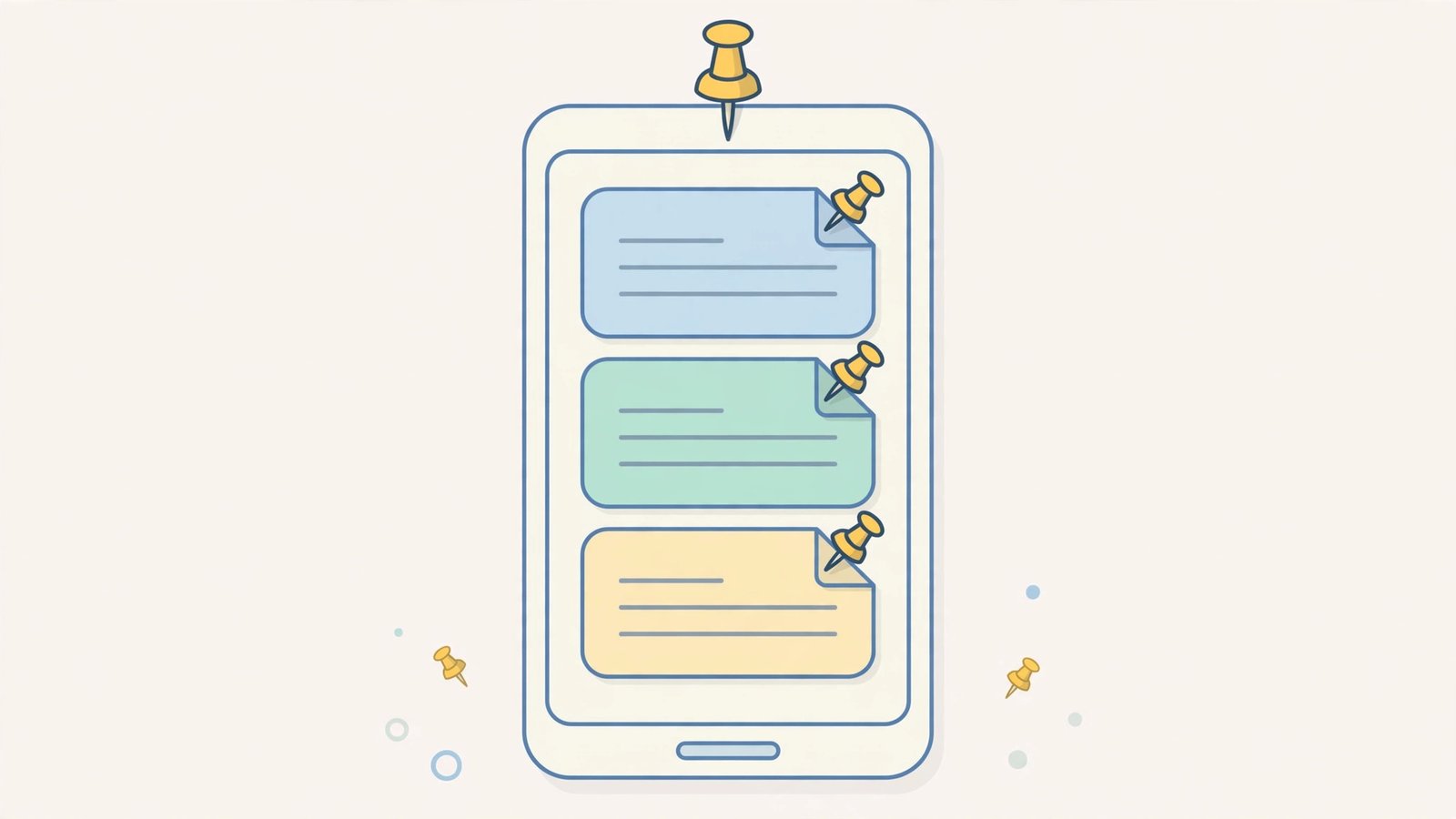
Even with the clipboard on, items expire. Pinning keeps important clips permanently.
- Copy the text you need.
- Open Gboard’s clipboard panel (clipboard icon above the keys).
- Long-press the item you want to keep.
- Tap “Pin” (the pin icon).
- Pinned items survive the one-hour expiry and stay until you unpin them.
- For addresses, account numbers, and other repeats, pin once and paste forever.
Pinning is the clipboard’s memory. Anything you paste more than twice deserves a pin — it turns the clipboard from a one-hour buffer into a permanent snippet library.
Fix 3: Check the One-Hour Expiry
Gboard deletes unpinned clipboard items after one hour. This is not a bug — it is a privacy feature. But it surprises everyone the first time.
- Know the rule: unpinned items live for one hour, then vanish.
- If you copied something “a while ago” and it is gone, this is why — re-copy it.
- For anything you will need later, pin it (Fix 2) at copy time.
- If you need longer-lived snippets, use a notes app instead of the clipboard — the clipboard was never meant as storage.
- Do not look for a setting to extend the hour — there is not one; pinning is the intended answer.
Once you know the hour rule, the “vanishing clipboard” stops being a mystery. Copy, pin if it matters, paste — that is the workflow Gboard is designed around.
Fix 4: Clear Gboard’s Cache
A corrupt Gboard cache can break the clipboard panel — copying works, but nothing appears in history.

- Go to Settings > Apps > See all apps > Gboard.
- Tap “Storage & cache”.
- Tap “Clear cache” (safe — your pinned items and settings stay).
- Restart the phone.
- Copy something and check the clipboard panel.
Cache-clearing is the gentle fix for “it worked yesterday” clipboard failures. Pinned items survive it, so there is nothing to lose. Clearing cache also frees a little space — but if storage warnings keep appearing, our Android storage full nothing stored guide tackles the bigger picture.
Fix 5: Set Gboard as the Default Keyboard
Clipboard history is a Gboard feature. If another keyboard is the default, there is no Gboard clipboard panel to show anything.
- Go to Settings > System > Keyboard > On-screen keyboard.
- Enable Gboard if it is off.
- Set Gboard as the default keyboard.
- Open a text field and confirm Gboard appears (logo on the space bar).
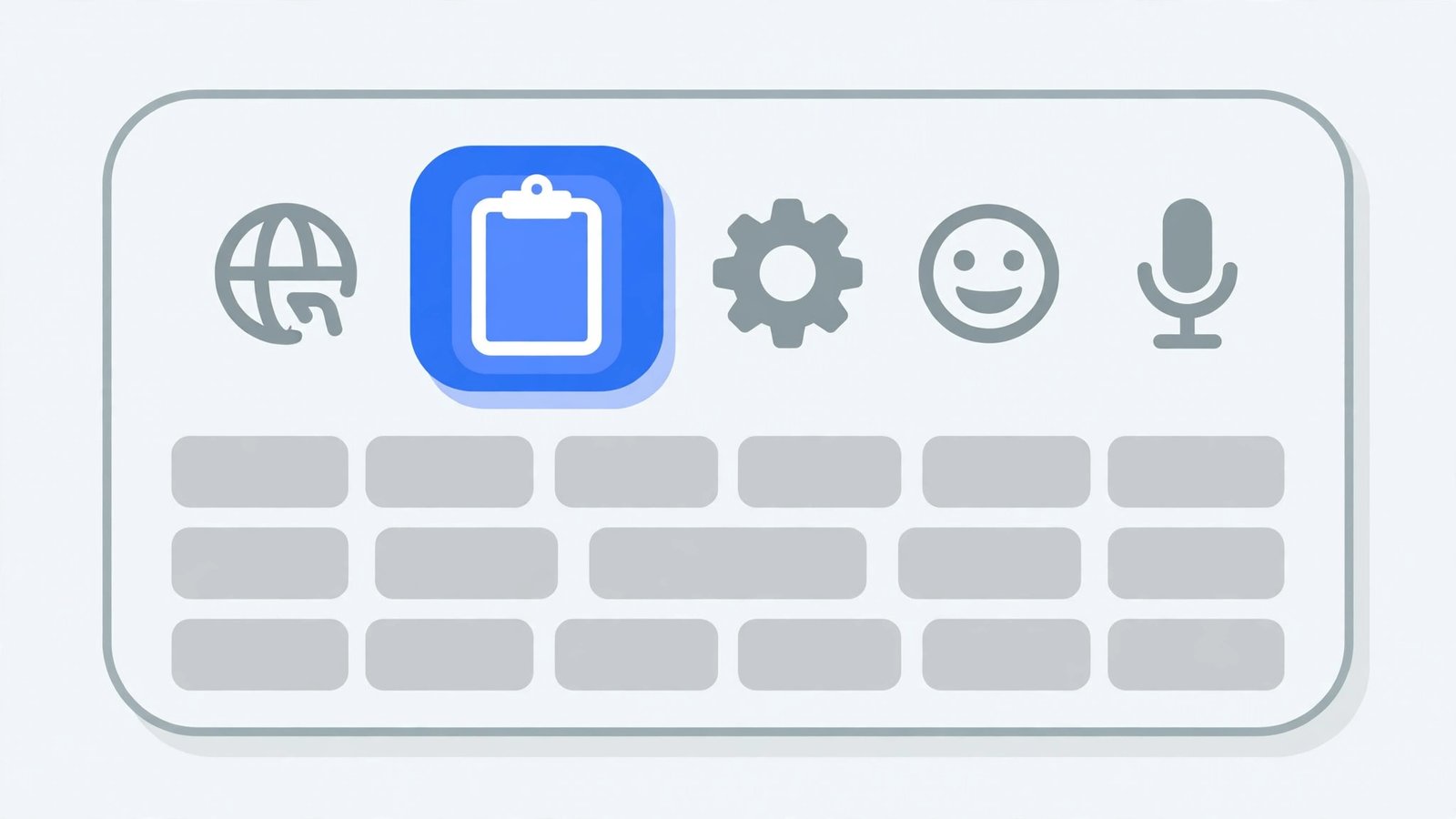
- Copy something and check the clipboard icon above the keys.
Brand keyboards have their own (often weaker) clipboard features, or none at all. If clipboard history matters to you, Gboard as default is the reliable path. For screens that misbehave while typing, see Android screen rotation not working.
Fix 6: Test in a Plain App
Some apps deliberately block clipboard history — password managers, banking apps, and secure fields hide copied content from the clipboard panel by design.
- Copy text from a plain app (Notes, Keep, a web page).
- Paste it into another plain app — if it works there, the clipboard is fine.
- The app where it failed is blocking history deliberately (common in password and banking fields).
- This is a security feature, not a bug — sensitive fields hide clipboard contents from other apps.
- For passwords, use your password manager’s autofill instead of copy-paste — it is safer anyway.
Do not try to “fix” an app’s secure-field behaviour — it is protecting you. The clipboard works; the app is choosing not to expose its fields to it.
Fix 7: Restart the Phone
The copy-paste service can stall like any system service. A restart reloads it.
- Copy something, confirm the clipboard is empty/broken.
- Restart the phone fully.
- After booting, copy something and check the clipboard panel immediately.
- If restarts fix it temporarily but it breaks again, an app is interfering — check for “privacy”, “security”, or “cleaner” apps that might clear the clipboard, and uninstall suspects.
Some “privacy cleaner” apps aggressively wipe the clipboard on a timer — exactly the “copied text vanishes” symptom. If you run one, check its settings or remove it.
What to Avoid
- Do not install “clipboard manager” apps from unknown developers — the clipboard holds passwords; trust matters.
- Do not expect unpinned items to last — the one-hour expiry is by design.
- Do not paste passwords through the clipboard in public — use autofill.
- Do not clear Gboard storage casually — cache first; storage wipes pins and learned words.
- Do not blame the app for secure-field blocking — it is a security feature.
- Do not keep sensitive text in the clipboard — copy, paste, and move on.
Frequently Asked Questions
Where is the clipboard on Android?
In Gboard: tap the clipboard icon in the toolbar above the keys. There is no system-wide “clipboard app” — the keyboard owns the history.
Why do my copied items disappear after an hour?
Gboard’s privacy design: unpinned clipboard items expire after one hour. Pin anything you need longer (Fix 2).
Can I see clipboard history without Gboard?
Some brand keyboards have their own clipboard panels, but they vary. Gboard’s is the most consistent — set it as default (Fix 5).
Is the clipboard secure?
Any app can read the clipboard on older Android versions, which is why the one-hour expiry exists. Avoid copying passwords when possible; use autofill.
Why is there no clipboard icon on my keyboard?
You are not using Gboard, or the toolbar is hidden. Switch to Gboard (Fix 5) and tap the grid/menu icon to reveal the toolbar.
Can I copy images to the clipboard, not just text?
Yes — Gboard’s clipboard holds images too, and the toggle in Fix 1 covers both. Copy an image in Chrome or Photos, and it appears in the clipboard panel ready to paste into supported apps. Some apps accept only text pastes, so an image entry may refuse to paste there — that is the receiving app’s limitation, not a clipboard failure.
Why can I not paste into some apps at all?
Secure fields (password boxes, banking apps) deliberately disable pasting from history to protect against clipboard snooping. The app is not broken — it is guarding sensitive input. Use the app’s own autofill or type the value manually. Standard text fields in the same app will still accept pastes normally.
How do I delete things from clipboard history?
Open the clipboard panel, long-press an item, and tap delete — or swipe it away, depending on your Gboard version. Pinned items need unpinning first. For a full wipe, clear Gboard’s cache (Fix 4). Remember the one-hour expiry (Fix 3) already deletes unpinned items automatically, so manual cleanup is rarely needed.
Does my clipboard sync between my phone and tablet?
Gboard can sync pinned clips across your devices when you are signed in to the same Google account and sync is enabled in Gboard’s settings. Unpinned history does not sync — only pins travel. If a pinned clip is missing on your tablet, check that both devices use Gboard signed into the same account.
Why does copying from Chrome sometimes not appear in the clipboard?
Chrome occasionally handles copying internally (especially for links and formatted text) and the system clipboard update lags a beat. Copy again, or use Chrome’s Share menu instead. If it happens consistently, clear Chrome’s cache — a stale renderer process can break its copy pipeline while the rest of the phone copies fine.
Why does the clipboard paste old text instead of what I just copied?
The copy did not register — the app never placed the new text on the clipboard, so the old entry is still the latest. This happens with flaky long-press menus and web pages that intercept copying. Copy again and watch for the “Copied” toast or the clipboard panel updating. If the panel updates but paste still gives old text, restart the app you are pasting into.
Conclusion
When android clipboard is not showing copied text, the trail leads to Gboard: its clipboard toggle, the one-hour expiry, and Gboard being the default keyboard. Pin what matters, respect the hour rule, and test in a plain app before blaming the system. If the phone’s storage itself starts reporting strange numbers, our Android internal storage not showing guide covers that. Copy-paste is one of the phone’s quietest superpowers — with the clipboard panel working, it stays that way.