

Scrolling stutters. Tabs freeze for seconds. Typing lags behind your fingers. When chrome browser lagging on windows turns every click into a wait, browsing stops being a tool and becomes a chore — even though the rest of Windows feels fine.
Lag in Chrome is different from slow page loads: the browser itself feels heavy. The causes are familiar — too many tabs, greedy extensions, a bad graphics setting, or a runaway process — but the fixes target responsiveness rather than network speed. Work through them in order; most laggy Chrome installations feel new again by Fix 3, and nothing here deletes your data.
Table of Contents
- Quick Checks
- Diagnosing chrome browser lagging on windows
- Fix 1: Close Tabs You Do Not Need
- Fix 2: Disable Heavy Extensions
- Fix 3: Turn Off Hardware Acceleration
- Fix 4: Clear the Cache
- Fix 5: Update Chrome
- Fix 6: Find the Hog in Task Manager
- Fix 7: Reset Chrome
- What to Avoid
- Frequently Asked Questions
- Conclusion
- Helpful Official Resources
Quick Checks
Confirm the lag is Chrome’s before you start.
- Restart Chrome completely — close every window, check the system tray, and reopen.
- Test scrolling and typing in another browser. Smooth elsewhere means Chrome is the problem.
- Check if the whole PC lags (move a File Explorer window). If Windows itself stutters, the cause is system-wide, not Chrome.
- Unplug external monitors temporarily — multi-monitor setups stress the GPU path Chrome uses.
- Note when lag started: after an update, after installing something, or gradually over months.
Diagnosing chrome browser lagging on windows
| Symptom | Cause | Go to Fix |
|---|---|---|
| Lag grows with open tabs | Too many tabs eating resources | Fix 1 |
| Lag started after adding an extension | Heavy or buggy extension | Fix 2 |
| Stuttering scroll and video | Hardware acceleration conflict | Fix 3 |
| Lag after months of use | Bloated cache and profile | Fix 4, then Fix 7 |
| One tab freezes the whole browser | Runaway tab process | Fix 6 |
| Lag right after a Chrome update | New bug or re-enabled setting | Fix 5 |
Fix 1: Close Tabs You Do Not Need
Every open tab is a live program. Fifty tabs means fifty programs competing for your RAM and CPU — and Chrome keeps background tabs semi-active, so they all cost you something.
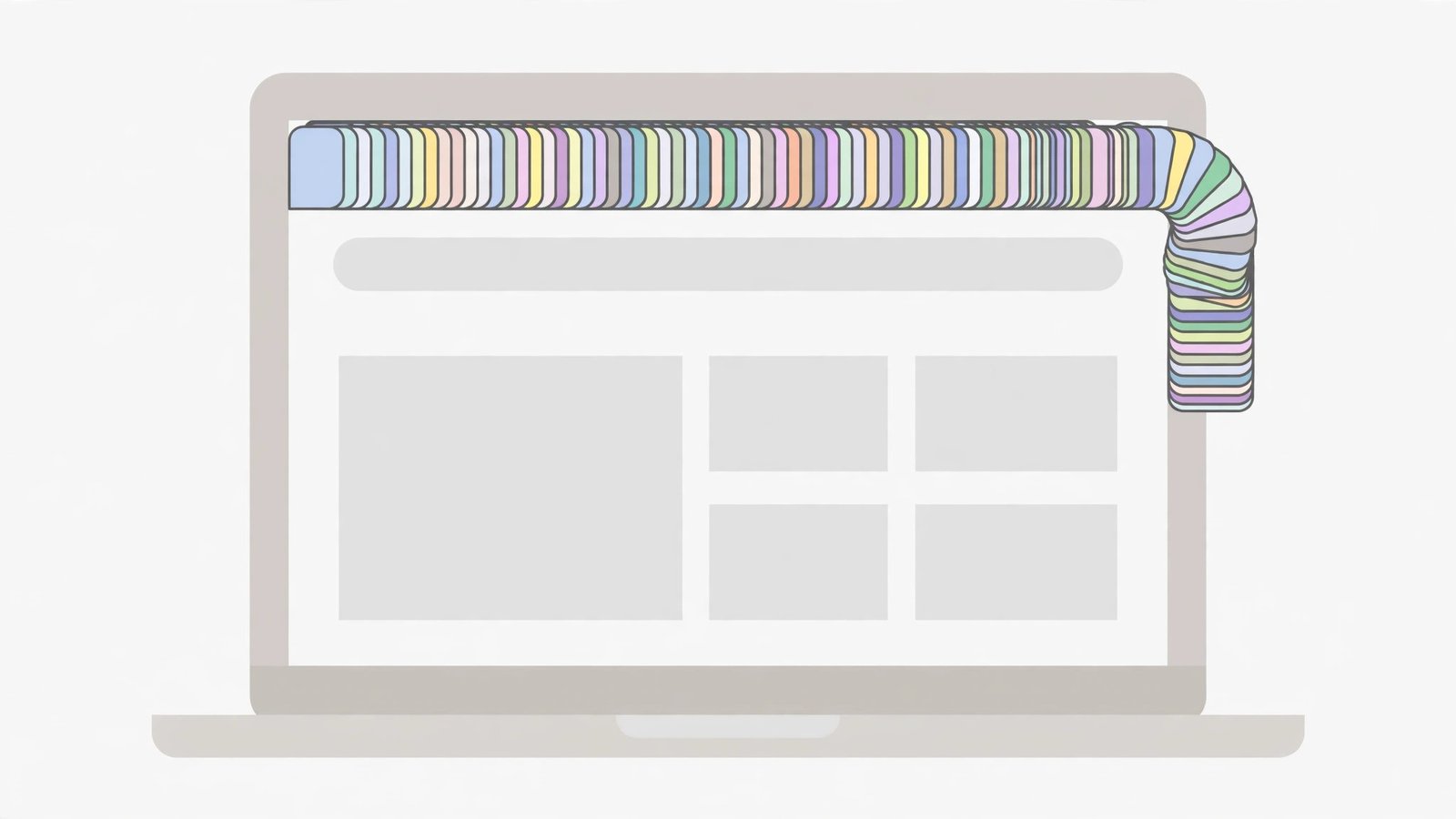
- Look at your tab strip honestly. Close everything you have not touched today.
- Bookmark tab groups you want to keep: right-click a tab > “Add tab to new group”, name it, then close the group.
- Use “Bookmark all tabs” (Ctrl+Shift+D) to save a research session before closing it.
- Turn on Memory Saver: Settings > Performance > Memory Saver. It sleeps inactive tabs automatically.
- Restart Chrome after the cull and feel the difference.
Tab hoarding is the number one cause of Chrome lag, full stop. Memory Saver is the safety net for people who cannot help themselves — it keeps your tabs listed but stops them consuming resources until you click. As a daily habit, try the “ten-tab rule”: if the tab strip is too crowded to read titles, close or bookmark the excess. Your future self, opening Chrome to a snappy browser, will thank you. If pages load slowly as well as lagging, our Chrome pages not loading guide covers the loading side.
Fix 2: Disable Heavy Extensions
Extensions run inside every page. A laggy extension makes every scroll, click, and keystroke wait for it — which feels exactly like a laggy browser.
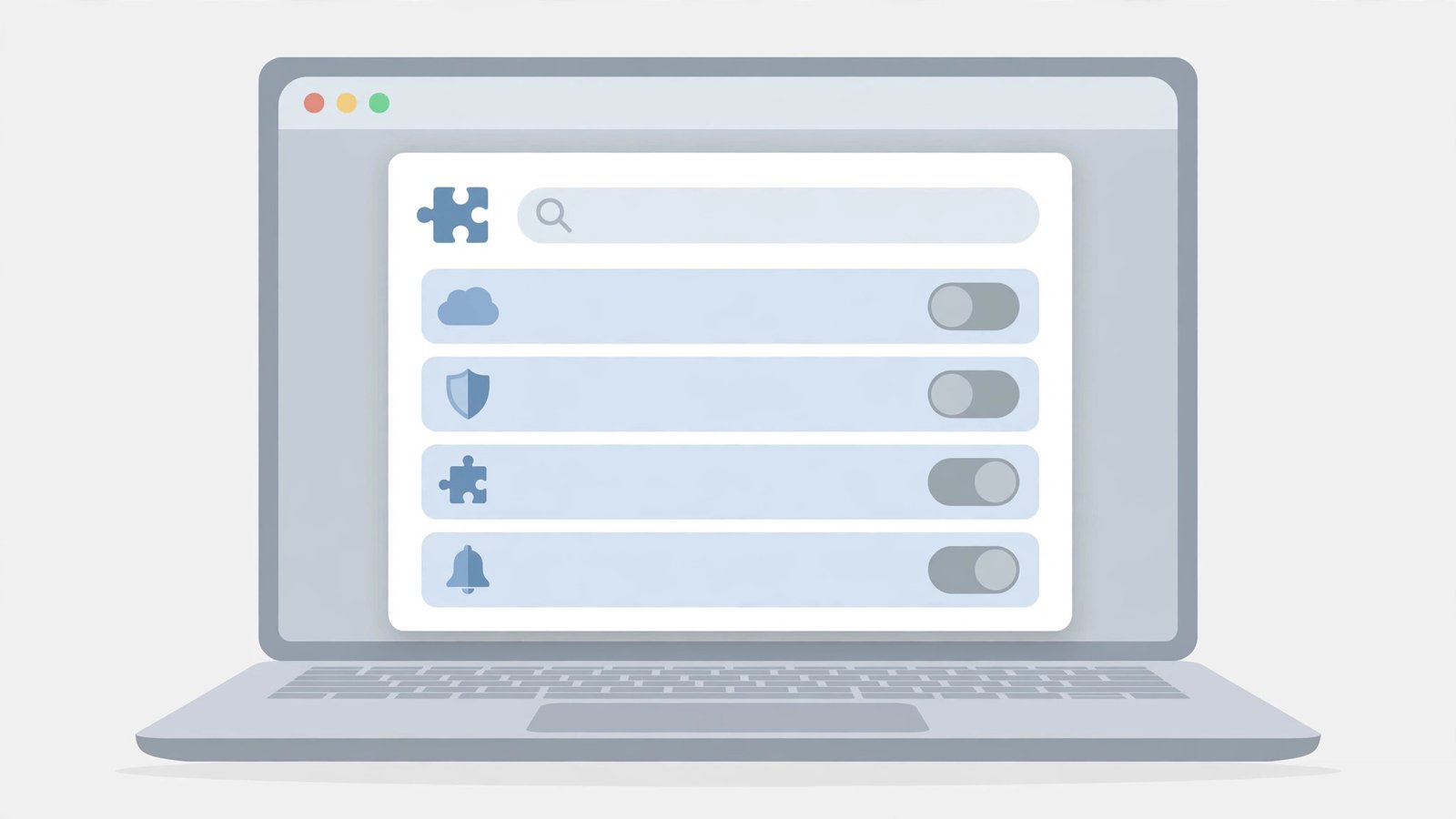
- Go to
chrome://extensions. - Toggle off every extension.
- Scroll a heavy page and type in a text field. If the lag is gone, an extension was guilty.
- Re-enable extensions one by one, testing responsiveness after each.
- Remove the laggy one permanently — or check its settings for a “lite” mode.
- Be ruthless with: coupon finders, “shopping assistants”, grammar checkers that scan everything, and any extension you do not recognise.
Grammar and writing assistants are frequent lag culprits because they analyse every keystroke in real time. If you need one, use its website version instead of the always-on extension. For CPU-specific overload, see Chrome high CPU usage fix.
Fix 3: Turn Off Hardware Acceleration
Hardware acceleration lets Chrome use your GPU for rendering. On most PCs that is faster — but on some graphics drivers it produces exactly the stuttering, laggy feel you are trying to fix.
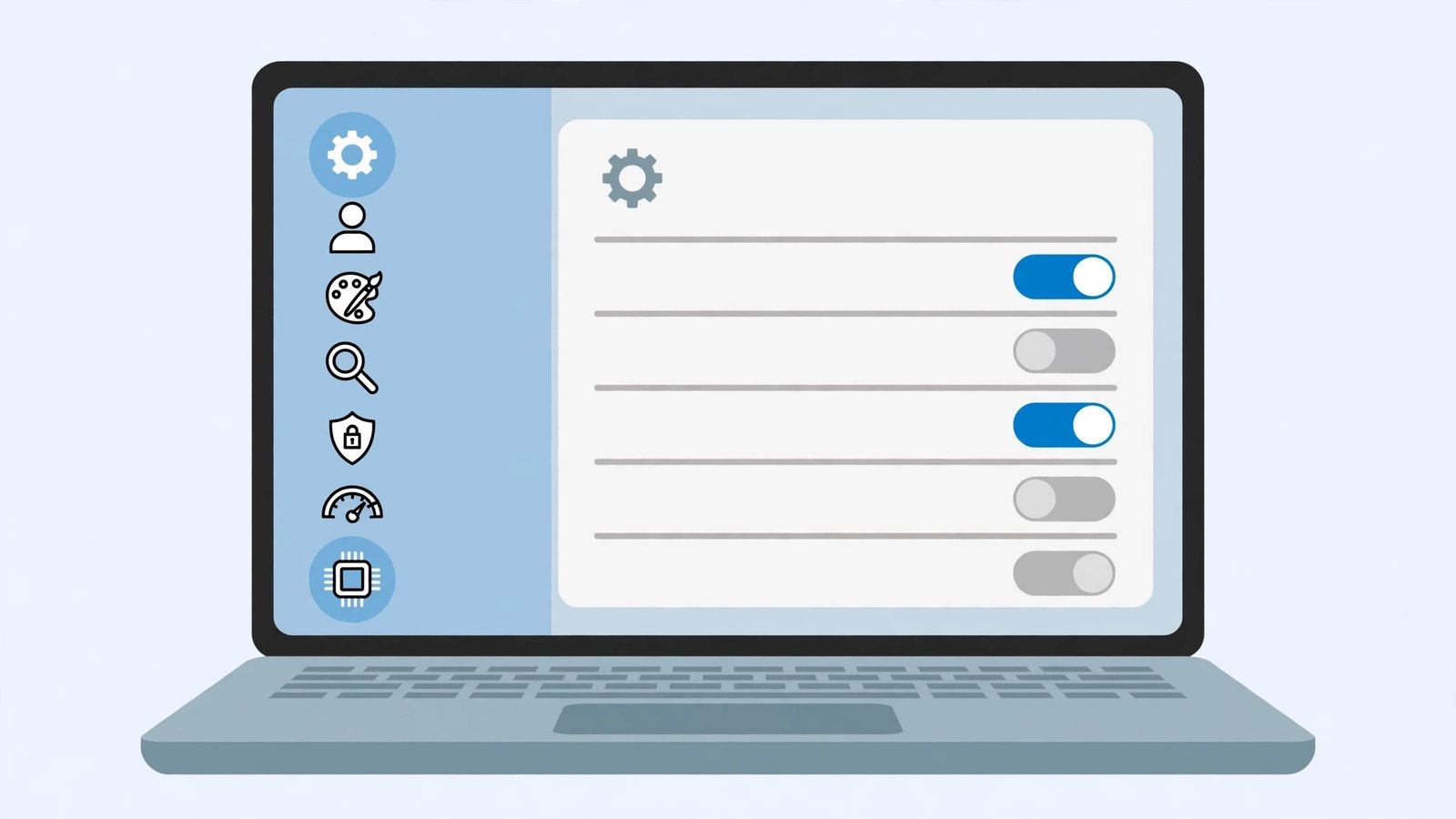
- Go to Settings > System.
- Toggle “Use hardware acceleration when available” OFF.
- Click Relaunch.
- Scroll image-heavy pages and play a video. If the stutter is gone, keep it off.
- If lag worsens, turn it back on — your GPU was helping.
- Also update your graphics driver from the PC maker’s official site — a newer driver often fixes the acceleration path properly.
This toggle is the answer surprisingly often for “scrolling stutters but everything else is fine”. There is no shame in running Chrome on the CPU if your GPU driver misbehaves — the difference is invisible when it works.
Fix 4: Clear the Cache
A huge, fragmented cache slows the file operations Chrome does constantly. Clearing it is quick and occasionally transformative.
- Press Ctrl+Shift+Delete.
- Set time range to “All time”.
- Tick “Cached images and files” (leave cookies unticked to stay logged in).
- Click Clear data and restart Chrome.
- Browse for ten minutes while the cache rebuilds lean, then judge the lag.
Do not expect miracles from this one alone — cache affects loading more than responsiveness. But combined with fewer tabs and extensions, it contributes to the overall lightness. If Windows itself feels slow to boot, our Windows 11 slow startup fix guide addresses the system side.
Fix 5: Update Chrome
Google fixes performance regressions in nearly every release. A laggy Chrome that is months out of date is missing all of them.
- Go to Settings > About Chrome and let it check for updates.
- Click Relaunch to apply any pending update.
- Test responsiveness after the update.
- If an update just caused the lag, you cannot easily roll back — but toggling hardware acceleration (Fix 3) and resetting settings (Fix 7) usually tame new-version issues.
- Keep automatic updates on; the days of “never update, it breaks things” are long gone for browsers.
Updates also re-enable extensions you disabled, so after updating, glance at chrome://extensions and make sure your cull from Fix 2 is still in force.
Fix 6: Find the Hog in Task Manager
Windows Task Manager shows which Chrome process is eating your CPU or memory — often a single tab or extension, not Chrome as a whole.
- Press Ctrl+Shift+Esc to open Task Manager.
- Go to the Processes tab and click the CPU column to sort.
- Look for Chrome entries near the top during lag.
- For finer detail, use Chrome’s own Task Manager: in Chrome, press Shift+Esc. It names the exact tab or extension and its memory and CPU.
- End the hog: select it in Chrome’s Task Manager and click “End process”.
- If the same tab hogs resources every time, the site itself is heavy — keep it closed when not in use.
Chrome’s built-in Task Manager is the precision tool here. It ends the tyranny of “Chrome is slow” by naming names: usually one video-laden tab or one extension. If crashes accompany the lag, our Google Chrome keeps crashing guide is the next read.
Fix 7: Reset Chrome
When lag survives everything, the profile itself is suspect — years of accumulated settings, flags, and extension debris. A reset gives you a clean slate.
- Go to Settings > Reset settings > “Restore settings to their original defaults”.
- Confirm. Extensions are disabled, startup pages and search settings reset — bookmarks, history, and passwords stay.
- Re-enable only the extensions you truly need.
- Test Chrome’s responsiveness before reinstalling your old tab hoard.
- Rebuild tab groups deliberately rather than restoring fifty tabs at once.
A reset takes two minutes and fixes the “nothing helps and I don’t know why” cases. Think of it as spring cleaning: the lag was the dust, and now it is gone.
What to Avoid
- Do not install “Chrome optimizer” extensions — they add lag while promising to remove it.
- Do not disable all Chrome background activity permanently — some of it (like Memory Saver) fights lag.
- Do not blame your internet for interface lag — scrolling stutter is never a network problem.
- Do not keep 100 tabs “to read later” — bookmark them and close them.
- Do not toggle experimental flags hoping for speed — most do nothing measurable.
- Do not reinstall Windows for a laggy browser — the fixes above are the proportionate response.
Frequently Asked Questions
Why is Chrome lagging on Windows but fine on my phone?
Different devices, different loads. Your phone runs a fresh, lean Chrome with few extensions; your PC’s Chrome has accumulated tabs, extensions, and settings over years. Fixes 1, 2, and 7 close that gap.
Will buying more RAM stop Chrome lagging?
If Task Manager shows memory maxed out, yes. But most Chrome lag is caused by extensions and settings, not a RAM shortage — fix the software first, upgrade hardware second.
Why does Chrome lag more on battery power?
Windows throttles the CPU on battery, and Chrome feels it first. Switch to “Best performance” power mode while testing (Settings > System > Power & battery) to separate power throttling from real Chrome problems.
Does hardware acceleration help or hurt?
Both, depending on your graphics driver. Test it off and on (Fix 3) and keep whichever feels smoother. There is no universal answer.
Why does only one website lag?
Heavy sites with auto-playing video, animations, and trackers can lag any browser. If every other site is smooth, the site is the problem — try its lite/mobile version or an ad blocker from a reputable source.
Can too many extensions slow down even simple pages?
Yes — and this is the mechanism most people miss. Content-script extensions inject JavaScript into every page load, and the browser must run each one before the page becomes interactive. Five heavy extensions can easily add a full second of scripting to a page that would otherwise load in half that. The fix is not a faster PC but fewer extensions, which is why Fix 2 outperforms hardware upgrades for this symptom.
Does dark mode or a theme slow Chrome down?
No — themes are just colours and cost nothing measurable. But animated “new tab page” replacements and live wallpapers do cost resources on every new tab. If your new-tab page plays video or animations, switching back to the default new-tab page removes a small but constant drag.
Why does Chrome lag after my PC wakes from sleep?
Sleep leaves Chrome’s processes and the GPU driver in a stale state. The renderer processes that were alive before sleep do not always resume cleanly, so scrolling and typing stutter. Closing Chrome completely and reopening it after waking the PC clears the stale state. If it happens every time, updating the GPU driver usually fixes the resume behaviour.
Does having Chrome set as the default browser affect lag?
No. Default-browser status changes which app opens links — it has no effect on Chrome’s speed or resource use. Lag comes from Chrome’s own profile, extensions, and the system’s resources, not from its default status. Do not change your default browser hoping for a speed boost; work through the fixes above instead.
Conclusion
When chrome browser is lagging on windows, the cure is subtraction, not addition: fewer tabs, fewer extensions, a calmer graphics setting, and a clean profile. Work through the seven fixes and measure by feel — scrolling should glide and typing should keep up. A tidy Chrome is a fast Chrome, and staying tidy (Memory Saver on, extensions minimal) keeps the lag from creeping back.