

If chrome full screen not working is ruining your videos and presentations, you know how annoying it is. You press F11, click the full screen button, and nothing happens — or the screen flashes and drops straight back to a window. The video stays small, the presentation stays cramped, and the browser chrome stays in the way.
The good news is that full screen problems have a small set of usual causes. A stuck window state, a blocked permission, a meddling extension, or a display setting covers almost every case. This guide explains each cause in plain words, then walks you through 11 fixes in order, from the simplest key press to the advanced Windows checks at the end. Most readers get full screen back within a few minutes, without reinstalling anything.
Table of contents
- Why this error happens
- Quick checks
- Diagnose your full screen problem
- 1. Use F11 and the Chrome menu properly
- 2. Use the video or site’s own full screen button
- 3. Exit full screen fully, then try again
- 4. Allow full screen for the site
- 5. Switch off your extensions
- 6. Check your display and second monitor
- 7. Update Chrome and your graphics driver
- 8. Reset Chrome settings
- 9. Switch off hardware acceleration
- 10. Clear your cache and cookies
- 11. Switch off full screen optimisations for Chrome in Windows
- What to avoid
- FAQ
- Conclusion
Why this error happens
1. The F11 key is being intercepted
On many laptops, the F11 key does double duty — it controls brightness, volume, or another function unless you hold the Fn key with it. If you press F11 and nothing happens, the laptop may have swallowed the key press before Chrome ever saw it. This is the most common cause on laptops, and it looks exactly like a Chrome bug even though Chrome is innocent.
2. The video site is blocking full screen
Some websites and video players handle full screen themselves, and their own button is the only one that works. Others block full screen in embedded players, or only allow it after you interact with the video first. If full screen works on some sites and not others, the site — not Chrome — is making the choice.
3. A browser extension is blocking it
Extensions that change how pages look — ad blockers, video enhancers, dark-mode tools, and picture-in-picture helpers — can interfere with full screen. Some block the request outright. Others force the video back to a window the moment it tries to expand. If the problem started after you installed a new extension, that extension is the prime suspect.
4. A display setting or a second monitor is confusing Chrome
Chrome remembers which screen a window belongs to. With two monitors, a changed display setup, or a scaled display, Chrome can try to open full screen on a display that no longer exists, or at a size the display rejects. The result is a flash and an instant return to windowed mode. This cause is likely if the problem started after you plugged in, unplugged, or rearranged a monitor.
5. An outdated graphics driver or an old Chrome version
Full screen mode leans on your graphics driver. An outdated or corrupt driver can refuse the mode change, leaving you stuck in a window. An old version of Chrome can carry a known full screen bug that was fixed long ago. Both are easy to fix, and both are worth checking when nothing else explains the failure.
6. A stuck Chrome window state
Chrome remembers window sizes and positions. If that saved state gets corrupted — after a crash, a forced shutdown, or a display change — Chrome can get stuck believing it is already in full screen, or refusing to enter it. The browser looks normal, but the full screen command quietly fails every time. A restart or a reset clears the stuck state.
Quick checks
Before you change any settings, run through these quick checks. They take two minutes and often reveal the cause at once.
- Try full screen on a different website. Open a video on another site and try again. If it works there, the first site is blocking it.
- Try the video’s own full screen button. Most players have a button in the bottom-right corner of the video. If that works, use it instead of
F11. - Try
Fn + F11if you are on a laptop. TheFnkey switches the function keys back to their normal behaviour. - Move the Chrome window to your main monitor if you use two screens, then try full screen again.
- Try an Incognito window with
Ctrl + Shift + N. If full screen works there, an extension or a profile setting is the cause. - Check whether another app is already full screen. Some apps grab the screen exclusively, and Chrome cannot take over until you close or minimise them.
Diagnose your full screen problem
Match what you see with the table below, then jump to the matching fix.
| Symptom | Likely cause | Go to fix |
|---|---|---|
F11 does nothing at all | The laptop intercepted the key | Fix 1 |
| Full screen flashes, then drops back to a window | A stuck window state or display issue | Fix 3, then Fix 6 |
| Works on some sites but not others | The site blocks full screen | Fix 2, then Fix 4 |
| Started after installing an extension | An extension is blocking it | Fix 5 |
| Started after adding or removing a monitor | Display or second-monitor confusion | Fix 6 |
| Fails everywhere, in every browser | Graphics driver or display setting | Fix 7 |
1. Use F11 and the Chrome menu properly
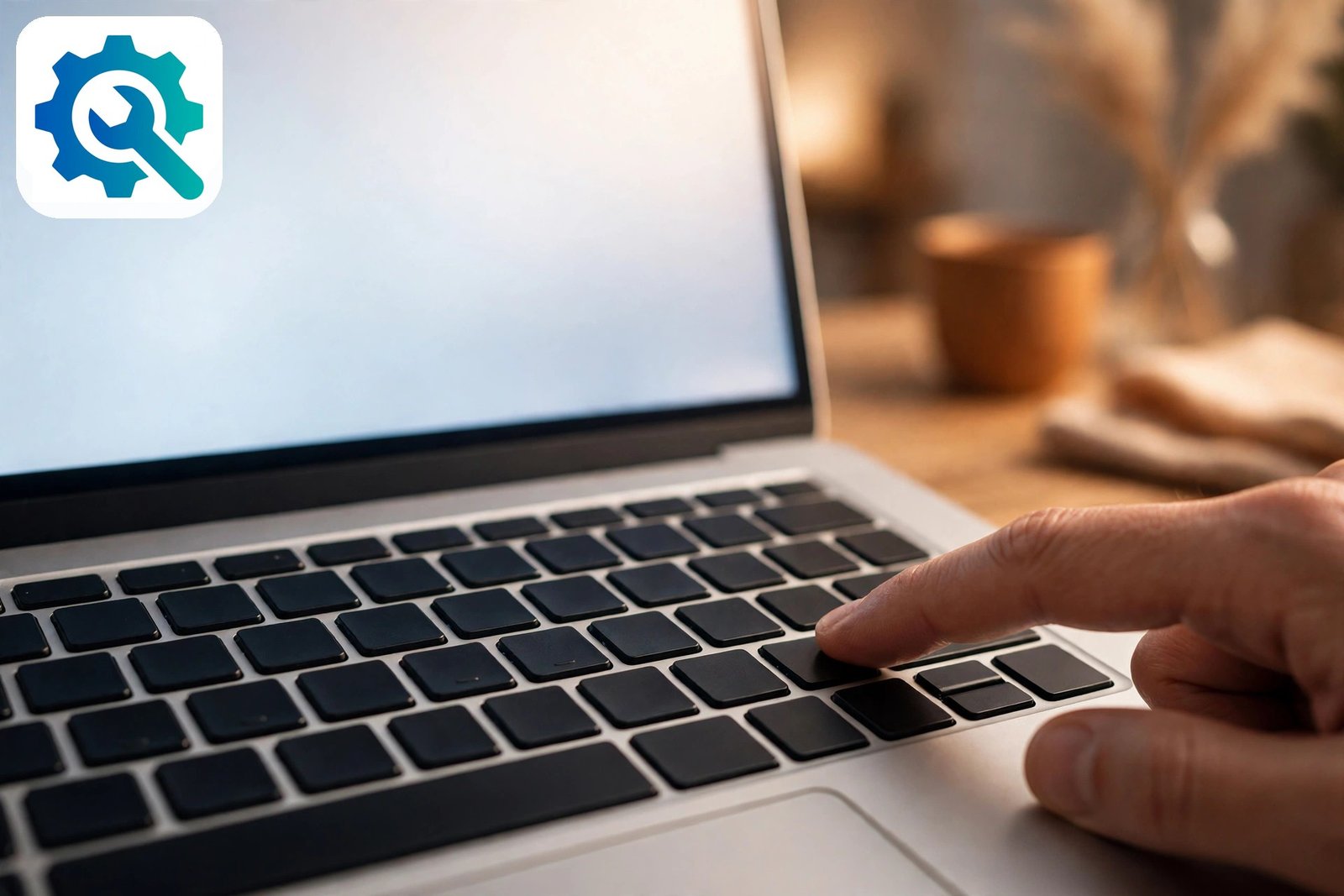
The first fix is to make sure the full screen command is actually reaching Chrome. On many laptops it never arrives, because the function keys are set to control hardware features instead.
- Press
F11once and wait a second. On a desktop keyboard, this toggles Chrome full screen on and off. - On a laptop, press
Fn + F11. Hold theFnkey (bottom-left of the keyboard) and pressF11. This sends the realF11signal instead of the hardware function. - Use the Chrome menu instead. Click the three-dot menu at the top right, and next to Zoom, click the full screen icon (a square with four arrows). This does the same job as
F11without touching the keyboard. - Check your laptop’s function-key lock. Some laptops have an
Fn Lockkey or a BIOS setting that swaps the function keys. IfFn + F11works butF11alone does not, your lock is set to hardware mode. - Try a different keyboard if you use an external one. A faulty or misconfigured external keyboard can swallow the key press.
- Press
Escto exit once full screen is working, so you know how to get out again.F11toggles it back off too.
This fix solves the problem for a large share of laptop users, because the key press was never reaching Chrome in the first place. If the menu button works but the key does not, you have found your answer — use the menu button, or change the function-key setting, and move on.
2. Use the video or site’s own full screen button
Chrome’s full screen and a video player’s full screen are two different things. The player’s own button is often the only one that works on video sites, because the site controls its own player.

- Look for the full screen icon in the bottom-right corner of the video player. It is usually a square with four outward arrows.
- Click the video first, then click the full screen button. Some players only allow full screen after you have interacted with the video.
- Move your mouse to the bottom of the video if the controls are hidden. They appear when you hover over the player.
- Try double-clicking the video. Many players toggle full screen on a double-click.
- If the button is greyed out, the video may be embedded in a page that blocks full screen. Open the video on its own page — on the video site itself — and try again.
- For presentations and slides, use the site’s own present or full screen button rather than Chrome’s. Slides and document viewers have their own full screen modes that work better than the browser’s.
- Test a video on a different site to compare. If the button works on one site and not another, the first site is blocking it, and there is nothing wrong with Chrome.
This fix is the answer for most video problems. Chrome full screen not working on a video site usually means the player’s button is the right tool, not the browser shortcut. Use the button the site gives you, and save F11 for full web pages.
3. Exit full screen fully, then try again
Chrome can get confused about whether it is already in full screen. A half-stuck state — where Chrome thinks it is full screen but shows a window, or the reverse — makes every new full screen request fail silently. Clearing the state takes seconds.
- Press
Esconce to exit any full screen mode that may be active, even if the screen does not look full screen. - Press
F11twice — once to enter full screen, once to exit — to force Chrome through a full cycle. - Close every Chrome window and reopen Chrome. Check the system tray at the bottom right for a Chrome icon and right-click it to quit fully first.
- Maximise the window first. Click the maximise button (the square in the top-right corner) so the window fills the screen, then press
F11. - Drag the window to your main monitor if you use more than one screen, maximise it there, and try again.
- Restart your computer if the state still feels stuck. A full restart clears stuck window states that a Chrome restart alone cannot reach.
A stuck window state is invisible — nothing looks wrong — which is why this fix is easy to overlook. It costs nothing to try, and it clears the cases where full screen worked yesterday and fails today for no visible reason. If Chrome also feels slow or laggy, our guide on Chrome browser lagging on Windows may help.
4. Allow full screen for the site
Chrome asks for permission before some sites can use full screen, and a past “Block” answer can quietly stop it forever. Checking the site permission takes a minute.

- Go to the website where full screen fails.
- Click the tune icon (or the padlock icon) to the left of the address bar to open the site settings panel.
- Look through the permissions list. Some sites list full screen or similar permissions here. If anything related is set to Block, change it to Allow.
- Open Chrome settings and go to Privacy and security, then Site settings, and look for any blocked permission for the site.
- Reset the site’s permissions. In the site settings panel, click Reset permissions, then reload the page and try full screen again. Chrome will ask fresh if the site needs permission.
- Try the site in Incognito mode as a comparison. If full screen works there, a saved permission or setting in your normal profile is the cause.
- Check for a blocked pop-up or overlay. Some sites open full screen through a pop-up, and a pop-up blocker can stop it. Allow pop-ups for the site if it needs them.
This fix is the answer when full screen fails on one site and works everywhere else. A permission set months ago is easy to forget, and it produces exactly this symptom: silent failure on one site only.
5. Switch off your extensions
Extensions that restyle pages, enhance videos, or force picture-in-picture can interfere with full screen. Testing with extensions off takes two minutes and rules out the whole class of causes at once.
- Open the extensions page by typing
chrome://extensionsin the address bar and pressing Enter. - Switch off every extension using the toggle on each card. Video enhancers, dark-mode tools, and ad blockers are the most likely suspects, but switch them all off for a clean test.
- Try full screen again on the site where it failed.
- If it works now, switch the extensions back on one at a time and test after each one. The one that breaks full screen again is the culprit.
- Remove the culprit extension by clicking Remove on its card, or keep it switched off when you need full screen.
- Check the extension’s own settings. Some video extensions have a full screen or theatre-mode option that conflicts with Chrome’s. Switching that option off may be enough.
- Test in Incognito as a shortcut. If full screen works in an Incognito window, where most extensions are off, an extension is almost certainly the cause.
Extensions are useful, but a single badly behaved one can block full screen silently. If you keep having extension trouble, our guide on Chrome extensions that keep disabling explains how to keep them under control.
6. Check your display and second monitor
Full screen mode depends on your display setup. A second monitor, a changed display arrangement, or a scaling setting can confuse Chrome into opening full screen on the wrong screen — or at a size the screen rejects.

- Move the Chrome window to your main display before you try full screen. Drag it across, maximise it, then press
F11. - Disconnect the second monitor as a test. Unplug it, try full screen on the laptop screen, and see if it works. If it does, the second monitor setup is the cause.
- Open Windows Settings with
Win + I, go to System, then Display, and check the arrangement. Make sure the display you use is set as the main display. - Check the display scale. In the same Display settings, look at Scale. If it is set to an unusual value such as 175% or a custom scale, try 100% or the recommended value and test full screen again.
- Check the screen resolution. Make sure it is set to the recommended resolution for your display. A wrong resolution can make full screen fail.
- Update the arrangement after unplugging. If you unplugged a monitor recently, Windows may still think it is there. In Display settings, click Detect or rearrange the displays so only the connected ones remain.
- Restart your computer after changing display settings, so Chrome picks up the new arrangement cleanly.
Display problems are the likely cause when full screen broke right after you plugged in, unplugged, or rearranged a monitor. They also explain the “flash and back to window” symptom: Chrome tries to open full screen on a display that is no longer there, fails, and falls back to a window. Microsoft’s Windows support pages explain display and multi-monitor settings for your version of Windows.
7. Update Chrome and your graphics driver
Full screen mode leans on your graphics driver, and Chrome’s own full screen code changes with updates. An outdated driver or an old Chrome version can both refuse the mode change. Updating both is quick and safe.
- Update Chrome first. Type
chrome://settings/helpin the address bar and press Enter. Chrome checks for updates and downloads one if available. Click Relaunch when it appears. - Test full screen after the update, before you touch anything else.
- Update your graphics driver from your computer maker’s or graphics card maker’s official website — Intel, AMD, or NVIDIA, whichever your computer uses. Never download drivers from random driver sites.
- Use Windows Update as well. Open Windows Settings, go to Windows Update, and install any pending updates, including optional driver updates.
- Restart your computer after updating the driver, so the new driver loads cleanly.
- Test full screen again in Chrome and in another browser. If it fails in every browser, the driver or display is the cause, not Chrome.
- If Chrome says updates are disabled, your computer may be managed by a school or workplace. Ask your administrator to push the update.
An update fixes the cases where full screen broke after a Chrome or Windows update introduced a bug, and the cases where an old version simply has a known fault. If Chrome is also using too much processor power, our guide on Chrome high CPU usage may help. For general help, Google’s Chrome Help Centre covers display and full screen settings.
8. Reset Chrome settings
If every other fix has failed and full screen still does not work anywhere, your Chrome profile may be damaged. A reset restores the default settings, switches off extensions, and clears site permissions — including any full screen permission that got stuck. Your bookmarks and saved passwords stay in place.
- Type
chrome://settings/resetin the address bar and press Enter. - Click “Restore settings to their original defaults”, then confirm.
- Restart Chrome and press
F11on any page to test full screen before you switch any extensions back on. - If full screen works now, switch your extensions back on one at a time and test after each one, as in Fix 5.
- If it still fails, create a fresh Chrome profile. Click your profile icon at the top right, choose Add, and create a new profile. If full screen works there, your old profile is damaged and you can move your bookmarks over.
- Reinstall Chrome only as a last resort. Uninstall it from Windows Settings, then Apps, then download a fresh copy from the official Chrome website. This replaces damaged program files.
- Check whether Chrome restores your old session properly too. If sessions misbehave as well, our guide on Chrome restore previous session not working covers that.
A reset is the final step because it clears your custom settings, but it is safe and it rules out profile damage once and for all. If full screen still fails in a brand-new profile on a freshly installed Chrome, the cause is the graphics driver or Windows, not Chrome — go back to Fix 7 and work through the driver update again.
9. Switch off hardware acceleration
Chrome uses hardware acceleration to hand rendering work to your graphics card. When that handover goes wrong, the switch into full screen can fail — the screen flashes and drops straight back to a window. Switching it off makes Chrome render full screen itself, which is slower but more reliable.
- Type
chrome://settings/systemin the address bar and press Enter. - Find “Use hardware acceleration when available” and switch it off.
- Click “Relaunch” when Chrome asks you to restart the browser.
- Press
F11on any page to test full screen. - If full screen works now, hardware acceleration was the cause. You can leave it off — Chrome still works normally, just with a little more work for your processor.
- If it makes no difference, switch it back on. There is no benefit in leaving it off if it was not the cause.
- Update your graphics driver as well if full screen only works with acceleration off. An old driver is often the real problem underneath, and Fix 7’s update steps cover that.
This fix is the answer when full screen flashes and falls back to a window on every site, and the display settings in Fix 6 all look correct.
10. Clear your cache and cookies
A corrupt cache entry can break the way Chrome handles a full screen request, leaving the browser stuck in a window while everything else works fine. Clearing the cache removes the damaged data and forces Chrome to load pages fresh.
- Press
Ctrl + Shift + Deleteto open the Clear browsing data window. - Set the time range to “All time” so nothing old is left behind.
- Tick “Cached images and files” and “Cookies and other site data”. You can leave browsing history unticked.
- Click “Delete data” and wait for it to finish, then close and reopen Chrome.
- Press
F11on any page to test full screen. - If full screen works now, the cache was the cause. You are done.
- Sign back in to websites as needed. Clearing cookies signs you out of most sites, so keep your passwords handy.
Clearing the cache is safe and fixes a surprising number of strange Chrome behaviours, not just full screen. If it still fails, the cause is not cached data, so move on to Fix 11.
11. Switch off full screen optimisations for Chrome in Windows
Windows has a compatibility setting called full screen optimisations, which changes how full screen apps behave. On some computers it clashes with Chrome and stops full screen from working at all. Switching it off for Chrome takes a minute.
- Find the Chrome program file. Open File Explorer and go to
C:\Program Files\Google\Chrome\Application, then findchrome.exe. If Chrome is installed elsewhere, right-click its desktop shortcut and choose Open file location instead. - Right-click
chrome.exeand choose Properties. - Go to the Compatibility tab and tick “Disable fullscreen optimizations”.
- Click Apply, then OK, and restart Chrome.
- Press
F11on any page to test full screen. - If it works now, leave the setting off. It only affects Chrome, and it does not change anything else on your computer.
- If it makes no difference, go back and untick the box. There is no benefit in leaving a compatibility setting on if it was not the cause.
This is a Windows setting, not a Chrome one, which is why it is easy to miss — nothing inside Chrome mentions it. It is worth trying when full screen fails in Chrome but works fine in other browsers and apps.
What to avoid
Fixing full screen is straightforward, but a few common “solutions” will make things worse. Avoid these.
- Do not download “full screen fixer” or “driver updater” tools. These shady programs are a classic source of malware. Use Chrome’s own update and your graphics card maker’s official website instead.
- Do not delete Chrome’s profile folders by hand. Use the built-in reset at
chrome://settings/resetinstead — manual deletion can destroy bookmarks and passwords. - Do not force your display to an unsupported resolution. Picking a resolution your monitor cannot handle can leave you with a black screen. Stick to the recommended resolution.
- Do not keep hammering
F11rapidly. Press it once and wait a second. Rapid presses can toggle full screen on and off faster than the screen can follow, which looks like failure. - Do not ignore the site’s own full screen button. For videos and presentations, the site’s button is often the correct tool, and fighting it with the browser shortcut wastes time.
- Do not change graphics settings you do not understand. Leave advanced graphics options alone unless a guide from your card maker tells you to change them.
FAQ
Why is F11 not working in Chrome?
On most laptops, the F11 key controls a hardware function such as brightness unless you hold Fn with it. Press Fn + F11 instead, or use the Chrome menu: click the three-dot menu and, next to Zoom, click the full screen icon. If the menu button works but the key does not, the laptop intercepted the key press.
Why does Chrome exit full screen by itself?
The usual causes are a notification or pop-up stealing focus, an extension forcing the page back to a window, or a display change such as a monitor waking up. Switch off your extensions one at a time to find the culprit, and check that no other app is popping up while you watch. A stuck window state can also cause it — restart Chrome fully and try again.
How do I make a video full screen in Chrome?
Click the video’s own full screen button in the bottom-right corner of the player, or double-click the video. That is the player’s full screen, and it works on most video sites even when the browser shortcut does not. If the button is greyed out, open the video on the video site’s own page rather than an embedded player.
Why does full screen work on some sites but not others?
Some sites block full screen in embedded players, or only allow it after you interact with the video. Others need a permission you blocked in the past. Check the site’s permission in the tune icon next to the address bar, and try the site’s own full screen button instead of F11.
Does full screen not working mean my graphics driver is broken?
Not usually. A driver problem is only likely if full screen fails in every browser and every app, not just Chrome. If it fails only in Chrome, the cause is a Chrome setting, extension, or profile problem. Update the driver anyway if it is old — it is quick and it rules out the possibility.
Will resetting Chrome delete my bookmarks?
No. Resetting Chrome restores default settings, switches off extensions, and clears site permissions, but it keeps your bookmarks and saved passwords. It is safe to use as a last resort when full screen will not work.
Conclusion
When chrome full screen not working keeps your videos small and your presentations cramped, the cause is usually simple: a laptop key that never reached Chrome, a site’s own button doing the job better, a stuck window state, or a display setting that changed. Press Fn + F11, try the player’s own button, and work the 11 fixes in order.
Most readers get full screen back in the first few steps, without touching a single advanced setting. If this guide fixed it for you, the TechSBSInfo blog has more step-by-step Chrome and Windows fixes in the same plain style.
[…] faults and HDR faults overlap, and our guide to Chrome full screen not working covers the browser side of full-screen […]