

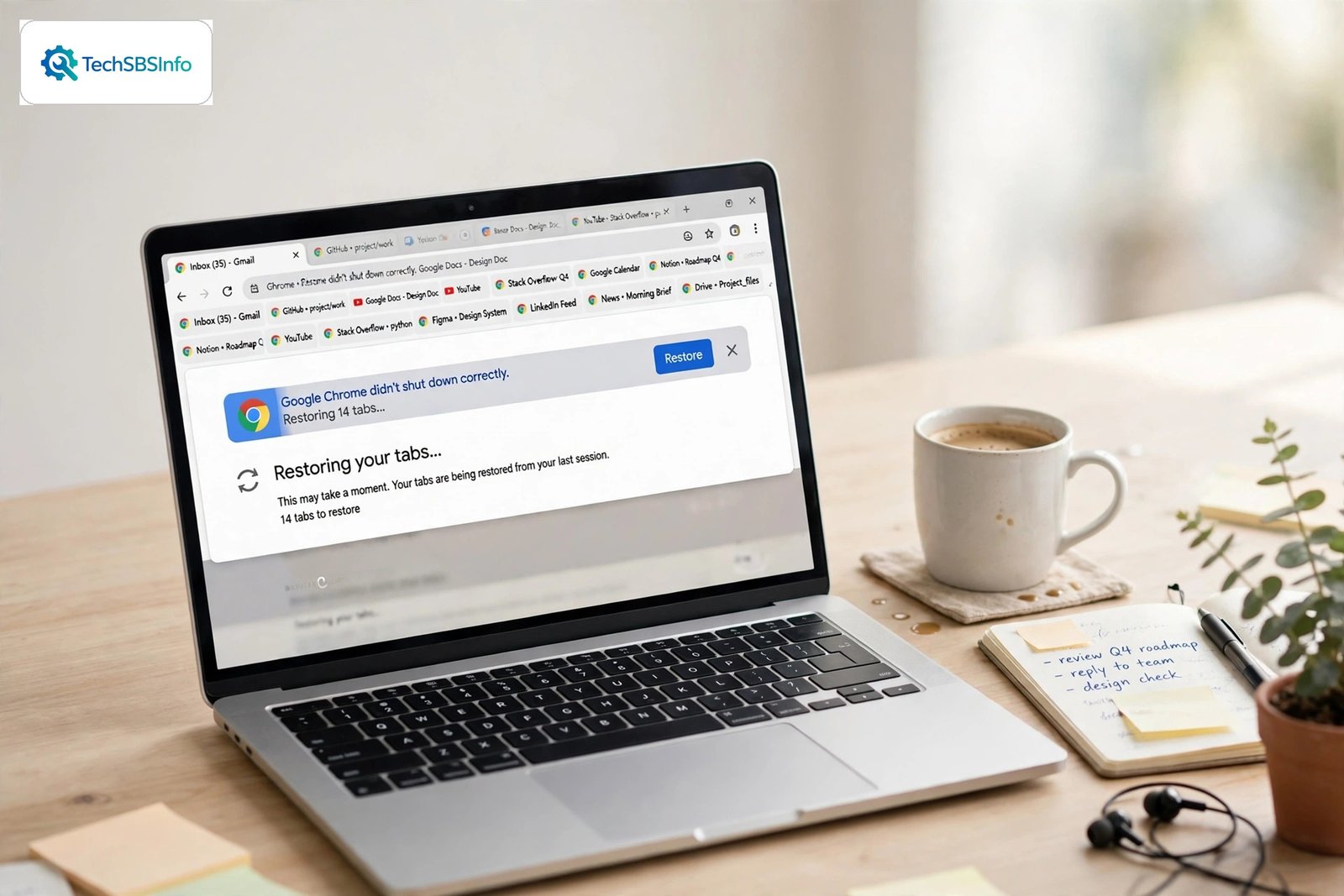
You close Chrome expecting your tabs to come back on the next launch — but Chrome opens with a blank new tab page instead, and your previous session is gone. This chrome restore previous session not working guide explains why Chrome fails to restore your tabs and gives you eight fixes to bring the feature back.
Session restore depends on a few things working together: the “On startup” setting must be set to continue where you left off, Chrome must shut down cleanly so it can save the session, and your profile’s session files must not be corrupted. When any link in that chain breaks, your tabs do not return.
Work through the fixes in order. Fix 1 alone solves most cases — many people simply have the wrong startup setting without realizing it.
Table of Contents
- Quick Checks for the chrome restore previous session not working
- Diagnose the Problem
- Fix 1: Set “On Startup” to Continue Where You Left Off
- Fix 2: Restore the Session Manually Right Now
- Fix 3: Make Sure Chrome Closes Cleanly
- Fix 4: Disable Extensions That Clear Data on Exit
- Fix 5: Check Your Antivirus and Cleaner Software
- Fix 6: Repair Corrupted Session Files
- Fix 7: Test With a Fresh Chrome Profile
- Fix 8: Reinstall Chrome as a Last Resort
- What to Avoid
- Frequently Asked Questions
- Conclusion
- Helpful Resources
Quick Checks for the chrome restore previous session not working
- Go to Settings > On startup and confirm Continue where you left off is selected.
- Press Ctrl + Shift + T right after launch — Chrome may still have the session in memory.
- Check the History menu (three dots > History) for a “recently closed” entry.
- Make sure no extension or cleaner app is set to wipe browsing data on exit.
- Confirm Chrome is actually closing fully rather than crashing — crashes skip session saving.
- If you shut down your PC with Chrome still open, try closing Chrome first, then shutting down.
Diagnose the Problem
| Symptom | Cause | Go to Fix |
|---|---|---|
| Chrome always opens a new tab page | Wrong “On startup” setting | Fix 1 |
| Session restores sometimes but not always | Chrome crashing or being force-closed | Fix 3 |
| Tabs restore but you are signed out everywhere | Extension or cleaner wiping cookies on exit | Fix 4, Fix 5 |
| “Restore pages” option missing from History | Session files corrupted or never saved | Fix 6 |
| Works in a new profile but not the old one | Damaged profile data | Fix 7 |
| Stopped working after a Windows update | System cleaner or antivirus behavior change | Fix 5 |
| Session restores on one computer but not another | Setting or extension difference between devices | Fix 1, Fix 4 |
| Chrome reopens but tabs load as blank pages | Corrupted tab data in the session file | Fix 6 |
Fix 1: Set “On Startup” to Continue Where You Left Off
This setting is the master switch for session restore. Updates, new profiles, and even some extensions can silently change it back to “Open the New Tab page.”
- Open the Chrome menu and go to Settings.
- Click On startup in the left sidebar.
- Select Continue where you left off.
- Close Chrome completely — every window.
- Reopen Chrome with several tabs open first to test: open three or four tabs, close Chrome, reopen it.
- If your tabs return, the problem is solved.

Fix 2: Restore the Session Manually Right Now
Before changing anything else, try to recover the tabs you just lost. Chrome keeps recently closed tabs and windows in its history, and they are often recoverable within the same day.
- Immediately after launching Chrome, press Ctrl + Shift + T — this reopens the last closed tab or window.
- Press it repeatedly to reopen more tabs in reverse order.
- Alternatively, click the three-dot menu, go to History, and look for entries like “7 tabs” under recently closed.
- Click the entry to reopen the whole window at once.
- If the history entry is missing, the session was never saved — continue to Fix 3.
- Do this before browsing further, because new activity can push the old session out of history.
Fix 3: Make Sure Chrome Closes Cleanly
Chrome saves your session when it shuts down normally. If Chrome crashes, is killed by Task Manager, or your computer loses power, there is no clean shutdown — and no saved session to restore.
- Close Chrome using the X button or Alt + F4, not by killing it in Task Manager.
- Before shutting down your computer, close Chrome first and wait a few seconds.
- Check whether Chrome is actually crashing: after a crash, Chrome usually offers to restore pages on the next launch — if you see that offer, the crash is the problem, not the setting.
- If Chrome crashes often, update it via Help > About Google Chrome and disable recently added extensions.
- On laptops, avoid closing the lid while Chrome is writing data — let it finish first.
- Test again: open tabs, close Chrome normally, reopen, and confirm they return.

Fix 4: Disable Extensions That Clear Data on Exit
Some privacy and “cleaner” extensions wipe cookies, history, or sessions every time Chrome closes. That directly destroys the data session restore needs.
- Type chrome://extensions in the address bar.
- Look for privacy tools, history cleaners, cookie managers, and “auto-clean” utilities.
- Click Details on each suspect and check its options for anything like “clear on exit” or “clean on browser close” — turn those options off.
- If the extension offers no such toggle, disable the extension entirely as a test.
- Close Chrome with tabs open, reopen it, and check whether the session restores.
- Keep the offending extension disabled or replace it with one that does not wipe sessions.
Fix 5: Check Your Antivirus and Cleaner Software
Desktop cleaner apps (and some antivirus “privacy” features) delete Chrome’s session and history files as part of their routine cleanup. The session works until the cleaner runs — then it is gone.
- Open your cleaner or antivirus app and look at its scheduled cleaning settings.
- Check whether it is set to clean Chrome’s browsing history, sessions, or cookies.
- Exclude Chrome’s data from automatic cleaning, or turn off the Chrome-related cleaning rules.
- Run the cleaner manually once with the new settings to confirm Chrome’s files are left alone.
- Close Chrome with tabs open and reopen to test.
- If you do not recognize a cleaner app on your system, investigate it before trusting it with your data.
Fix 6: Repair Corrupted Session Files
Chrome stores your session in files inside your profile folder. If those files become corrupted — after a crash or disk error — Chrome cannot read them and silently starts fresh. Renaming them forces Chrome to build clean replacements.
- Close Chrome completely, including background processes (Fix 2 of the password manager guide approach: end Chrome tasks in Task Manager).
- On Windows, press Win + R and type %LOCALAPPDATA%\Google\Chrome\User Data\Default, then press Enter.
- Find the files named History, Current Session, Current Tabs, Last Session, and Last Tabs.
- Rename each by adding .old to the end (for example, History.old) instead of deleting them.
- Reopen Chrome — it will create fresh, uncorrupted session files.
- Open some tabs, close Chrome normally, reopen, and confirm restore works.

Keep the .old files for a few days. If anything goes wrong, you can close Chrome and rename them back.
Fix 7: Test With a Fresh Chrome Profile
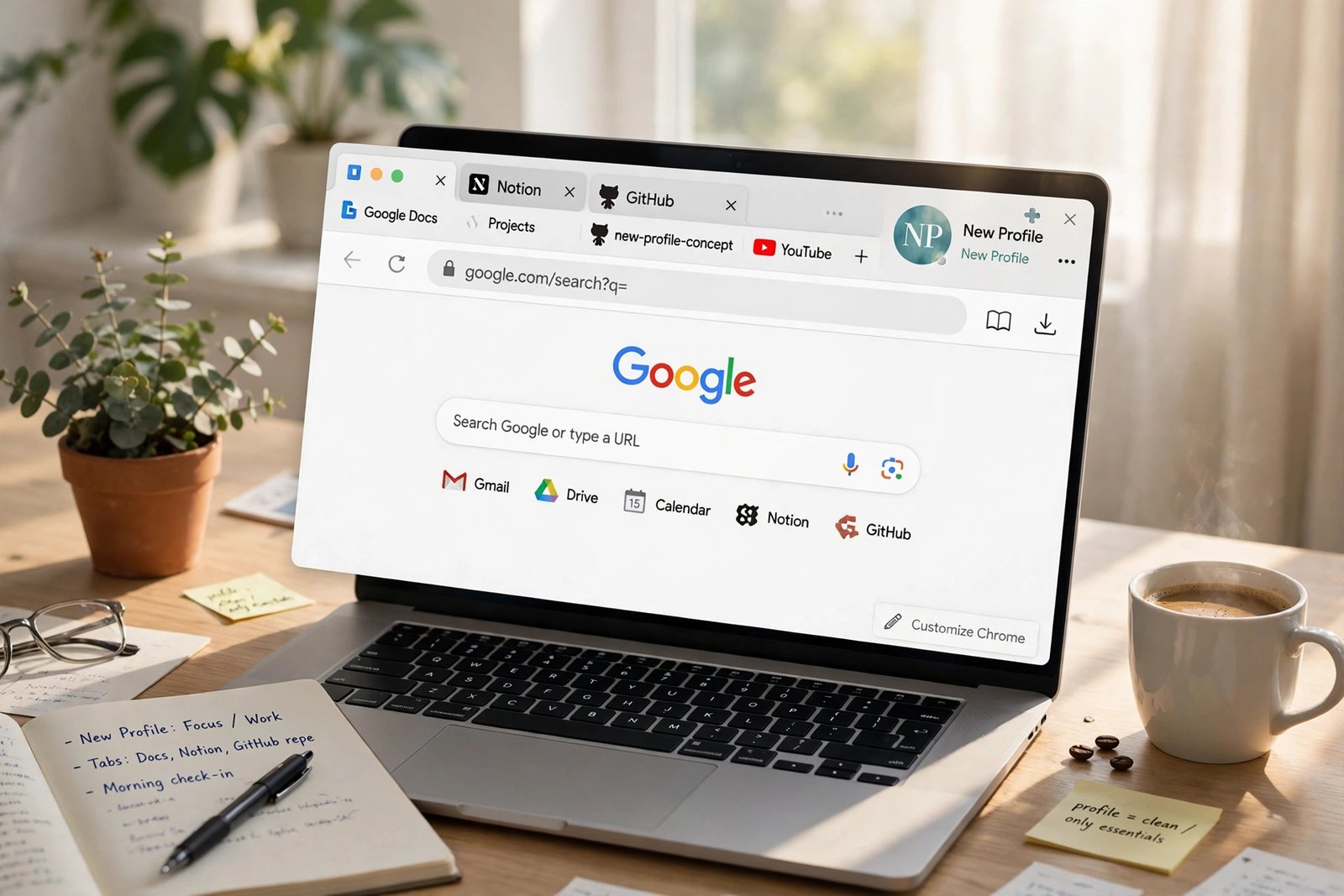
If session restore fails only in your current profile, the profile’s preferences are damaged beyond the session files. A new profile isolates the problem.
- Click your profile picture and choose Add to create a new profile.
- Sign in and turn on sync.
- Open several tabs, close Chrome, and reopen it in the new profile.
- If restore works there, migrate: let sync carry your bookmarks and passwords, reinstall extensions, then delete the old profile.
- Confirm your data synced at passwords.google.com before removing the old profile.
- If restore fails in the new profile too, the issue is system-wide — continue to Fix 8.
Fix 8: Reinstall Chrome as a Last Resort
When nothing else works, the Chrome installation itself may be damaged. A clean reinstall replaces all program files while keeping your synced data safe.
- Make sure sync is on and your data is backed up — check passwords.google.com and your bookmarks.
- On Windows, go to Settings > Apps and uninstall Google Chrome.
- When asked, choose not to delete your browsing data if you want to keep the profile — or delete it for a fully clean start.
- Download Chrome fresh from the official Google website and install it.
- Sign in, turn on sync, and set On startup to Continue where you left off.
- Test session restore with several tabs.
What to Avoid
Frequently Asked Questions
Where is the “Continue where you left off” setting?
Open Chrome’s menu, go to Settings, click On startup in the left sidebar, and select Continue where you left off. It is the single most important setting for session restore.
Why did my tabs disappear after a Chrome update?
Updates can reset the “On startup” setting or change how extensions behave. Check the setting first (Fix 1), then check for extensions that wipe data on exit (Fix 4).
Can I recover tabs from yesterday’s session?
Sometimes. Open the History menu and look under recently closed windows — Chrome keeps them for a while. Pressing Ctrl + Shift + T repeatedly also walks back through closed tabs. The sooner you try, the better your chances.
Does Incognito mode save sessions?
No. Incognito windows are never saved and never restored — that is by design. Only regular windows are part of the restored session.
Why does Chrome restore my tabs but sign me out of websites?
Something is deleting your cookies on exit — usually a privacy extension (Fix 4) or a cleaner app (Fix 5). The tabs restore because the session file survived, but the login cookies did not.
Will reinstalling Chrome delete my bookmarks?
Not if sync is on. Your bookmarks, passwords, and history live in your Google account. Verify at passwords.google.com before uninstalling, and sign back in after reinstalling.
How many tabs can Chrome restore?
Chrome can restore a large number of tabs, but very large sessions (hundreds of tabs) take longer and use more memory. If restore feels slow, consider bookmarking tab groups you rarely use instead of keeping them open.
Is it safe to rename files in the Chrome profile folder?
Yes, as long as Chrome is fully closed first. Renaming (rather than deleting) means you can always undo the change. Do not edit the files’ contents — only rename them.
Conclusion
The chrome restore previous session not working problem almost always traces back to one of three things: the wrong startup setting, something wiping data on exit, or corrupted session files. Check the setting, audit your extensions and cleaners, and repair the profile files — and your tabs will greet you again every time you launch Chrome.
[…] whether Chrome restores your old session properly too. If sessions misbehave as well, our guide on Chrome restore previous session not working covers […]
[…] Chrome never restores previous sessions at all, our guide to Chrome restore previous session not working covers the session […]