


You set up a rule to move newsletters into a folder, and every morning they sit in your inbox anyway. The outlook rules not working problem is maddening because the rule looks perfect on screen, yet nothing happens when new mail arrives.
The good news is that the causes are well understood. Rules fail for a short list of reasons: they are switched off, they conflict with each other, they point at something that no longer exists, they are client-only rules that need Outlook running, or they have hit the mailbox quota. Each has a clear fix.
Work through these nine fixes in order. They start with the thirty-second checks and end with the deeper repairs. Most readers get their rules firing again by Fix 4.
Table of Contents
- Quick Checks
- Diagnose the Problem
- Fix 1: Confirm Your Rules Are Actually Enabled
- Fix 2: Run the Rules Manually on Existing Mail
- Fix 3: Fix Rule Order and “Stop Processing More Rules”
- Fix 4: Repair Rules That Point at Deleted Folders
- Fix 5: Understand Client-Only Rules Behind Outlook Rules Not Working
- Fix 6: Delete and Recreate a Corrupted Rule
- Fix 7: Free Up Space Under the Rules Quota
- Fix 8: Reset the Corrupted SRS File
- Fix 9: Repair Your Data File, Profile, and Outlook Itself
- What to Avoid
- Frequently Asked Questions
- Conclusion
- Helpful Resources
Quick Checks
- Open File > Manage Rules & Alerts and confirm the checkbox next to each rule is ticked.
- Remember that rules only act on mail arriving after the rule was created. Old mail is untouched unless you run the rule manually.
- Check whether Outlook is open when mail arrives. Client-only rules do nothing while Outlook is closed.
- Look for a warning that rules could not be uploaded to the server. That signals a quota problem.
- Send yourself a test email that matches the rule and watch what happens within a minute or two.
Diagnose the Problem
| Symptom | Cause | Go to Fix |
|---|---|---|
| Nothing happens when matching mail arrives | Rule is disabled | Fix 1 |
| Rule works on old mail but not new mail | Rules only run automatically on incoming mail; or rule is broken for new arrivals | Fix 2 |
| First rule works, later rules never fire | “Stop processing more rules” is blocking the chain | Fix 3 |
| Rule shows an error or does nothing after a folder was deleted | Rule references a folder or address that no longer exists | Fix 4 |
| Rule only works while Outlook is open | It is a client-only rule | Fix 5 |
| One rule misbehaves while others work fine | That rule is corrupted | Fix 6 |
| Outlook warns rules could not be uploaded | Rules quota is full | Fix 7 |
| Rules fail after an Outlook crash or update | Corrupted send/receive settings file | Fix 8 |
| Nothing above helped | Damaged data file, profile, or installation | Fix 9 |
Fix 1: Confirm Your Rules Are Actually Enabled
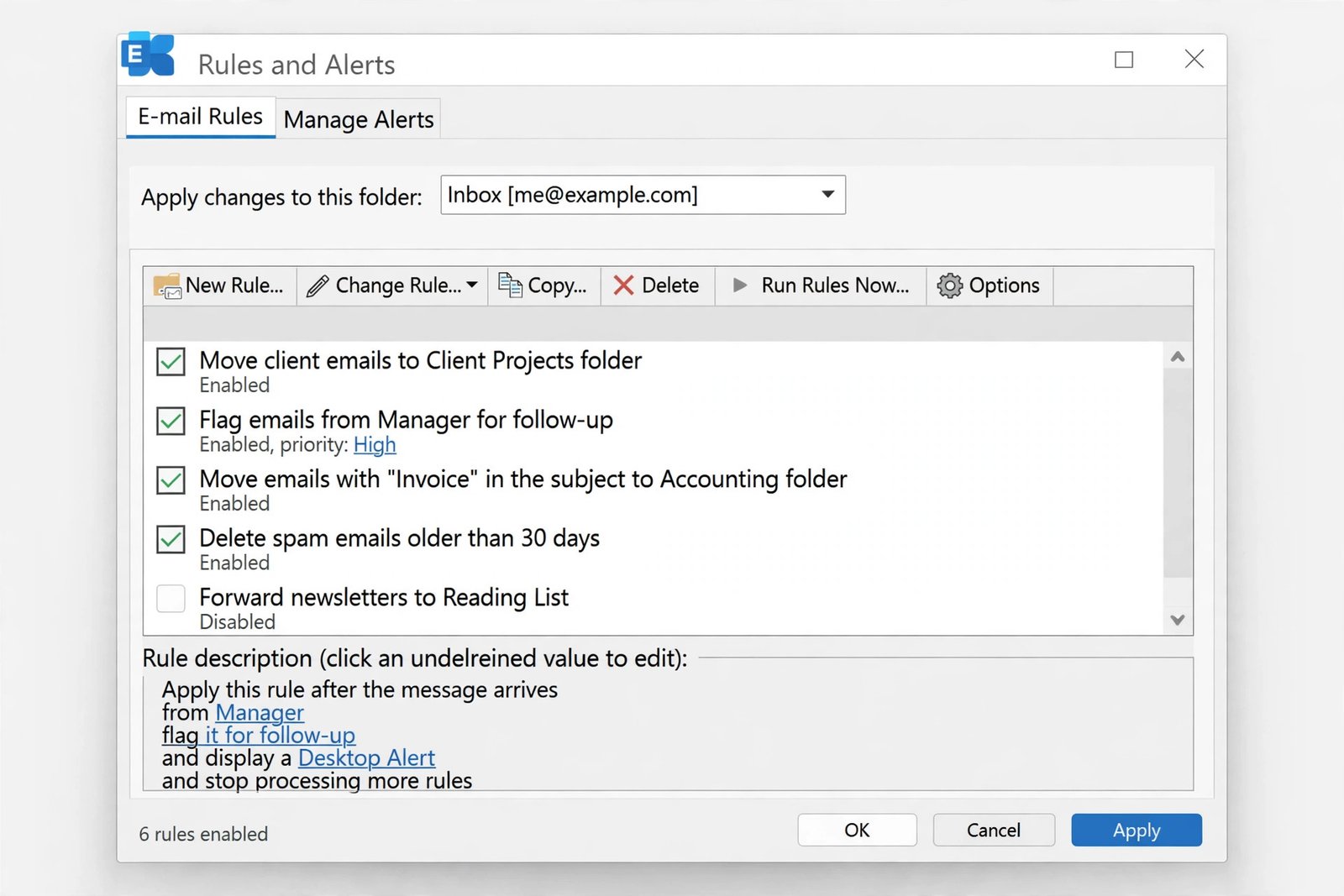
Rules are enabled when created, but updates, profile changes, and accidental clicks can switch them off. This is the first thing to verify.
- In Outlook, click File, then Manage Rules & Alerts.
- On the E-mail Rules tab, look at the checkbox beside each rule.
- Tick the box for every rule you want active.
- Click Apply, then OK.
- Send yourself a test message that matches the rule to confirm it fires.
- In the new Outlook for Windows, go to Settings > Mail > Rules and check the toggle beside each rule instead.
- A rule can look enabled but be broken by migration from classic Outlook. If it still does nothing, recreate it natively in your current Outlook version.
- Disabling a rule you are unsure about is safer than deleting it. You can re-enable it in seconds.
Fix 2: Run the Rules Manually on Existing Mail
New rules never touch mail that arrived before they were created. If your complaint is “the rule doesn’t sort my old mail,” that is by design, and the fix is to run the rule yourself.
- Open File > Manage Rules & Alerts.
- Click Run Rules Now.
- Tick the rules you want to run.
- Under Run in Folder, choose the folder containing the mail, such as the Inbox. Tick Include subfolders if needed.
- Under Apply rules to, choose All messages, Unread messages, or Read messages.
- Click Run Now and wait for Outlook to process the folder.
- In the new Outlook, open Settings > Mail > Rules and use the play icon (Run rule now) beside a rule.
- Running rules on a huge mailbox can take several minutes. Let it finish before judging the result.
- Manual runs also confirm the rule’s logic is sound. If it works manually but not automatically, the problem is with automatic triggering, not the rule itself.
Fix 3: Fix Rule Order and “Stop Processing More Rules”
Outlook processes rules top to bottom. A rule with Stop processing more rules ticked ends the chain the moment it matches, so every rule below it never fires for that message.
- Open File > Manage Rules & Alerts and study the order of your rules.
- Select a rule, then click Change Rule > Edit Rule Settings to walk through the wizard.
- On the actions page, find stop processing more rules. Clear it on rules that should not block the rest.
- Keep it ticked only on decisive rules that should win outright, like a rule that deletes obvious junk.
- Use the up and down arrow buttons in the Rules and Alerts dialog to put your most important rules first.
- Click Apply and test with a fresh message.

- Rules created with the quick Create Rule box often include stop processing already. Check them.
- Two rules that move mail to different folders will fight unless stop processing settles the winner.
- After reordering, send test messages for each rule to confirm they now fire in the intended sequence.
Fix 4: Repair Rules That Point at Deleted Folders
If you deleted or renamed a mailbox folder that a rule moves mail into, the rule breaks. Outlook may show the rule with an error, or it may simply do nothing.
- Open File > Manage Rules & Alerts.
- Double-click the rule that is not working.
- Read the Rule description at the bottom. Look for underlined values like a folder name.
- Click the underlined folder value. If the folder is gone, choose an existing folder or create the folder again first.
- Check every underlined value in the description: addresses, categories, and folders can all go stale.
- Step through the wizard with Next, then click Finish.
- Renaming a folder has the same effect as deleting it. The rule still points at the old name.
- Rules that forward to an address break when that address is removed from your contacts or organization.
- After fixing the reference, run the rule manually once with Fix 2 to confirm it behaves.
Fix 5: Understand Client-Only Rules Behind Outlook Rules Not Working
Some rules can only run on your computer, not on the mail server. These are called client-only rules, and the outlook rules not working complaint often means a client-only rule is expected to work while Outlook is closed.
- Open File > Manage Rules & Alerts and look for (client-only) after any rule’s name.
- Typical client-only actions include playing a sound, showing a desktop alert, or moving mail to a local PST folder.
- Keep Outlook running on the computer where the rule was created if you need these rules to fire.
- Better yet, rebuild the rule using only server-side actions: move to a mailbox folder, categorize, flag, or forward. Server-side rules run whether or not Outlook is open.
- Note that the new Outlook, Outlook on the web, and Outlook for Mac only support server-side rules. Client-only rules from classic Outlook will not run there at all.
- A client-only rule placed above server-side rules with stop processing ticked can block the server rules too. Reorder so server rules come first.
- Moving mail to a folder that exists only on your device forces the rule to be client-only. Use a mailbox folder instead.
- If you migrated from classic Outlook to the new Outlook, recreate client-only rules as server-side equivalents.
Fix 6: Delete and Recreate a Corrupted Rule
A single rule can become corrupted while its neighbors work fine, especially after an Office update or a profile repair. The fastest cure is to delete it and build it again from scratch.
- Open File > Manage Rules & Alerts.
- Select the misbehaving rule and click Delete. Confirm with Yes.
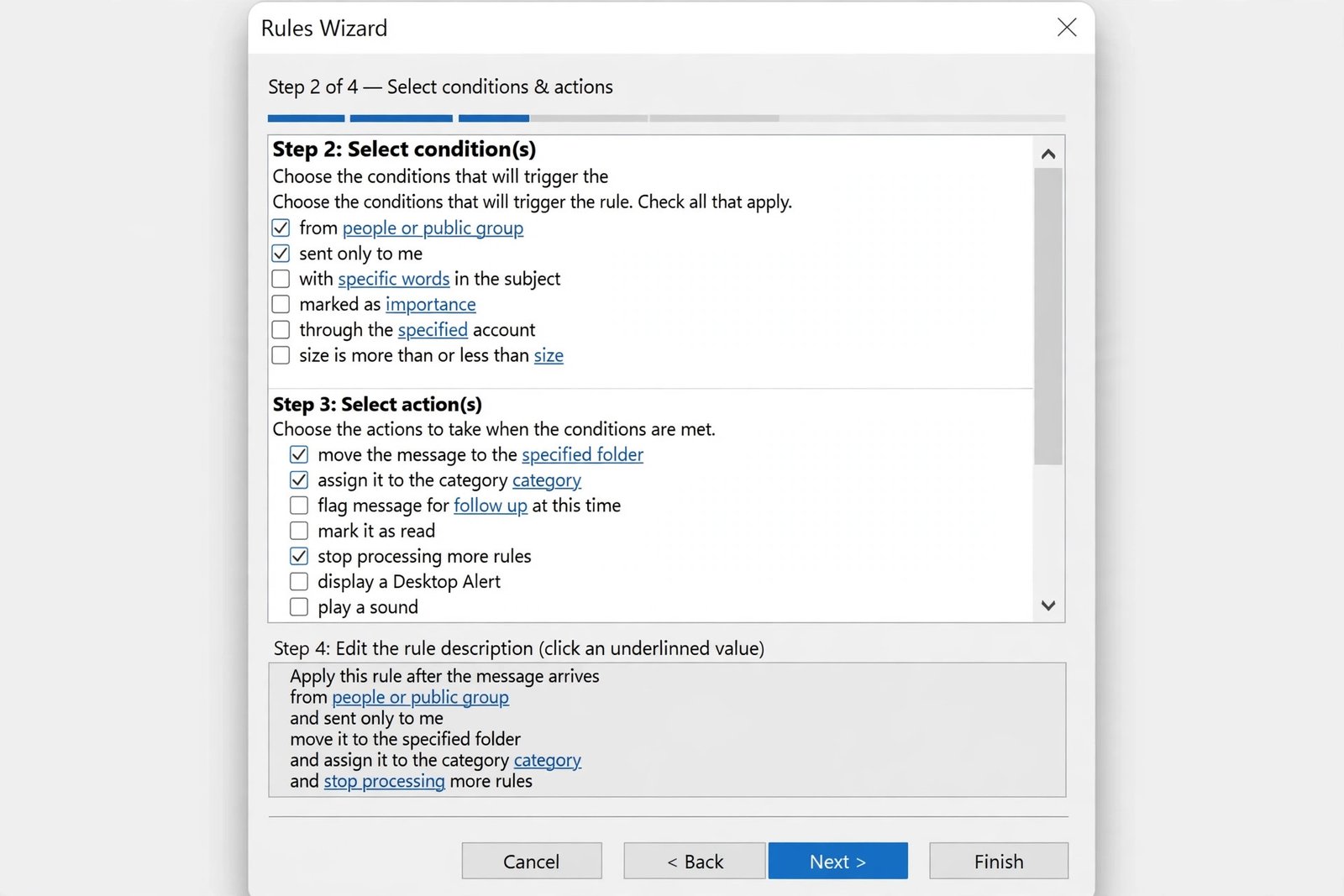
- Click New Rule to open the Rules Wizard.
- Rebuild the rule step by step: choose the template or start from a blank rule, set the conditions, set the actions, and add any exceptions.
- Read the final Rule description carefully before clicking Finish. Every underlined value should point at something that exists.
- Click Apply, then test with a new message.
- Write down the old rule’s conditions and actions before deleting it, so the rebuild matches.
- Test the new rule immediately with Run Rules Now on a small folder before trusting it with live mail.
- If several rules are corrupt, delete and recreate them one at a time, testing each, rather than wiping everything at once.
Fix 7: Free Up Space Under the Rules Quota
Mailboxes have a limited amount of space for rules. When the quota fills up, Outlook warns that rules could not be uploaded to the server, and new or edited rules stop working.
- Open File > Manage Rules & Alerts and delete rules you no longer need. Select each and click Delete.
- Merge similar rules together. Three rules that move mail from three senders to one folder can become a single rule with three sender conditions.
- Shorten long rule names and remove unnecessary conditions. Every condition and exception consumes quota space.
- In the new Outlook, open Settings > Mail > Rules and remove stale rules there too. They share the same mailbox quota.
- After cleaning up, restart Outlook and confirm the quota warning is gone.
- Long rules with many “specific words” conditions are the biggest quota eaters. Simplify them first.
- Turning a rule off does not free its quota space in every setup. Deleting does.
- If your organization manages the mailbox, ask the administrator about the quota. They can confirm how close you are to the limit.
Fix 8: Reset the Corrupted SRS File
Outlook stores send and receive settings in a file called Outlook.srs. When it corrupts, rules can stop running automatically even though everything looks correct. Renaming the file forces Outlook to build a fresh one.
- Close Outlook completely. Check the system tray to make sure it is really closed.
- Press Windows + R, type
%appdata%\Microsoft\Outlook, and press Enter. - Find the file named Outlook.srs.
- Right-click it, choose Rename, and change it to Outlook.srs.old.
- Start Outlook again. It recreates the SRS file automatically with default settings.
- Test your rules with a new message.
- This reset only affects send/receive settings. Your rules, mail, and folders are untouched.
- You may need to reconfigure any custom send/receive groups after the reset.
- If rules worked before an Outlook crash and broke right after, the SRS file is a prime suspect.
Fix 9: Repair Your Data File, Profile, and Outlook Itself
When nothing else helps, the problem sits below the rules: a damaged data file, a broken profile, or a faulty Office installation.
- Close Outlook and open the Inbox Repair Tool by searching Windows for SCANPST.EXE.
- Browse to your PST or OST data file and run the repair. Repeat until it reports no errors.
- If repairs do not help, create a fresh Outlook profile: open Control Panel > Mail > Show Profiles, click Add, and set up your account again.
- Test the rules in the new profile before deleting the old one.
- As a final step, repair Office itself: Settings > Apps, find Microsoft 365 or Microsoft Office, choose Modify, and run Quick Repair, then Online Repair if needed.
- Update Outlook to the latest build. Rule handling improves with updates, especially around migrations between classic and new Outlook.

- Back up your PST files before running repairs, just in case.
- A new profile means re-adding your accounts and re-downloading mail. Allow time for the first sync.
- After an Office repair, open File > Manage Rules & Alerts and confirm your rules survived before testing.
What to Avoid
- Do not download “Outlook rule fixer” utilities or registry cleaners from random sites. They cannot fix rule logic and may damage your profile.
- Do not delete all your rules in frustration before diagnosing. Fix or recreate them one at a time so you always know what changed.
- Do not create a dozen overlapping rules when one careful rule would do. Overlap is the top cause of mysterious rule behavior.
- Do not ignore the quota warning. Adding more rules on top of a full quota wastes your time.
- Do not edit the registry to force rules to run. Microsoft’s documented fixes above cover every common cause without registry edits.
- Do not expect rules to sort mail that arrived before the rule existed. Run them manually on old mail instead.
Frequently Asked Questions
Why are my Outlook rules not working automatically?
The outlook rules not working problem usually means the rule is disabled, blocked by another rule’s stop-processing setting, client-only while Outlook is closed, pointing at a deleted folder, or over the mailbox quota. Work through Fix 1 to Fix 7 in order and you will find it.
Do Outlook rules work when Outlook is closed?
Server-side rules do. They run on the mail server whether or not Outlook is open. Client-only rules, marked (client-only), only run while classic Outlook is open on the computer that created them. Rebuild client-only rules with server-side actions if you need them to work around the clock.
Why do my rules work manually but not automatically?
The rule logic is fine, so the trigger is the problem. Suspects include a corrupted SRS file (Fix 8), a client-only rule with Outlook closed (Fix 5), or a damaged profile (Fix 9). Manual runs bypass the automatic trigger, which is why they succeed.
What does “stop processing more rules” do?
When a message matches a rule with this option ticked, Outlook ignores all later rules for that message, even if they would also match. It is useful for decisive rules like deleting junk, but it silently blocks everything below it. Clear it on rules that should not end the chain.
How many Outlook rules can I have?
There is no fixed count. The limit is the mailbox rules quota, a hidden storage space for all enabled rules combined. Long names and many conditions eat it up. When it fills, Outlook warns that rules could not be uploaded. Delete and merge rules to free space.
Why did my rules break after switching to the new Outlook?
Client-only rules created in classic Outlook cannot run in the new Outlook, which supports server-side rules only. Recreate those rules natively in the new Outlook using Settings > Mail > Rules, replacing client-only actions with server-side equivalents.
Can I make a rule apply to mail already in my inbox?
Yes. Open File > Manage Rules & Alerts, click Run Rules Now, select the rules and the folder, and click Run Now. In the new Outlook, use the Run rule now play icon beside the rule in Settings > Mail > Rules.
Will resetting the SRS file delete my rules?
No. Renaming Outlook.srs to Outlook.srs.old only resets send and receive settings. Your rules, accounts, folders, and mail stay intact. Outlook builds a fresh settings file on next launch.
Conclusion
Outlook rules not working is rarely a mystery once you know the checklist. Confirm the rules are enabled, fix the order and stop-processing flags, repair broken folder references, respect the difference between client-only and server-side rules, and keep an eye on the quota. Rules are simple machines: give each one a clear condition, a valid destination, and room to run, and your inbox will sort itself again.
[…] rules misbehave more widely, our guide to Outlook rules not working covers rule repairs in […]