


The slide looks perfect in the thumbnail. You start the show, and the video shows a black box, a “Cannot play media” message, or simply nothing. The powerpoint embedded video not playing problem strikes at the worst moment, usually minutes before a presentation.
Almost every case comes down to one of a few causes: an unsupported video format, a missing codec, a video that was linked instead of embedded, wrong playback settings, or a tired graphics driver. All of them are fixable with built-in PowerPoint and Windows tools. No shady codec packs from random websites required.
Work through these nine fixes in order, simplest first. Most readers get their video playing by Fix 3.
Table of Contents
- Quick Checks
- Diagnose the Problem
- Fix 1: Convert the Video to MP4 to Fix PowerPoint Embedded Video Not Playing
- Fix 2: Run Optimize Media Compatibility
- Fix 3: Re-Insert the Video So It Is Truly Embedded
- Fix 4: Check the Playback Tab Settings
- Fix 5: Install the Media Feature Pack for Missing Codecs
- Fix 6: Update Office and Your Graphics Driver
- Fix 7: Disable Hardware Graphics Acceleration
- Fix 8: Compress the Media to Fix Oversized Files
- Fix 9: Move the Slides into a Fresh Presentation
- What to Avoid
- Frequently Asked Questions
- Conclusion
- Helpful Resources
Quick Checks
- Confirm the video file itself plays outside PowerPoint. Open it in the Movies & TV app or Windows Media Player.
- Note the file extension. MP4 with H.264 video and AAC audio is the safest format for PowerPoint.
- Start the slide show with F5 and test. Some videos only fail in Normal view but play fine in Slide Show view.
- Check the file size. Enormous video files can choke playback on weaker machines.
- If the presentation came from someone else, ask whether the video played on their computer. That tells you whether the file or your PC is the problem.
Diagnose the Problem
| Symptom | Cause | Go to Fix |
|---|---|---|
| “Cannot play media” or codec error | Unsupported format or encoding | Fix 1 |
| Video plays on one PC but not another | Compatibility or missing codec on the second PC | Fix 2 |
| Red X or empty frame where the video was | Video was linked, not embedded, and the file moved | Fix 3 |
| Video shows but never starts | Wrong playback start setting | Fix 4 |
| Format is supported but still will not play | Missing system codec | Fix 5 |
| Video stutters, freezes, or crashes PowerPoint | Outdated Office or graphics driver | Fix 6 |
| Video fails in Presenter View but works otherwise | Hardware acceleration conflict | Fix 7 |
| Huge file plays badly or not at all | File too large for smooth playback | Fix 8 |
| Nothing above helped | Presentation file corruption | Fix 9 |
Fix 1: Convert the Video to MP4 to Fix PowerPoint Embedded Video Not Playing
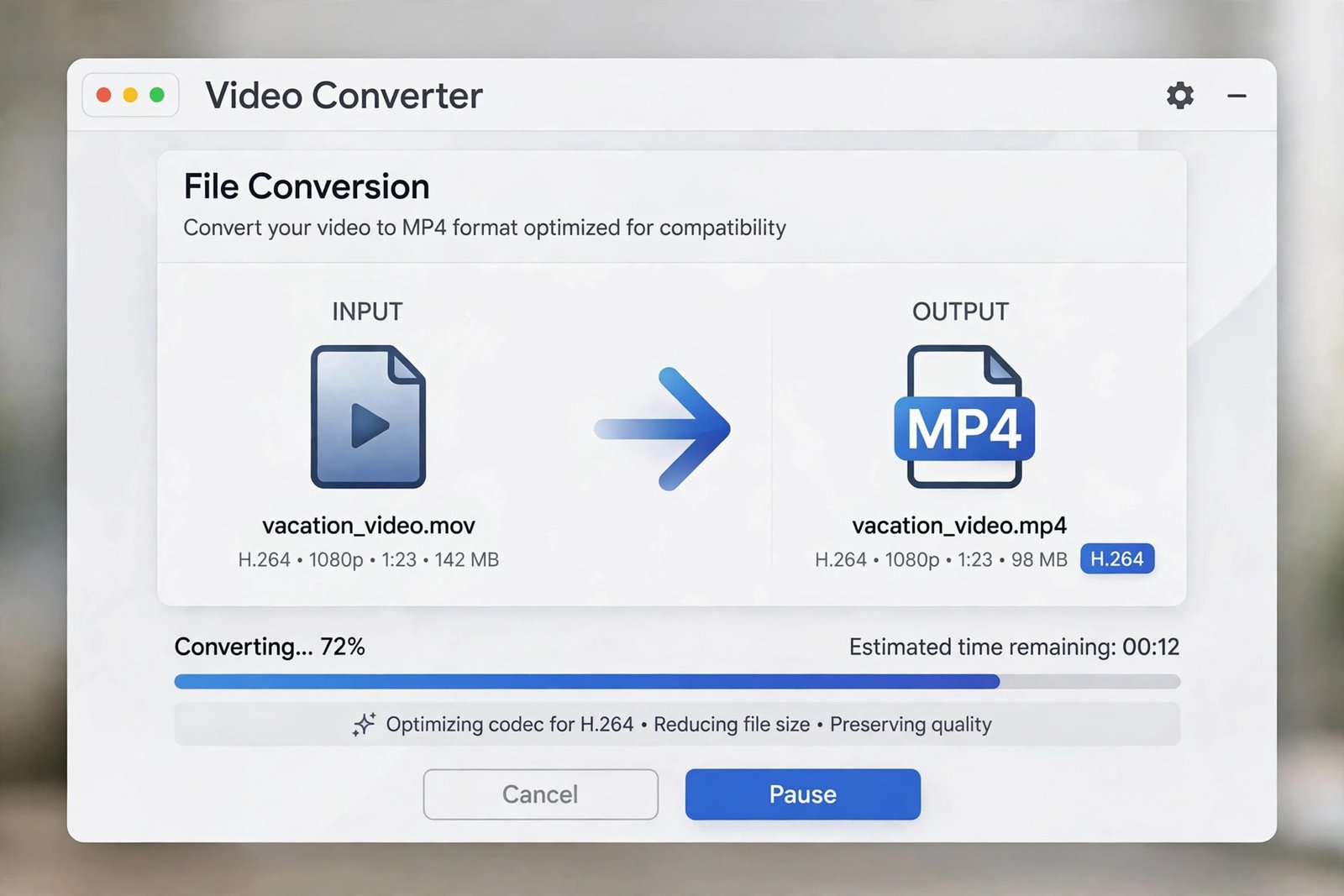
PowerPoint plays some formats better than others. Microsoft’s own recommendation is clear: use .mp4 files encoded with H.264 video and AAC audio. Older formats like WMV, AVI, and FLV have limited or deprecated support in current PowerPoint builds and are the top cause of the powerpoint embedded video not playing problem.
- Check your video’s current format by right-clicking the file and choosing Properties, then the Details tab.
- If it is not MP4 with H.264/AAC, convert it. The free Clipchamp app included with Windows can export to MP4, or use any reputable desktop converter you already trust.
- Choose MP4 output with the H.264 video codec and AAC audio.
- Delete the old video from the slide.
- Insert the converted file with Insert > Video > Video from file.
- Save the presentation and test with F5.
- Converting is easier and safer than hunting down individual codecs for exotic formats.
- Keep the original file until you confirm the converted version plays in the slide show.
- For audio-only problems, the same logic applies: use .m4a with AAC audio.
- Avoid re-encoding the same file many times. Each conversion loses a little quality, so convert once from the best source you have.
Fix 2: Run Optimize Media Compatibility
PowerPoint has a built-in tool that scans your presentation for media that might not play on other devices and fixes what it can. Run it before every important presentation.
- Click the File tab, then Info.
- If any media might cause trouble, an Optimize Compatibility button appears. If it does not appear, your media has no detected compatibility issues.
- Click Optimize Compatibility and let PowerPoint process each media file.
- Read the summary. It lists how many media files were improved and any remaining problems.
- If it reports linked videos that need embedding, click View Links and choose Break Link for each video to embed it.
- Save the presentation and test the slide show.
- Run this on the computer you will present from, not just the one you built the slides on.
- Optimization can remove embedded subtitles and alternate audio tracks. Check the video afterwards if those matter to you.
- In newer builds you can also use File > Info > Check for Issues > Check Compatibility for a broader scan.
Fix 3: Re-Insert the Video So It Is Truly Embedded
A video that was linked instead of embedded breaks the moment the source file moves, renames, or is unavailable. The slide shows a red X or an empty frame, which many readers describe as the powerpoint embedded video not playing problem even though the video was never embedded at all.
- Delete the broken video frame from the slide.
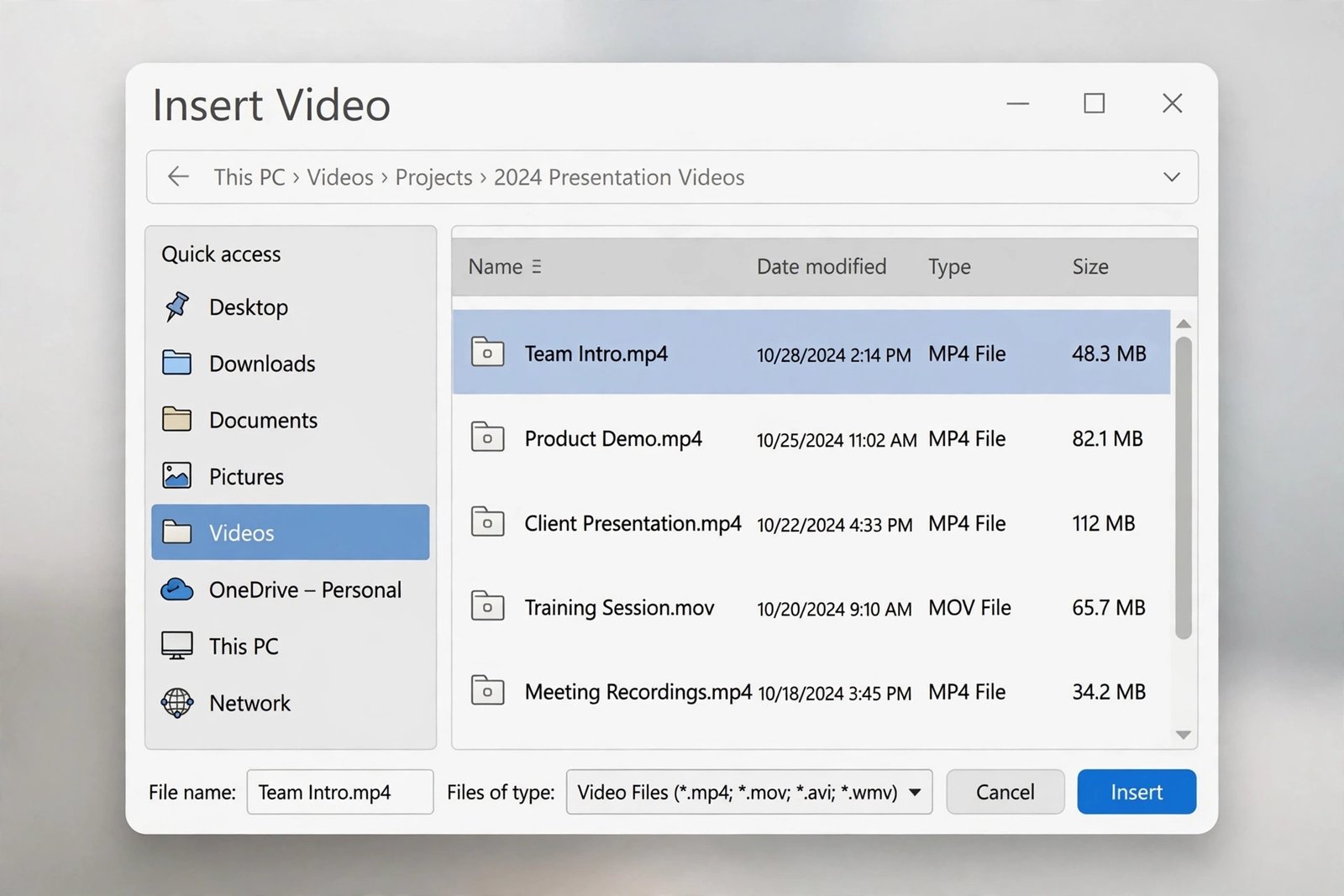
- Go to Insert > Video > Video from file.
- Browse to the video and select it.
- Check the Insert button’s drop-down. Choose Insert, not Link to File. Linking is what causes this failure.
- Confirm the video now plays in the slide show.
- Keep a copy of the presentation’s media folder if you must link large files, and always move the video with the presentation.
- If you received the presentation by email, linked videos almost never survive the trip. Ask the sender to embed instead.
- A quick test for linking: rename the original video file. If the slide breaks, it was linked.
- For online videos, use Insert > Video > Online Video and paste the proper embed address. A plain watch-page link will not play inside the slide.
Fix 4: Check the Playback Tab Settings
Sometimes the video is fine but its playback settings are wrong. It may be set to play only on click when you expected automatic playback, or hidden behind other settings.
- Click the video frame on the slide to select it.
- Two new tabs appear: Video Format and Playback. Click Playback.
- In the Video Options group, set Start to Automatically if the video should play when the slide appears, or On Click if you want to control it.
- Tick Play Full Screen if the video should fill the screen during the show.
- Tick Loop until Stopped only if you actually want repetition.
- Check Hide While Not Playing if you want a clean slide before the video starts.
- Press F5 and confirm the behavior matches what you set.

- Trim Video on the same tab lets you cut dead air from the start or end without re-encoding.
- Fade In and Fade Out durations are cosmetic. They do not affect whether the video plays.
- If the video starts but you hear no sound, check the volume slider on the Playback tab and your Windows volume mixer.
- Bookmarks on the video timeline do not affect playback. Ignore them while troubleshooting.
Fix 5: Install the Media Feature Pack for Missing Codecs
A codec is a small piece of software that decodes a video file so it can play. If PowerPoint says it cannot play a file that is technically in a supported container, the specific codec inside may be missing from Windows. This is common on N editions of Windows sold in some regions.
- Confirm the symptom: the file plays nowhere on this PC, or PowerPoint reports a missing codec.
- Open Windows Settings > Apps > Optional features.
- Click View features next to Add an optional feature.
- Search for Media Feature Pack, select it, and install it.
- Restart the computer.
- Open the presentation and test the video again.
- Prefer the official Media Feature Pack over third-party codec bundles. Random codec packs are a classic malware vector and can destabilize video playback system-wide.
- If the file uses an unusual codec even the feature pack lacks, converting to MP4 with H.264/AAC (Fix 1) remains the simpler path.
- On managed work computers, optional features may be blocked. Ask your IT administrator to deploy the feature pack.
Fix 6: Update Office and Your Graphics Driver
Video playback leans on both Office’s media engine and your graphics driver. Outdated versions cause stuttering, freezing, and crashes that look like a broken video file.
- In PowerPoint, go to File > Account > Update Options > Update Now and install any pending Office updates.
- Restart PowerPoint after the update.
- Update your graphics driver: open Device Manager, expand Display adapters, right-click your adapter, and choose Update driver.
- For the newest driver, visit your PC or graphics card maker’s official site rather than relying only on Windows Update.
- Restart the computer and test the slide show.
- Office updates regularly include media playback fixes. A machine months behind on updates is a common culprit.
- If the problem started right after a driver update, roll the driver back in Device Manager and test again.
- Keep Windows itself updated too. Media components ship with Windows updates as well as Office updates.
Fix 7: Disable Hardware Graphics Acceleration
PowerPoint can offload video rendering to your GPU. When the graphics driver and PowerPoint disagree, especially in Presenter View with two displays, embedded videos freeze or refuse to play. Turning acceleration off forces CPU rendering, which is slower but far more compatible.
- In PowerPoint, click File > Options.
- Choose Advanced on the left.
- Scroll down to the Display section.
- Tick Disable slide show hardware graphics acceleration.
- Click OK, close PowerPoint completely, and reopen it.
- Start the slide show, including Presenter View if that was the failing scenario, and test the video.
- This setting is per Office installation, so set it on the presenting laptop, not just your desktop.
- If disabling acceleration fixes playback, your graphics driver is the deeper issue. Update it when you can, then try re-enabling acceleration.
- Slide transitions may look slightly less smooth with acceleration off. That is a fair trade for reliable video.
Fix 8: Compress the Media to Fix Oversized Files
Huge video files strain playback, bloat the presentation, and can fail on machines with less memory. PowerPoint’s built-in compressor shrinks embedded media without leaving the app.
- Click the File tab, then Info.
- Click Compress Media.
- Choose a quality level. Presentation Quality is the safe middle ground for most projectors and screens.
- Let PowerPoint compress each media file. It reports how much space was saved.
- Save the presentation under a new name first, so you keep the original quality version.
- Test the slide show and check that the video still looks acceptable.

- Compress a copy, not your only master. Compression cannot be undone.
- Internet Quality produces the smallest files but visibly softens the video. Use it only when size matters more than sharpness.
- If the video is still enormous after compression, consider hosting it online and linking it instead of embedding.
Fix 9: Move the Slides into a Fresh Presentation
When every setting is correct and the video file is fine, the presentation itself may be corrupt. Moving the slides to a new file leaves the corruption behind.
- Create a brand-new blank presentation.
- In the new file, go to Home > New Slide > Reuse Slides.
- Browse to the damaged presentation and insert all slides. Tick Keep source formatting.
- Re-insert the video fresh with Insert > Video > Video from file, choosing true embedding.
- Save the new file with a new name.
- Test the full slide show from beginning to end.
- Reuse Slides preserves layouts and formatting while ditching the old file’s internal damage.
- If even the fresh file fails on the same video, the video file itself is the problem. Convert it with Fix 1.
- As a lighter alternative, try File > Info > Check for Issues > Inspect Document on the original file first. It sometimes flags media problems.
What to Avoid
- Do not install codec packs from unknown websites. They are a notorious malware source and can break system video playback. Use the official Media Feature Pack or convert the video instead.
- Do not use pirated or “activated” Office copies to fix playback. They do not contain better codecs and they put your machine at risk.
- Do not embed Flash or other dead formats and expect them to play. Convert legacy videos to MP4 before inserting.
- Do not present from a different laptop than the one you tested on without re-running Optimize Compatibility there.
- Do not crank compression to the lowest quality on your only copy. Always compress a copy.
- Do not ignore the audio track. A video that “plays” with no sound is still a failed presentation. Check volume and audio format too.
Frequently Asked Questions
Why is my embedded video not playing in PowerPoint?
The powerpoint embedded video not playing problem is usually an unsupported format, a missing codec, a linked video whose source moved, or wrong playback settings. Convert to MP4 with H.264/AAC, run Optimize Compatibility, and confirm the video is truly embedded rather than linked.
What video format works best in PowerPoint?
MP4 encoded with H.264 video and AAC audio. Microsoft recommends this combination for compatibility across Windows and Mac versions of PowerPoint. For audio, use M4A with AAC.
What does “Cannot play media” mean in PowerPoint?
It means PowerPoint cannot decode the media file, almost always because of an unsupported format or a missing codec. Convert the file to the recommended MP4 format, or install the official Media Feature Pack if the format should be supported.
Why does the video play on my computer but not on another?
The other computer lacks the codec, has an older Office build, or the video was linked to a file path that does not exist there. Run File > Info > Optimize Compatibility on the presenting computer and prefer embedded MP4 files.
How do I make a video play automatically in PowerPoint?
Select the video, open the Playback tab, and set Start to Automatically. The video then begins when its slide appears during the slide show. Set it to On Click if you want manual control.
Can I embed a YouTube video in PowerPoint?
Yes, with Insert > Video > Online Video. You need an internet connection during the presentation for it to play. For offline reliability, download the video only if you have the rights to do so, convert it to MP4, and embed the file.
Why is there no sound when my PowerPoint video plays?
Check the volume slider on the Playback tab, the Windows volume mixer, and whether the video’s audio track uses an unsupported codec. Converting the video to MP4 with AAC audio fixes most silent-playback cases.
Will compressing media reduce video quality?
Yes, somewhat. Presentation Quality keeps the video sharp enough for most screens while shrinking the file. Internet Quality softens it noticeably. Always compress a copy and keep your high-quality original.
Conclusion
The powerpoint embedded video not playing problem feels like a crisis, but it surrenders to methodical checks. Confirm the file plays outside PowerPoint, convert it to MP4 with H.264 and AAC, make sure it is embedded rather than linked, run Optimize Compatibility, and verify the Playback tab settings. Do that on the actual presenting laptop, and your video will play when the lights go down.