

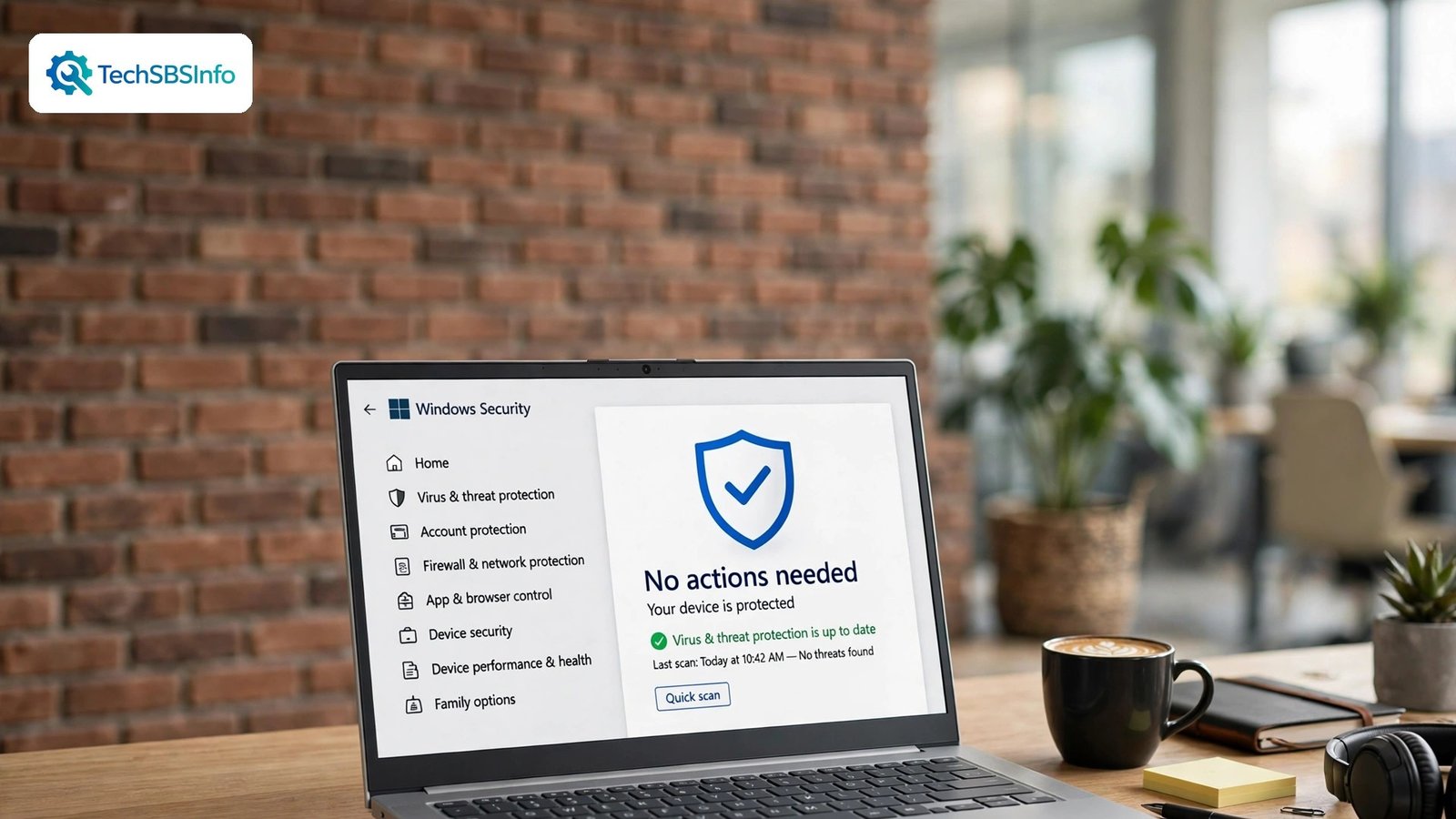
If windows 11 firewall blocking internet is the problem on your screen, here is the short answer: the Windows Firewall filters traffic by network type and by app, and it can block your internet when the network profile is wrong, when an app is not on the allowed list, or when a rule from another program is too strict. The fix is almost never to turn the firewall off for good. Check the profile and the allowed apps first, then reset the firewall if you need to.
This guide uses only the built-in Windows Security app and the built-in firewall settings. You do not need any paid tool, and you should not install one. Work through the fixes in order, simplest first, and test your browser after each one. Stop as soon as websites load again.
Table of Contents
- Why Is the Firewall Blocking the Internet on Windows 11?
- Quick Checks
- Diagnose: Match Your Symptom to the Cause
- 1. Test Whether the Firewall Is Really the Cause
- 2. Check the Network Profile: Private or Public
- 3. Allow the Blocked App Through the Firewall
- 4. Turn the Firewall Off Briefly to Test — Then Turn It Back On
- 5. Check for a Third-Party Firewall or Security App
- 6. Restore the Firewall to Its Default Settings
- 7. Reset the Firewall with a Command
- 8. Check the Network and Reset It as a Last Resort
- 9. Check the “Block All Incoming Connections” Setting
- 10. Delete the Specific Rule That Is Blocking Your App
- 11. Run SFC and DISM to Repair System Files
- What to Avoid
- Frequently Asked Questions
- Conclusion
Why Is the Firewall Blocking the Internet on Windows 11?
The Windows Firewall, also called Microsoft Defender Firewall, sits between your PC and the internet. It allows traffic that matches its rules and blocks traffic that does not. When it blocks too much, one of these reasons is usually behind it.
1. The Network Profile Is Wrong
Windows treats private networks, such as your home Wi-Fi, differently from public networks, such as a cafe. If your home network is wrongly set to public, the firewall applies stricter rules, and apps that worked yesterday can stop working today.
2. The App Is Not on the Allowed List
Each app needs permission to talk through the firewall. If an app was never allowed, or if an update changed it, the firewall will block it. Your browser may work while a game, a mail app, or a work app is blocked, or the other way round.
3. A Rule from Another Program Is Too Strict
Some security apps, VPN apps, and network tools add their own firewall rules. A rule that is too broad can block all traffic, not just the traffic it was meant to stop. This often appears right after installing a new security or VPN app.
4. The “Block All Incoming Connections” Box Is Checked
There is a setting in the firewall that blocks all incoming connections, including those from allowed apps. If it gets turned on by mistake, or by another program, almost nothing can get through.
5. The Firewall Settings Are Corrupted
A failed update or a bad rule can leave the firewall in a broken state. The settings look normal, but the firewall blocks traffic anyway. A reset to the defaults usually clears this.
6. Two Firewalls Are Running at Once
If you have a third-party security suite as well as Windows Firewall, the two can fight each other. One blocks what the other allows, and the result is no internet at all. Only one firewall should be in charge.
7. The Network Itself Is the Problem, Not the Firewall
Sometimes the firewall is blamed for a problem it did not cause. A dead router, a broken Wi-Fi driver, or a network outage can look exactly like a firewall block, because the symptom is the same: nothing loads.
8. A Work Policy Is Controlling the Firewall
On a work or school PC, your organisation can set firewall rules you cannot change. If the block started after your PC was joined to a work network, a policy may be the reason, and only your IT team can change it.
If more than one of these sounds familiar, do not worry. Work through the fixes in order. The quick checks below will narrow it down in under a minute.
Quick Checks
Run through this list before the full fixes. Each item takes seconds, and one of them often solves the problem on its own.
- Check other devices. If your phone is also offline on the same Wi-Fi, the problem is the router or the connection, not your firewall.
- Try a different browser. If one browser works and another does not, only the broken browser is blocked. Allow that browser through the firewall.
- Try a wired cable. If the internet works on Ethernet but not on Wi-Fi, the problem is the wireless connection, not the firewall.
- Check the date and time. A wrong date can break secure websites and look like a block. Make sure the clock is correct.
- Restart your PC. A full restart clears a stuck firewall service more often than any other single step.
- Note what changed. Did you install a new security app, a VPN, or a Windows update just before the block started? That change is your best clue.
Diagnose: Match Your Symptom to the Cause
| Symptom | Likely Cause | Go to Fix |
|---|---|---|
| Nothing loads in any app | Wrong profile, block-all setting, or corrupted firewall | Fix 2 |
| One app is blocked, others work | That app is not on the allowed list | Fix 3 |
| Block started after installing a security app | Third-party firewall or bad rule | Fix 5 |
| Block started after a Windows update | Corrupted firewall settings or a new rule | Fix 6 |
| Internet works with the firewall off | A firewall rule is blocking traffic | Fix 4 |
| Internet is dead on all devices | Router or connection problem, not the firewall | Fix 1 |
| Work PC only, settings are greyed out | Work policy controlling the firewall | Fix 5 |
1. Test Whether the Firewall Is Really the Cause
Before you change any firewall setting, prove that the firewall is the problem. This test takes two minutes, and it stops you from fixing the wrong thing.
- Check whether other devices on the same Wi-Fi can get online. If they cannot, the problem is the router or the connection. Restart the router and try again.
- On your PC, try a website in a different browser. If it loads, the first browser is the problem, not the firewall.
- If the PC is on Wi-Fi and nothing loads, try an Ethernet cable if you have one. If the cable works, the problem is Wi-Fi. Our guide to Windows 11 Wi-Fi not working covers that next.
- Open Command Prompt and type
ping 8.8.8.8and press Enter. If you get replies, your internet connection works and the block is in a browser or an app. If every ping times out, the connection itself is down.
Do not skip this test. A large share of “firewall” problems turn out to be a dead router, a broken driver, or a network outage, and no firewall fix will help those. If the browser says the site cannot be reached while other apps work, the guide to Chrome err_name_not_resolved fix covers a closely related problem.

2. Check the Network Profile: Private or Public
The network profile decides how strict the firewall is. Home Wi-Fi should be private. Public Wi-Fi gets stricter rules. If your home network is set to public by mistake, the firewall can block apps that worked fine before.
- Open Settings, then go to Network & internet, then Wi-Fi.
- Click your network name to open its properties.
- Look for the Network profile type setting.
- If you are on your home Wi-Fi, set it to Private.
- If you are on a cafe, hotel, or other public network, leave it on Public. That is the safe choice there.
- Test your browser again.
Microsoft explains the difference in its Firewall and network protection in the Windows Security app guide, including how private and public networks are handled and how to turn the firewall on or off for each one. Changing the profile is safe and reversible, and it fixes more firewall blocks than any other single setting.

3. Allow the Blocked App Through the Firewall
If only one app is blocked, the fix is to add that app to the allowed list. This is the right fix for a browser, a game, a mail app, or a work app that stopped working while everything else still loads.
- Open the Windows Security app from the Start menu.
- Click Firewall & network protection.
- Click Allow an app through firewall.
- Click Change settings. You may need to enter an administrator password.
- Find the blocked app in the list and tick the boxes for Private and Public, or at least Private if you are at home.
- If the app is not in the list, click Allow another app, browse to the app, and add it.
- Click OK, then close and reopen the app and test it.
Only allow apps you recognise and trust. Never allow an app you do not know, because an allowed app can talk through the firewall freely. If you are not sure what an app is, look it up before you allow it. Microsoft warns about the same risk in its guide to the risks of allowing apps through Windows Firewall, and it is worth reading before you add anything to the list.

4. Turn the Firewall Off Briefly to Test — Then Turn It Back On
Turning the firewall off for a minute is a test, not a fix. It tells you whether the firewall is the cause. If the internet works with the firewall off and stops again when you turn it back on, you have your answer, and you should move on to Fix 6 instead of leaving it off.
- Open the Windows Security app from the Start menu.
- Click Firewall & network protection.
- Click the network that is active, usually Private network or Public network.
- Turn Microsoft Defender Firewall off.
- Test your browser right away. Do not browse for long with the firewall off.
- Turn the firewall back on, even if the test worked. Leaving it off leaves your PC open to attack.
If the internet still does not work with the firewall off, the firewall is not the cause. Stop changing firewall settings and check the connection itself instead. If it does work with the firewall off, the next fix, restoring the defaults, is the one you need.
5. Check for a Third-Party Firewall or Security App
Two firewalls at once cause more problems than either one alone. If you installed a security suite, a VPN app, or a network tool, it may have added its own firewall, and the two can block each other.
- Open Settings, then go to Apps, then Installed apps.
- Look for any third-party security, antivirus, or VPN app you installed.
- Open that app and check whether it has its own firewall. If it does, turn the Windows Firewall off only if the app tells you to — one firewall should be in charge, and the app will say which one.
- If you do not need the third-party app any more, uninstall it from Installed apps, then restart your PC.
- After the restart, check that Windows Firewall is on in the Windows Security app.
- Test your browser again.
If the PC belongs to your workplace, do not uninstall security software yourself. Ask your IT team first. A work policy may require that app, and removing it can break your access to work systems. The same applies to a windows 11 firewall blocking internet problem on a work PC: the policy may be the cause, and only IT can change it.
6. Restore the Firewall to Its Default Settings
If a bad rule or a corrupted setting is blocking your internet, restoring the defaults clears every custom rule at once and puts the firewall back to the way Windows shipped it. This is safe, and it is the fix Microsoft recommends when the firewall misbehaves.
- Open the Windows Security app from the Start menu.
- Click Firewall & network protection.
- Scroll down and click Restore firewalls to default.
- Click Restore defaults and confirm.
- Restart your PC.
- Test your browser. If it works, the problem was a bad rule, and you are done.
Restoring the defaults removes any custom rules you or another app added, so you may need to allow a trusted app again afterwards, using Fix 3. That is normal. Do not re-add rules for apps you do not recognise.
7. Reset the Firewall with a Command
If the Settings page will not open, or the restore in Fix 6 did not help, a single command in an administrator Command Prompt resets the firewall from underneath. This is safe — it only resets firewall settings, not your files.
- Press Windows + S, type
cmd, right-click Command Prompt, and choose Run as administrator. - Type
netsh advfirewall resetand press Enter. - Wait for the message that says the settings were reset.
- Restart your PC and test your browser.
- If the command reports an error, make sure you ran Command Prompt as an administrator. The command needs administrator rights to work.

8. Check the Network and Reset It as a Last Resort
If the firewall is back to its defaults and the internet still does not work, the problem is in the network itself, not the firewall. A full network reset is the last step, because it clears every network setting at once.
- Open Settings, then go to Network & internet, then Advanced network settings.
- Click Network reset, then click Reset now.
- Confirm, then restart your PC when it asks.
- After the restart, reconnect to your Wi-Fi network and enter the password.
- Check that the network profile is Private if you are at home, using Fix 2.
- Test your browser.
A network reset also removes saved VPN connections and any custom DNS settings, so note those down first if you use them. If the internet still does not work after a network reset, and other devices on the same Wi-Fi work fine, the Wi-Fi driver is the next suspect. A VPN can also block traffic in a way that looks like a firewall block, so if you use one, see our guide to Windows 11 VPN not connecting before you conclude the PC is broken. If Wi-Fi itself keeps dropping once the firewall is fixed, see our guide to Windows 11 Wi-Fi disconnects frequently.
9. Check the “Block All Incoming Connections” Setting
There is a single setting in the firewall that blocks all incoming connections, including those from allowed apps. If it got turned on by mistake, or by another program, almost nothing can get through — even apps you already allowed in Fix 3.
- Open the Windows Security app from the Start menu.
- Click Firewall & network protection.
- Click the network that is active, usually Private network or Public network.
- Scroll down and look for the setting “Blocks all incoming connections, including those in the list of allowed apps”.
- If the box is ticked, untick it.
- Test your browser and the blocked app right away.
Leave this box unticked unless you are on a public network and you know why you turned it on. It is meant as a short-term safety measure, not a normal setting.
10. Delete the Specific Rule That Is Blocking Your App
If restoring the defaults did not help, or if you do not want to lose all your custom rules, find the one rule that is blocking your app and remove only that rule. This is more precise than a full reset, and it keeps the rest of your firewall settings intact.
- Press Windows + S, type “Windows Defender Firewall with Advanced Security”, and open it.
- Click Inbound Rules in the left list.
- Look for a rule with the name of the blocked app, or a rule with a red icon, which means it blocks traffic.
- Right-click that rule and choose Disable Rule first, then test the app. Disabling is safer than deleting, because you can turn it back on.
- If the app works with the rule disabled, right-click the rule again and choose Delete to remove it for good.
- Check Outbound Rules in the same way if the app still does not work, because an outbound rule can block it too.
Only disable or delete rules for apps you recognise. If you do not know what a rule is for, leave it alone and restore the firewall to its defaults instead, as in Fix 6.
11. Run SFC and DISM to Repair System Files
If the firewall settings look right and still block your internet, the system files underneath them may be damaged. SFC checks your Windows system files and replaces damaged ones, and DISM repairs the Windows image that SFC uses. Run them in this order and let each one finish.
- Press Windows + S, type
cmd, right-click Command Prompt, and choose Run as administrator. - Type
sfc /scannowand press Enter. Wait for it to finish — it can take ten to twenty minutes. - If SFC says it found and fixed corrupt files, restart your PC and test your browser.
- If SFC says it could not fix some files, type
DISM /Online /Cleanup-Image /RestoreHealthand press Enter, and wait for it to finish. - Run
sfc /scannowonce more after DISM finishes, then restart your PC and test again.
Do not close the Command Prompt window while either tool is running. Interrupting SFC or DISM can leave files half-repaired. If both tools report no problems and the internet still does not work, the cause is a setting or a conflicting program, not damaged files.
What to Avoid
- Do not leave the firewall off. Turning it off to test is fine for a minute. Leaving it off leaves your PC open to attack, and it does not fix the rule that caused the block.
- Do not allow apps you do not recognise. An allowed app can talk through the firewall freely. If you do not know what an app is, look it up first.
- Do not open ports you do not need. Opening a port is riskier than allowing an app, because a port stays open until you close it. Only open a port when a trusted guide tells you to, for a specific app.
- Do not run two firewalls at once. One firewall should be in charge. If you install a security suite, let it take over and turn the Windows Firewall off only if the suite tells you to.
- Do not download “firewall fixer” tools. They rarely help and often install unwanted software. Use the built-in Windows Security app only.
- Do not edit firewall rules you do not understand. Deleting or changing rules at random can block more traffic, not less. Restore the defaults instead.
Frequently Asked Questions
Why is Windows 11 firewall blocking the internet?
The most common causes are a home network wrongly set to Public, an app that is not on the allowed list, a bad rule added by another program, or corrupted firewall settings. Check the network profile first, then the allowed apps list, then restore the firewall to its defaults.
Should I turn off Windows Firewall to fix the internet?
No, not as a fix. Turn it off for one minute only, as a test, to see whether it is the cause. Then turn it back on and fix the real problem, usually by allowing the blocked app or restoring the defaults. Leaving the firewall off leaves your PC exposed.
How do I allow a browser through the firewall?
Open the Windows Security app, click Firewall & network protection, then Allow an app through firewall. Click Change settings, find your browser in the list, and tick Private and Public. If the browser is not listed, click Allow another app and add it. See Fix 3.
Can a VPN cause the firewall to block the internet?
A VPN does not usually change the firewall, but some VPN apps add their own rules or block traffic when the VPN drops. If the block started after installing a VPN, disconnect the VPN and test, then check the VPN app’s own firewall settings.
What if the firewall settings are greyed out?
Greyed-out settings usually mean a work policy or a third-party security app is controlling the firewall. If the PC is managed by your workplace, ask your IT team. Do not try to force the settings with Registry edits found online.
Will restoring the firewall to defaults delete my files?
No. Restoring the firewall only removes custom firewall rules. Your files, apps, and documents are not touched. You may need to allow a trusted app again afterwards, using Fix 3.
Conclusion
A windows 11 firewall blocking internet problem is frustrating, because the tool that is meant to protect you is the one stopping you from getting online. In most cases, though, the cause is small: a home network set to Public, one app missing from the allowed list, or a bad rule that a reset clears in a minute. Work through the 11 fixes in order, test after each one, and keep the firewall on when you are done. A firewall that is on and set correctly protects you without getting in your way — and that is exactly how it should stay.