

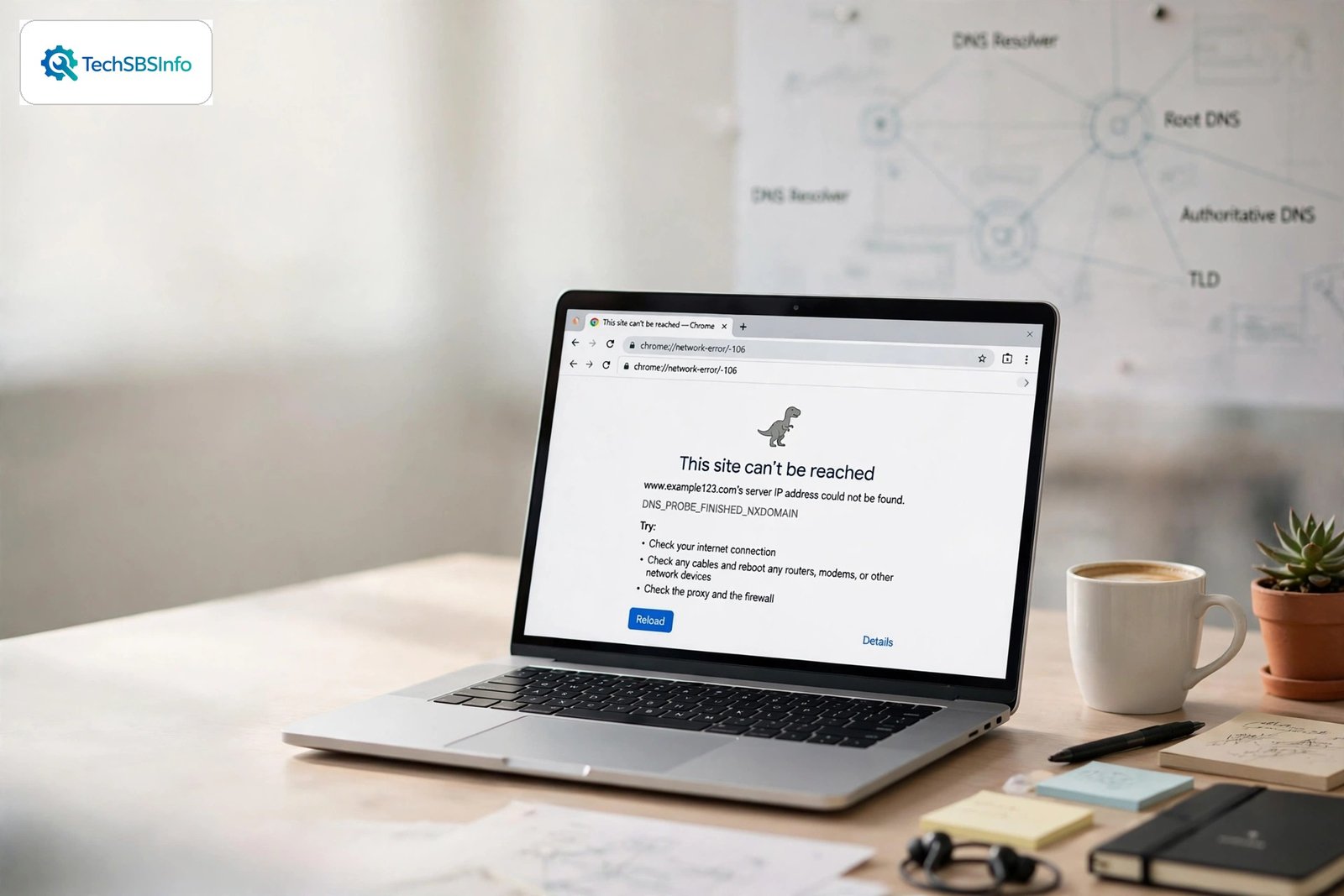
You try to open a website and Chrome shows “This site can’t be reached” with the error code ERR_NAME_NOT_RESOLVED. This chrome err_name_not_resolved fix guide explains exactly what that means and walks you through eight proven solutions, from the simplest restart to deeper DNS repairs.
In plain terms, every website name (like example.com) has to be translated into a number — an IP address — before your browser can reach it. That translation is done by a system called DNS. When the translation fails, Chrome cannot even start loading the page, and you see this error. The cause can be your browser’s DNS cache, your router, your internet provider’s DNS servers, or the website’s own DNS records.
Work through the fixes in order. Most cases clear up by Fix 4, and the later fixes handle the stubborn ones.
Table of Contents
- Quick Checks for the chrome err_name_not_resolved fix
- Diagnose the Problem
- Fix 1: Reload the Page and Restart Your Router
- Fix 2: Clear Chrome’s Host Cache
- Fix 3: Clear Your Browsing Data
- Fix 4: Change Your DNS Servers
- Fix 5: Flush the System DNS Cache
- Fix 6: Disable VPN, Proxy, and Problem Extensions
- Fix 7: Check the Windows Hosts File
- Fix 8: Reset Network Settings
- What to Avoid
- Frequently Asked Questions
- Conclusion
- Helpful Resources
Quick Checks for the chrome err_name_not_resolved fix
- Press Ctrl + F5 to hard-refresh the page in case of a temporary glitch.
- Check whether other websites load — if they do, the problem is that one site, not your setup.
- Check the spelling of the web address — one wrong letter gives exactly this error.
- Restart your router by unplugging it for 30 seconds.
- Try the site on your phone’s mobile data — if it works there, your home network or ISP DNS is the problem.
- Make sure you are actually connected to the internet by opening a well-known site like google.com.
Diagnose the Problem
| Symptom | Cause | Go to Fix |
|---|---|---|
| One site fails, others load fine | That site’s DNS records or your cached entry | Fix 2, Fix 1 |
| All sites fail in Chrome but work in other browsers | Chrome’s internal DNS cache or settings | Fix 2, Fix 3 |
| All sites fail on every device on your Wi-Fi | Router or ISP DNS problem | Fix 1, Fix 4 |
| Error started after installing a VPN | VPN’s DNS handling broken | Fix 6 |
| Error on one site after it changed hosts | Stale cached DNS entry | Fix 2, Fix 5 |
| Error appears with “DNS_PROBE_FINISHED” variants | DNS server not responding | Fix 4 |
| Site loads on mobile data but not home Wi-Fi | Home router or ISP DNS | Fix 1, Fix 4 |
| Intermittent failures throughout the day | Unstable DNS server | Fix 4 |
Fix 1: Reload the Page and Restart Your Router
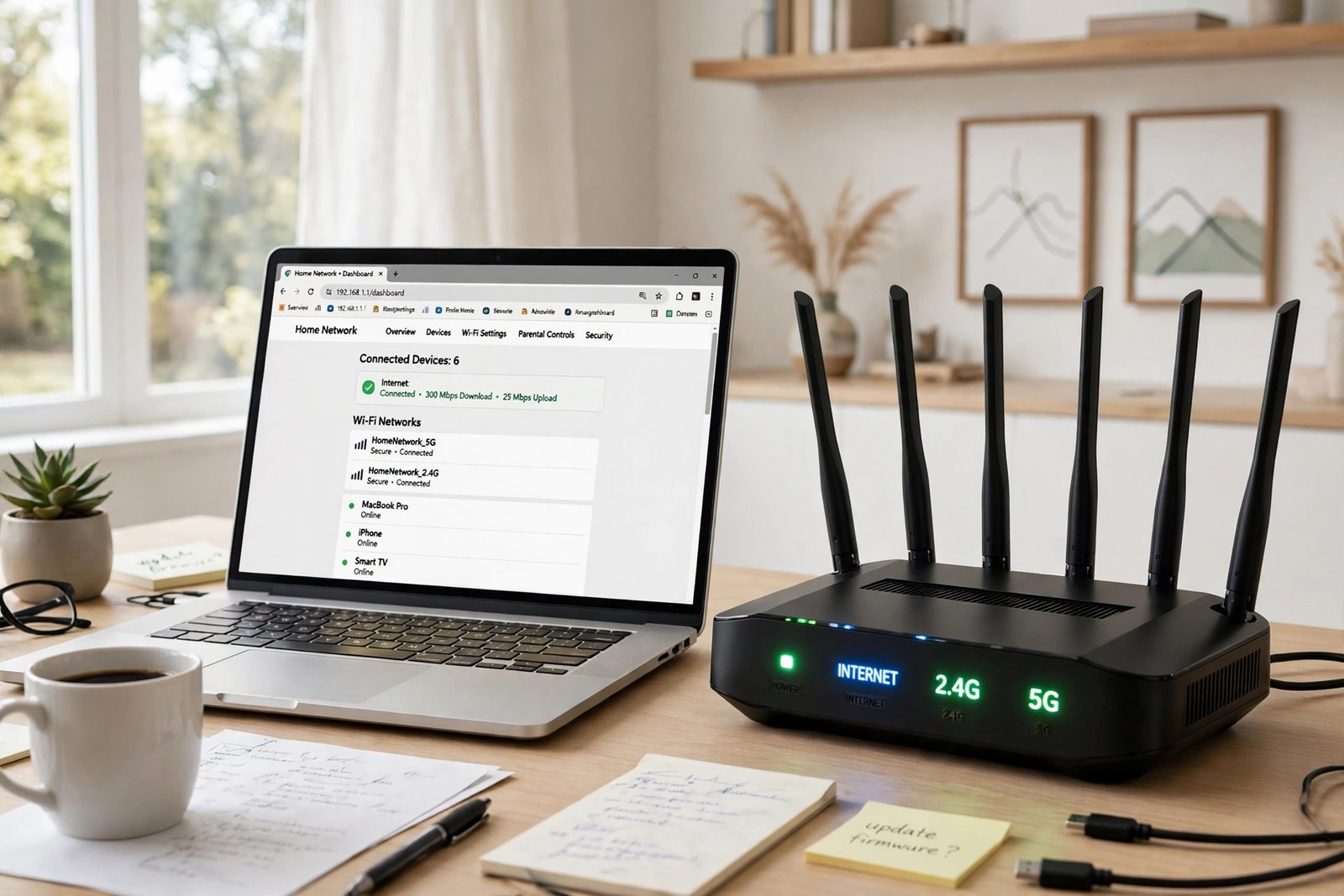
Temporary DNS hiccups are common and often clear on their own. A router restart forces a fresh connection to your internet provider, which refreshes everything downstream.
- Press Ctrl + F5 to hard-refresh the page first.
- If it still fails, unplug your router’s power cable.
- Wait a full 30 seconds — this lets the router’s memory clear.
- Plug the router back in and wait 2–3 minutes for all lights to stabilize.
- Reconnect your computer to the Wi-Fi or Ethernet.
- Try the website again.
Fix 2: Clear Chrome’s Host Cache
Chrome keeps its own private DNS cache, separate from Windows or macOS. A stale entry here makes one site fail while everything else works, even though your system DNS is fine.
- Type chrome://net-internals/#dns in the address bar and press Enter.
- Click the Clear host cache button.
- Next, type chrome://net-internals/#sockets and press Enter.
- Click Flush socket pools.
- Close Chrome completely and reopen it.
- Visit the problem site again.
This only clears temporary network data — your bookmarks, passwords, and history are untouched.
Fix 3: Clear Your Browsing Data
If the error appears across many sites in Chrome but other browsers work, corrupted browsing data may be interfering with how Chrome resolves addresses.
- Press Ctrl + Shift + Delete to open Clear browsing data.
- Set the time range to All time.
- Tick Cookies and other site data and Cached images and files.
- Click Clear data.
- Restart Chrome and test the site.
- If the error persists, the problem is at the network level — continue to Fix 4.
Fix 4: Change Your DNS Servers
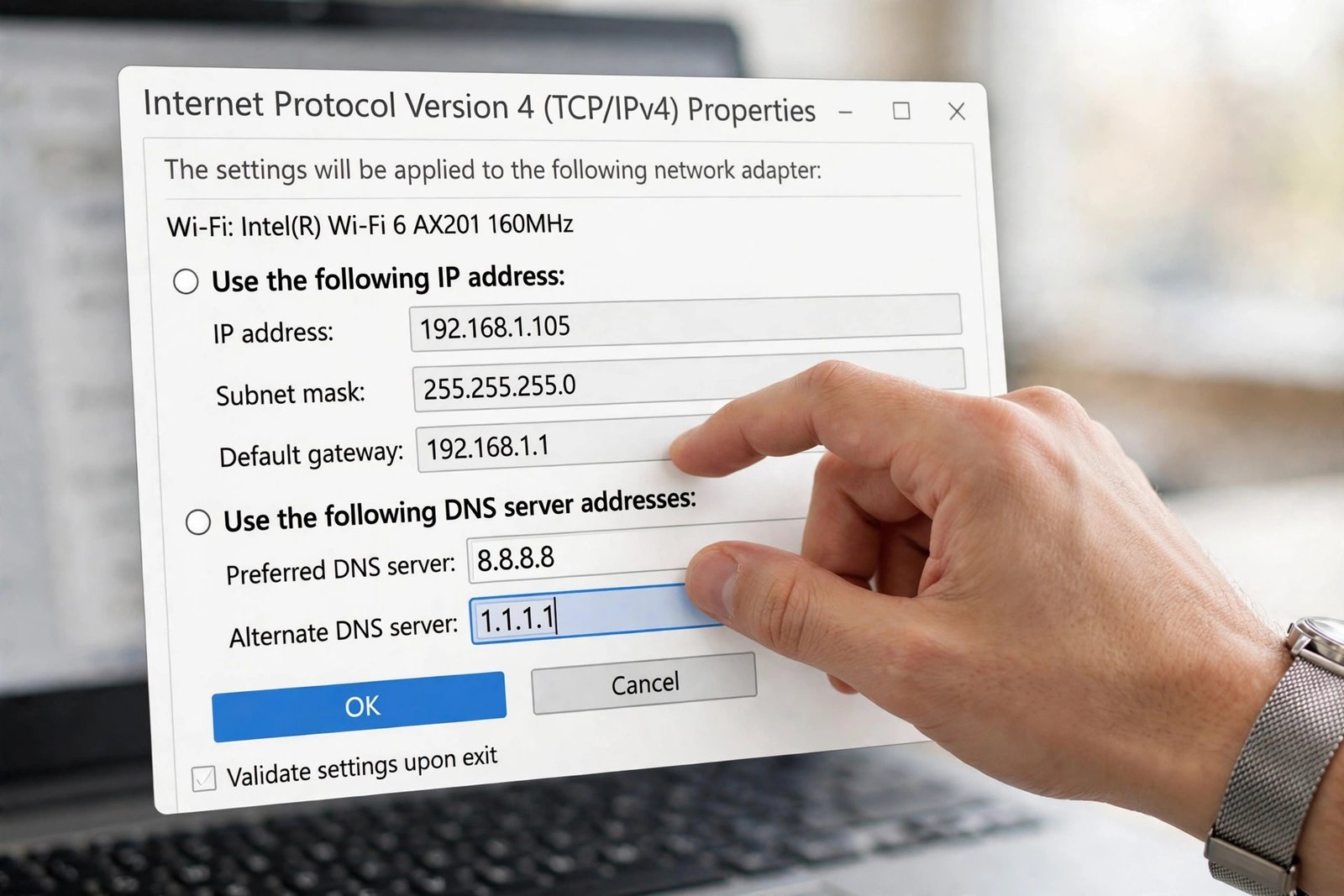
Your internet provider’s default DNS servers are sometimes slow or unreliable. Switching to a well-known public DNS service is safe, free, and often fixes name resolution errors permanently.
- On Windows, open Settings > Network & Internet > Wi-Fi (or Ethernet) and click your connection.
- Click Edit next to DNS server assignment, or open the adapter’s IPv4 properties.
- Switch from Automatic to Manual and enter these addresses:
- Preferred DNS: 8.8.8.8
- Alternate DNS: 8.8.4.4
- These are Google’s public DNS servers. Alternatives include 1.1.1.1 and 1.0.0.1.
- Save the changes and restart your browser.
- Test the problem site again.
On a Mac, go to System Settings > Wi-Fi, click Details next to your network, then DNS, and add the new server addresses with the plus button.
Fix 5: Flush the System DNS Cache
Your operating system also caches DNS results. Flushing it forces your computer to look up every address fresh.
- On Windows, press Win + R, type cmd, and press Ctrl + Shift + Enter to run as administrator.
- Type ipconfig /flushdns and press Enter.
- You should see “Successfully flushed the DNS Resolver Cache.”
- Then type ipconfig /renew and press Enter to get a fresh network address.
- On a Mac, open Terminal and run sudo dscacheutil -flushcache; sudo killall -HUP mDNSResponder, then enter your password.
- Restart your browser and test the site.

Fix 6: Disable VPN, Proxy, and Problem Extensions
VPNs, proxy settings, and certain extensions reroute your traffic through their own DNS. If their DNS fails, every lookup fails with it.
- Disconnect your VPN completely and test the site.
- In Chrome, go to Settings > System and click Open your computer’s proxy settings — make sure no unexpected proxy is enabled.
- Type chrome://extensions and disable VPN extensions, ad blockers, and privacy tools one by one, testing the site after each.
- If the site works with the VPN off, the VPN’s DNS is the problem — try a different VPN server or contact the VPN provider.
- Re-enable extensions one at a time to identify the culprit.
Fix 7: Check the Windows Hosts File
The hosts file can override DNS for specific sites. Malware — or old manual edits — sometimes adds entries that point a site’s name to a dead address, producing this exact error.
- Open Notepad as administrator (right-click > Run as administrator).
- Go to File > Open and navigate to C:\Windows\System32\drivers\etc.
- Change the file filter to All files and open the file named hosts.
- Look for any lines mentioning the problem site’s name.
- Lines starting with # are comments and are harmless — ignore those.
- If you find a suspicious entry for the site and did not add it yourself, delete that line, save the file, and flush DNS again (Fix 5).
- If you are unsure about an entry, leave it alone and ask someone technical to review it.
Fix 8: Reset Network Settings
If nothing else worked, your network configuration itself may be damaged. Resetting it returns all network settings to their defaults.
- On Windows, open Settings > Network & Internet > Advanced network settings.
- Click Network reset and then Reset now.
- Your computer will restart. Reconnect to your Wi-Fi afterward.
- On a Mac, go to System Settings > General > Transfer or Reset and use Reset options for network settings, or remove and re-add the Wi-Fi service.
- Open Chrome and test the site once more.
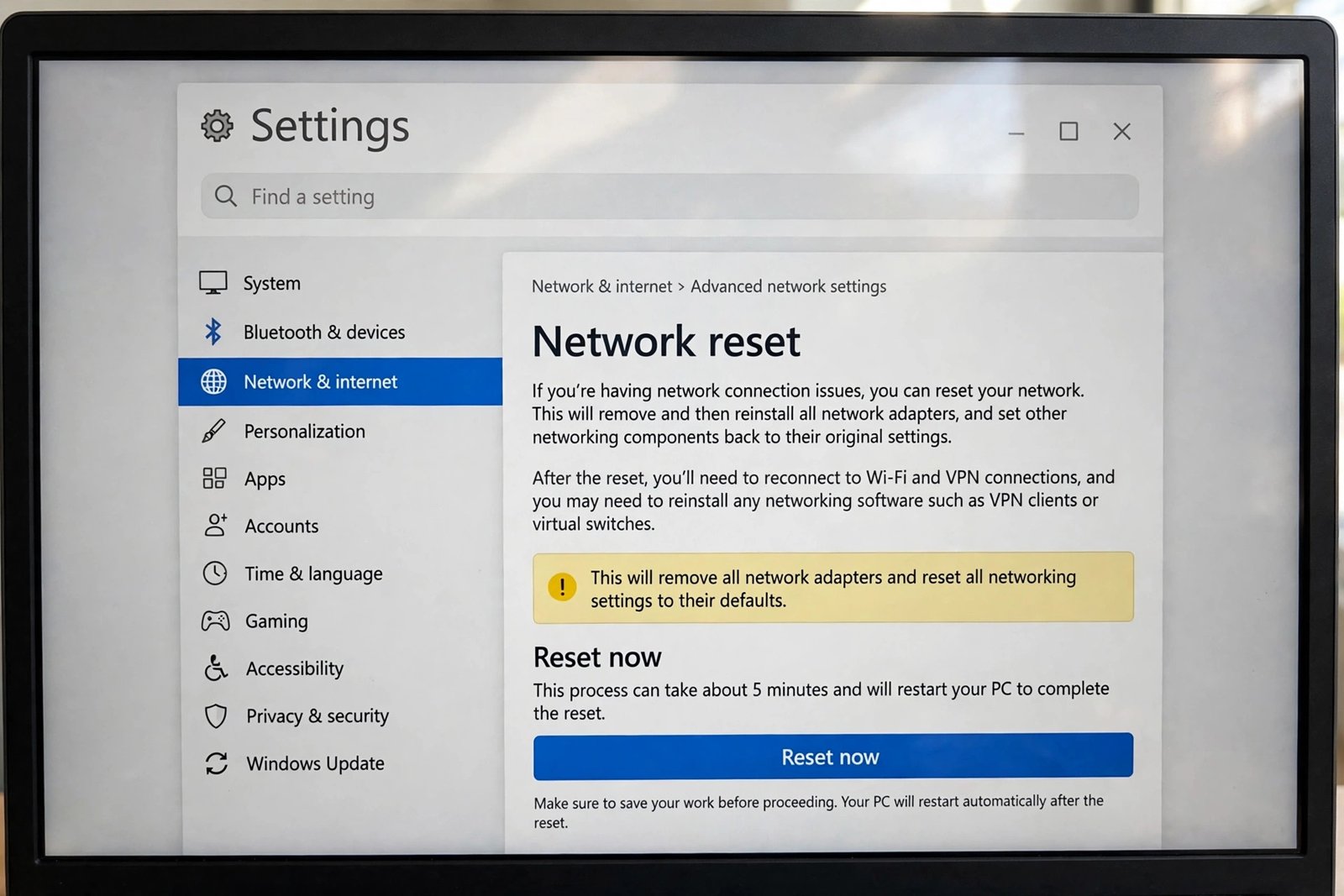
A network reset forgets saved Wi-Fi passwords, so have yours handy before you start.
What to Avoid
- Do not install “DNS fixer” utilities from unknown sites — Windows and Chrome have everything you need built in.
- Do not disable your firewall or antivirus to test DNS — they do not cause this error and disabling them only adds risk.
- Do not edit the hosts file casually — a wrong edit can break more sites than it fixes.
- Do not pay for “premium DNS” services advertised in pop-ups — the free public DNS servers in Fix 4 are excellent.
- Do not keep changing random Chrome flags at chrome://flags — they are experimental and unrelated to this error.
- Do not ignore the possibility that the site is down — check a status page before spending an hour on your own setup.
Frequently Asked Questions
What does ERR_NAME_NOT_RESOLVED mean?
It means Chrome asked the DNS system to translate the website’s name into an IP address and got no answer. Without that address, the browser cannot even attempt to load the page.
Is this error caused by my internet being down?
Not necessarily. Your internet can be working fine while DNS fails. The quick test: if google.com loads but one site does not, your connection is fine and the problem is DNS for that site.
Why does the site work on my phone but not my computer?
Your phone on mobile data uses your carrier’s DNS, while your computer uses your home router or ISP DNS. Different DNS servers can give different answers — which is why changing DNS servers (Fix 4) helps.
Will changing my DNS to 8.8.8.8 slow down my internet?
No. Public DNS servers like Google’s (8.8.8.8) and Cloudflare’s (1.1.1.1) are typically as fast as or faster than ISP defaults, and they are free to use.
Can a VPN cause ERR_NAME_NOT_RESOLVED?
Yes. A VPN replaces your DNS with its own. If the VPN’s DNS servers are down or misconfigured, every site fails to resolve until you disconnect the VPN or switch servers.
The error appears for every website. What should I do first?
Restart your router (Fix 1), then change your DNS servers (Fix 4). Total failure across all sites almost always points at the router or the ISP’s DNS, not at Chrome.
How do I know if the website itself is down?
Try a down-detector website or search the site’s name with “down” on social media. If others report the same problem, wait — no fix on your computer will help until the site’s DNS is repaired.
Does clearing the host cache delete anything important?
No. The host cache is temporary data Chrome rebuilds automatically. Clearing it is completely safe and takes effect immediately.
Conclusion
The chrome err_name_not_resolved fix comes down to finding where the name lookup breaks: Chrome’s own cache, your system’s cache, your router, or your DNS servers. Start with a router restart and Chrome’s host cache clear, switch to a public DNS service if the problem persists, and check VPN and hosts-file interference for the stubborn cases. With these eight fixes, you can resolve nearly every instance of this error yourself.
[…] will help those. If the browser says the site cannot be reached while other apps work, the guide to Chrome err_name_not_resolved fix covers a closely related […]