


If your windows 11 keyboard not working after update problem started right after a Windows Update, you are not alone. Updates sometimes replace, corrupt, or disable the keyboard driver, which stops your keys from responding. The good news is that this is almost always a software problem, and it can be fixed without buying a new keyboard.
In this guide, you will work through 7 simple fixes in order from easiest to most advanced. You will also learn how to keep typing with the on-screen keyboard while you repair the real one. Every step uses only built-in Windows tools, so there is nothing extra to install.
Table of Contents
- Quick Checks
- Diagnose: Why the Problem Happens
- Fix 1: Restart Your PC and Check the Keyboard Connection
- Fix 2: Use the On-Screen Keyboard While You Repair
- Fix 3: Run the Windows Keyboard Troubleshooter
- Fix 4: Roll Back or Reinstall the Keyboard Driver
- Fix 5: Turn Off Filter Keys and Sticky Keys
- Fix 6: Uninstall the Problematic Windows Update
- Fix 7: Repair Corrupted System Files with SFC and DISM
- What to Avoid
- Frequently Asked Questions
- Conclusion
- Helpful Official Resources
Quick Checks
- Restart your PC. A pending update component may only need a clean restart to finish installing the keyboard driver.
- Try a different USB port. For an external keyboard, move the cable to a port on the back of a desktop or the other side of a laptop.
- Remove the receiver dongle and plug it back in. Wireless keyboards often recover after the receiver is reseated.
- Check the battery. A wireless keyboard with low batteries can appear completely dead after a restart.
- Try the keyboard in the BIOS. Restart and press the setup key (often Del, F2, or Esc). If keys work there, the hardware is fine and Windows is the problem.
- Test with an external keyboard. If an external keyboard works on your laptop, the built-in one has a driver or connection issue.
- Look for error icons in Device Manager. A yellow warning on the keyboard device confirms a driver fault.
Diagnose: Why windows 11 keyboard not working after update Happens
| Symptom | Cause | Go to Fix |
|---|---|---|
| Keyboard stopped right after a Windows Update finished | Update replaced or corrupted the keyboard driver | Fix 4 |
| Some keys type wrong characters or nothing at all | Filter Keys enabled or wrong input language | Fix 5 |
| On-screen keyboard works but the physical one does not | Physical keyboard driver or hardware issue | Fix 1, Fix 4 |
| Nothing types anywhere, including login screen | Update or system file corruption | Fix 6, Fix 7 |
| Laptop keyboard dead but USB keyboard works | Built-in keyboard driver failure | Fix 4 |
| Keyboard worked until a specific update installed | That update broke the driver | Fix 6 |
| Keyboard fails after update but also mouse stutters | Update caused wider input problems | Fix 6, Fix 7 |
Fix 1: Restart Your PC and Check the Keyboard Connection
Start with the simplest possibility. Updates change how USB ports and drivers behave, and a cold restart often clears the issue.
- Save your work using the on-screen keyboard or mouse, then restart the PC from the Start menu.
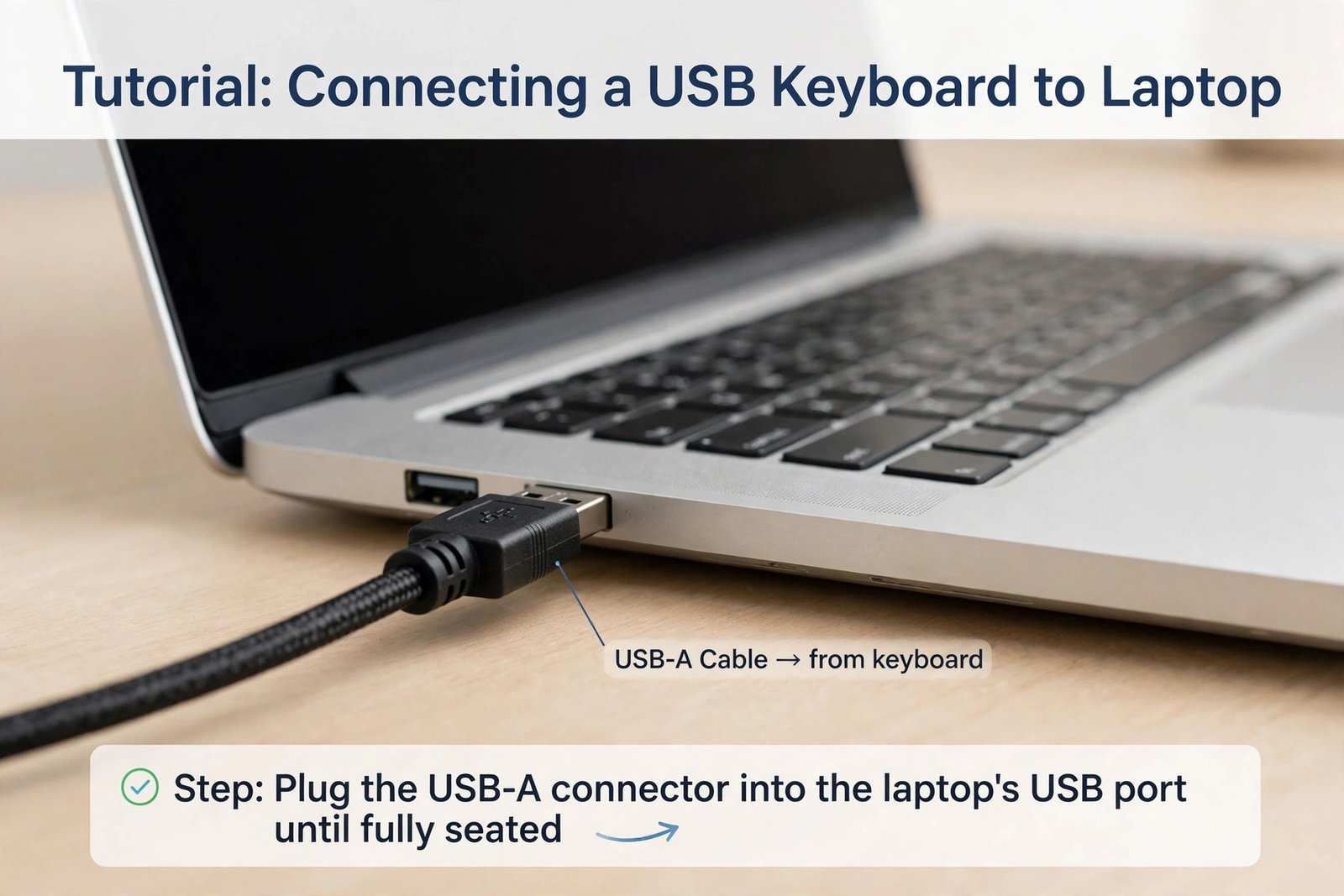
- If the keyboard is external, unplug the cable or remove the wireless receiver, wait 10 seconds, and plug it back into a different port.
- For a Bluetooth keyboard, remove it from Settings > Bluetooth & devices, then pair it again from scratch.
- On a laptop, shut the PC down completely, remove the charger for 30 seconds, then power on again. This resets the embedded controller that manages the built-in keyboard.
- After the restart, open Notepad and test every key, including the function keys and number row.
If your mouse is also acting strangely after the update, read our guide on the windows-11-mouse-lagging-fix as well, since the same update can affect both devices. For Bluetooth keyboards that refuse to pair, see our windows-11-bluetooth-not-working guide.
Fix 2: Use the On-Screen Keyboard While You Repair
You can still type while the physical keyboard is dead. The built-in on-screen keyboard lets you enter passwords, run commands, and follow the rest of this guide.
- On the login screen, click the Accessibility icon in the bottom-right corner and turn on the On-Screen Keyboard.
- If you are already signed in, press Win + Ctrl + O to open it instantly. This shortcut works even when no keys type normally.
- Click the keys with your mouse or touchpad to type. You can resize the window by dragging its edges.
- Pin it to the taskbar by right-clicking its icon and choosing Pin to taskbar, so it stays handy during the repair.
- When the physical keyboard works again, close the on-screen keyboard and unpin it.
Keep the on-screen keyboard open during the next fixes. You will need it to open Device Manager, Settings, and the Run box without a working physical keyboard.

Fix 3: Run the Windows Keyboard Troubleshooter
Windows 11 has a dedicated keyboard troubleshooter that checks common settings and driver faults automatically.
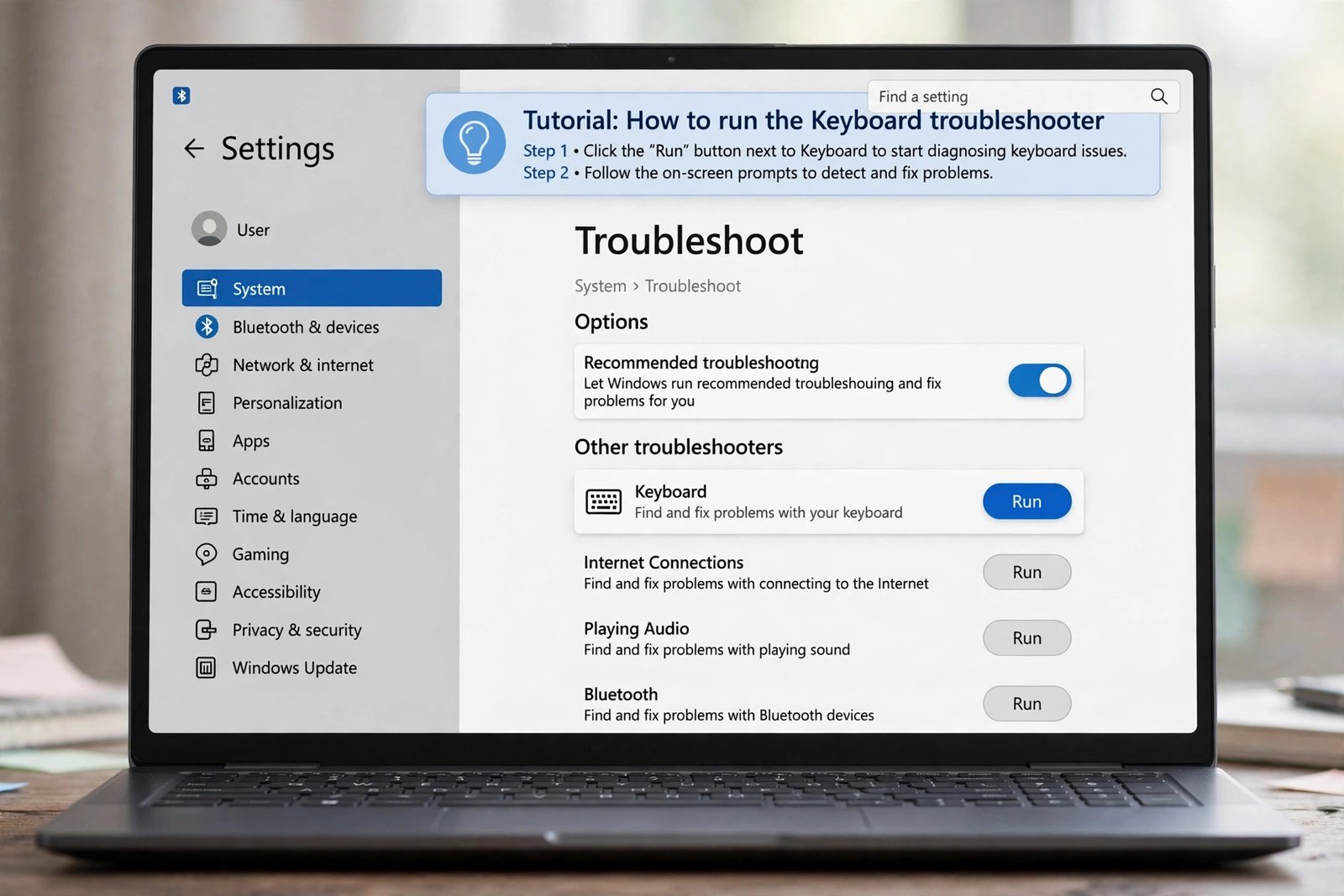
- Open Settings using the on-screen keyboard: press Win + Ctrl + O, then click the Start button and choose Settings.
- Go to System > Troubleshoot > Other troubleshooters.
- Find Keyboard in the list and click the Run button next to it.
- Wait while the troubleshooter scans. It may ask you a question about the symptoms; answer using the mouse.
- If it reports a fix, click Apply this fix and restart your PC.
- Test the keyboard again in Notepad.
The troubleshooter does not catch everything. If it finds nothing, move on to the driver fixes below, which solve most update-related cases.
Fix 4: Roll Back or Reinstall the Keyboard Driver
This is the fix that resolves most cases. A Windows Update often installs a new keyboard driver that does not work correctly with your hardware. Rolling back restores the driver you had before the update.
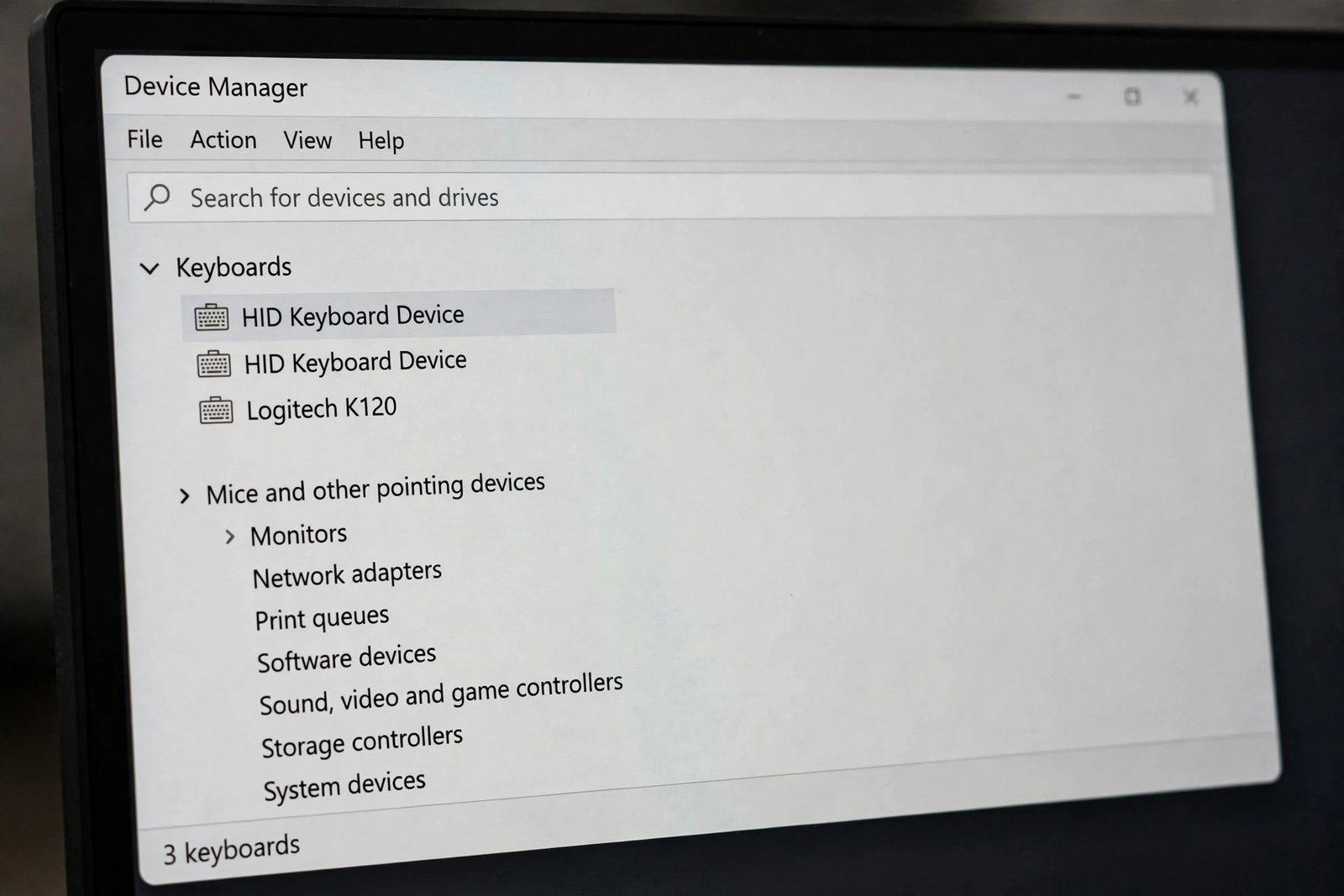
- Right-click the Start button and select Device Manager.
- Expand the Keyboards section.
- Right-click your keyboard device and choose Properties.
- Open the Driver tab. If the Roll Back Driver button is clickable, click it.
- Choose a reason for the rollback and click Yes. Restart your PC when asked.
- If the rollback button is greyed out, go back and right-click the device, then choose Uninstall device.
- Check Attempt to remove the driver for this device only if you are sure, then click Uninstall.
- Restart your PC. Windows detects the keyboard during startup and installs a fresh copy of the driver automatically.
- After the restart, open Device Manager again and confirm there is no yellow warning under Keyboards.
If Windows Update keeps installing the same bad driver, pause updates for a week at Settings > Windows Update > Pause updates. This gives you time to check the manufacturer’s website for a correct driver. Never download drivers from unofficial “driver updater” sites.
Fix 5: Turn Off Filter Keys and Sticky Keys
Updates sometimes turn on accessibility features that change how the keyboard behaves. Filter Keys ignores quick or repeated keystrokes, which feels like the keyboard is broken.
- Open Settings and go to Accessibility > Keyboard.
- Turn Off the Filter keys switch.
- Turn Off the Sticky keys switch.
- Scroll down to Notification preferences and uncheck the boxes that let shortcuts turn these features on accidentally.
- Also check Time & language > Typing > Advanced keyboard settings and confirm the correct input language is selected.
- Type a test sentence in Notepad and hold a key down to check that repeats work normally.
Many users find that their keyboard “works” again instantly after this step, because the real problem was never the driver at all.
Fix 6: Uninstall the Problematic Windows Update
If the keyboard died immediately after a specific update, removing that update can restore it. This is especially useful when Fix 4 does not stick because the update keeps reinstalling the bad driver.
- Open Settings > Windows Update > Update history.
- Note the date and name of the most recent quality update or driver update.
- Go back and open Settings > Windows Update > Advanced options > Recovery, or open Control Panel > Programs > View installed updates.
- Select the suspect update and click Uninstall.
- Restart your PC and test the keyboard.
- To stop it from coming back, pause updates for a few days at Settings > Windows Update > Pause updates.
If you are unsure which update caused the problem, uninstall the most recent one first. If updates themselves are failing or behaving oddly, our windows-update-error-troubleshooting guide walks through the error codes. For updates that never finish downloading, see windows-update-stuck-downloading.
Fix 7: Repair Corrupted System Files with SFC and DISM
If every fix above fails, the update may have damaged system files that handle keyboard input. The SFC and DISM tools repair these files using only built-in Windows components.
- Right-click the Start button and choose Terminal (Admin) or Windows PowerShell (Admin).
- Type the following command exactly, then press Enter:
sfc /scannow
- Wait for the scan to reach 100 percent. Do not close the window while it runs.
- If SFC reports that it found and fixed errors, restart your PC and test the keyboard.
- If SFC found errors it could not fix, run this command next:
DISM /Online /Cleanup-Image /RestoreHealth
- Wait for DISM to finish, then run
sfc /scannowone more time. - Restart your PC and test all keys in Notepad.
These scans can take 15 to 30 minutes. They only repair Windows files and never touch your documents or apps.
What to Avoid
- Do not download “driver updater” tools. They bundle ads, trials, and sometimes malware. Use Device Manager and Windows Update only.
- Do not delete random registry keys. Registry “fixes” from forums can break Windows beyond repair.
- Do not install drivers from unofficial sites. Get them from your laptop or keyboard manufacturer’s official support page.
- Do not disable Windows Update forever. Pausing updates briefly is fine; disabling them permanently leaves your PC unprotected.
- Do not force-uninstall system keyboard drivers. Removing the wrong device in Device Manager can disable the on-screen keyboard path too.
- Do not pay for “PC repair” pop-ups. Any ad claiming your keyboard is infected is a scam.
Frequently Asked Questions
Why did my keyboard stop working right after a Windows 11 update?
A Windows Update can install a new keyboard driver that does not match your hardware, or it can corrupt the existing driver. The update may also switch on Filter Keys. Both causes are covered by the fixes above.
How do I type my password if the keyboard does not work at the login screen?
Click the Accessibility icon in the bottom-right corner of the login screen and turn on the On-Screen Keyboard. Then click your password in with the mouse.
Will rolling back the keyboard driver harm my PC?
No. Rolling back simply restores the previous driver version that was working. Windows keeps the old driver available exactly for this situation.
Should I buy a new keyboard?
Not yet. Test the keyboard in the BIOS first. If keys work there, the hardware is fine and the problem is in Windows. A new keyboard will likely show the same problem until the driver is fixed.
The troubleshooter found nothing. What now?
Move to Fix 4 (driver rollback or reinstall) and Fix 6 (uninstall the update). Those two fixes resolve the large majority of update-related keyboard failures.
Can I stop the bad driver update from reinstalling?
Yes. Go to Settings > Windows Update and use Pause updates for one to five weeks. Then check your device manufacturer’s official support page for the correct keyboard driver before resuming updates.
Conclusion
A windows 11 keyboard not working after update problem looks serious, but it is usually just a driver or settings change made by the update. Start with the on-screen keyboard so you can keep working, run the troubleshooter, then roll back or reinstall the keyboard driver in Device Manager. If the problem began with one specific update, uninstalling it often fixes everything.
Work through the fixes in order, test your keys in Notepad after each one, and avoid unofficial driver tools. Your keyboard should be typing normally again in a few minutes.