

Nothing is more annoying than a cursor that stutters, jumps, or freezes while you work. windows 11 mouse lagging usually has a simple cause: weak batteries, wireless interference, a dirty sensor, or an outdated driver. This guide walks you through eight fixes, starting with the easiest. Work through them in order, and test your mouse after each one.
Table of Contents
- Quick Checks
- Diagnose the Cause
- Fix 1: Restart Your PC and Re-Plug the Mouse
- Fix 2: Clean the Sensor and Check the Surface
- Fix 3: Re-Pair Your Bluetooth Mouse
- Fix 4: Adjust Pointer Speed and Trails
- Fix 5: Update the Mouse Driver
- Fix 6: Stop Windows Turning the Mouse Off to Save Power
- Fix 7: Reduce Background Load
- Fix 8: Try Another Port and Rule Out Hardware Failure
- What to Avoid
- Frequently Asked Questions
- Conclusion
- Helpful Official Resources
Quick Checks
- Restart your PC — a fresh boot clears temporary driver glitches.
- Move the USB receiver to a port closer to the mouse.
- Put fresh batteries in a wireless mouse, or charge it fully.
- Wipe the sensor on the bottom of the mouse with a dry cloth.
- Try the mouse on a different surface, like a plain mousepad.
- Move the mouse away from USB 3.0 cables, routers, and phone chargers.
- Install pending Windows updates from Settings > Windows Update.
Diagnose the Cause
| Symptom | Cause | Go to Fix |
|---|---|---|
| Cursor stutters, mainly on a wireless mouse | Weak wireless signal or interference | Fix 3: Re-Pair Your Bluetooth Mouse |
| Pointer freezes for a second, then jumps | Outdated or corrupt mouse driver | Fix 5: Update the Mouse Driver |
| The whole PC feels slow and the mouse drags | High CPU or memory use by background apps | Fix 7: Reduce Background Load |
| Lag only on certain desks or surfaces | Dirty sensor or shiny, reflective surface | Fix 2: Clean the Sensor and Check the Surface |
| Lag started right after a Windows update | Driver conflict introduced by the update | Fix 5: Update the Mouse Driver |
| Cursor moves too fast and overshoots clicks | Pointer speed set too high | Fix 4: Adjust Pointer Speed and Trails |
Fix 1: Restart Your PC and Re-Plug the Mouse
A restart is the fastest way to clear a stuck input driver.
- Save your work, then select Start > Power > Restart.
- For a wired mouse, unplug the USB cable, wait 10 seconds, and plug it into a different USB port.
- For a USB receiver mouse, remove the receiver and plug it into a port on the opposite side of the laptop, closer to the mouse.
- Test the mouse for one minute after the restart.
If the lag is gone, it was a temporary driver hang. If it returns, move on to Fix 2.
Fix 2: Clean the Sensor and Check the Surface
The optical sensor reads the surface below it. Dust on the sensor or a glossy desk can cause windows 11 mouse lagging that feels like a software problem.
- Turn the mouse over and look at the small sensor window.
- Gently wipe it with a dry, lint-free cloth — never use liquids.
- Blow away loose dust from around the sensor.
- Place the mouse on a plain, matte mousepad. Avoid glass, mirrors, and shiny wood.
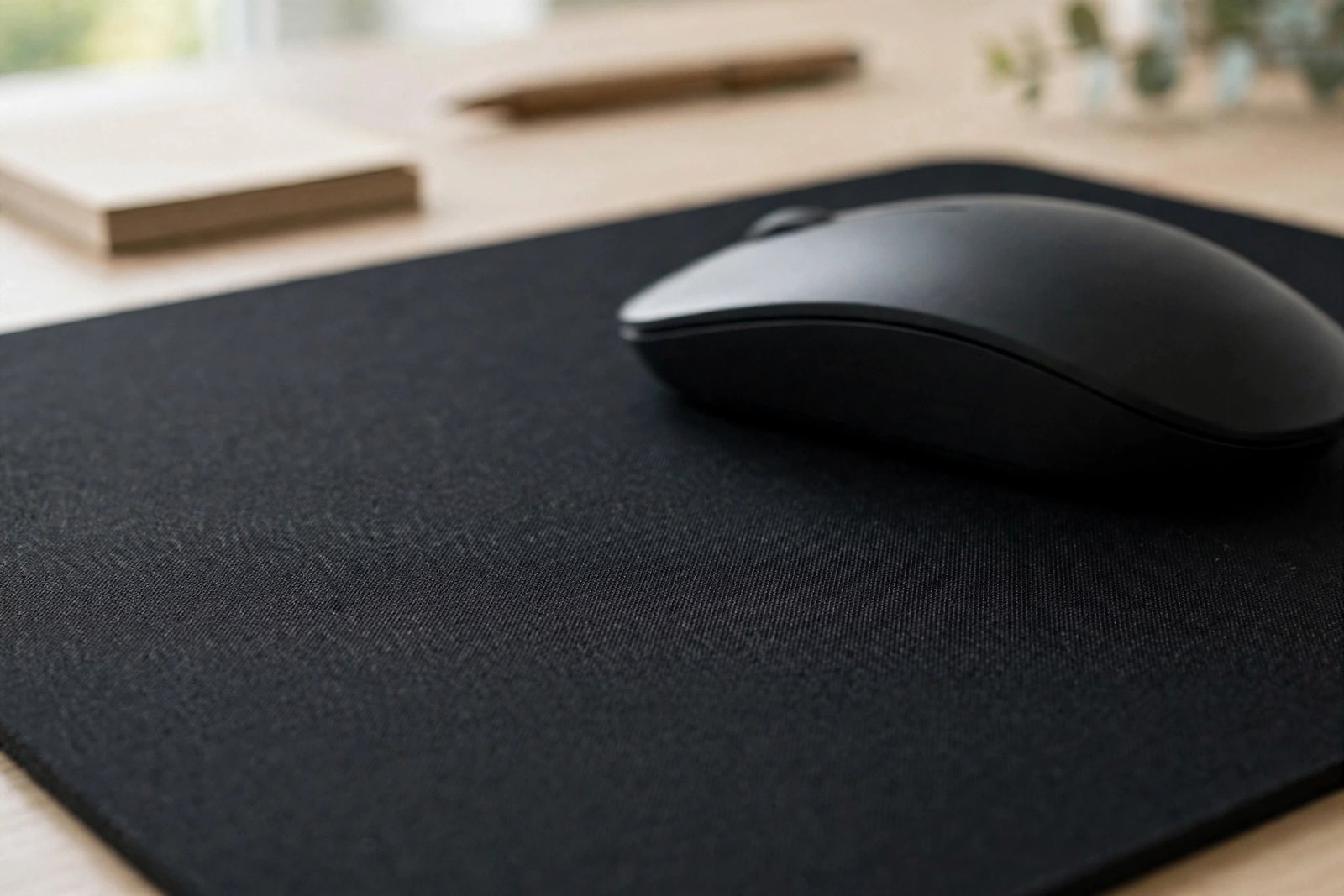
- Move the mouse in slow circles and check whether the stutter is gone.
- If you use a wireless mouse with batteries, replace them with fresh ones now — low power is the most common cause of random lag spikes.
Fix 3: Re-Pair Your Bluetooth Mouse
Bluetooth lag often comes from a stale pairing. Removing the device and pairing it again forces a clean connection.
- Open Settings > Bluetooth & devices > Devices.
- Find your mouse, select the three dots next to it, and choose Remove device.
- Turn the mouse off, wait 10 seconds, and turn it back on.
- Press and hold the pairing button on the mouse until its light blinks.
- In Settings, select Add device > Bluetooth, then click your mouse in the list.
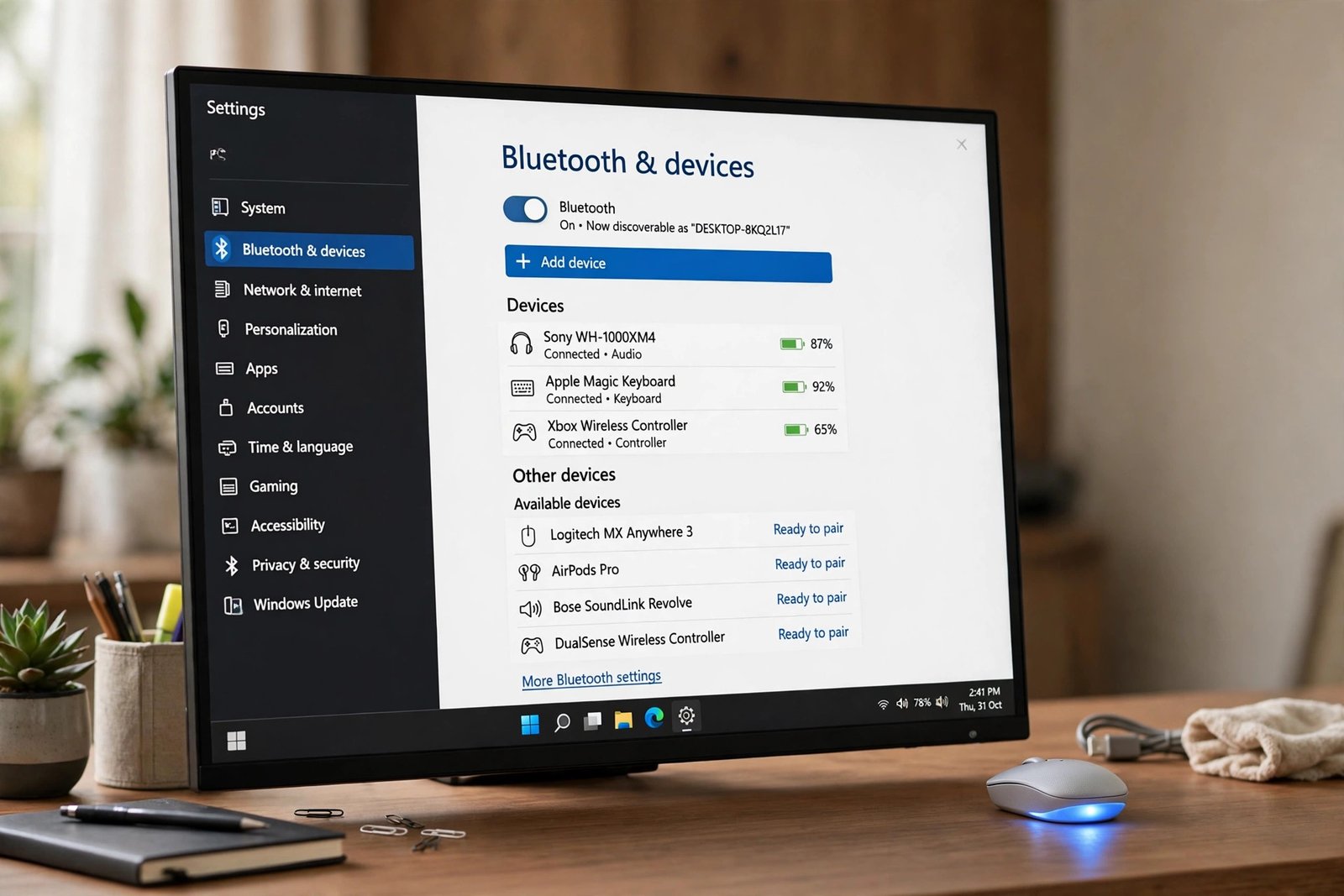
- Keep the mouse close to the PC during pairing.
- After pairing, stay within a few metres and keep other wireless devices away.
If Bluetooth keeps failing completely rather than just lagging, read our guide on Windows 11 Bluetooth not working.
Fix 4: Adjust Pointer Speed and Trails to Stop windows 11 mouse lagging
Pointer settings that are too aggressive can make the cursor feel jumpy. Calming them down often stops the lag sensation.
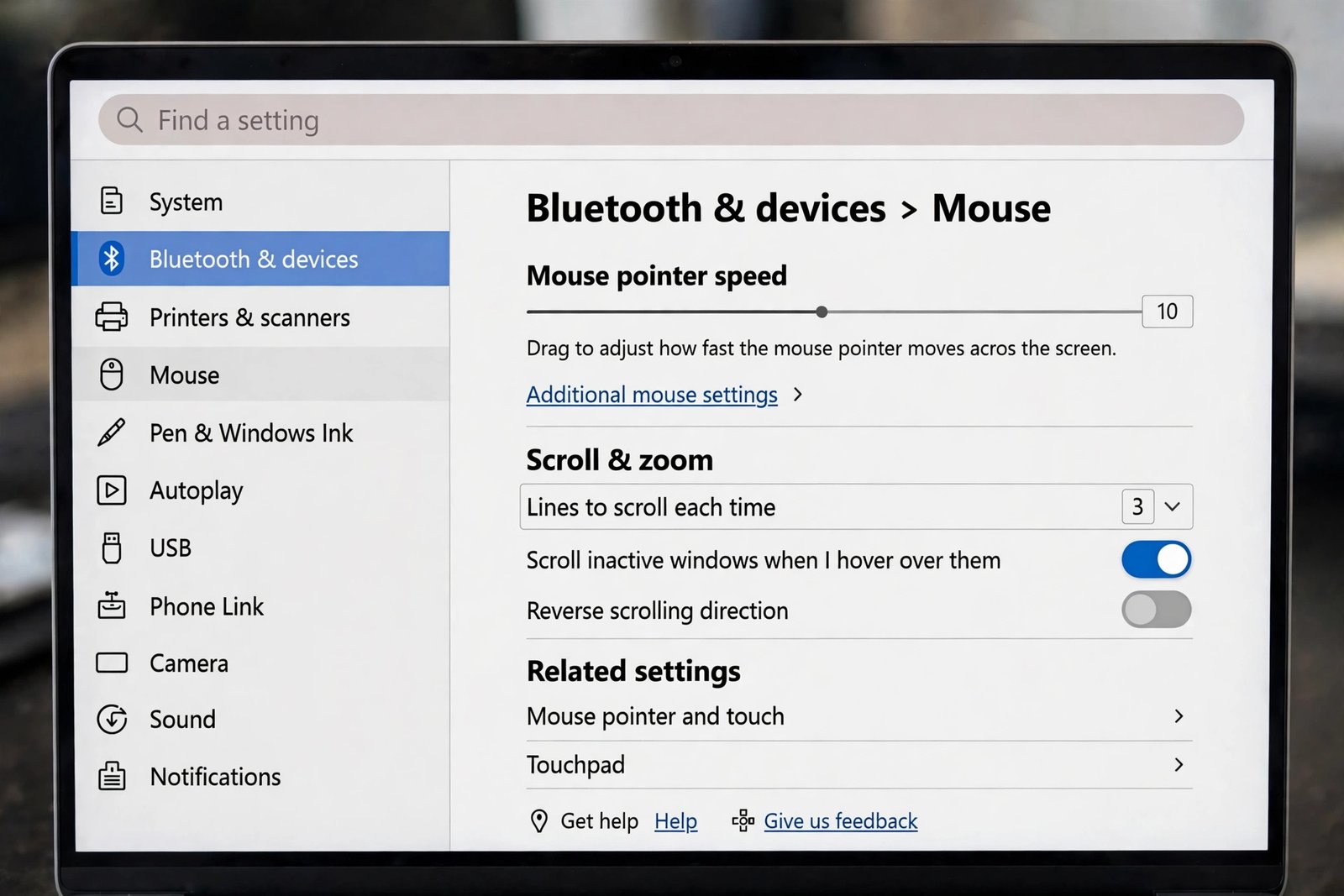
- Open Settings > Bluetooth & devices > Mouse.
- Drag the Mouse pointer speed slider toward the middle and test it.
- Select Additional mouse settings to open the classic Mouse Properties window.
- Go to the Pointer Options tab.
- If Display pointer trails is on, turn it off — trails can look like lag on some displays.
- Try turning Enhance pointer precision on or off and see which feels smoother.
- Press OK and test for a minute.
If pointer settings keep resetting themselves after a restart, a driver problem is more likely — continue to Fix 5.
Fix 5: Fix windows 11 mouse lagging Caused by an Outdated Driver
An old or corrupt driver makes the cursor freeze in place. Updating it takes about two minutes.
- Press Windows key + X and select Device Manager.
- Expand Mice and other pointing devices.
- Right-click your mouse and select Update driver.
- Choose Search automatically for drivers.
- If Windows says the best driver is installed, right-click again and choose Uninstall device.
- Check Attempt to remove the driver for this device if the option appears, then select Uninstall.
- Restart your PC — Windows reinstalls a fresh driver automatically.
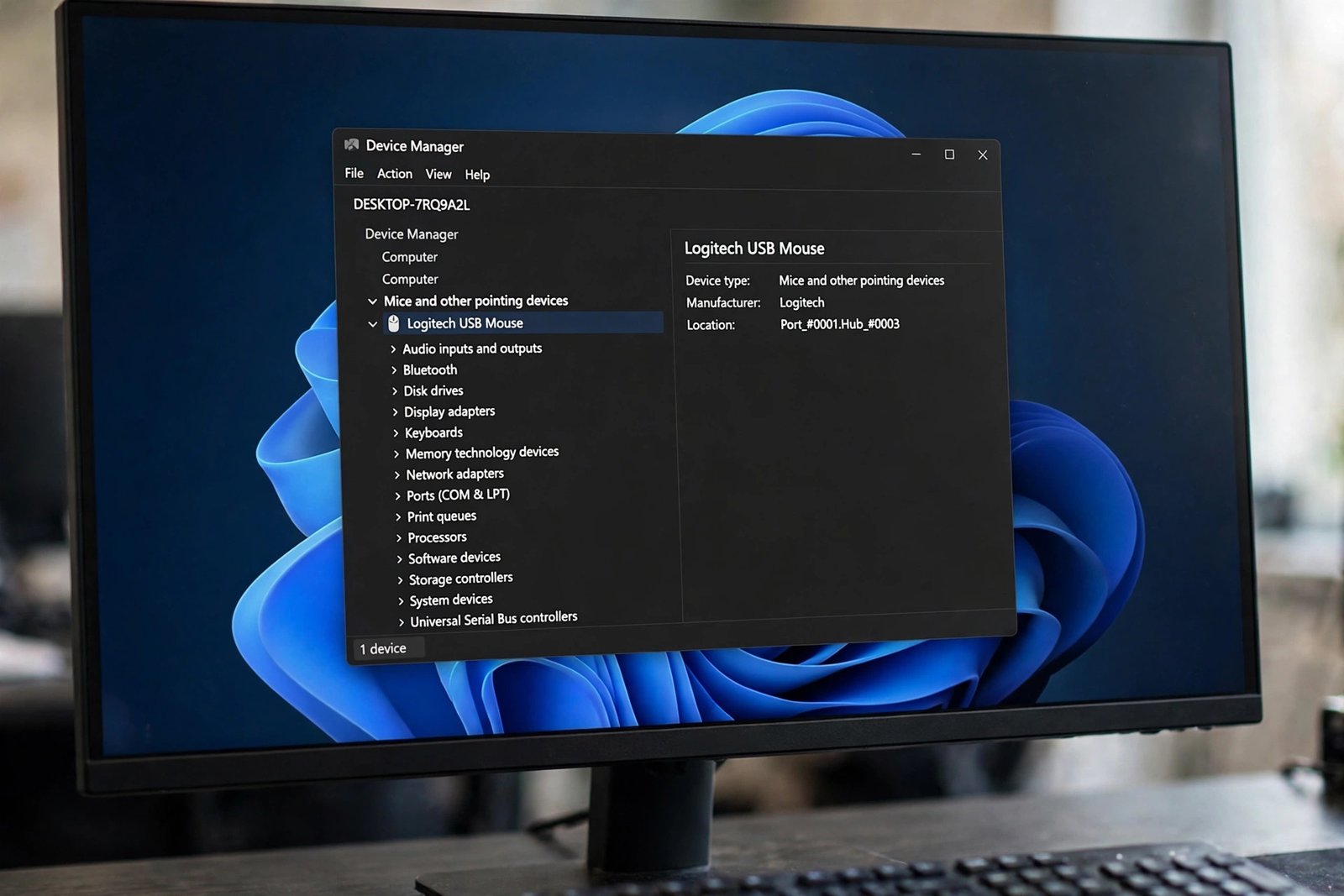
- If the lag started right after a Windows update, open the mouse’s Properties > Driver tab in Device Manager and try Roll Back Driver.
Lag that began after an update can hit other input devices too — see Windows 11 keyboard not working after an update if your keyboard is acting up as well.
Fix 6: Stop Windows Turning the Mouse Off to Save Power
Windows can cut power to USB devices to save battery. When it does this to your mouse, you get freezes that last a second or two.
- Press Windows key + X and open Device Manager.
- Expand Universal Serial Bus controllers.
- Right-click USB Root Hub and select Properties.
- Open the Power Management tab.
- Uncheck “Allow the computer to turn off this device to save power”.
- Press OK and repeat for any other USB Root Hub entries.
- For a Bluetooth mouse, expand Bluetooth in Device Manager instead, open your adapter’s Properties > Power Management, and uncheck the same box.
This fix is especially useful on laptops, where power saving is more aggressive.
Fix 7: Reduce Background Load
If the whole PC is busy, the mouse cursor is one of the first things to stutter. This kind of windows 11 mouse lagging is really a performance problem.
- Press Ctrl + Shift + Esc to open Task Manager.
- Click the CPU column to sort by highest usage.
- Look for apps using a large share of CPU or memory while you move the mouse.
- Select any heavy app you do not need and click End task.
- Check the Startup apps tab in Task Manager and disable apps you do not need at boot.
- Restart your PC and test the mouse again.
If your whole system runs slowly, not just the mouse, our Windows 11 slow startup fix guide helps trim background load further.
Fix 8: Try Another Port and Rule Out Hardware Failure
If nothing above helped, the problem may be the hardware itself rather than Windows.
- Plug the mouse into a USB 2.0 port if one is available — USB 3.0 ports can interfere with 2.4 GHz wireless receivers.
- Move the wireless receiver away from USB 3.0 cables, external drives, and the PC’s power supply.
- Test the mouse on a different computer. If it lags there too, the mouse is failing.
- Test a different mouse on your PC. If the replacement works smoothly, your original mouse needs replacing.
- As a last step, run a full Windows update and install any optional driver updates listed under Settings > Windows Update > Advanced options > Optional updates.
If the entire screen stutters along with the cursor, the issue may be display-related — see Windows 11 screen flickering fix.
What to Avoid
- Do not download “driver updater” tools from random websites — they often install the wrong drivers or unwanted software.
- Do not edit the registry to fix mouse lag unless a trusted guide tells you exactly which key to change.
- Do not spray cleaning liquid into the mouse sensor — a dry cloth is enough.
- Do not ignore the lag for weeks — a failing mouse can double-click or drop clicks next.
- Do not disable pointer precision and crank speed to maximum at the same time — it only hides the real cause.
Frequently Asked Questions
Why does my mouse lag only in Windows 11 but worked fine before?
A Windows upgrade can replace your working driver with a generic one. Reinstall the mouse driver using Fix 5, and check your PC maker’s support site for a Windows 11 driver.
Does a low battery really cause mouse lag?
Yes. A wireless mouse with weak batteries sends data in bursts, which looks like stuttering. Fresh batteries fix this instantly in most cases.
Can USB 3.0 ports cause wireless mouse lag?
Yes. USB 3.0 ports and cables can create radio interference with 2.4 GHz wireless receivers. Plug the receiver into a USB 2.0 port or use a short USB extension cable to move it away.
Should I turn pointer trails on or off?
Off. Pointer trails add a visible echo that many people mistake for lag, and they add extra drawing work. Turn them off in Fix 4.
My wired mouse lags too — is it the same fix?
Mostly. Skip the Bluetooth steps, but the driver update, power management, sensor cleaning, and background load fixes all apply to wired mice.
Conclusion
windows 11 mouse lagging looks serious but is rarely serious. Start with fresh batteries, a clean sensor, and a restart. If that fails, re-pair Bluetooth, update the driver, and stop Windows from cutting USB power. One of these eight fixes resolves the problem for most users, and a smooth cursor is only a few minutes away.
[…] your mouse is also acting strangely after the update, read our guide on the windows-11-mouse-lagging-fix as well, since the same update can affect both devices. For Bluetooth keyboards that refuse to […]
[…] what Fix 2 covers. And if your mouse cursor is generally laggy rather than gesture-less, our windows 11 mouse lagging fix guide tackles pointer stutter […]