

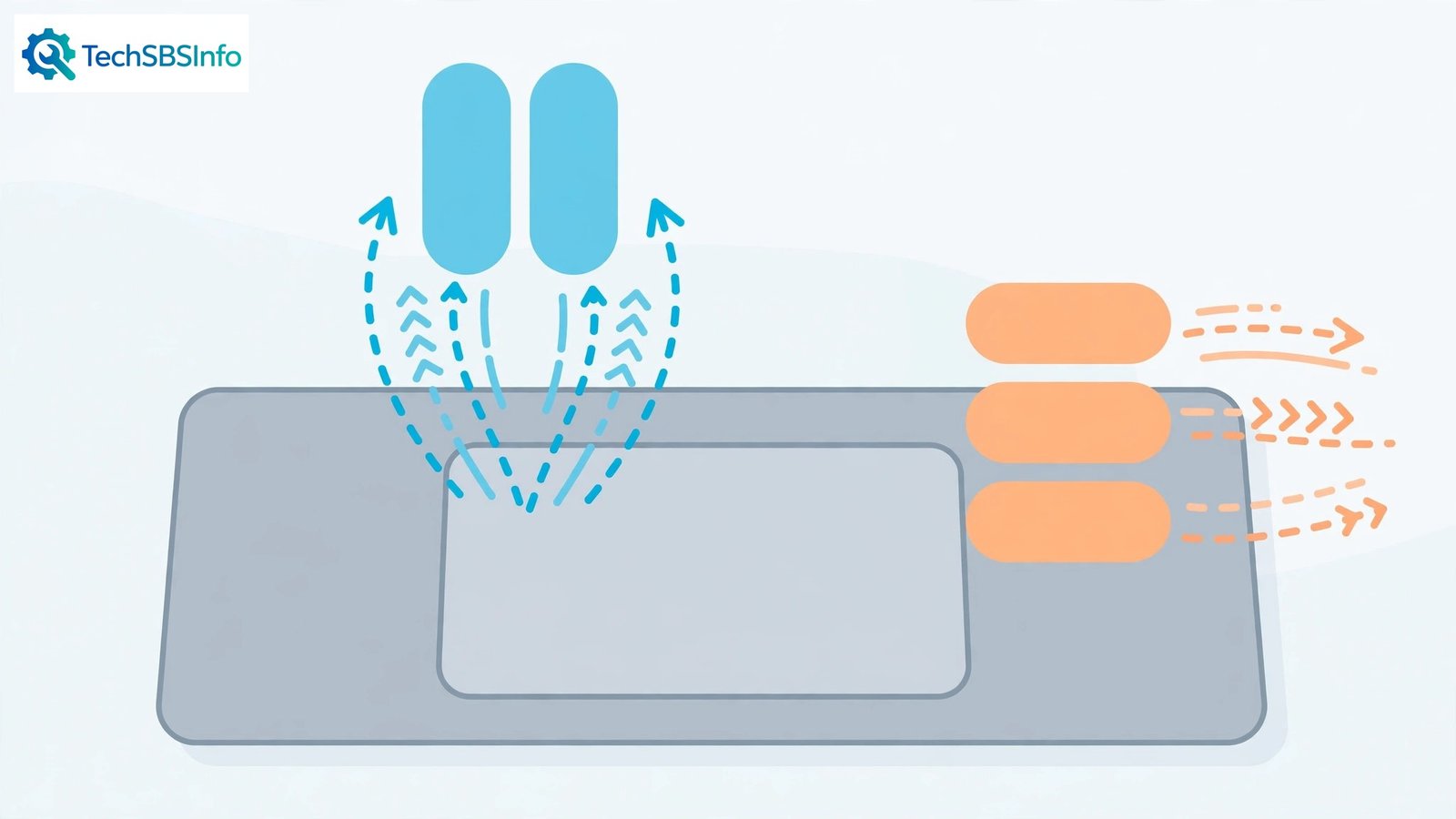
When windows 11 touchpad gestures not working hits your laptop, the touchpad itself usually still moves the cursor — but two-finger scroll does nothing, pinch-to-zoom is dead, and three-finger swipes no longer switch apps. It feels like the laptop lost a superpower overnight, and it almost always happens right after a Windows update or a driver change.
The good news: the hardware is almost certainly fine. In nearly every case, the problem is a setting that got flipped, a driver that needs attention, or a dirty surface confusing the sensor. This guide walks you through the fixes from easiest to most involved. Check your gestures after each fix — most people are scrolling again by Fix 4.
Table of Contents
- Quick Checks
- Diagnosing windows 11 touchpad gestures not working
- Fix 1: Turn the Touchpad Back On in Settings
- Fix 2: Re-Enable Gestures on the Touchpad Page
- Fix 3: Clean the Touchpad Surface
- Fix 4: Update or Reinstall the Touchpad Driver
- Fix 5: Roll Back the Driver After a Bad Update
- Fix 6: Stop Windows Turning the Touchpad Off with a Mouse
- Fix 7: Enable the Touchpad in UEFI or BIOS
- Fix 8: Install the Latest Windows Updates
- What to Avoid
- Frequently Asked Questions
- Conclusion
- Helpful Official Resources
Quick Checks
Start here — these take two minutes and fix a surprising number of cases.
- Restart the laptop. A fresh boot reloads the touchpad driver cleanly.
- Check whether the cursor moves at all. If the whole touchpad is dead (not just gestures), start with Fix 1 and Fix 7.
- Look for a touchpad toggle key on your keyboard (often Fn + F7 or a key with a touchpad icon) and press it.
- Unplug any USB mouse temporarily — some laptops disable touchpad features when a mouse is connected.
- Think about what changed: a Windows update last night? A new program? That points straight at Fix 4 or Fix 5.
Diagnosing windows 11 touchpad gestures not working
Match your symptom to the likely cause, then jump to the fix.
| Symptom | Cause | Go to Fix |
|---|---|---|
| Gestures stopped right after a Windows update | Driver replaced or settings reset | Fix 2, then Fix 4 |
| Cursor moves but no gesture works | Gestures switched off in Settings | Fix 2 |
| Gestures work sometimes, or feel jumpy | Dirty surface or worn driver | Fix 3, then Fix 4 |
| Touchpad works until you plug in a mouse | “Leave touchpad on” setting | Fix 6 |
| Whole touchpad dead, no cursor movement | Disabled in Settings or BIOS | Fix 1, then Fix 7 |
| Gestures broke after installing a program | Third-party driver or utility conflict | Fix 5 |
Fix 1: Turn the Touchpad Back On in Settings
Windows updates and keyboard shortcuts can switch the entire touchpad off. If the cursor does not move at all, this is your fix.
- Press Windows + I to open Settings.
- Go to Bluetooth & devices > Touchpad.
- Make sure the Touchpad toggle at the top is On.
- If it was off, turn it on and test your gestures immediately.
- Also press your laptop’s touchpad function key (Fn + the touchpad icon key) — some laptops have a hardware-level toggle that overrides Windows.
If the toggle is already on but gestures still do nothing, the gestures themselves may be disabled — which is exactly what Fix 2 covers. And if your mouse cursor is generally laggy rather than gesture-less, our windows 11 mouse lagging fix guide tackles pointer stutter specifically.
Fix 2: Re-Enable Gestures on the Touchpad Page
Windows 11 lets you switch each gesture on or off individually, and updates sometimes reset them. This is the most common fix for gestures that vanished overnight.
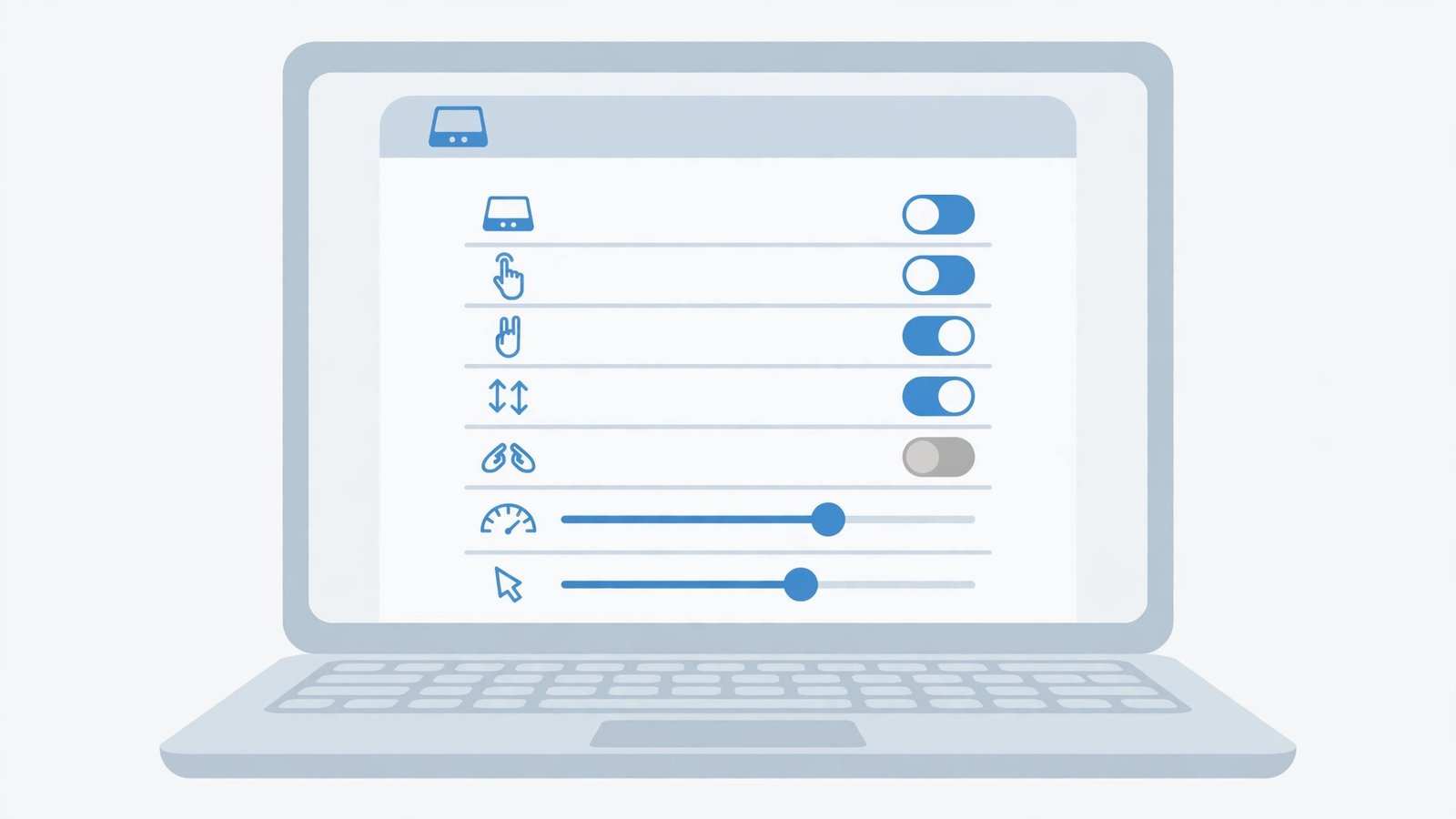
- Open Settings with Windows + I and go to Bluetooth & devices > Touchpad.
- Confirm the main Touchpad toggle is On.
- Scroll to the “Gestures & interaction” section.
- Open “Three-finger gestures” and “Four-finger gestures” and make sure they are not set to “Nothing”.
- Check the scroll direction under “Scroll and zoom” — set it to “Down motion scrolls down” if scrolling feels backwards.
- Make sure “Pinch to zoom” is ticked if you use it.
- Test each gesture on the desktop: two-finger scroll in a browser, three-finger swipe up for Task View.
Many users find everything was simply set to “Nothing” after an update. Choosing sensible actions here — like three-finger swipe switching apps — brings the laptop back to life.
Fix 3: Clean the Touchpad Surface
A greasy or dusty touchpad confuses the capacitive sensor, so gestures register as random taps or nothing at all. This is worth doing even if the touchpad looks clean.
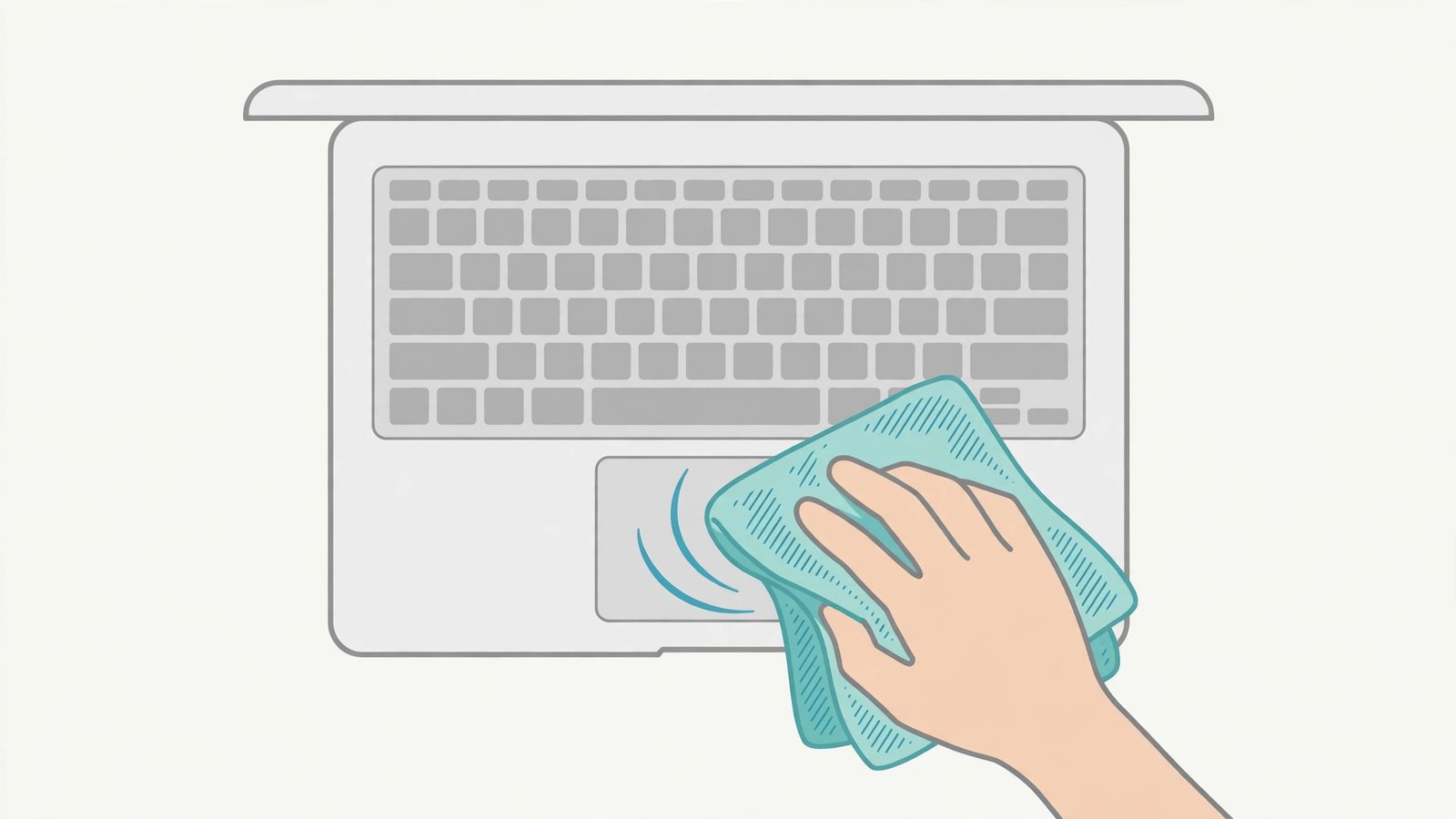
- Shut the laptop down or lock the screen so you do not click things while cleaning.
- Wipe the touchpad with a dry microfiber cloth using light, circular motions.
- For stubborn grime, dampen the cloth very slightly with water — never spray liquid on the laptop.
- Dry the surface fully with the dry side of the cloth.
- Peel off any thick decorative sticker covering the touchpad — stickers block the sensor.
- Test gestures again on the clean, dry surface.
If gestures are jumpy rather than dead — the page scrolls in fits — dirt is a prime suspect. This two-minute clean fixes more “faulty” touchpads than any driver update.
Fix 4: Update or Reinstall the Touchpad Driver
The driver is the software bridge between the touchpad hardware and Windows. When it corrupts or goes stale, gestures are usually the first casualty.
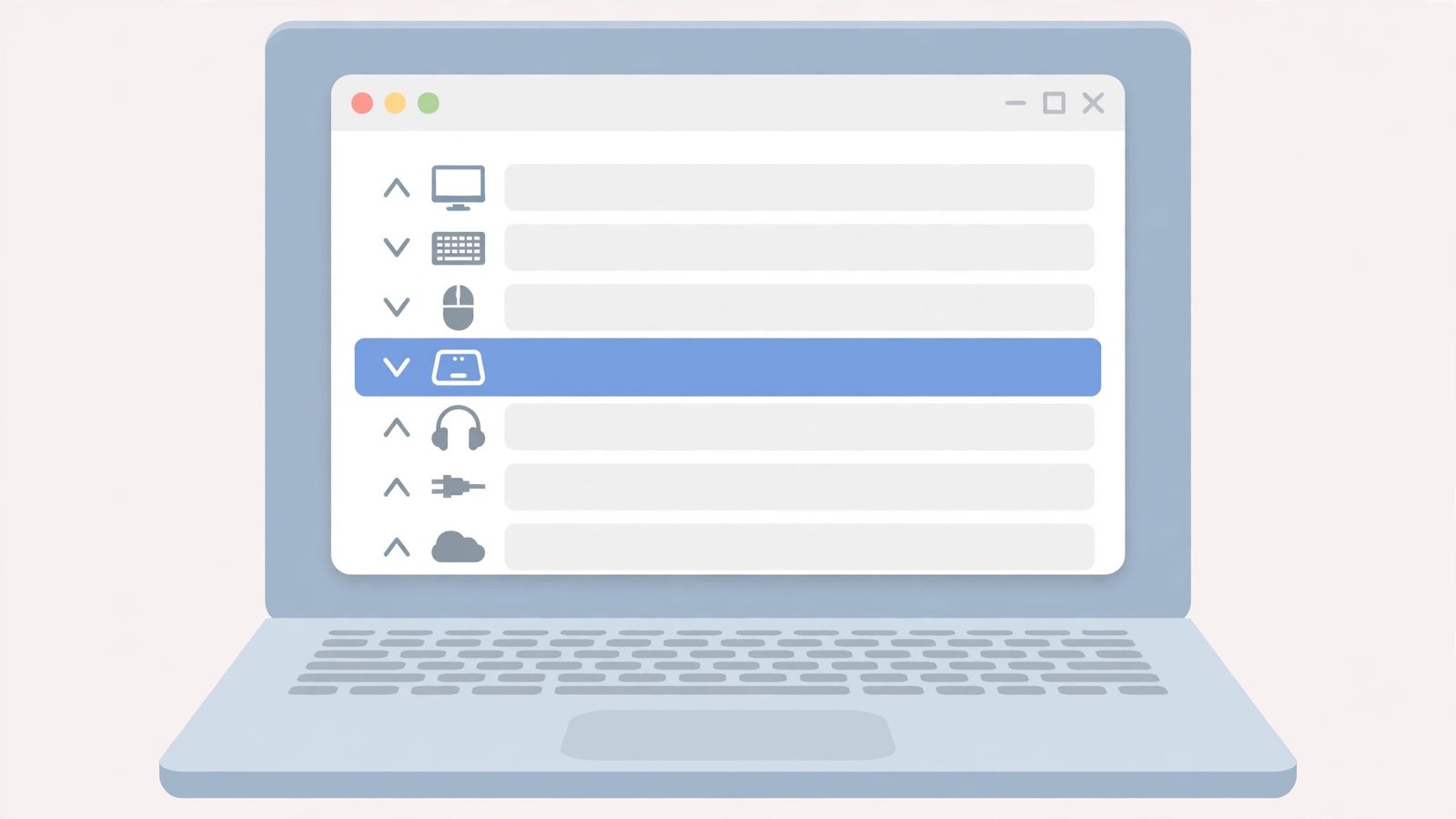
- Press Windows + X and choose Device Manager.
- Expand “Human Interface Devices” or “Mice and other pointing devices”.
- Find your touchpad — it may be called “I2C HID Device”, “Synaptics”, “ELAN”, or your laptop brand’s touchpad.
- Right-click it and choose “Update driver”, then “Search automatically for drivers”.
- If Windows finds nothing, right-click again and choose “Uninstall device”. Tick “Attempt to remove the driver” if offered.
- Restart the laptop. Windows reinstalls a fresh driver automatically on boot.
- For the best driver, visit your laptop maker’s official support page, search your exact model, and install their touchpad driver.
The maker’s driver is worth the extra effort: generic Windows drivers sometimes support the cursor but not the fancy multi-finger gestures. Never use third-party “driver updater” tools — get drivers from the manufacturer only. If your keyboard also misbehaves after updates, see our guide on Windows 11 keyboard not working after update.
Fix 5: Roll Back the Driver After a Bad Update
If gestures worked yesterday and broke today right after an update, the new driver is the culprit. Rolling back restores the previous one.
- Open Device Manager (Windows + X > Device Manager).
- Find your touchpad device as in Fix 4.
- Right-click it and choose Properties, then open the Driver tab.
- Click “Roll Back Driver”. If the button is greyed out, Windows has no older driver saved — skip to Fix 8.
- Choose a reason (pick “Previous driver worked better”) and confirm.
- Restart the laptop and test gestures.
- To stop Windows replacing it again immediately, pause updates for a week: Settings > Windows Update > Pause updates.
Driver rollbacks are quick and safe. If the button is greyed out, uninstalling the device (Fix 4, step 5) and letting Windows reinstall is the next best thing.
Fix 6: Stop Windows Turning the Touchpad Off with a Mouse
Some laptops quietly disable the touchpad — or just its gestures — when a USB or Bluetooth mouse connects. If your gestures die only when the mouse is plugged in, this is why.
- Open Settings > Bluetooth & devices > Touchpad.
- Click the small arrow to expand the Touchpad section.
- Make sure “Leave touchpad on when a mouse is connected” is TICKED so the touchpad stays on.
- Disconnect and reconnect your mouse, then test gestures with the mouse still plugged in.
- Also check your laptop maker’s own touchpad utility (Synaptics, ELAN, or similar in the system tray) for its own “disable when mouse present” option and turn that off too.
This setting hides in plain sight and catches people who dock their laptop at a desk. With the box ticked, touchpad and mouse live happily side by side.
Fix 7: Enable the Touchpad in UEFI or BIOS
On some laptops the touchpad can be disabled at firmware level, where Windows cannot see or override it. This usually happens after a BIOS update or an accidental settings change.
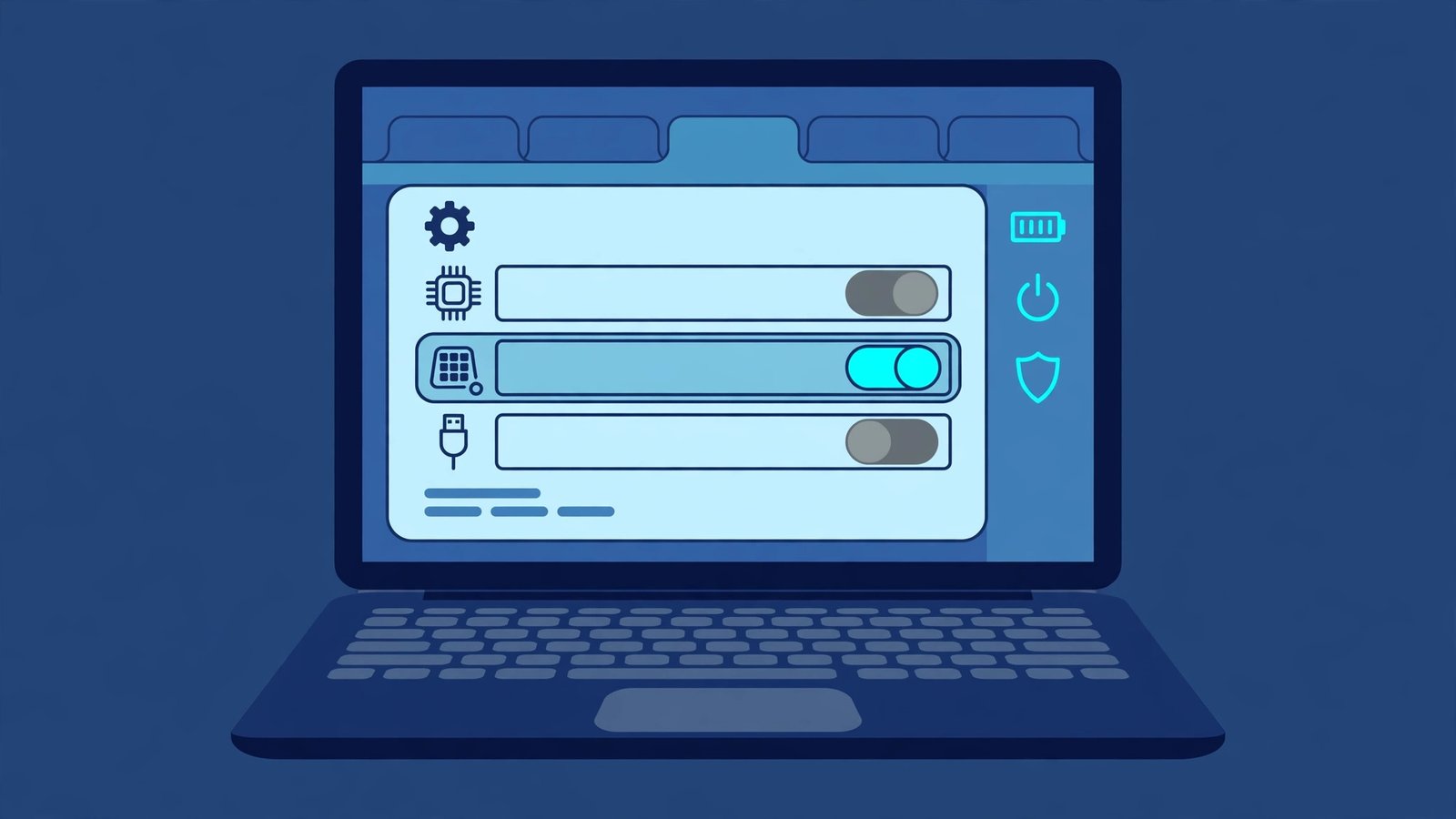
- Restart the laptop and press the BIOS key during boot (often F2, Del, or F10 — it flashes on screen).
- Look under Advanced, Devices, or a similar tab for “Internal Pointing Device” or “Touchpad”.
- Make sure it is set to Enabled.
- Save and exit (usually F10), then let Windows boot.
- Check gestures in Windows again.
Do not change anything else in the BIOS while you are there. If you are not comfortable entering the BIOS, ask someone who is — but the setting itself is a simple Enabled/Disabled toggle.
Fix 8: Install the Latest Windows Updates
If nothing above worked, a newer update may contain the actual fix — Microsoft regularly ships touchpad driver fixes through Windows Update.
- Open Settings > Windows Update.
- Click “Check for updates” and install everything offered.
- Click “Advanced options” > “Optional updates” and install any driver updates listed, especially anything mentioning touchpad, I2C, Synaptics, or ELAN.
- Restart the laptop even if it does not ask you to.
- Test all gestures again after the restart.
If gestures still refuse to work after every fix here, the touchpad hardware itself may have failed — especially if the whole touchpad is dead. That needs a repair shop, but it is rare: software causes the overwhelming majority of gesture failures. For broader performance issues that arrived with the same update, our Windows 11 slow startup fix and Windows 11 keeps freezing randomly guides cover those symptoms.
What to Avoid
- Do not install “driver updater” or “touchpad booster” tools from random websites — they cause more problems than they solve.
- Do not disable the touchpad device in Device Manager as a “fix” — you will lose the cursor entirely.
- Do not spray cleaning liquid directly on the touchpad — moisture seeps under the surface.
- Do not flash a BIOS update unless the maker’s notes mention touchpad fixes — a failed flash is far worse than dead gestures.
- Do not assume the hardware is broken after one bad driver — work through the software fixes first.
- Do not edit the registry for gesture settings — the Settings page covers everything safely.
Frequently Asked Questions
Why did my touchpad gestures stop working after a Windows update?
Updates can replace your touchpad driver with a generic one that lacks gesture support, or reset the gesture settings to “Nothing”. Re-enabling gestures (Fix 2) and reinstalling the maker’s driver (Fix 4) resolve this in most cases.
Two-finger scroll works but three-finger swipe does not. Why?
Three and four-finger gestures have their own dropdowns in Settings > Bluetooth & devices > Touchpad. They are often set to “Nothing” while two-finger scroll keeps working. Open each dropdown and assign the actions you want.
My cursor moves but gestures do nothing at all. Is the touchpad broken?
Almost certainly not. A moving cursor proves the hardware works. Dead gestures with a live cursor point at settings or drivers — Fix 2 and Fix 4 are your answers.
Can I customise what each gesture does?
Yes. In Settings > Bluetooth & devices > Touchpad, the three-finger and four-finger dropdowns let you assign actions like switching apps, opening Task View, or controlling volume. Some precision touchpads also support custom shortcuts.
Do I need the laptop maker’s touchpad software?
Not always, but it helps. Windows’ built-in precision touchpad drivers cover the standard gestures. The maker’s driver (Synaptics, ELAN, or similar) sometimes adds extra gestures and finer control — worth installing if gestures feel limited.
Conclusion
When windows 11 touchpad gestures are not working, the fix is almost always in software: re-enable the gestures in Settings, clean the surface, and refresh the driver. Work through the eight fixes in order and test after each one — two-finger scroll and three-finger swipe usually return within minutes. Save the BIOS check and hardware suspicion for last, because a truly dead touchpad is the rarest outcome of all.