

You tweak the CSS — a colour, a font size, a spacing fix. You save, refresh, and… nothing. The site looks exactly as before. When wordpress css changes not updating is your frustration, the styles are saved correctly but something between your edit and the visitor’s browser is serving the old stylesheet.
CSS is the most aggressively cached file type on the web, so the cause is caching nine times out of ten. The tenth time, it is the wrong file, a syntax error, or minification. This guide works through all of them in order. Your styles will appear.
Table of Contents
- Quick Checks
- Diagnosing wordpress css changes not updating
- Fix 1: Hard-Refresh and Clear Browser Cache
- Fix 2: Purge Every Cache Layer
- Fix 3: Check the Right File and Child Theme
- Fix 4: Fix CSS Syntax Errors
- Fix 5: Beat Minified CSS Caching
- Fix 6: Use the Customizer Correctly
- Fix 7: Check the File Actually Saved
- What to Avoid
- Frequently Asked Questions
- Conclusion
- Helpful Official Resources
Quick Checks
Two minutes before the real fixes.
- Hard-refresh (Ctrl+F5) — the browser cache is suspect number one for CSS.
- Check in Incognito — if the new styles show there, it is only your browser cache.
- Confirm you saved: reopen the CSS location and verify your edit is actually there.
- Check you are viewing the right page — CSS edits often target specific templates.
- Note whether ALL your CSS or just the latest edit is missing — all missing means wrong file; latest missing means cache.
Diagnosing wordpress css changes not updating
| Symptom | Cause | Go to Fix |
|---|---|---|
| New styles in Incognito, old in normal window | Browser cache | Fix 1 |
| Old styles everywhere after purging browser | Plugin/CDN/host cache | Fix 2 |
| Edits never appear anywhere, ever | Wrong file or parent theme | Fix 3 |
| Some new styles work, later ones do not | Syntax error mid-file | Fix 4 |
| Styles work with optimisation off, not on | Minified CSS cache | Fix 5 |
| Customizer shows changes, live site does not | Publish/cache issue | Fix 6 |
Fix 1: Hard-Refresh and Clear Browser Cache
Browsers cache stylesheets hard — they are the file type browsers are most reluctant to re-download.

- On the page, press Ctrl+F5 for a hard refresh.
- If that fails, clear cached images and files (Ctrl+Shift+Delete > Cached images and files > Clear).
- Or open the page in an Incognito window — no cache at all.
- For thoroughness, check DevTools (F12) > Network tab > tick “Disable cache” and reload with DevTools open.
- If Incognito shows the new styles, stop here — it was only ever your browser.
During active CSS work, keep DevTools open with “Disable cache” ticked. It removes the browser from the equation entirely, so every refresh shows your latest edit. If pages will not load at all, our WordPress website not loading guide is the companion.
Fix 2: Purge Every Cache Layer
Server-side caches love stylesheets too. Purge them all.
- Purge your caching plugin (admin toolbar button).
- Clear the host’s server cache from its panel.
- Purge the CDN cache (CDNs cache CSS aggressively).
- Test in Incognito after each purge to identify the guilty layer.
- Check whether your caching plugin has a “purge on update” that should have done this automatically — if it is off, enable it.
CSS files often carry long cache lifetimes (a year is common), which is why they go stale so stubbornly. Proper setups use versioned filenames (style.css?ver=1.2) to bust the cache on change — if your theme does not, the purges above are your manual version. For plugin-conflict investigation, our WordPress plugin conflict fix guide covers the method.
Fix 3: Check the Right File and Child Theme
Edits to the wrong file never appear. The classic mistake: editing the parent theme’s style.css while a child theme (or the Customizer) overrides it.
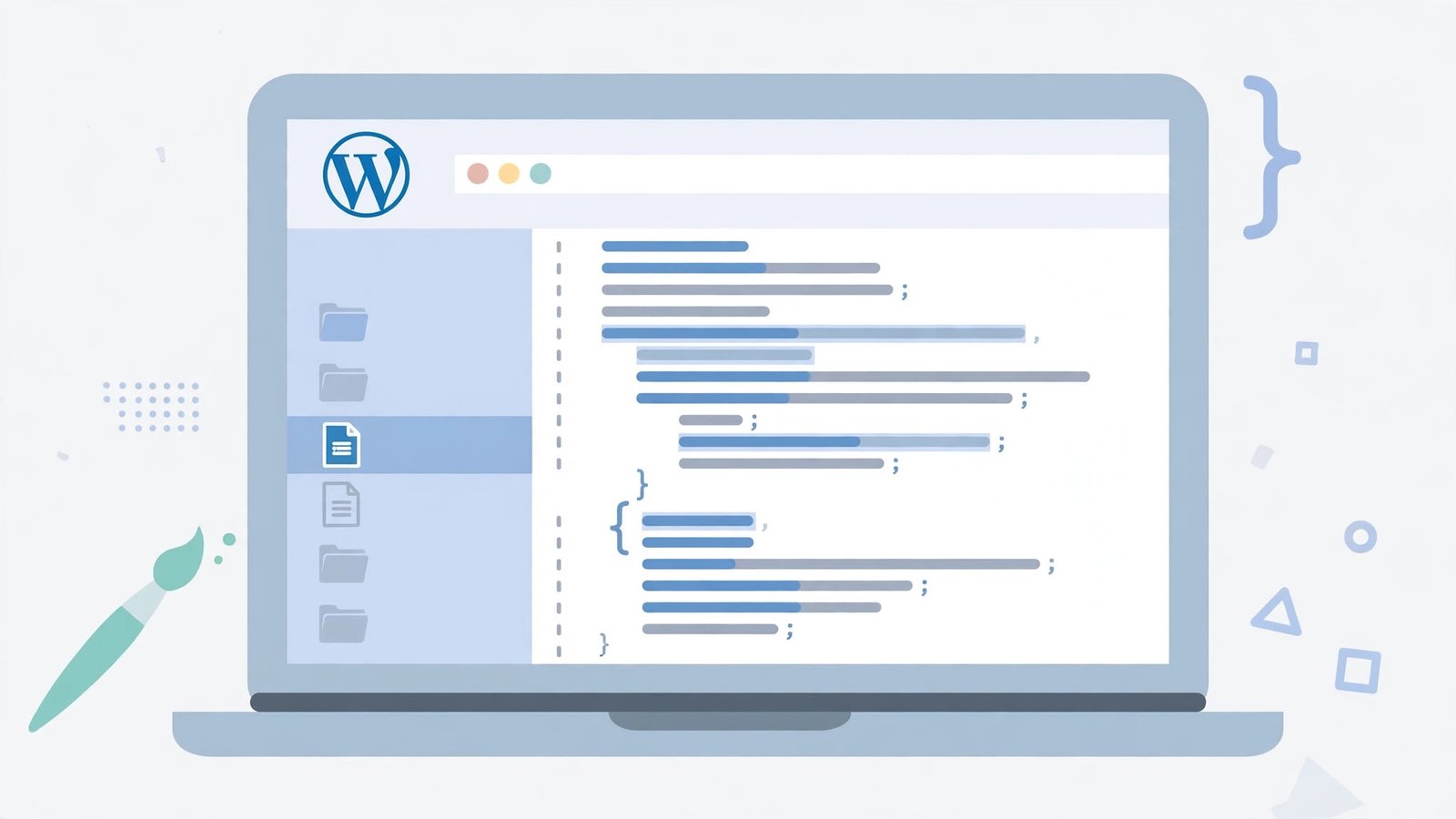
- Confirm which theme is active: Appearance > Themes — the active one is highlighted.
- If a child theme is active, your CSS belongs in the child theme’s style.css, not the parent’s.
- Check Appearance > Customize > Additional CSS — rules here override theme files. Your edit might belong here instead (see Fix 6).
- Use the browser’s DevTools (F12 > Elements) to see which stylesheet actually styles the element — it names the file and line.
- If you edited via FTP, confirm you uploaded to the right theme folder and the right file.
DevTools is the ground truth: it shows the winning rule and its source file. If your file is not listed, your edits are in a file the page does not load. If the editor itself will not load, see Elementor editor not loading.
Fix 4: Fix CSS Syntax Errors
One syntax error — a missing bracket, an unclosed comment — invalidates everything after it in the file. Your new styles sit below the error, dead on arrival.
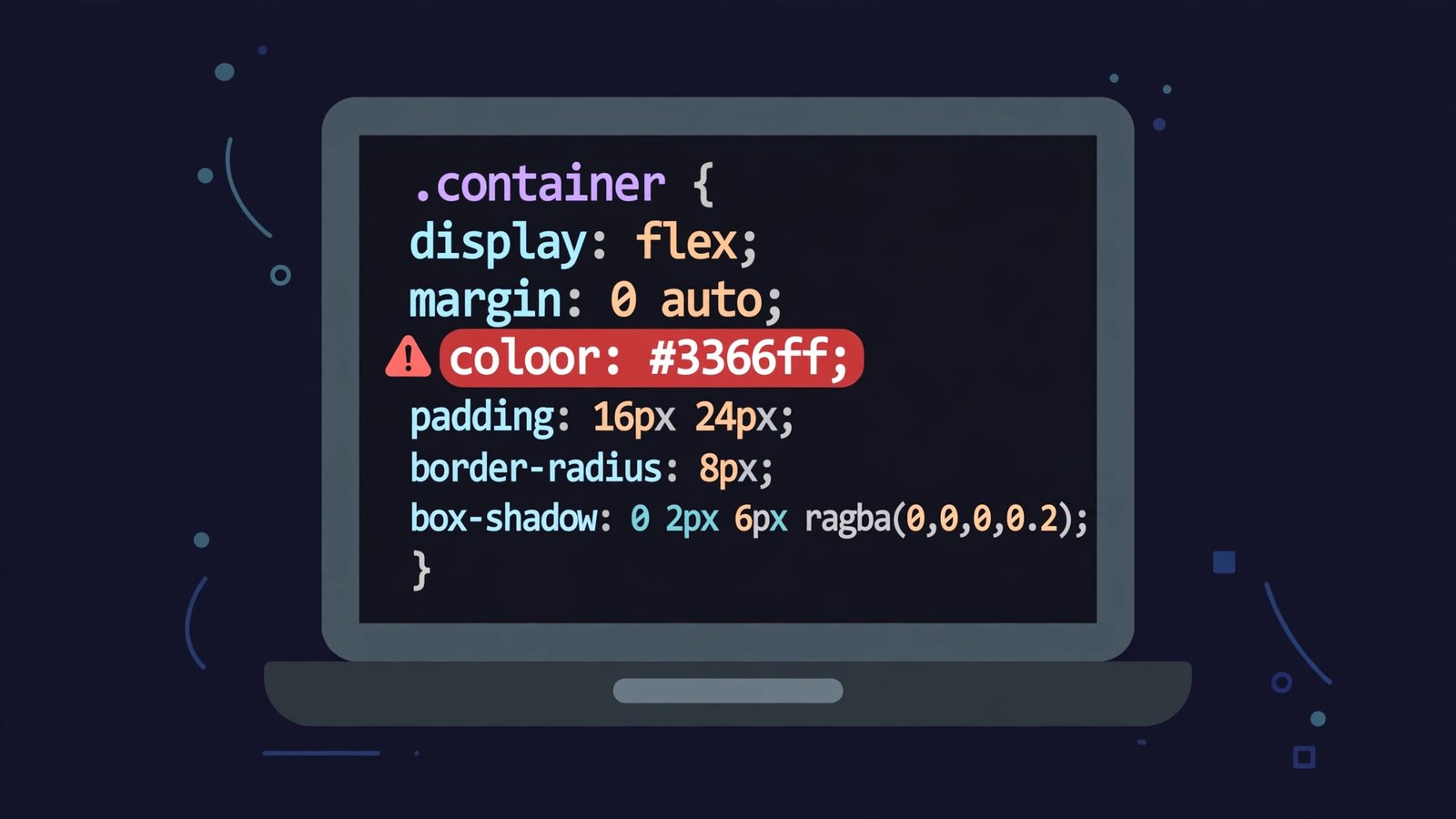
- Open your CSS in the editor and scan the area just above where your new styles start.
- Look for: missing closing brackets
}, unclosed comments/*, missing semicolons, typos in property names. - Paste the CSS into an online CSS validator (from a reputable source) to pinpoint errors by line.
- Fix the error and save.
- Purge caches and hard-refresh — the previously-dead rules should now apply.
- As prevention, add new styles at the end of the file during development, where an error cannot kill existing rules.
The “some new styles work, later ones do not” pattern is the fingerprint of a mid-file syntax error. Validators find in seconds what eyes miss in minutes. For block-editor troubles, our WordPress block editor not loading guide helps.
Fix 5: Beat Minified CSS Caching
Optimisation plugins combine and minify CSS into new files with cached copies. Your source edit is fine — the minified bundle is stale.
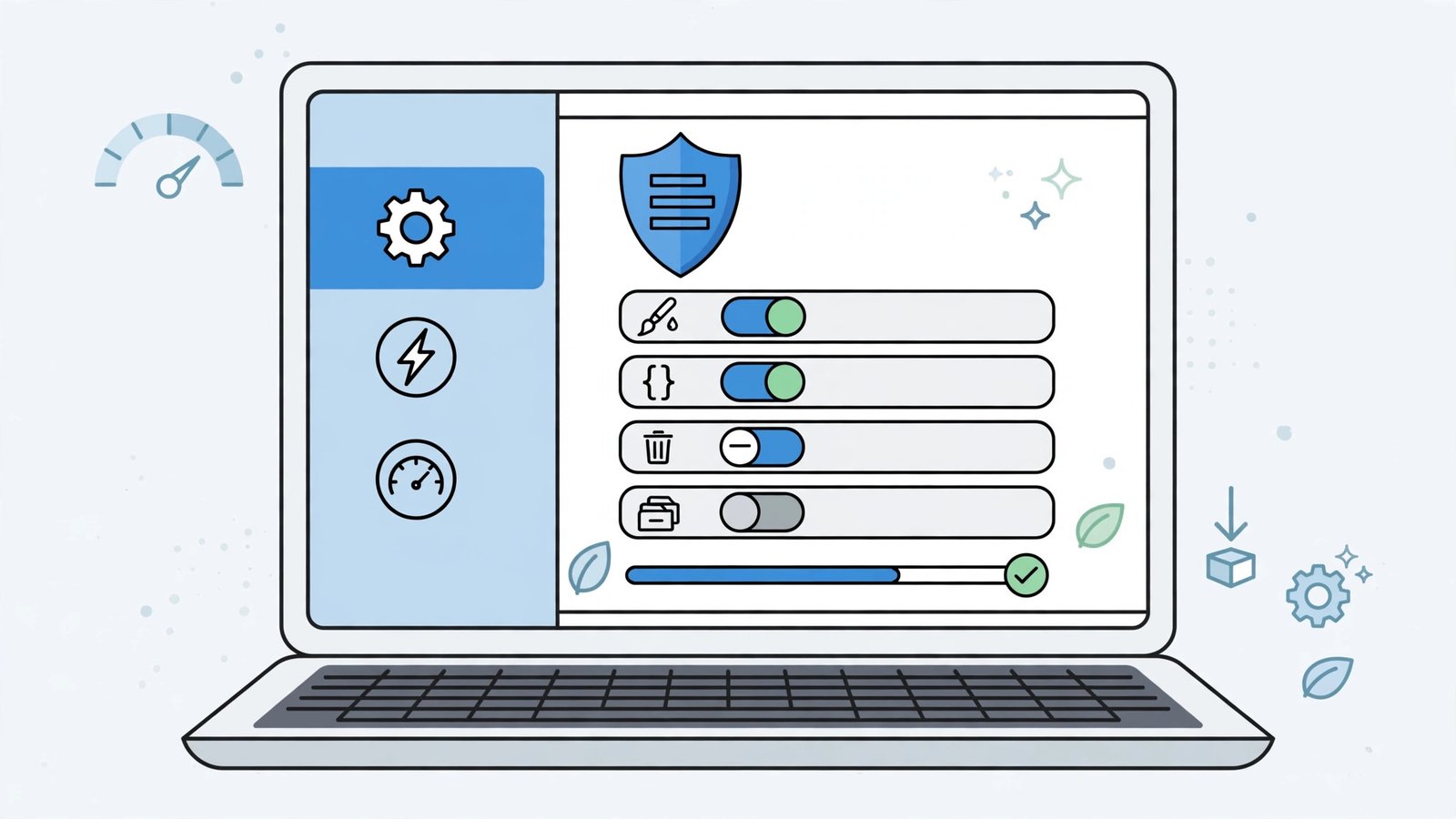
- In your optimisation/caching plugin, find the CSS minification/combine settings.
- Purge the minified cache specifically (often a separate button from the page-cache purge).
- Test with minification temporarily disabled — if styles appear, the minifier’s cache was the culprit.
- Re-enable minification after confirming, and purge again.
- Check whether the plugin versions the minified filename on change — if not, every CSS edit needs a manual purge.
- During active development, leave CSS minification off entirely; enable it when the design is final.
Minification is a production optimisation, not a development one. Developing with it on means fighting its cache on every edit — switch it off while you work. If the whole site is down rather than just styles, see WordPress website not loading.
Fix 6: Use the Customizer Correctly
The Customizer’s “Additional CSS” is the sanctioned place for small tweaks — but it has its own publishing and caching quirks.
- Go to Appearance > Customize > Additional CSS and verify your rules are there.
- Click “Publish” — Customizer changes are drafts until published.
- Check for syntax errors in the Additional CSS box — the Customizer flags them with a red x; fix before publishing.
- Remember the hierarchy: Additional CSS overrides theme files, but a child theme’s style.css and plugins can still override it depending on load order.
- After publishing, purge caches and hard-refresh.
- For large customisations, prefer the child theme’s stylesheet over a giant Additional CSS box — it is easier to manage and version.
Additional CSS is ideal for tweaks under a few dozen lines. Beyond that, the child theme file is the professional home. Either way, publish deliberately — the Customizer’s draft state has confused many “my CSS did nothing” reports.
Fix 7: Check the File Actually Saved
It sounds insulting, but “the edit never saved” happens: FTP uploads to the wrong path, file-permission rejections, editor sessions timing out.
- Reopen the CSS file from the server (not your local copy) and confirm your edit is present.
- If you edit via FTP, check the transfer succeeded — failed uploads fail silently in some clients.
- Check file permissions: the web server needs read access to serve the file (typically 644).
- If using the WordPress theme editor, watch for the “Unable to communicate back” or permission errors on save.
- After confirming the save, purge caches one final time and hard-refresh.
Trust, then verify: the server’s copy of the file is the only one that matters. Five seconds of re-checking beats an hour of cache-purging a file that was never updated.
What to Avoid
- Do not edit the parent theme directly — use a child theme or Additional CSS.
- Do not develop with CSS minification on — it hides your changes behind its cache.
- Do not use
!importanteverywhere to “force” styles — it creates specificity wars you will lose later. - Do not skip the hard refresh and blame the server — the browser cache is guilty most often.
- Do not paste CSS with syntax errors and wonder why half of it is dead — validate.
- Do not forget to publish Customizer changes — drafts do not affect the live site.
Frequently Asked Questions
Why do CSS changes show in the Customizer but not on the live site?
The Customizer preview bypasses cache; the live site does not. Publish, then purge every cache layer (Fix 2) and hard-refresh (Fix 1).
How do I know which CSS file to edit?
Use DevTools (F12 > Elements): it names the stylesheet and line number behind every style. Edit that file — or override it properly from a child theme or Additional CSS.
What is cache busting for CSS?
Appending a version query (style.css?ver=1.2) so browsers treat it as a new file. Good themes and plugins do this automatically on change; if yours does not, manual purges fill the gap.
Why did half my new CSS work and half not?
A syntax error sits between the working and dead rules (Fix 4). Validate the CSS to find the exact line.
Should I use Additional CSS or a child theme?
Additional CSS for small tweaks (dozens of lines); a child theme stylesheet for real customisation. Both beat editing the parent theme, which updates wipe out.
Why does my CSS work in the Customizer preview but not on the live site?
The Customizer preview bypasses most caching — it shows your edits raw. The live site serves cached, minified CSS to visitors. After confirming the preview looks right, purge every cache layer (plugin, host, CDN) and hard-refresh. The preview is your proof the CSS is correct; the cache is the only thing standing between it and the public.
Can the theme’s minified CSS override my changes?
Yes, through ordering. Minified stylesheets are generated from the theme’s files and often load after your custom CSS, winning by specificity order. Purge the minification cache so it regenerates with your changes included. If your rules still lose, increase their specificity slightly rather than reaching for !important on everything.
Why do my CSS changes disappear after a theme update?
You edited the parent theme’s files directly, and the update overwrote them. This is the classic WordPress lesson: custom CSS belongs in a child theme or the Customizer’s Additional CSS, never in the parent theme’s stylesheet. Move your rules to a child theme now, and future updates will leave them untouched.
Conclusion
When wordpress css changes are not updating, the hunt is orderly: hard-refresh the browser, purge every server layer, confirm you edited the right file in the right theme, validate the syntax, and tame minification. CSS is the web’s most cached asset, so assume cache first and prove otherwise — your new styles are saved; they just need a clear road to the visitor.