

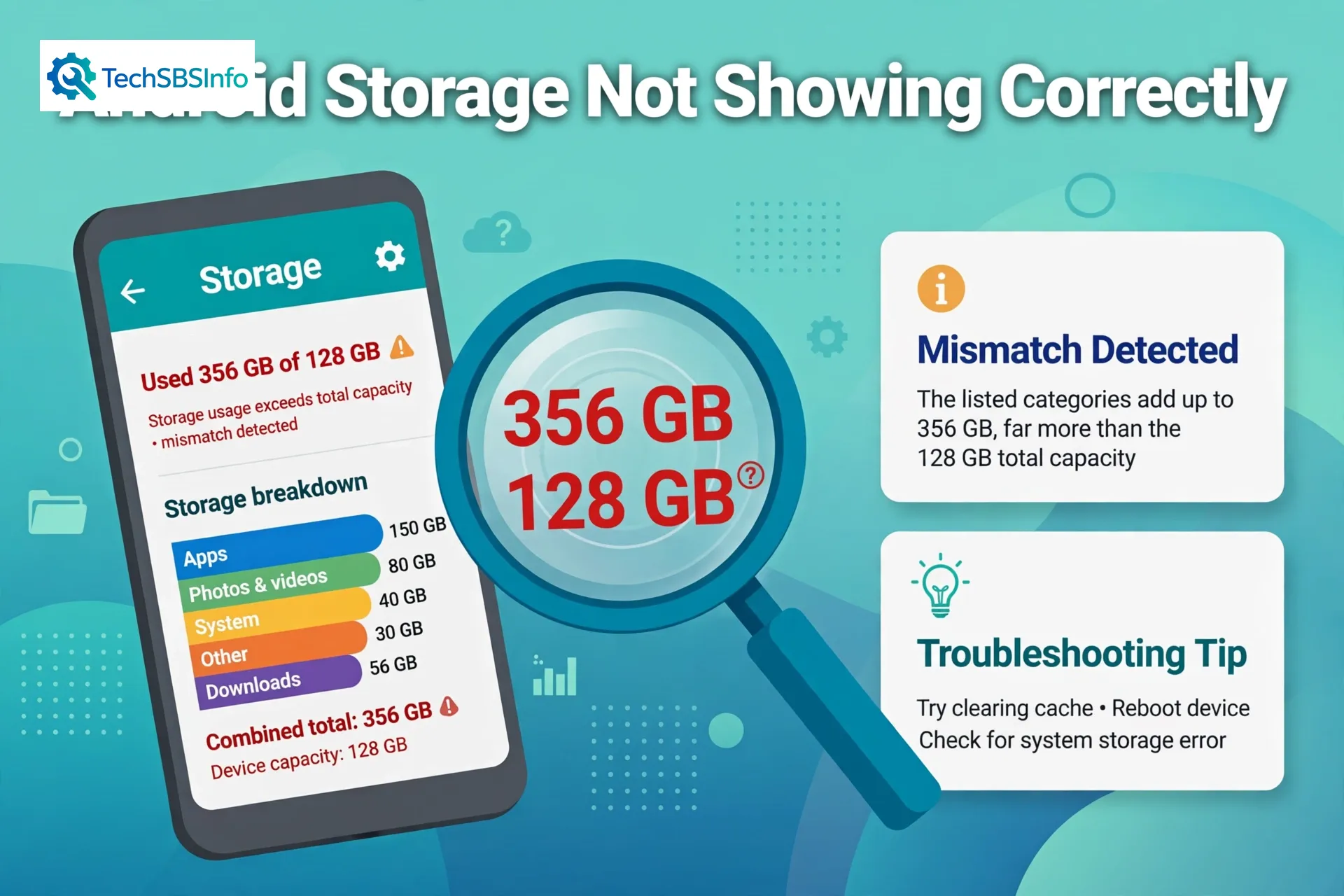
If your android internal storage not showing correctly is driving you crazy, you are not alone. Many Android users open Settings, tap Storage, and see numbers that make no sense. The phone may claim 110 GB are used on a 128 GB device while the categories add up to only 60 GB. Sometimes the screen gets stuck on “Calculating” forever. Sometimes internal storage shows 0 bytes, or your SD card gets counted twice.
The good news is that this is almost always a display and counting problem, not a hardware failure. Android keeps a small internal database of your media files. When that database gets stale or corrupted, the storage screen shows wrong figures. At TechSBSInfo, we fix Android problems step by step, and this guide walks you through every proven solution, from a simple restart to a full factory reset, in the safest order.
Table of Contents
- Quick Checks to Try First
- Diagnose Your Storage Problem
- Fix 1: Restart Your Phone
- Fix 2: Clear Cached Data from Heavy Apps
- Fix 3: Eject and Reinsert Your SD Card to Force a Media Rescan
- Fix 4: Check the Real File Sizes on a Computer
- Fix 5: Clear the Media Storage System App Data
- Fix 6: Wipe the Cache Partition
- Fix 7: Update Your Phone Software
- Fix 8: Back Up and Factory Reset (Last Resort)
- What to Avoid
- Frequently Asked Questions
- Conclusion
1. Quick Checks to Try First
Before you change anything serious, run through these fast checks. Each one takes a minute or less, and one of them often fixes the wrong numbers on its own.
- Restart the phone and open the Storage screen again after two minutes. Android recounts storage on boot.
- Wait for “Calculating” to finish. After a reboot or a big file move, Android can take several minutes to recount.
- Open Files by Google and compare its numbers with the Settings storage screen. If they disagree, the Settings counter is the one at fault.
- Remove the SD card temporarily (if you use one) and check whether the internal numbers look correct without it.
- Check for a pending system update under Settings, then System, then System update. Storage bugs are often fixed in updates.
- Look for the biggest surprise category. If “System” or “Other” is suddenly huge, cached or temp files are the likely cause.
2. Diagnose Your Storage Problem
Use this table to match what you see with the most likely cause, then jump straight to the right fix.
| Symptom | Likely cause | Go to fix |
|---|---|---|
| Categories add up to less than the “used” total | Stale or corrupted media database | Fix 3, Fix 5 |
| Storage screen stuck on “Calculating” forever | Media Storage app cache is corrupted | Fix 5 |
| Numbers change every time you open Storage | Media scanner running in background or a counting bug | Fix 1, Fix 3 |
| Internal storage shows 0 bytes or “unavailable” | File system error or failing storage chip | Fix 6, then Fix 8 |
| SD card storage counted as internal or counted twice | Card was removed or reinserted without a rescan | Fix 3 |
| Phone says storage is full but your files do not add up | Hidden cache, thumbnails, or leftover app data | Fix 2, and see our guide on Android storage showing full when nothing is stored |
| Storage looks wrong right after a system update | Old cache from the previous Android version | Fix 6, Fix 7 |
Fix 1: Restart Your Phone
A restart is the simplest fix, and it works more often than you would expect. When Android boots, it recounts your storage from scratch. Any stuck background process that was blocking the count gets cleared too.
- Press and hold the power button until the power menu appears.
- Tap Restart. If your phone only shows Power off, tap it and turn the phone back on after 10 seconds.
- Wait two full minutes after the phone boots, so background services finish starting.
- Go to Settings, then Storage, and check the numbers again.
If the numbers now look right, you are done. If they still look wrong, move on to Fix 2.
Fix 2: Clear Cached Data from Heavy Apps
Cached data is temporary data that apps keep to load faster. It is supposed to be invisible to you, but sometimes it grows huge and confuses the storage counter. Clearing it is safe. It never deletes your photos, chats, or logins. The apps simply rebuild the cache as you use them.
- Open Settings, then Apps, then See all apps.
- Tap the three-dot menu and choose Sort by size, or Show system if needed.
- Tap the biggest apps one by one, starting with browsers, social media, and video apps.
- Tap Storage and cache, then tap Clear cache. Do not tap Clear storage or Clear data here.
- Repeat for the top five to ten largest apps.
- Restart the phone and recheck the Storage screen.
Tip: On newer Android versions there is no single “clear all cache” button. Clearing the top apps one by one gives you the same result. If you also want to actually free space, follow Google’s official guide to freeing up storage on Android, which explains safe cleanup options built into the system.
Fix 3: Eject and Reinsert Your SD Card to Force a Media Rescan
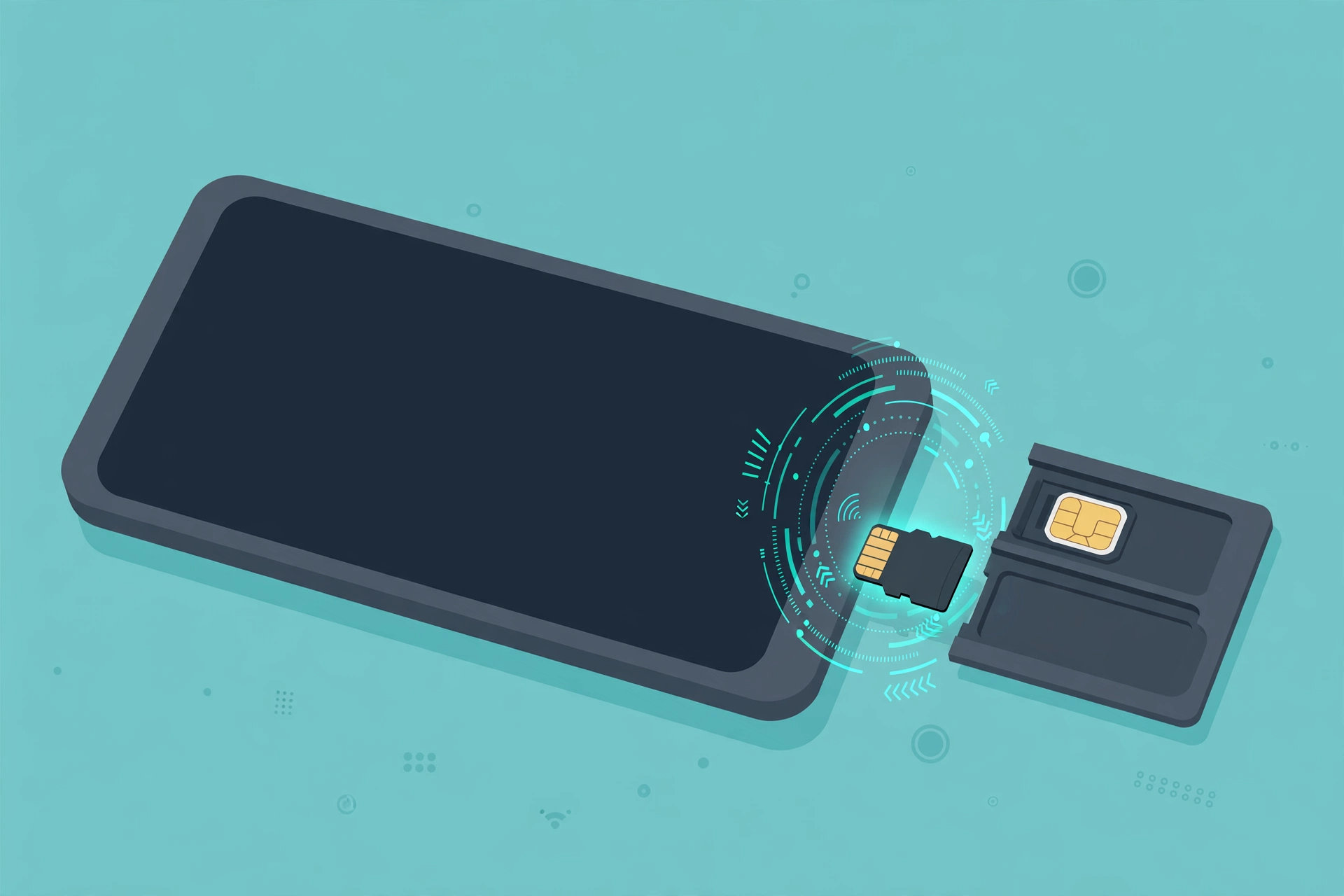
If you use an SD card, it is the most common cause of wrong storage numbers. When a card is removed and put back, or when it develops small read errors, Android’s media scanner can count its files twice or merge its size into internal storage. Reseating the card forces a clean rescan.
- Go to Settings, then Storage, and tap your SD card.
- Tap the eject icon or choose Eject so Android unmounts it safely.
- Power off the phone completely.
- Use the SIM tool to open the tray, take the SD card out, and wipe its gold contacts gently with a dry cloth.
- Put the card back in firmly, close the tray, and power the phone on.
- Wait five minutes while Android rescans your media, then check the Storage screen.
If the card itself is damaged, the numbers will keep going wrong. Try the card in another phone or a card reader. A card that disconnects randomly should be replaced before it corrupts your photos.
Fix 4: Check the Real File Sizes on a Computer
Android’s storage screen is only one way of measuring. A computer reading the phone over USB gives you an independent check. This tells you whether files are really missing or whether Android is simply miscounting.

- Connect the phone to a computer with a USB cable.
- On the phone, tap the USB notification and choose File transfer or MTP mode.
- On the computer, open the phone’s internal storage.
- Right-click the main folders like DCIM, Pictures, Music, Download, and WhatsApp, and check their real sizes.
- Add up the big folders and compare with what the phone claims.
If the computer shows far less used space than the phone claims, the phone’s counter is wrong and the fixes in this guide will correct it. If the computer agrees with the phone, the space really is used, and you need to delete or move files instead.
Fix 5: Clear the Media Storage System App Data
Android keeps its media list in a system app called Media Storage. When its database gets corrupted, the storage screen shows nonsense. Clearing its data rebuilds the database from scratch. Your files stay untouched. Only the index is rebuilt, which can take a few minutes.
- Go to Settings, then Apps, then See all apps.
- Tap the three-dot menu and choose Show system.
- Find and tap Media Storage.
- Tap Storage and cache, then tap Clear storage or Clear data.
- Restart the phone immediately.
- Wait five to ten minutes. Android rescans all your photos, videos, and music in the background.
- Open Settings, then Storage, and verify the numbers.
Your gallery may look empty for a few minutes during the rescan. This is normal. Do not panic and do not delete anything while it rebuilds.
Fix 6: Wipe the Cache Partition
The cache partition is a separate area where Android stores temporary system files. Wiping it does not delete your personal data. It is one of the most effective fixes for wrong storage readings after a system update, because old system cache can make the new Android version miscount everything.
- Power off the phone completely.
- Press and hold Power and Volume Up together until the recovery menu appears. On Samsung phones, connect the phone to a computer with a cable first, then hold the buttons.
- Use the volume buttons to move to Wipe cache partition and press Power to select it.
- Confirm with Yes.
- Choose Reboot system now.
- After the phone starts, wait a few minutes and check the Storage screen.
If your phone does not have a recovery menu with this option, skip to Fix 7. Some newer phones removed the cache partition entirely.
Fix 7: Update Your Phone Software
Storage counting bugs are real software bugs, and manufacturers fix them in updates. If your phone has been postponing an update, install it now.
- Connect to Wi-Fi and charge the phone to at least 50 percent.
- Go to Settings, then System, then System update.
- Tap Check for update and install anything available.
- After the update finishes and the phone restarts, wait ten minutes before judging the storage numbers.
- Check android.com for news about your Android version if the problem appeared right after an update.
Do not interrupt the update. A failed update can cause far worse problems than wrong storage numbers.
Fix 8: Back Up and Factory Reset (Last Resort)
If nothing else worked, the storage database or file system itself may be damaged beyond repair. A factory reset wipes the phone and rebuilds everything cleanly. Only do this after a full backup, because the reset deletes everything on internal storage.
- Back up your photos and videos to Google Photos or a computer.
- Go to Settings, then System, then Backup, and make sure app data and settings are backed up.
- Write down or screenshot your important logins and two-factor codes.
- Go to Settings, then System, then Reset options, then Erase all data (factory reset).
- Confirm and wait for the phone to wipe itself and restart.
- Set up the phone fresh instead of restoring a full backup at first, so a corrupted backup cannot bring the bug back.
- Check the Storage screen before reinstalling apps. The numbers should now be correct.
If the storage still shows wrong numbers even after a factory reset, the storage chip itself is likely failing. Contact the manufacturer’s service center, because no software fix can repair dying hardware.
11. What to Avoid
When storage numbers look wrong, it is tempting to take drastic action. These mistakes make things worse, so avoid them.
- Do not delete the “Android” or “data” folders by hand. They contain app files. Deleting them breaks apps instead of fixing the counter.
- Do not format internal storage from a file manager. You will lose everything, and the counting bug will probably survive.
- Do not install “storage booster” or “RAM cleaner” apps full of ads. They cannot fix a system counting bug, and many of them are adware.
- Do not factory reset without a full backup. A reset is the last resort, never the first step.
- Do not flash unofficial firmware to fix a storage bug. The risk of bricking your phone is far greater than the annoyance of wrong numbers.
- Do not ignore a failing SD card. If the card disconnects on its own, replace it before it corrupts your photos.
12. Android Internal Storage Not Showing Correctly: FAQ
Why is my android internal storage not showing correctly all of a sudden?
The most common reason is a stale media database. Something changed, like a removed SD card, a big file move, or an update, and Android’s storage counter did not update properly. A restart and a media rescan fix it in most cases.
Is it safe to clear Media Storage data?
Yes. It only deletes the index of your media files, not the files themselves. Android rebuilds the index automatically within a few minutes. Your photos, videos, and music stay exactly where they are.
Will wiping the cache partition delete my photos?
No. Wiping the cache partition only removes temporary system files. Your photos, apps, messages, and settings are untouched. It is completely different from a factory reset.
Why does my SD card show up as internal storage?
If the card was adopted as internal storage, Android merges the two on purpose. If it was not, a bad rescan merged the numbers by mistake. Ejecting and reinserting the card, as described in Fix 3, corrects the mistaken merge.
My phone says storage is full but my files do not add up. Is that the same problem?
It is closely related. Hidden cache, thumbnail files, and leftover app data can eat gigabytes without showing in any category. Fix 2 handles the cache side, and our detailed guide on Android storage showing full with nothing stored covers the “full but empty” case in depth.
Why do the storage numbers change every time I open Settings?
This usually means the media scanner is still running in the background, or the storage service keeps restarting. Give the phone ten quiet minutes after a reboot, then check again. If the numbers still jump around, clear the Media Storage data as described in Fix 5 so the scan starts clean.
Should I factory reset if nothing works?
Only as a last resort, after a complete backup. If the numbers are still wrong after a reset, the storage hardware itself is failing and needs professional repair.
13. Conclusion
When your android internal storage is not showing correctly, the cause is almost always a counting or database problem, not lost files or dead hardware. Work through the fixes in order: restart, clear cache, rescan your media, verify on a computer, rebuild the media database, wipe the cache partition, update the software, and only then consider a factory reset. Most readers will see correct numbers by Fix 3.
For more step-by-step Android troubleshooting, browse our troubleshooting blog or learn more on our about us page. Your storage screen should now tell the truth.
[…] see the internal storage details at all, or the storage screen itself refuses to load, our guide to internal storage not showing on Android covers that exact […]
[…] every folder is empty, also check that the phone’s storage itself is healthy — our guide to fix internal storage not showing on Android can help if files are missing on the phone […]
[…] blaming the system. If the phone’s storage itself starts reporting strange numbers, our Android internal storage not showing guide covers that. Copy-paste is one of the phone’s quietest superpowers — with the […]
[…] Keep a known-good USB reader in a drawer. It is the fastest way to separate “card problem” from “computer problem” for the rest of the card’s life. Similar detective work helps with other vanishing storage — see our guide on Android internal storage not showing. […]