

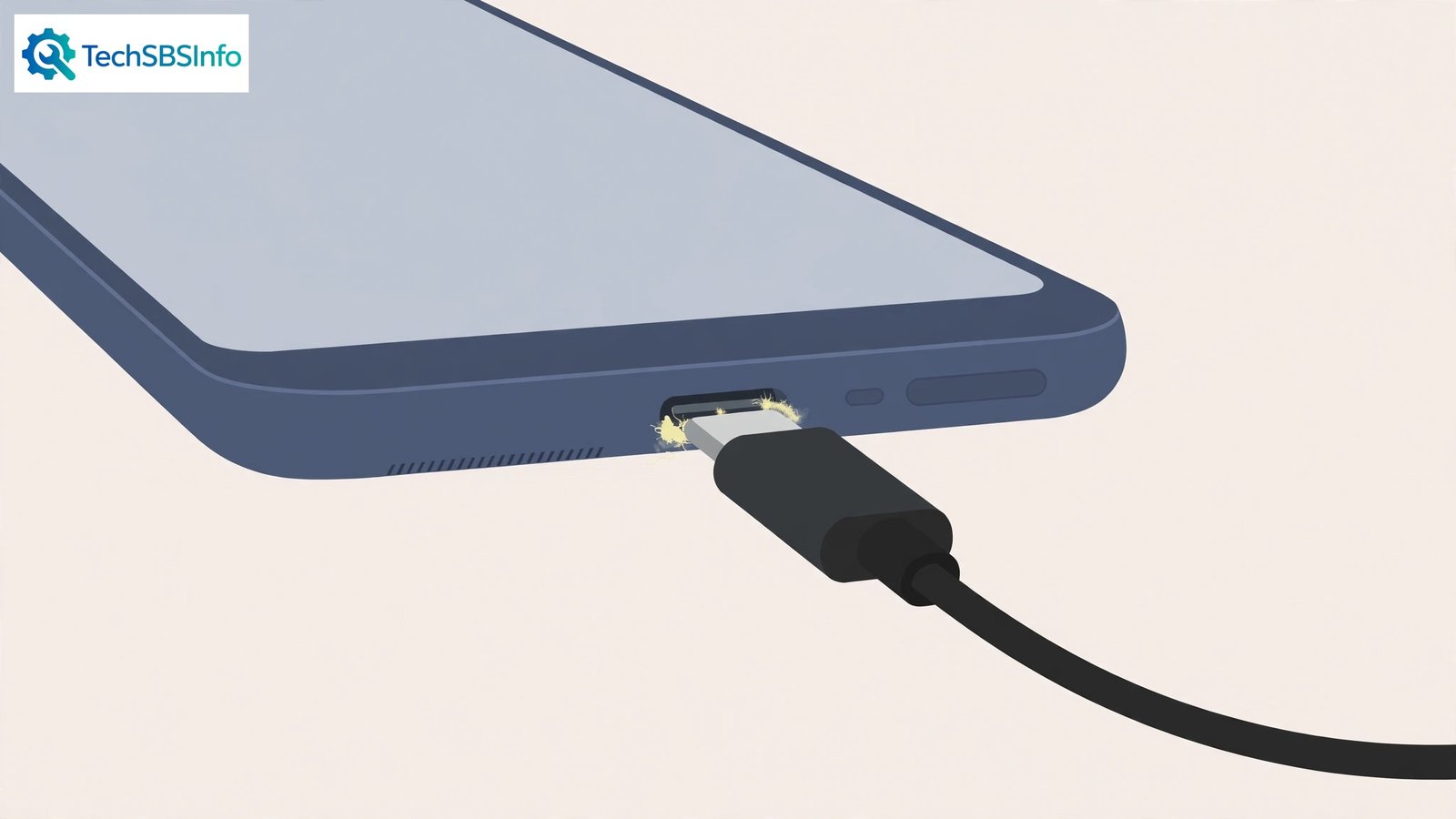
You plug in the cable — nothing. No charging icon, no beep, no lightning bolt. Wiggle it, and maybe it connects for a second. When android charging port not detecting cable is your problem, the phone acts as if no cable exists, and the battery keeps draining.
The cause is gloriously mundane most of the time: pocket lint packed into the port stops the plug seating fully. After that come worn cables, moisture warnings, and software glitches. This guide works through them from the physical to the digital. No tools beyond a toothpick required.
Table of Contents
- Quick Checks
- Diagnosing android charging port not detecting cable
- Fix 1: Clean Lint from the Port
- Fix 2: Try Another Cable and Charger
- Fix 3: Restart the Phone
- Fix 4: Dry Out Moisture Warnings
- Fix 5: Test Wireless Charging
- Fix 6: Try Safe Mode
- Fix 7: Get the Port Serviced
- What to Avoid
- Frequently Asked Questions
- Conclusion
- Helpful Official Resources
Quick Checks
Thirty seconds before the toothpick.
- Check the cable clicks in fully and sits flush — a plug standing proud is not seated.
- Try the cable in a different phone, and a different cable in your phone — this instantly separates cable from phone problems.
- Look at the battery icon while plugging in — sometimes charging starts with no sound or vibration.
- Make sure the wall socket works — plug something else into it.
- Check for a moisture warning on screen — the phone may be refusing to charge deliberately (Fix 4).
Diagnosing android charging port not detecting cable
| Symptom | Cause | Go to Fix |
|---|---|---|
| Cable will not sit flush / feels loose | Lint packed in the port | Fix 1 |
| Works with one cable, not another | Worn cable | Fix 2 |
| No cable works, wireless charging works | Port or software issue | Fix 5, then Fix 6 |
| “Moisture detected” warning | Wet port | Fix 4 |
| Stopped after a software update | Software glitch | Fix 3, then Fix 6 |
| Nothing works, port looks damaged | Hardware failure | Fix 7 |
Fix 1: Clean Lint from the Port
Pocket lint compresses into the charging port over months until the plug physically cannot reach the contacts. This is the number one cause, and the fix takes two minutes.
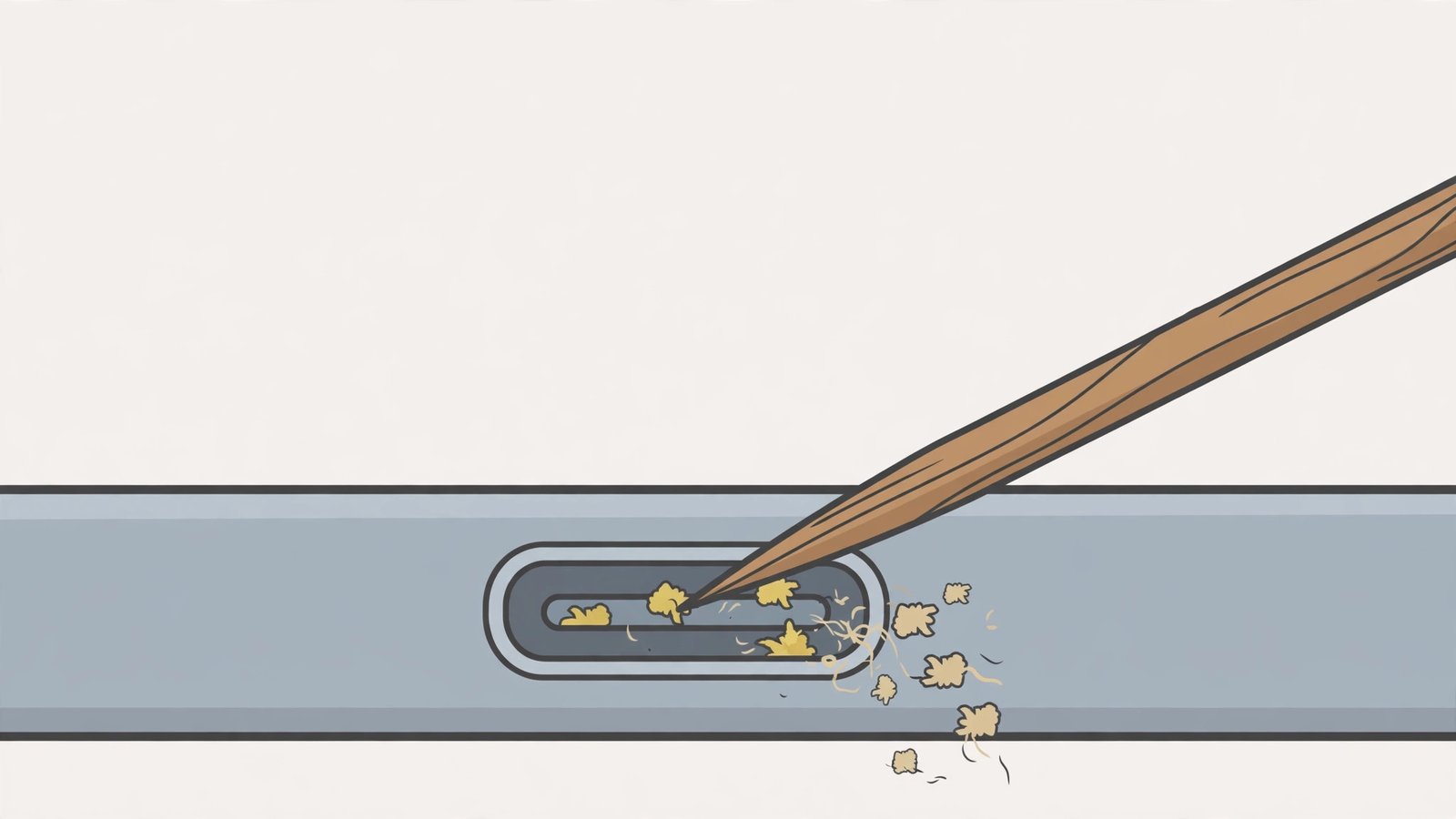
- Power the phone off.
- Shine a light into the port — you will likely see grey fluff packed at the back.
- Gently scrape it out with a wooden or plastic toothpick. Work around the edges, not the centre pin.
- Use short bursts of compressed air to blow out loosened dust (hold the can upright).
- Keep going until the plug clicks in fully and sits flush.
- Power on and test charging.
Use wood or plastic — never metal. The port’s pins are delicate, and a metal tool can short or bend them. The amount of lint that comes out of a “clean-looking” port surprises everyone the first time. If file transfer over USB is also flaky, our Android USB file transfer not working guide covers the data side.
Fix 2: Try Another Cable and Charger
Cables die quietly: internal wires fracture where the cable meets the plug, and the cable looks perfect while conducting nothing.
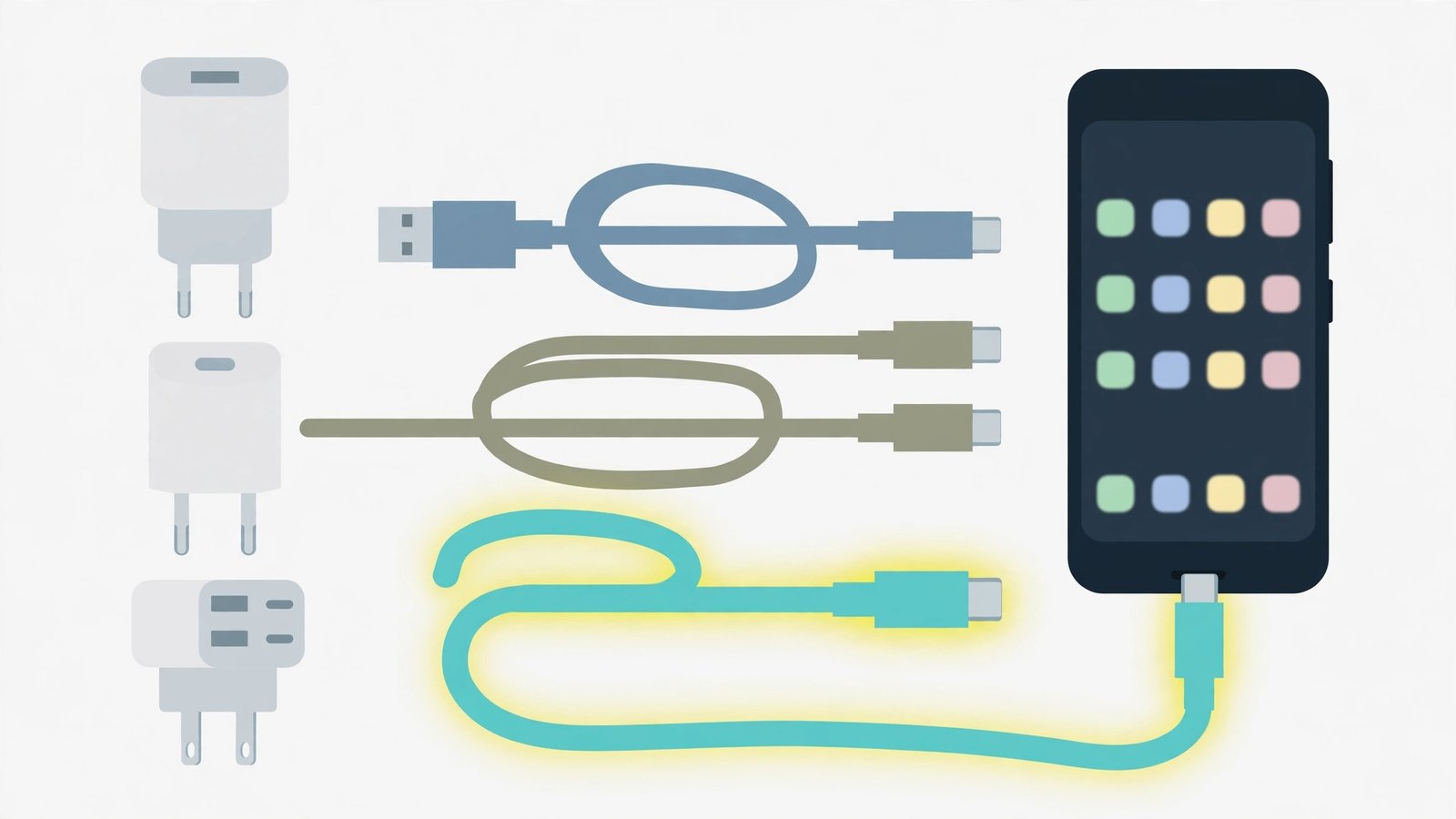
- Try a different cable with your charger — preferably the one that came with the phone.
- Try a different charger with your cable.
- Try both together (known-good cable + known-good charger).
- If the phone charges with the new combo, retire the dead cable — do not keep it as a “spare”.
- For a lasting fix, buy a quality cable from a reputable brand — ultra-cheap cables fail fastest.
- Check the charger’s output matches your phone’s needs — a weak old charger may not trigger charging at all on modern phones.
The two-variable test (cable × charger) isolates the fault precisely. Most “port not detecting cable” reports end here with a dead cable taking the blame. For overheating while charging, see Android phone overheating while charging.
Fix 3: Restart the Phone
Software glitches can stop the phone recognising the charger — the charging circuitry is managed by software, and software gets confused.
- Unplug the cable.
- Restart the phone normally (hold power > Restart).
- Once fully booted, plug the cable in and watch for the charging icon.
- If that fails, try a forced restart (hold power + volume down for 10+ seconds, varies by brand).
- Test again after the forced restart.
A restart clears the stuck state in the power-management software. It is the simplest software fix and resolves the “worked yesterday, dead today” cases that have no physical cause.
Fix 4: Dry Out Moisture Warnings
Modern phones refuse to charge when they detect moisture in the port — a safety feature protecting against short circuits. The warning is doing its job; help it finish.
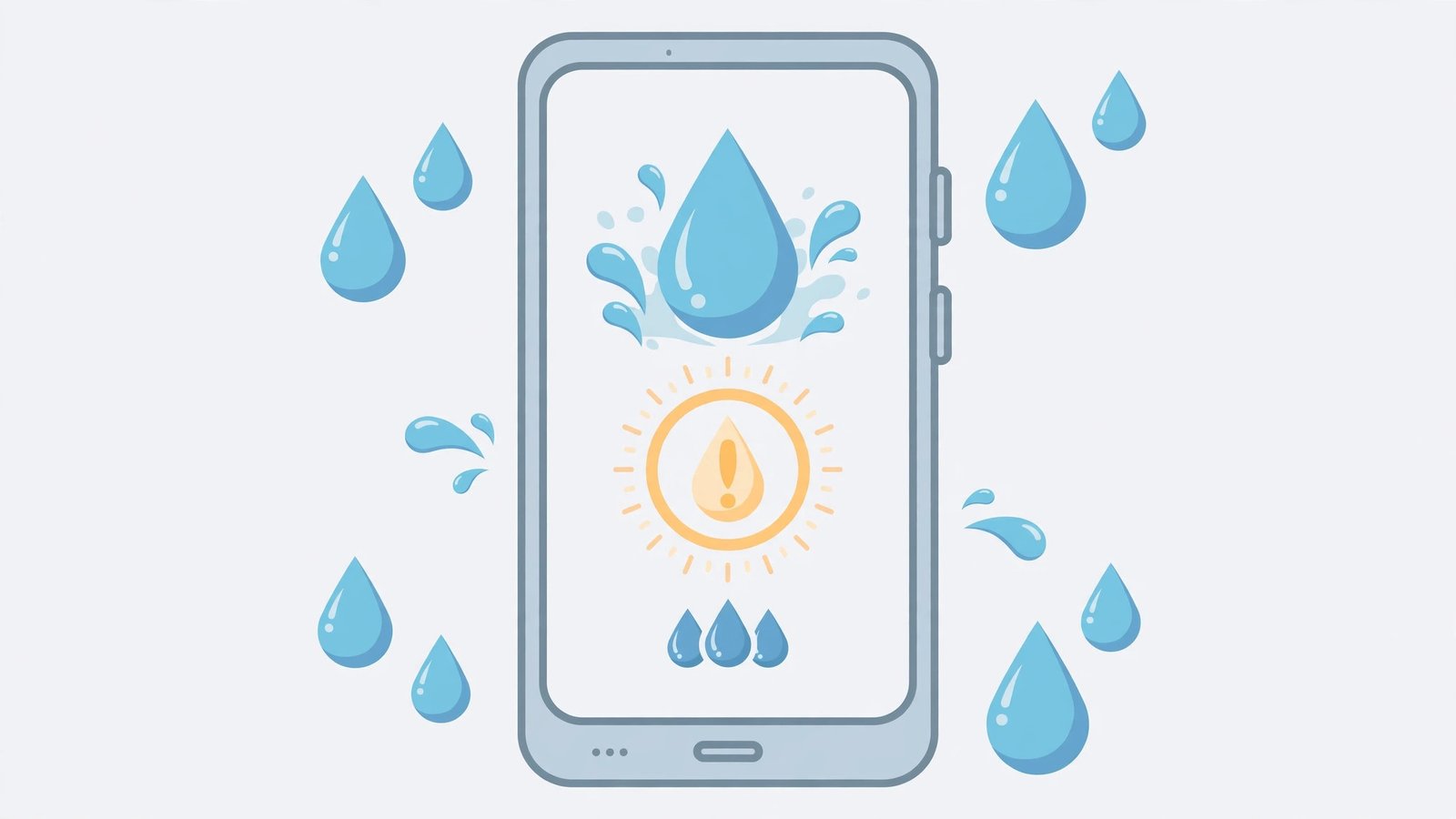
- If you see “Moisture detected”, unplug immediately and do not force charging.
- Gently shake the phone, port facing down, to expel droplets.
- Leave the phone in a dry, airy place for several hours — a fan helps; a hairdryer does not (heat damages seals).
- Do NOT put it in rice — rice dust gets into the port and the “trick” is a myth for modern sealed phones.
- Once the warning clears on its own, plug in and test.
- If the warning persists for more than a day in dry conditions, the sensor may be faulty — see Fix 7.
Patience is the fix here. Forcing a charger into a wet port risks the exact short circuit the warning prevents. If storage is also acting up, our Android internal storage not showing guide may help.
Fix 5: Test Wireless Charging
If your phone supports wireless charging, it bypasses the port entirely — a perfect diagnostic split between “port problem” and “phone problem”.
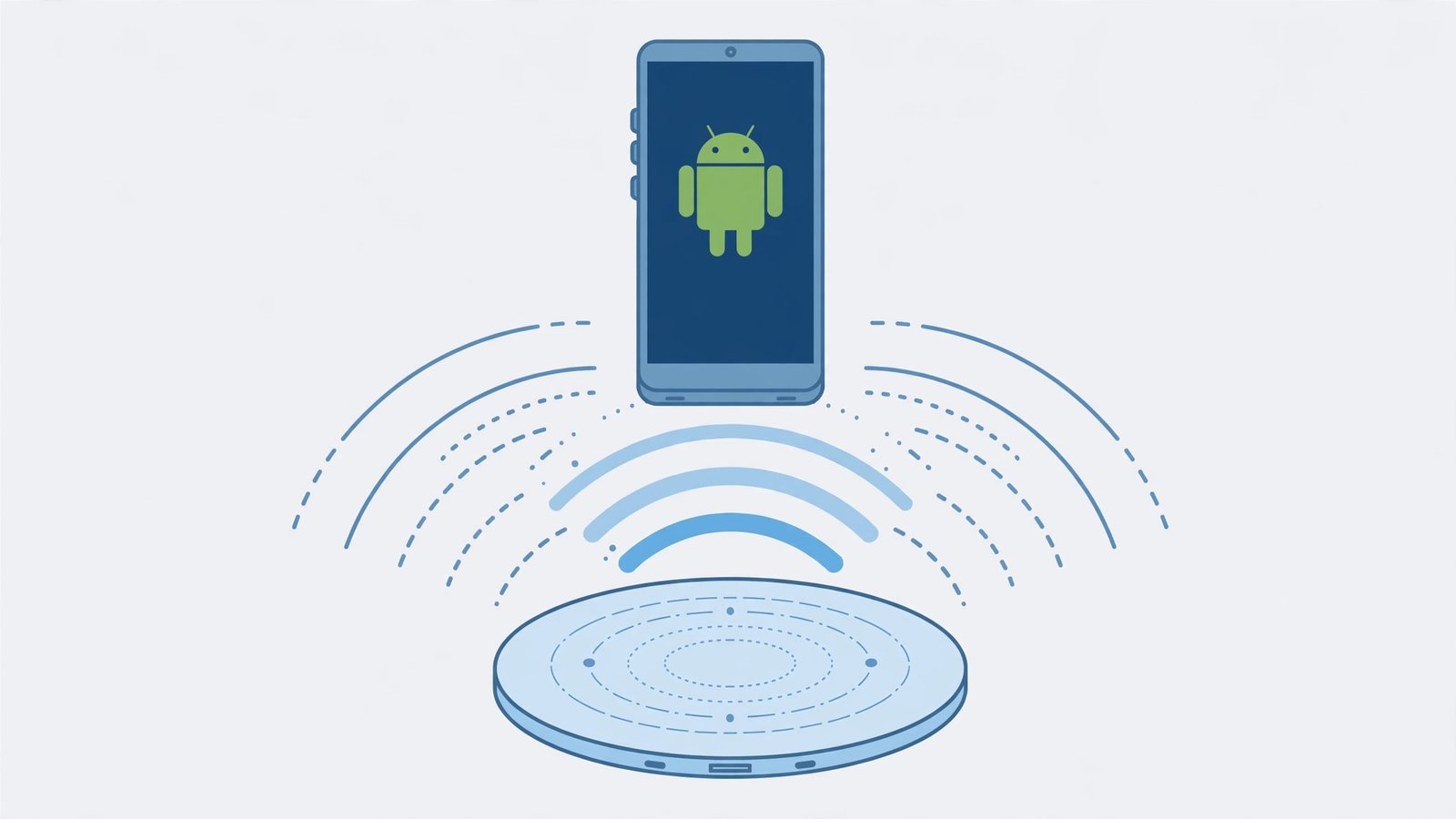
- Place the phone on a wireless charger (any Qi pad works for testing).
- If it charges wirelessly, the battery and power circuitry are fine — the fault is the port, cable, or port software.
- Use wireless charging as your workaround while you arrange a port clean or repair.
- If it does not charge wirelessly either, the problem is deeper — battery or power management — and Fix 6/7 apply.
- Remember wireless charging is slower; it is a bridge, not necessarily the permanent answer.
This test is decisive: wireless success localises the fault to the wired path. Many people discover their “dead phone” just needed the port cleaned (Fix 1) once wireless proves the phone itself is healthy.
Fix 6: Try Safe Mode
A rogue app — usually a “battery saver” or “charging booster” — can interfere with charging detection. Safe Mode disables all third-party apps.
- Hold the power button, then long-press “Power off” until “Reboot to safe mode” appears. Tap OK. (Steps vary slightly by brand.)
- In Safe Mode (look for the watermark), plug in the cable.
- If charging works in Safe Mode, a third-party app is interfering.
- Restart normally and uninstall recently installed battery/charging/cleaner apps one by one.
- Test charging after each uninstall until the culprit is found.
“Charging booster” and “fast charge” apps are the usual suspects — they promise to improve charging and instead break its detection. Android manages charging perfectly well without them. For general storage weirdness, see Android storage full nothing stored.
Fix 7: Get the Port Serviced
If lint is out, cables are good, software is clean, and the port still ignores cables, the port hardware has failed — worn pins, a cracked solder joint, or board damage.
- Back up your data while the phone still has charge.
- Take it to the manufacturer’s service centre or a reputable repair shop.
- A port replacement (often via a daughterboard swap) is usually quick and inexpensive compared to a new phone.
- Ask for a genuine part — cheap aftermarket ports fail sooner.
- While it is in, have them check the battery health too — charging problems and weak batteries often travel together.
Do not attempt a DIY port replacement unless you have done phone repairs before — modern phones are glued, and the battery sits right next to the port. Professional repair is the proportionate response to confirmed hardware failure.
What to Avoid
- Do not use metal tools in the port — you will bend pins or cause shorts.
- Do not force a cable that does not fit — something is blocking it; find out what.
- Do not charge through a moisture warning — the phone is protecting itself.
- Do not install “charging booster” apps — they cause the problems they claim to fix.
- Do not put a wet phone in rice — air-dry it instead.
- Do not keep using a frayed cable — it is a fire risk as well as a charging failure.
Frequently Asked Questions
Why does my cable only charge at certain angles?
The plug is not seating fully (lint — Fix 1) or the cable’s internal wires are fractured (Fix 2). Angle-dependent charging is a physical connection problem, not software.
Can lint really stop charging completely?
Yes — compressed lint physically blocks the plug from reaching the contacts. It is the most common cause of “port not detecting cable”, and cleaning fixes it in minutes.
Is wireless charging bad for the battery?
Not meaningfully for occasional use. It generates a bit more heat than wired charging, so remove thick cases while wirelessly charging. As a diagnostic tool and backup method, it is perfectly fine.
Why does my phone say “moisture detected” when it is dry?
Humidity, a faulty sensor, or residue in the port. Dry it thoroughly (Fix 4); if the warning persists for days in dry conditions, the sensor needs servicing (Fix 7).
How long should a charging port last?
Years, with normal use. Heavy daily plugging, yanking the cable out by the cord, and pocket lint are what kill ports early. Plug straight, pull by the plug, and clean occasionally.
Why does my phone charge slowly after I cleaned the port?
The clean was partial. Deep-packed lint at the very back of the port survives a quick scrape — enough for the plug to seat most of the way, giving a slow charge instead of none. Power off, shine a bright light in, and clean again more thoroughly, working the toothpick along the back wall. Full-speed charging returns when the plug seats completely flush.
Can my phone case stop the cable from seating fully?
Yes, and it is common with thick or rugged cases. The case’s port cutout can be slightly misaligned or too tight, holding the plug a millimetre short of full insertion. Test with the case off — if charging works normally, the case is the problem. Either trim the cutout carefully or switch to a case with a wider port opening.
Why does the cable fall out of the port on its own?
Worn retention clips inside the port, or lint preventing the plug from clicking in. USB-C ports rely on small spring clips that weaken over years of use. Clean the port first (Fix 1) — a proper click-in often restores the grip. If the cable still slides out of a clean port, the clips are worn and the port needs professional replacement (Fix 7).
Conclusion
When android charging port is not detecting cable, think physical first: clean the lint, test another cable and charger, and respect moisture warnings. The software fixes — restart, safe mode — cover the rest, and wireless charging tells you whether the phone itself is healthy. Ports are consumable parts; cleaning keeps them alive for years, and a professional replacement is cheap when cleaning is not enough.