

You press Ctrl+Shift+Delete, tick the boxes, click Clear data — and the old version of the site loads anyway. Or the cache size in Settings never drops. When chrome cache not clearing becomes your reality, Chrome clings to stale files no matter how many times you ask it to let go, and troubleshooting websites becomes impossible because you never see the current version.
The cache usually survives for boring reasons: the wrong time range, a missed checkbox, a Chrome process still running in the background, or an extension guarding the files. This guide forces the cache out, from the correct use of the clear-data dialog to deleting the cache folder by hand. None of these fixes touches your bookmarks or passwords.
Table of Contents
- Quick Checks
- Diagnosing chrome cache not clearing
- Fix 1: Use the Right Time Range in Clear Browsing Data
- Fix 2: Tick Cached Images and Files
- Fix 3: Close Every Chrome Window and Retry
- Fix 4: Clear Site Data in Settings
- Fix 5: Disable Extensions
- Fix 6: Delete the Cache Folder Manually
- Fix 7: Reinstall Chrome
- What to Avoid
- Frequently Asked Questions
- Conclusion
- Helpful Official Resources
Quick Checks
Before the heavier fixes, verify the basics.
- After clearing, do a hard refresh (Ctrl+F5) — the old page may be in memory, not in the cache.
- Check you cleared the right thing: history and cookies are not the cache.
- Make sure no other Chrome window is open — background windows hold cache files locked.
- Test in an Incognito window. If the fresh page loads there, the cache really is the problem.
- Check your disk space — a completely full disk can prevent cache deletion.
Diagnosing chrome cache not clearing
| Symptom | Cause | Go to Fix |
|---|---|---|
| Old page loads right after clearing | Wrong time range selected | Fix 1 |
| Cache size in Settings never shrinks | “Cached images and files” not ticked | Fix 2 |
| Clear button seems to do nothing | Chrome process still running | Fix 3 |
| One site stuck, others fine | Per-site data surviving | Fix 4 |
| Cache refills instantly with junk | Extension restoring files | Fix 5 |
| Nothing in Chrome clears it | Corrupt cache folder | Fix 6 |
Fix 1: Use the Right Time Range in Clear Browsing Data
The clear-data dialog defaults to a time range like “Last hour”. If the cached files are older than that, they survive every clear.
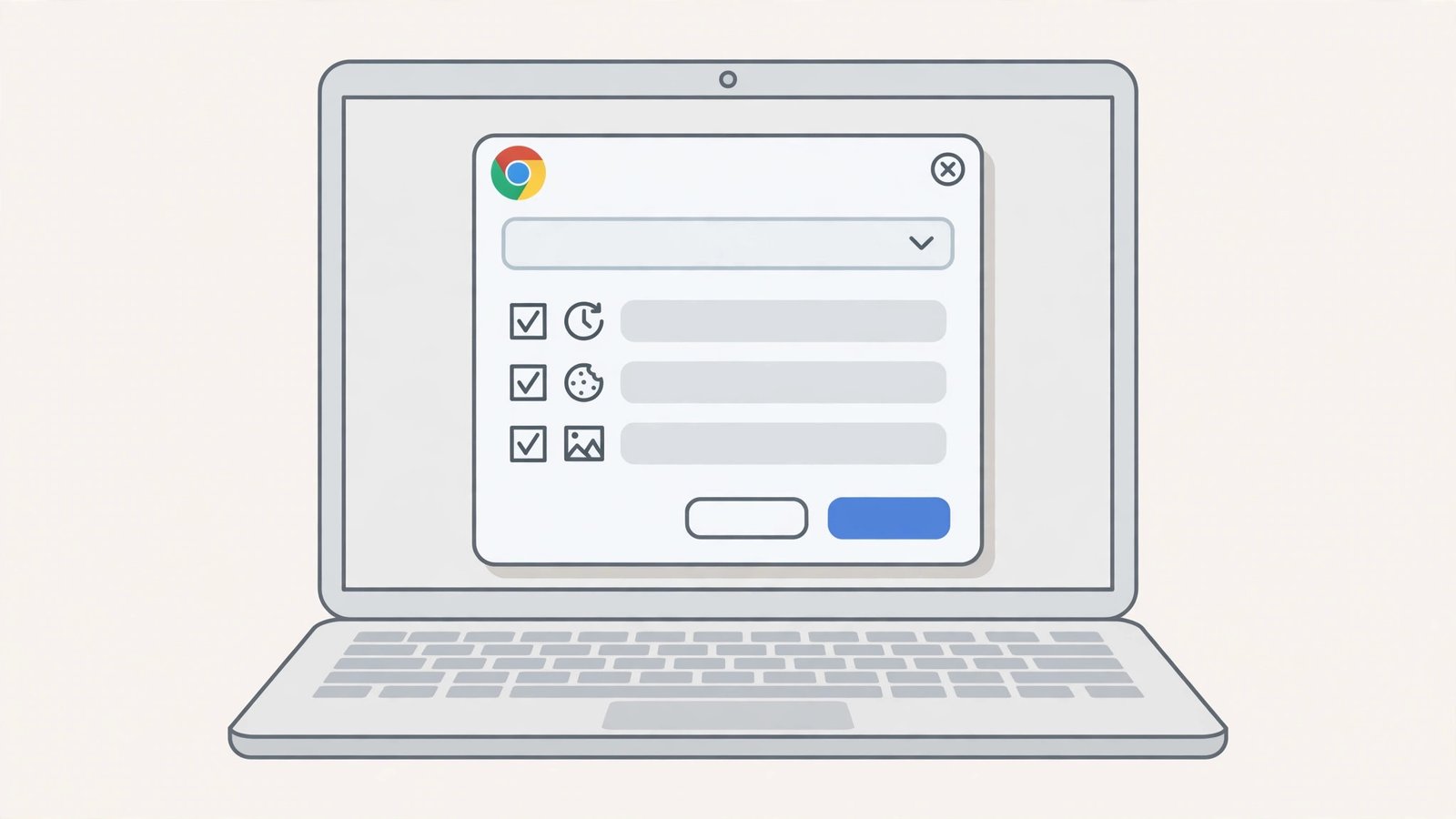
- Press Ctrl+Shift+Delete to open “Clear browsing data”.
- At the top, set the time range to “All time”. This is the step most people miss.
- On the Basic tab, tick “Cached images and files”.
- Click “Clear data” and wait — on a big cache it takes a minute.
- Close the Settings tab and hard-refresh (Ctrl+F5) the problem page.
- To confirm, go to Settings > Privacy and security > Third-party cookies > “See all site data” and check the storage numbers dropped.
“All time” plus the cached-images checkbox is the combination that actually empties the cache. Anything less leaves the oldest — and usually most stale — files exactly where they were. If pages will not load at all rather than loading old versions, our Chrome pages not loading guide is the better fit.
Fix 2: Tick Cached Images and Files
It sounds obvious, but the dialog has two tabs — Basic and Advanced — and the cache checkbox must be ticked on the tab you clear from.
- Open Clear browsing data with Ctrl+Shift+Delete.
- Stay on the Basic tab and confirm “Cached images and files” is ticked.
- Switch to the Advanced tab and tick “Cached images and files” there too, plus “Hosted app data” if you use Chrome apps.
- Set both tabs’ time range to “All time”.
- Clear from the Advanced tab — it covers more storage types.
- Restart Chrome and verify with a hard refresh.
People often clear history (Basic tab) while the cache checkbox sits unticked on the Advanced tab. Clearing from Advanced with everything ticked is the thorough option.
Fix 3: Close Every Chrome Window and Retry
Cache files locked by a running Chrome process cannot be deleted — not even by Chrome itself. Background windows and tray icons keep those locks held.
- Close every Chrome window. Check the system tray for a Chrome icon — right-click it and choose Exit.
- Open Task Manager (Ctrl+Shift+Esc) and end any remaining “Chrome” processes.
- Reopen Chrome with a single window.
- Press Ctrl+Shift+Delete, set “All time”, tick cached images and files, and clear.
- Check Settings > Privacy and security > “See all site data” to confirm the numbers fell.
Chrome’s “Continue running background apps when Chrome is closed” setting (Settings > System) is the usual reason processes linger. Turning it off prevents this whole class of problem. If Chrome itself keeps crashing during all this, see Google Chrome keeps crashing.
Fix 4: Clear Site Data in Settings
Some storage — service workers, local storage, per-site caches — lives outside the main cache and survives the clear-data dialog. The site-data page reaches it.
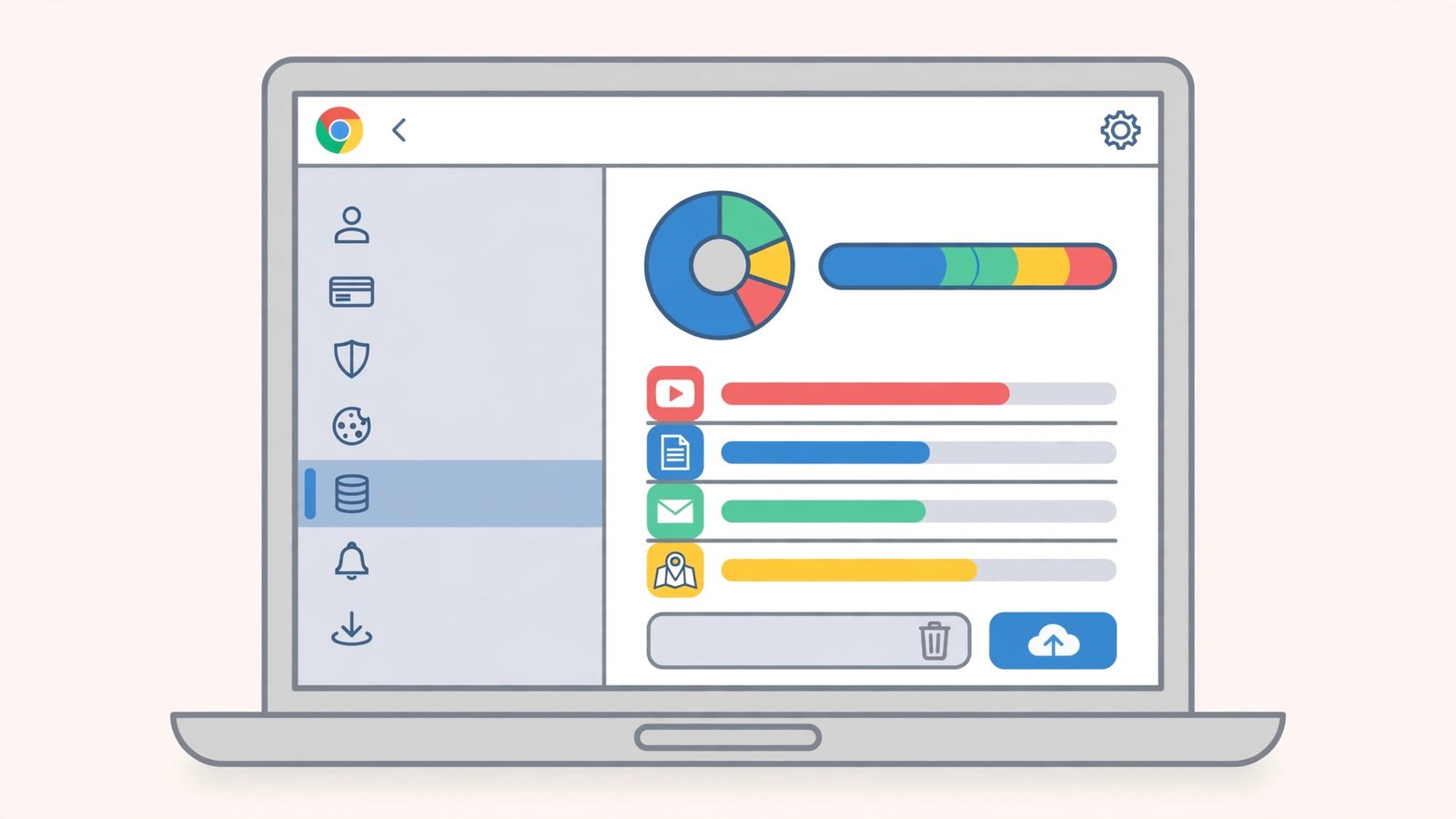
- Go to Settings > Privacy and security > Third-party cookies.
- Click “See all site data and permissions”.
- Search for the problem site.
- Click the trash icon next to it to delete all its stored data.
- For a full clear, click “Delete all data” at the top — this wipes every site’s stored data.
- Reload the site fresh.
“Delete all data” logs you out of sites (it removes cookies too), so prefer the per-site delete when only one site misbehaves. This fix is the answer when a single web app — a mail client, a dashboard — shows stale content no matter what.
Fix 5: Disable Extensions
Extensions can hook into Chrome’s storage and restore or protect cached files. Cache-cleaner extensions are the ironic worst offenders: they fight Chrome’s own clearing.
- Go to
chrome://extensions. - Toggle off every extension.
- Clear the cache again (Ctrl+Shift+Delete, All time, cached images ticked).
- Verify the cache actually shrank this time.
- Re-enable extensions one by one, clearing between each, to find the one that blocks clearing.
- Remove or replace the guilty extension.
Also check for “offline” or “page saver” extensions that deliberately keep copies of pages — they are designed to defeat cache clearing. If downloads are your trouble rather than cache, our Chrome downloads not working guide covers that.
Fix 6: Delete the Cache Folder Manually
When Chrome’s own buttons fail, the filesystem does not. Deleting the cache folder by hand removes every cached file with certainty.
- Close Chrome completely, including tray icons and background processes (Fix 3’s Task Manager step).
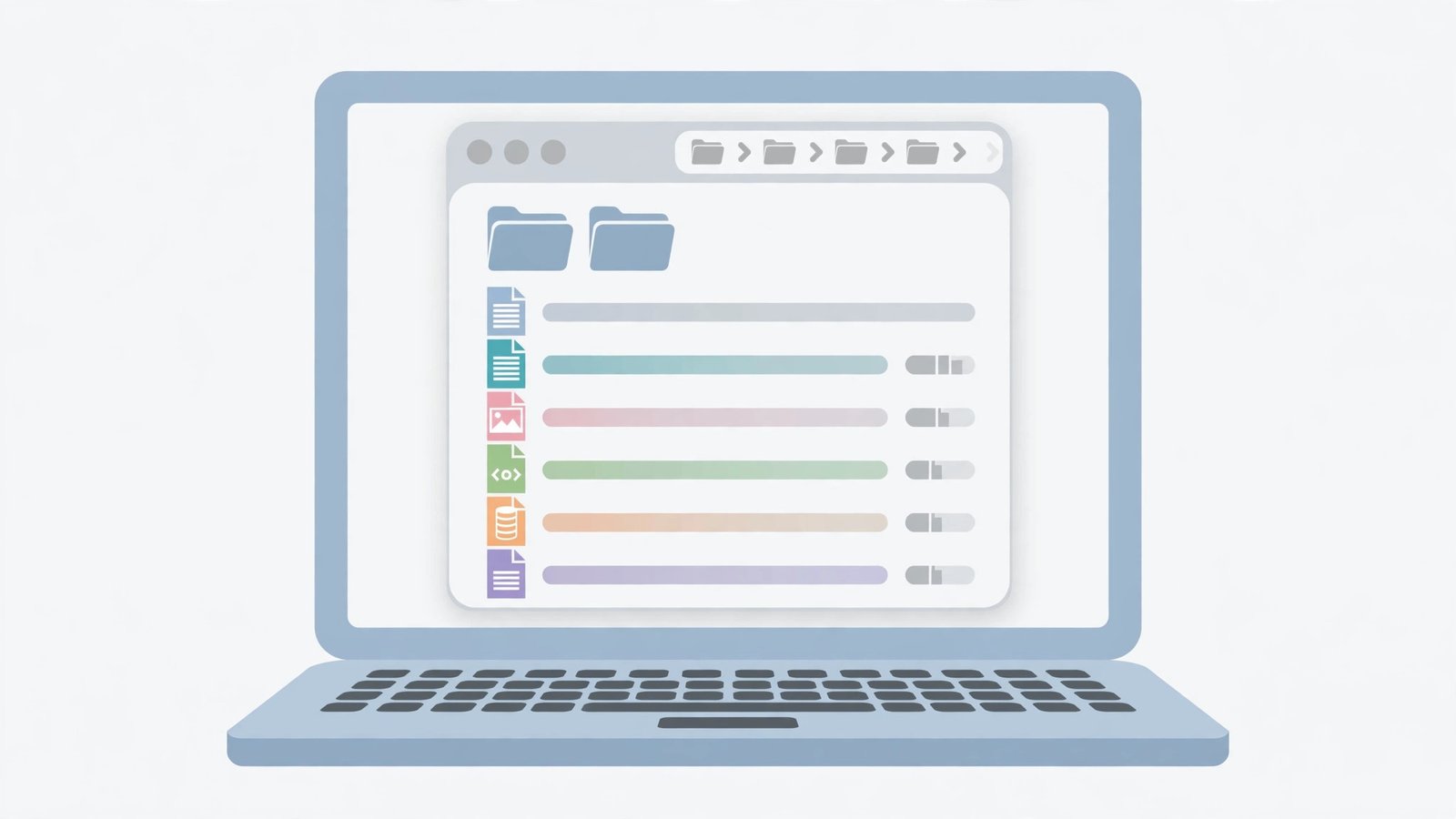
- Press Windows + R, type
%localappdata%\Google\Chrome\User Data\Default, and press Enter. - Find the “Cache” folder and the “Code Cache” folder.
- Delete both folders (they regenerate on next launch).
- Also delete “GPUCache” if it exists.
- Reopen Chrome and browse — the cache rebuilds itself cleanly.
This deletes only cached files: your bookmarks, passwords, history, and extensions are stored elsewhere in the profile and are untouched. If your Chrome profile is not named “Default”, use the right folder (e.g. “Profile 1”). For connection-error pages rather than stale pages, see Chrome connection not private fix.
Fix 7: Reinstall Chrome
A corrupted Chrome installation can break cache management permanently. A fresh install is the final answer.
- Sign into Chrome and make sure sync is on (so bookmarks and passwords are safe), or export what matters.
- Uninstall Chrome from Settings > Apps > Installed apps.
- Restart the PC.
- Delete the leftover profile folder
%localappdata%\Google\Chrome\User Dataif you want a truly clean start (this removes everything local — be sure sync is on). - Download Chrome fresh from Google’s official site and install it.
- Sign in and let sync restore your data.
Reinstallation rebuilds every part of Chrome’s storage machinery. It is heavy-handed, but when the cache has been stuck through every other fix, it is the reliable end of the road. Before you reinstall, one more check is worthwhile: create a new Chrome profile (click your profile icon > Add) and test there. If the new profile clears its cache fine, your old profile was corrupt and you can simply migrate to the new one instead of reinstalling.
What to Avoid
- Do not clear “All time” browsing history when you only mean the cache — you will lose useful history for nothing.
- Do not delete the whole User Data folder casually — it holds bookmarks and passwords if sync is off.
- Do not install “cache cleaner” extensions — Chrome’s own tools plus Fix 6 cover everything.
- Do not keep Chrome running while deleting its cache folder — locked files will not delete.
- Do not confuse cookies with cache — clearing cookies logs you out; clearing cache just reloads files.
- Do not reinstall Chrome before trying Fix 6 — the manual delete is faster and safer.
Frequently Asked Questions
Why does Chrome still show the old page after I clear the cache?
Either the clear did not cover the right time range or files (Fix 1, Fix 2), a Chrome process held the files locked (Fix 3), or the page is cached by the site’s server or your ISP — in which case a hard refresh (Ctrl+F5) or waiting is the answer.
Is it safe to delete the Cache folder manually?
Yes. It contains only disposable copies of web files. Chrome rebuilds it automatically. Your bookmarks, passwords, history, and extensions live in other files and are not affected.
How often should I clear the cache?
Rarely. The cache exists to speed up browsing, and clearing it makes sites slower until it rebuilds. Clear it when troubleshooting a specific stale-page problem — not as routine maintenance.
Does clearing cache log me out of sites?
Clearing cached images and files alone does not. Only clearing cookies logs you out. The two checkboxes are separate in the dialog — tick only what you mean.
Why is the cache size still huge after clearing?
Service workers and site storage (Fix 4) are counted separately from the image cache. Use “See all site data” and “Delete all data” for the full picture, or delete the folders manually (Fix 6).
Can a full cache slow down my whole computer?
Indirectly, yes. A multi-gigabyte cache wastes disk space, and on a nearly full drive Windows itself slows down. If your system drive is over 90 percent full, clearing the cache plus old downloads genuinely helps the whole PC — but the browser cache alone is rarely the main culprit for system-wide slowness.
Why do some sites still look old in other browsers too?
Then the stale copy is not in your browser at all — it is cached by the website’s server, a CDN, or your internet provider. No amount of local clearing fixes that; the site owner must purge their cache, or you wait for it to expire. Testing in a fresh Incognito window confirms it: if Incognito also shows the old page, the cache is upstream.
Conclusion
When chrome cache is not clearing, the fix is methodical, not mysterious: set the time range to All time, tick the right boxes, close every Chrome process, and clear per-site data for stubborn sites. The manual folder delete is the guaranteed fallback, and reinstallation is the final one. Follow the order, verify with a hard refresh, and Chrome will serve fresh pages again.