


If chrome print preview not loading is the problem in front of you right now, you know the feeling. You press Ctrl + P, the print window opens, and then nothing happens. The preview area stays blank or spins forever, and the Print button stays greyed out. The page itself loads fine, so the problem is not your internet — it is something between Chrome and your printer.
The good news is that this problem has a small set of usual causes. A stuck printer, a corrupt cache, a misbehaving extension, or a damaged Chrome profile covers almost every case. This guide explains each cause in plain words, then walks you through 11 fixes in order, from the simplest restart to the advanced system checks at the end. Most readers get their preview back within a few minutes, without reinstalling anything.
Table of contents
- Why this error happens
- Quick checks
- Diagnose your print problem
- 1. Restart Chrome and your printer
- 2. Use the system print dialog instead
- 3. Test with Save as PDF
- 4. Clear your cache and cookies
- 5. Switch off your extensions
- 6. Check the printer in Windows settings
- 7. Update Chrome
- 8. Reset Chrome settings
- 9. Restart the Print Spooler service
- 10. Try a different printer
- 11. Switch off hardware acceleration
- What to avoid
- FAQ
- Conclusion
Why this error happens
1. The printer is offline, stuck, or out of paper
Chrome builds the print preview by talking to your printer first. If the printer is off, offline, out of paper, or has a job stuck in its queue, the preview can hang while it waits for an answer that never comes. This is the most common cause, and also the easiest to miss, because the printer may look fine from across the room while its queue is jammed.
2. A corrupt cache or cookie is breaking the preview
Chrome’s print preview loads as a small page inside the browser, and like any page it can be broken by corrupt cached data. A damaged cache entry or a bad cookie can leave the preview blank or spinning. This cause is likely when the problem started suddenly and printing worked fine the day before.
3. A print-blocking extension is interfering
Ad blockers, script blockers, and PDF extensions can interfere with the preview window. Some extensions block the scripts Chrome uses to build the preview. Others replace the print function with their own version, which then fails silently. If the problem started after you installed a new extension, that extension is the prime suspect.
4. The system print dialog and Chrome are conflicting
Chrome has its own print preview, but Windows has one too. Normally they work together smoothly. After a Windows update, a driver change, or a Chrome update, the two can fall out of step, and the preview hangs while Chrome waits for the system dialog. Trying the system dialog directly, as in Fix 2, tells you at once whether this is the cause.
5. Chrome itself is out of date
Print preview bugs are fixed in Chrome updates more often than most people realise. An old version of Chrome can carry a known preview bug that was fixed months ago. If you have not updated Chrome in a while, or updates are blocked on your computer, this is a likely cause — and the easiest fix of all.
6. A damaged Chrome profile is breaking the preview
Chrome stores print settings, printer choices, and preview data in your profile. If that profile data is damaged — after a crash, a failed update, or a sync conflict — the preview can fail while everything else in the browser works fine. This cause is likely when the preview fails on every website and every other fix has already failed.
Quick checks
Before you change any settings, run through these quick checks. They take two minutes and often reveal the cause at once.
- Try printing a different website. If the preview loads for some sites and not others, the problem is with that page, not your printer.
- Check the printer’s lights and screen. Look for an error light, a paper jam message, or an “offline” warning on the printer itself.
- Try printing from another program. Open Notepad or Word and print a test page. If that fails too, the printer is the problem, not Chrome.
- Try an Incognito window with
Ctrl + Shift + N. If the preview loads there, an extension or a profile setting is the cause. - Check the print queue. In Windows Settings, go to Bluetooth and devices, then Printers and scanners, click your printer, and open the print queue. A stuck job at the top blocks everything behind it.
- Note when it started. Right after a Chrome update, a Windows update, or a new extension? The timing usually names the cause.
Diagnose your print problem
Match what you see with the table below, then jump to the matching fix.
| Symptom | Likely cause | Go to fix |
|---|---|---|
| Preview spins forever on every site | Printer offline or a stuck print job | Fix 1, then Fix 6 |
| Preview is blank but the page loads fine | Corrupt cache or cookies | Fix 4 |
| Preview worked until you installed an extension | A print-blocking extension | Fix 5 |
| Preview fails in Chrome but printing works in Word | Chrome’s own preview or profile | Fix 2, then Fix 8 |
| Preview fails only on one website | That page’s scripts or content | Fix 2, then Fix 3 |
| Chrome has not been updated in months | An old Chrome bug | Fix 7 |
1. Restart Chrome and your printer
A stuck printer queue or a wedged Chrome process is the most common cause of a hanging preview, and a proper restart clears both. Do it in the right order: printer first, then Chrome.
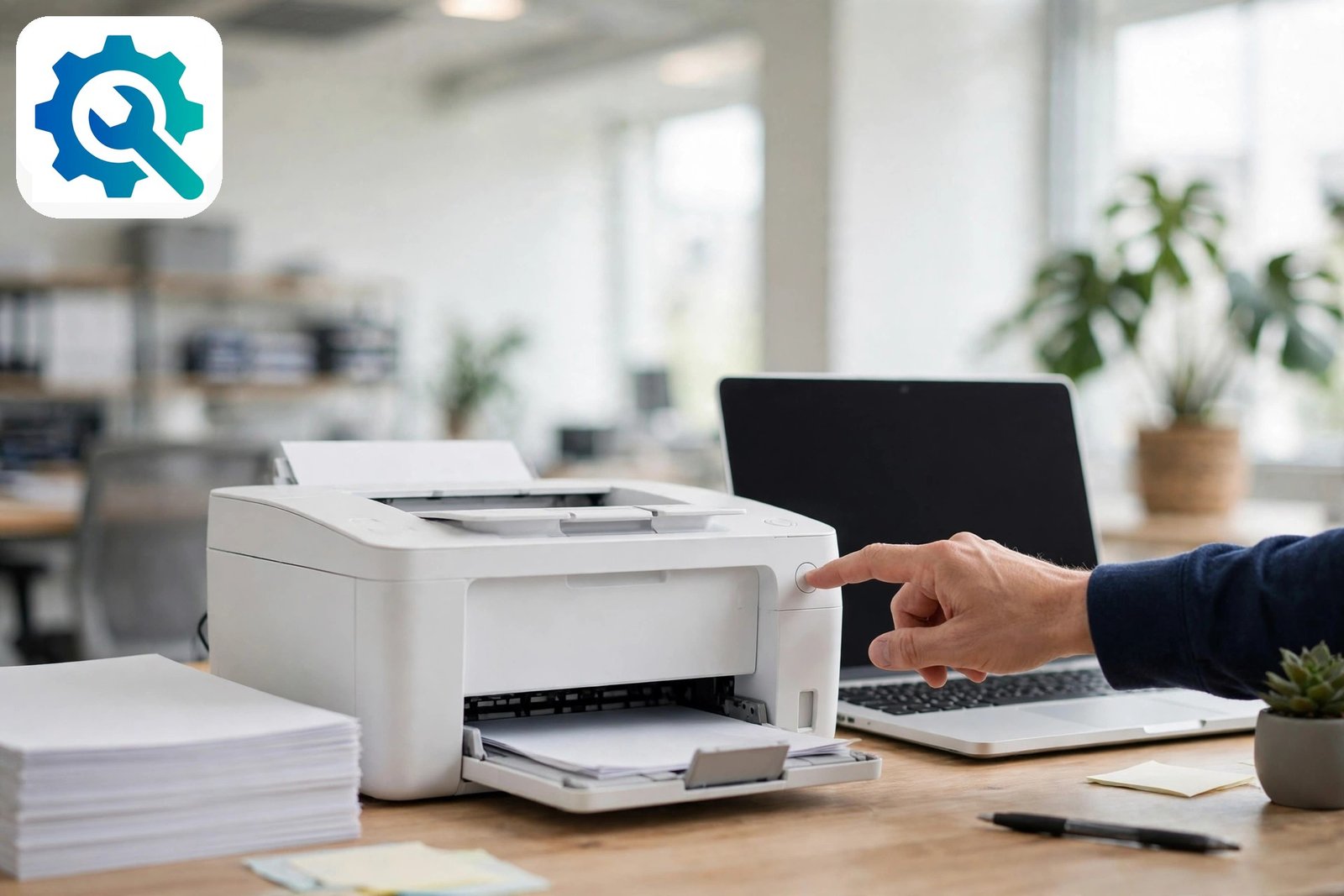
- Turn the printer off, wait 30 seconds, and turn it back on. Wait until it finishes warming up and its lights settle.
- Clear the print queue. In Windows Settings, go to Bluetooth and devices, then Printers and scanners, click your printer, then Open print queue. Cancel any stuck jobs, especially the one at the top.
- Check for paper and ink. A printer that is out of paper or showing a low-ink warning can refuse to answer Chrome at all.
- Close every Chrome window, not just the one with the preview. Check the system tray at the bottom right for a Chrome icon and right-click it to quit fully.
- Reopen Chrome and press
Ctrl + Pon any page to test the preview. - Restart your computer as well if the preview still hangs. A full restart clears stuck print spooler processes that a printer restart alone cannot reach.
This fix solves the problem more often than any other, because printers and their queues get stuck quietly. If the preview loads after the restart, you are done — no settings needed changing. If it still hangs, the cause is inside Chrome, so move on to Fix 2.
2. Use the system print dialog instead
Chrome has its own preview, but Windows has a print dialog too, and it talks to the printer directly. If Chrome’s preview is the part that is broken, the system dialog bypasses it completely and lets you print anyway.
- Press
Ctrl + Shift + Pinstead ofCtrl + P. This opens the system print dialog rather than Chrome’s own preview. - Choose your printer from the list and click Print. If the page prints, Chrome’s preview was the broken part, not the printer.
- In the Chrome preview, click “Print using system dialog” at the bottom of the preview window, if the preview loads far enough to show it.
- Use this as your workaround while you work through the remaining fixes. You can keep printing this way even before the preview itself is fixed.
- If the system dialog also hangs, the problem is with the printer or its driver, not Chrome. Skip ahead to Fix 6.
- If the system dialog works but Chrome’s preview never does, the cause is a Chrome setting, extension, or profile problem. Fixes 4, 5, and 8 are your next steps.
This fix does two jobs at once: it gets your page printed today, and it tells you whether the printer or Chrome is at fault. That answer shapes everything that follows, so do not skip this test even if you plan to fix the preview itself.
3. Test with Save as PDF
Saving the page as a PDF tests whether Chrome can build a printout at all, without involving your printer. If the PDF saves fine, the printer connection is the problem. If the PDF also fails, Chrome’s print system itself is broken.

- Press
Ctrl + Pto open the print preview, orCtrl + Shift + Pfor the system dialog. - Change the Destination to “Save as PDF” in the dropdown at the top of the preview.
- Click Save and choose a folder. If the PDF saves, Chrome’s print engine works and the printer is the suspect.
- Open the saved PDF to check the page looks right. If it does, print the PDF from your PDF reader as a workaround.
- If Save as PDF also fails or hangs, the problem is inside Chrome, not the printer. Move on to Fix 4.
- Try a different page with Save as PDF as well. If some pages save and others do not, the failing page has content — such as a large image or a script — that breaks the preview.
This test is quick and decisive. It splits the problem cleanly in half: printer side or Chrome side. Google’s official guide to printing from Chrome explains the print options, including Save as PDF, in detail.
4. Clear your cache and cookies
A corrupt cache entry can break the preview window while every other page loads fine. Clearing the cache removes the damaged data and forces Chrome to build the preview fresh.
- Press
Ctrl + Shift + Deleteto open the Clear browsing data window. - Set the time range to “All time” so nothing old is left behind.
- Tick “Cached images and files” and “Cookies and other site data”. You can leave browsing history unticked.
- Click “Delete data” and wait for it to finish, then close and reopen Chrome.
- Press
Ctrl + Pon any page to test the preview. - If the preview works now, the cache was the cause. You are done.
- Sign back in to websites as needed. Clearing cookies signs you out of most sites, so keep your passwords handy.
Clearing the cache is safe and fixes a surprising number of strange Chrome behaviours, not just printing. If the preview still hangs, the cause is not cached data, so move on to Fix 5. If your cache seems to resist clearing, our guide on Chrome cache not clearing explains how to clear it properly.
5. Switch off your extensions
Extensions can block the scripts Chrome uses to build its print preview, and some replace the print function with their own version. Testing with extensions off takes two minutes and rules out the whole class of causes at once.

- Open the extensions page by typing
chrome://extensionsin the address bar and pressing Enter. - Switch off every extension using the toggle on each card. Ad blockers, script blockers, and PDF tools are the most likely suspects, but switch them all off for a clean test.
- Press
Ctrl + Pon any page to test the preview. - If the preview loads now, switch the extensions back on one at a time and test after each one. The one that breaks the preview again is the culprit.
- Remove the culprit extension by clicking Remove on its card, or keep it switched off and look for an alternative that does not break printing.
- If the preview still fails with all extensions off, extensions are not the cause. Switch them back on and move to Fix 6.
- Test in Incognito as a shortcut. If the preview works in an Incognito window, where most extensions are off, an extension is almost certainly the cause.
This fix is the answer when the preview worked fine until you installed a new extension. If you keep having extension trouble, our guide on Chrome extensions that keep disabling explains how to keep them under control. And if pages themselves will not load, see Chrome pages not loading.
6. Check the printer in Windows settings
If printing fails from other programs too, the printer itself is the problem — its driver, its connection, or its queue. Chrome cannot build a preview for a printer Windows cannot reach. This fix checks the printer from the Windows side.

- Open Windows Settings with
Win + I, then go to Bluetooth and devices, then Printers and scanners. - Check your printer’s status. It should say “Ready” or “Default”. If it says “Offline” or shows an error, that is your problem.
- Click the printer and open the print queue. Cancel any stuck or failed jobs, especially old ones at the top of the list.
- Run the Windows printer troubleshooter. Click the printer, then look for the troubleshooter option, or search Windows Settings for “troubleshoot” and choose the printer troubleshooter. Microsoft’s Windows support pages explain the built-in printer fixes for your version of Windows.
- Check the printer connection. If it is a USB printer, unplug the cable and plug it back in firmly. If it is a Wi-Fi printer, check it is on the same network as your computer and restart your router if needed.
- Remove and re-add the printer if nothing else works. Click the printer, choose Remove, restart your computer, then add it again from the same settings page. Windows will install a fresh driver.
- Update the printer driver from the printer maker’s official website. Never download drivers from random driver sites — only the maker’s own site.
If the printer works from Word or Notepad after these steps, go back to Chrome and test the preview again. If the printer still does not work anywhere, the problem is with the printer or its driver, and Chrome was never the cause.
7. Update Chrome
Print preview bugs are fixed in Chrome updates regularly. If your Chrome is months out of date, you may be hitting a bug that was already fixed. Updating is quick and safe.
- Type
chrome://settings/helpin the address bar and press Enter. Chrome checks for updates at once. - Wait for the check to finish. If an update is available, Chrome downloads it automatically.
- Click “Relaunch” when it appears, to restart Chrome with the new version.
- Check the version number on the same page after relaunching, to confirm the update installed.
- Test the print preview with
Ctrl + Pon any page. - If Chrome says updates are disabled, your computer may be managed by a school or workplace. Ask your administrator to push the update, or use Fix 2’s system dialog as your workaround.
- Update Windows as well if updates are pending. A Windows update can fix the print spooler and driver issues that break Chrome’s preview.
An update fixes the cases where the preview broke after a Chrome update introduced a bug, and the cases where an old version simply has a known fault. It costs two minutes and helps your security too, so it is worth doing even if it is not the cause this time. If Chrome also crashes or freezes, our guide on Google Chrome keeps crashing covers that separately.
8. Reset Chrome settings
If every other fix has failed and the preview still hangs on every website, your Chrome profile may be damaged. A reset restores the default settings, switches off extensions, and clears site permissions — including any print setting that got stuck. Your bookmarks and saved passwords stay in place.
- Type
chrome://settings/resetin the address bar and press Enter. - Click “Restore settings to their original defaults”, then confirm.
- Restart Chrome and press
Ctrl + Pon any page to test the preview before you switch any extensions back on. - If the preview works now, switch your extensions back on one at a time and test after each one, as in Fix 5.
- If it still fails, create a fresh Chrome profile. Click your profile icon at the top right, choose Add, and create a new profile. If the preview works there, your old profile is damaged and you can move your bookmarks over.
- Reinstall Chrome only as a last resort. Uninstall it from Windows Settings, then Apps, then download a fresh copy from the official Chrome website. This replaces damaged program files.
- Check your pages load normally too. If Chrome is slow as well as unable to print, clear the cache and check your extensions again before assuming the printer is at fault.
A reset is the final step because it clears your custom settings, but it is safe and it rules out profile damage once and for all. If the preview still fails in a brand-new profile on a freshly installed Chrome, the cause is the printer or Windows, not Chrome — go back to Fix 6 and work through the printer checks again.
9. Restart the Print Spooler service
Windows runs printing through a service called the Print Spooler. If that service gets stuck, Chrome waits for it forever and the preview never loads — even though the printer itself is fine. Restarting the service clears the jam.
- Press
Win + R, typeservices.msc, and press Enter to open the Services window. - Find “Print Spooler” in the list and check its status. If it says it is running but the preview still hangs, it may be stuck.
- Right-click Print Spooler and choose Restart. Wait a few seconds for it to stop and start again.
- If Restart is greyed out, choose Stop first, wait, then choose Start.
- Clear stuck spooler files if the restart does not help. Stop the service again, open File Explorer, go to
C:\Windows\System32\spool\PRINTERS, and delete the files inside that folder. Do not delete the folder itself, only the files in it. Then start the Print Spooler service again. - Test the preview with
Ctrl + Pon any page after the service restarts. - Restart your computer as well if the service stops again straight away. A service that keeps stopping points to a driver problem, so go back to Fix 6 and update the printer driver.
This fix is the answer when the preview hangs on every website, the printer looks fine, and a normal restart did not help. The spooler is the hidden middle step between Chrome and the printer, and restarting it clears the blockage directly.
10. Try a different printer
If you have access to another printer — even a virtual one — printing to it tells you at once whether the problem is your usual printer or Chrome itself. That answer shapes everything that follows.
- Press
Ctrl + Pand change the Destination to a different printer, if one is listed. - Try “Save as PDF” as a second destination if no other printer is listed. If the PDF saves, Chrome’s print engine works and your usual printer is the suspect.
- Print the saved PDF from your PDF reader as a workaround while you fix the usual printer.
- If the other printer works, the problem is with your usual printer’s driver or queue. Go back to Fix 6, remove and re-add that printer, and update its driver from the maker’s official website.
- If no printer works, the problem is inside Chrome, not the printer. Move on to Fix 11.
- Check for a printer shared on your network if you work in an office. A colleague’s printer, or a printer in another room, is a useful test and a handy workaround.
This fix does two jobs at once: it gets your page printed today, and it tells you whether the printer or Chrome is at fault. Do not skip this test even if you plan to fix the preview itself.
11. Switch off hardware acceleration
Chrome uses hardware acceleration to hand rendering work to your graphics card. When that handover goes wrong, the print preview — which has to render the page a second time — can hang or stay blank. Switching it off makes Chrome render the preview itself, which is slower but more reliable.
- Type
chrome://settings/systemin the address bar and press Enter. - Find “Use hardware acceleration when available” and switch it off.
- Click “Relaunch” when Chrome asks you to restart the browser.
- Press
Ctrl + Pon any page to test the preview. - If the preview loads now, hardware acceleration was the cause. You can leave it off — Chrome still works normally, just with a little more work for your processor.
- If it makes no difference, switch it back on. There is no benefit in leaving it off if it was not the cause.
- Update your graphics driver as well if the preview only works with acceleration off. An old driver is often the real problem underneath, and Fix 7’s update steps cover that.
Hardware acceleration problems are easy to miss because nothing else looks wrong — pages load fine and only the preview fails. This fix rules that cause out in under a minute.
What to avoid
Fixing a print preview is straightforward, but a few common “solutions” will make things worse. Avoid these.
- Do not download “printer fixer” or “driver updater” tools. These shady programs are a classic source of malware. Use Windows’ built-in troubleshooter and the printer maker’s official website instead.
- Do not delete Chrome’s profile folders by hand. Use the built-in reset at
chrome://settings/resetinstead — manual deletion can destroy bookmarks and passwords. - Do not keep printing with a jammed queue. Cancel stuck jobs before you retry, or every new print job will queue up behind the broken one.
- Do not ignore a printer error light. A blinking light means the printer needs attention — paper, ink, or a jam — and no browser fix will help until it is cleared.
- Do not reinstall Chrome first. A reinstall is the last resort, not the first step. Work through the restart, the system dialog, the cache, and the extensions first.
- Do not print sensitive documents on a shared or public printer while testing. Use Save as PDF for your test pages if the printer is shared with other people.
FAQ
Why is my Chrome print preview blank?
The preview is usually blank because the printer is offline, a job is stuck in the print queue, or corrupt cached data is breaking the preview window. Restart the printer, clear the print queue, and clear Chrome’s cache. If the preview is still blank, test with Save as PDF — if that works, the printer connection is the problem.
How do I fix print preview not loading in Chrome?
Work through the fixes in order: restart Chrome and the printer, try the system dialog with Ctrl + Shift + P, test Save as PDF, clear your cache, switch off extensions, check the printer in Windows settings, update Chrome, and reset Chrome settings if nothing else works. Most readers fix it with the restart or the cache clear.
Why does the print preview keep spinning?
A spinning preview means Chrome is waiting for something — usually the printer — and not getting an answer. The printer may be offline, its queue may be jammed, or its driver may have stopped responding. Restart the printer, cancel stuck jobs in the queue, and restart your computer to clear the print spooler.
Can I print in Chrome without the print preview?
Yes. Press Ctrl + Shift + P to open the system print dialog, which bypasses Chrome’s preview and talks to the printer directly. You can also choose “Save as PDF” as the destination, save the file, and print the PDF from your PDF reader.
Why does print preview work in other browsers but not Chrome?
Other browsers use their own print preview or the system dialog, so a Chrome-specific problem — a corrupt cache, a bad extension, or a damaged Chrome profile — will not affect them. If printing works in Edge or Firefox, the problem is inside Chrome, and Fixes 4, 5, and 8 are the ones to try.
Will resetting Chrome delete my bookmarks?
No. Resetting Chrome restores default settings, switches off extensions, and clears site permissions, but it keeps your bookmarks and saved passwords. It is safe to use as a last resort when the print preview will not load.
Conclusion
When chrome print preview not loading leaves you staring at a blank window, the cause is usually simple: a stuck printer, a jammed queue, a corrupt cache, or a misbehaving extension. Restart the printer and Chrome, test with the system dialog and Save as PDF, and work the 11 fixes in order. Most readers get their preview back in the first few steps.
Once the preview loads again, printing goes back to being a one-click job. If this guide fixed it for you, the TechSBSInfo blog has more step-by-step Chrome and Windows fixes in the same plain style.