

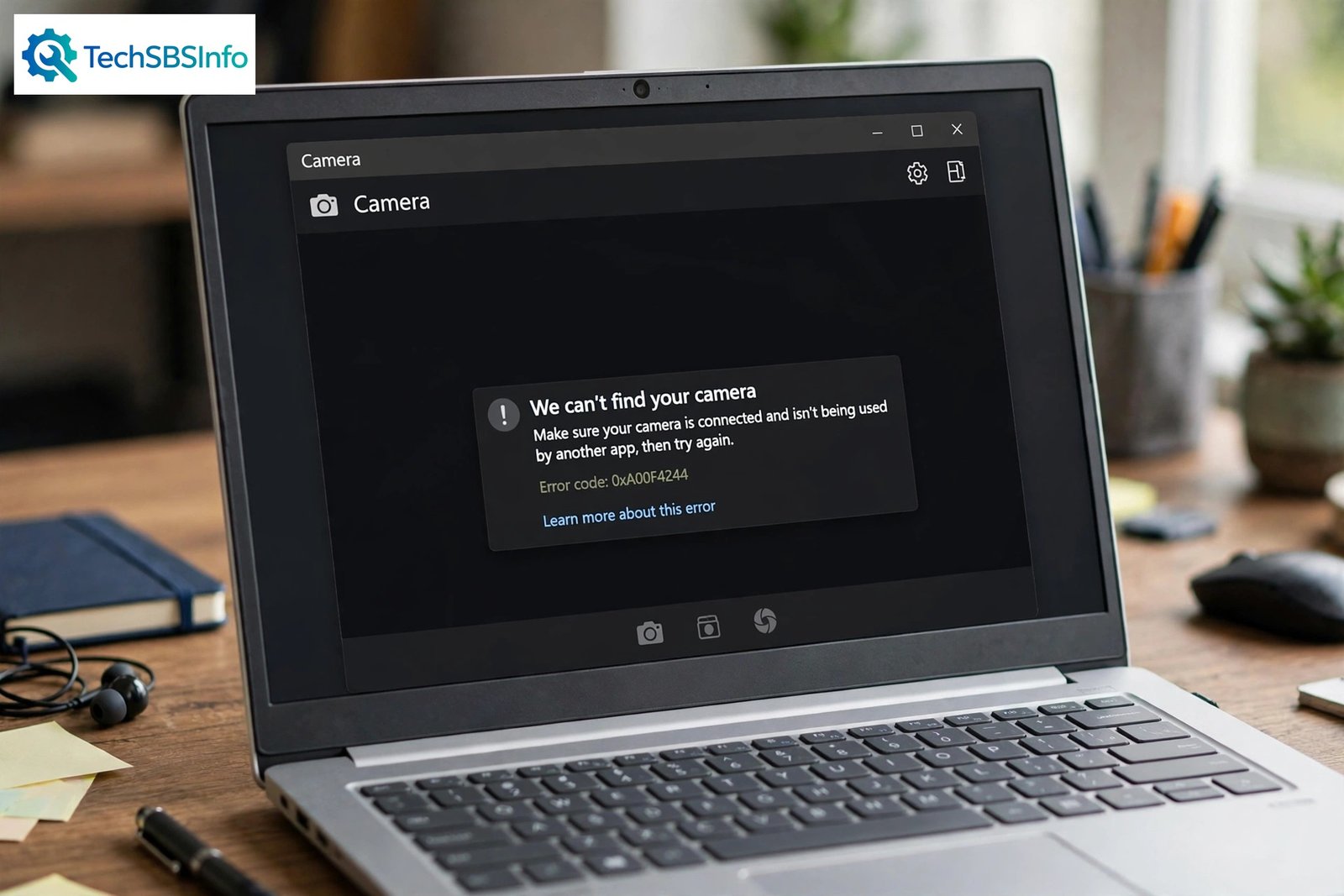
If windows 11 camera app not working is the problem on your screen right now, you are not stuck. The Camera app can show a black preview, throw an error code, or simply refuse to open for several small reasons: a privacy switch turned off, another app holding the camera, or a driver that needs attention. The good news is that most of these causes take only a few minutes to fix, and none of them require risky software.
This guide walks you through the fixes in order, from the simplest checks to deeper repairs. Work through them one by one and test the Camera app after each step. In most cases, the problem is solved before you reach the end.
Table of Contents
- Quick Checks
- Diagnose the Problem
- Fix 1: Check the Privacy Cover, Shutter, and Physical Switch
- Fix 2: Close Other Apps That May Be Using the Camera
- Fix 3: Turn On Camera Access in Privacy Settings
- Fix 4: Allow the Camera App Its Own Permission
- Fix 5: Run the Built-In Camera Troubleshooter
- Fix 6: Update or Reinstall the Camera Driver in Device Manager
- Fix 7: Reset the Camera App
- Fix 8: Check Antivirus Camera Protection and Other USB Cameras
- What to Avoid
- Frequently Asked Questions
- Conclusion
- Helpful Official Resources
Quick Checks
Try these fast checks first. They solve the problem in seconds for many people.
- Look for a privacy shutter or slider over the webcam lens and slide it open.
- Press the camera function key on your keyboard (often F8 or F10 with a camera icon).
- Close Zoom, Teams, Skype, or browser tabs that might be using the camera.
- Restart your PC. A restart clears stuck camera processes.
- Unplug any external USB webcam, then plug it back into a different USB port.
- Open the Camera app from the Start menu and watch whether the preview appears.
- Make sure Windows is up to date under Settings > Windows Update.
- Check that no tape or sticker is covering the lens from an old privacy fix.
Diagnose the Problem
Match what you see to the likely cause, then jump to the right fix.
| Symptom | Cause | Go to Fix |
|---|---|---|
| Camera app opens but the preview is black | Camera access is turned off in privacy settings | Fix 3 |
| “We can’t find your camera” message | Camera driver is missing, disabled, or broken | Fix 6 |
| Error code 0xA00F4244 appears | Another app is using the camera, or permission is blocked | Fix 2, Fix 4 |
| Camera works in one app but not in another | Per-app permission is off for the failing app | Fix 4 |
| Camera stopped working after a Windows update | The update left an incompatible camera driver | Fix 6, Fix 7 |
| Camera light is on but the preview is frozen | Antivirus camera shield or a conflicting USB device | Fix 8 |
| Camera app crashes the moment it opens | Corrupted app data in the Camera app itself | Fix 7 |
Fix 1: Check the Privacy Cover, Shutter, and Physical Switch
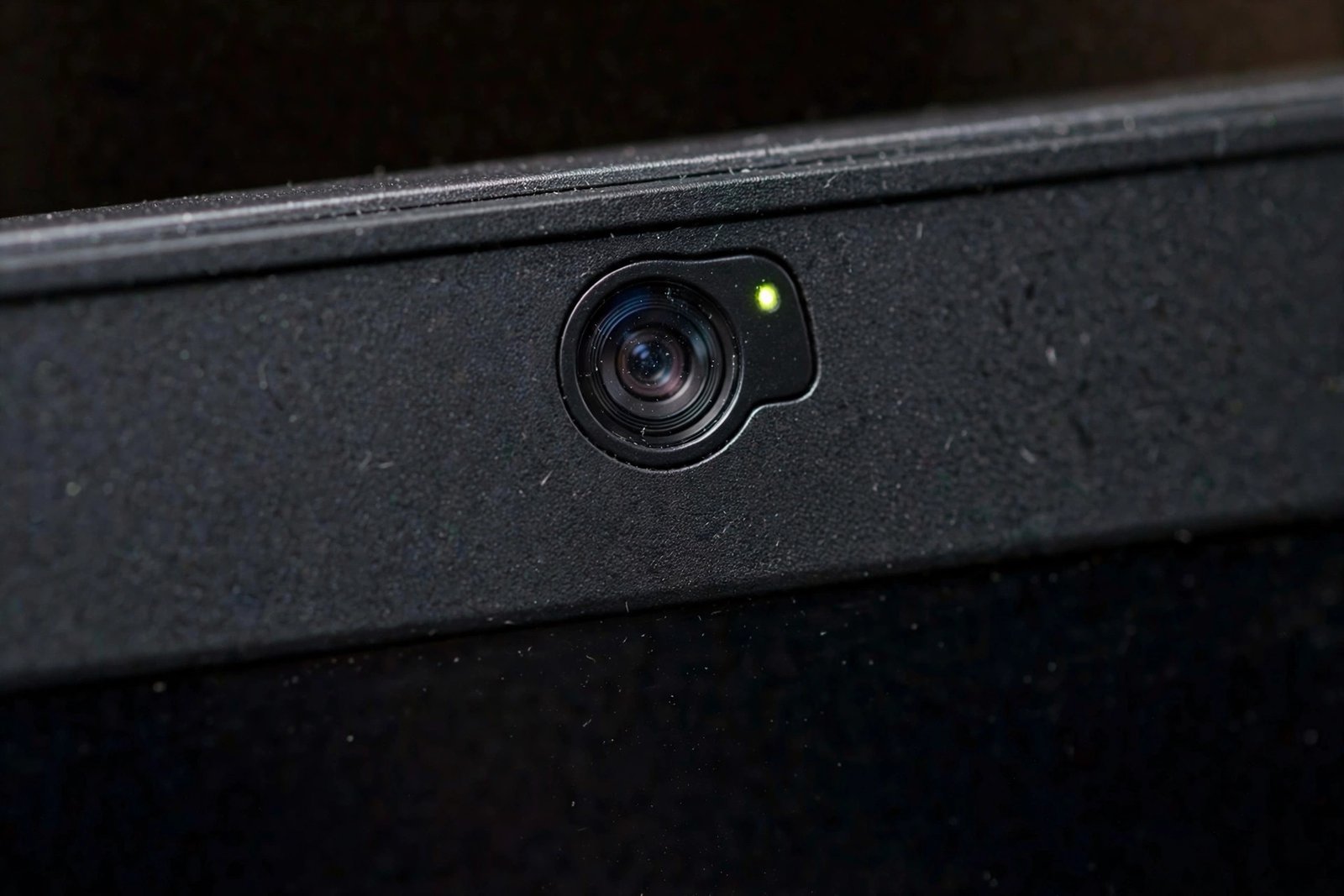
Before changing any software, rule out the physical side. Many laptops now ship with a small shutter, a sliding cover, or a dedicated camera kill switch. If any of these is closed, the Camera app shows a black screen and looks broken when the hardware is simply blocked.
Follow these steps:
- Look closely at the top bezel of your screen and find the webcam lens.
- Slide any privacy shutter to the open position.
- If your laptop has a physical camera switch on the side, flip it to the on position.
- Press the camera function key on your keyboard once, then open the Camera app again.
- Remove any tape or cover you placed over the lens in the past.
- Wipe the lens gently with a soft, dry cloth if the preview looks cloudy instead of black.
If the preview appears now, the hardware was blocked and you are done. If it is still black, move on to the next fix.
Fix 2: Close Other Apps That May Be Using the Camera
Windows gives the camera to one app at a time. If Zoom, Teams, a browser tab, or another program is holding the camera in the background, the Camera app cannot open it and may show error 0xA00F4244. This is one of the most common reasons for windows 11 camera app not working complaints.
Follow these steps:
- Close every video app you can see: Zoom, Teams, Skype, Discord, and any browser with a video call tab.
- Press Ctrl + Shift + Esc to open Task Manager.
- Look through the Apps list for anything video-related and select End task on it.
- Also end browser processes if a web-based meeting tool was running.
- Open the Camera app again and check the preview.
- If it works now, reopen your other apps one at a time to find the one that was holding the camera.
If your camera fails specifically inside Teams, our Teams microphone troubleshooting guide covers audio-side call problems, and our Zoom audio issues guide helps when Zoom calls misbehave on a PC.
Fix 3: Turn On Camera Access in Privacy Settings
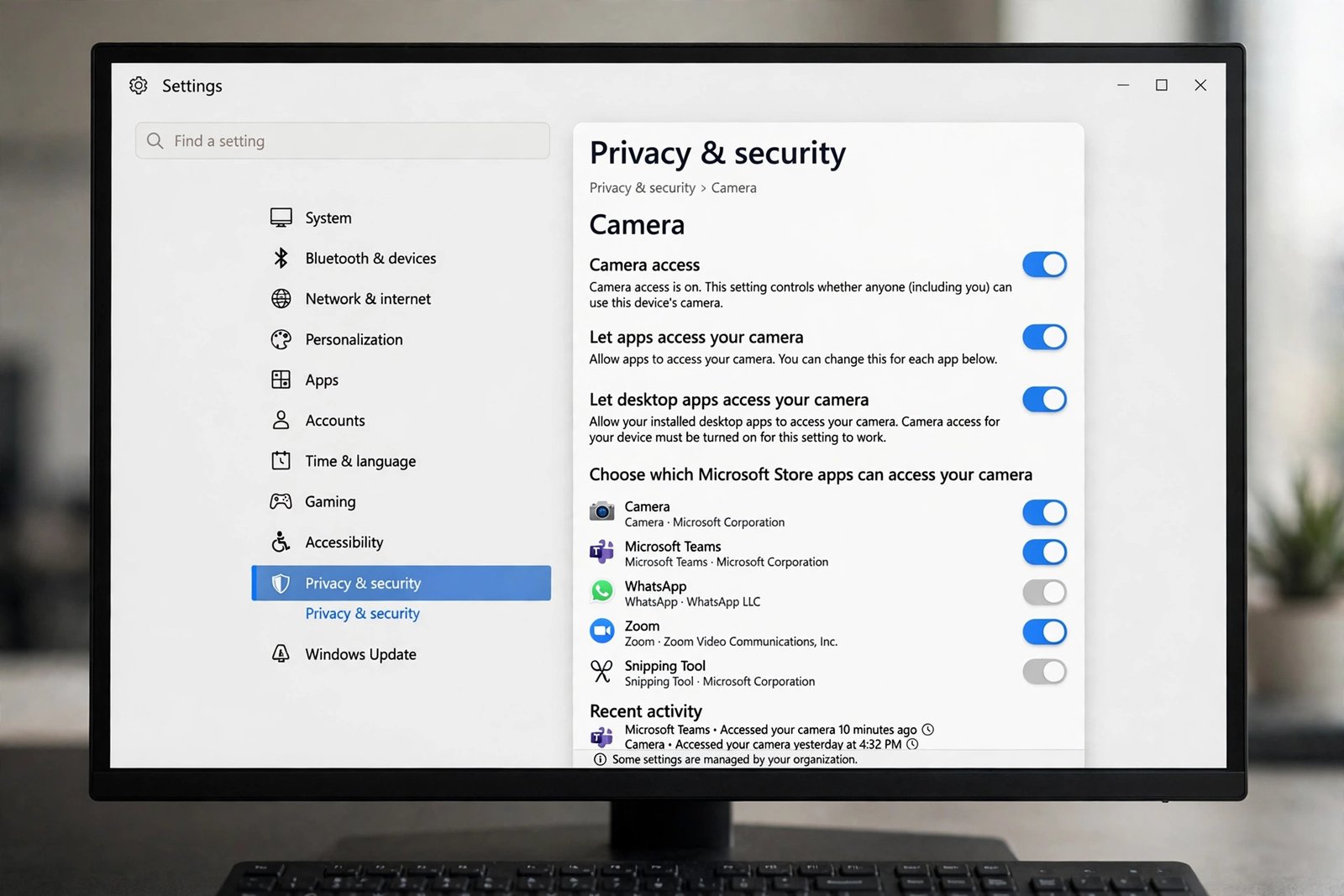
Windows 11 has a master privacy switch for the camera. When Camera access is off, no app can use the webcam, and the Camera app shows a black screen or an error. Updates and new user accounts sometimes turn this off without warning.
Follow these steps:
- Open Settings and go to Privacy & security > Camera.
- Turn Camera access to On. This is the device-wide master switch.
- Turn Let apps access your camera to On.
- If the top switch is greyed out, an administrator on the device must turn it on first.
- Scroll down and turn Let desktop apps access your camera to On as well, since browsers and desktop programs need it.
- Close the Camera app completely and reopen it to test with the new permissions.
A quick shortcut to this page is pressing Win + R, typing ms-settings:privacy-webcam, and pressing Enter.
Fix 4: Allow the Camera App Its Own Permission
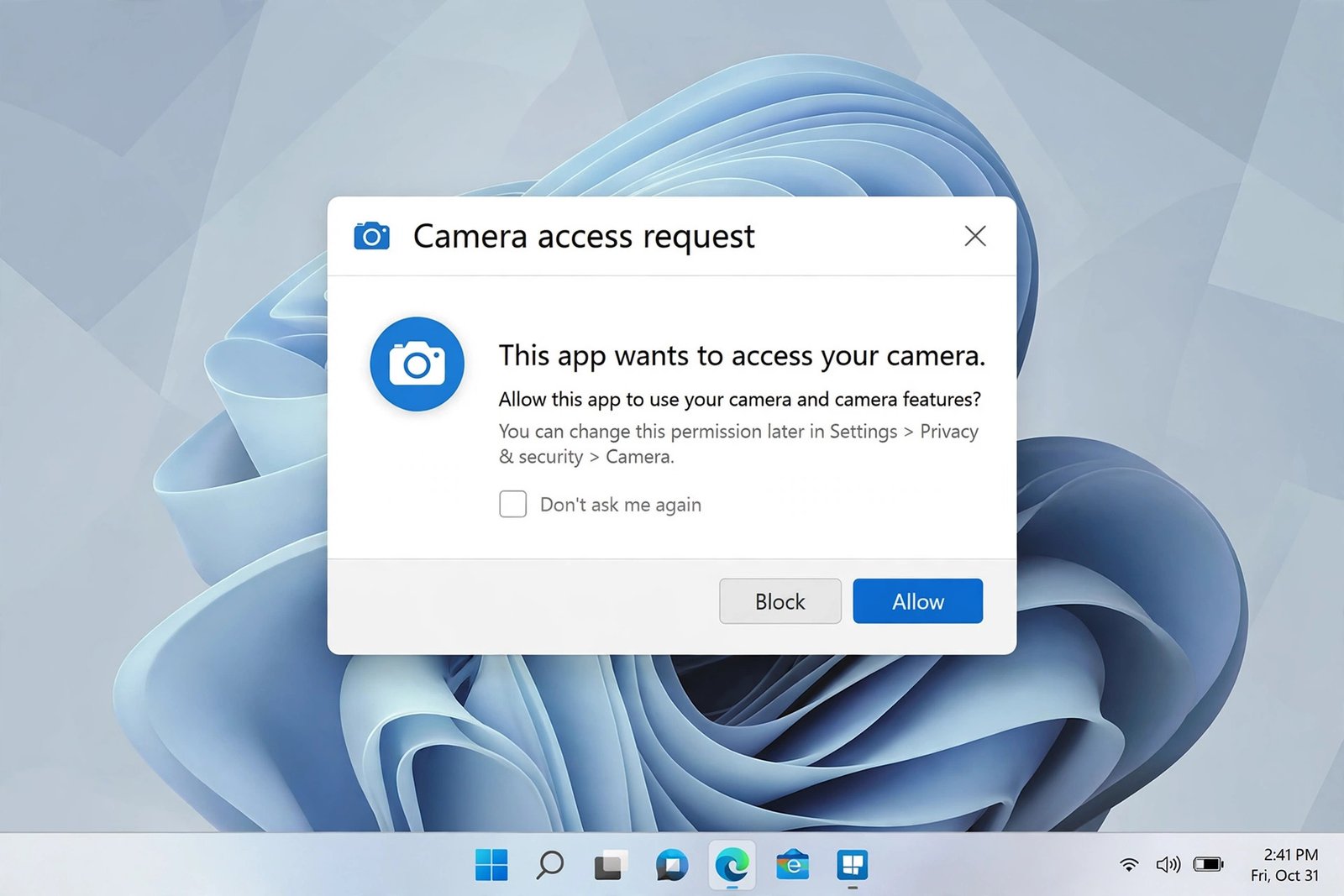
Even with the master switches on, the Camera app itself can be blocked. Windows 11 lets you allow or block each Microsoft Store app individually. If the Camera app toggle is off, the app opens to a black screen while other apps work fine.
Follow these steps:
- Open Settings and go to Privacy & security > Camera.
- Make sure Camera access and Let apps access your camera are both on.
- Scroll through the app list and find Camera.
- Turn the toggle next to Camera to On.
- If you use other Store apps for video, check their toggles too.
- Fully close the Camera app, reopen it, and confirm the preview works.
If an app is missing from the list, it is probably a desktop app. The single Let desktop apps access your camera switch covers those as a group.
Fix 5: Run the Built-In Camera Troubleshooter
Windows 11 includes an automated troubleshooter for the camera. It checks common problems, resets stuck services, and applies fixes on its own. Running it takes about a minute and often resolves issues that manual steps miss.
Follow these steps:
- Open Settings and go to System > Troubleshoot > Other troubleshooters.
- Find Camera in the list and select Run.
- Answer any questions the troubleshooter asks about what is wrong.
- Let it finish, then apply any fix it recommends.
- Restart your PC if the troubleshooter asks you to.
- Open the Camera app and test the preview again.
You can also start the same troubleshooter from the Get Help app by searching for camera problems there.
Fix 6: Update or Reinstall the Camera Driver in Device Manager
The camera driver is the software bridge between Windows and your webcam hardware. A corrupted, outdated, or disabled driver makes Windows report that no camera exists at all. Reinstalling the driver gives Windows a clean copy to work with.
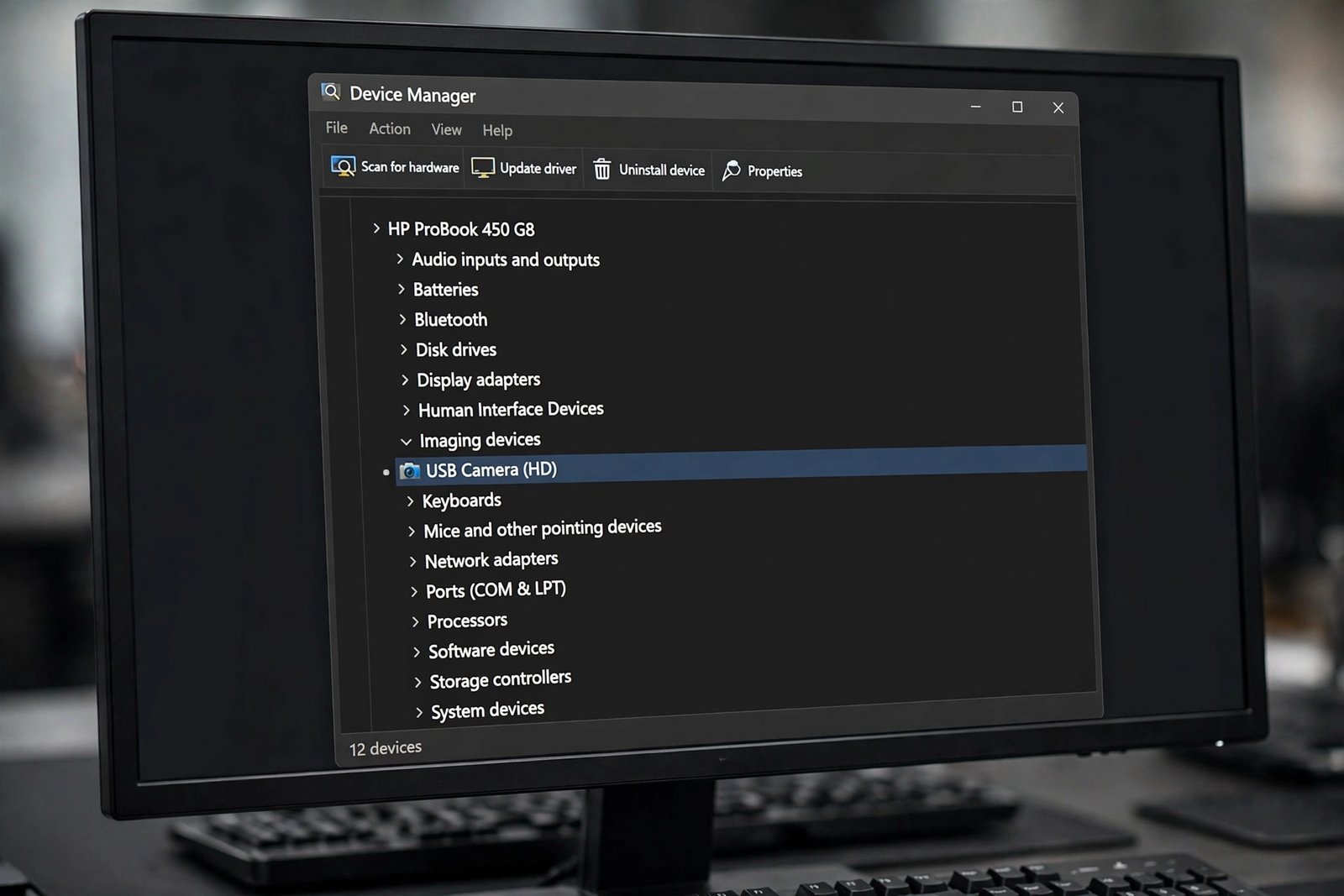
Follow these steps:
- Press Win + X and select Device Manager.
- Expand Cameras or Imaging devices in the list.
- Right-click your camera and choose Update driver, then Search automatically for drivers.
- If Windows finds nothing new, right-click the camera again and choose Disable device, wait ten seconds, then choose Enable device.
- For a full reinstall, right-click the camera, choose Uninstall device, tick Attempt to remove the driver if offered, then restart your PC. Windows reinstalls the driver during startup.
- Open the Camera app and check whether the preview is back.
Similar driver steps also help other hardware, such as sound not working or Bluetooth problems on Windows 11. Never install drivers from random “driver updater” websites; only use Windows Update or your PC maker’s official support page.
Fix 7: Reset the Camera App to Fix windows 11 camera app not working After Updates
When windows 11 camera app not working starts right after a Windows update, the app’s stored data may be corrupted. Resetting the Camera app clears its cache and settings without touching your photos or videos, giving the app a fresh start.
Follow these steps:
- Open Settings and go to Apps > Installed apps.
- Find Camera in the list and select the three dots, then Advanced options.
- Select Repair first and wait for it to finish, then test the app.
- If repair does not help, return to the same page and select Reset.
- Confirm the reset, then open the Camera app again.
- If the app is still broken, uninstall it from the same page and reinstall Windows Camera from the Microsoft Store.
Fix 8: Check Antivirus Camera Protection and Other USB Cameras
Some antivirus and security suites include a camera protection or webcam shield feature. When it is too strict, it blocks every app from reaching the camera, which looks exactly like a broken Camera app. A second connected camera can cause similar confusion by taking priority over the built-in one.
Follow these steps:
- Open your antivirus or security app and look for a webcam, camera, or privacy shield section.
- Temporarily turn the camera protection off and test the Camera app.
- If the camera works, add the Camera app to the security app’s allowed list instead of leaving protection off.
- Disconnect any external USB webcam and test the built-in camera alone.
- If you keep the external camera, plug it into a different USB port and set it as the default in the app you use.
- As a last resort, test the camera in a new Windows user account to rule out a damaged user profile.
What to Avoid
- Do not download driver updater tools from random websites; they often bundle unwanted software.
- Do not install cracked or pirated system tools; they can damage Windows and steal data.
- Do not edit the Windows registry for a camera problem unless an official guide tells you to.
- Do not disable camera-related services in bulk; you may break Windows Hello or other features.
- Do not keep reinstalling Windows as a first step; the fixes above resolve the issue in most cases.
Frequently Asked Questions
Why is windows 11 camera app not working with a black screen?
A black screen usually means the camera is blocked by a privacy setting, a shutter, or another app using the camera. Check the physical shutter first, then close other video apps, then verify the privacy switches in Settings.
What does error 0xA00F4244 mean in the Camera app?
This error means the camera is already in use by another app or the app lacks permission to access it. Close other video apps, then check the per-app camera permission for the Camera app.
Why does my camera work in Teams but not in the Camera app?
The two apps use different permission entries. The Camera app’s individual toggle in Privacy & security > Camera may be off even when Teams is allowed. Turn the Camera toggle on.
Should I update my camera driver from the manufacturer’s website?
Yes, if Windows Update finds no newer driver. Visit your laptop or webcam maker’s official support page, find your exact model, and download the camera driver from there. Avoid third-party driver sites.
Can antivirus software block my webcam?
Yes. Many security suites have a webcam protection feature that blocks all camera access. Check its settings and allow the Camera app, or add an exception for it.
Do I need to restart after reinstalling the camera driver?
In most cases, yes. Restarting lets Windows detect the camera fresh and load the new driver cleanly. Test the Camera app after the restart.
Conclusion
A broken Camera app on Windows 11 is frustrating, but the cause is almost always simple: a closed shutter, another app holding the camera, a privacy switch, or a tired driver. Work through the fixes in order and test after each one. If the camera works in one app but not another, permissions are the likely culprit; if no app sees the camera at all, focus on the driver. With the steps above, most people get their webcam back in under fifteen minutes.