


You enable your extensions, everything works, and then — after a restart, an update, or seemingly at random — Chrome turns them off again. This chrome extensions keep disabling guide explains why Chrome keeps switching your extensions off and gives you eight fixes that actually stick.
Chrome disables extensions for protective reasons: the extension might be flagged as unsafe, it could be corrupted, a conflicting program might be interfering, or your profile data could be damaged. Sometimes the cause is simpler — a managed device policy, or an extension that disables others. Once you know which cause applies to you, the fix is usually quick.
Work through the fixes in order. The first three solve the majority of cases.
Table of Contents
- Quick Checks for the chrome extensions keep disabling
- Diagnose the Problem
- Fix 1: Re-enable Extensions the Right Way
- Fix 2: Update Chrome and the Extensions
- Fix 3: Remove the Conflicting Extension
- Fix 4: Repair Corrupted Extension Files
- Fix 5: Check for a Managed Device Policy
- Fix 6: Run Chrome Without Interfering Software
- Fix 7: Create a Fresh Chrome Profile
- Fix 8: Reinstall the Extension From the Official Store
- What to Avoid
- Frequently Asked Questions
- Conclusion
- Helpful Resources
Quick Checks for the chrome extensions keep disabling
- Open chrome://extensions and check whether the toggle is off or the extension shows an error.
- Look for a message like “This extension may have been corrupted” — that points straight to Fix 4.
- Check if you are on a work or school device — admin policies can force extensions off.
- Note when it happens: after every restart (profile issue), after updates (compatibility), or randomly (conflict).
- Try enabling the extension in an Incognito window where it is allowed, to isolate the cause.
- Make sure Chrome itself is updated before troubleshooting further.
Diagnose the Problem
| Symptom | Cause | Go to Fix |
|---|---|---|
| Extension turns off after every Chrome restart | Corrupt profile or extension data | Fix 4, Fix 7 |
| “This extension may have been corrupted” message | Damaged extension files | Fix 4 |
| Extension disabled right after a Chrome update | Compatibility or store policy issue | Fix 2, Fix 8 |
| One extension turns off the moment another is enabled | Conflicting extensions | Fix 3 |
| All extensions greyed out with “managed” message | Admin policy on the device | Fix 5 |
| Extensions disable only on one computer | Local software interference | Fix 6 |
| Extension from outside the Chrome Web Store keeps disabling | Chrome’s safety protection | Fix 8 |
| Random disabling throughout the day | Background software or sync conflict | Fix 6, Fix 7 |
Fix 1: Re-enable Extensions the Right Way
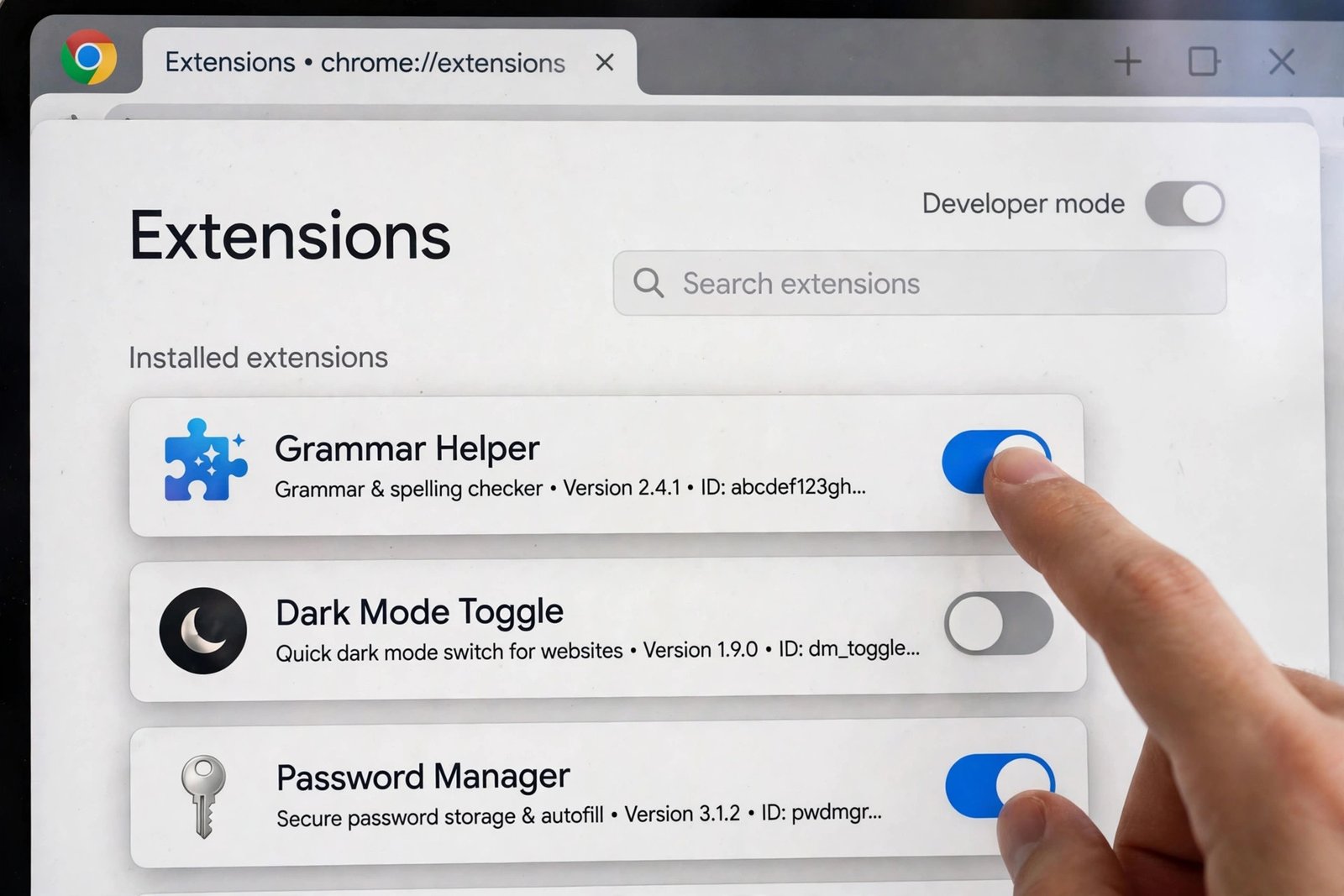
Sometimes the simplest explanation is correct: the extension was never properly re-enabled after an event, or a setting is reverting it. Doing it deliberately — and pinning it — rules out the basics.
- Type chrome://extensions in the address bar and press Enter.
- Find the disabled extension and click its toggle to turn it back on.
- Click Details on the extension and review its permissions — grant anything it legitimately needs.
- Click the puzzle piece icon in the Chrome toolbar and pin the extension so it stays visible.
- Restart Chrome and check whether the extension is still enabled.
- If it disables again on restart, continue to Fix 2 — something deeper is reverting it.
Fix 2: Update Chrome and the Extensions
Outdated software is a leading cause of extensions misbehaving. Chrome updates can change the rules extensions must follow, and extension developers release compatibility fixes in response.
- Click the three-dot menu, go to Help > About Google Chrome, and let it update.
- Click Relaunch when the update finishes.
- Go to chrome://extensions and turn on Developer mode (top right).
- Click Update to force all extensions to check for new versions.
- Turn Developer mode back off afterward.
- Restart Chrome and verify the extensions stay enabled.
Fix 3: Remove the Conflicting Extension
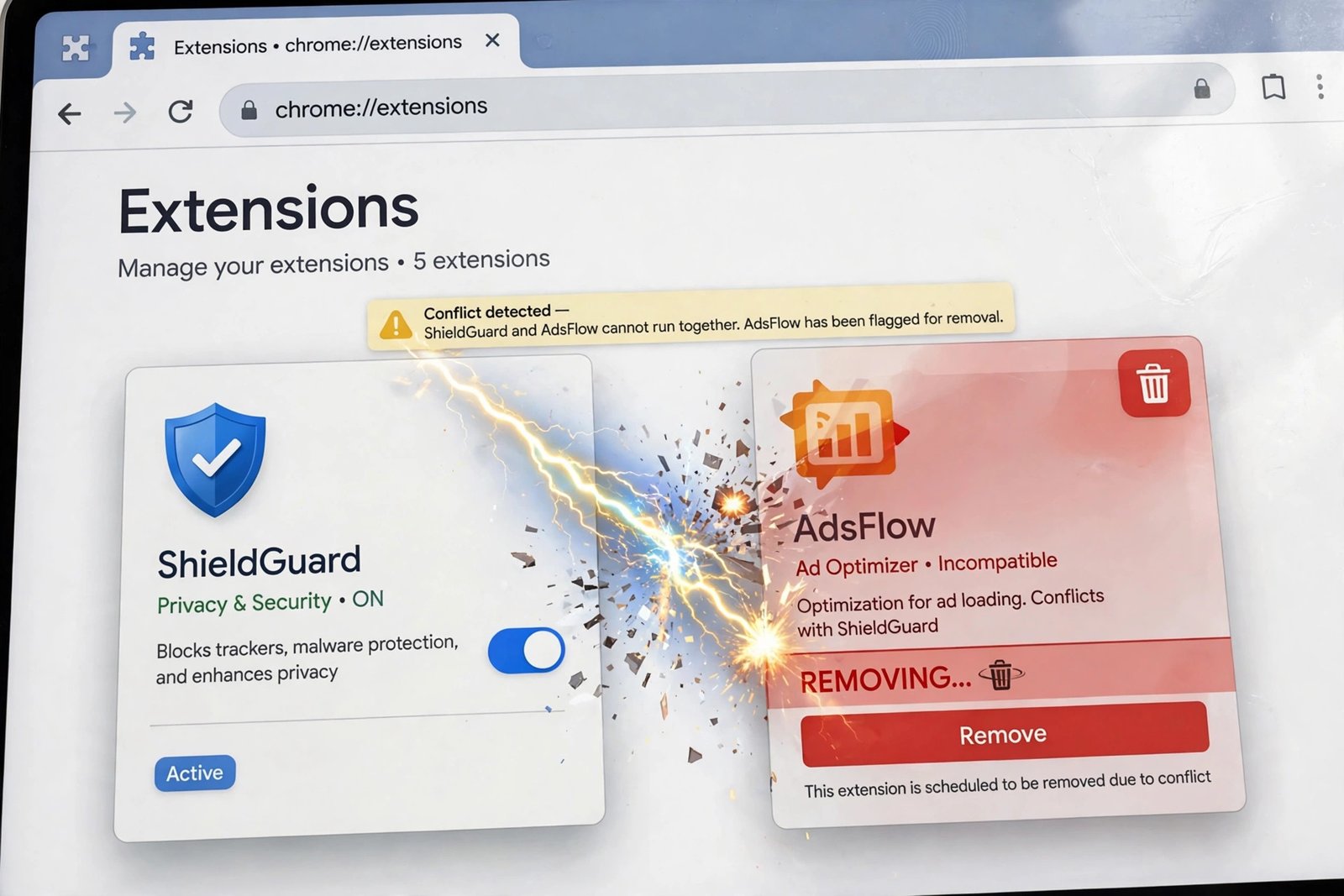
Some extensions — especially security suites, ad blockers, and “browser cleaner” tools — disable or interfere with other extensions. If the problem started after installing something new, that newcomer is the prime suspect.
- Type chrome://extensions in the address bar.
- Think about which extension was installed most recently before the problem started.
- Click Remove on that extension and confirm.
- Restart Chrome and check whether your other extensions now stay enabled.
- If the problem is gone, you have found the culprit — look for an alternative or an updated version.
- If it persists, repeat with the next most recent install until the conflict is found.
Fix 4: Repair Corrupted Extension Files
Extension files can become corrupted by a bad update, a crashed Chrome, or disk errors. Chrome detects the damage and disables the extension to protect you. Repairing it restores the files without losing your settings.
- Go to chrome://extensions.
- If you see a Repair button on the extension, click it and confirm.
- If there is no Repair button, click Remove on the extension — your extension settings usually survive in Chrome’s sync or the extension’s own storage.
- Restart Chrome.
- Reinstall the extension from the official Chrome Web Store (see Fix 8).
- Sign back into the extension if it requires an account.
Fix 5: Check for a Managed Device Policy
On work or school computers, administrators can force extensions on or off through policy. When a policy controls an extension, no settings change on your side will stick.
- Type chrome://policy in the address bar and press Enter.
- Look for policies with names containing Extension — for example, ExtensionInstallBlocklist or ExtensionSettings.
- If such policies exist and your device is managed, an administrator set them deliberately.
- Contact your IT department and ask whether the extension can be allow-listed.
- Do not try registry edits or policy hacks to bypass this — on a managed device that can violate workplace rules and get the device flagged.
On a personal computer, unexpected policies can be leftovers from malware — run a scan with your antivirus if you see policies you never set.
Fix 6: Run Chrome Without Interfering Software
Antivirus programs, system “optimizers,” and parental-control software sometimes quarantine extension files or block them from loading, which looks exactly like Chrome disabling them.
- Temporarily disable your antivirus’s real-time protection (just for the test — turn it back on after).
- Close any “PC cleaner,” “browser protector,” or parental-control apps running in the background.
- Open Chrome and enable your extensions.
- Restart Chrome and see if they stay enabled now.
- If they do, add Chrome’s extension folder to your antivirus exclusions list, or adjust the interfering program’s settings.
- Re-enable your antivirus protection immediately after the test.
The extensions folder on Windows is typically inside your Chrome user data directory — your antivirus documentation will show how to add an exclusion.
Fix 7: Create a Fresh Chrome Profile
If extensions disable only in your current profile, the profile’s preference files are likely damaged. A fresh profile starts clean while sync brings your data back.
- Click your profile picture and choose Add to create a new profile.
- Sign in with your Google account and turn on sync.
- Install one of the problem extensions from the Chrome Web Store in the new profile.
- Restart Chrome and check whether it stays enabled.
- If it works, migrate to the new profile: let sync bring over bookmarks and passwords, reinstall your extensions, then delete the old profile.
- Verify at passwords.google.com that your passwords synced before deleting anything.

Fix 8: Reinstall the Extension From the Official Store
Extensions installed from outside the Chrome Web Store — or old versions sideloaded manually — get disabled by Chrome’s safety checks again and again. The permanent fix is the official version.
- Remove the problem extension from chrome://extensions.
- Go to the Chrome Web Store (chromewebstore.google.com) and search for the extension by name.
- Install it from the official listing, checking that the developer name matches the real one.
- Grant only the permissions it genuinely needs.
- Restart Chrome and confirm it stays enabled.
- If the extension is not in the official store at all, consider whether you truly need it — Chrome disables unofficial extensions for your protection.

What to Avoid
- Do not download extensions from random websites — unofficial copies often contain malware and Chrome will keep disabling them.
- Do not use “extension enabler” tools that promise to force extensions on — they bypass Chrome’s safety checks and are a common malware vector.
- Do not disable Chrome’s Safe Browsing to keep a flagged extension alive — you lose protection against phishing and malware.
- Do not edit the Windows registry to force extensions on, especially on a managed device.
- Do not grant every permission an extension asks for — over-permissioned extensions are the ones most likely to be flagged.
- Do not ignore the “corrupted” warning — a corrupted extension can behave unpredictably until repaired.
Frequently Asked Questions
Why does Chrome keep disabling my extensions?
The most common reasons are corrupted extension files, a conflicting extension or security program, an outdated Chrome version, or an admin policy on a managed device. The diagnosis table above maps your symptom to the right fix.
Is it safe to re-enable a disabled extension?
Usually yes, if the extension came from the official Chrome Web Store. But if Chrome disabled it for a safety reason — malware flag or corruption — investigate first with Fix 3 and Fix 4 rather than blindly turning it back on.
Why do my extensions turn off every time I restart Chrome?
That pattern points to corrupted profile data or an interfering background program. Work through Fix 4 (repair), Fix 6 (interfering software), and Fix 7 (fresh profile) in order.
Can antivirus software disable Chrome extensions?
Yes. Some antivirus and “browser protection” tools quarantine extension files or block them from loading. Add Chrome’s extension folder to the antivirus exclusions list if testing confirms the interference.
My work laptop manages extensions. Can I override it?
No — and you should not try. Extension policies on managed devices are set by your IT department. Ask them to allow-list the extension you need.
Will I lose my extension settings if I reinstall it?
Usually not. Most extensions store settings in Chrome’s sync storage or their own accounts. But check the extension’s own export or backup option first if its configuration took significant effort.
How do I know if an extension in the store is the real one?
Check the developer name, install count, ratings, and reviews on the official Chrome Web Store listing. Fake copies typically have few installs and sloppy descriptions.
Why does Developer Mode warn me about extensions?
Developer Mode lets you load unpacked extensions, which bypass store review. Chrome warns you because sideloaded extensions are a common malware route — only use it for extensions you develop yourself.
Conclusion
The chrome extensions keep disabling problem is Chrome protecting you — or a conflict undoing your choices. Re-enable deliberately, update everything, remove the conflicting extension, and repair or reinstall from the official store. For managed devices, the answer is a conversation with IT, not a settings hack. With the right cause identified, your extensions will stay on exactly as you left them.
[…] each one. The extension that breaks downloads again is the culprit — remove it. Our guide on Chrome extensions that keep disabling explains how extensions can […]
[…] one can override your settings silently. If you keep running into extension trouble, our guide on Chrome extensions that keep disabling explains how to keep them under […]
[…] worked fine until you installed a new extension. If you keep having extension trouble, our guide on Chrome extensions that keep disabling explains how to keep them under control. And if pages themselves will not load, see Chrome pages […]
[…] worked fine until you installed a new extension. If you keep having extension trouble, our guide on Chrome extensions that keep disabling explains how to keep them under […]
[…] behaved one can block full screen silently. If you keep having extension trouble, our guide on Chrome extensions that keep disabling explains how to keep them under […]
[…] Chrome’s built-in force-dark flag in Fix 6 instead. For wider extension trouble, our guide to Chrome extensions keep disabling covers extensions that switch themselves […]
[…] one at a time. That slow, certain method beats guessing. For wider extension trouble, our guide to Chrome extensions keep disabling covers extensions that switch themselves off or behave […]
[…] carefully before deciding it is innocent. For extensions that misbehave more broadly, our guide to Chrome extensions keep disabling covers extension […]
[…] the built-in one. If an extension keeps turning itself back on, or behaves strangely, our guide to Chrome extensions keep disabling covers extension problems in depth. Remove any extension you do not recognise or no longer use, […]
[…] keep turning themselves off, coming back after removal, or misbehaving in other ways, our guide to Chrome Extensions Keep Disabling covers the extension […]
[…] keep turning themselves off, coming back after removal, or misbehaving in other ways, our guide to Chrome Extensions Keep Disabling covers the extension […]
[…] that keep disabling themselves or behaving oddly may be damaged, and our guide to Chrome extensions keep disabling covers that […]